Smart text
This article explains how to create and use a Smart text field for rich, document-style cell content.
The Smart text field is an extension of the Long text field that turns a single cell into a document-style editor. It uses the same editor that powers NocoDocs, giving every cell access to headings, lists, tables, code blocks, images, file attachments, embeds, callouts, and the full slash command menu.
Create a Smart text field
- Click the
+icon to the right of the Fields header. - Enter a field name.
- Select Long text as the field type.
- Enable the smart text toggle.
- (Optional) Add a description.
- Click Save Field to add it to your table.
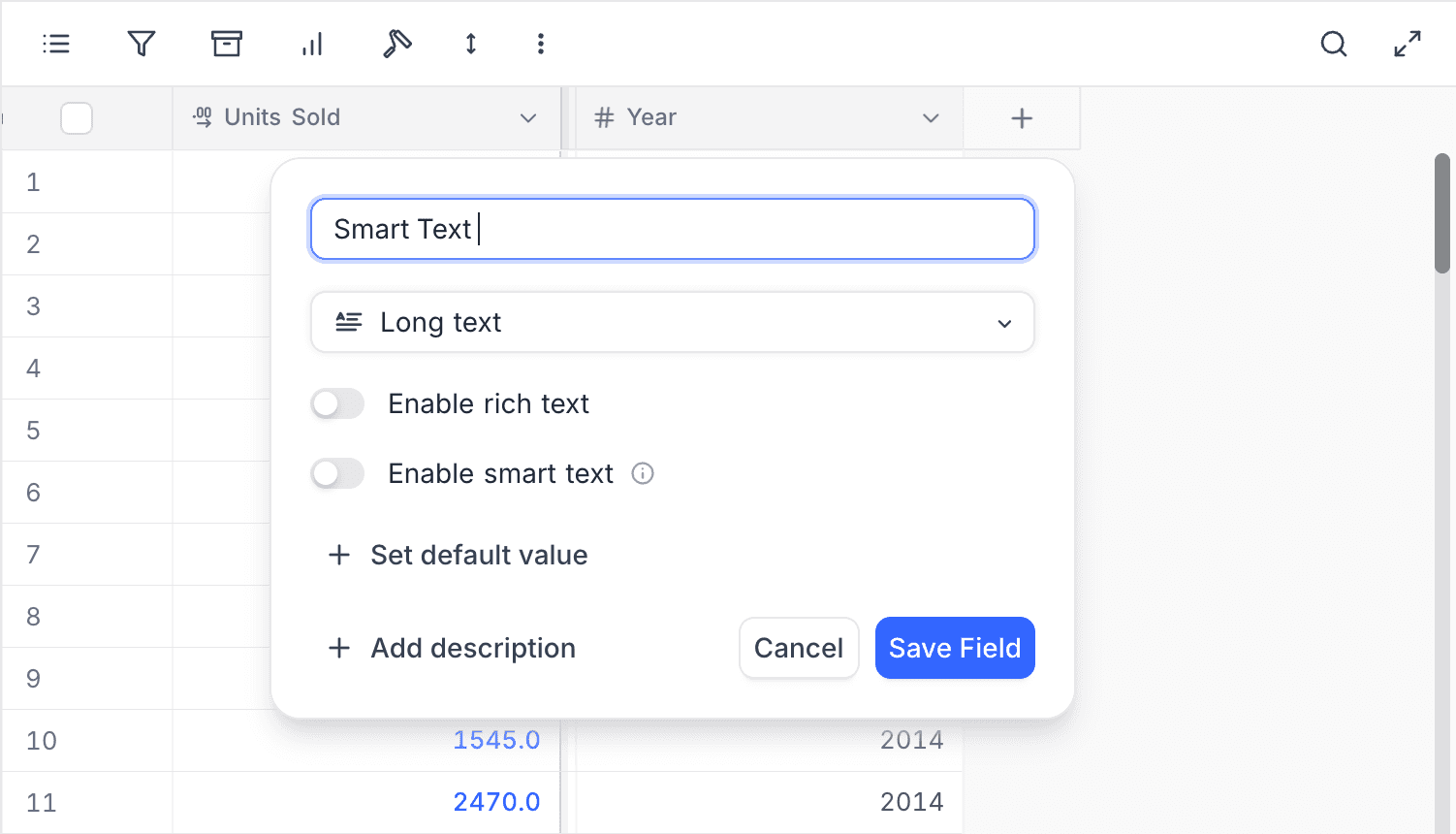
Refer to the general guidelines on creating a field.
Mutual exclusivity
Smart text, Rich text, and Generate text using AI cannot be enabled together on the same field. Turning on Smart text disables the other two; turning on either of the others disables Smart text.
Display value
Smart text fields cannot be set as the display value of a table. Multi-line and formatted content does not render well in single-line surfaces such as linked record chips, breadcrumbs, audit entries, and search results.
Cell display
In the grid, a Smart text cell renders a limited subset of markdown so cells stay readable inside compact row heights. Block types beyond that subset (tables, code, callouts, embeds, and so on) appear as their raw markdown source in the cell — to see them rendered, open the cell in the Smart Text panel or the expanded record.
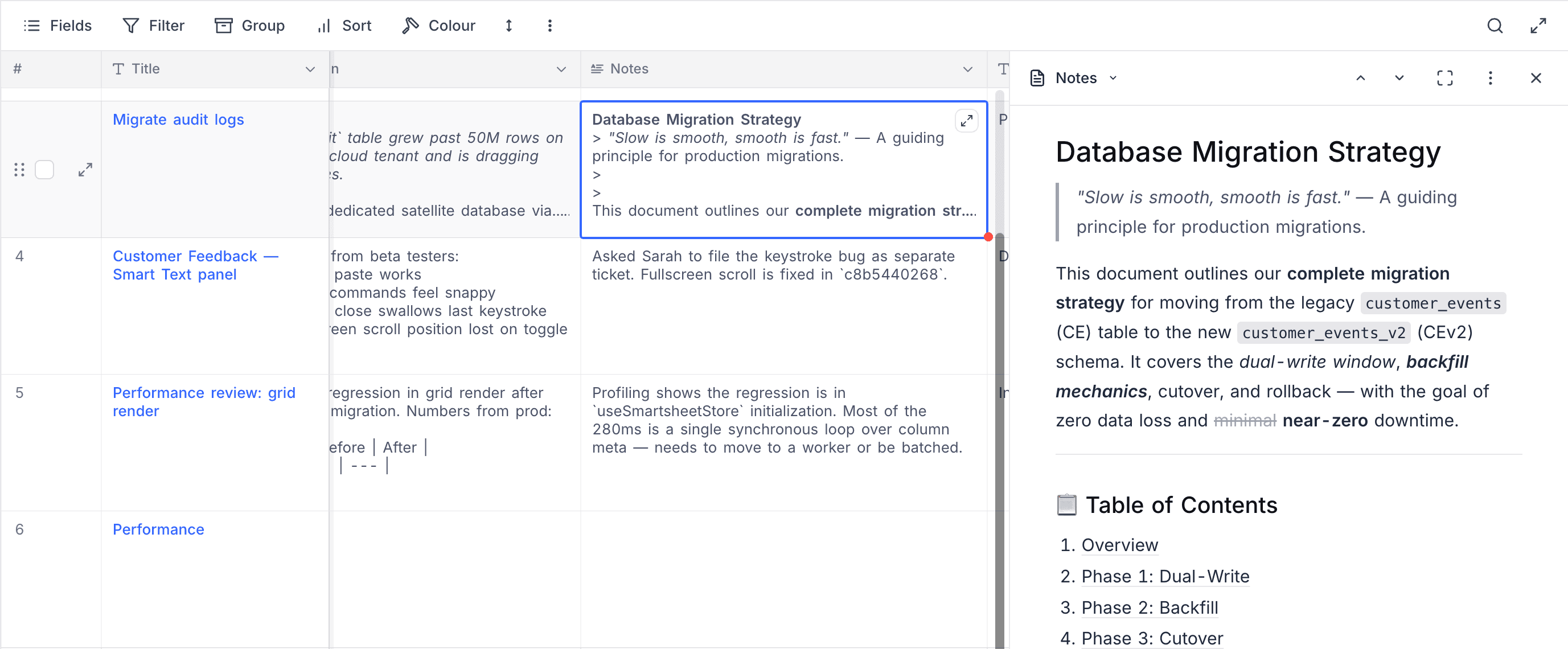
What renders in a grid cell:
- Headings (
#…######) — bold, larger size. - Bullet lists (
-,*,+). - Numbered lists (
1.,2., …). - Bold (
**text**). - Italic (
*text*,_text_). - Strikethrough (
~~text~~,<s>text</s>). - Links (
[text](url)). - @mentions.
What does not render — the raw markdown is shown as plain text in the cell:
- Blockquotes (
> …) - Inline code and fenced code blocks
- Tables
- Horizontal rules / dividers
- Task list checkboxes (
[ ],[x]) - Images, file attachments
- Math equations
- Callouts (note, warning, tip, important)
- Two-column layouts
- Tabs
- Underline
- Embeds (YouTube, Vimeo, Loom, Figma, Google Docs, NocoDB views, and so on)
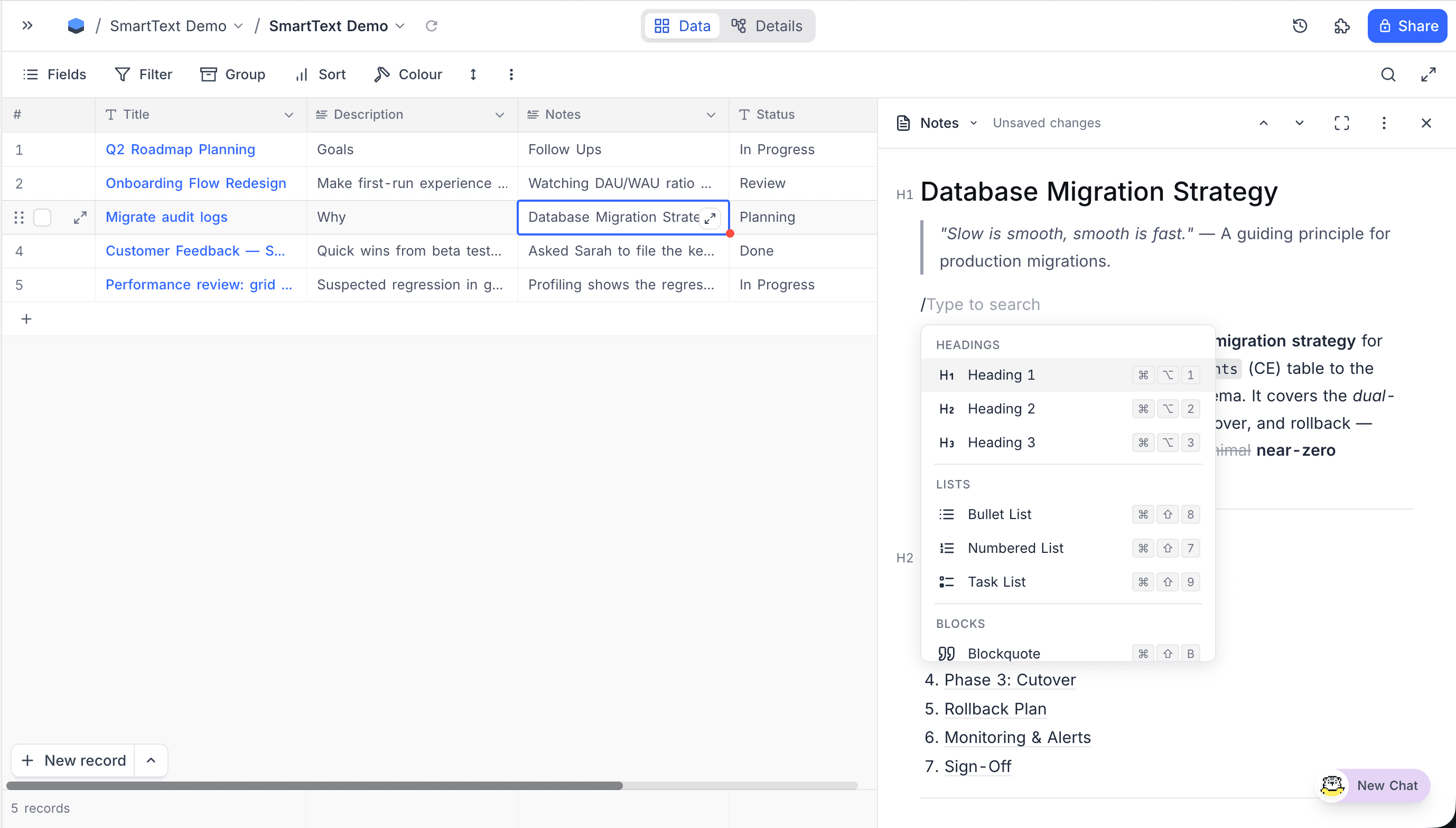
Clicking a Smart text cell does not open an inline editor. Instead, NocoDB opens a dedicated Smart Text panel where you edit the cell's content using the full document editor and see all blocks rendered.
Edit content in the Smart Text panel
Click any Smart text cell to open the panel. By default, it slides in from the right of the grid. The panel header includes:
- Field name — when a table contains more than one Smart text field, this becomes a dropdown for switching between them without leaving the panel.
- Save status — shows
Saving…orUnsaved changeswhile edits are in flight. - Previous / Next row — navigate between rows without closing the panel.
- Fullscreen toggle — expand the panel to fill the workspace area.
- Actions menu — copy a deep link to this cell or download its content.
- Close — closes the panel and saves any pending changes.
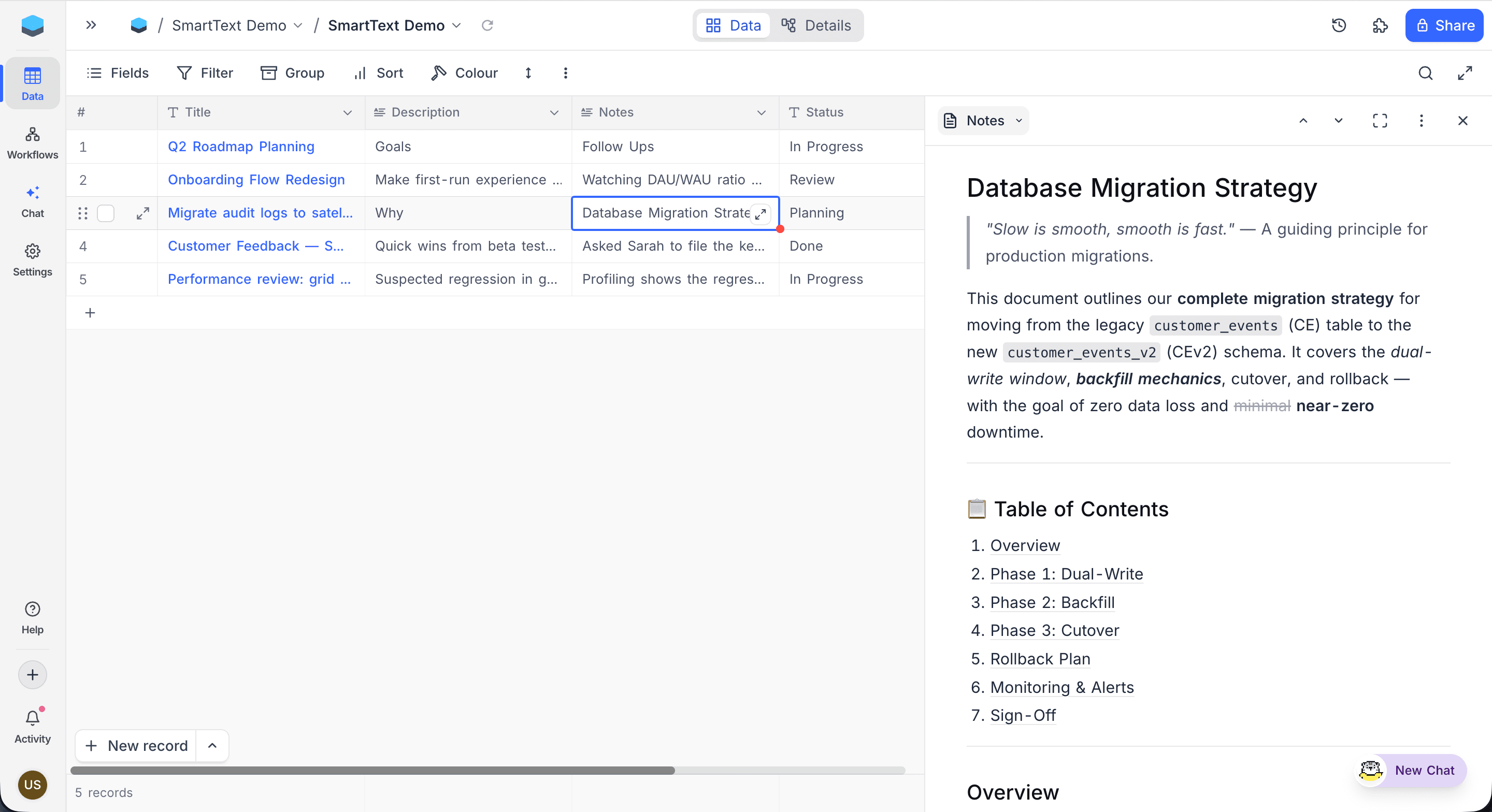
The left edge of the panel is a drag handle for resizing; the chosen width is remembered across sessions.
Fullscreen mode
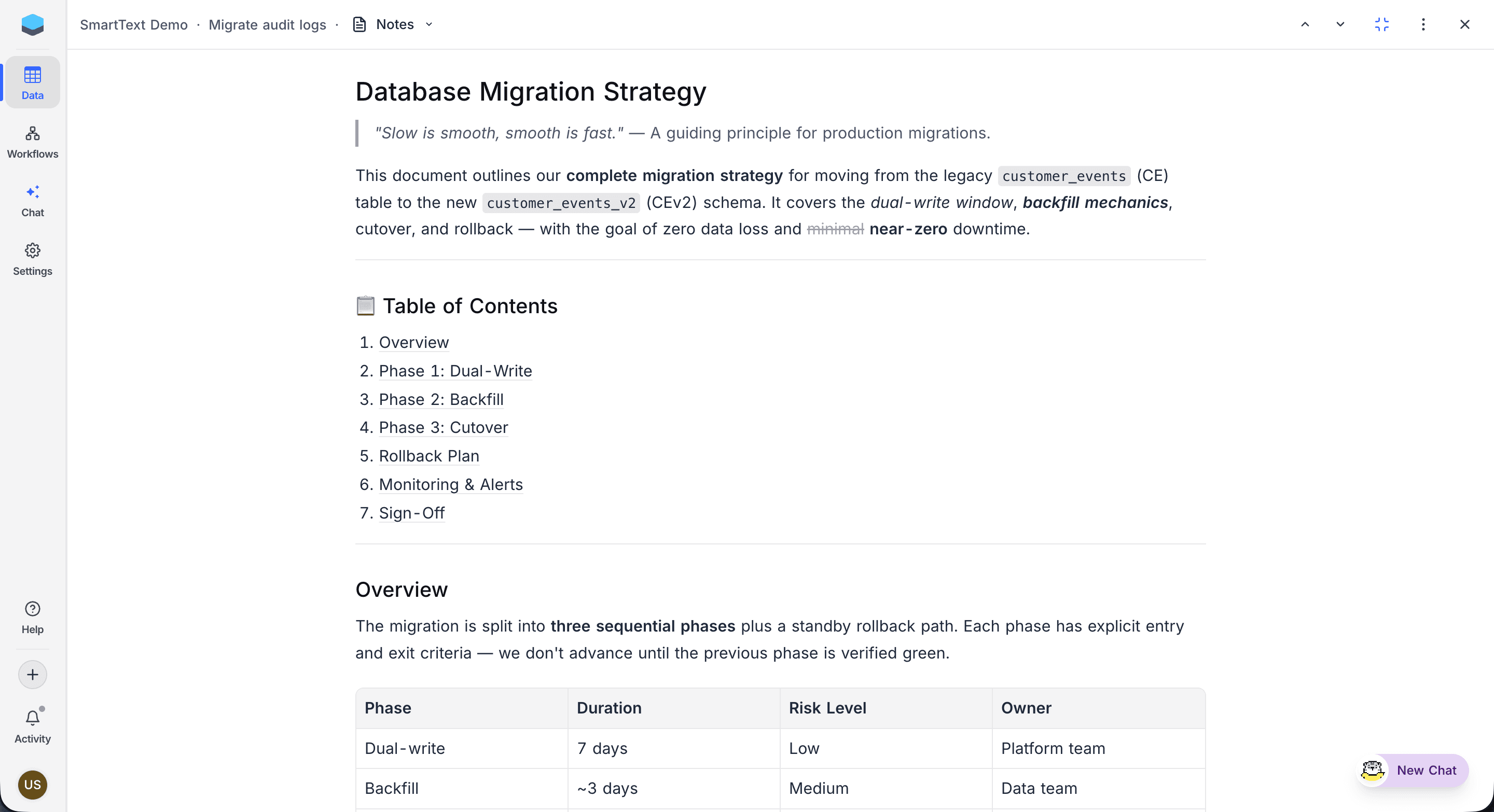
Click the fullscreen icon in the panel header to expand the editor to fill the workspace area. A breadcrumb appears at the top showing the base, the active row's display value, and the field name; the panel chrome (navigation, actions, close) stays available. Click the fullscreen icon again, or press Esc, to return to the floating side panel.
Auto-save
Edits are saved automatically. The panel persists changes when you close it, switch fields, navigate to another row, click outside the panel, hide the browser tab, or close the window.
Editor features
The Smart Text panel uses the same editor as NocoDocs. All of the following block types are supported via the toolbar or by typing / to open the slash command menu:
- Text formatting — bold, italic, underline, strikethrough, inline code, and text colour. See Text formatting.
- Headings — three heading levels.
- Lists — bullet, numbered, and task lists with nesting.
- Blocks — blockquotes, dividers, two-column layouts, and tabs.
- Tables — see Tables.
- Code blocks — syntax highlighting for many languages. See Code blocks.
- Math equations — LaTeX-style inline and block equations. See Math equations.
- Images and file attachments — uploaded files are scoped to the cell. See Images and attachments.
- Callouts — note, warning, tip, and important.
- Embeds — YouTube, Vimeo, Loom, Figma, Google Docs / Drive / Maps, NocoDB shared views, and more. See Embeds.
Actions menu
Open the More menu in the panel header for the following actions:
- Copy URL — copies a deep link that opens the workspace, base, table, view, and Smart Text panel directly on this cell.
- Download as Markdown — exports the cell content as a
.mdfile. - Download as HTML — exports the cell content as a standalone
.htmlfile. - Download as PDF — exports the cell content as a
.pdffile.
Edit content in the expanded record
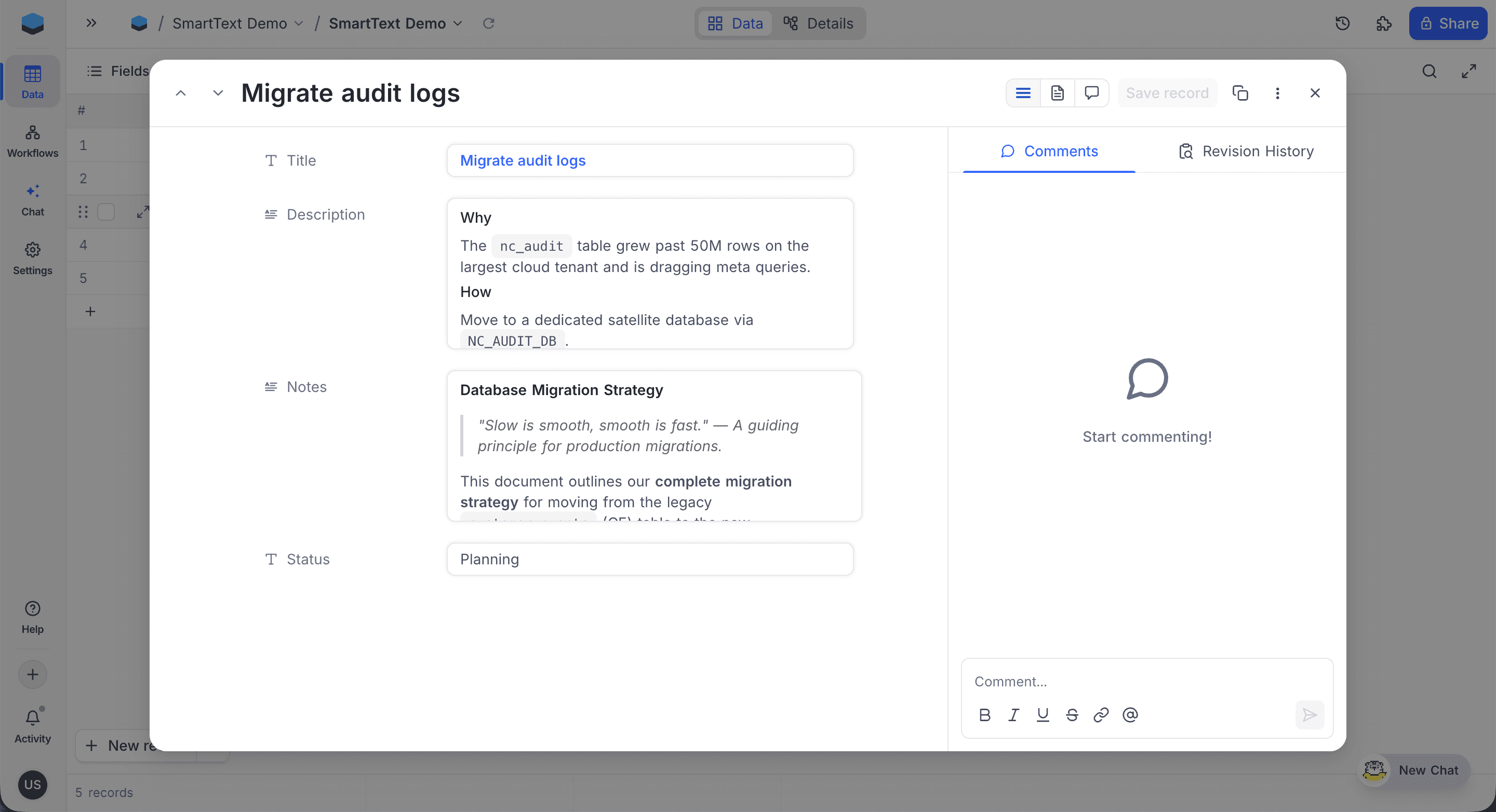
When you open a record using the Expand row action, Smart text fields render their content inline as a formatted preview alongside the other fields, so headings, blockquotes, lists, and inline styles are visible without leaving the record.
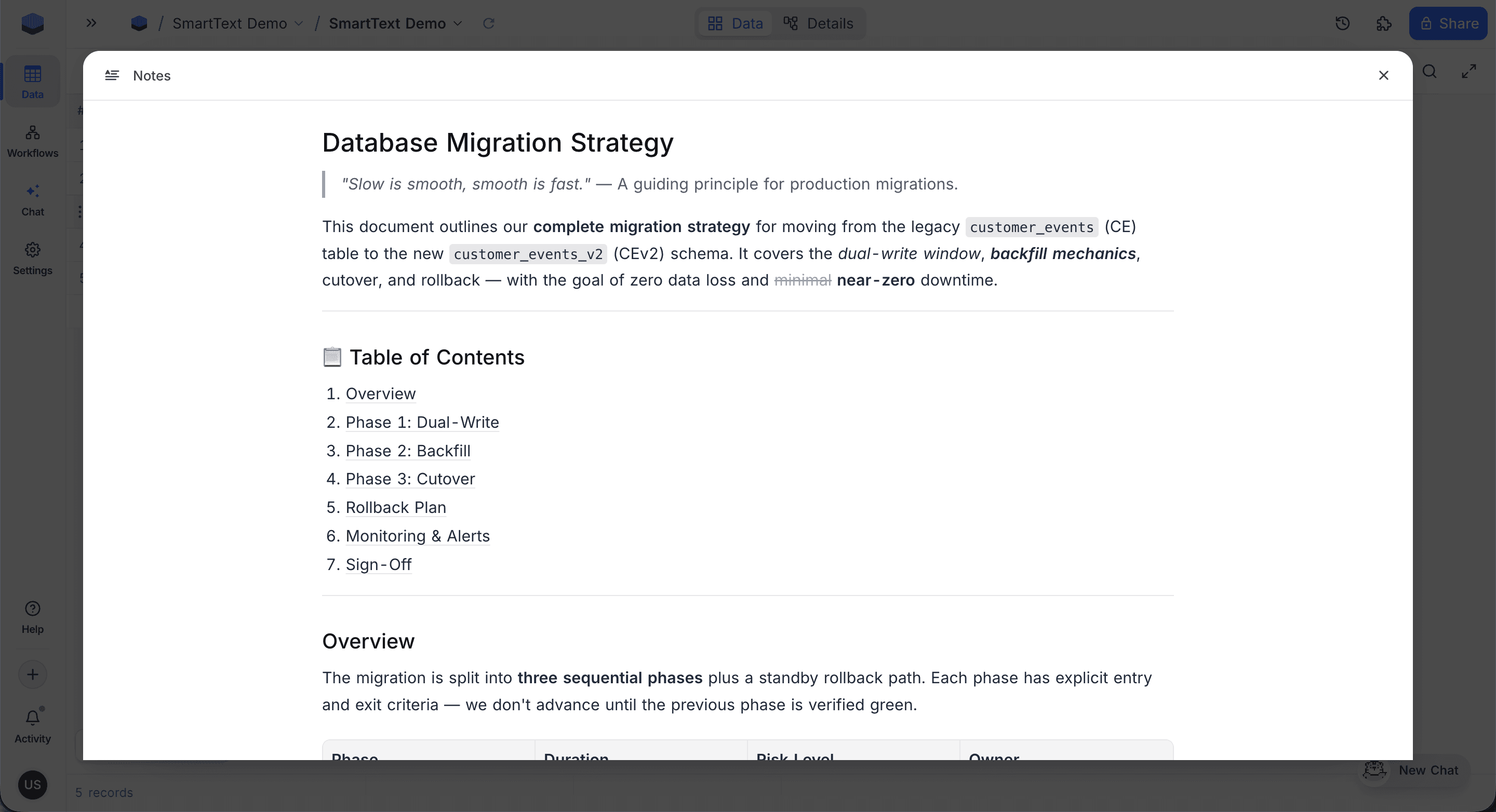
Clicking the field's preview opens a dedicated full-screen modal that uses the same editor as the Smart Text panel. The modal saves on close.
Behaviour in shared views
Smart text content is included in shared views. When a viewer clicks a Smart text cell in a shared view, the panel opens in read-only mode — content is visible and exportable, but cannot be edited.
Storage and search
Smart text stores content in two forms: structured editor JSON used by the panel, and derived markdown used as the cell value.
- The markdown form is what the grid renders and what is exchanged through the records API. Cells remain searchable, filterable, and sortable using the markdown text.
- Structured content (formatting, blocks, embeds) is read and written exclusively through the Smart Text panel. Editing a cell as plain markdown via other entry points overwrites the structured representation.
- Inline images and file attachments uploaded inside a Smart text cell are tracked per cell and are cleaned up automatically when the row is deleted.