Bookmarks
Pin workspaces, bases, tables, views, documents, dashboards, workflows, and scripts to a personal flyout for one-click access.
Bookmarks are personal shortcuts to the things you open most. Pin a workspace, base, table, view, document, dashboard, workflow, or script and it shows up in your bookmark flyout for one-click access — no matter which workspace you're currently in. Bookmarks are private to you; teammates don't see your list.
Open the bookmark flyout
Click the Bookmark icon in the workspace dock — the vertical bar on the far left of the screen. The flyout opens to the right of the dock and lists your bookmarks grouped into folders.
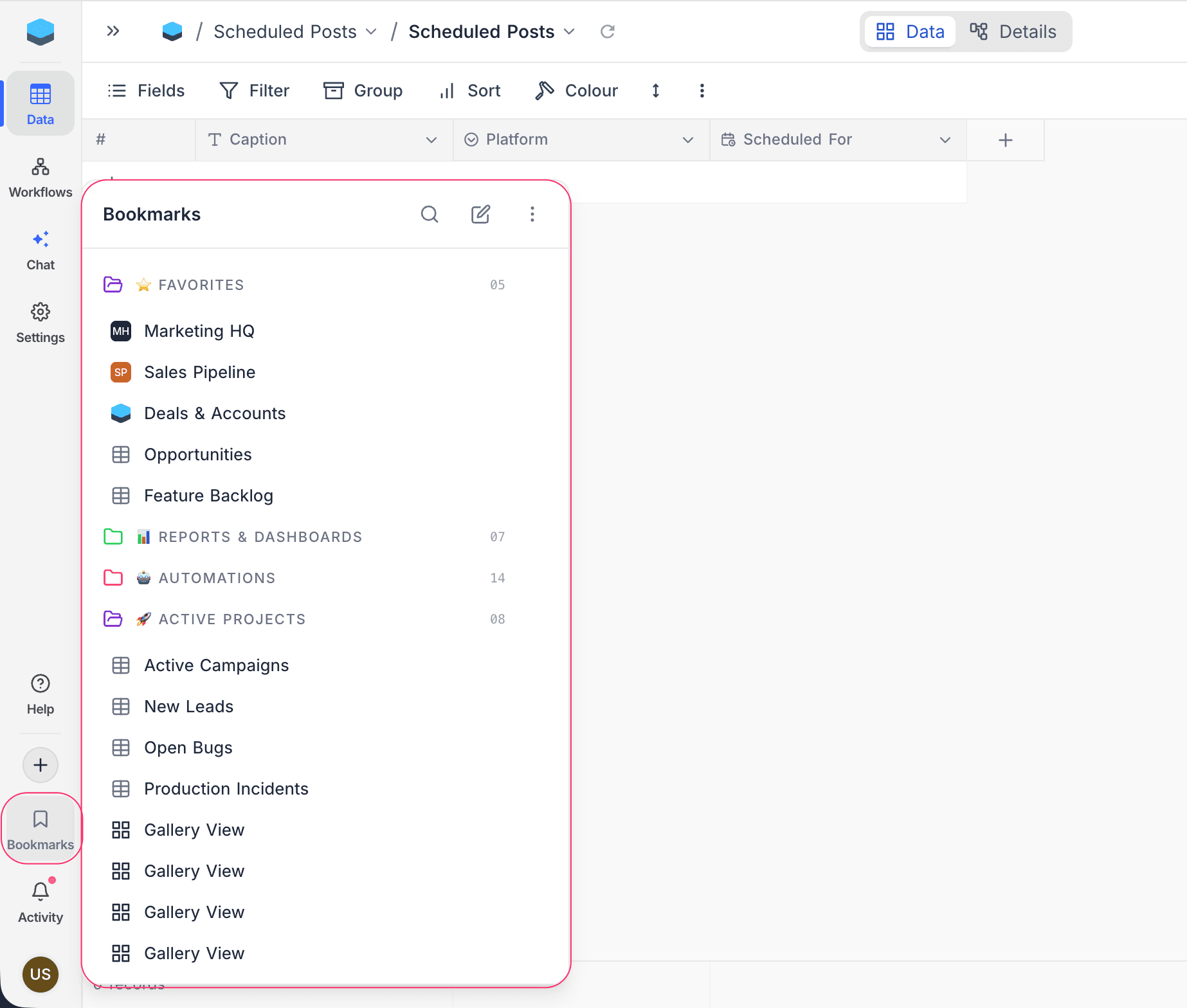
The first time you open it the flyout is empty. The flyout is a single fixed-width column on desktop and full-width on mobile.
Find a bookmark
Click the search icon in the flyout header and start typing. The flyout filters bookmarks by title across every folder; folders with no matches are hidden until you clear the search. Press Esc or clear the field to return to the full library.
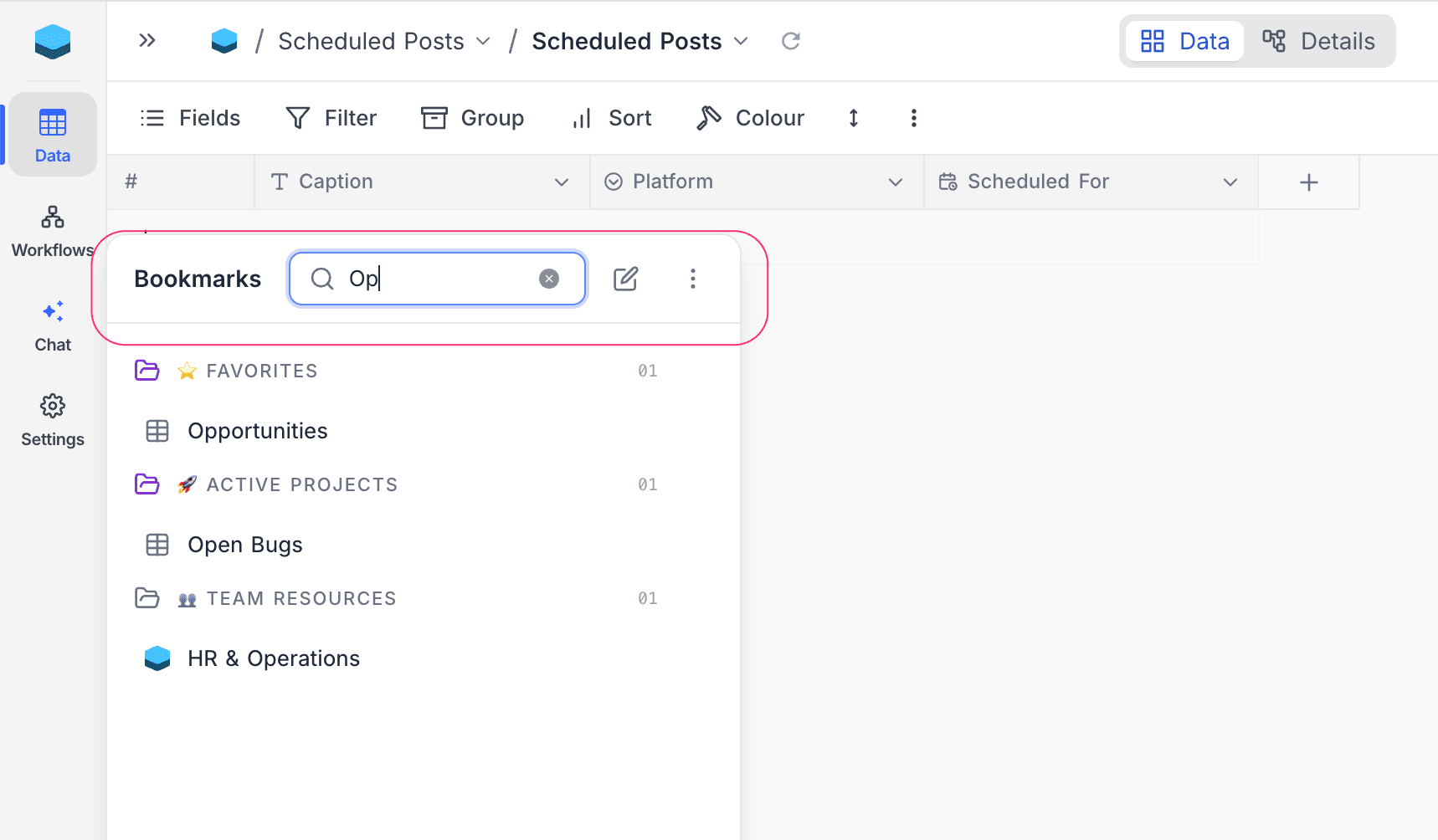
Open a bookmark
Click any bookmark to navigate to it. The flyout closes; titles and icons are refreshed in the background, so renamed or recoloured entities stay up to date.
To open a bookmark in a new tab, Cmd/Ctrl-click it, or right-click (or click its ⋮) and choose Open in new tab.
If the underlying base, table, view, or other target has been deleted — or you've lost access to it — the bookmark is removed from your list automatically.