Adding and removing bookmarks
Bookmark the page you are on, bookmark any entity from its sidebar or toolbar menu, and remove a bookmark when you no longer need it.
You can add a bookmark in two ways: from the bookmark flyout (using the page you're already on), or from the context menu of the entity you want to pin.
Bookmark the page you're on
While you're viewing a base, table, view, document, dashboard, workflow, or script:
- Click the Bookmark icon in the dock to open the flyout.
- Click the ⋮ in the flyout header.
- Select Bookmark this page.
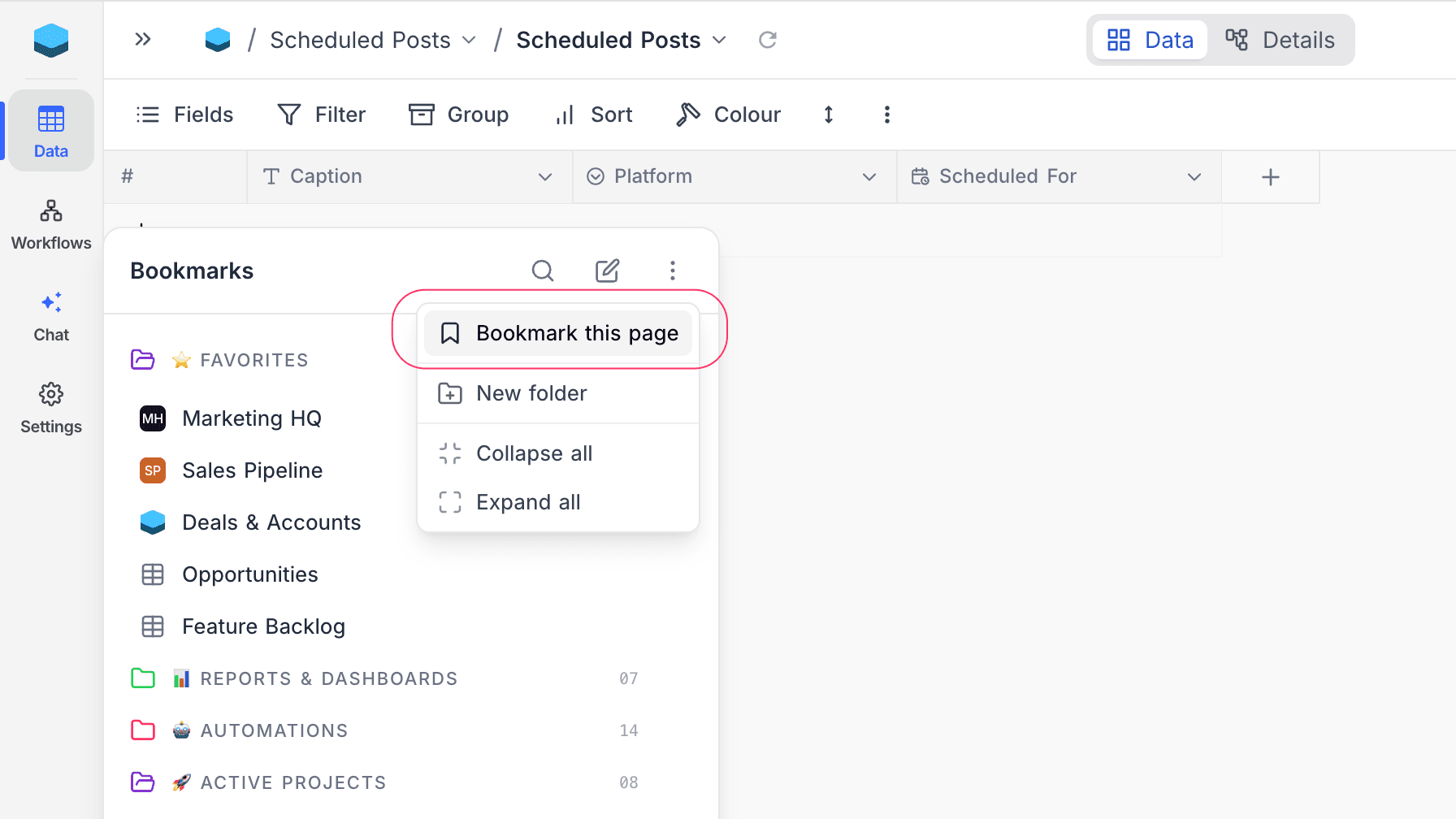
The new bookmark goes into the Ungrouped folder. To remove it later, return to the same page and choose Remove page bookmark from the ⋮ menu — or remove it from the bookmark's ⋮ in the flyout.
Bookmark from a sidebar or toolbar
You can also bookmark an entity without leaving where you are. Open the entity's options menu — the ⋮ next to its name in the project sidebar, the toolbar menu for views, or the action menu in the home sidebar / base list — and select Add to Bookmarks.
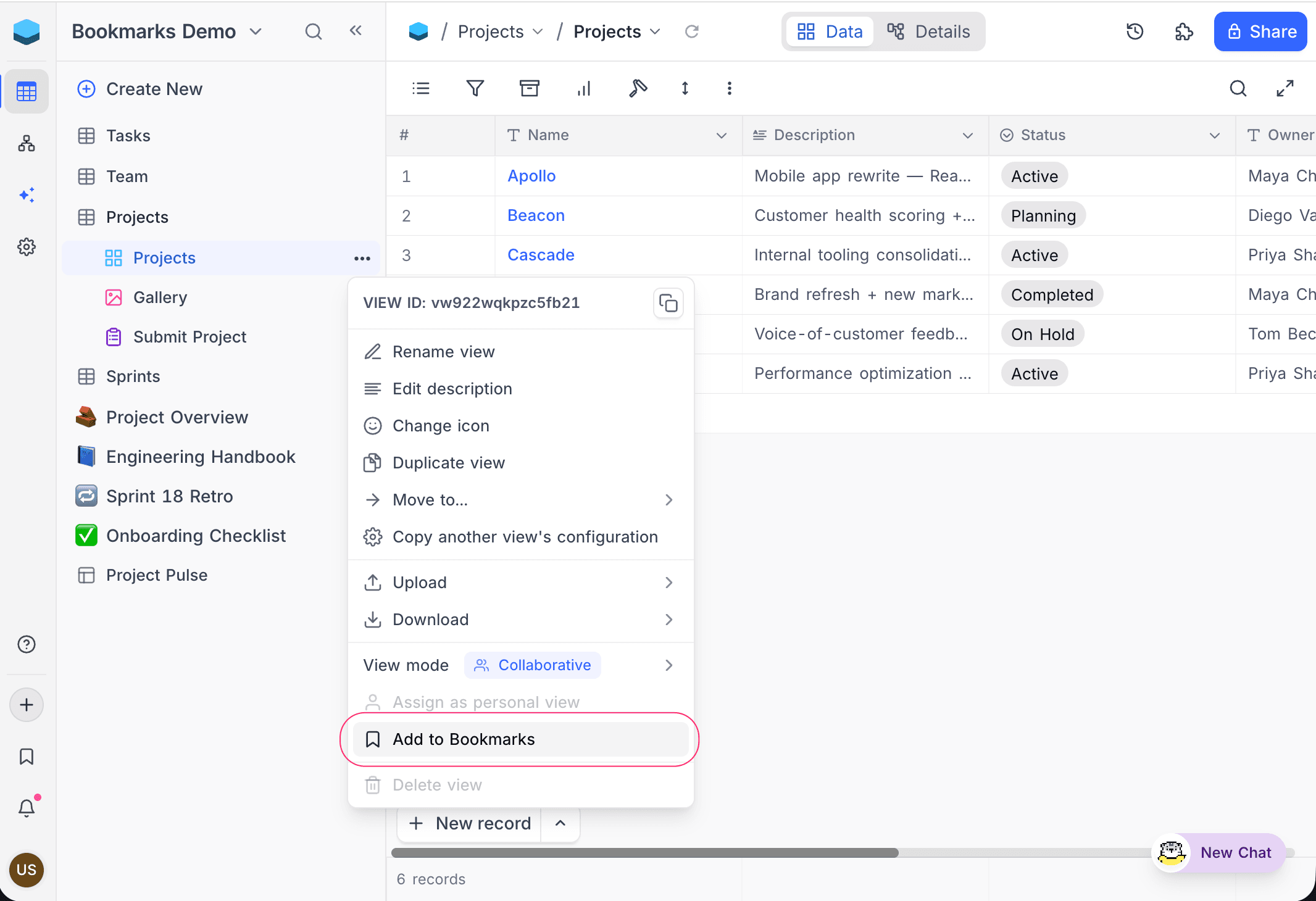
The same menu shows Remove from Bookmarks when the entity is already bookmarked.
What you can bookmark
- From the project sidebar (
⋮next to the item): bases, tables, views, documents, dashboards, workflows, and scripts. Views can also be bookmarked from the view options menu in the toolbar. - From the home sidebar or base list modal: workspaces.
Remove a bookmark
Use the same path you used to add it, or remove it directly from the flyout:
- In the flyout, click the bookmark's
⋮and choose Remove from Bookmarks. - In the entity's sidebar or toolbar menu, choose Remove from Bookmarks.
- On the bookmarked page, click the flyout's ⋮ and choose Remove page bookmark.
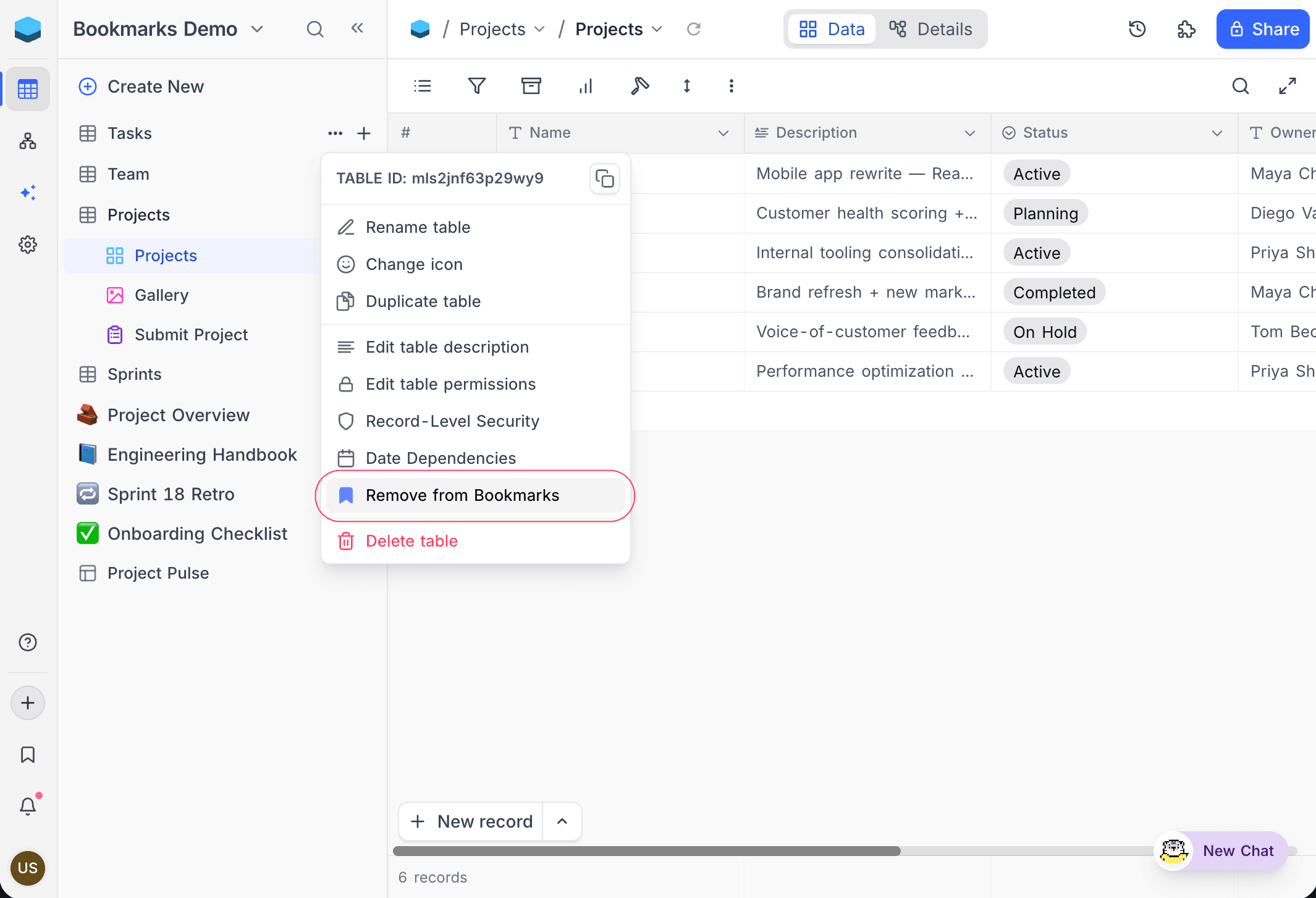
Manage multiple bookmarks at once
Edit mode lets you select bookmarks and act on them in bulk.
-
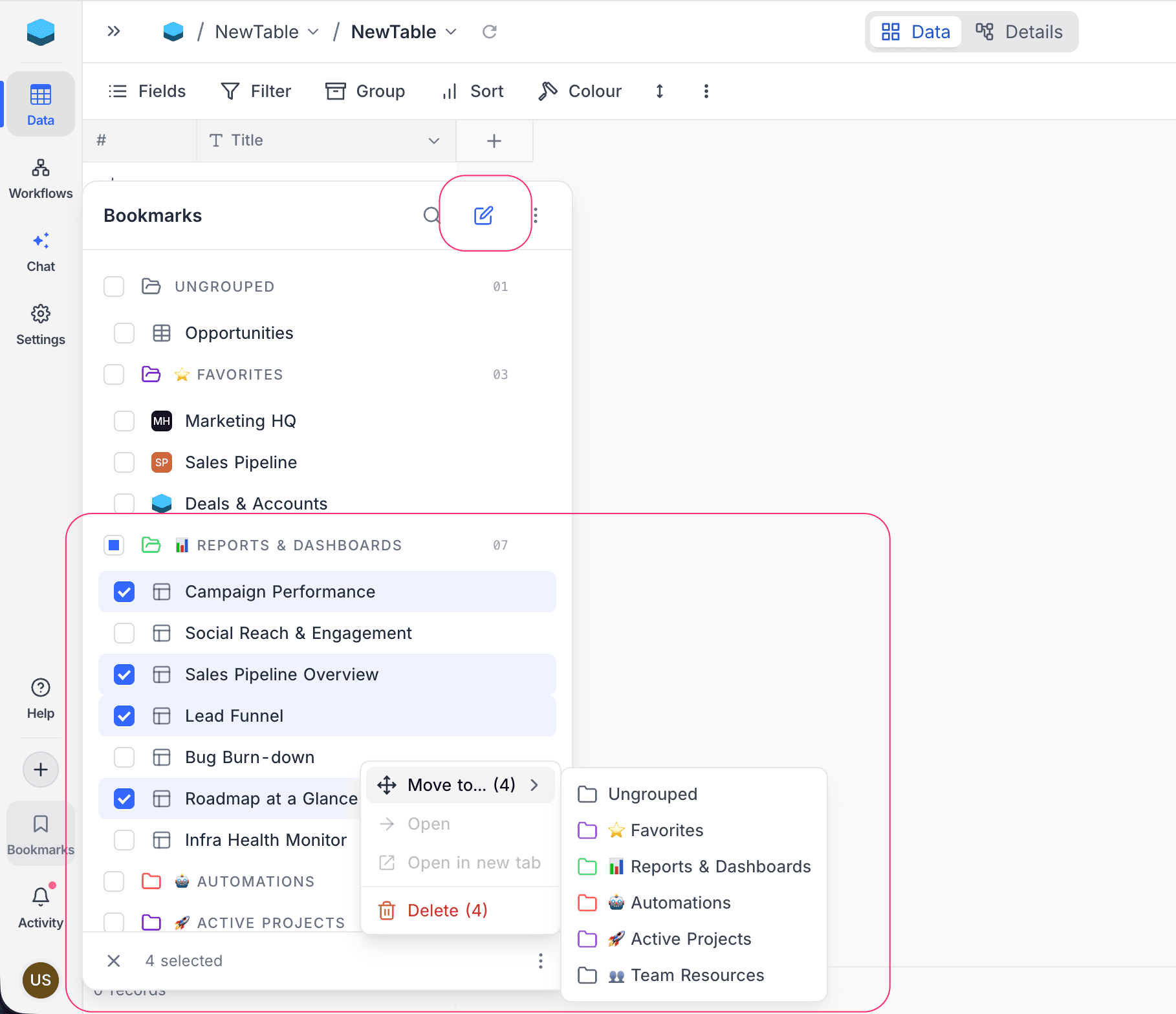
Click the edit icon in the flyout header to enter edit mode. Checkboxes appear next to every bookmark and folder.
-
Click a row to select or deselect a bookmark. A folder checkbox selects every bookmark inside it (folders themselves are never deleted by bulk actions).
-
Use the action bar at the bottom of the flyout. The ⋮ more menu offers:
- Move to — move every selected bookmark into a chosen folder.
- Open — open the bookmark in the current tab (single selection only).
- Open in new tab — open the bookmark in a new tab (single selection only).
- Delete — remove every selected bookmark. A confirmation modal is shown first.
-
Click × in the action bar — or click the edit icon again — to leave edit mode.