Organising bookmarks with folders
Group bookmarks into colour-coded folders. Create, move, customise, and arrange folders to keep long lists tidy.
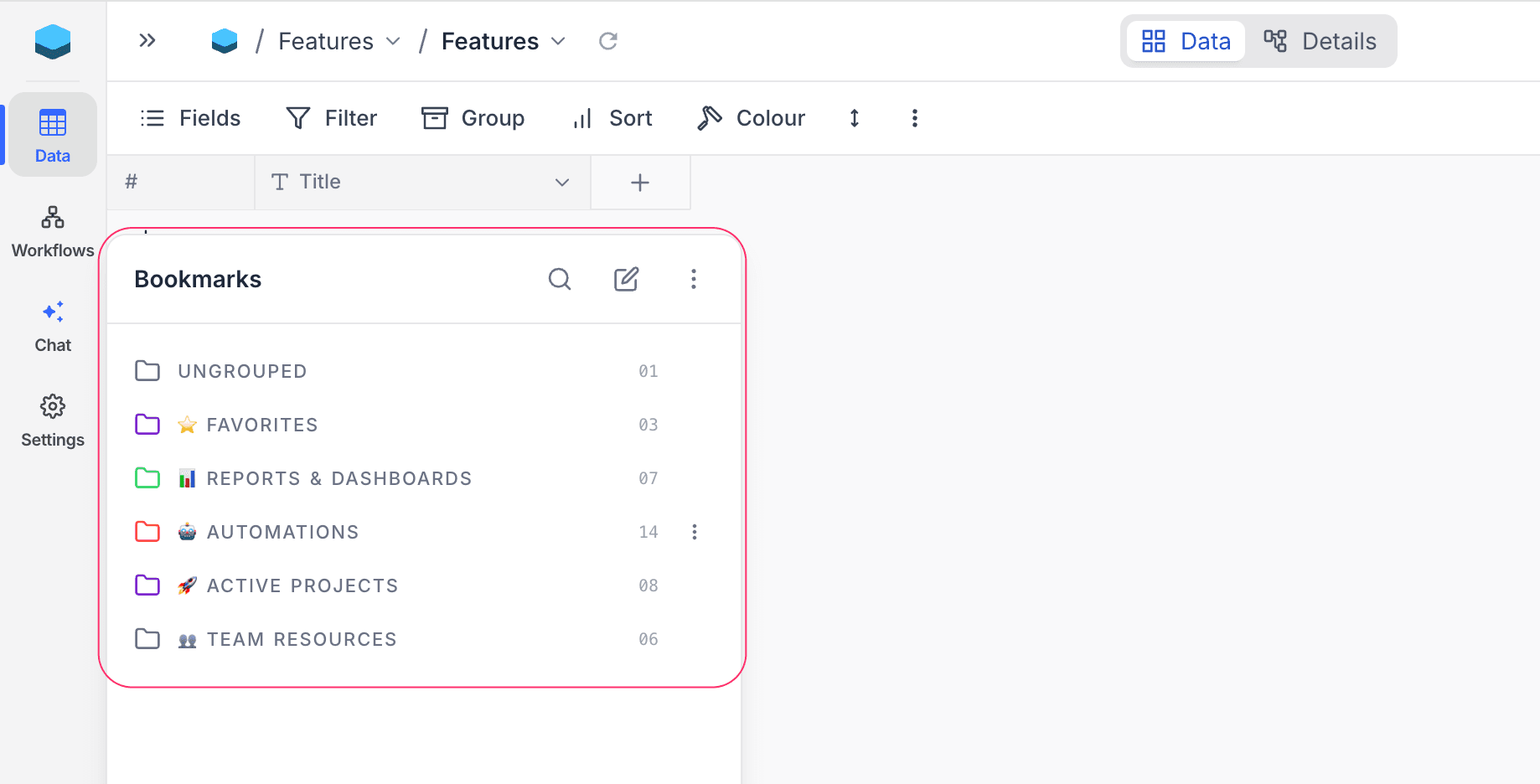
Folders (also called groups) keep long bookmark lists tidy. Each folder has its own colour so you can scan the flyout at a glance.
Create a folder
-
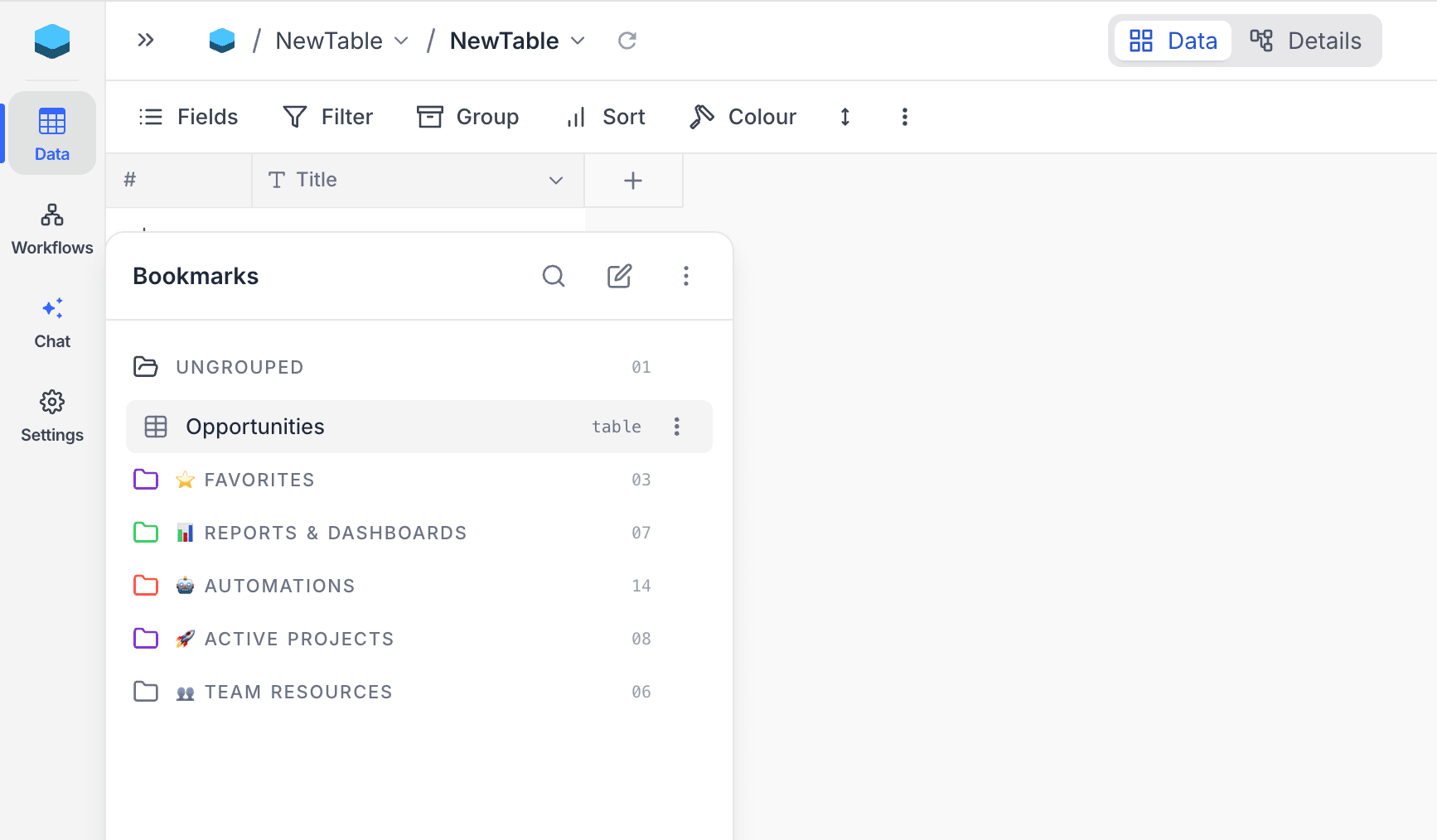
Open the bookmark flyout.
-
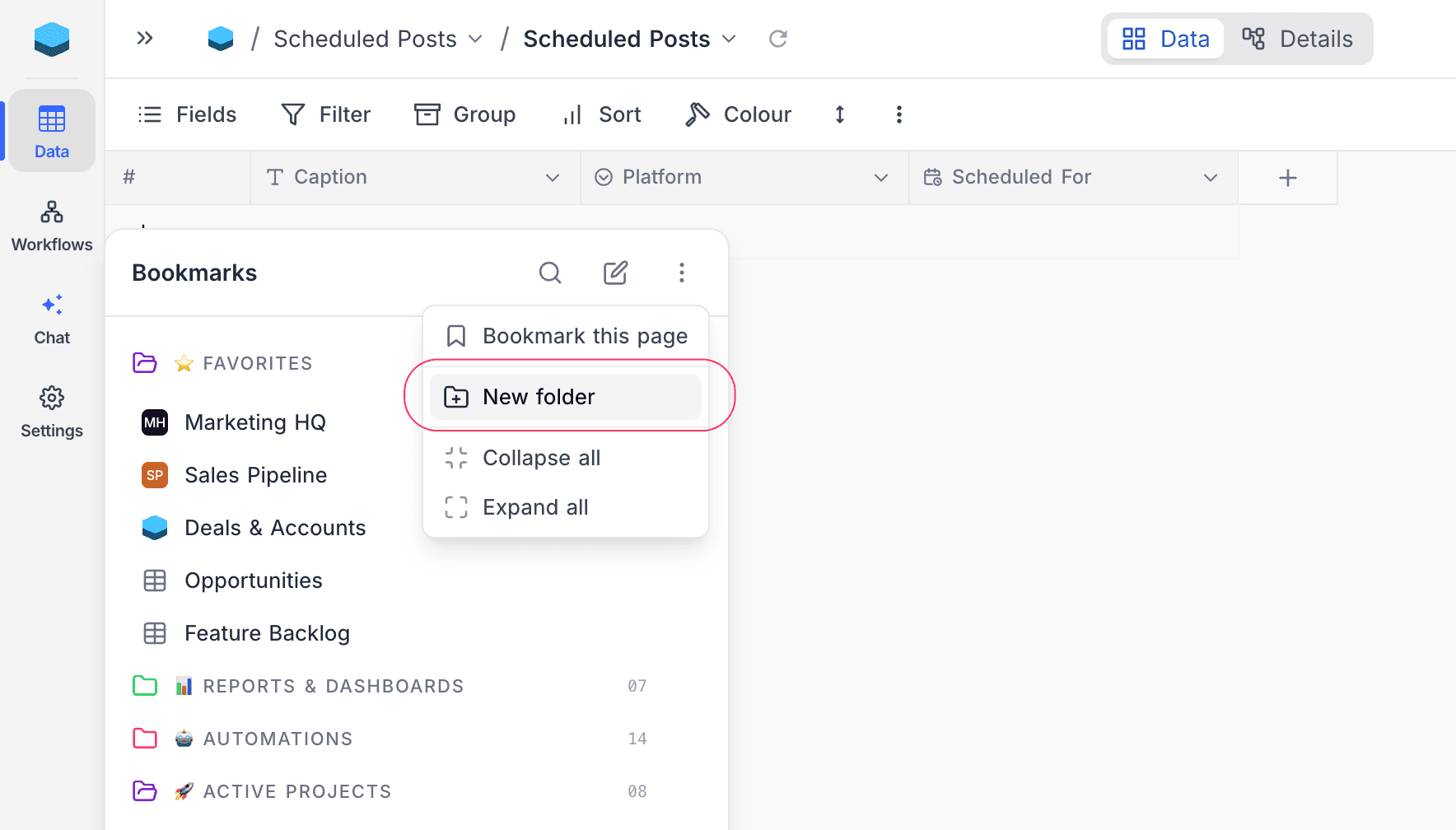
Click the ⋮ in the header and choose New folder.
-
Type a name and press Enter. Press Esc to cancel.
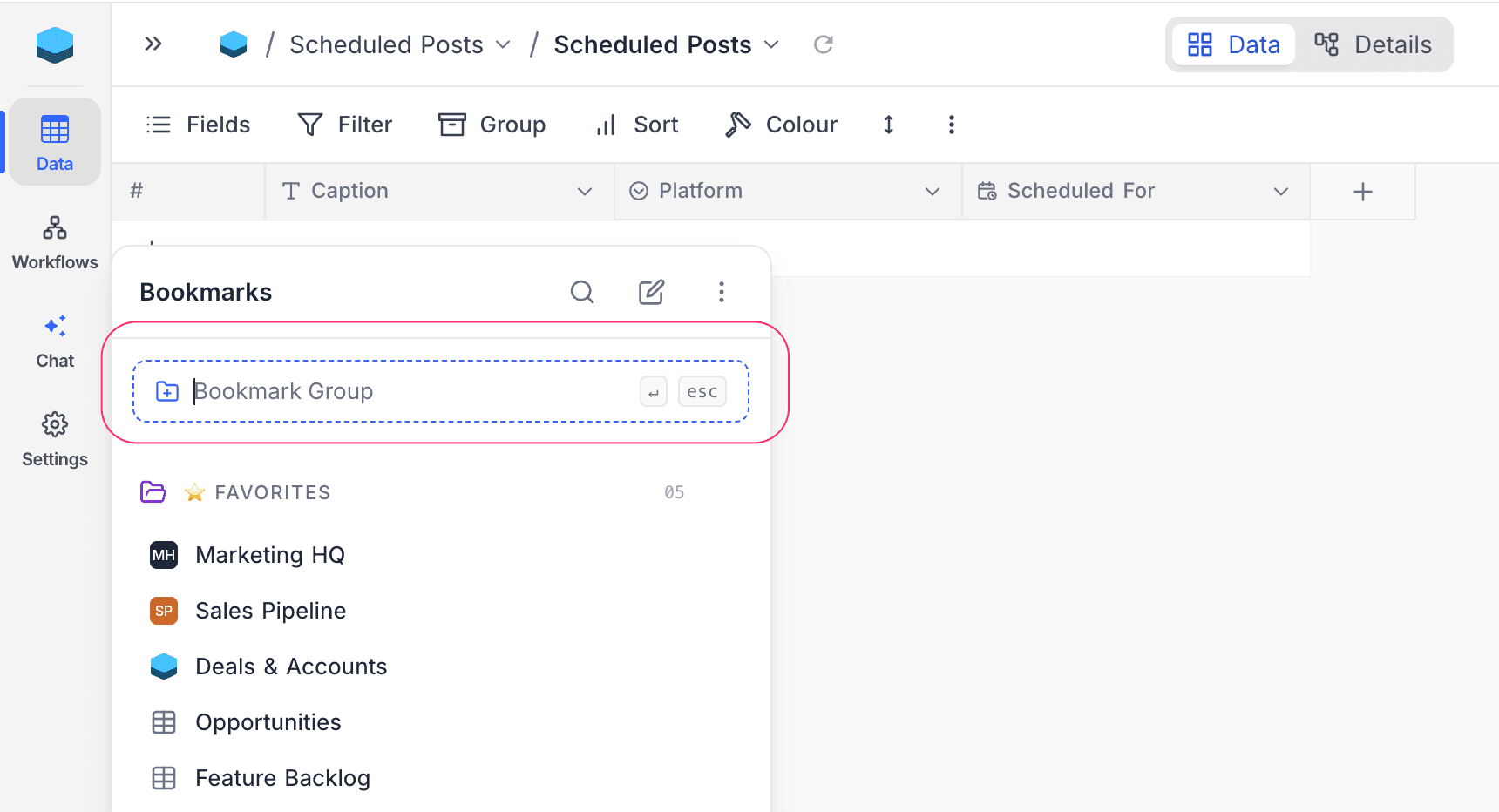
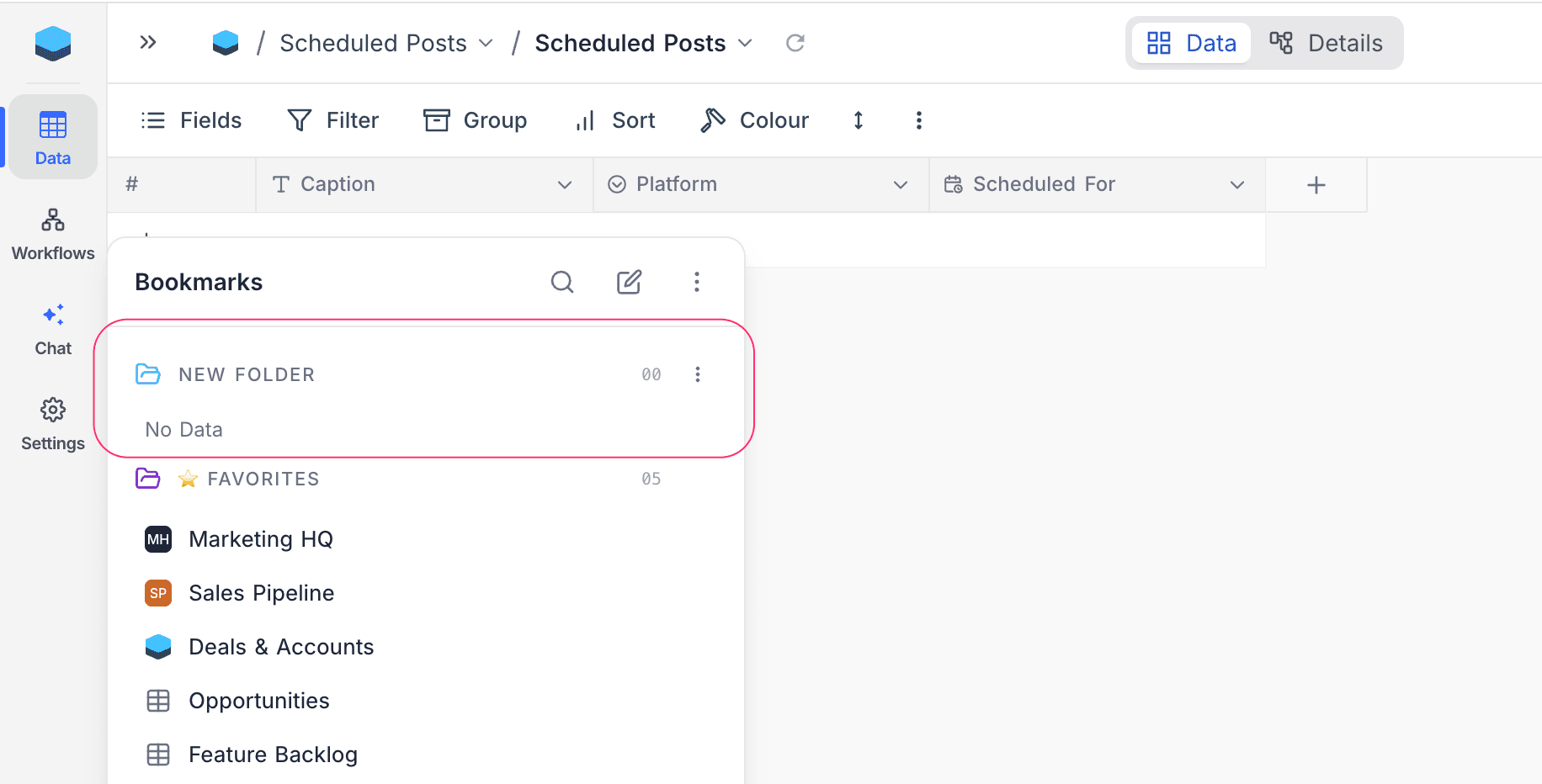
The folder appears directly below Ungrouped with a randomly assigned colour and starts empty until you move bookmarks into it.
Move bookmarks into a folder
You can move bookmarks two ways:
-
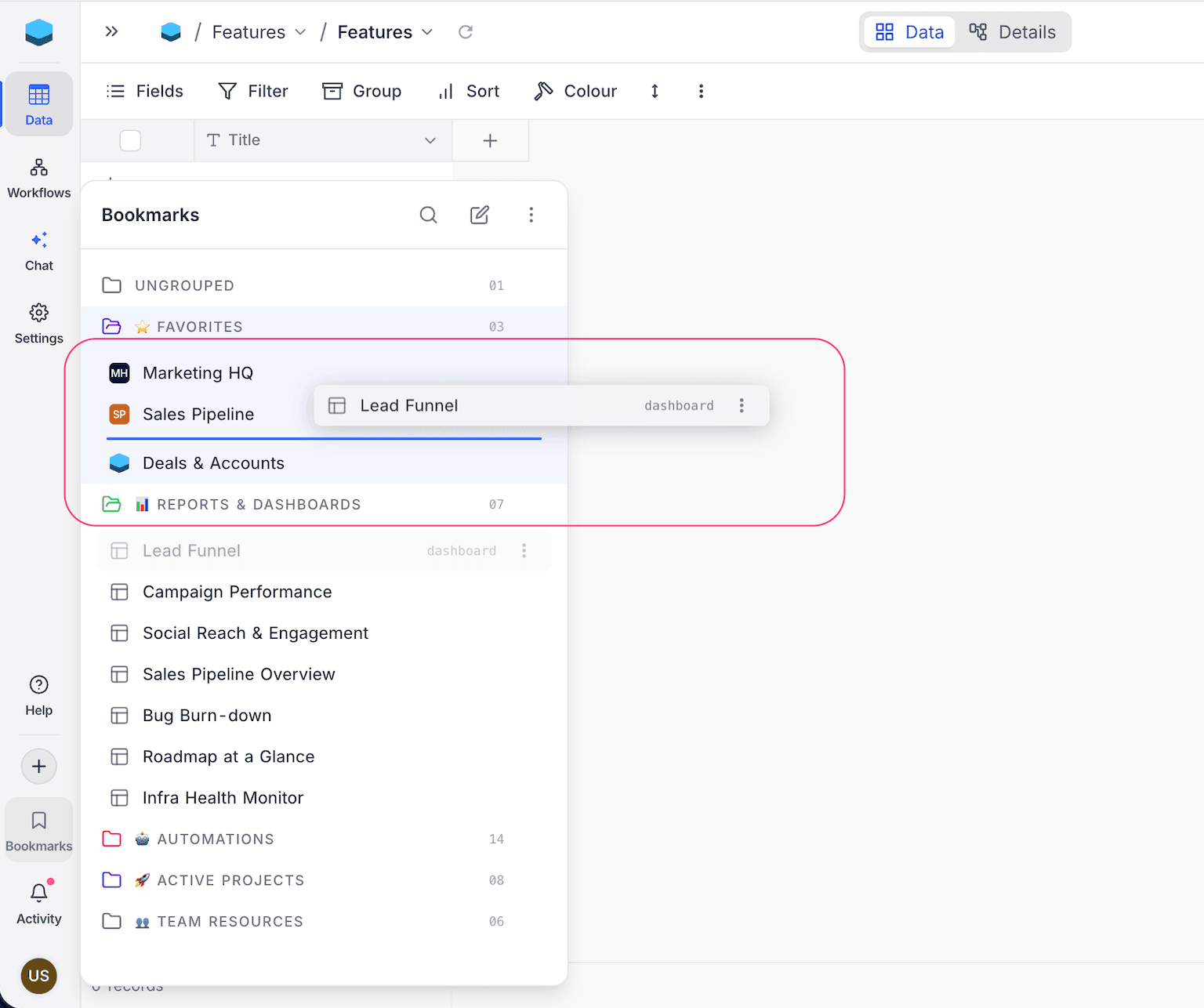
Drag and drop — pick up a bookmark and drop it onto another folder, or onto a specific position inside a folder. A blue line shows where it will land.
-
Move to menu — right-click a bookmark (or click its
⋮) and choose Move to, then pick the destination folder.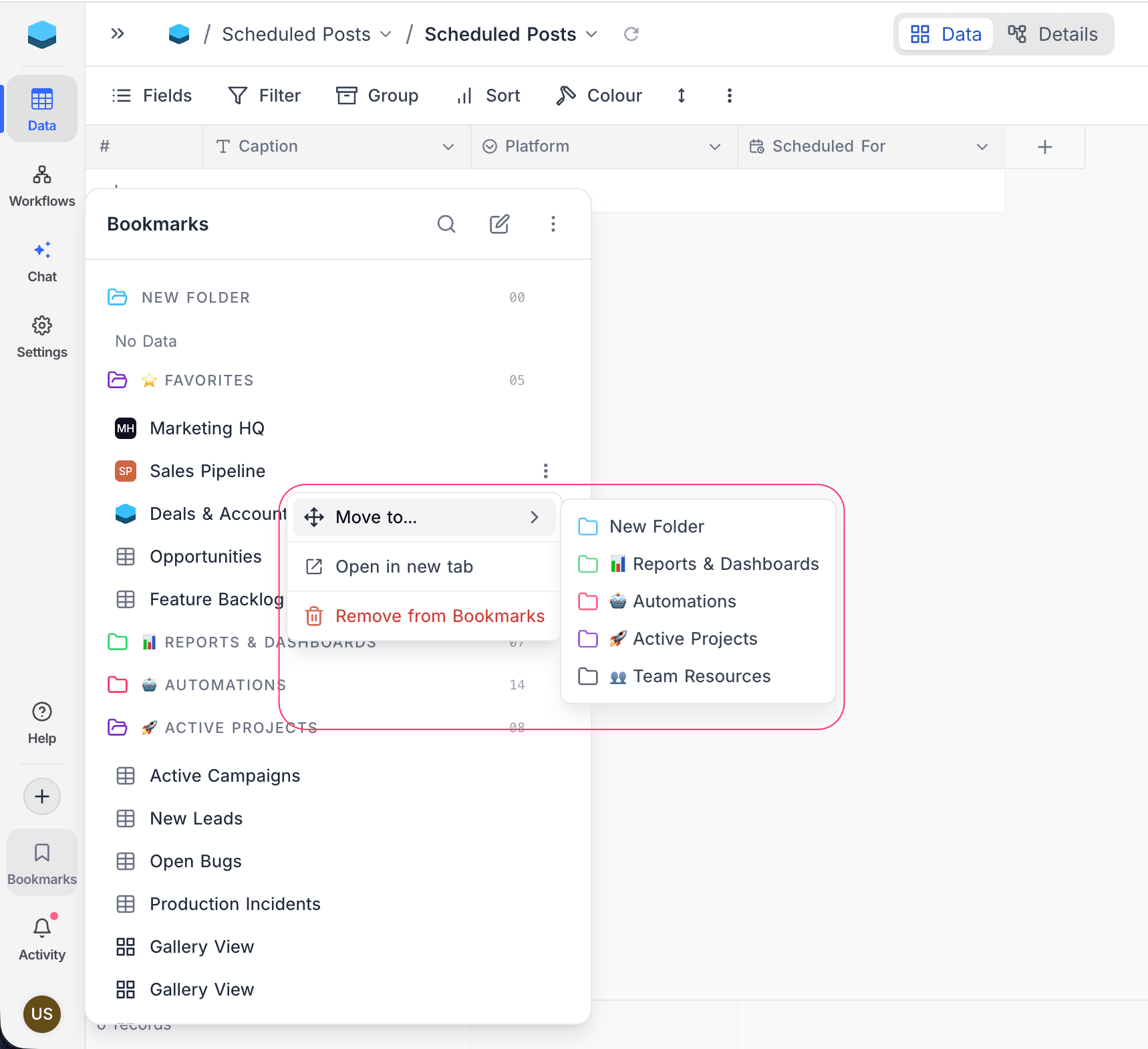
To move several bookmarks together, use edit mode — see Manage multiple bookmarks at once.
Customise a folder
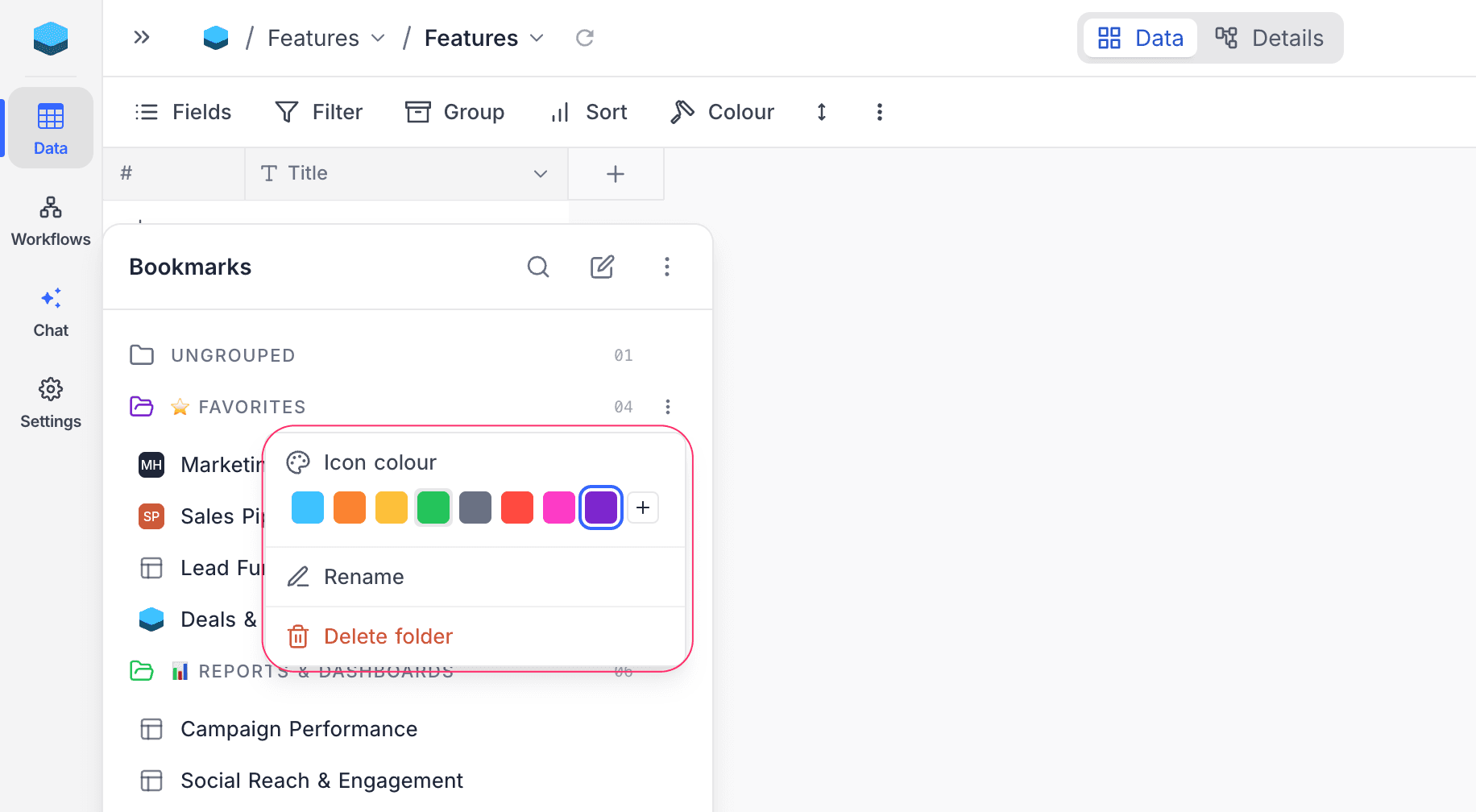
Right-click a folder header (or click its ⋮) to open the folder menu:
- Icon colour — pick a colour from the palette to recolour the folder icon.
- Rename — edit the folder name inline; press Enter to save or Esc to cancel.
- Delete folder — removes the folder. Bookmarks inside it are moved to Ungrouped, not deleted.
Arrange folders
- Reorder — drag a folder header up or down to change its position. Ungrouped stays pinned at the top.
- Collapse — click a folder header to collapse it; click again to expand. Collapsed folders shrink to a single header row.
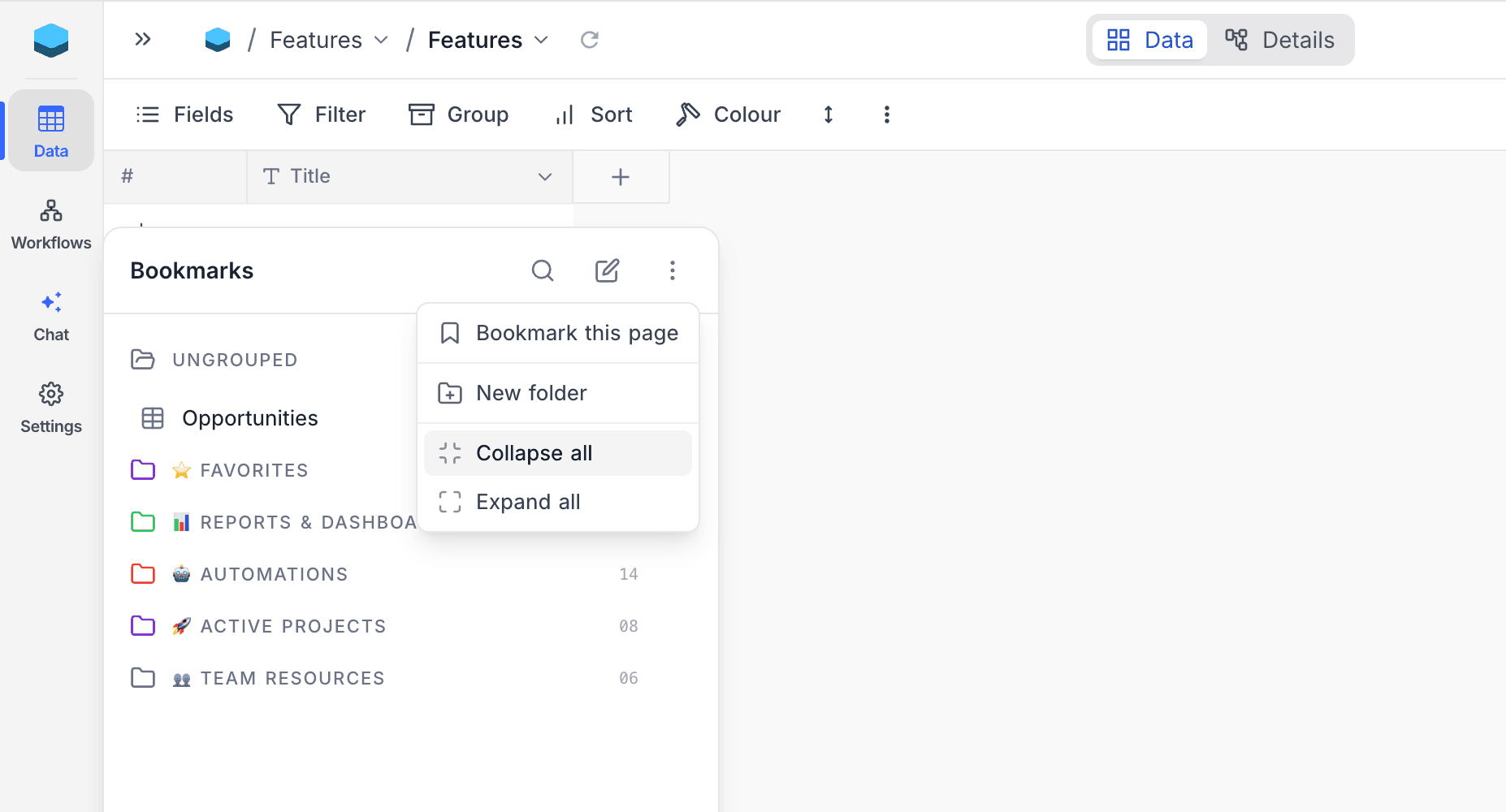
- Collapse all / Expand all — open the ⋮ menu in the flyout header to collapse or expand every folder at once.