Document Content
Overview of the NocoDocs rich text editor and its capabilities.
The NocoDocs editor is a block-based rich text editor that supports a wide range of content types — from simple text formatting to code blocks, math equations, tables, and media embeds.
Editor Layout
The editor interface consists of:
- Document Title — The title area at the top of the editor. Click to edit.
- Content Area — The main writing area where you add and arrange blocks.
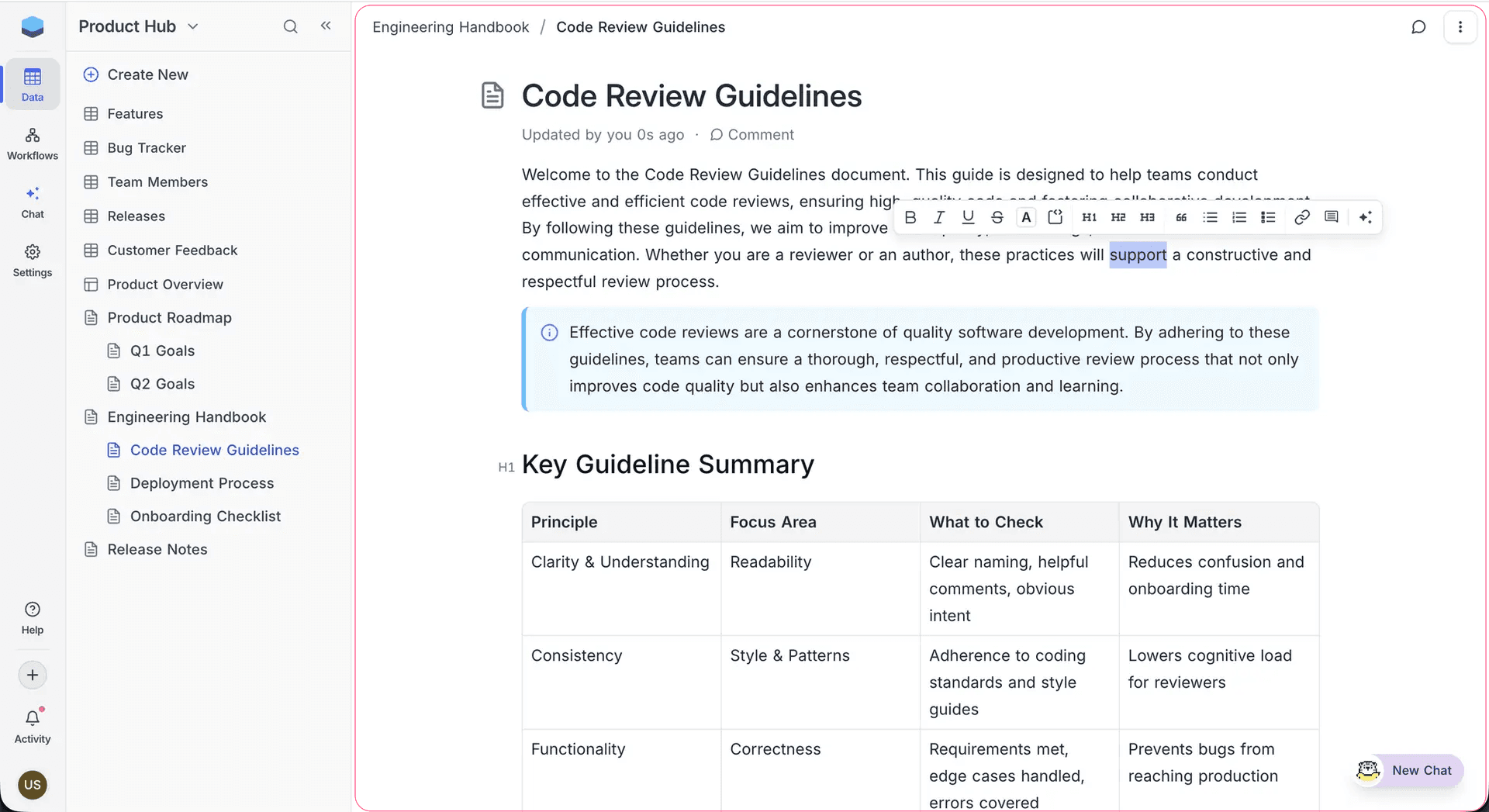
- Bubble Menu — A context-sensitive formatting toolbar that appears when you select text.
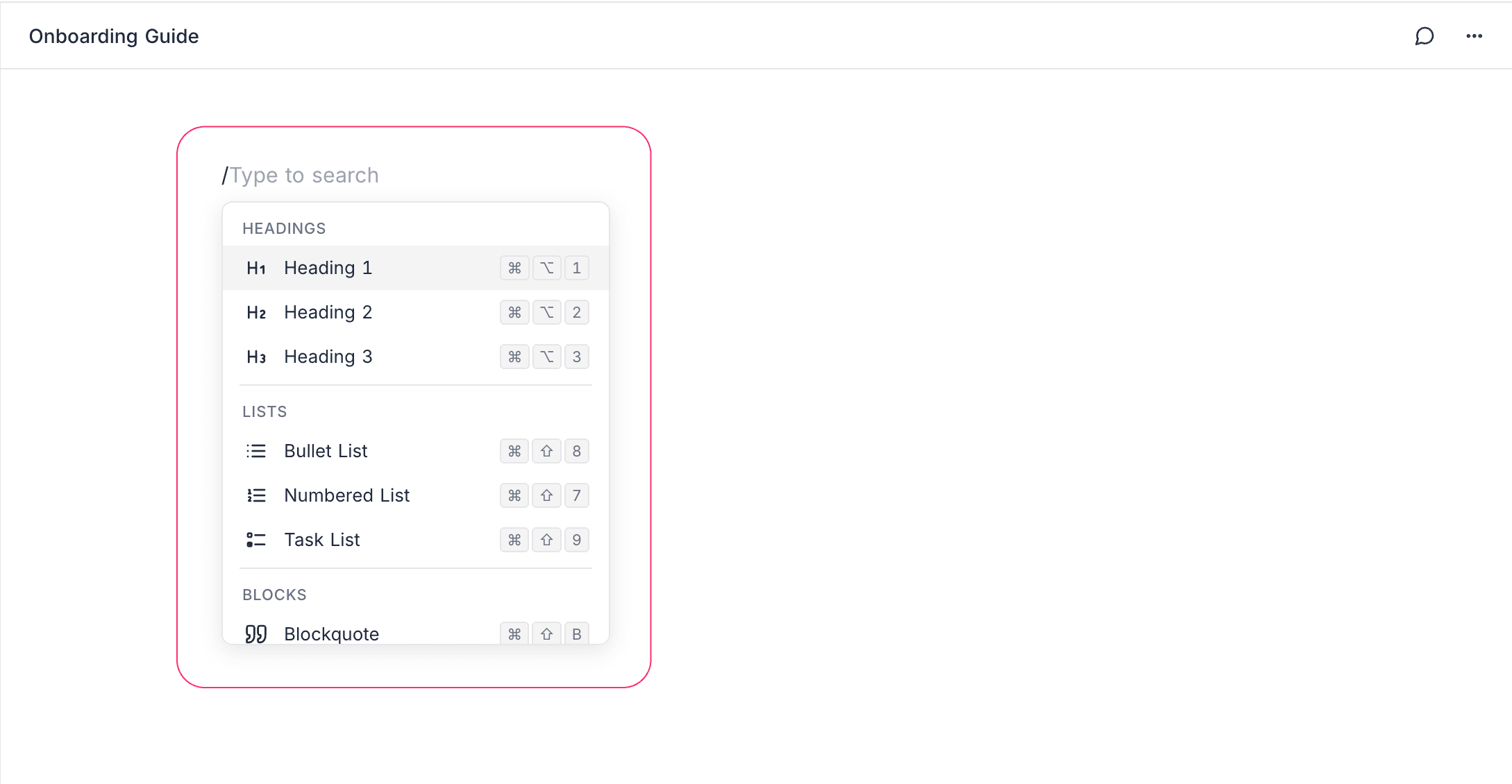
- Slash Command Menu — Type
/anywhere to access 60+ block and formatting options.
Slash Commands
Type / in the editor to open the slash command menu. You can search by typing after the slash. Commands are organized into categories:
| Category | Examples |
|---|---|
| Text | Heading 1, Heading 2, Heading 3, Paragraph |
| Lists | Bullet list, Numbered list, Task list |
| Blocks | Callout, Blockquote, Divider, Table, Columns, Tabs |
| Code & Math | Code block, Math equation |
| Media | Image, File attachment, Embed, Web bookmark |
| NocoAI | Continue Writing, Summarize Document |
## followed by a space to create a Heading 2, or - to start a bullet list.Bubble Menu (Inline Toolbar)
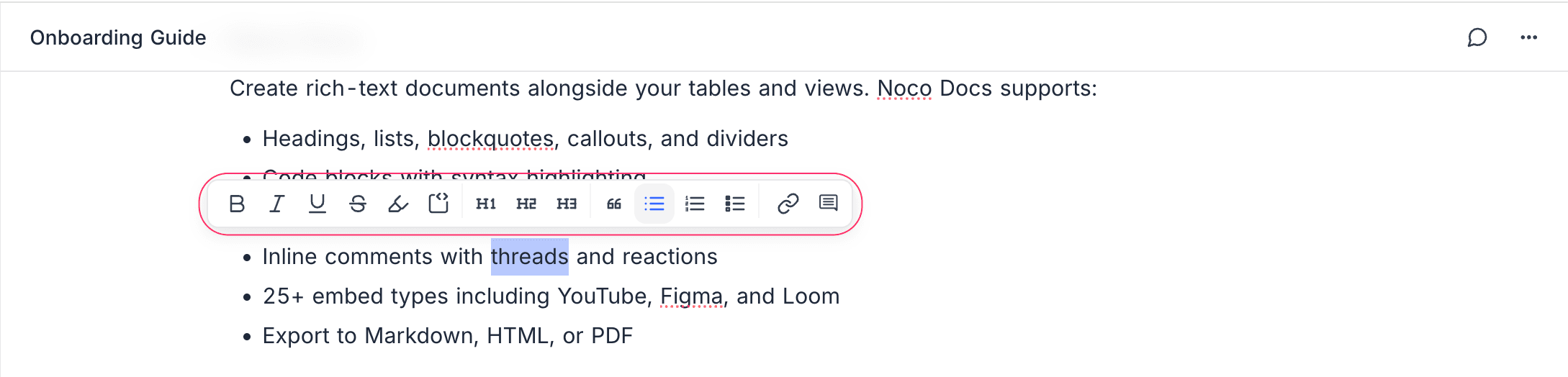
Select any text to reveal the bubble menu with quick access to:
- Bold, Italic, Underline, Strikethrough
- Inline code
- Text color and highlight
- Link insertion
- Comment creation
- AI Assistant — Write, improve, summarize, translate, and change tone of selected text
Auto-Save
All changes are saved automatically as you type; there is no manual save button. When several people have the same document open, edits sync between them in real time and merge automatically, so nobody's changes are lost — see Collaboration for details. If your connection drops, edits made offline are reconciled when you reconnect.
Content Types
Explore each content type in detail:
- Text Formatting — Bold, italic, color, highlights, and more.
- Blocks — Headings, lists, callouts, blockquotes, columns.
- Tables — Insert and edit table blocks.
- Code Blocks — Syntax-highlighted code in 30+ languages.
- Math Equations — LaTeX/KaTeX equations.
- Images & Attachments — Upload and embed media.
- Embeds — Embed content from 25+ platforms.
- Web Bookmarks — Save links as rich visual bookmark cards.
- Tabs — Organize content into switchable tabbed panels.