Create Document
Learn how to create and nest documents in NocoDocs.
Documents in NocoDocs are organized in a hierarchical tree structure, allowing you to create top-level documents and nest child documents under them.
Free plan allows creating up to 3 documents in NocoDocs. Plus plan and higher allow unlimited documents.
Create a New Document
There are two ways to create a document:
From the sidebar
- Open the base where you want to create a document.
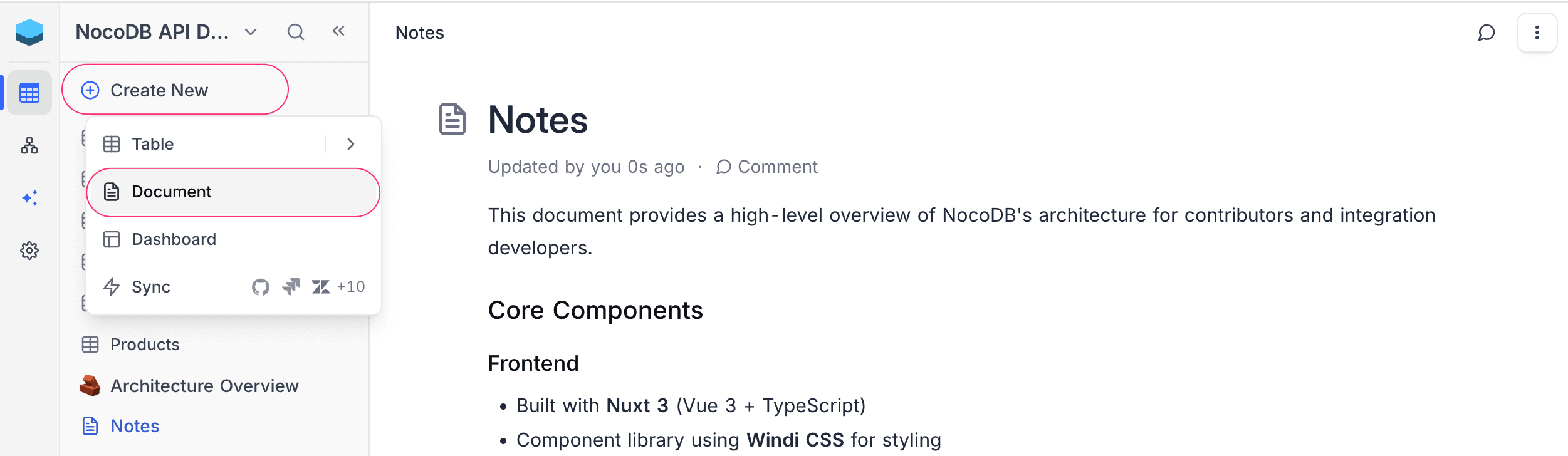
- Click Create New at the top of the left sidebar.
- Select Document from the dropdown.
- A new untitled document will be created and opened in the editor.
Documents appear in the sidebar alongside your tables and dashboards, sorted by their order.
From the minibar
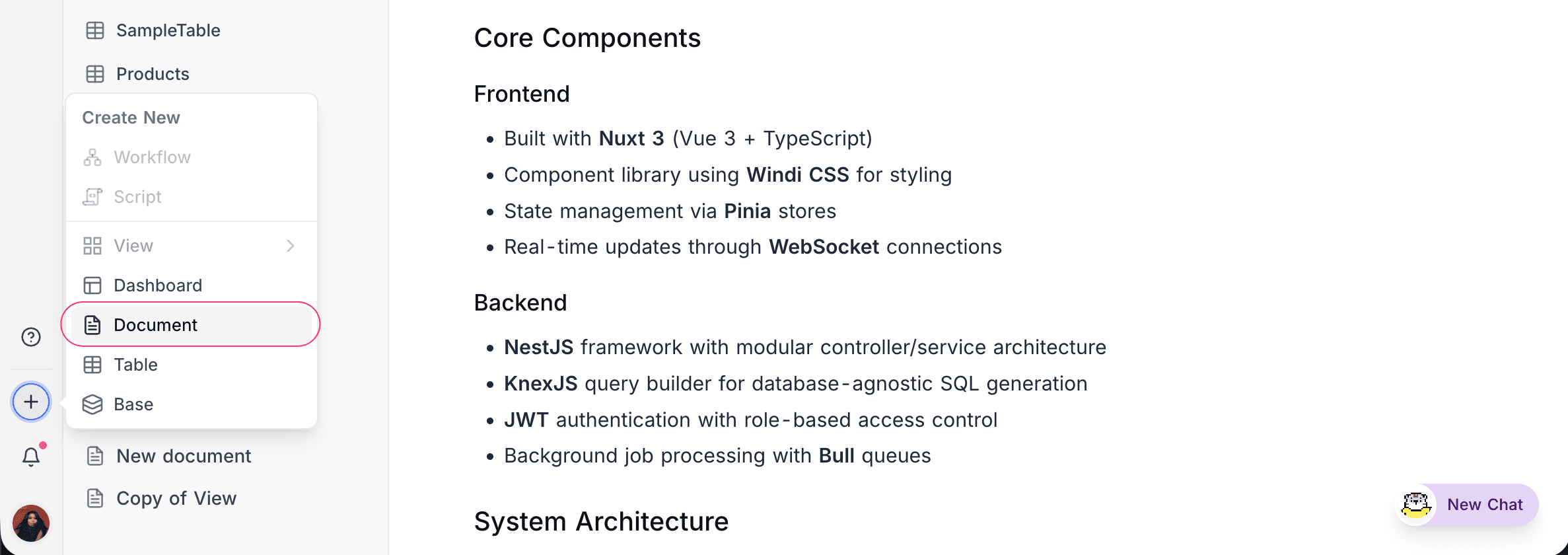
- Click the + button on the bottom-left minibar.
- Select Document from the menu.
Create a Nested (Child) Document
- In the sidebar document tree, hover over the parent document.
- Click the ... icon that appears on hover.
- Select New sub-document from the context menu.
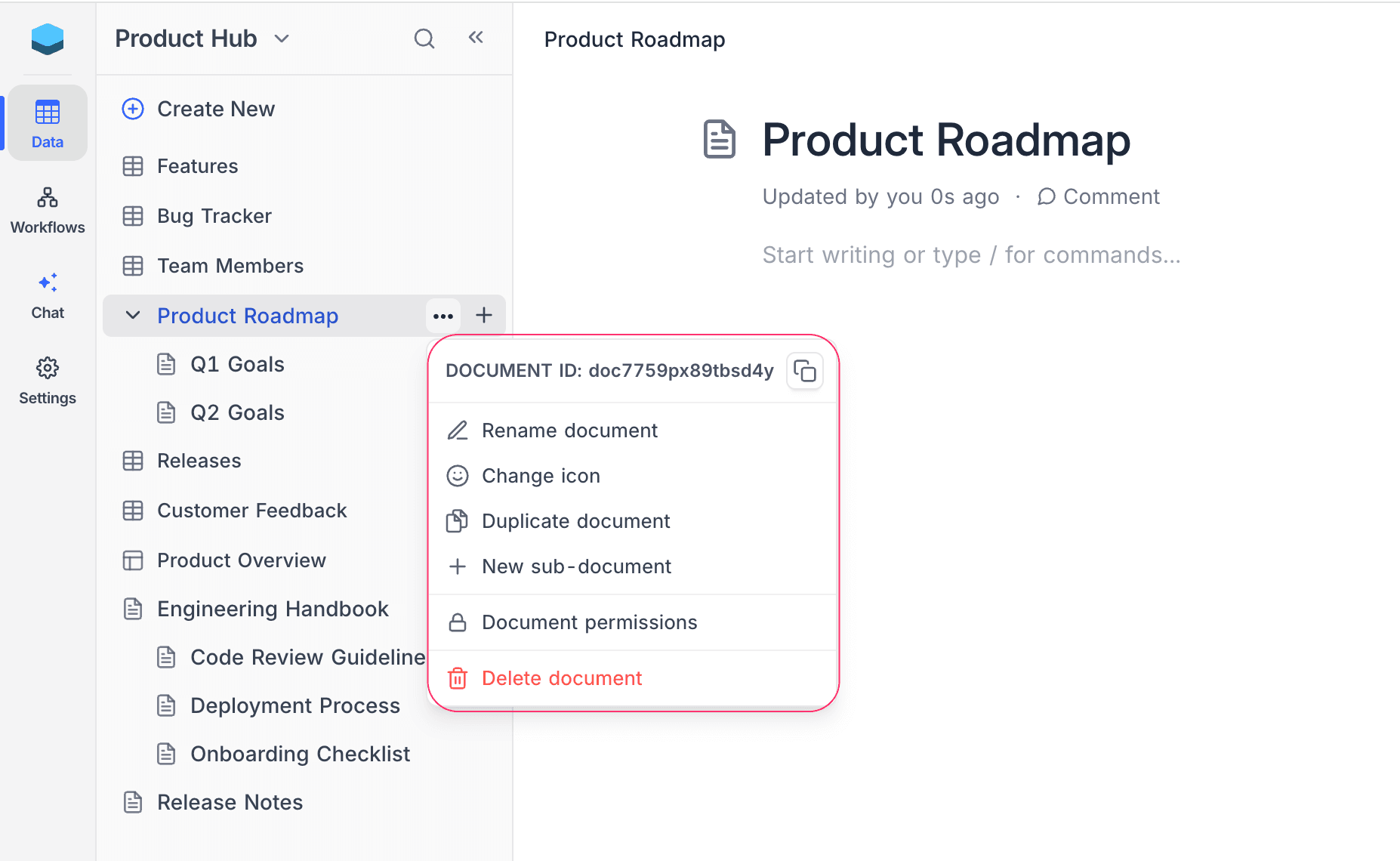
Documents can be nested to any depth. Child documents are lazy-loaded — they appear when you expand their parent in the sidebar tree.
Add a Document Icon
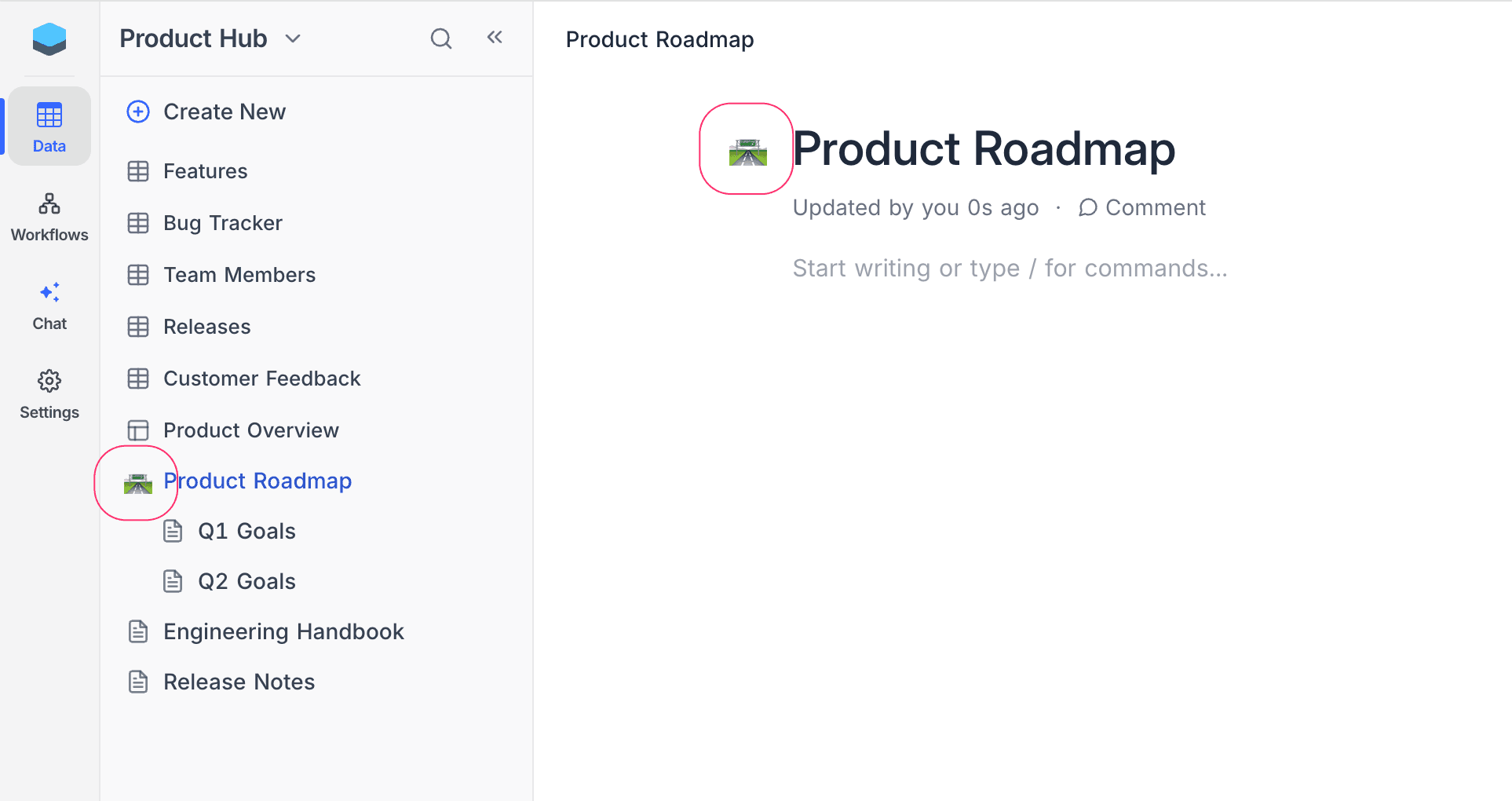
Each document can have an emoji icon for quick visual identification.
- In the sidebar, hover over the document and click the ... icon.
- Select Change icon from the context menu.
The icon will appear alongside the document title in the sidebar tree & along with the document header in the editor.
Related Topics
- Actions on Document — Rename, reorder, and delete documents.
- Document Content — Start writing with the rich text editor.