Search & Navigation
Search within documents and navigate the document tree in NocoDocs.
NocoDocs provides several tools for navigating large documents and finding content quickly.
Search & Replace
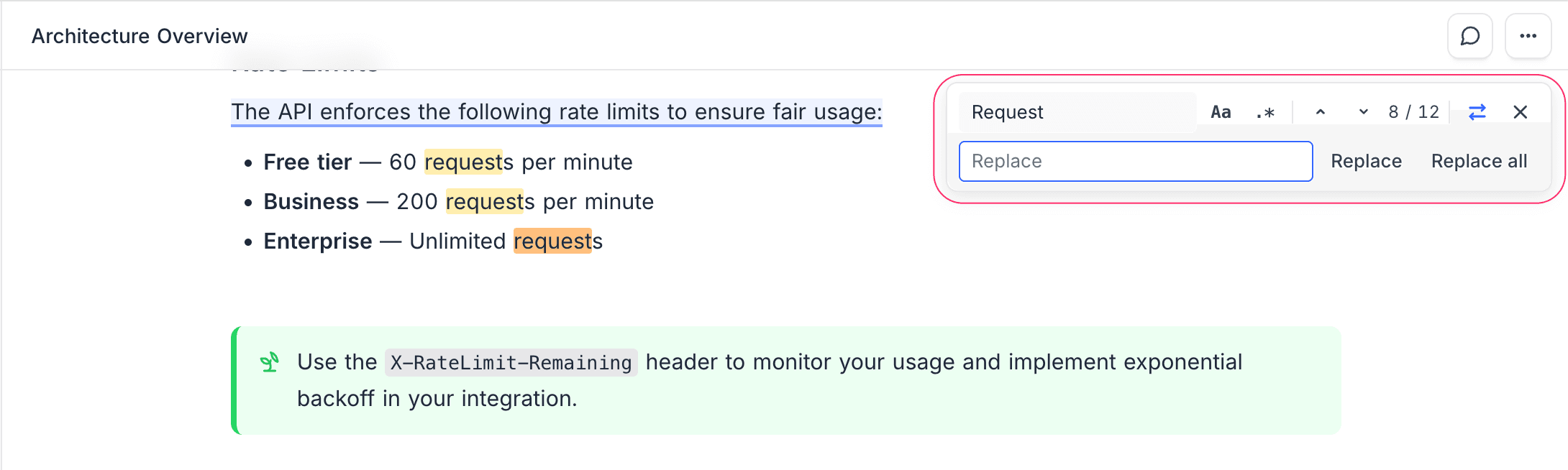
Use the built-in search to find text within the current document:
- Press
Cmd/Ctrl + Fto open the search bar. - Type your search term — matching text is highlighted in the document.
- Use the arrow buttons to jump between matches.
- Expand the search bar to reveal the Replace field for find-and-replace operations.
Breadcrumb Navigation
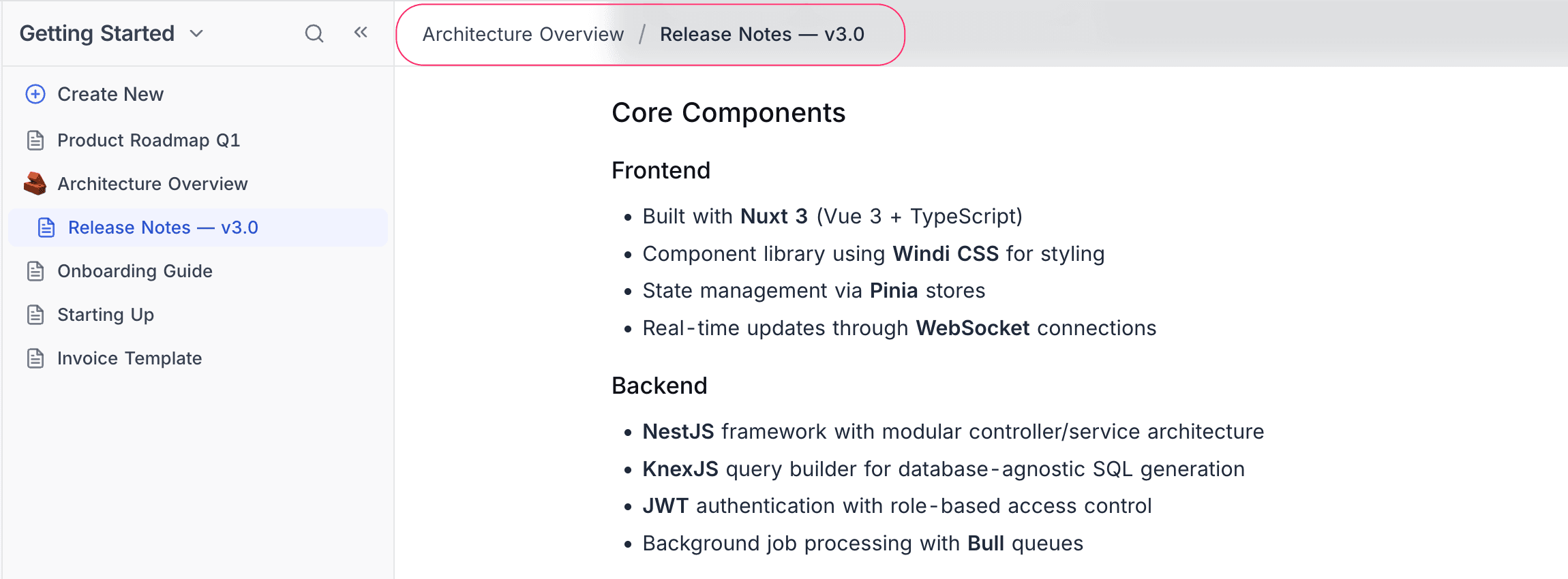
A breadcrumb trail appears at the top of the editor showing the current document's position in the document hierarchy.
- Click any parent in the breadcrumb to navigate to it.
- Useful for quickly jumping up the document tree without using the sidebar.
Collapsible Headings
Long documents can be navigated more easily using collapsible headings:
- Hover over any heading (H1, H2, H3) in the document.
- Click the toggle arrow that appears to the left of the heading.
- All content under that heading (up to the next heading of the same or higher level) will collapse.
- Click the arrow again to expand.
This lets you create an outline-like view of your document, focusing on the sections that matter.
Sidebar Tree Navigation
The left sidebar shows your document tree:
- Expand / Collapse — Click the arrow next to a document to show or hide its children.
- Lazy Loading — Child documents load on demand when you expand a parent, keeping the sidebar fast.
- Current Document Highlight — The active document is highlighted in the sidebar for orientation.