Version History
Browse prior versions of a document, see what changed, and restore any version.
Version History captures a snapshot of a document each time it is saved, so you can review what changed between versions, see who edited what and when, and restore the document to any earlier version with a single click.
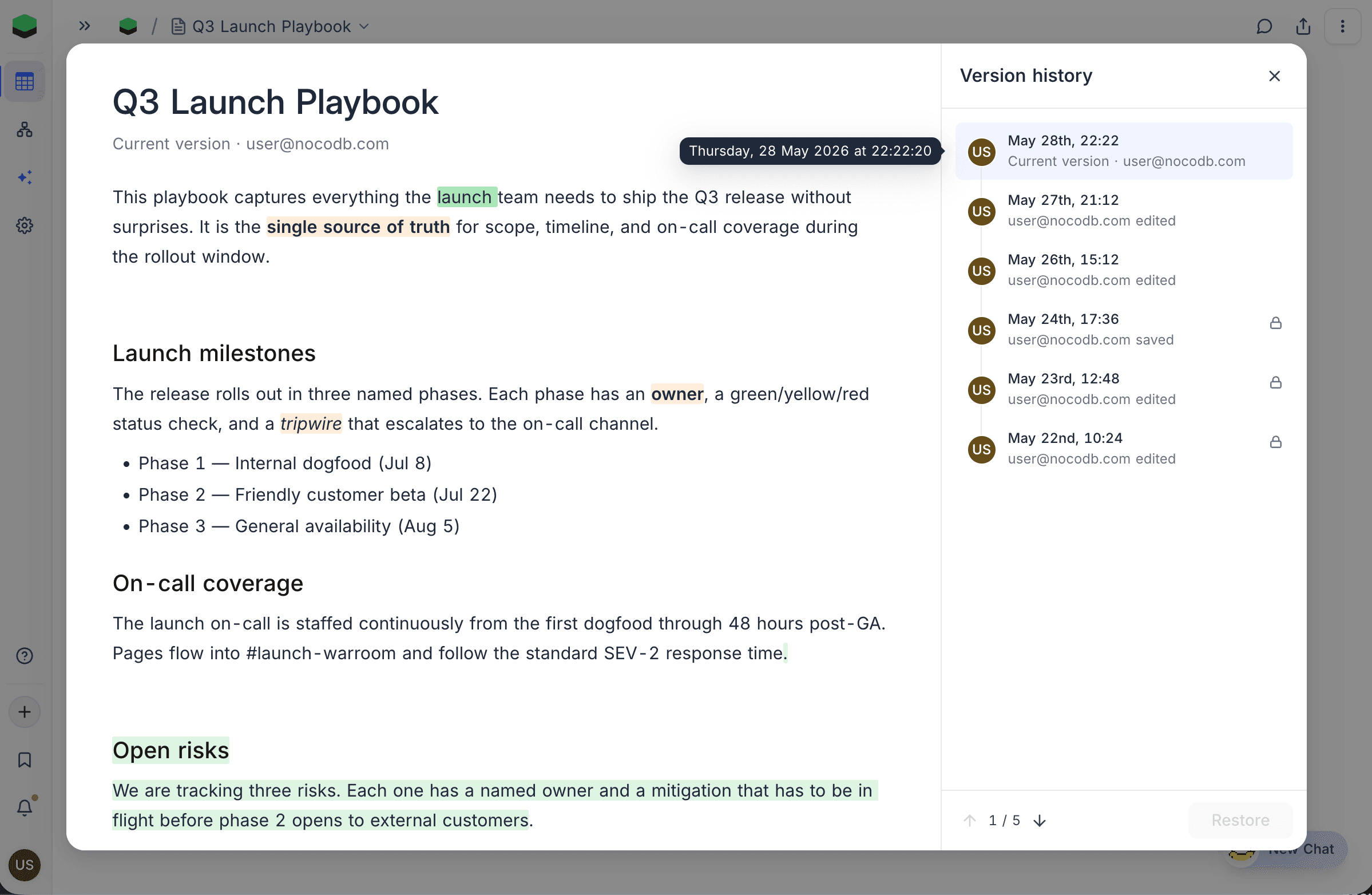
Open Version History
- Open the document.
- Click the
⋮menu in the top-right of the page header. - Select History.
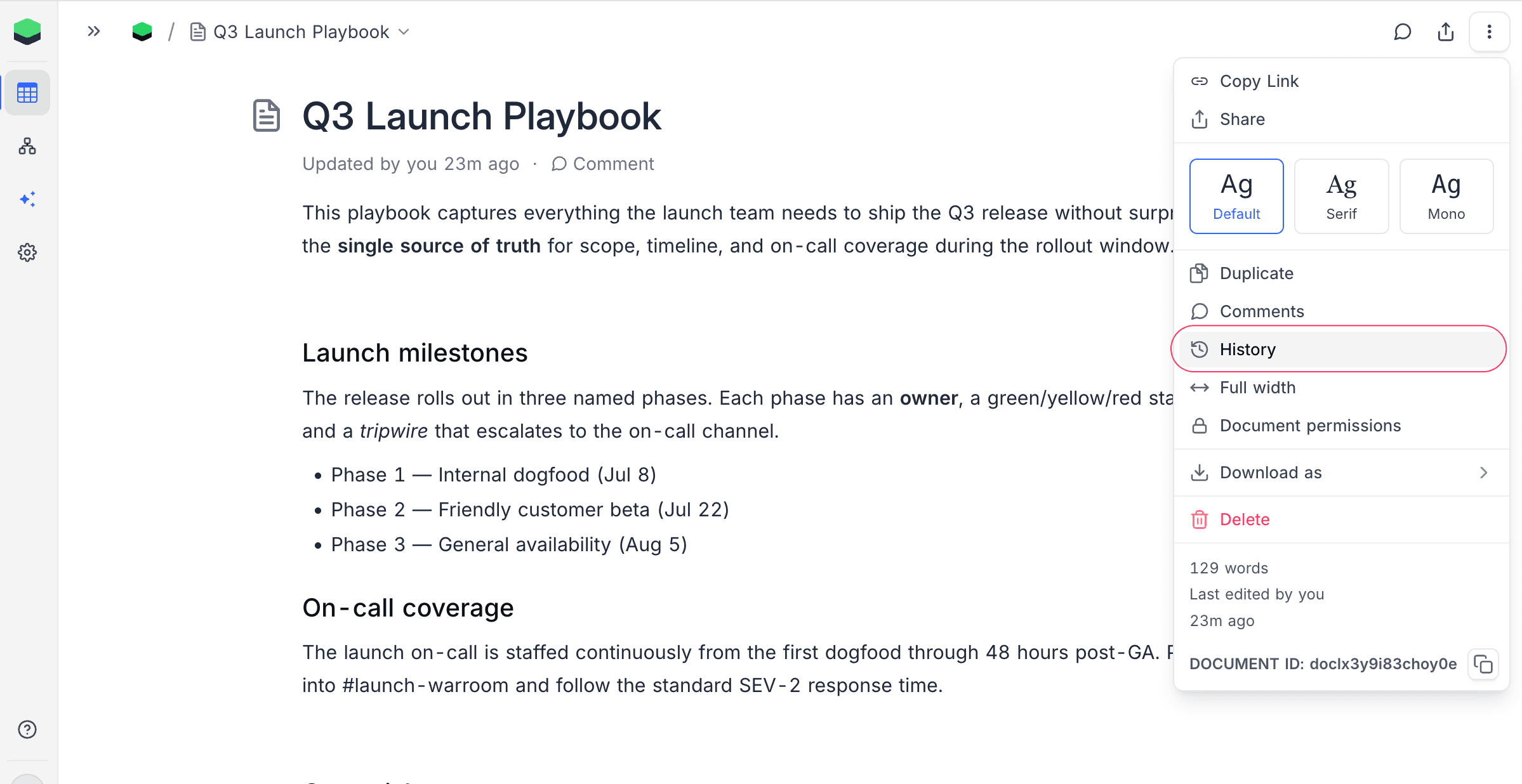
The history opens in a side-by-side modal: the left pane previews the selected version, and the right pane lists every recorded version newest first. The most recent version (the current document) is auto-selected when the modal opens.
How Versions Are Recorded
A new version is recorded each time the document is saved. Three kinds of saves are tracked:
| Source | When it's recorded | Label in the list |
|---|---|---|
| Edited | Auto-save while you are typing | {author} edited |
| Saved | An explicit manual save | {author} saved |
| Restored | A prior version was restored, replacing the current content | {author} restored |
The topmost row is always labeled Current version · <author> so you can tell at a glance which version is live.
Compare Versions
Selecting any prior version highlights what changed between that version and the one immediately before it:
- Green — text, blocks, images, attachments, or embeds that were inserted at this version.
- Red strikethrough — content that was deleted at this version.
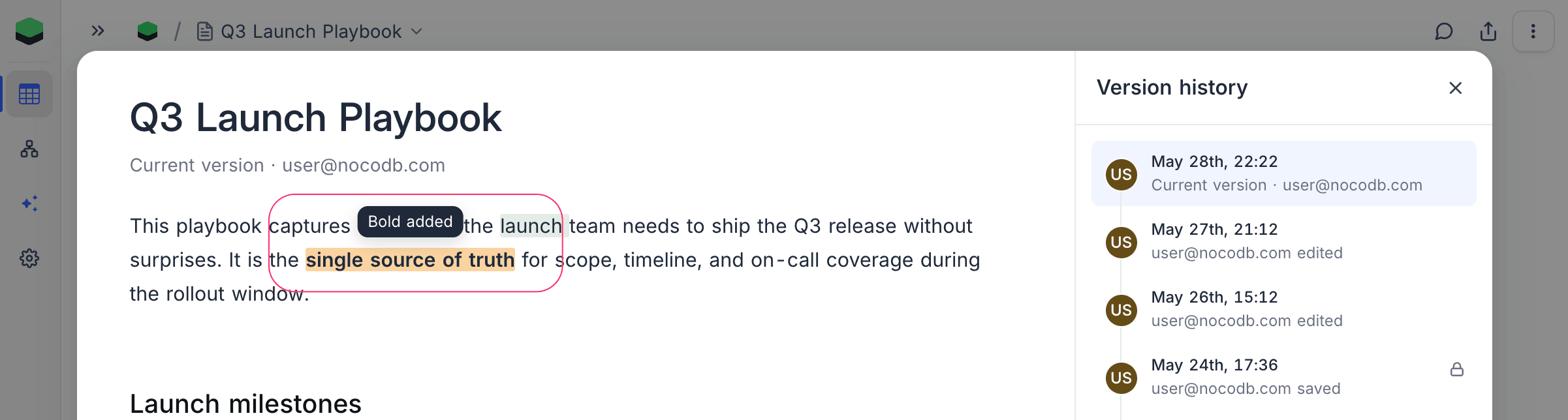
- Amber — formatting-only changes (bold, italic, highlight, link, and so on). Hover any amber span to see which mark changed.
- Title rename — if the document title was changed at this version, the diff is rendered inline in the preview header using the same green and red treatment.
Use the ↑ / ↓ arrows in the modal footer to step through changes one at a time. The counter next to the arrows (for example, 2 / 5) shows your position in the change list.
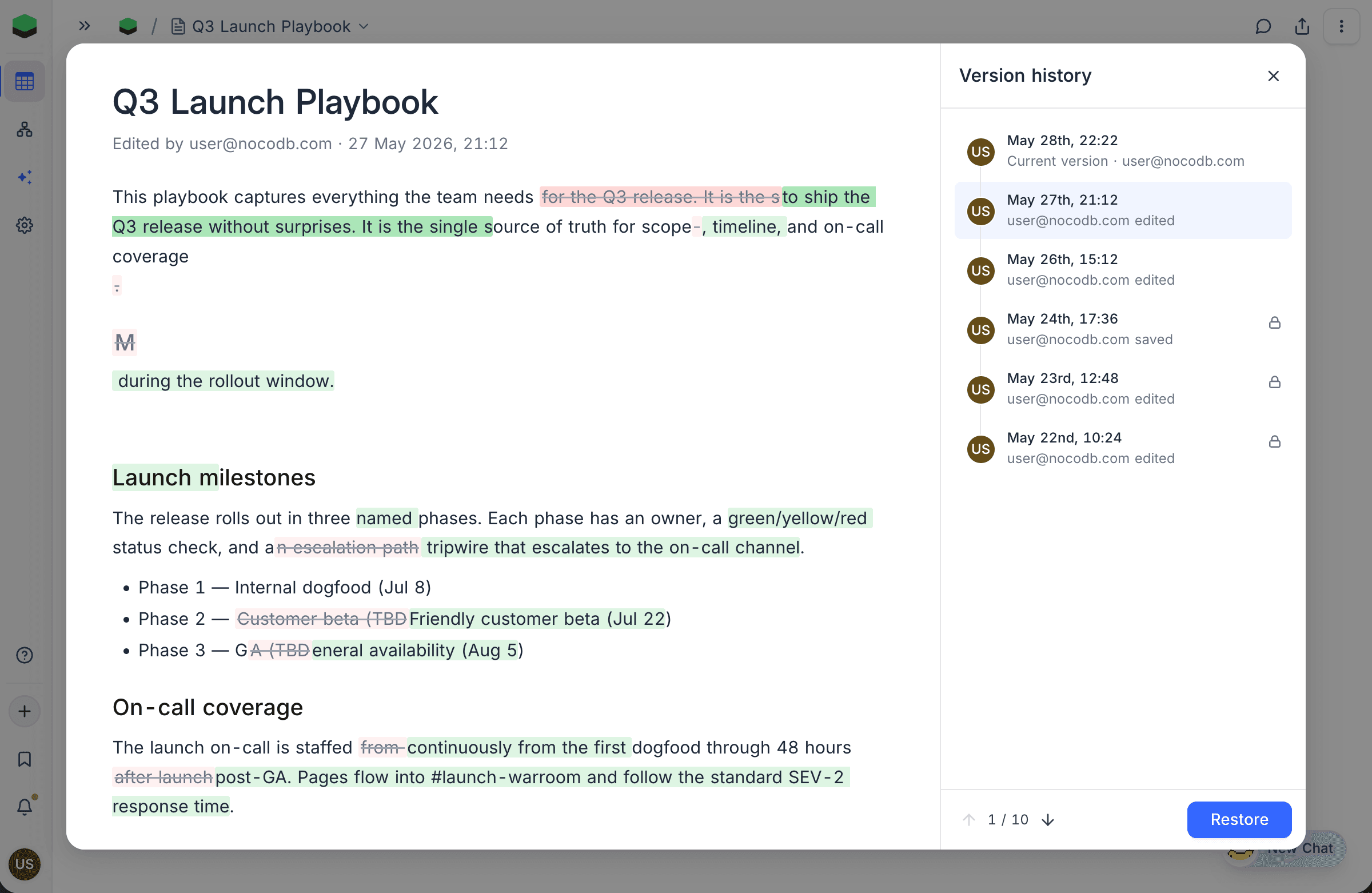
When the title is renamed at a version, the change shows up inline in the preview's H1 — the prior word struck through in red, the new word highlighted in green.
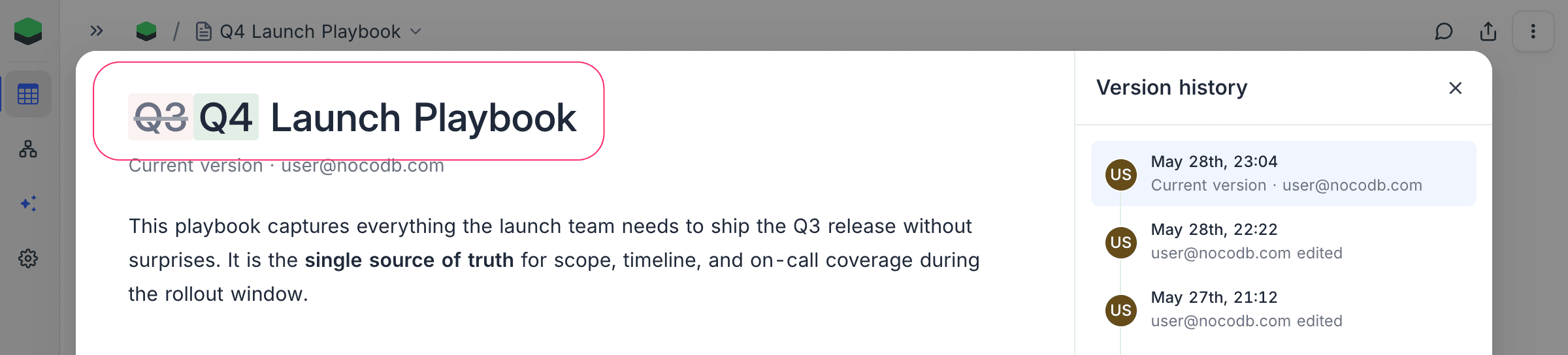
Formatting-only changes (amber highlights) name the specific mark that was added or removed when you hover them, so you can tell a bold from an italic from a link without scrubbing the rest of the diff.
Restore a Version
- In the right pane, click the version you want to restore.
- Click Restore in the modal footer.
- Confirm the action in the dialog that appears.
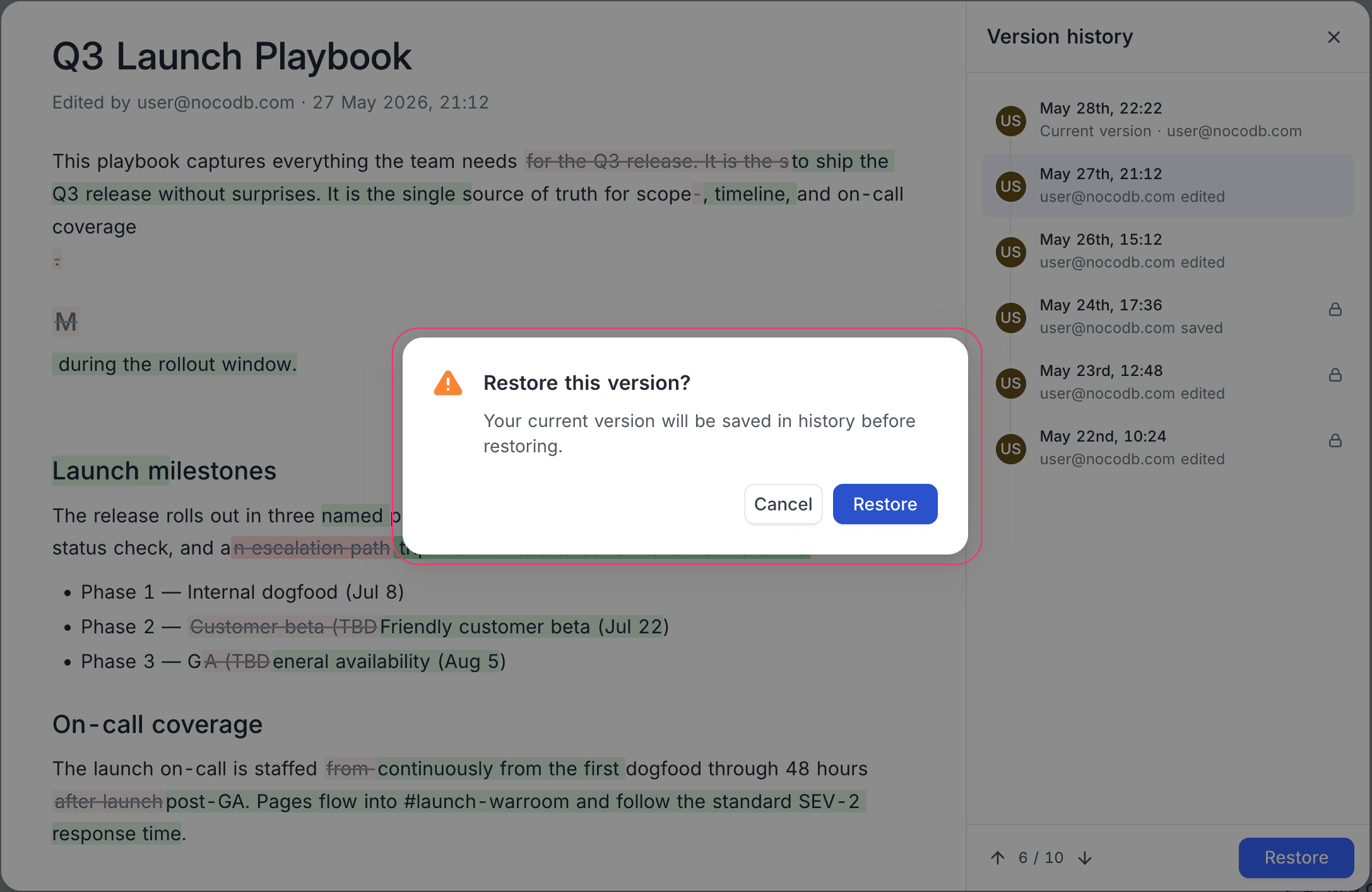
The current document content is recorded as a new version (with source Edited) and the selected version's content replaces the live document. The restore itself is also logged as a Restored entry at the top of the list, so the action is fully auditable and can itself be rolled back.
Who Can Restore
Restoring a version is allowed for roles that can already edit the document — Editors, Creators, and Owners. Viewers and Commenters can browse history and read prior versions but cannot restore.
| Role | Browse history | View prior versions | Restore |
|---|---|---|---|
| Viewer | Yes | Yes | No |
| Commenter | Yes | Yes | No |
| Editor | Yes | Yes | Yes |
| Creator | Yes | Yes | Yes |
| Owner | Yes | Yes | Yes |
Locked Versions
When you select a version that falls outside your plan's retention window, the preview pane is replaced with an upgrade panel instead of the document content. The panel:
- Names the lowest plan whose retention would cover the selected version.
- Lists the retention window for every plan, with the matching plan highlighted.
- Offers an Upgrade now button (Cloud) or an Enter license key button (self-hosted) as the call to action.
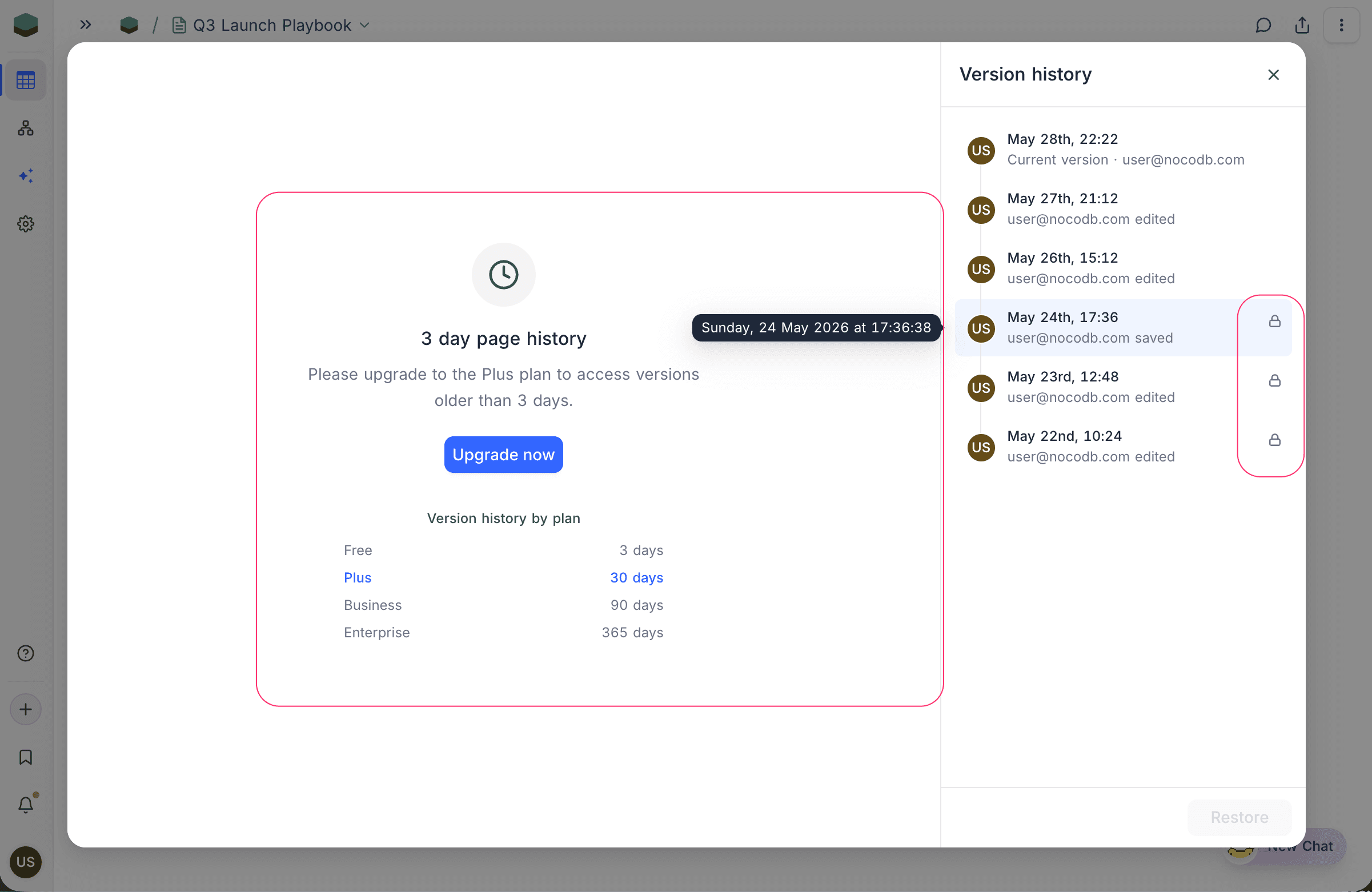
After upgrading (or applying a license that covers the version's age), reopen the history panel and the previously locked entry becomes browsable and restorable.
Related Topics
- Actions on Document — Rename, reorder, duplicate, move, and delete documents.
- Document Permissions — Control who can view and edit a document.
- Export Document — Export a document to Markdown, HTML, or PDF.