Mermaid Diagrams
Render Mermaid diagrams from text in NocoDocs.
NocoDocs renders Mermaid diagrams directly inside code blocks. Write the diagram as text and NocoDocs draws the SVG — flowcharts, sequence diagrams, class diagrams, state diagrams, ER diagrams, Gantt charts, pie charts, user journeys, and more.

Insert a Mermaid Diagram
- Insert a code block (type
/codeor```). - Click the language selector in the top-right of the code block and choose Mermaid.
- Type or paste your Mermaid source. The diagram renders as you type.
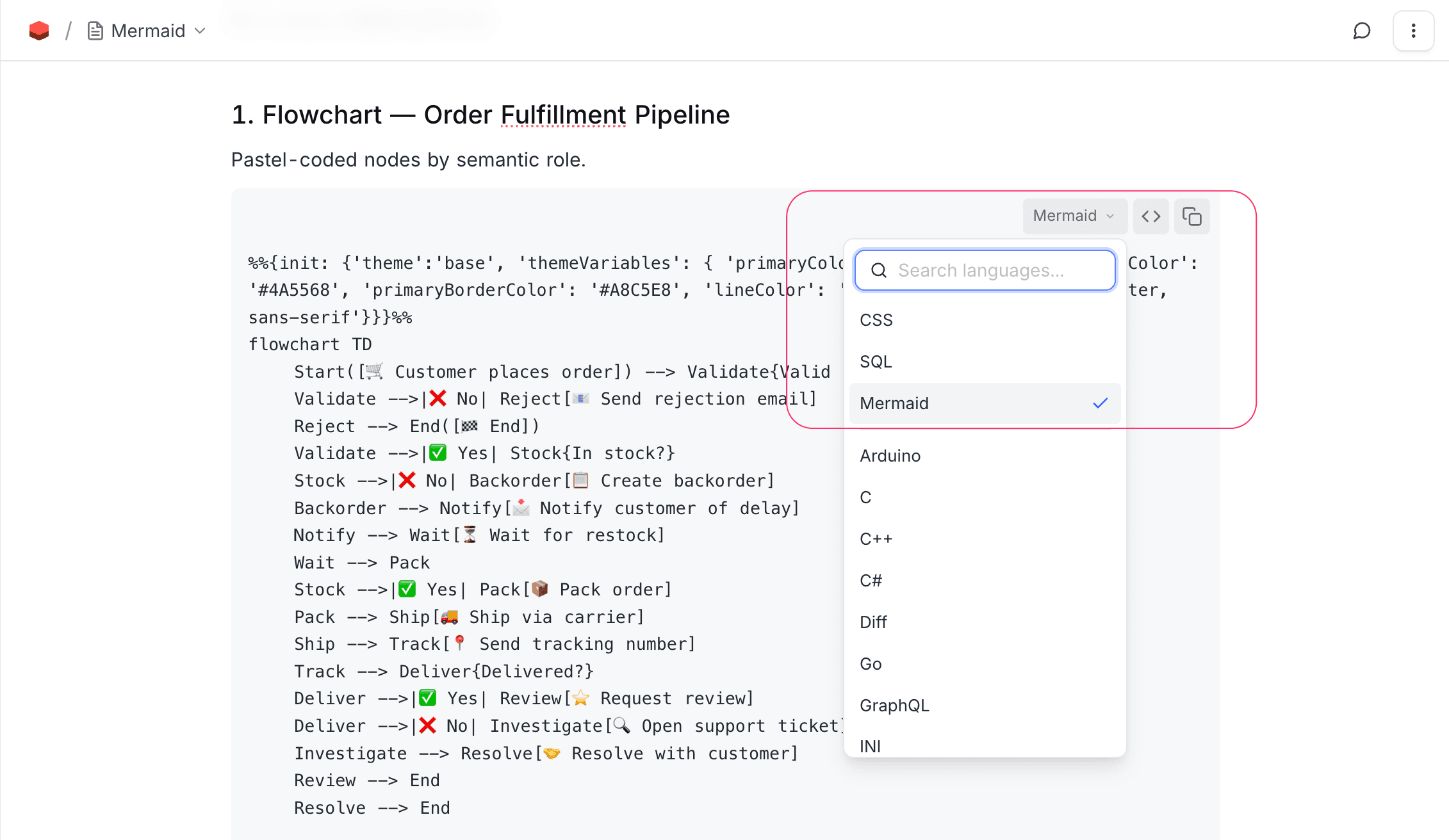
View Modes
Once the block's language is set to Mermaid, a view-mode picker appears in the toolbar. Open it to switch between the three modes:
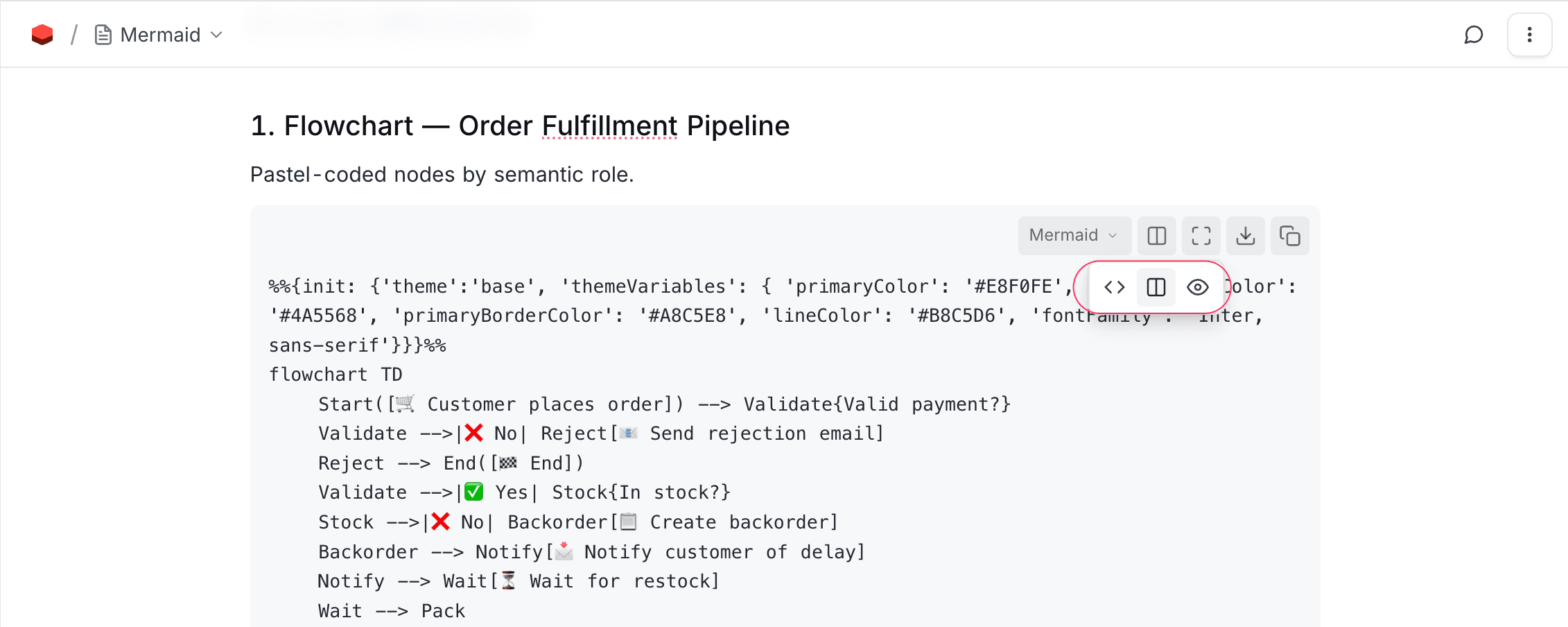
Show code
Source only. Useful while editing.
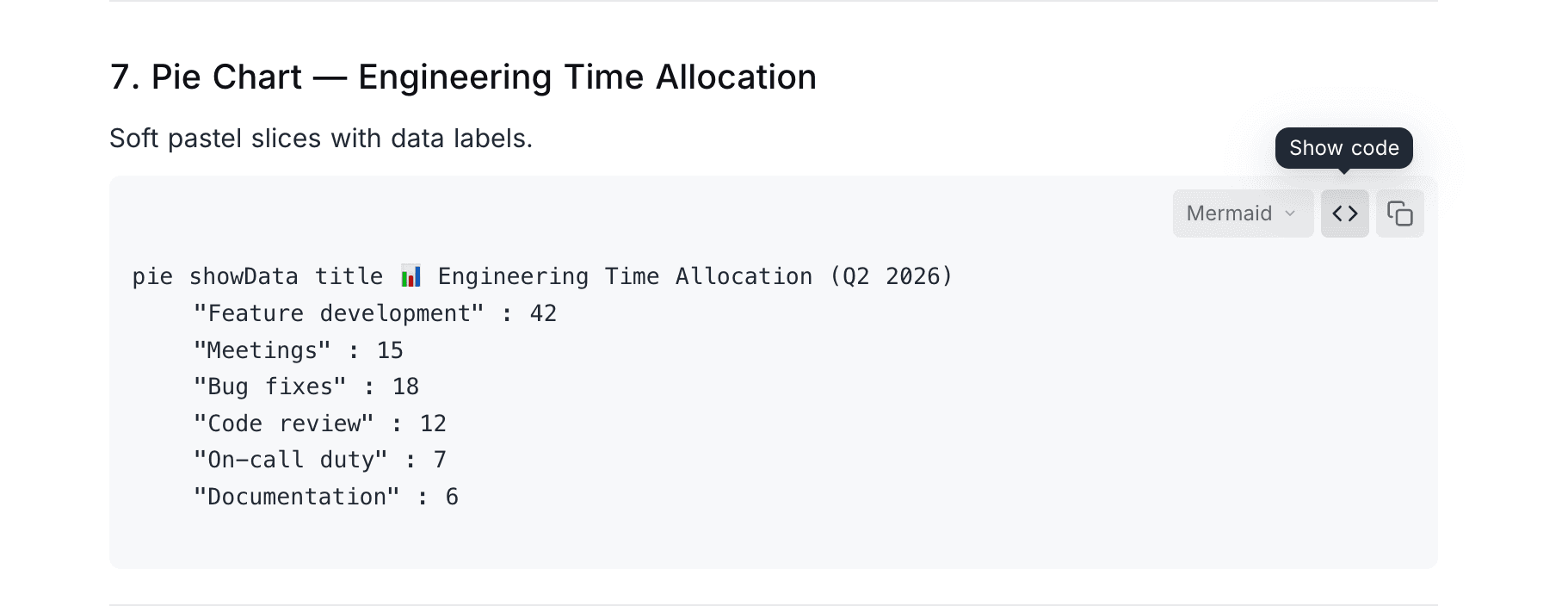
Split view
Source on top, rendered diagram below. Lets you edit and preview in the same block.
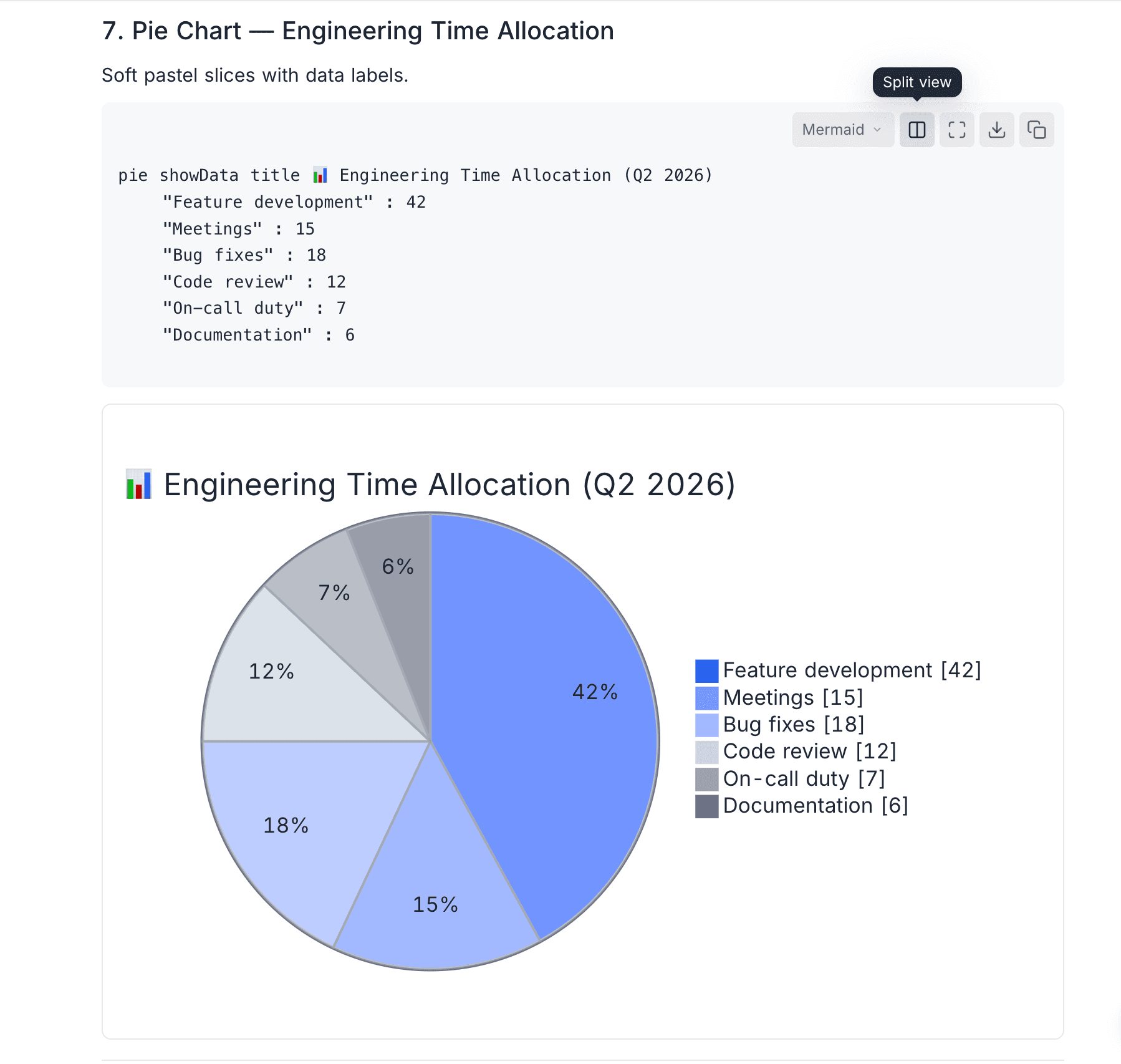
Show diagram
Diagram only. Cleanest reading view.
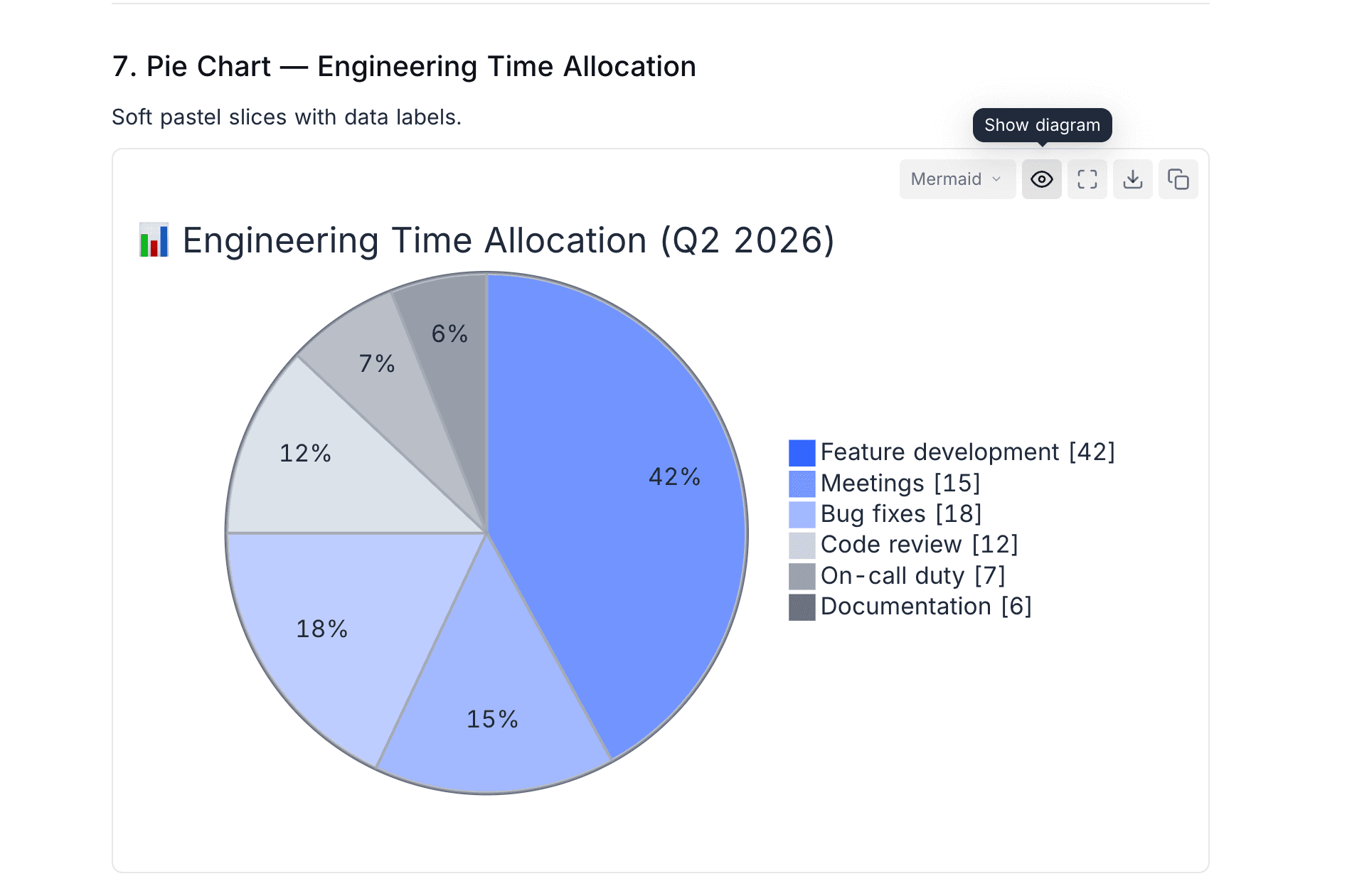
The current mode is saved on the block itself — every reader sees the same view the author last selected. New blocks default to Show code while editing and Show diagram for read-only viewers.
Expand & Download
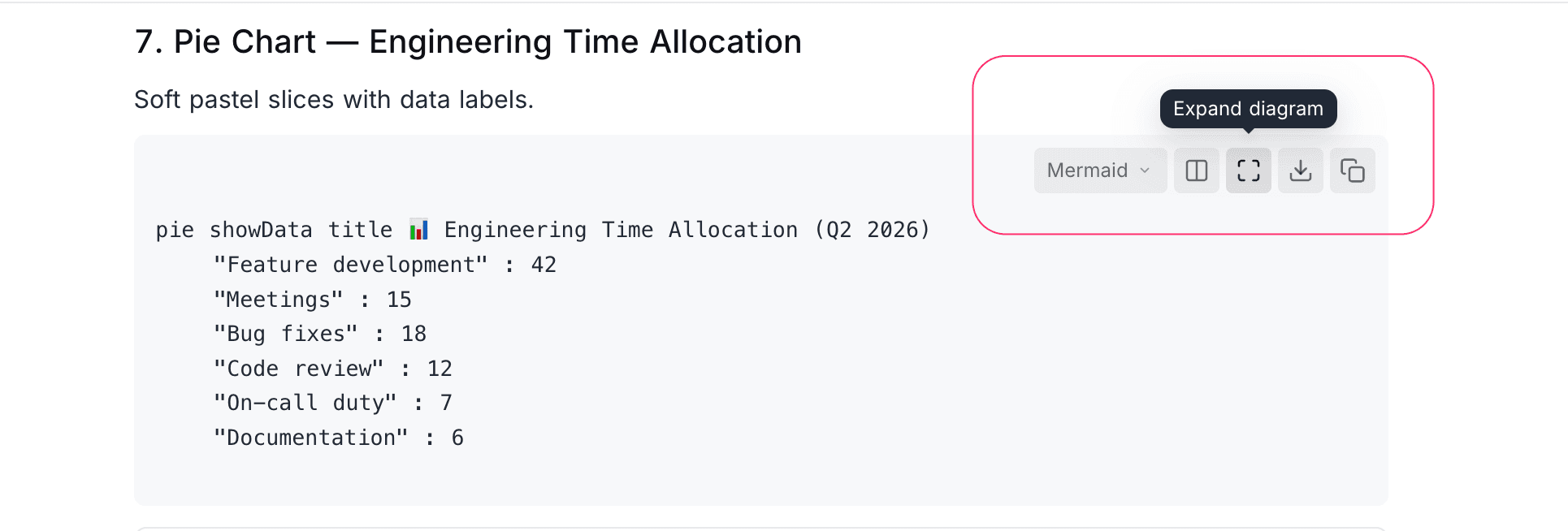
When the diagram is visible, two extra actions appear in the toolbar:
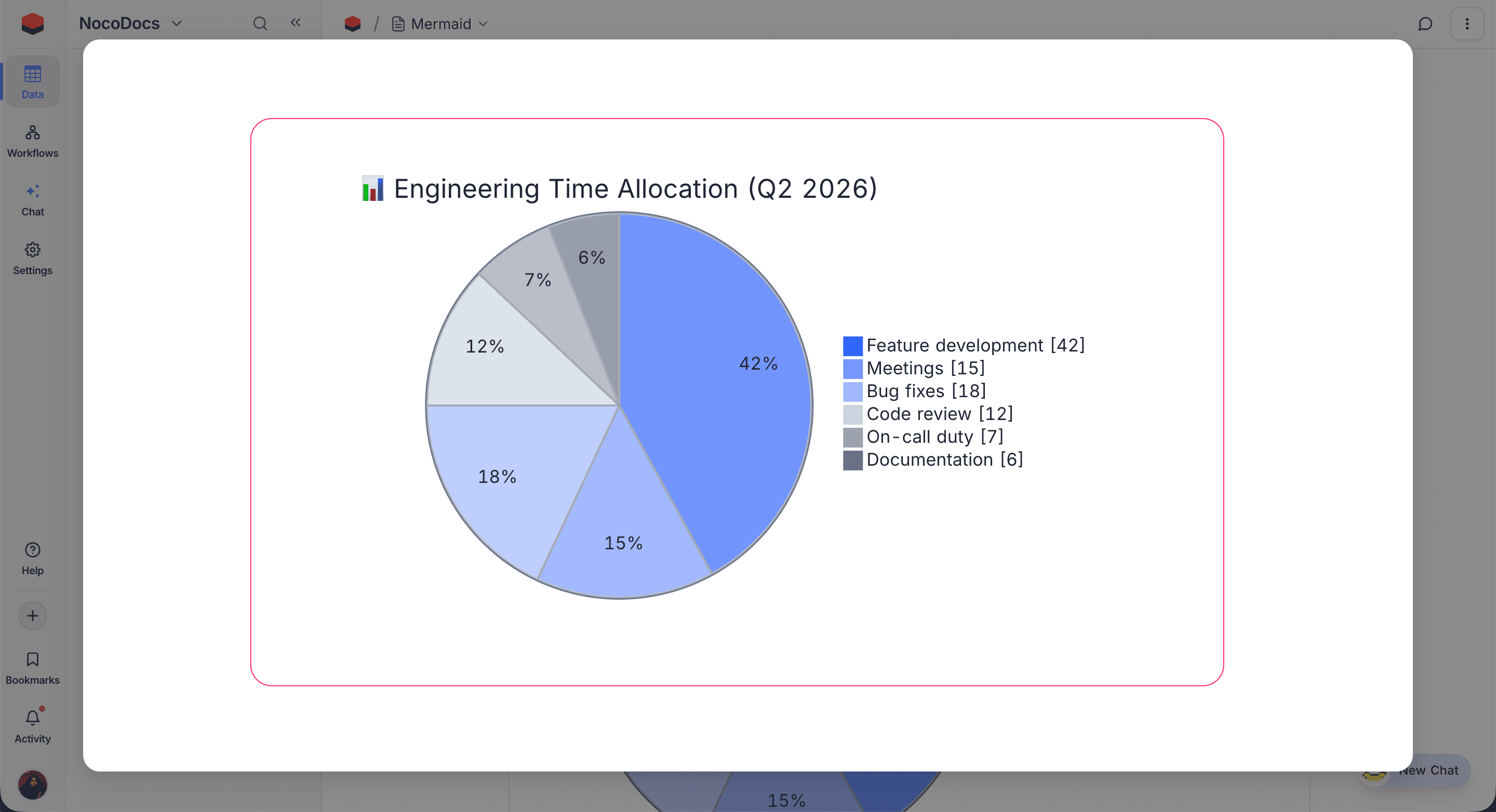
- Expand diagram — opens the diagram in a full-screen modal. You can also click the diagram itself to expand.
- Download image — downloads the rendered diagram as an
.svgfile.
Theme
Diagrams use a NocoDB-aligned palette and automatically switch between light and dark variants to match the editor theme.
Errors
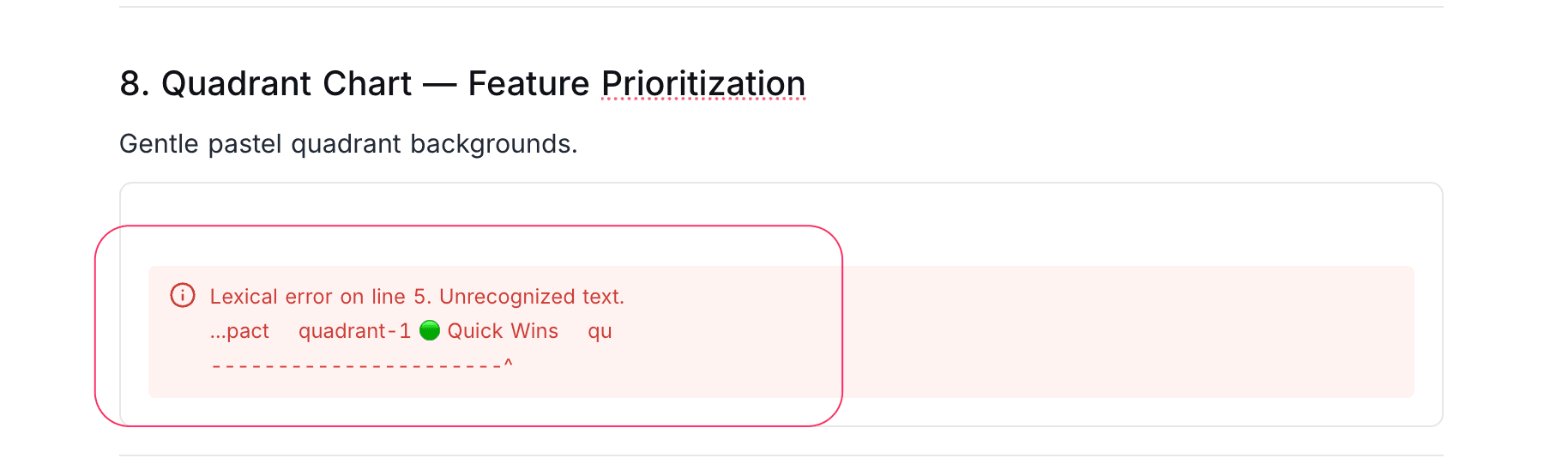
If the Mermaid source is invalid, an inline error message appears in place of the diagram with the parser's reason. The source is preserved — switch back to Show code to fix it.
Supported Diagram Types
NocoDocs supports every diagram type Mermaid offers. The most common are shown below.
Flowchart
Visualise processes, decisions, and branching logic.

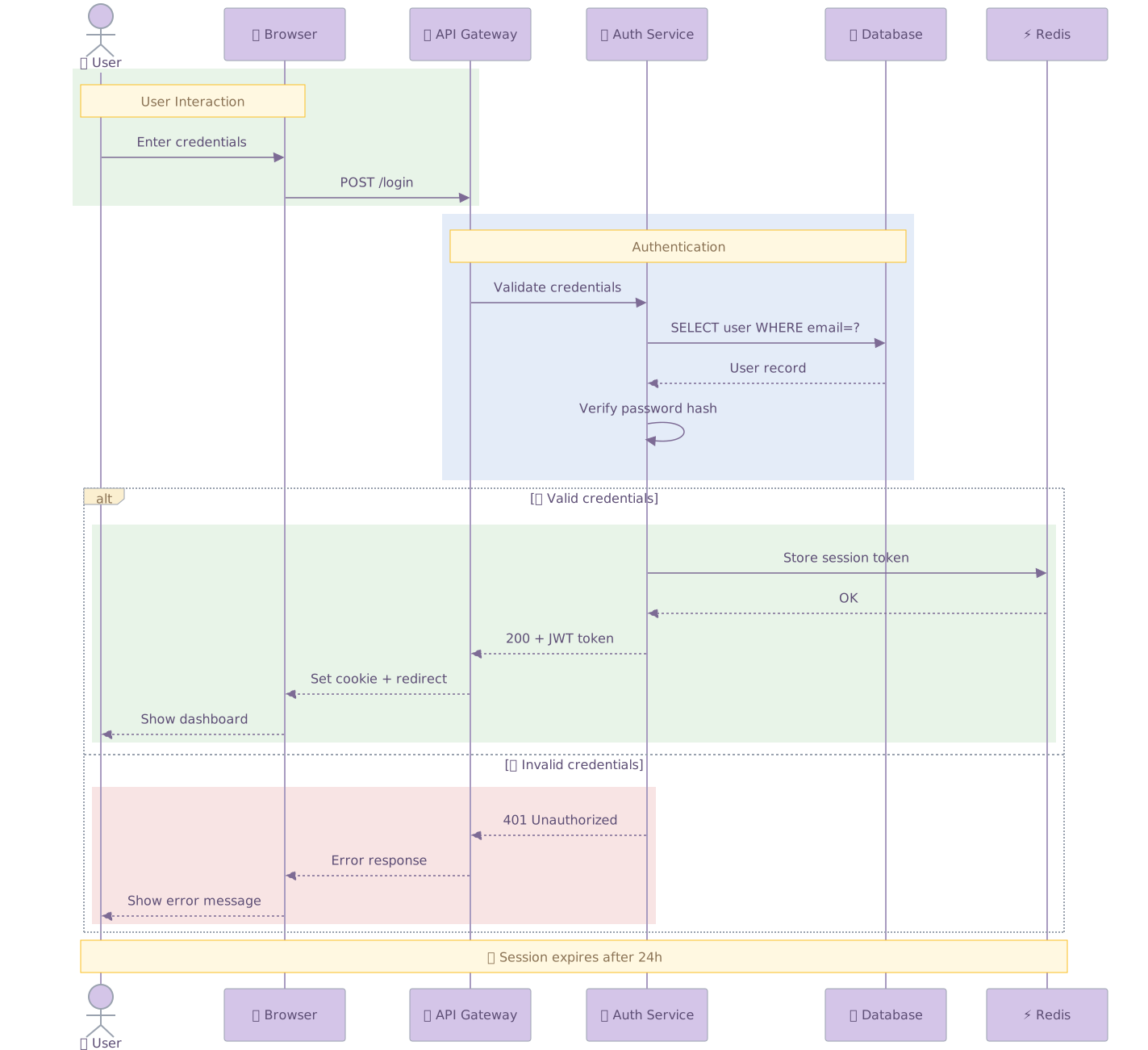
Sequence Diagram
Show interactions between participants over time.
Class Diagram
Model object-oriented structures, attributes, and relationships.

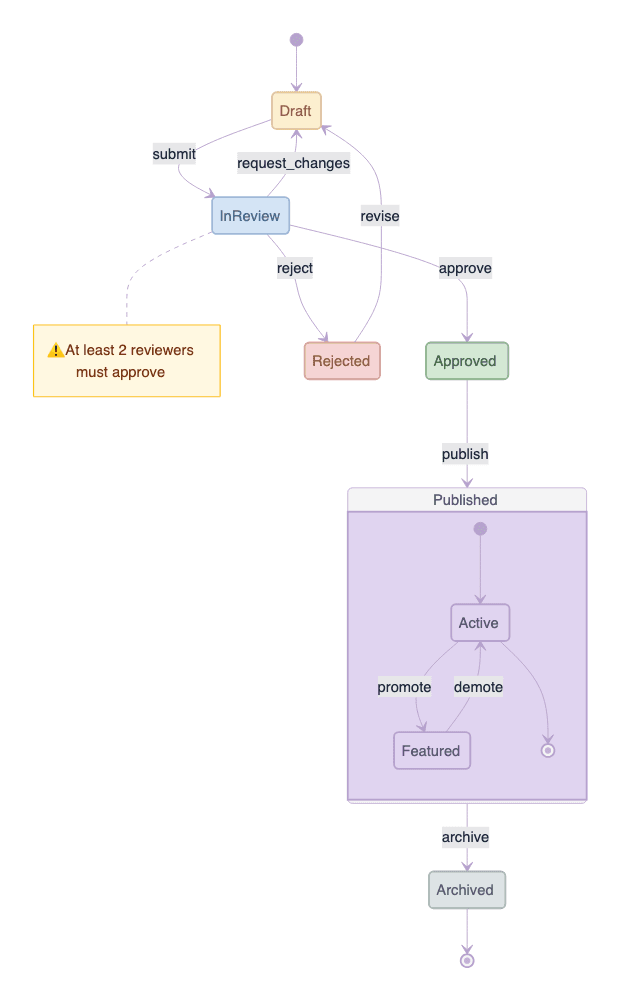
State Diagram
Capture state transitions and finite-state machines.
Entity Relationship Diagram
Describe database schemas and table relationships.

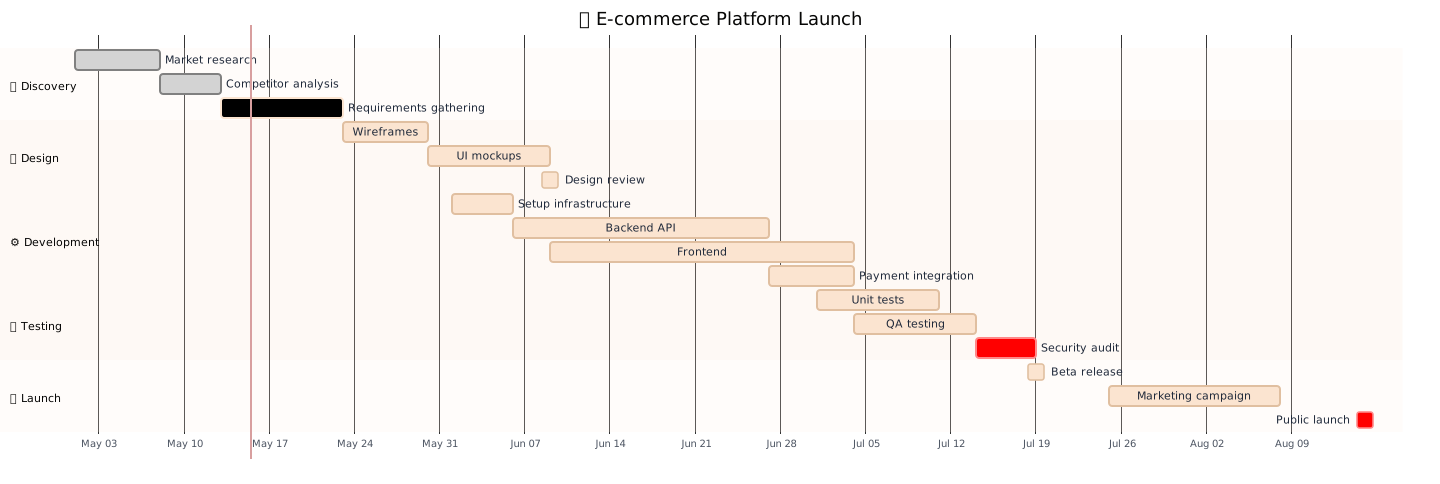
Gantt Chart
Plan project timelines, dependencies, and milestones.
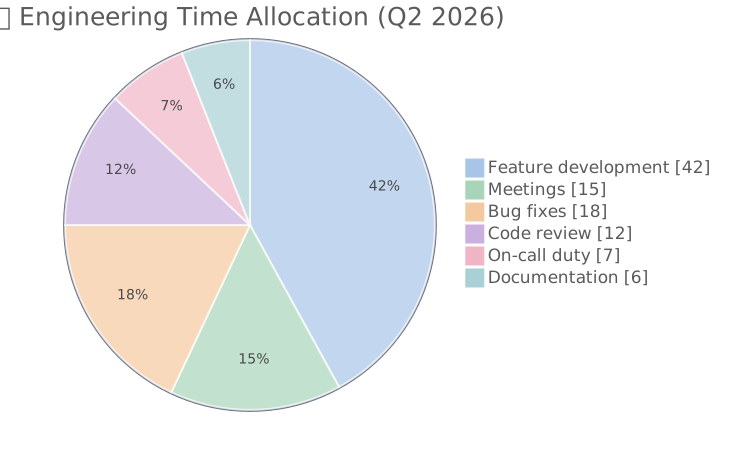
Pie Chart
Show proportional breakdowns of a whole.
User Journey
Map user steps and satisfaction across a workflow.

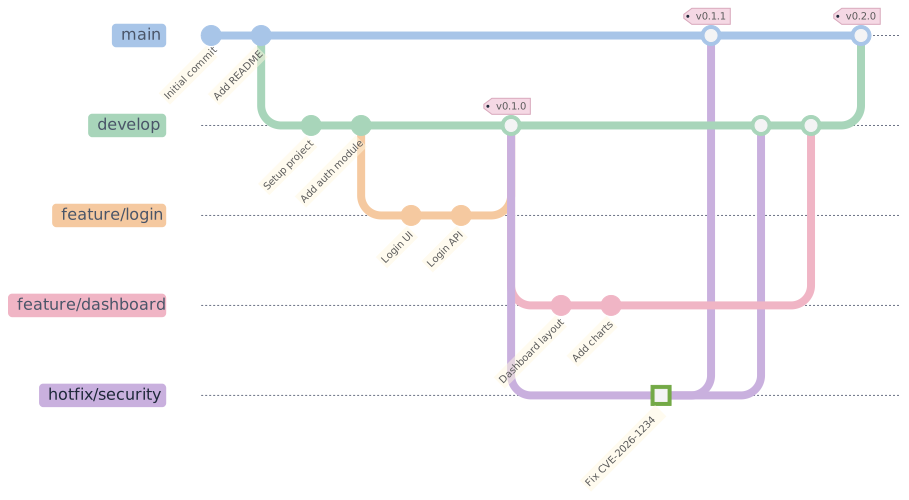
Git Graph
Illustrate branches, commits, and merges.
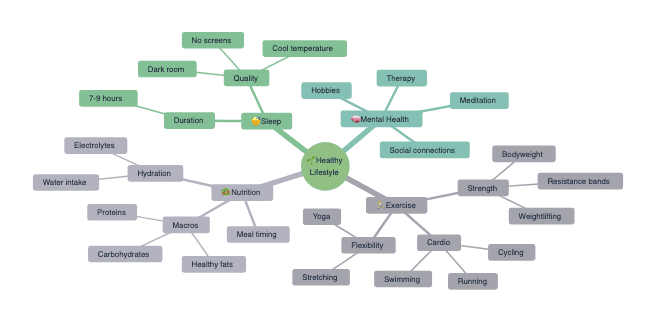
Mind Map
Organise hierarchical ideas around a central topic.
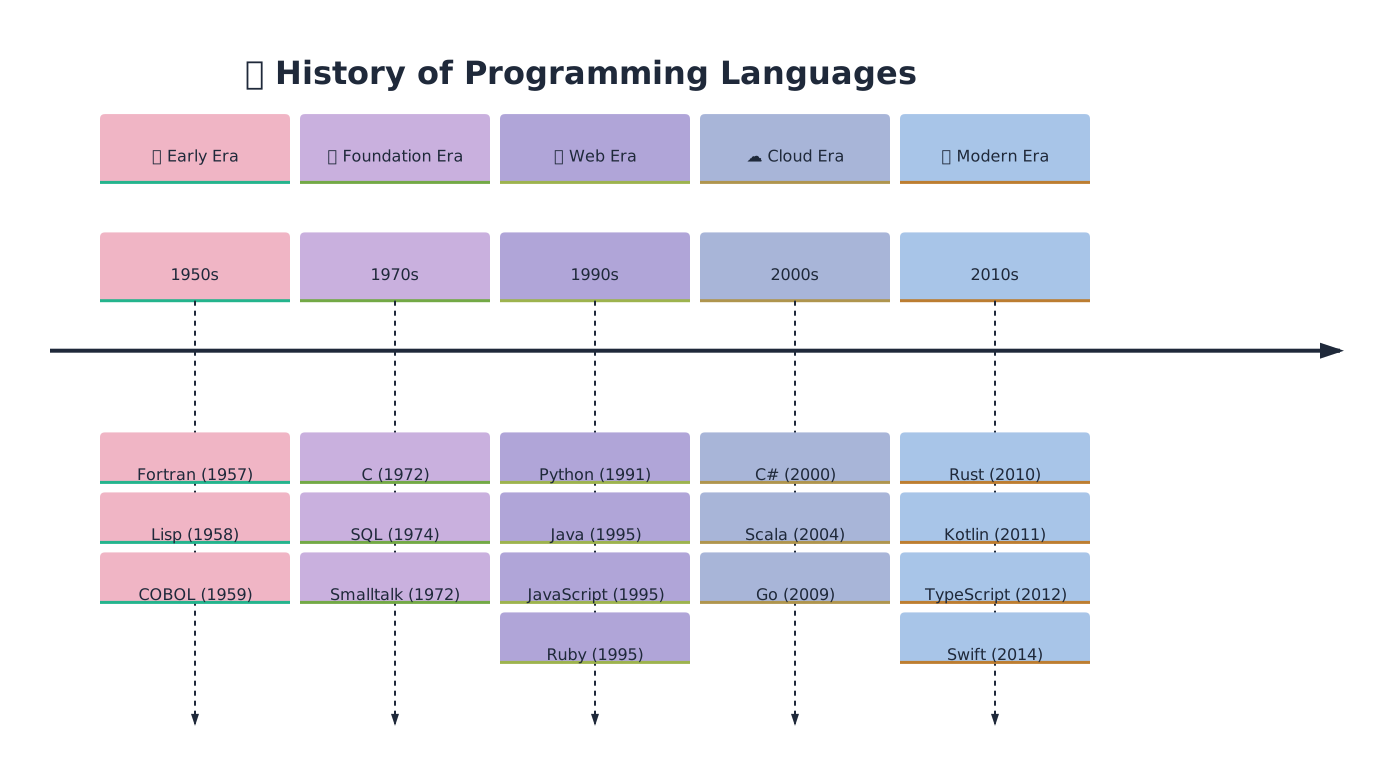
Timeline
Track events along a chronological axis.
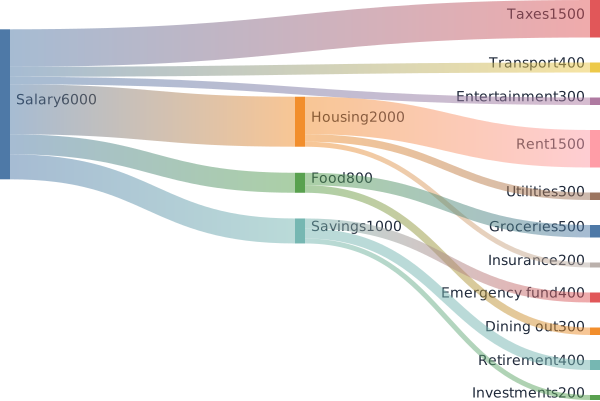
Sankey Diagram
Show flows and proportions between categories.
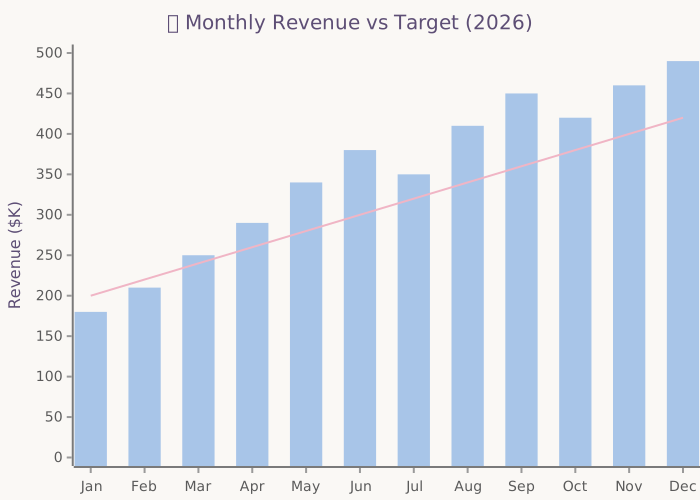
XY Chart
Plot data series on cartesian axes (line, bar).
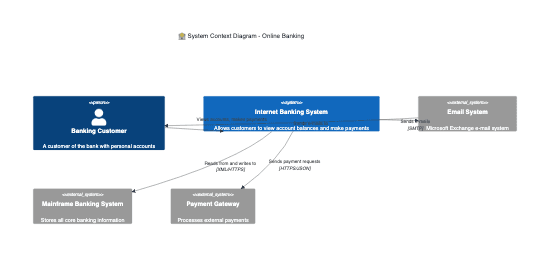
C4 Diagram
Document software architecture at varying levels of detail.
Exports
Mermaid diagrams are preserved when you export the document:
- HTML and PDF exports embed the rendered SVG diagram inline.
- Markdown exports keep the source as a
```mermaidfenced code block, which GitHub, Obsidian, and other Mermaid-aware viewers render automatically.