Text Formatting
Format text in NocoDocs with bold, italic, color, highlights, and more.
NocoDocs supports a full range of inline text formatting options, accessible via the bubble menu (select text) or keyboard shortcuts.
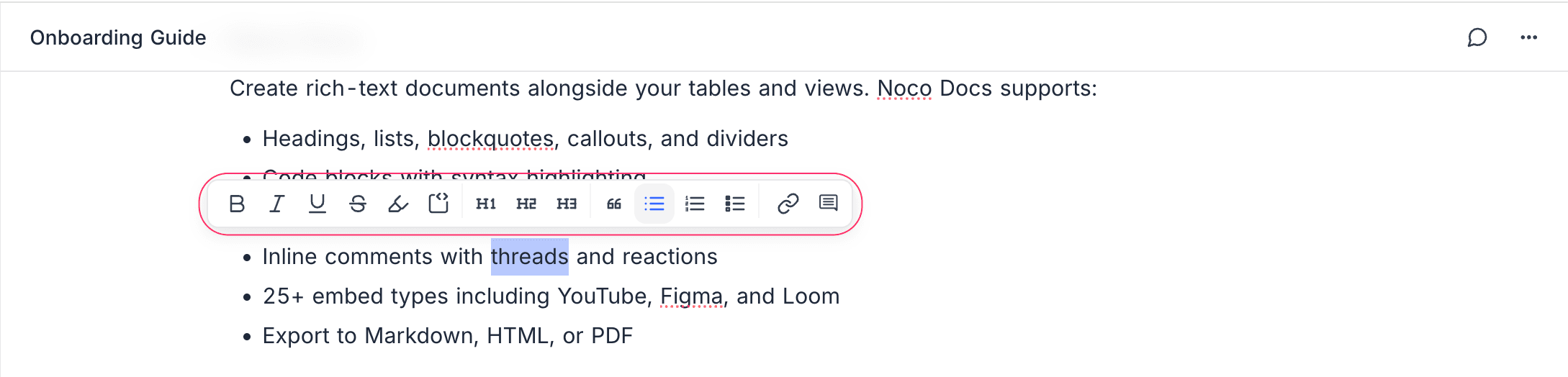
Formatting Options
| Format | Keyboard Shortcut | Markdown Shortcut |
|---|---|---|
| Bold | Cmd/Ctrl + B | **text** |
| Italic | Cmd/Ctrl + I | *text* |
| Underline | Cmd/Ctrl + U | — |
Cmd/Ctrl + Shift + X | ~~text~~ | |
Inline Code | Cmd/Ctrl + E | `text` |
Text Highlight
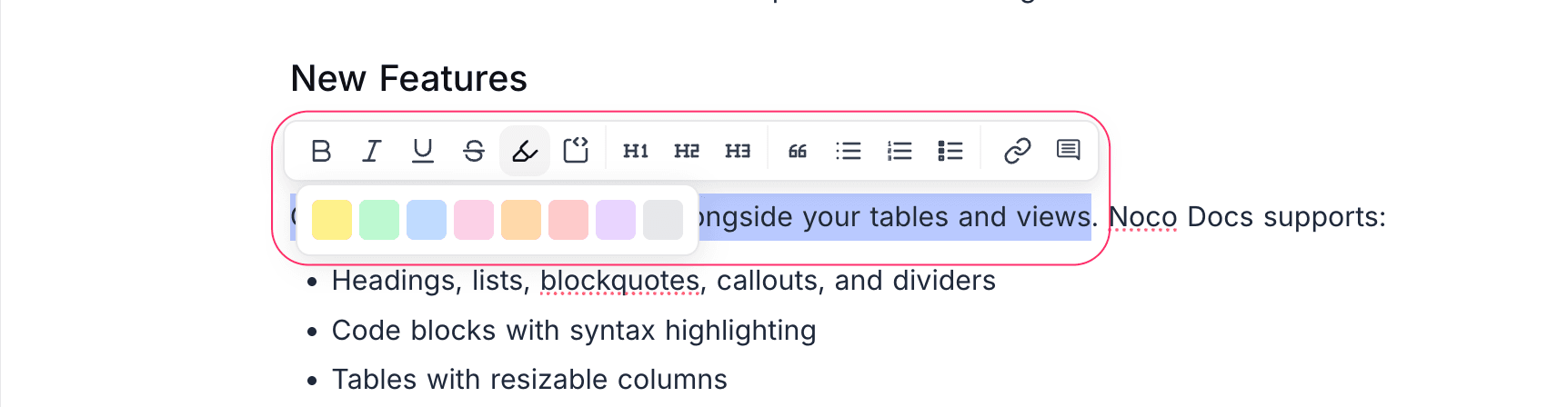
Apply a background highlight to selected text:
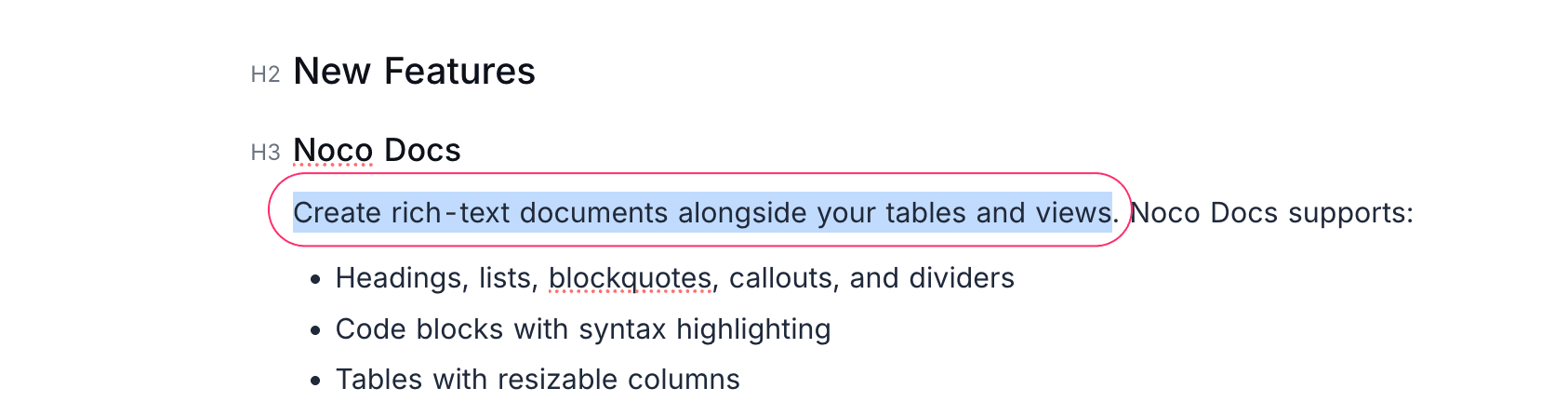
- Select the text you want to highlight.
- In the bubble menu, click the Highlight button.
- Choose a highlight color from the palette.
Links

Insert a hyperlink:
- Select the text to turn into a link.
- Click the link button in the bubble menu.
- Enter the URL or select a document within the base, then press
Enter.
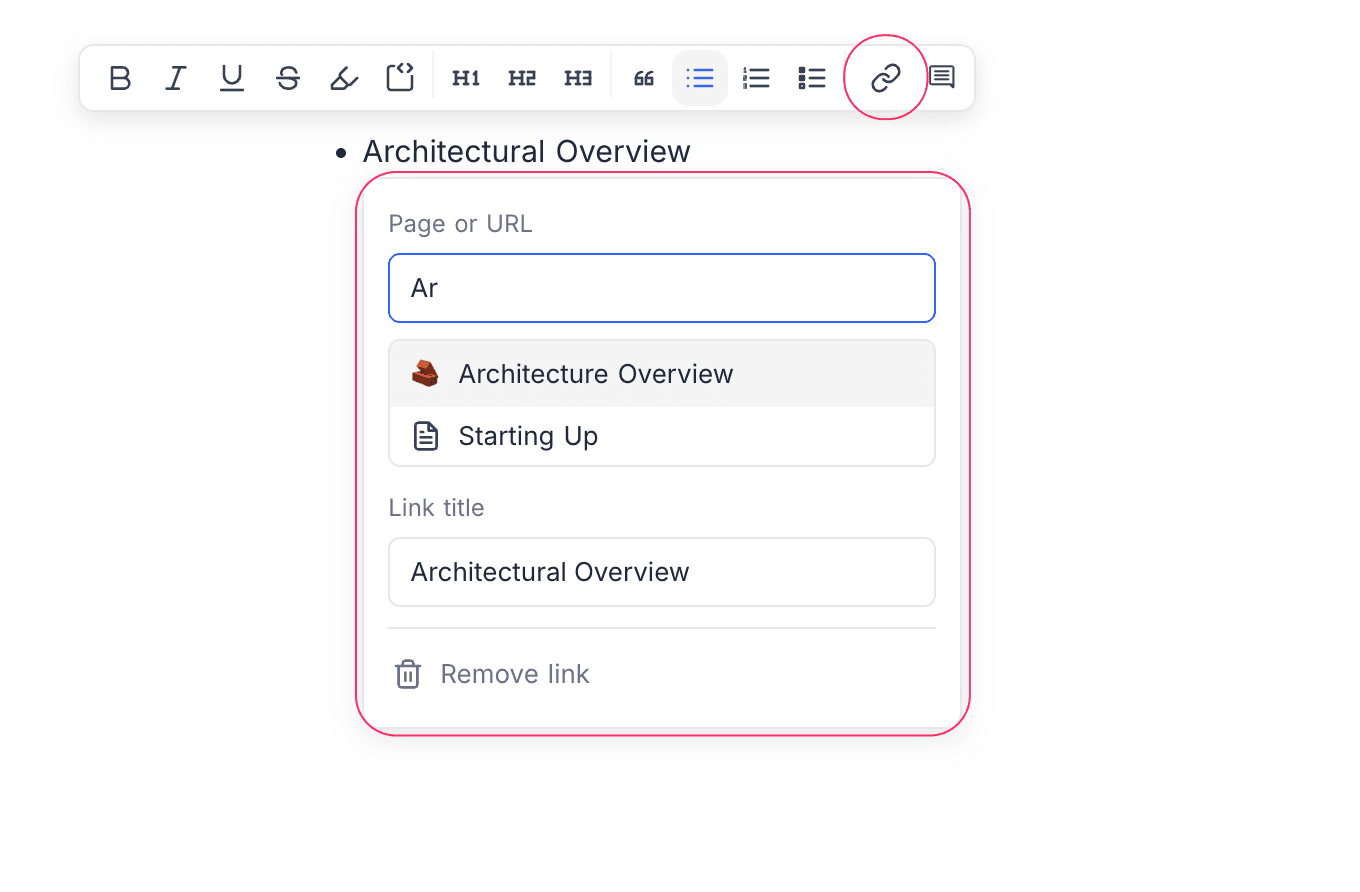
You can also paste a URL directly onto selected text to convert it into a link.
To edit a link, hover over the linked text and click the edit button. To remove a link, click "Remove Link" from the edit modal.