Tables
Insert and edit tables within NocoDocs documents.
You can insert tables directly into your documents for organizing structured information. These are document tables (layout blocks), not to be confused with NocoDB database tables.
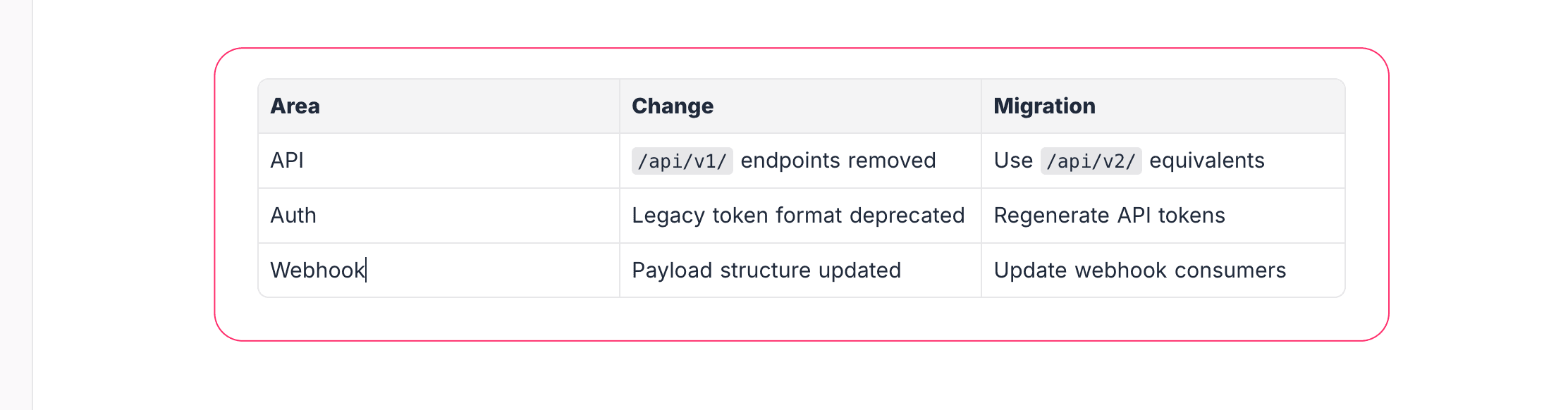
Insert a Table
- Type
/tablein the editor. - Select Table from the slash command menu.
- A default table is inserted with a header row.
Edit a Table
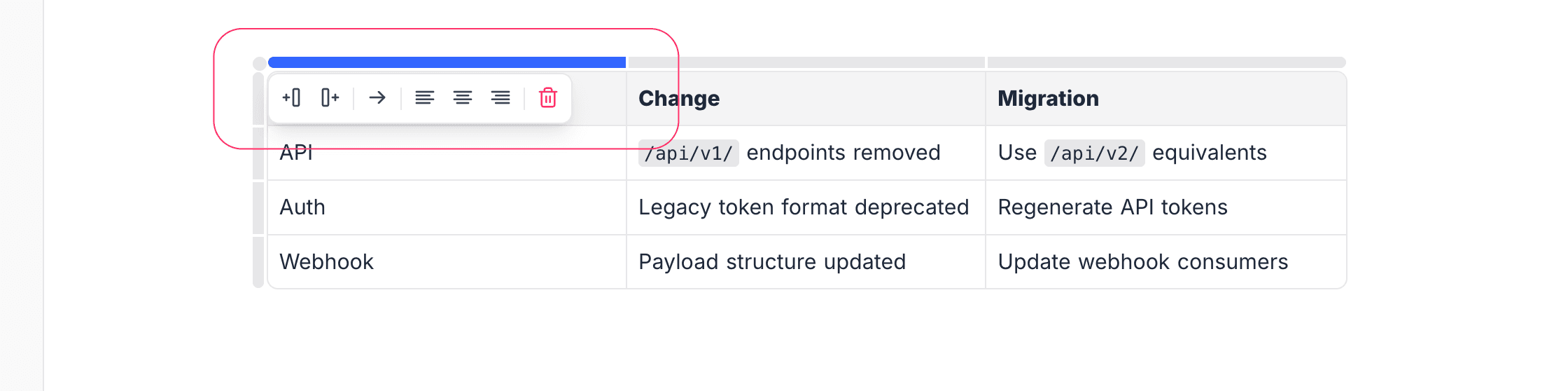
Click the menu icon on top of a column to:
- Add a column — Insert a column to the left or right of the current column.
- Move a column — Move a column to the left or right.
- Column text alignment — Set the text alignment for the column to Left, Center, or Right.
- Delete a column — Click the bin icon to remove the column.
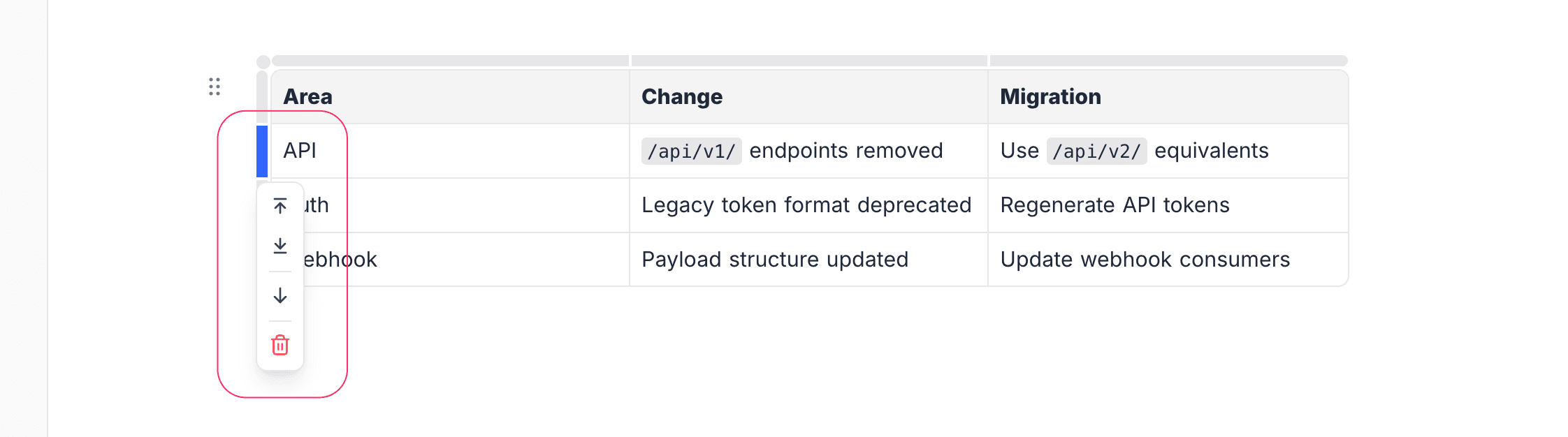
Click the menu icon to the left of a row to:
- Add a row — Insert a row above or below the current row.
- Move a row — Move a row up or down.
- Delete a row — Click the bin icon to remove the row.
Navigate Cells
Use Tab to move forward and Shift + Tab to move backward between cells. You can also use the arrow keys to navigate between cells and text within them.
Header Row
The first row of the table is styled as a header row by default. Header cells are visually distinct with bold text and a subtle background color.
Delete a Table
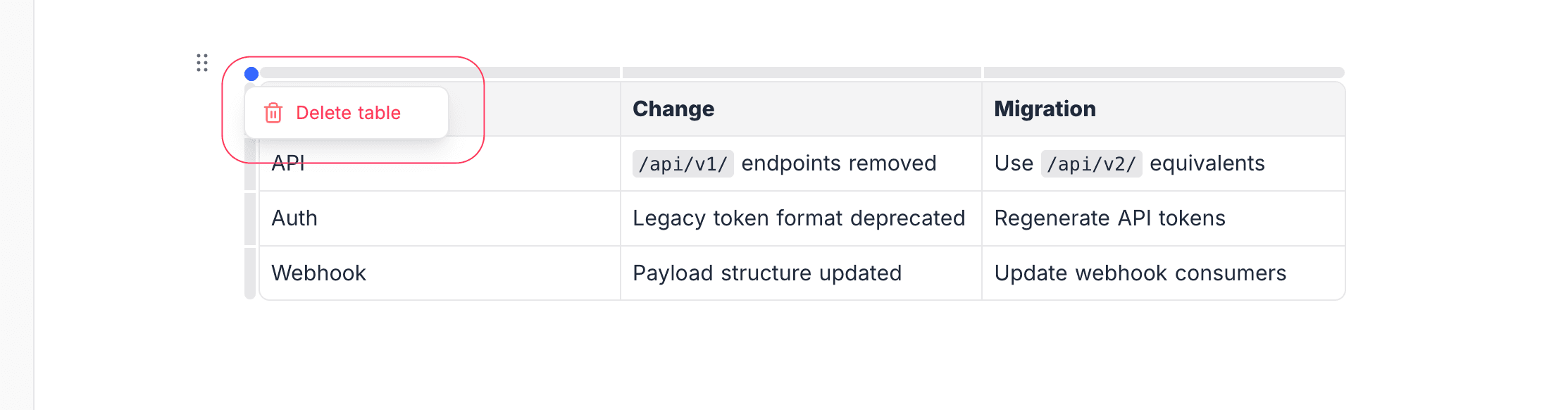
To delete a table, select Delete Table from the table menu (top-left corner). Alternatively, select the area around the table and delete it as you would any other block.