Share View
Share a view of a table when you collaborate with people outside your organization who need access to specific parts of your database. A shared view is read-only. Anyone with the link can open it, also people who are not in your workspace.
You control which fields and records these external viewers see, so sensitive data stays hidden. When you change the visible fields or records in the view, the shared link shows the changes immediately, in real time.
Generate Share View
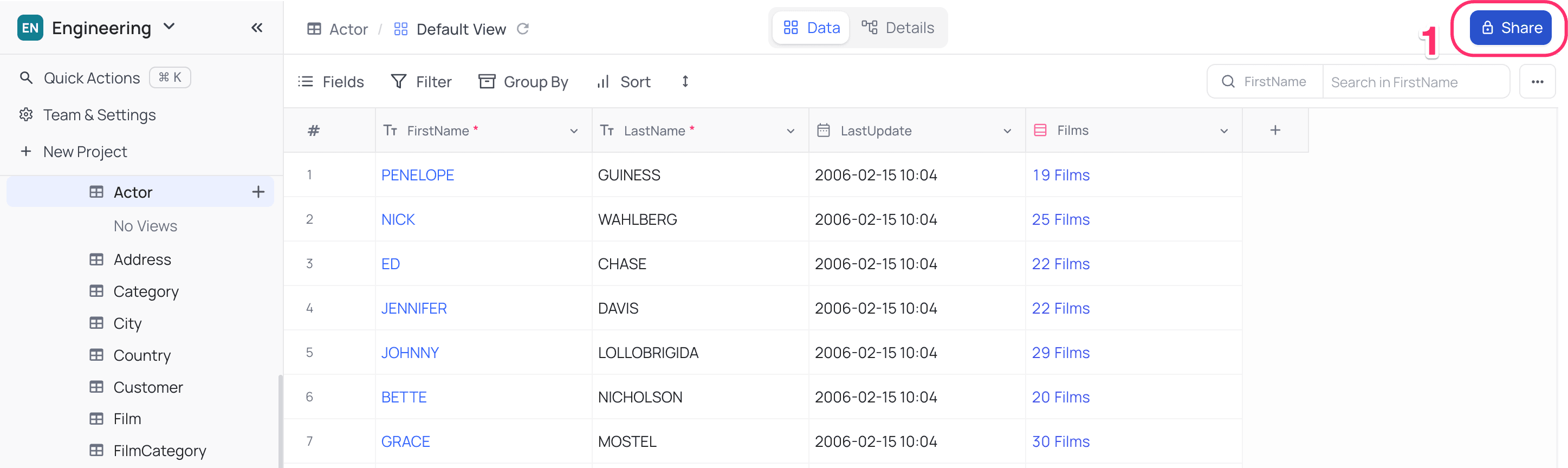
- At the top right of the toolbar, click
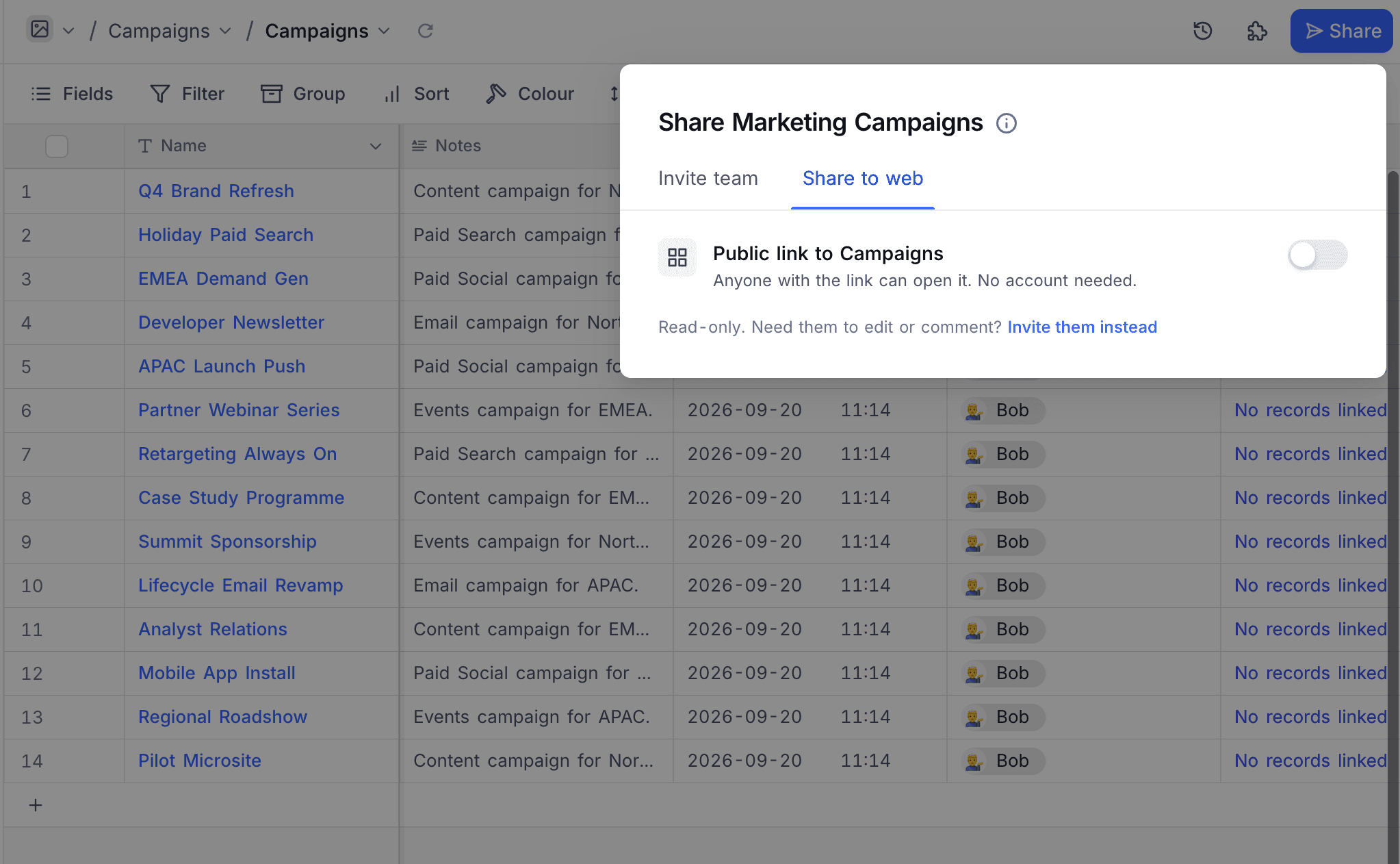
Share. - Open the
Share to webtab. - Turn on the switch beside
Public link to <view name>. NocoDB creates the shared view link. - Click
Copy URL. The link is copied to the clipboard.
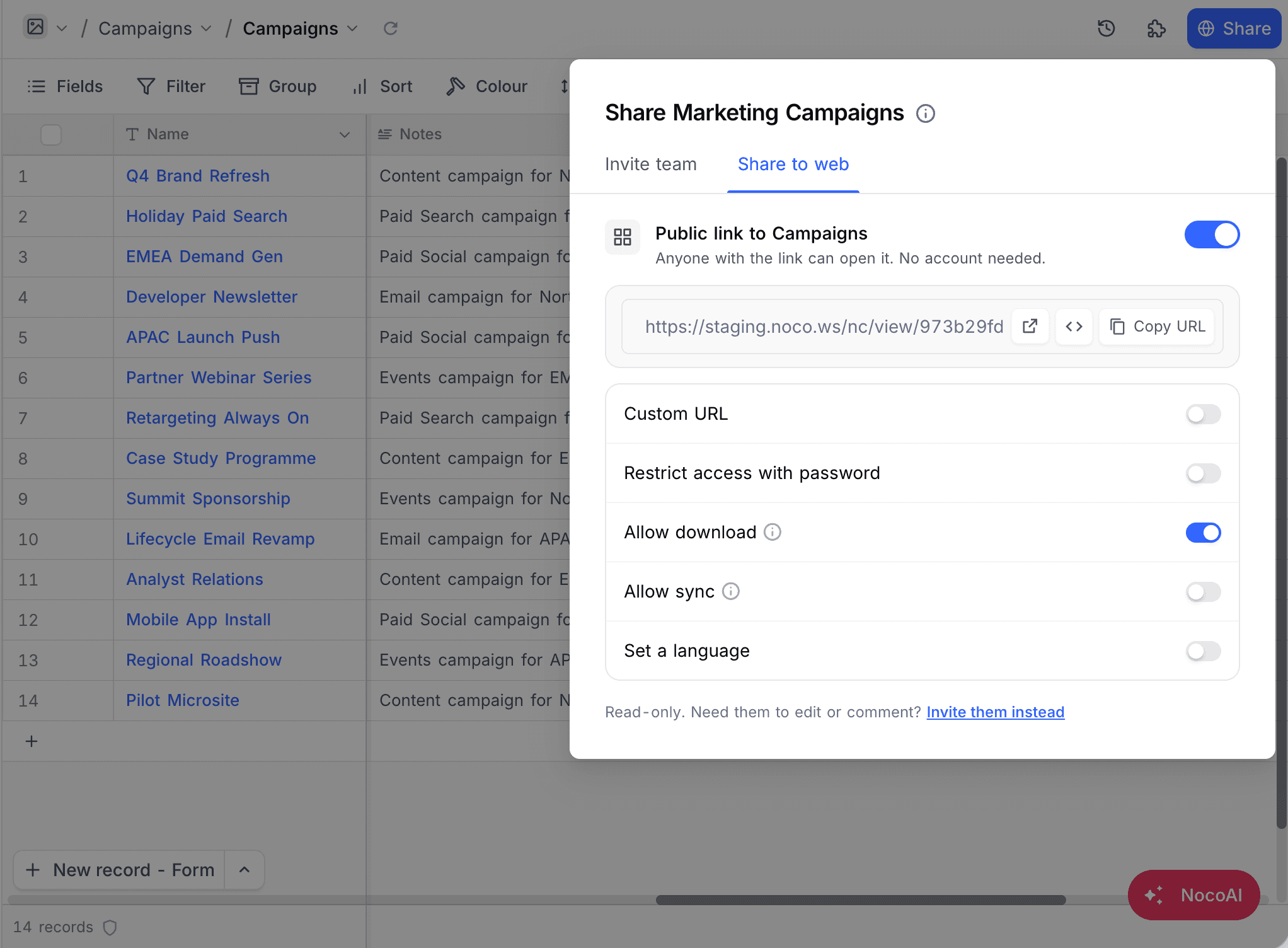
Share view options
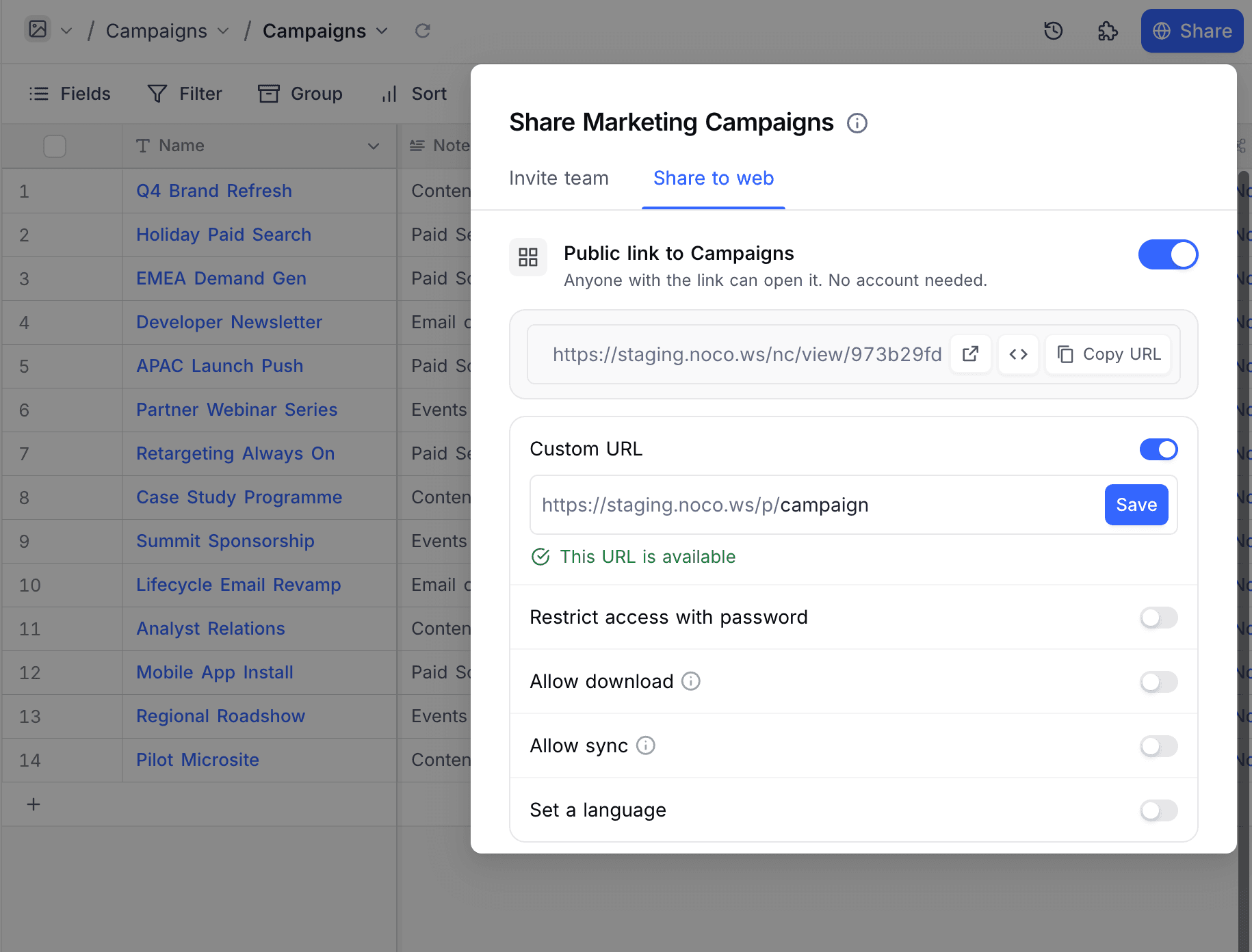
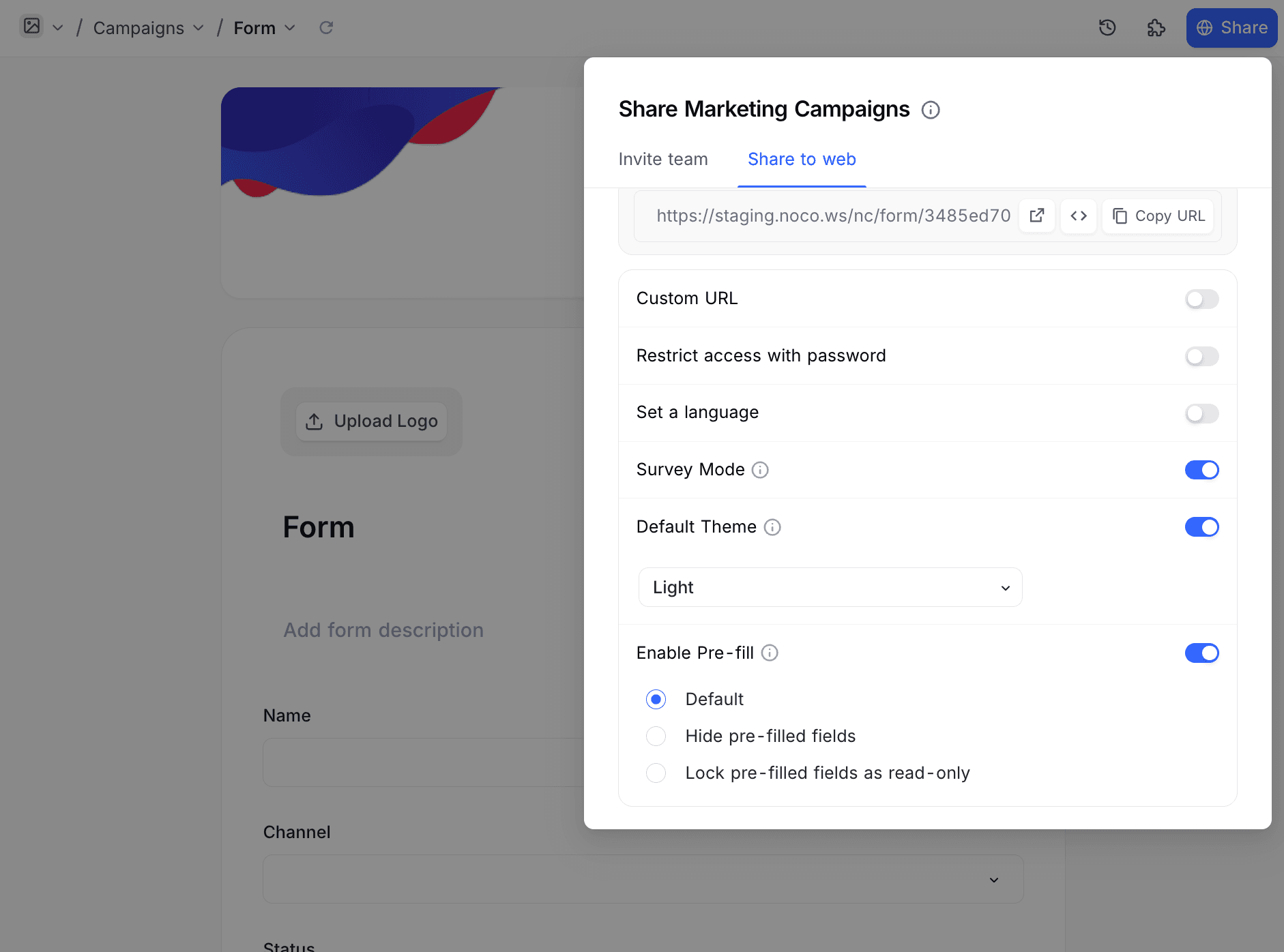
Custom URL
You can set a custom URL for the shared view in the input field. The custom URL must be unique. It must not contain the special characters /, ? or #. If another view already uses the custom URL, NocoDB asks you to enter a different one.
To enable a custom URL:
- Click the
Custom URLtoggle. - In the input field, enter the custom URL.
- Click
Save.
Password protection
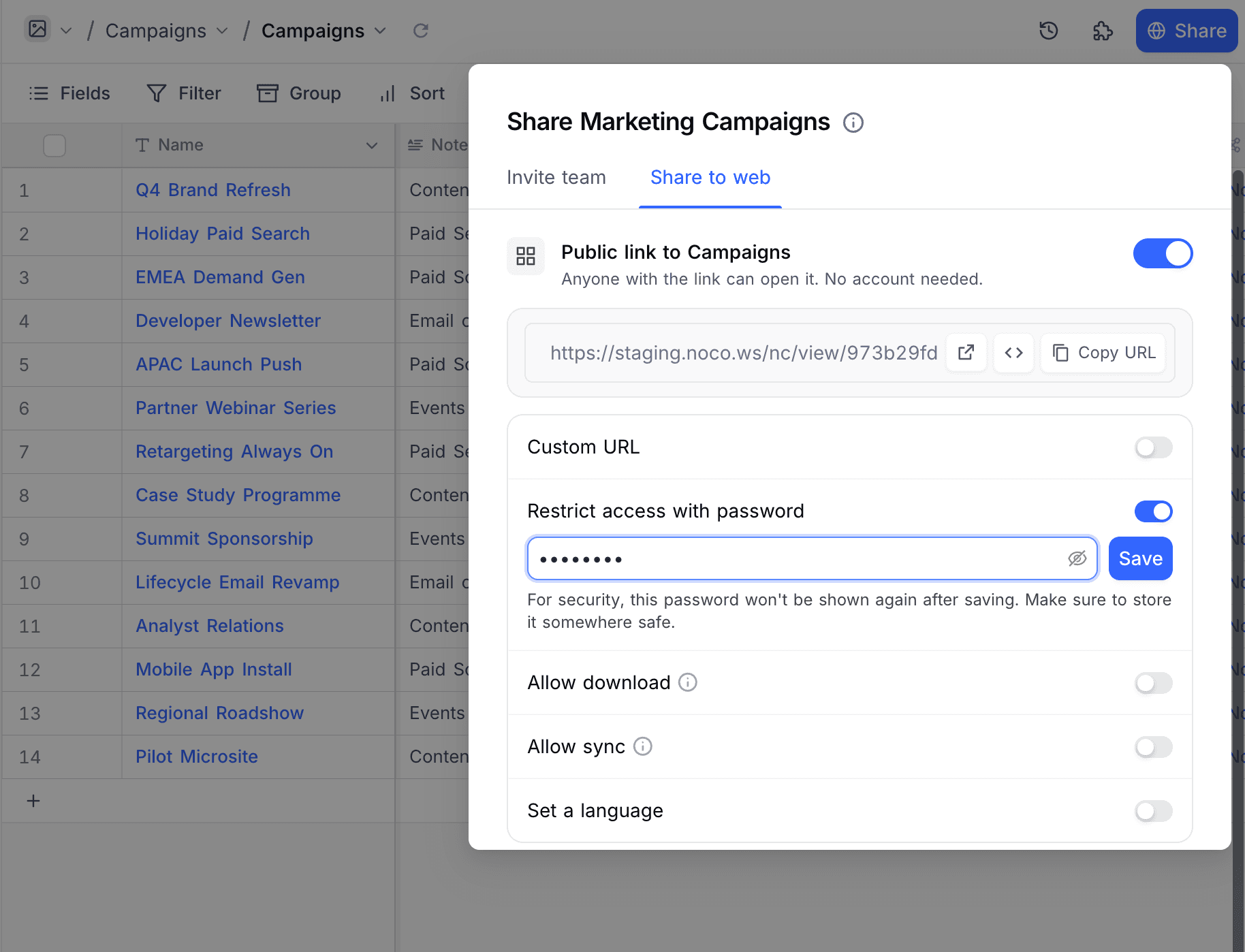
- Turn on
Restrict access with password. - Enter a password.
- Click
Save.
NocoDB does not show the password again after you save it. Keep it in a safe place.
Download options
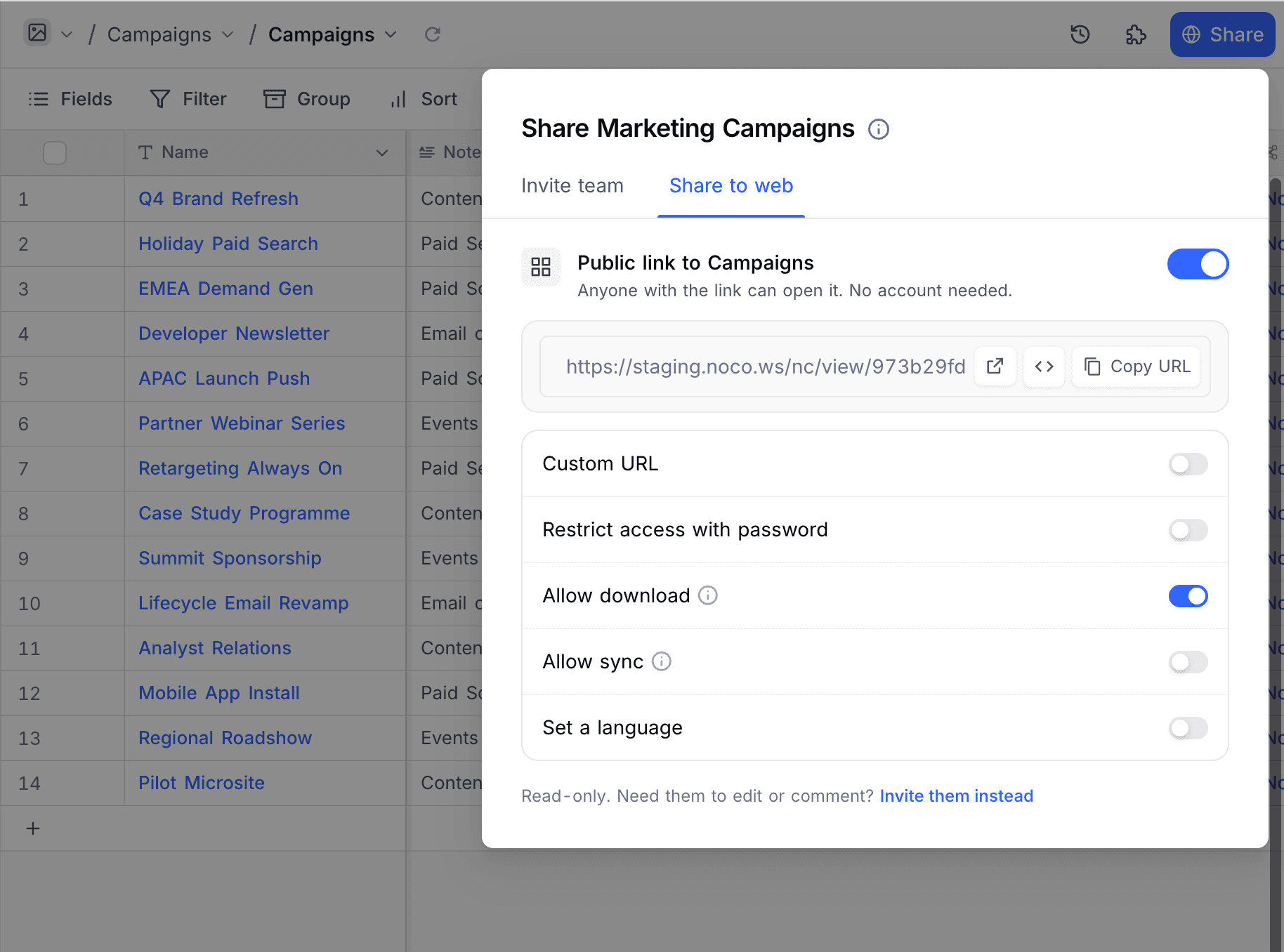
Use the Allow download toggle to enable or disable the download CSV/XLSX options in the shared view link.
Allow sync
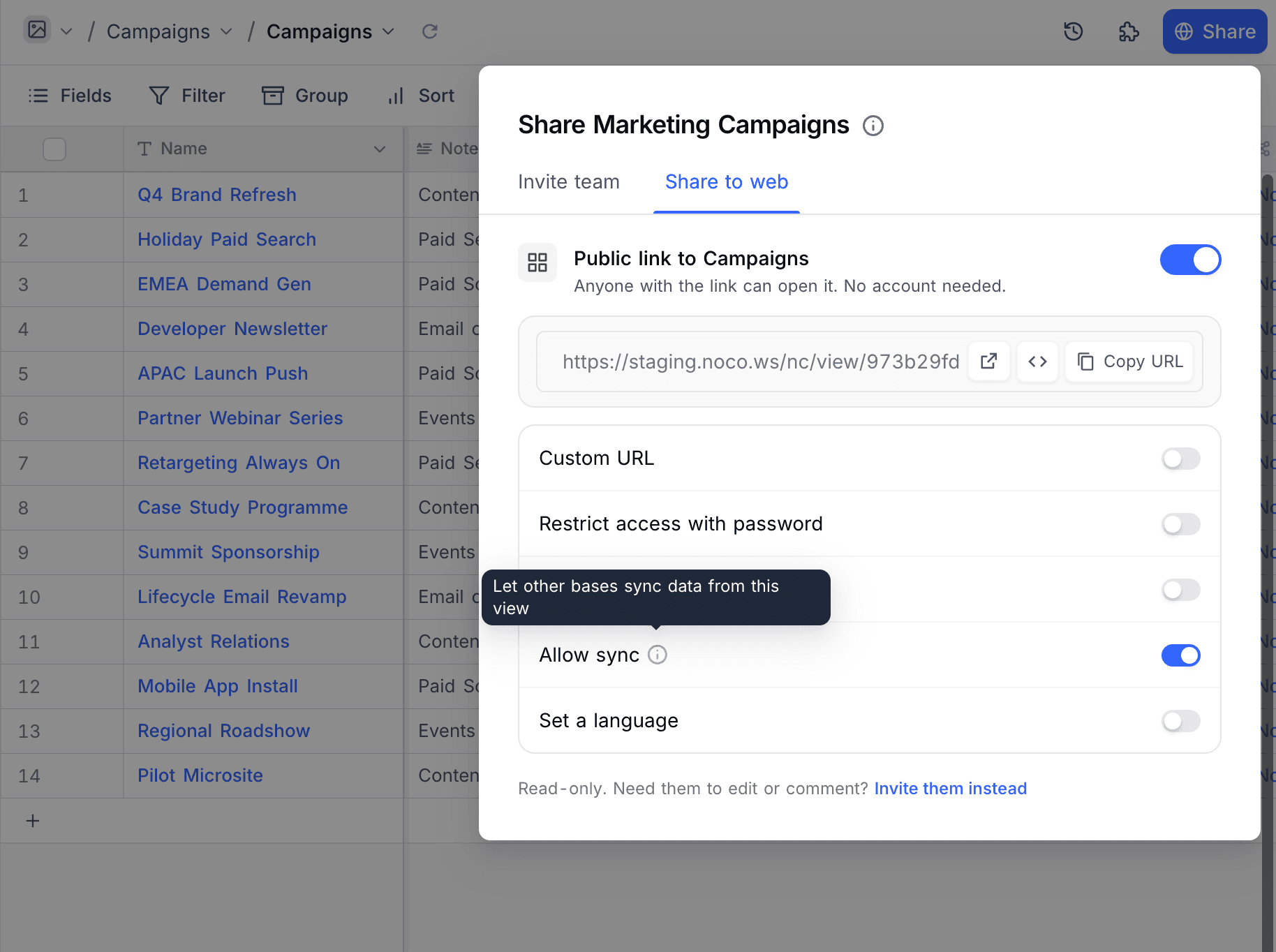
On a Grid view, turn on Allow sync to let other NocoDB bases mirror this view as a live, read-only table. For the full setup, refer to NocoDB Sync.
Set a language
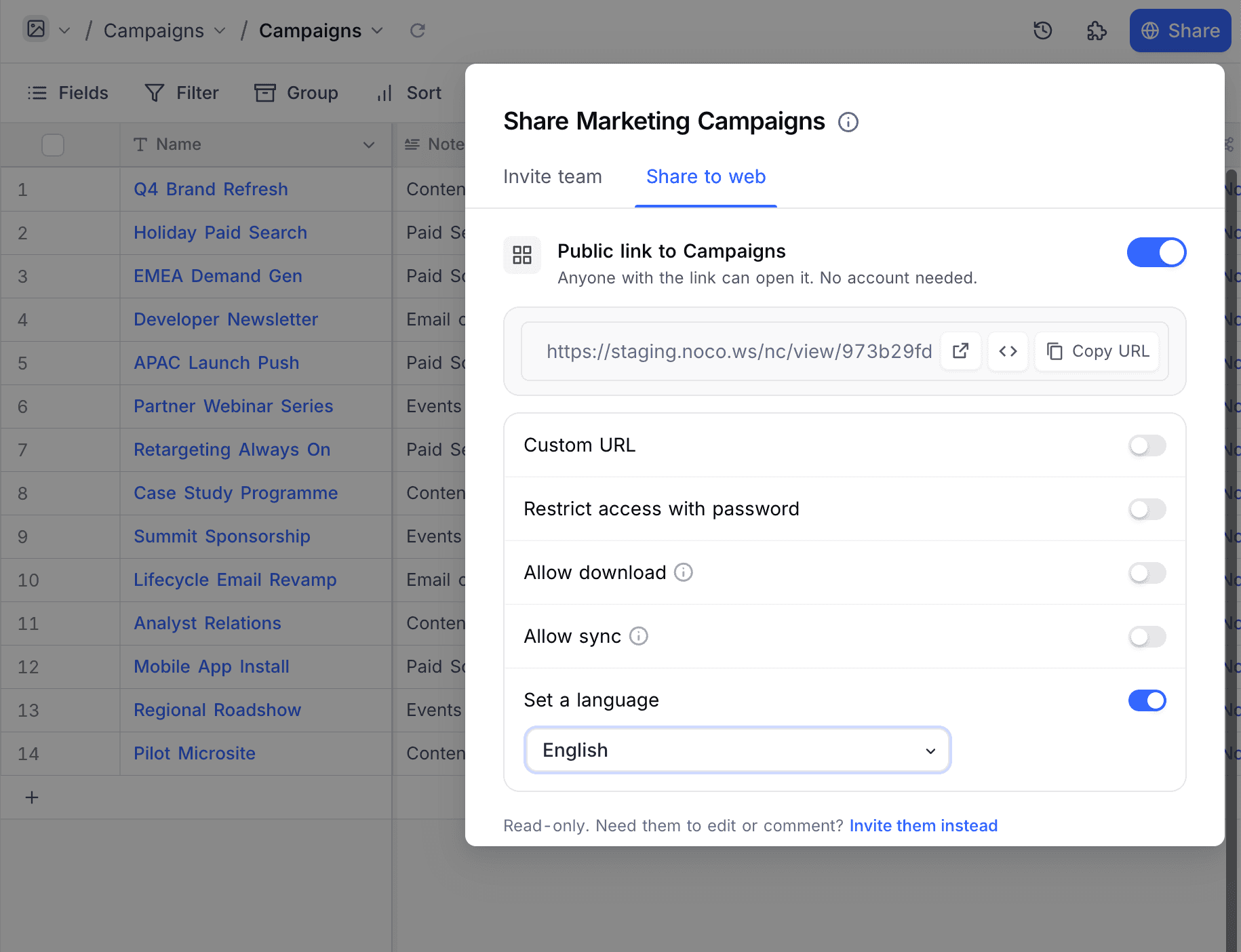
Turn on Set a language and select a language. The shared view then always uses this interface language, whatever the preference of the viewer. If the option is off, the shared view uses the browser language of the viewer.
Share Form View Options
A shared Form view has three more options:
| Option | What it does |
|---|---|
Survey Mode | Shows the form one field at a time, not as a single page. |
Default Theme | Sets the form theme to Light or Dark. The form does not follow the theme of the viewer. |
Enable Pre-fill | Lets the share URL fill in field values. Select Default to keep pre-filled fields editable. Select Hide pre-filled fields to remove them from the form. Select Lock pre-filled fields as read-only to show them without edits. |
Access Share View
To open the shared view, click the Shared View URL. If the URL is password-protected, NocoDB asks for the password. Enter the password to continue.
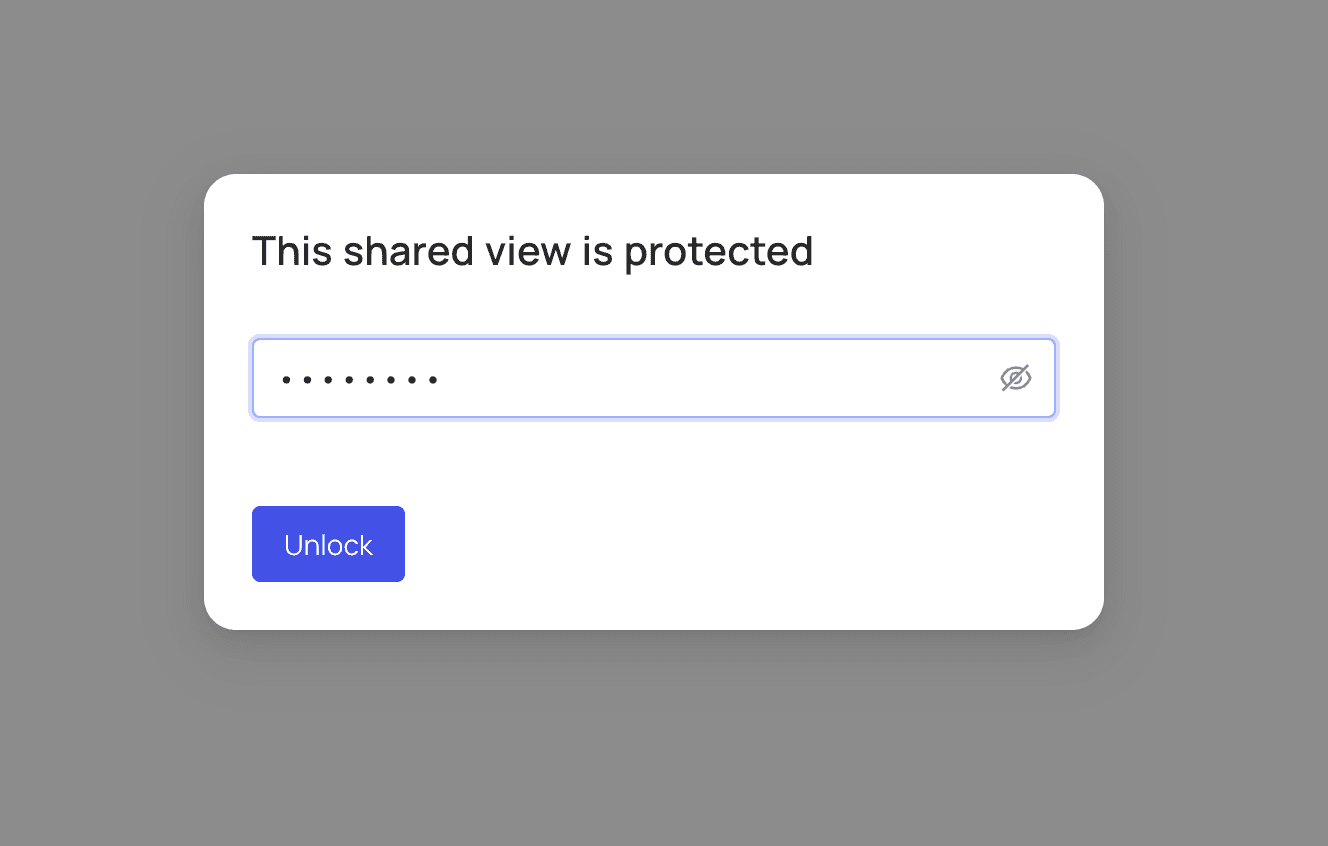
When NocoDB accepts the password, the shared view opens. If the URL is not password-protected, the shared view opens directly, without a password.
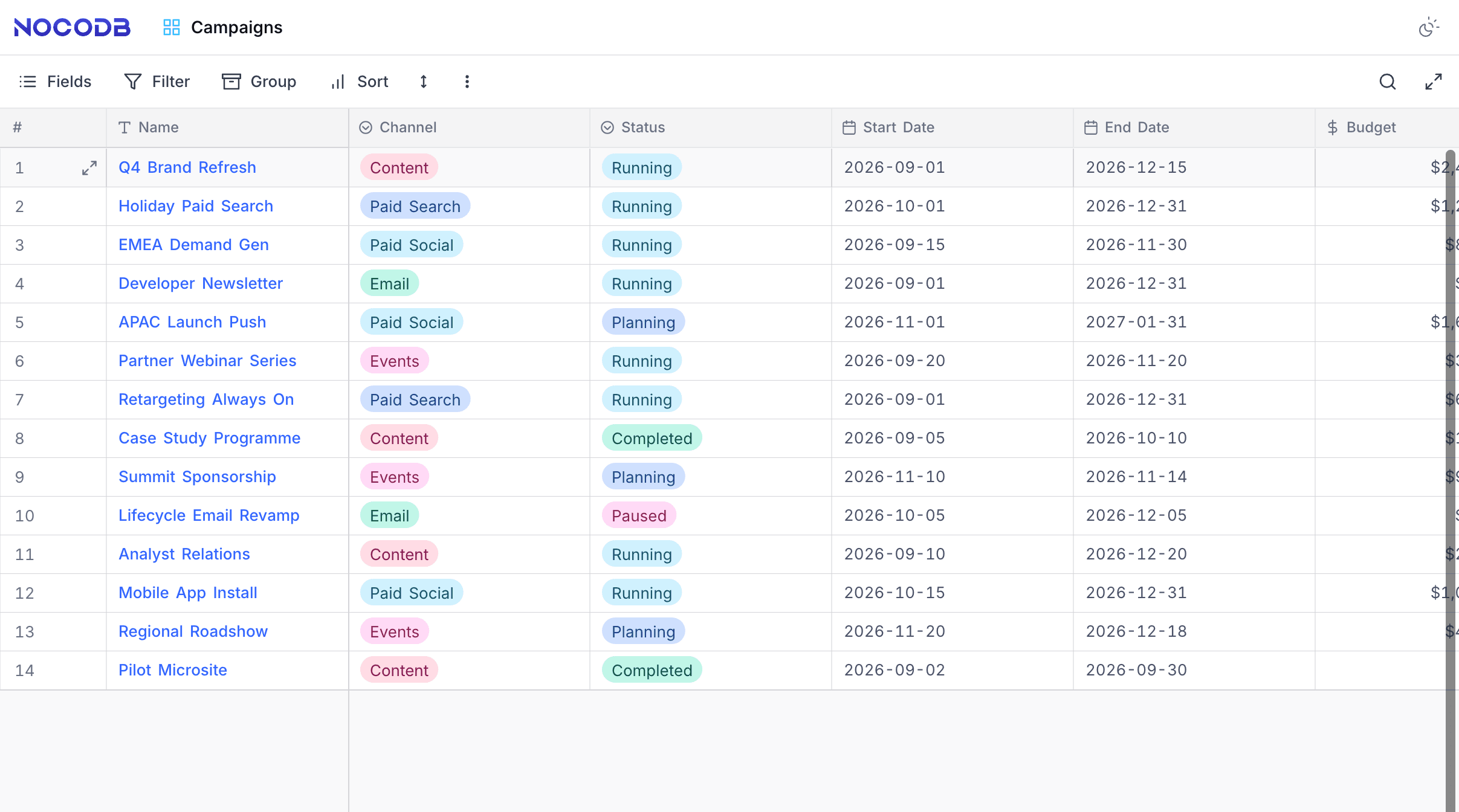
Users with the shared view link can only see the data. They cannot change the view or its content. When the original view changes, the records and fields in the shared view update in real time. Users of the shared view can apply filters and sort records.
Last updated on