Create View
Ask NocoAI
Copy a prompt, paste it into NocoAI in any base, and replace the words in [brackets] with your own.
- Create a view called [My Open Tasks] that shows only my records where [Status] is not [Done]
- Create a [gallery] view of this table
- Create a view of this table sorted by [Created] with the newest first
- Suggest useful views for this table
Create new view
- Click on
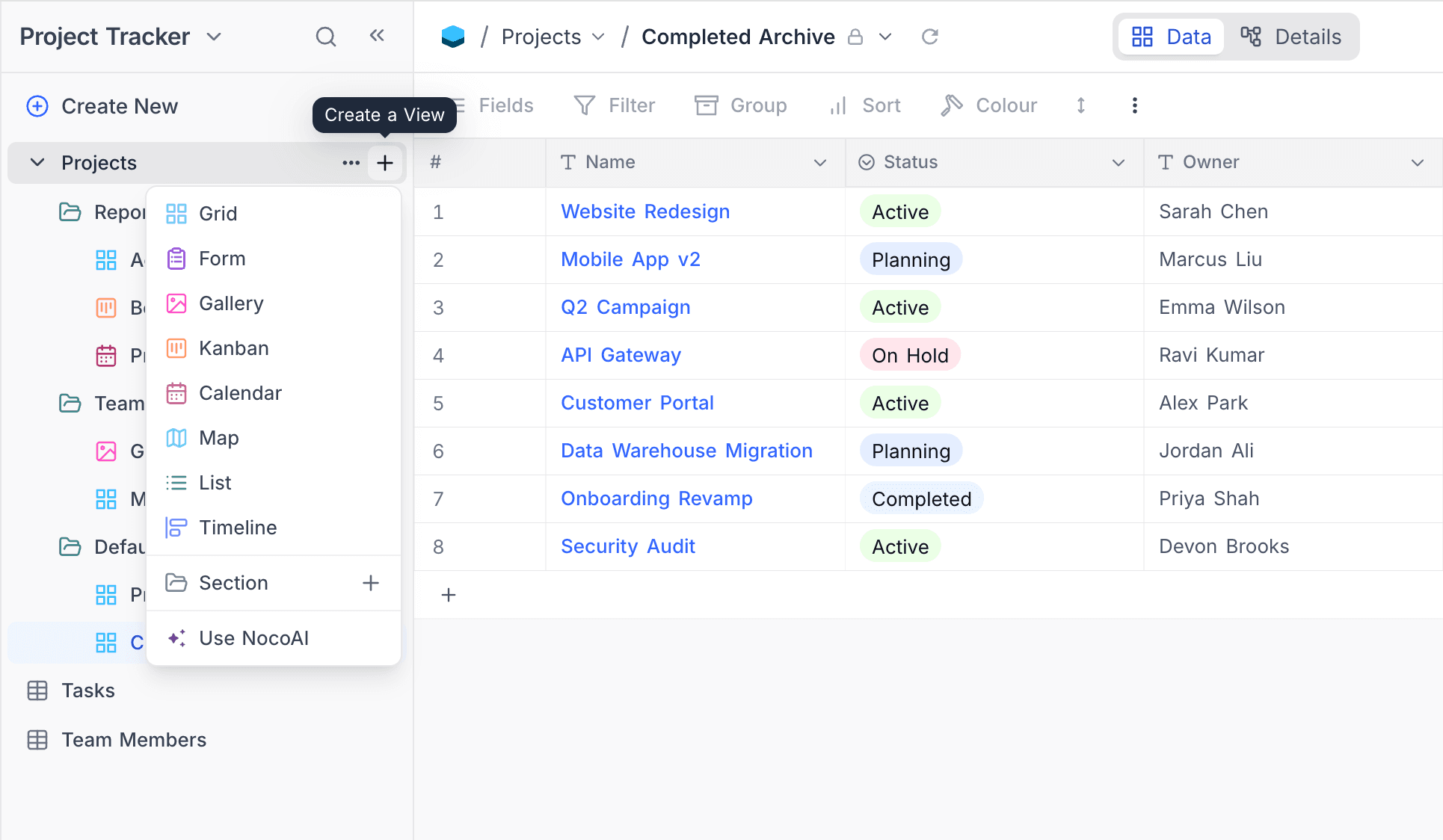
+ New Viewbutton belowtable name. - Select view type from the dropdown modal.
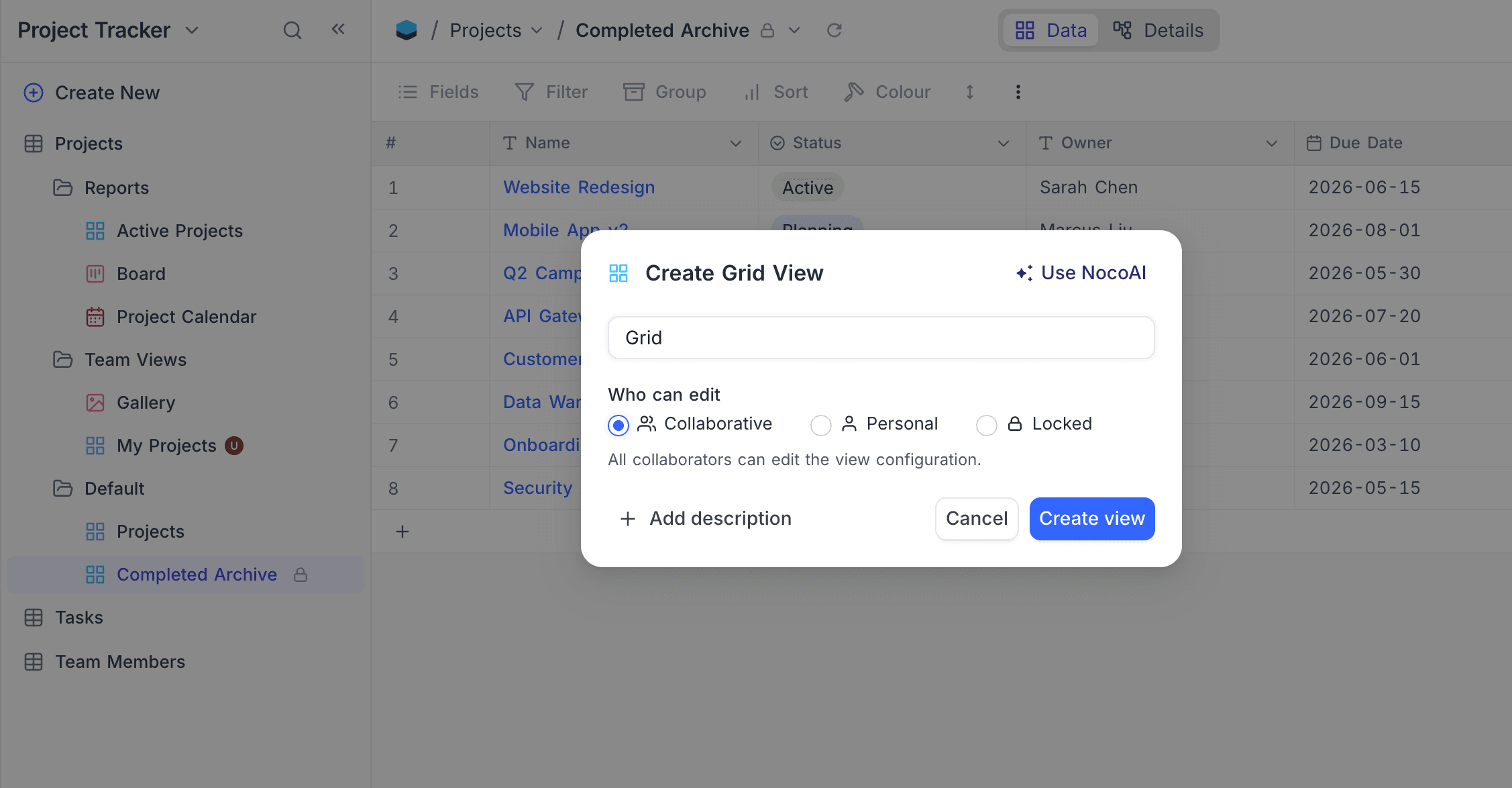
- Fill view name in the pop-up modal.
- For Kanban view, select the
Single selectfield to be used as the Kanban field. - For Calendar view, select the
DateORDateTimefield to be used as the Calendar field. - For Map view, select the
GeoDatafield to be used as the Mapped By field. - For Timeline view, select the
Date,DateTime,CreatedTime, orLastModifiedTimefield to be used as the start date. Optionally, add an end date field. - For Gantt view, the Configure Gantt Schedule dialog opens automatically after creation, where you pick the Start Date, End Date, and optional Successor Link fields.
- For Kanban view, select the
- Under Who can edit, choose the view's permission type (see Who can edit below).
- Click on
Create Viewbutton.
Who can edit
The Who can edit selector in the Create View dialog lets you pick the view's permission type at creation time, instead of creating a collaborative view and switching modes later.
| Option | Description |
|---|---|
| Collaborative | All collaborators can edit the view configuration. (Default) |
| Personal ☁ | Only you can edit the view configuration. You become the view owner. |
| Locked | No one can edit the view configuration until it is unlocked. |
Editors see only Collaborative and Personal options. The Locked option is available to Creators and Owners only. A view's permission type can always be changed later from the View Toolbar Menu.
Learn more about the behaviour of each permission type in View Permission Types.
Last updated on
Latest product updates?See Changelog