Classic AppsFormerly Interfaces
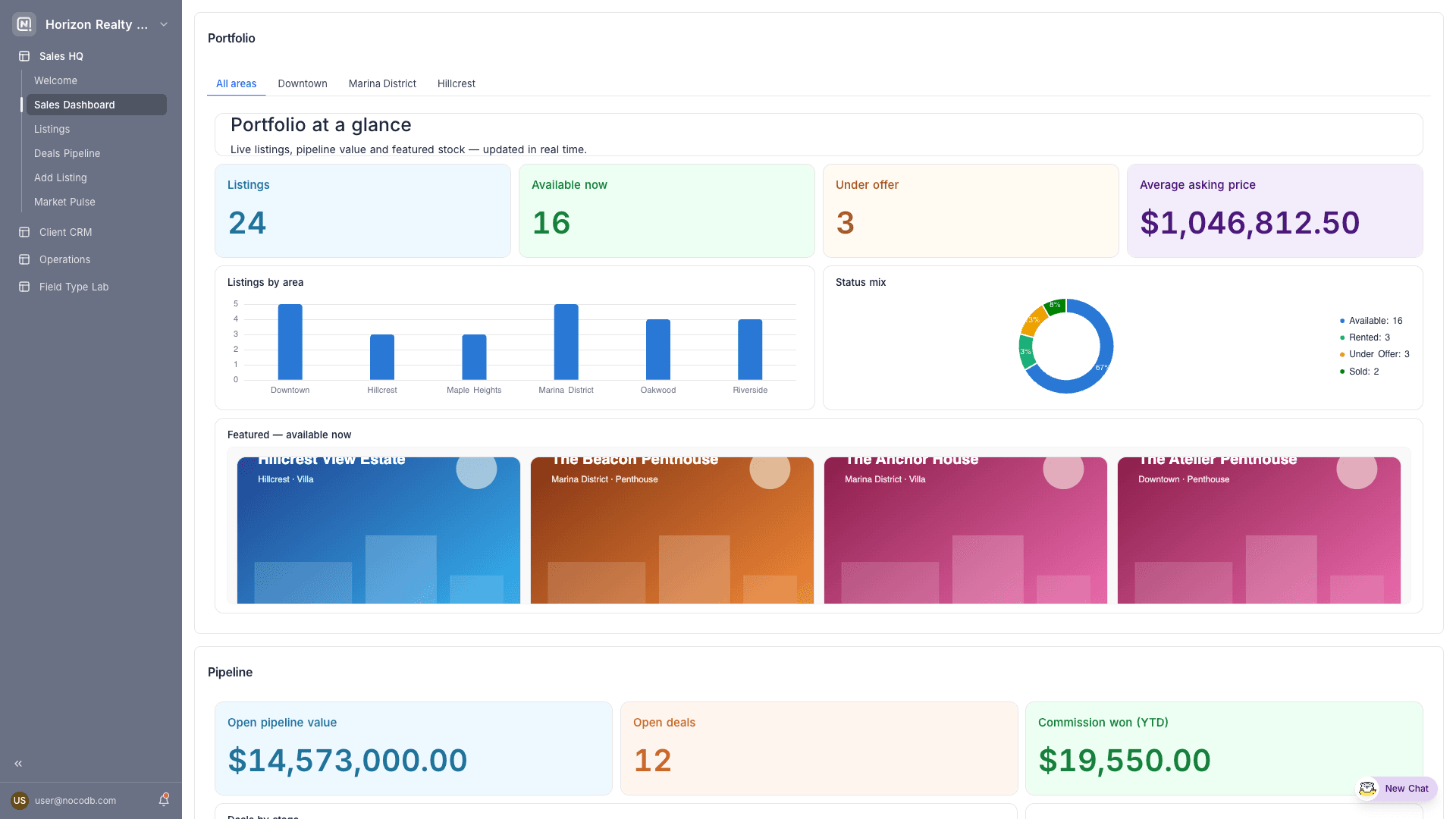
Classic apps let you build custom, easy-to-use apps on top of your NocoDB project data. Classic apps were called Interfaces before. The project sidebar lists them under Apps, next to the AI app of the project.
You do not give everyone access to the full project with all its tables, views and configuration options. Instead, you design focused pages. Each page shows only the data and actions that its audience needs. For example:
- A review queue for approvers.
- A dashboard for leadership.
- A form for field teams.
- A full internal tool that combines all of them.
Copy a prompt, paste it into NocoAI in any base, and replace the words in [brackets] with your own.
- Build a classic app where [the sales team] can see and update [their deals]
- Build a classic app with a page that lists [open orders] and a form to add new ones
- Add a page to this classic app that shows [a dashboard of open tickets]
- Publish this classic app
Classic apps were Interfaces
NocoDB renamed Interfaces to classic apps. The product lists them under Apps, next to AI apps. Your interfaces are now your classic apps, with the same pages, access and published versions. Some labels in the builder still say "interface", for example Restrict interface sharing and Go to interface page.
NocoDB classic apps are the NocoDB equivalent of Airtable Interfaces, which you build in the Airtable Interface Designer.
Classic app or AI app?
A NocoDB project can have both kinds of app. A classic app is a set of pages that you put together from layouts, without code. An AI app is one custom app that NocoAI writes for the project, with its own screens, logic, teams and API.
On the Apps page of a project with no apps, NocoDB offers both kinds side by side. The Classic App card shows the Formerly Interfaces badge.
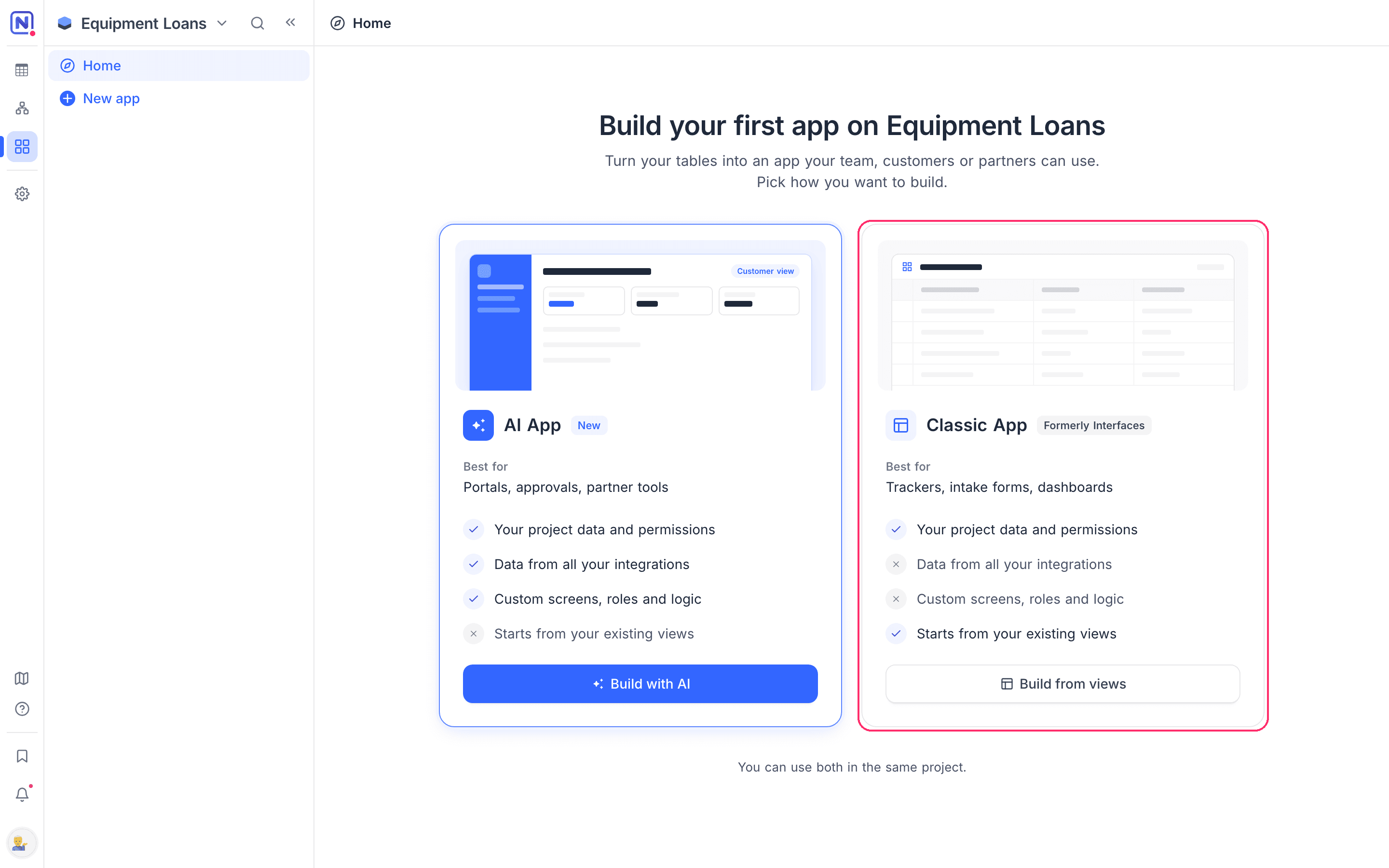
| Classic app | AI app | |
|---|---|---|
| How you build it | Pick a layout for each page and configure elements. Start from your existing views. | Describe the app to NocoAI. NocoAI writes the app code. |
| Best for | Trackers, intake forms, dashboards | Portals, approvals, partner tools |
| How many in a project | Any number, up to the limit of your plan | One |
For the full comparison of builders, access, releases and data, see Apps vs Classic Apps.
How classic apps are structured
| Concept | Description |
|---|---|
| Classic app | A named app in a project. Each classic app has its own icon, color, style, pages and access controls. The project sidebar lists classic apps under Apps. |
| Page | A screen in a classic app. Each page uses one of six layouts. Pages show in the app navigation. You can also hide a page and open it from context (for example, a record detail page that opens when you click a record). |
| Elements | The building blocks on pages: visualizations, widgets, fields, buttons and filters. See Fields, buttons & filters. |
| Draft & published versions | You make your changes in a draft. Viewers always see the last published version. You can change the draft safely and publish when it is ready. |
Page layouts
Each page in a classic app uses a layout:
| Layout | Purpose |
|---|---|
| Table | Work with records in Grid, Gallery, Kanban, List, Calendar or Timeline visualizations |
| Record review | Go through records one at a time. Good for approval and triage flows |
| Dashboard | A high-level view of your data with charts, metrics and other widgets |
| Form | Let users create new records with a guided form |
| Overview | Welcome users with links, bookmarks and resources |
| Record detail | A reusable detail page for one record, opened from other pages |
Who can do what
| Action | Who and how |
|---|---|
| Build | Only project creators and owners can create and edit classic apps. |
| Use | Collaborators use the published version of a classic app. Their roles control their access, at the app level or for each page. You can invite people who have no project role to a classic app. This makes classic apps a safe way to share data with a larger audience. |
| Share publicly | You can share single table and dashboard pages to the web as read-only pages, with an optional password. Public sharing comes in a separate release phase and is not available yet. |
Get started
- Create a classic app with the guided setup.
- Design pages in the classic app builder.
- Publish your changes and share the classic app with your team.
Availability
- Classic apps are available on all NocoDB Cloud plans and on self-hosted deployments. The Community Edition includes 2 classic apps with up to 2 pages each. Some classic app capabilities need a paid plan.
Last updated on