Publish a Classic AppFormerly Interfaces
Each page of a NocoDB classic app has two versions: the draft that you edit in the builder, and the published version that all other users see. You can redesign pages, test changes and preview freely. The people who use the classic app are not affected. Draft availability can change with your plan.
Publish changes
- In the builder topbar, click Publish. The button is enabled when there are unpublished changes. Classic apps with pending changes also show an "unpublished changes" badge in the sidebar.
- Review the publish dialog. It shows the pages that the publish will update.
- Optionally, mark pages as keep as draft. These pages are not part of this publish. The rest of the classic app publishes without them.
- Confirm the publish.
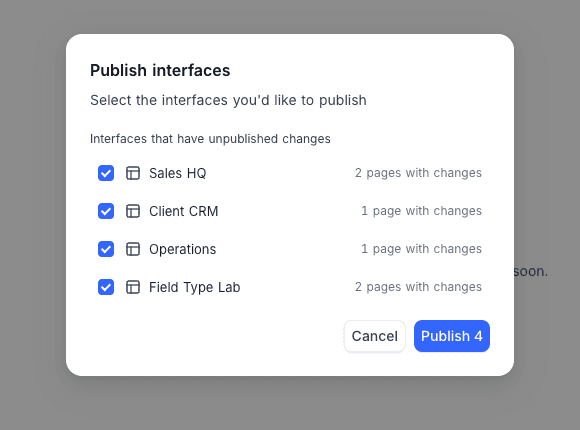
The publish dialog also lists your other classic apps that have unpublished changes. Select the ones to publish at the same time.
What viewers see
| Who | What they see |
|---|---|
| Classic app users | Always the latest published version of each page. |
| Builders | The draft, while in the builder. Before you publish, use Preview and Preview as to check the draft as any role or user. See Classic app builder. |
Users cannot see a page that was never published. The page shows after its first publish.
You cannot publish a classic app that is hidden from the navigation. You cannot hide a published classic app.
Last updated on
Latest product updates?See Changelog