Create a Classic AppFormerly Interfaces
Copy a prompt, paste it into NocoAI in any base, and replace the words in [brackets] with your own.
- Build a classic app for [this table]
- Build a classic app for [managers] with a page of [team tasks] and a page of [project status]
- Build a classic app with a form to [submit support requests] and a page to [track them]
A NocoDB classic app starts with a guided setup: you name the app, select a layout for its first page and connect that page to a table.
Before you start
Each classic app is for a specific audience, and each audience needs something different. For example, a field technician may only need to log site visits. A finance lead wants a summary of spend across all projects.
First decide who the classic app is for and what they must do. This decision makes the rest of the setup easier. It tells you which records to show, which actions to give and who gets access.
If you do not know where to start, complete this sentence:
I'm building an app to [action] for [audience].
For example: "I'm building an app to triage incoming support tickets for our customer success team."
Keep that answer near you during the setup below. Use it to decide what goes in the classic app and what to leave out.
Create a new classic app
The Classic App card in the product shows the Formerly Interfaces badge.
-
Open your project. In the mini sidebar, click Apps. The Apps page of the project opens.
-
Click New app in the project sidebar. The Create an app dialog opens.
-
On the Classic App card, click Build from views. The guided setup opens.
Where AI apps are not available, New app opens the guided setup directly.
On a project that has no apps, the Apps page offers Build from views on the Classic App card. It opens the same setup.
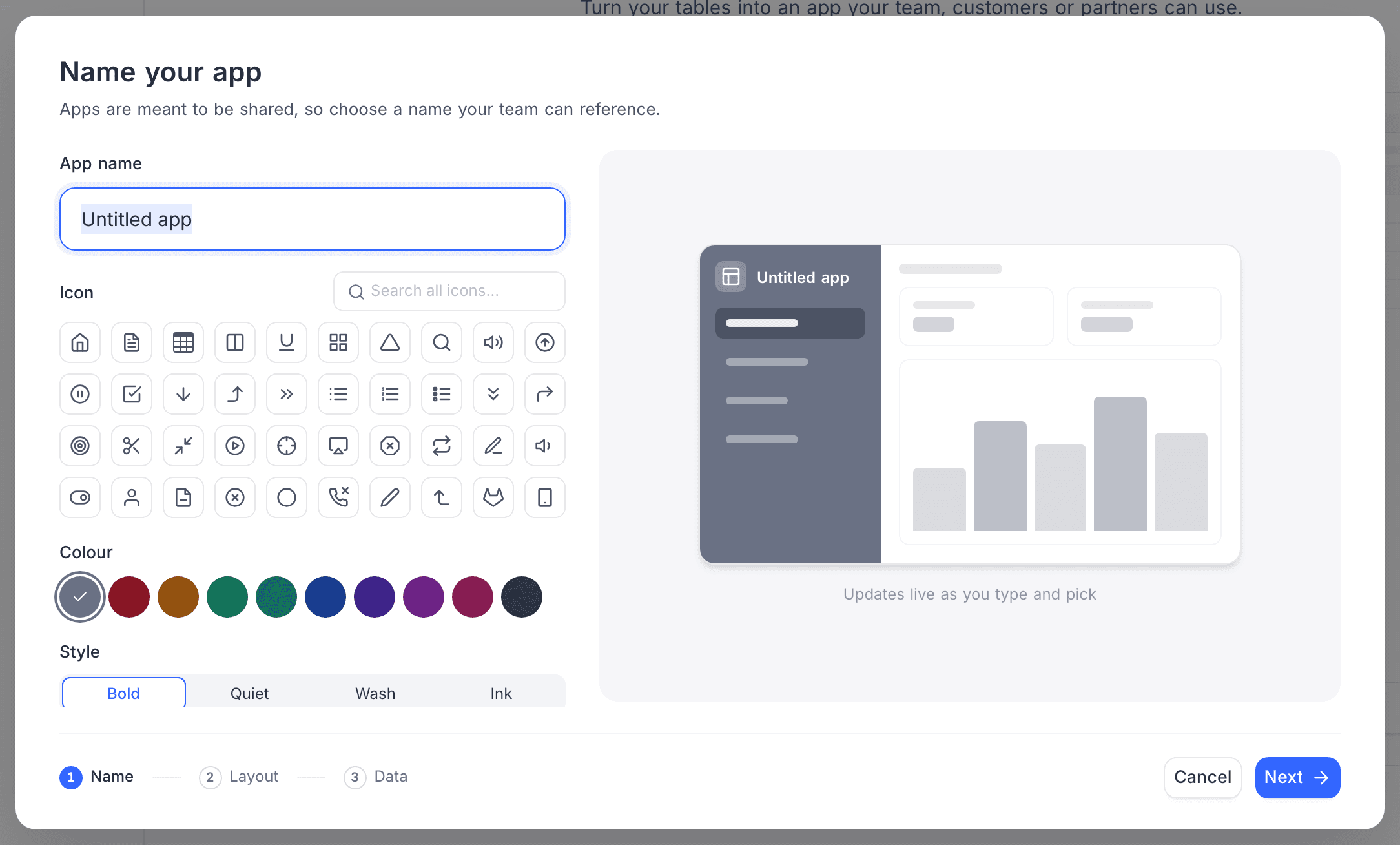
Step 1: Name your app
The first step is Name your app. You share classic apps with other people, so give the app a name that your team can use. You can also customize:
| Setting | What it sets |
|---|---|
| Icon | An icon from the searchable icon library. |
| Colour | An accent color for the classic app. |
| Style | The visual style of the app chrome: Bold, Quiet, Wash or Ink. |
You can change these settings later from the context menu of the classic app. See Actions on a classic app.
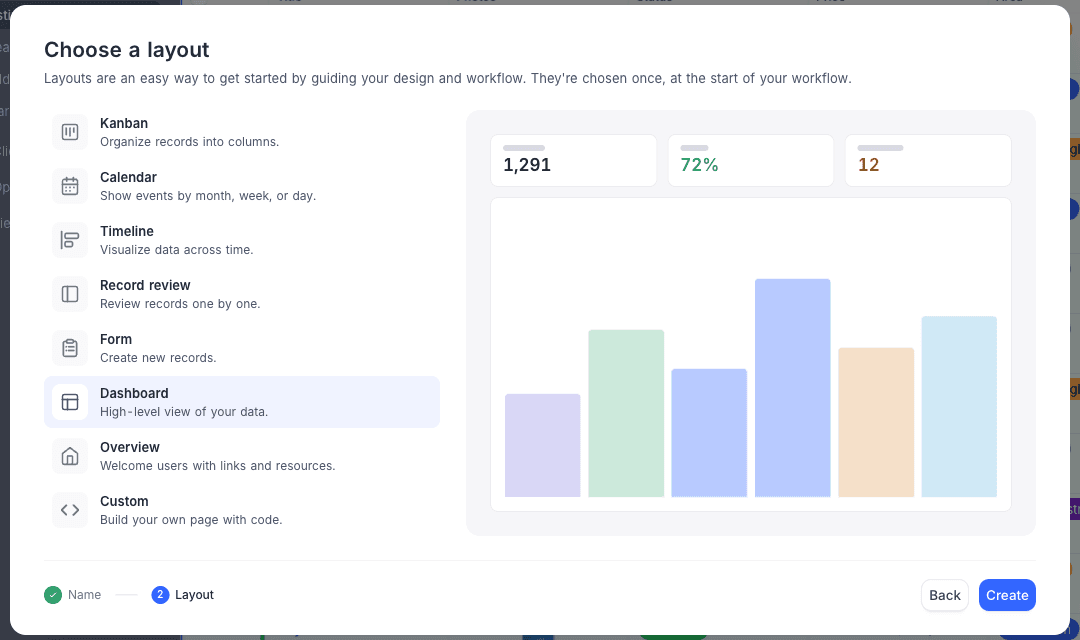
Step 2: Choose a layout
Select the layout for the first page of your classic app. For a guide to each layout, see Page layouts.
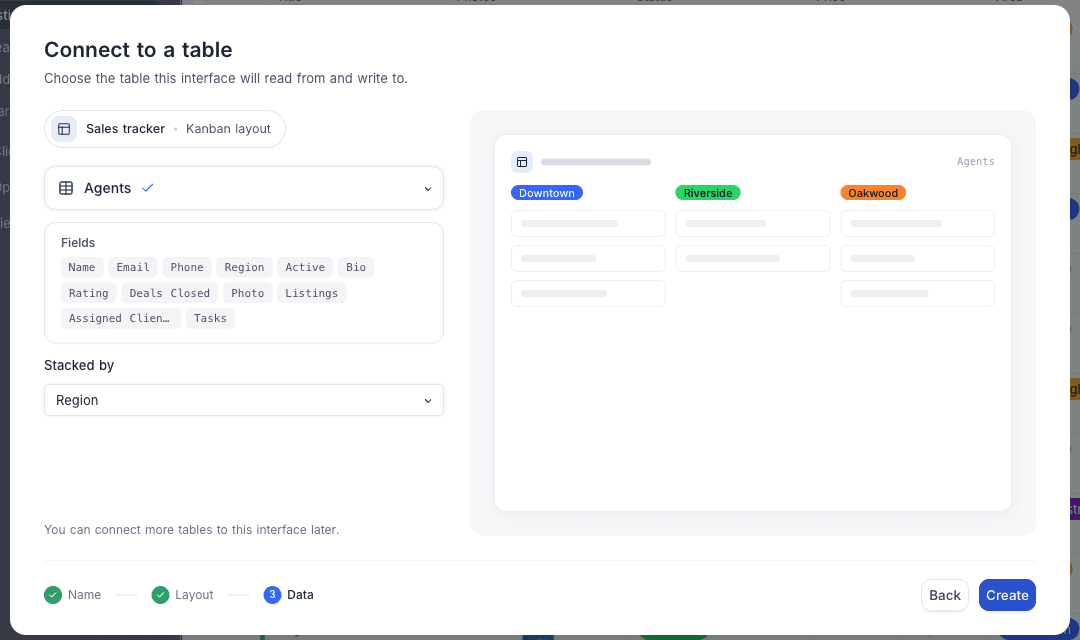
Step 3: Connect to a table
Most layouts show data from a table. In this last step, select the table that the page connects to. Some layouts have more settings:
| Layout | Setting |
|---|---|
| Kanban | The single-select field for Stacked by. |
| Gallery | An optional Cover image field. |
Layouts that do not show table data, for example Overview, skip this step.
For the Grid and Record review layouts, you can also copy settings from an existing view of the connected table in this step.
On the last step, click Create app. The classic app opens in the classic app builder. You can then start to design it.
Copy settings from a view
The Copy settings from a view option starts a new Grid or Record review page with the settings of a view of the connected table. Use it when the table already has a view that looks the way you want the page to look. You then do not have to make its filters, sorts and field settings again. The option is in the Connect to a table step.
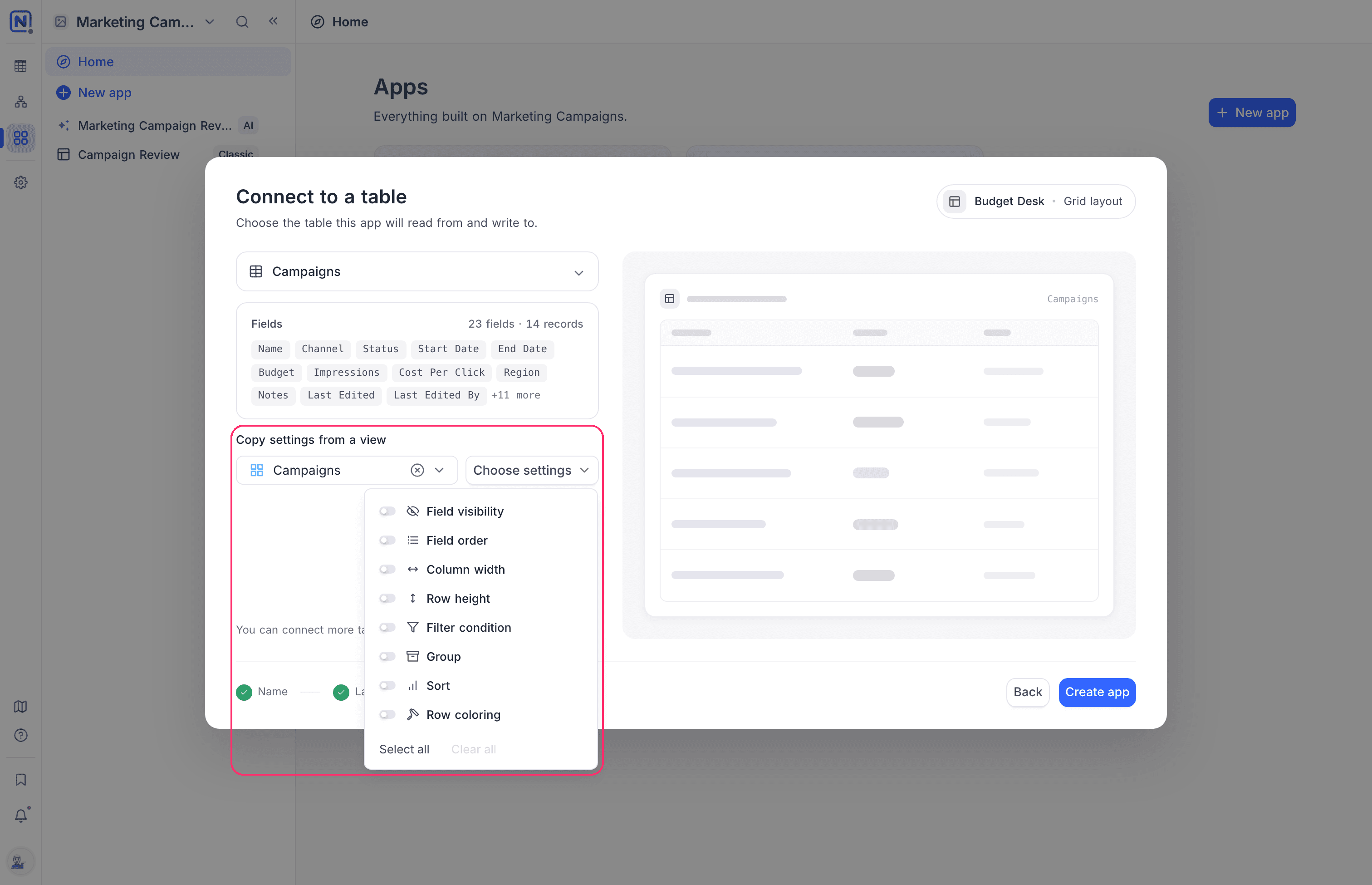
- In the dropdown, select the source view. The list shows all views of the connected table, except Form and Map views.
- Click Choose settings.
- Turn on the settings to copy, or click Select all. The button shows the number of selected settings.
- Create the page as usual. NocoDB applies the copied settings to the page. You can change them later in the builder, as on any other page.
You can copy the same settings as in the Copy another view's configuration dialog: Field visibility, Field order, Column width, Row height, Filter condition, Group, Sort and Row coloring.
You can copy across types. For example, a filtered Grid view can be the source for a Gallery page. NocoDB offers only the settings that the destination layout can use:
| Destination | Available settings |
|---|---|
| Grid, List | All eight |
| Timeline, Gantt | All except Column width |
| Gallery, Kanban, Calendar | Field visibility, Field order, Filter condition, Sort, Row coloring |
| Record review | Field visibility, Filter condition, Group, Sort, Row coloring |
Settings that the selected view cannot give are grayed out. If you change to a source view or visualization that does not support a selected setting, NocoDB removes that setting from your selection automatically.
Add pages to a classic app
A classic app can have many pages, but your plan may limit the number. To add a page:
- Put the pointer on the classic app in the sidebar, or use the page list in the builder.
- Click New page.
- Select a layout. If the layout needs a table, connect it to a table. The setup is the same as for a new classic app, but without the naming step.
The app navigation shows the pages in the listed order. You can drag pages to change their order, rename them inline or hide them from the navigation. Hidden pages stay available for contextual use. For example, a record detail page opens when a user clicks a record.
Availability
- Only project creators and owners can build classic apps.
Last updated on