Classic App BuilderFormerly Interfaces
Use the classic app builder to design and edit the pages of a NocoDB classic app. When a project creator or owner opens a classic app, it opens in the builder. The first page of the navigation is selected and ready to edit. All other users open the published classic app.
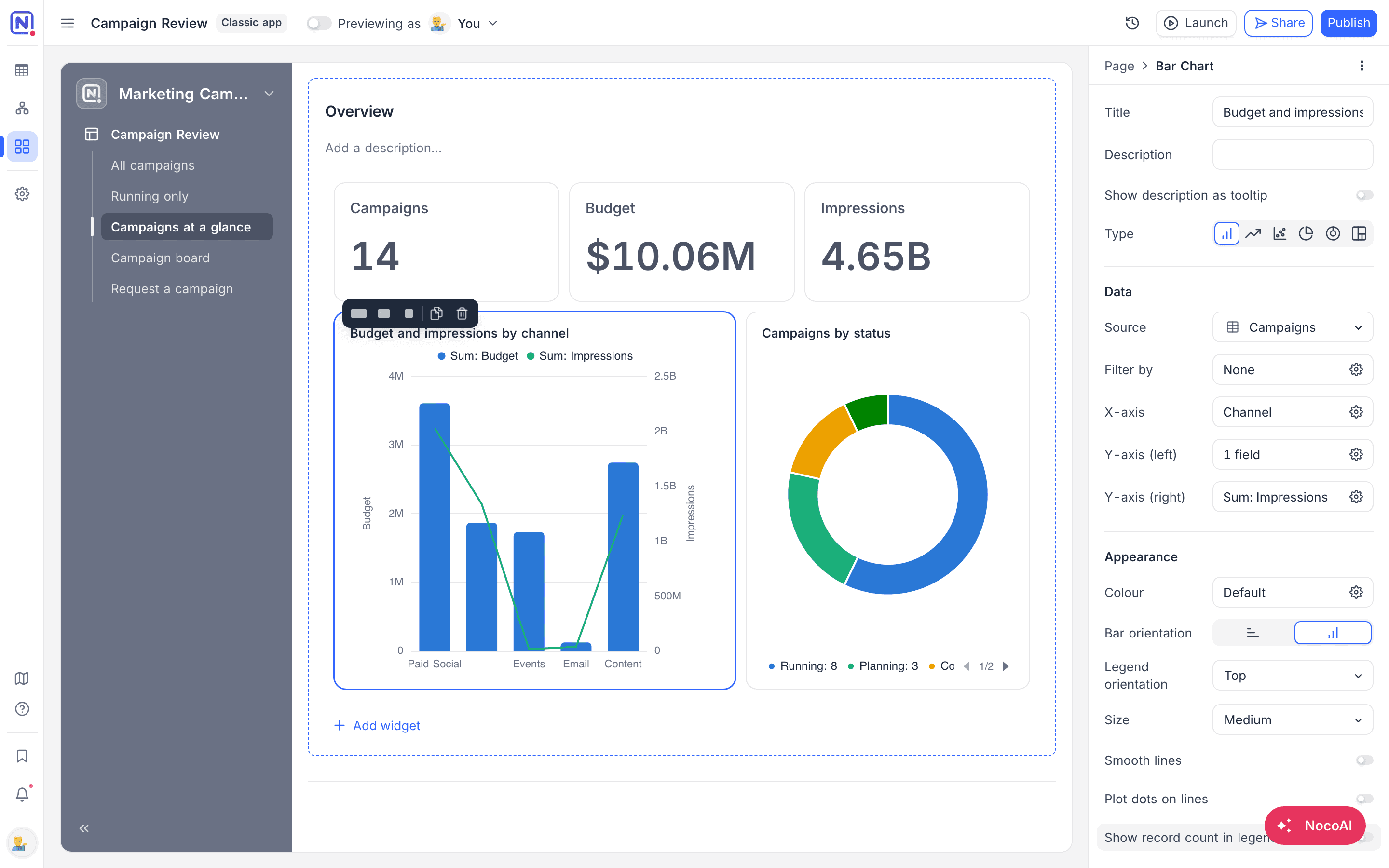
Builder anatomy
| Area | Description |
|---|---|
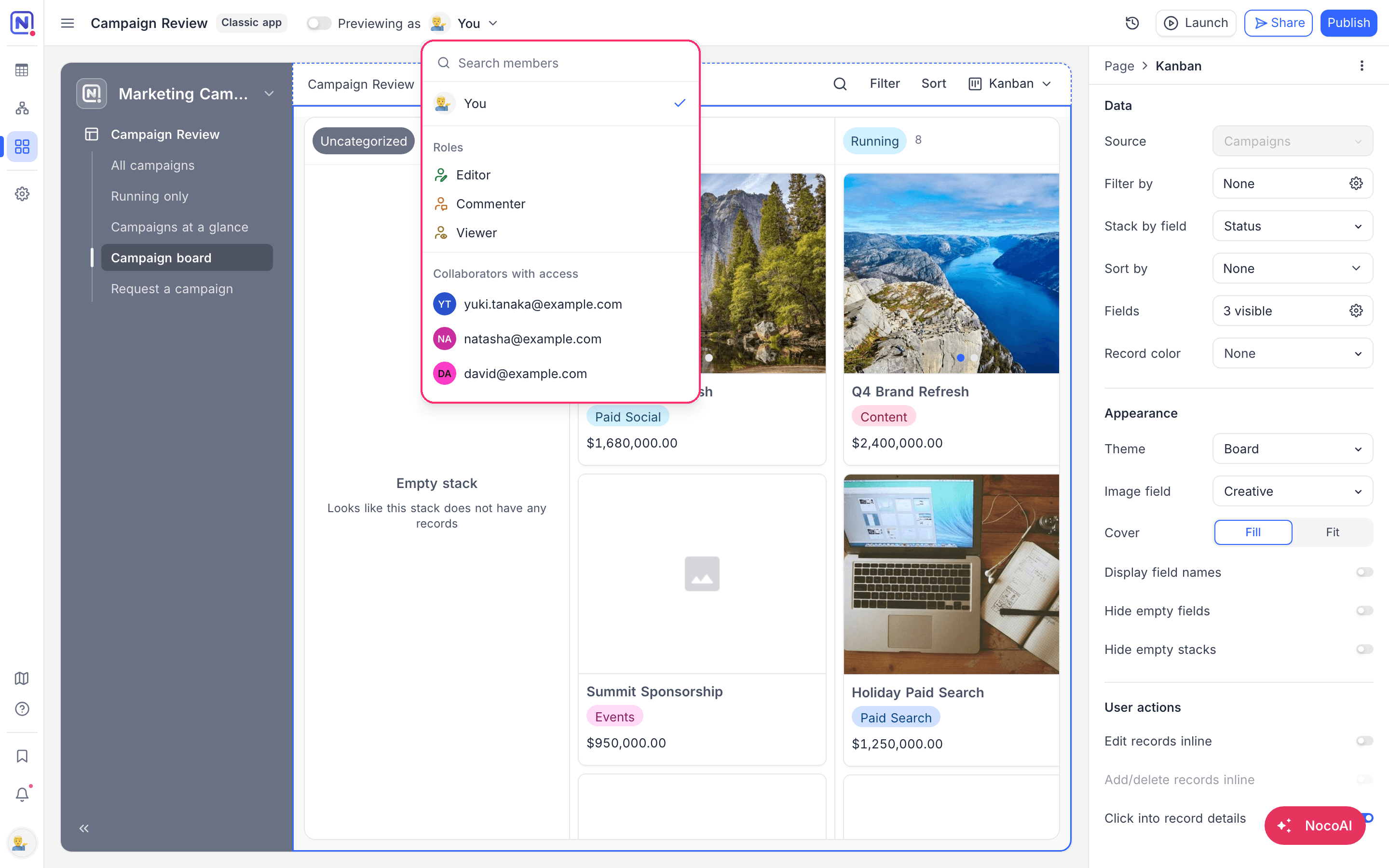
| Topbar | Has the preview switch and the Previewing as selector next to the app name. The Launch and Publish buttons are on the right. |
| Canvas | A live preview of the page. Click an element to select it. |
| Properties panel | Opens on the right when you select an element. You do all configuration here: data source, filters, appearance and behavior. |
| Page list | The pages of the classic app, shown in the navigation. Drag pages to change their order, rename them inline or manage them from their context menu. |
Editing pages
| Task | How |
|---|---|
| Select and configure | Click an element on the canvas. Its settings open in the properties panel. |
| Reorder by dragging | Drag and drop pages, fields, groups, widgets and filters to change their order. |
| Resize and arrange widgets | On dashboard pages, widgets are on a 12-column grid. While you edit, you can drag and resize them freely. |
Reuse filter conditions
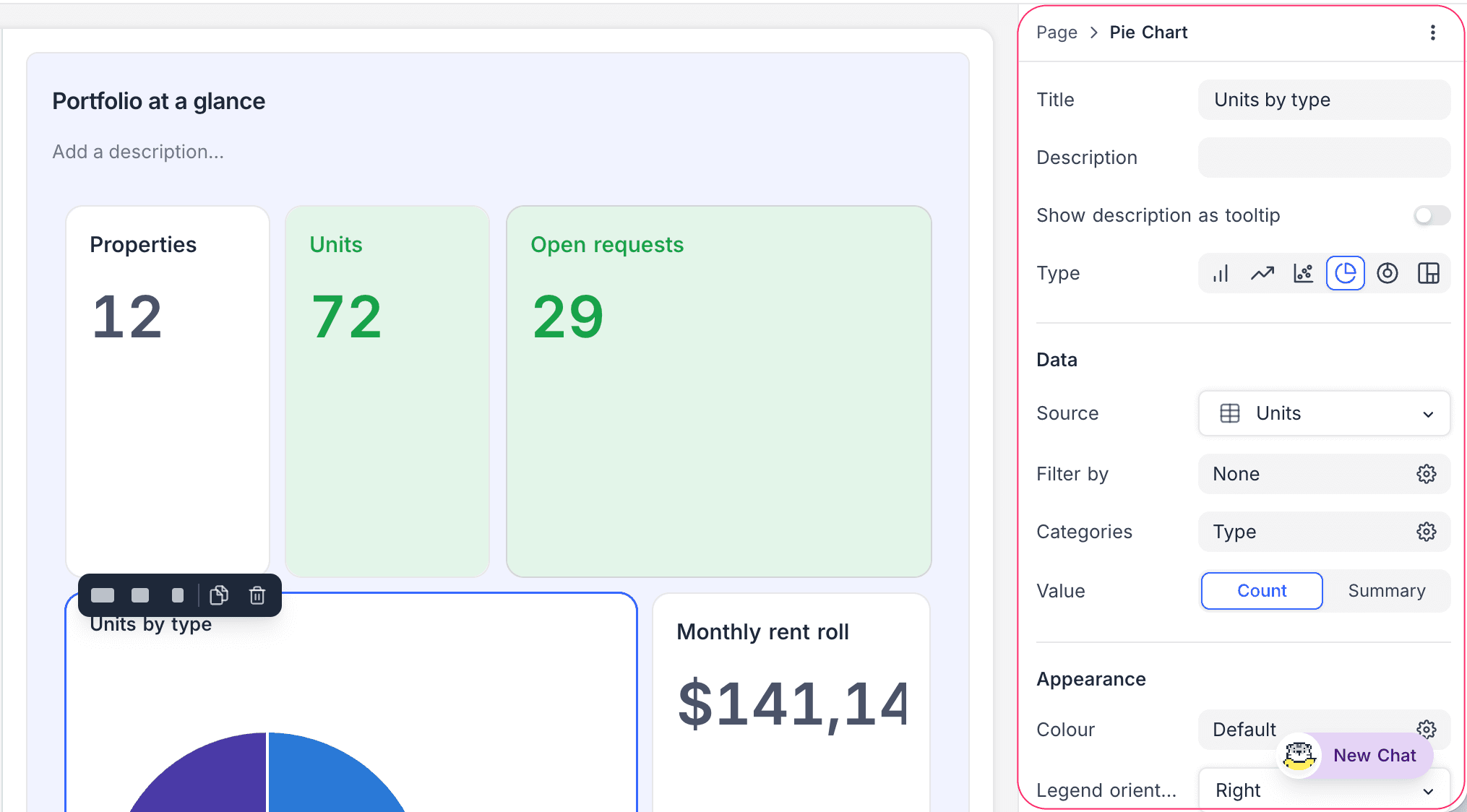
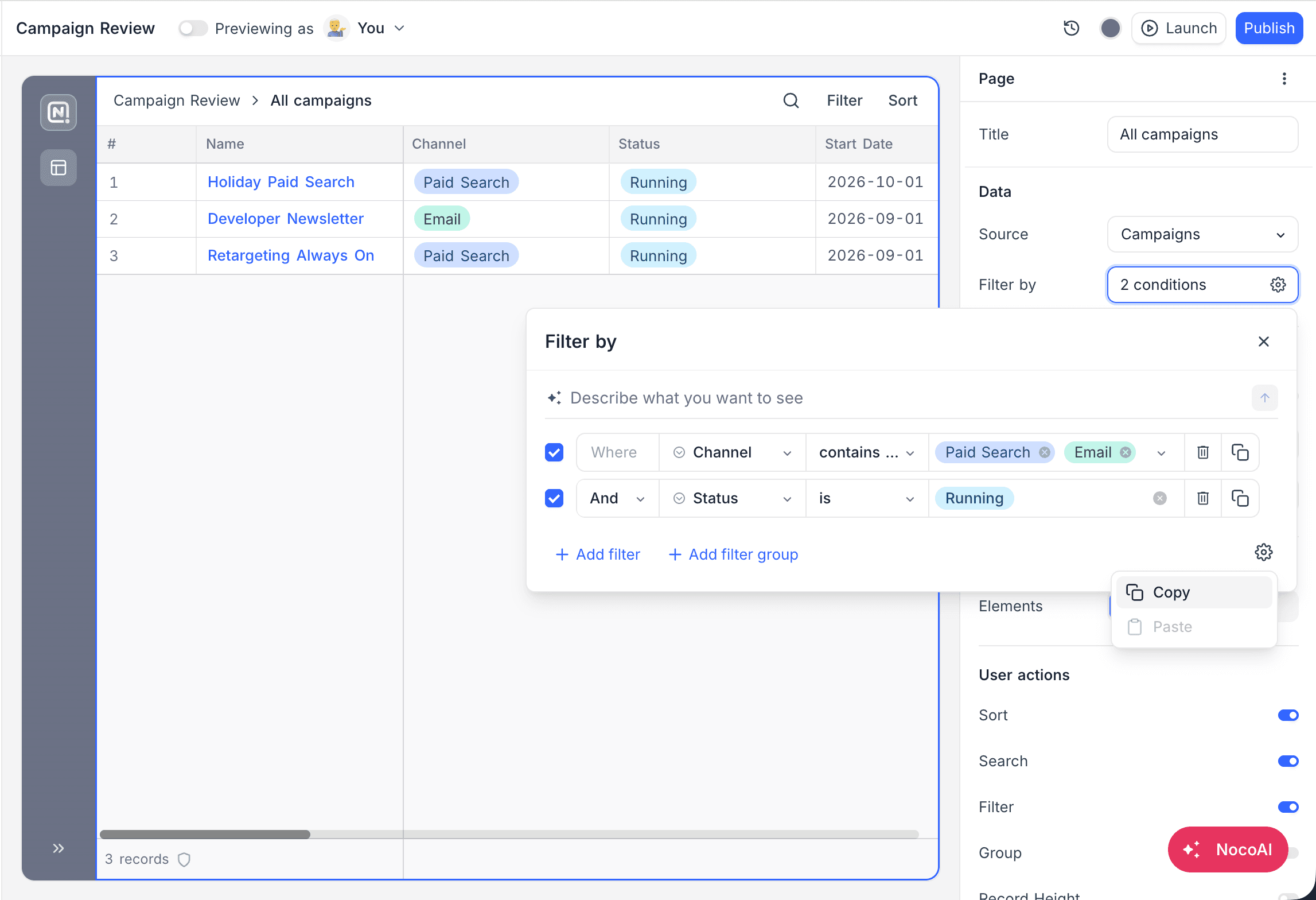
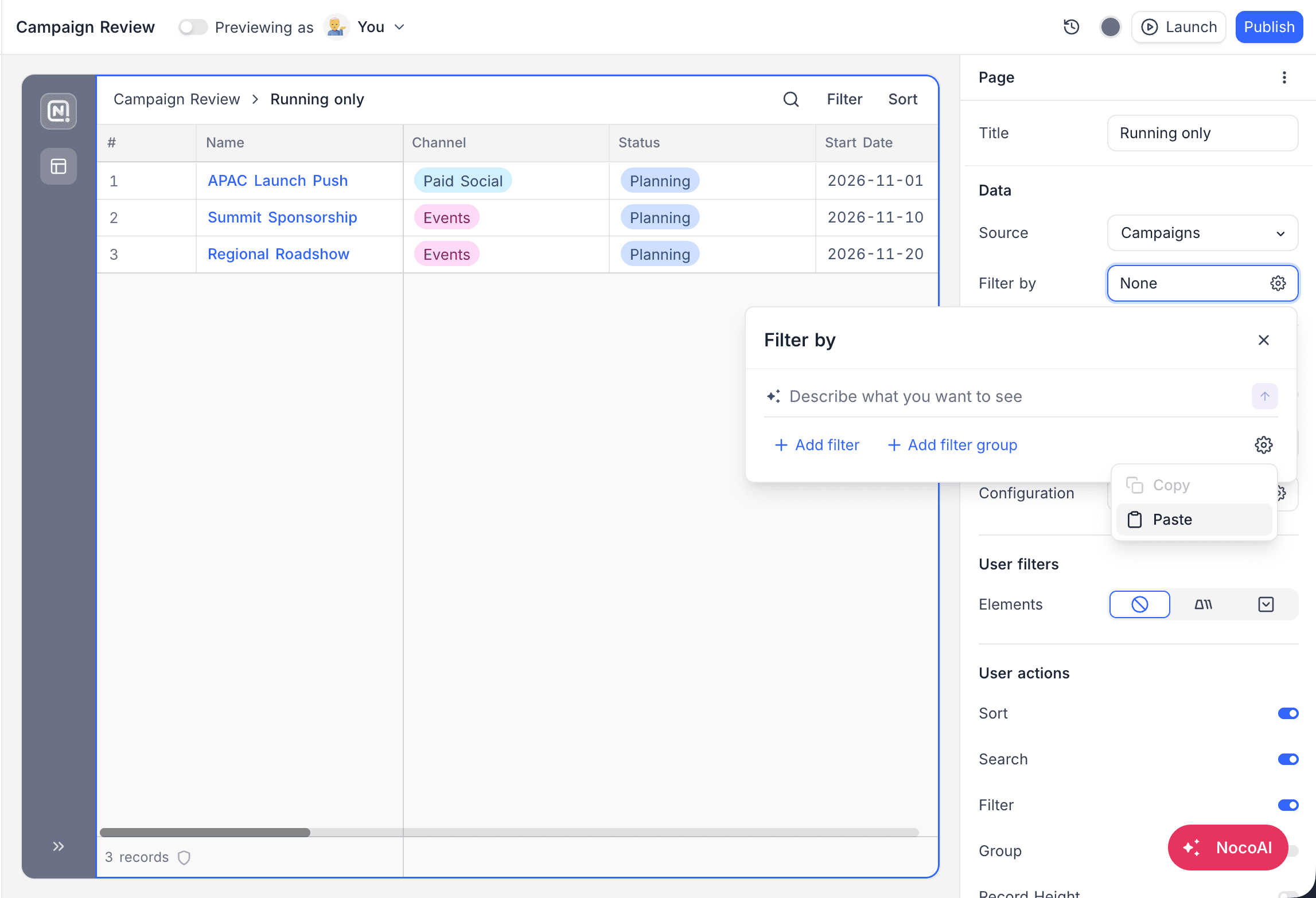
Filters that you configure in the properties panel open in a Filter by dialog. Use the gear icon at the bottom of that dialog to copy your conditions and paste them into a different element. You write a set of conditions once and use it again where you need it.
- On the element that has the conditions, open Filter by.
- Click the gear icon and select Copy.
- On the element that must get the conditions, open Filter by.
- Click the gear icon and select Paste. The pasted conditions replace the current conditions of that element.
Paste is available only when the copied conditions fit the target:
| Rule | What it means |
|---|---|
| Same table | You can paste conditions only into an element that reads from the same table in the same project. |
| Same purpose | You cannot paste conditions that select which records appear into a rule that shows or hides a field. The opposite is also not possible. |
| Within your plan's limit | You cannot paste a copied set that has more conditions than your plan allows for each view. |
| Editable | You cannot paste into read-only filters. |
When Paste is not available, put the pointer on it to see the reason.
Preview your work
The preview switch in the topbar puts the current page in preview mode. In preview mode, you use the page as your users will. The builder chrome stays in place, so you can go back to editing at any time.
To leave the builder and open the classic app as the running app, use Launch.
To check behavior that depends on roles, use the Previewing as selector. It shows the classic app as a different user. You can select:
- A generic role under Roles (Editor, Commenter or Viewer).
- A named person under Collaborators with access. You can search by name or email.
This check is most useful when pages or fields have conditional visibility or restricted editing.
Page settings
Each page of a classic app also has settings in the properties panel. These settings control what end users can do:
| Setting | What it does |
|---|---|
| User filters | Add tabs or dropdown filters. Users can use them to show fewer records on the page. See Fields, buttons & filters. |
| Editability | Allow or prevent inline editing, and adding or deleting records. |
| Advanced | Turn on Allow printing and Allow export to CSV for the page. With Allow export to CSV on, Who can export narrows it further: Everyone (the default), Editors & up, Creators & up, or specific users and teams. Owners and creators always keep the export, and members who can reach the project can still export the table there. Any rule at all takes the export away from anonymous visitors of a shared link, because they hold no role to match. |
| Record actions | On record-centric pages, turn Comments and Revision history on or off for the records on the page. |
Draft and published versions
The builder saves all edits to the draft of the page. Users of the classic app continue to see the last published version until you publish your changes. Draft availability can change with your plan. See Publish a classic app.
Last updated on