Actions on a Classic AppFormerly Interfaces
Manage NocoDB classic apps and their pages under Apps in the project sidebar. Most actions are in the context menu of a classic app or a page.
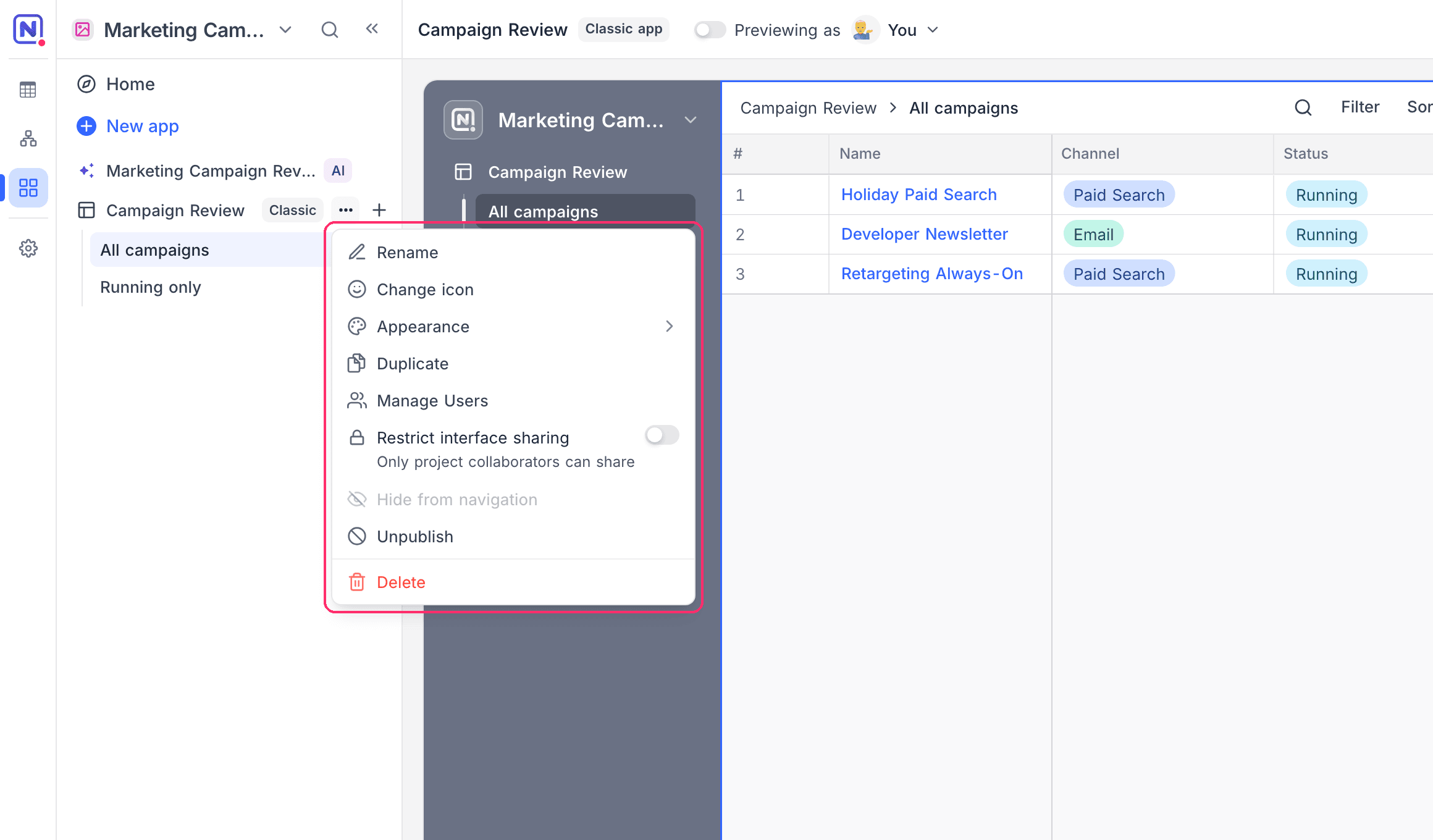
Classic app actions
| Action | Description |
|---|---|
| Rename | Change the name of the classic app inline. |
| Change icon | Change the icon that you selected when you created the classic app. |
| Appearance | Change the accent color and style (Bold, Quiet, Wash or Ink) that you selected when you created the classic app. |
| Duplicate | Make a copy of the classic app with all its pages. |
| Manage Users | Invite people to the classic app and manage their roles. |
| Restrict interface sharing | When this is on, only project collaborators can share the classic app. |
| Hide from navigation | Hide a classic app that is not ready for use. You cannot publish a hidden classic app, and you cannot hide a published classic app. |
| Publish / Unpublish | Publish pending changes, or take the published version offline. See Publish a classic app. |
| Delete | Delete the classic app and all of its pages. |
When you duplicate a project, you can select to include its classic apps.
Page actions
| Action | Description |
|---|---|
| Rename | Rename a page inline. Press Enter to save or Escape to cancel. |
| Reorder | Drag pages to change their order in the app navigation. |
| Hide from navigation | Remove the navigation entry, but keep the page available for contextual use (for example, as a record detail page). |
| Duplicate | Make a copy of the page in the same classic app. |
| Delete | Remove the page from the classic app. |
These rules keep a classic app usable:
- You cannot delete the last page of a classic app.
- You cannot hide or delete the last page that is visible in the navigation.
You can delete a record detail page that other pages use. The confirmation shows where the page is used. Each element that uses the page loses record details until you connect it to a different layout.
Last updated on
Latest product updates?See Changelog