View Folders
View folders let you organize your views into collapsible folders in the left sidebar. When a table has many views, use folders to group related views. This makes your workspace easier to navigate and manage. For example, create folders like "Reports", "Data Entry" or "Team Views".
Create a view folder
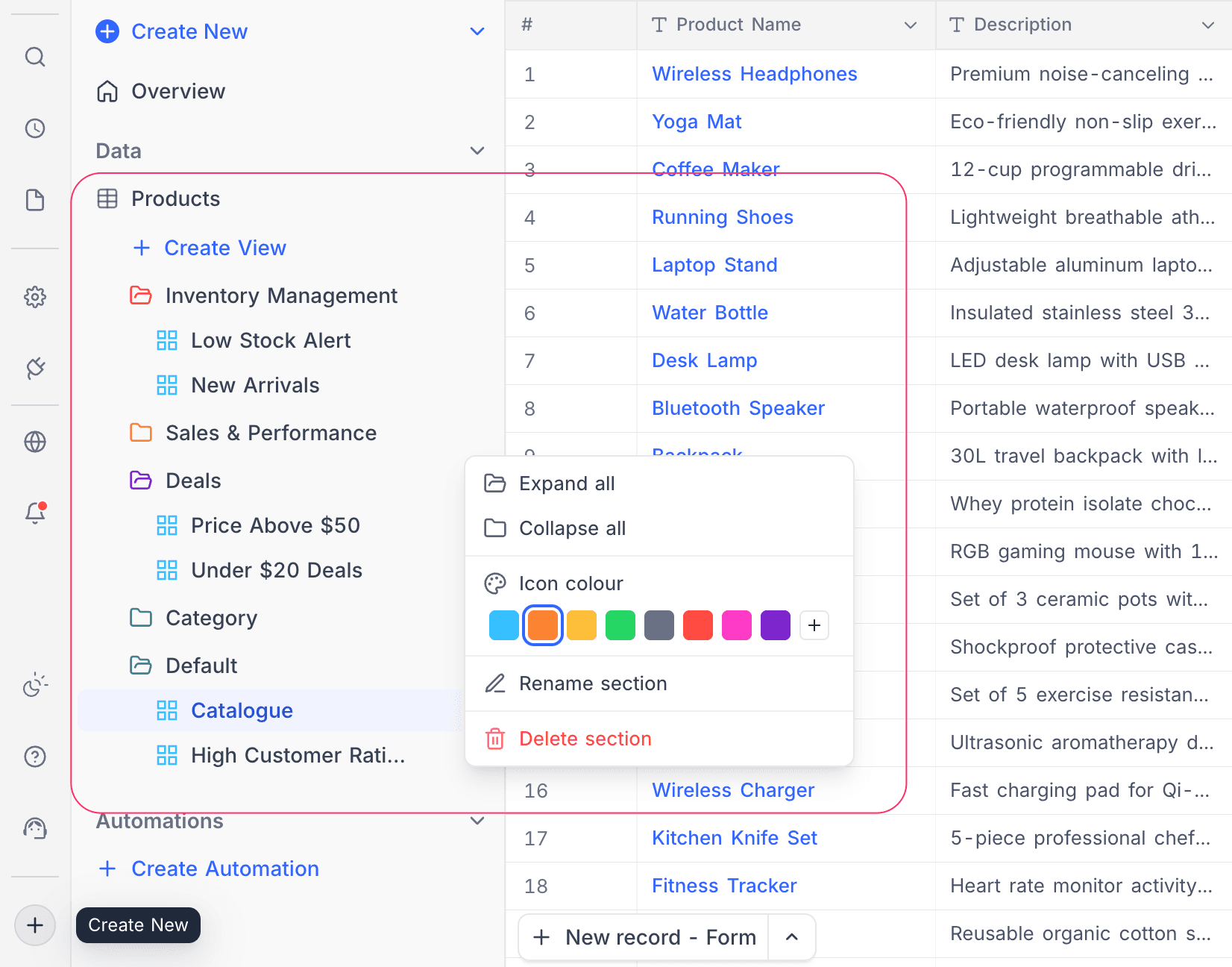
You can create a new view folder in two ways:
From the Create View menu
- In the left sidebar, below the table name, click
+ Create View. - At the bottom of the dropdown menu, click
View folder. NocoDB creates a new folder with a default name (for example, "View folder"). - To rename the folder immediately, double-click the folder name.
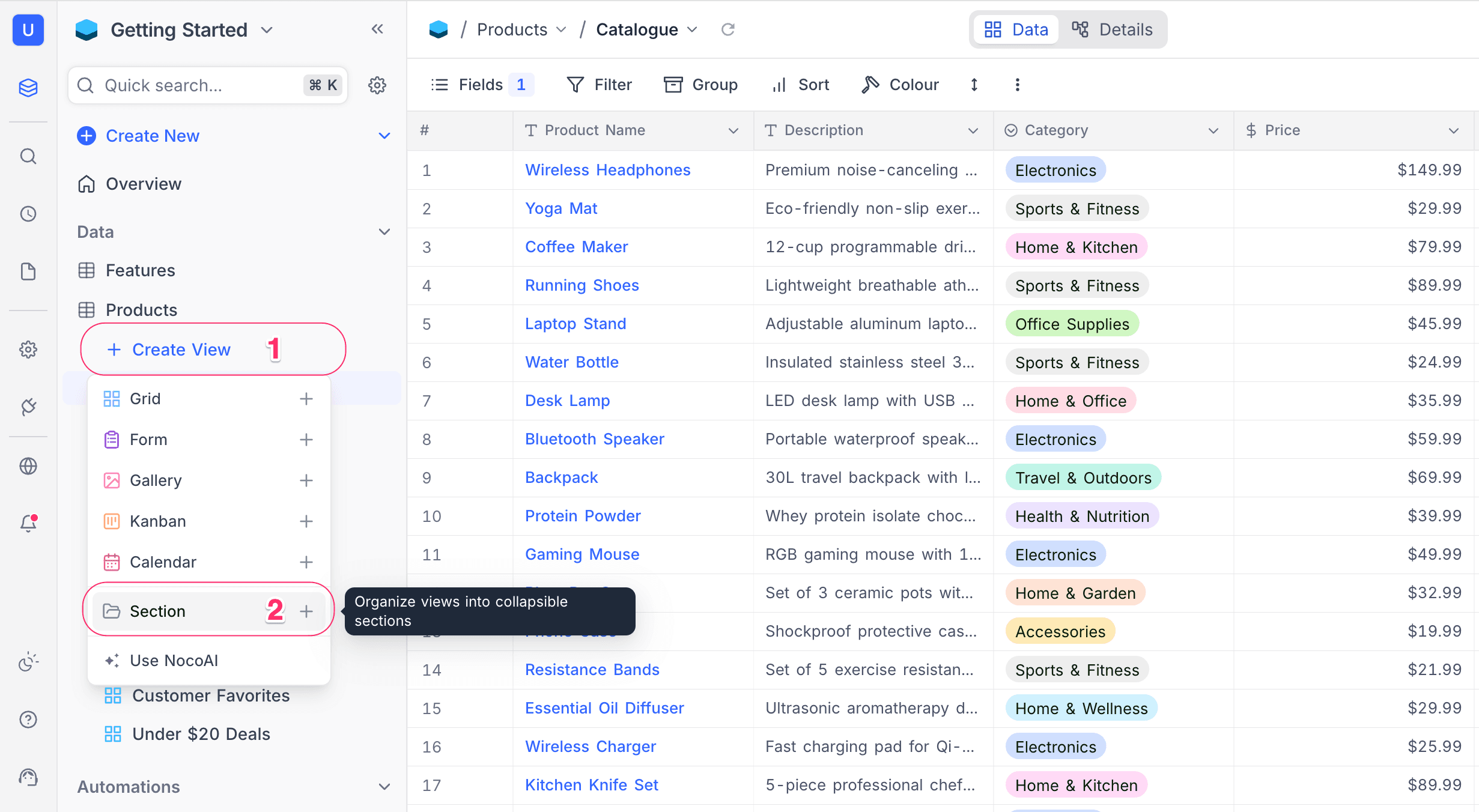
From the Move to menu
- Right-click a view, or click the ellipsis symbol (
...) next to a view name. The view context menu opens. - Hover over
Move to.... The submenu opens. - Click
New view folder. NocoDB creates a new folder and moves the selected view into it.
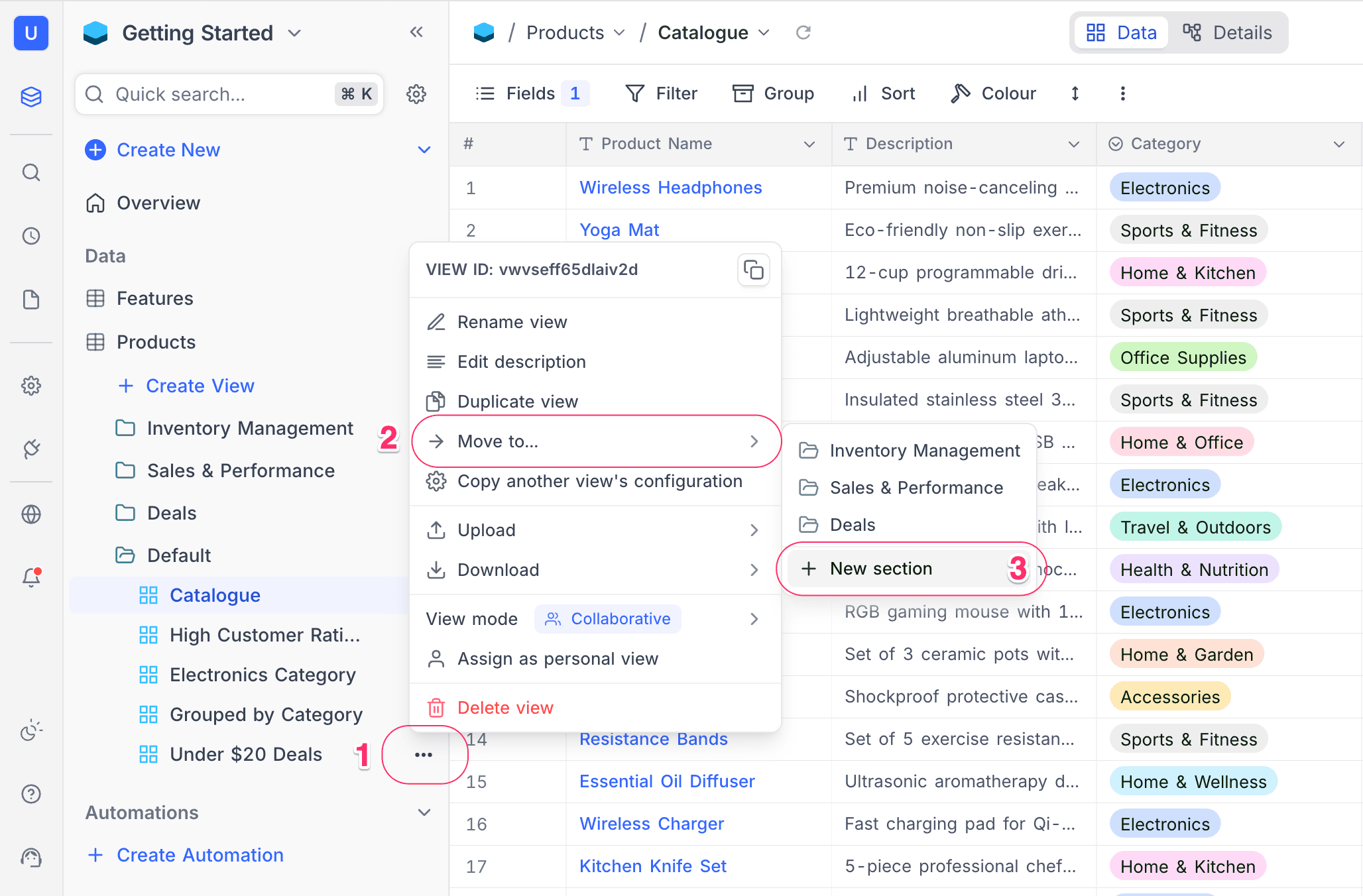
Rename a view folder
- In the left sidebar, double-click the folder name. The name becomes editable.
- Type the new name.
- Press
Enterto save, or pressEscapeto cancel.
You can also rename a folder from the context menu:
- On the folder header, click the ellipsis symbol (
...). - Select
Rename view folder. - Type the new name.
- Press
Enter.
Move views into a folder
- Next to the view to move, click the ellipsis symbol (
...), or right-click the view name. - In the context menu, hover over
Move to.... - In the submenu, select the target folder.
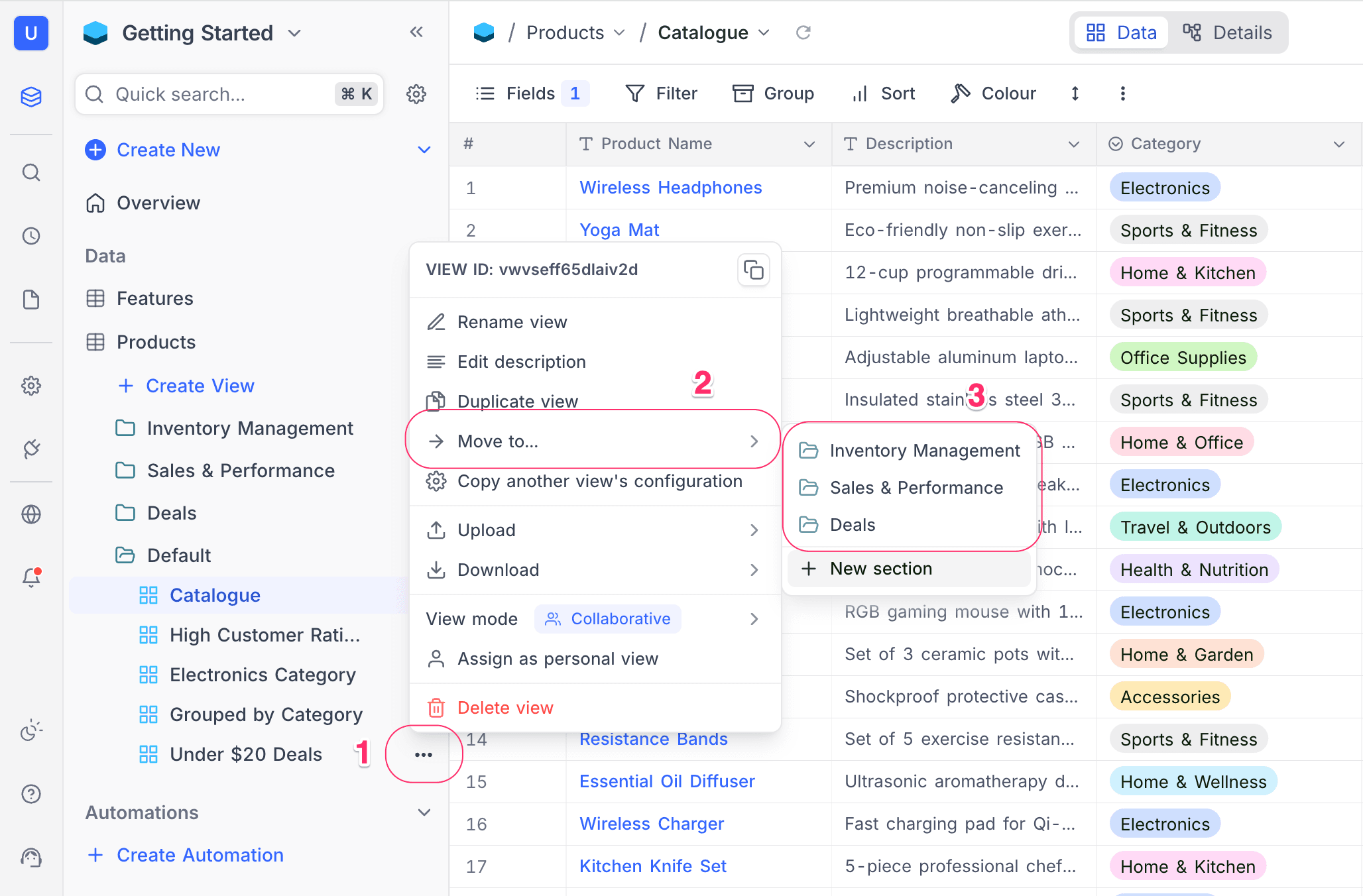
The submenu shows all existing folders. You can also:
- Click
New view folderto create a new folder and move the view into it in one step. - Click
Remove from view folderto move the view back to the top level. This option shows only when the view is already in a folder.
Remove a view from a folder
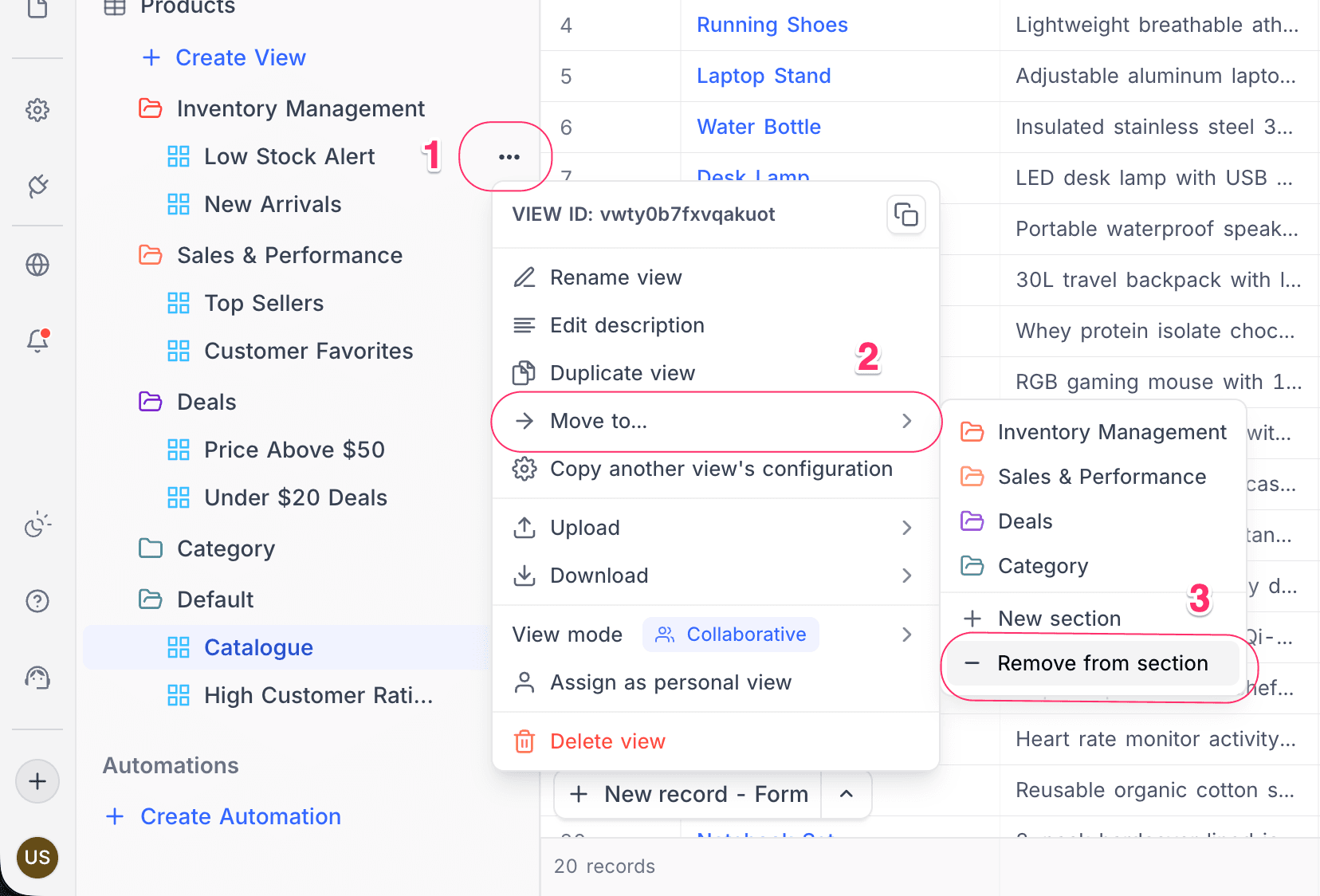
- Next to the view name in a folder, click the ellipsis symbol (
...). - In the context menu, hover over
Move to.... - Click
Remove from view folder.
The view moves back to the top-level view list, outside of all folders.
Expand and collapse folders
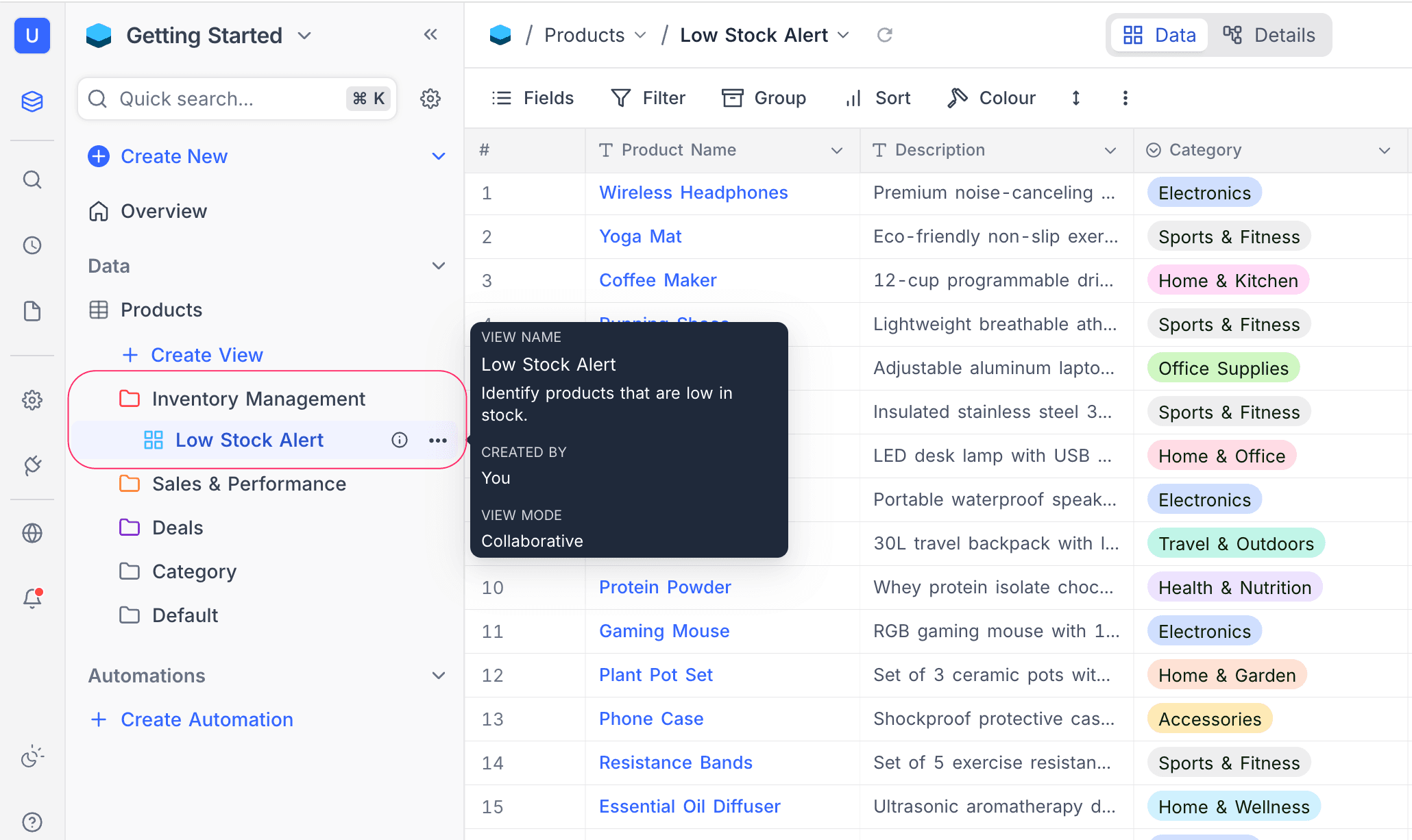
You can collapse view folders to hide the views that you do not currently work with.
- Click a folder header to expand or collapse it.
- When a folder is collapsed, the sidebar hides the views in it. The currently active view is an exception: it always stays visible.
Expand all / Collapse all
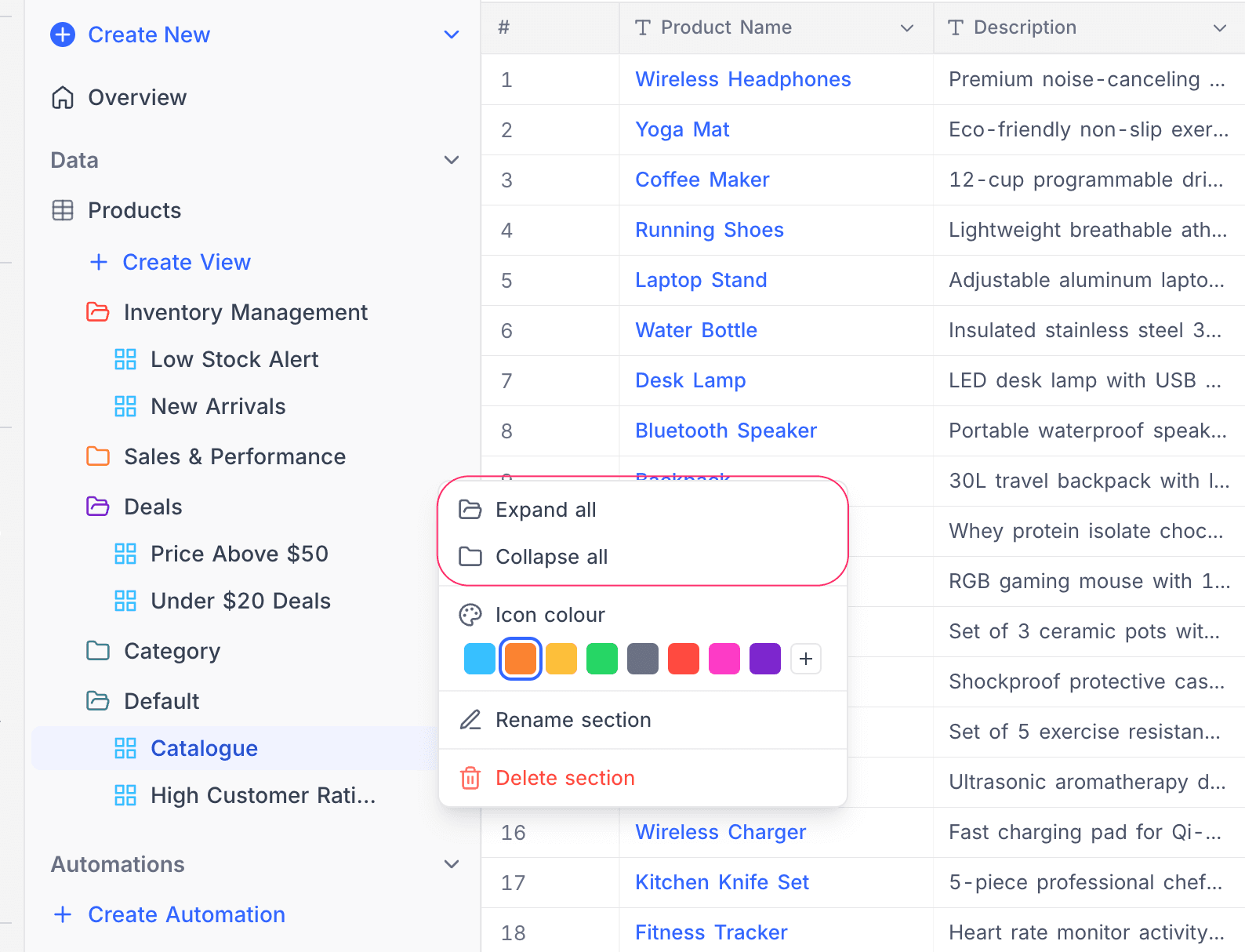
To expand or collapse all folders at the same time:
- On any folder header, click the ellipsis symbol (
...). - Select
Expand allorCollapse all.
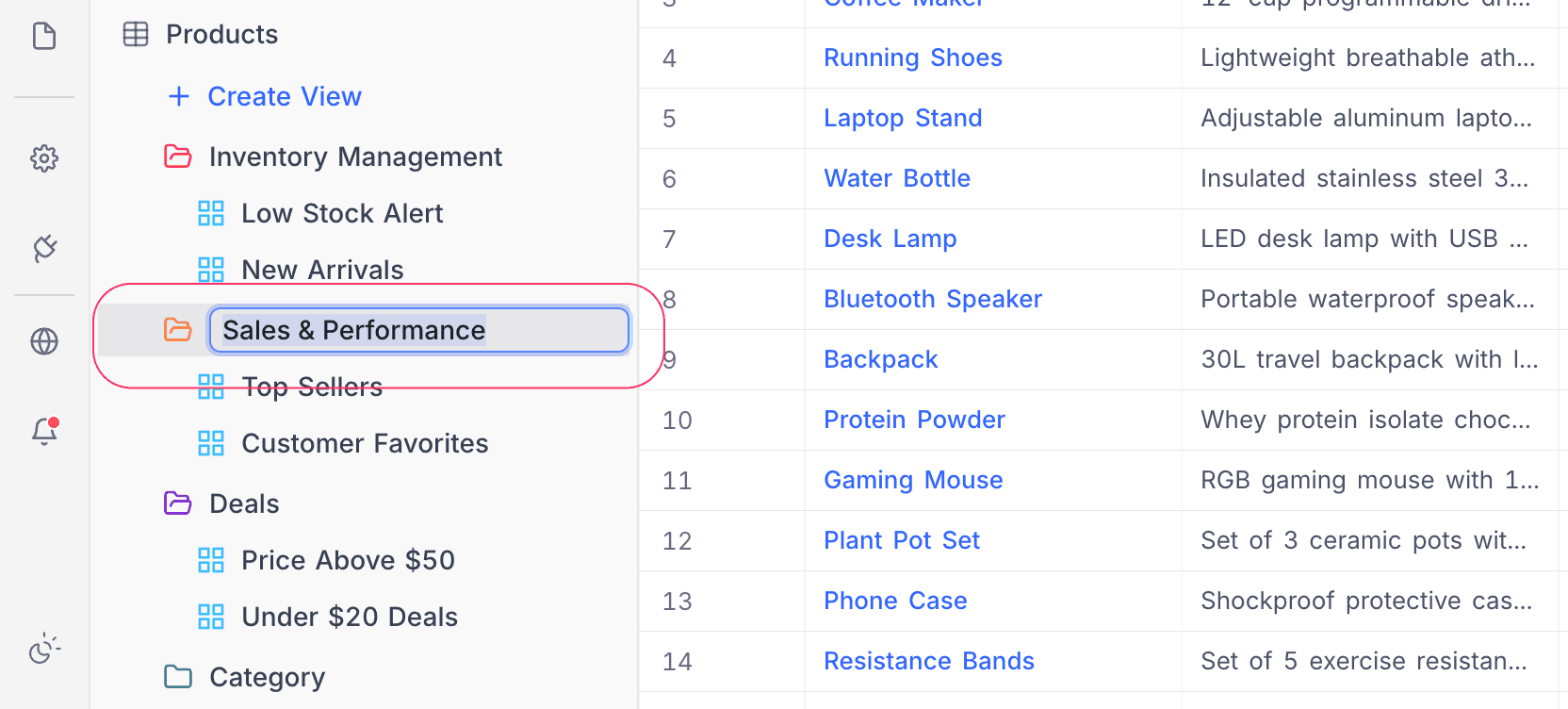
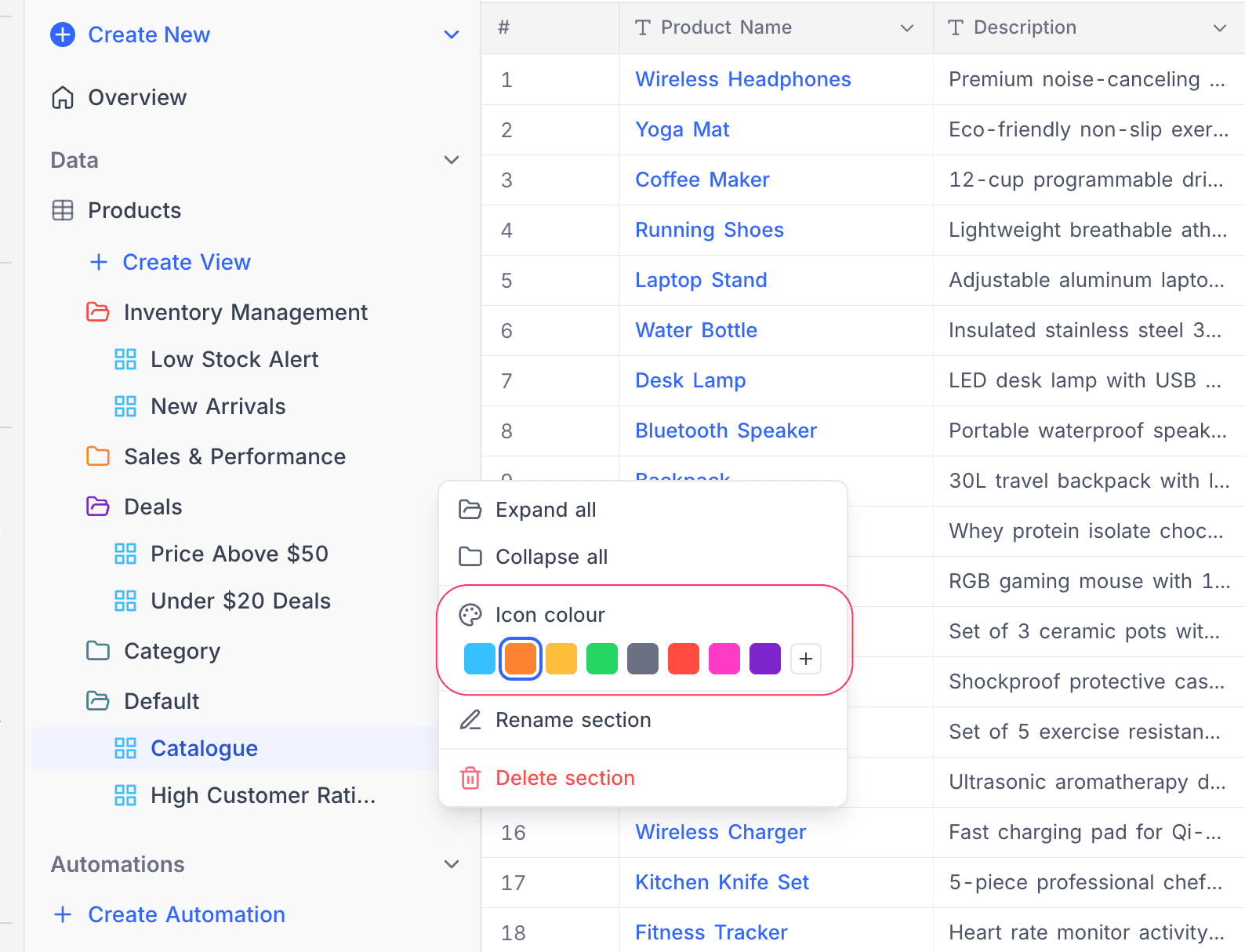
Change folder icon colour
Each folder shows a folder icon. You can change the color of this icon.
- On the folder header, click the ellipsis symbol (
...). The context menu opens and shows a color palette underIcon colour. - Click a color to apply it, or click
More coloursto select a custom color.
Reorder folders
You can drag and drop folders to change their order in the sidebar.
- Click and hold a folder header.
- Drag the folder to the new position among the other folders.
- Release the folder to drop it in place.
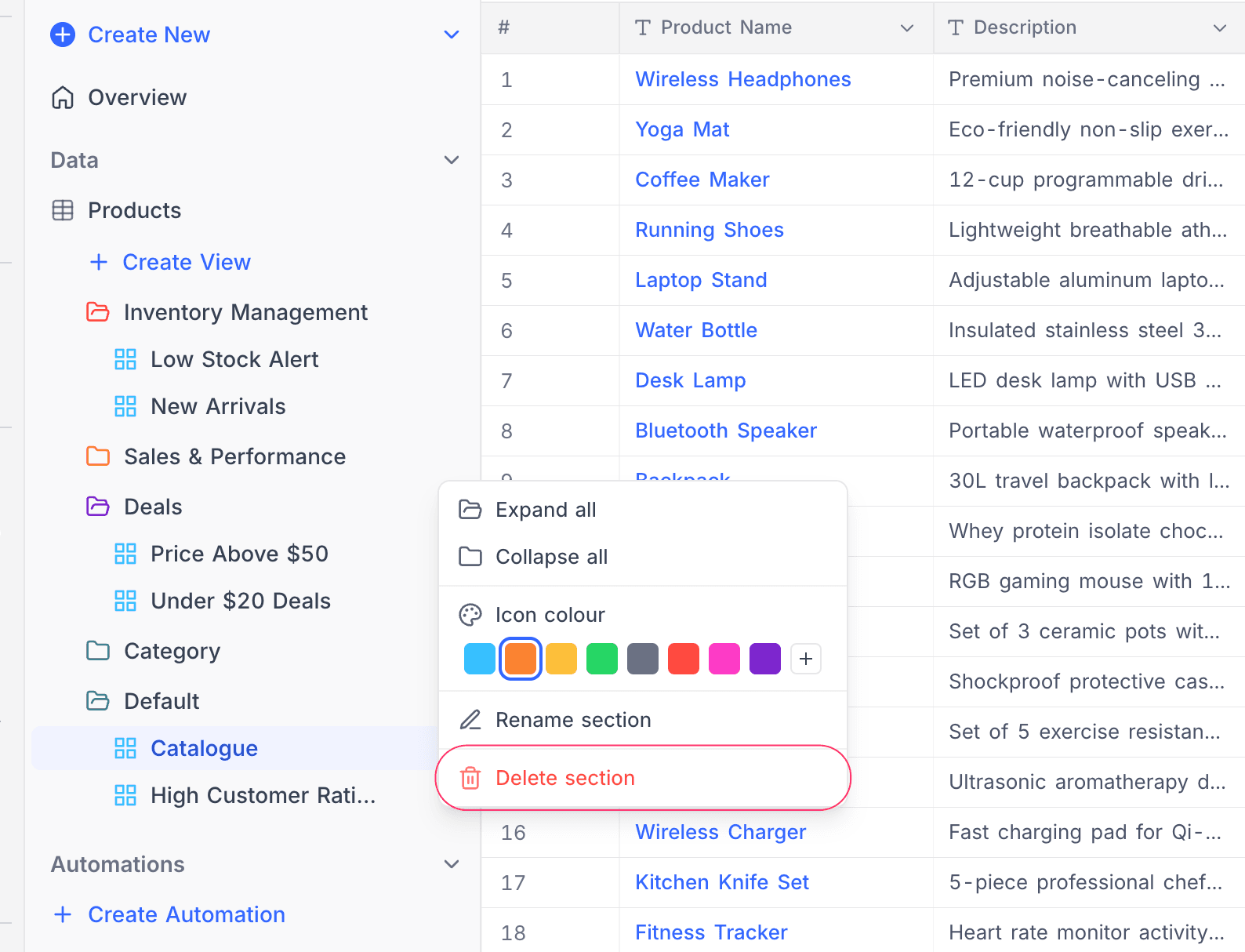
Delete a view folder
- On the folder header, click the ellipsis symbol (
...). - Click
Delete view folder. A confirmation dialog opens. It tells you that the views in the folder will move to the top level. - Click
Delete.
Default folder
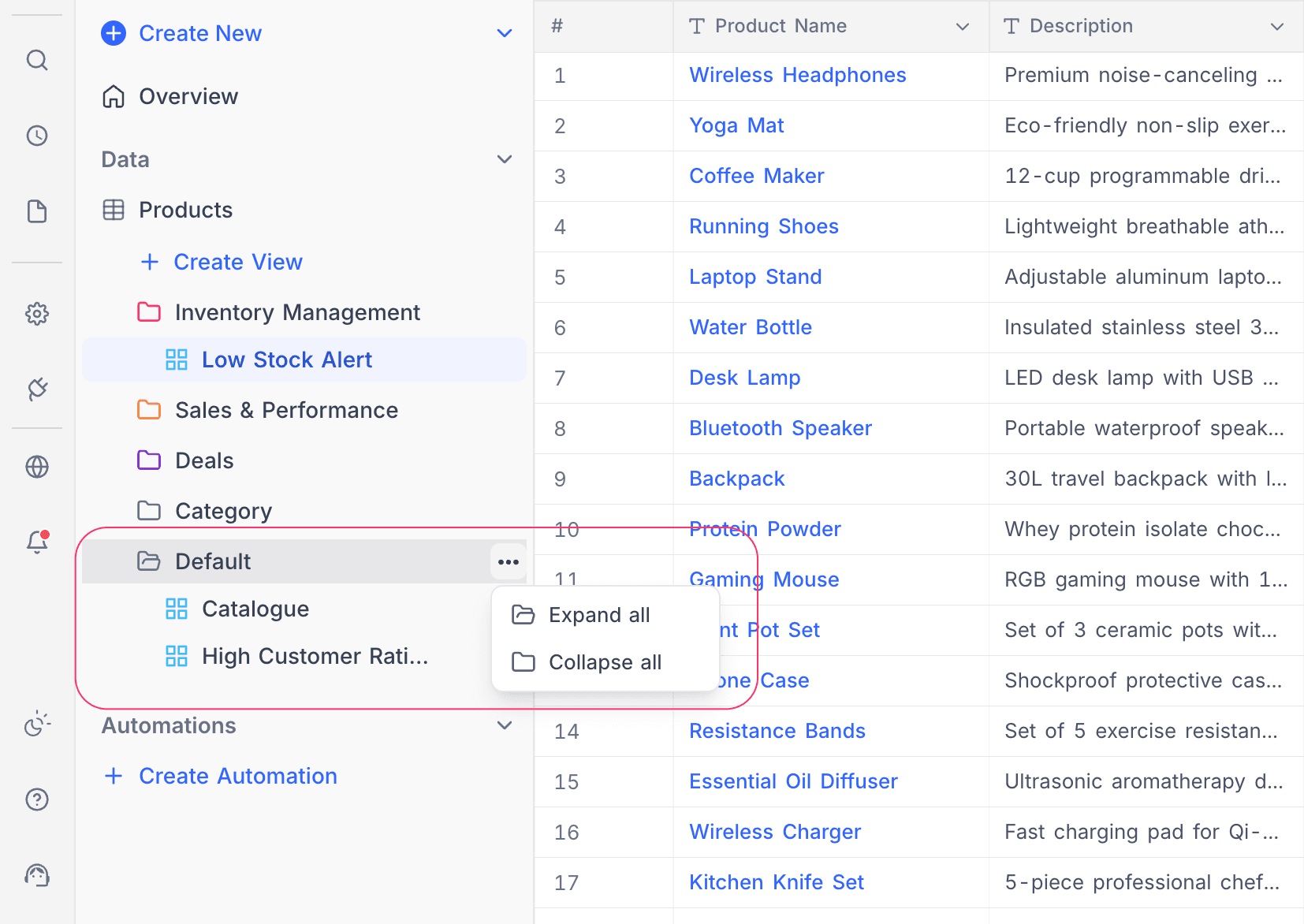
When a table has at least one view folder, NocoDB shows a virtual Default folder at the bottom of the folder list. This folder contains all views that are not in a folder. You cannot rename, delete or reorder the Default folder. You can expand and collapse it like any other folder.
Notes
- View folders only organize views. They do not affect the data or the configuration of the views in them.
- View folders are scoped to individual tables. Each table has its own set of folders.
- All members of a workspace can see view folders. Only members with Creator permissions or above can create, rename, reorder, recolor or delete folders. Editors can move views between existing folders, but they cannot create new folders. For editors, the New view folder entry in the "Move to…" submenu is disabled, with a tooltip that explains the restriction.
- When a folder is collapsed, the currently active view stays visible in the sidebar, in any folder.
- Folders are also available at the base level to organize tables, documents and dashboards in the sidebar. Refer to Folders.
Availability
- View folders are available on all plans, on NocoDB Cloud and self-hosted deployments, including the Community Edition. View folders were previously called view sections.
- Only Creators and Owners can create, rename, reorder, recolor or delete view folders. Editors can move any view between existing folders in the sidebar, but they cannot create new folders.
Last updated on