Teams
Overview
Teams let you group members so you can assign and manage permissions at scale. Instead of configuring the same role for each person on every base, add users to a team and grant that team a role on one or more bases.
NocoDB supports two scopes of teams:
| Workspace Teams | Organization Teams | |
|---|---|---|
| Scope | Single workspace | Entire organization |
| Managed in | Workspace sidebar > Teams | Admin Panel > Teams |
| Availability | Cloud Business+ / self-hosted Scale+ | Cloud Enterprise / self-hosted Scale+ |
When to use which:
- Org teams are ideal for company-wide groups like departments (Engineering, Marketing, HR) that need consistent access across multiple workspaces. The Org Admin manages them centrally, and they can be assigned roles in any workspace.
- Workspace teams are better for project-specific or workspace-local groups — for example, a "Sprint Team" or "External Contractors" group that only needs access within a single workspace.
Teams help you to
- Organize members by department, project, or function
- Manage permissions efficiently by assigning roles to teams instead of individuals
- Scale access control without managing individual user permissions
- Maintain flexibility with inheritance and override capabilities
- Create sub-teams for more granular organization with up to 4 levels of nesting
Create Team
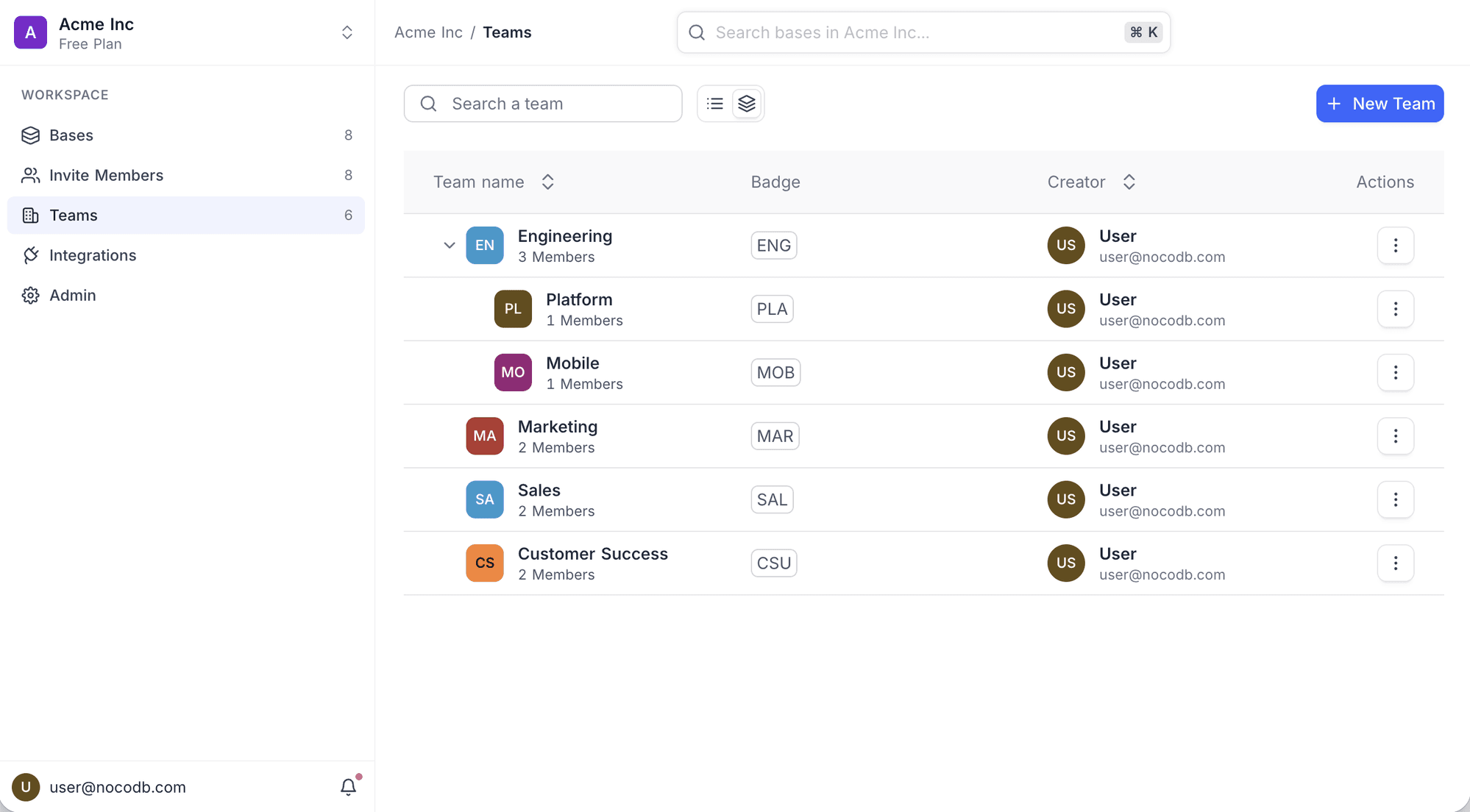
- Click Teams in the workspace sidebar.
- Click New Team.
- Enter a team name.
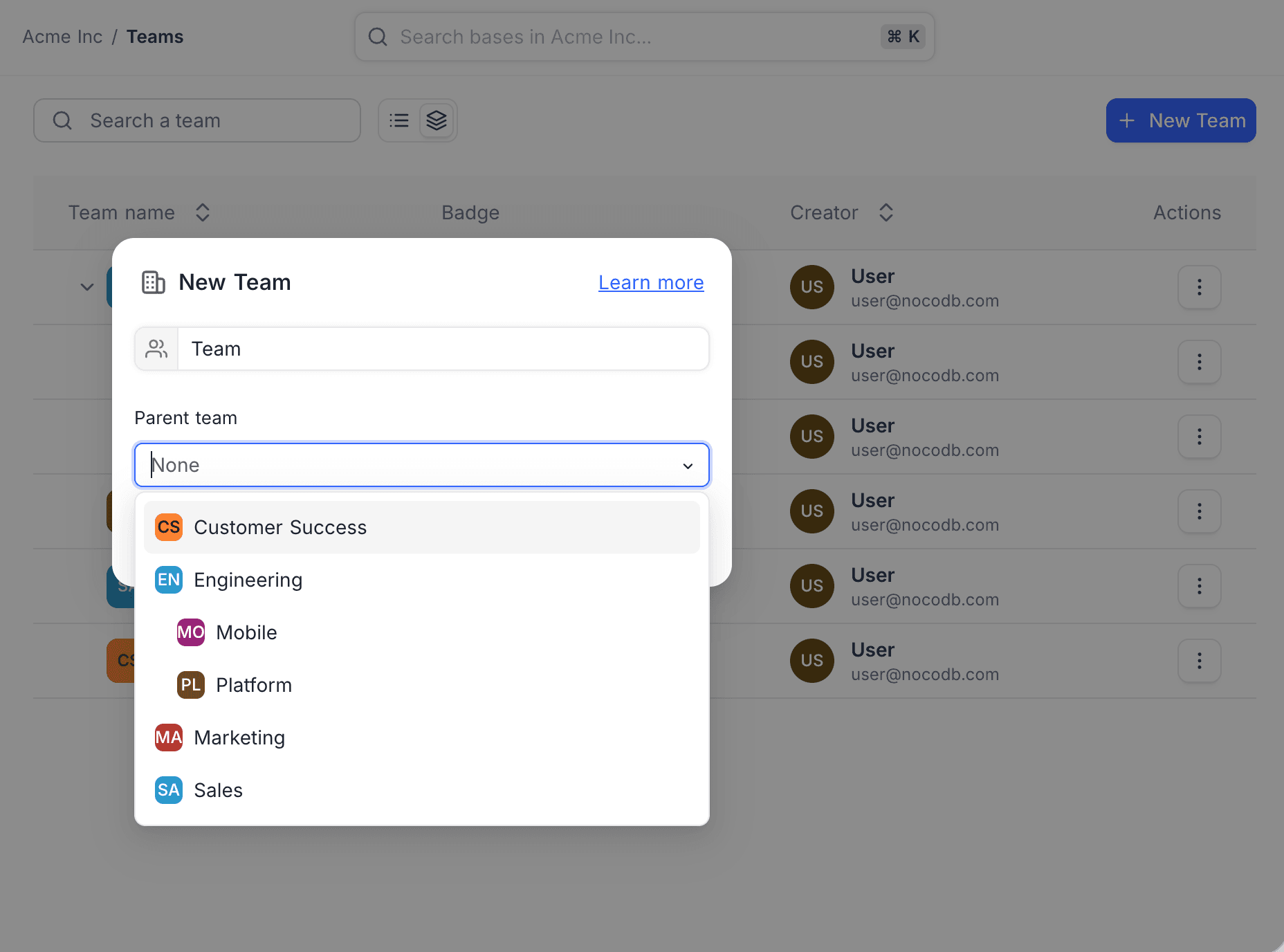
- Optionally pick a Parent team to create this team as a sub-team. Leave it as None for a top-level team.
- Click Create Team.
The Teams page lists every team with its badge, member count, and creator. Teams that have sub-teams show a chevron you can expand to reveal the hierarchy.
The Parent team dropdown shows the existing teams indented by hierarchy, so you can see where the new team will sit.
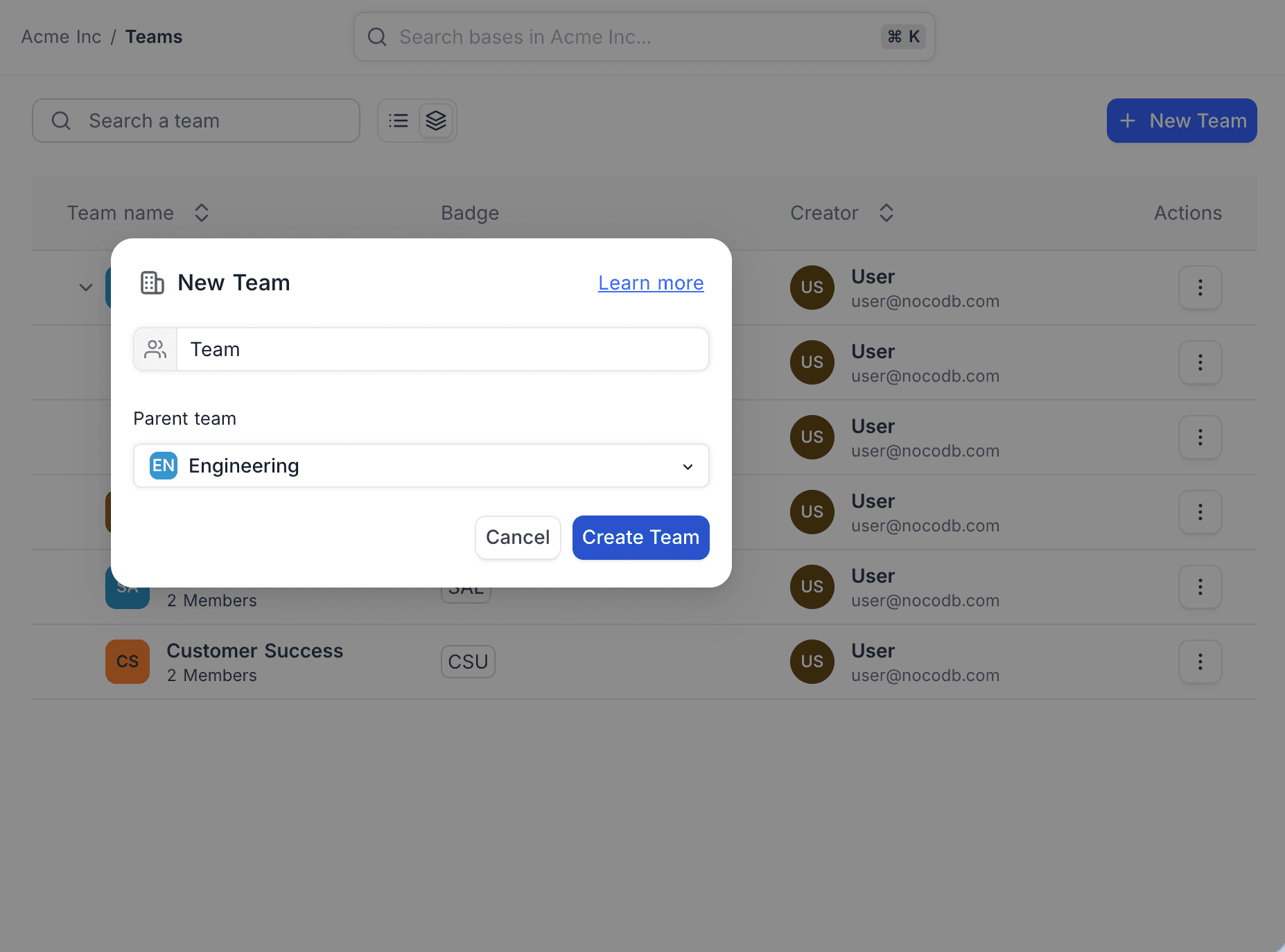
When a team is created, the creator is automatically added as its first member and designated as the Team Owner. Team Owners have full administrative privileges, including adding or removing members, renaming the team, and deleting it when necessary. Multiple owners can be assigned to a team, but each team must always have at least one owner.
Add Members to a Team
On the Teams page, select the team you want to manage, then follow these steps:
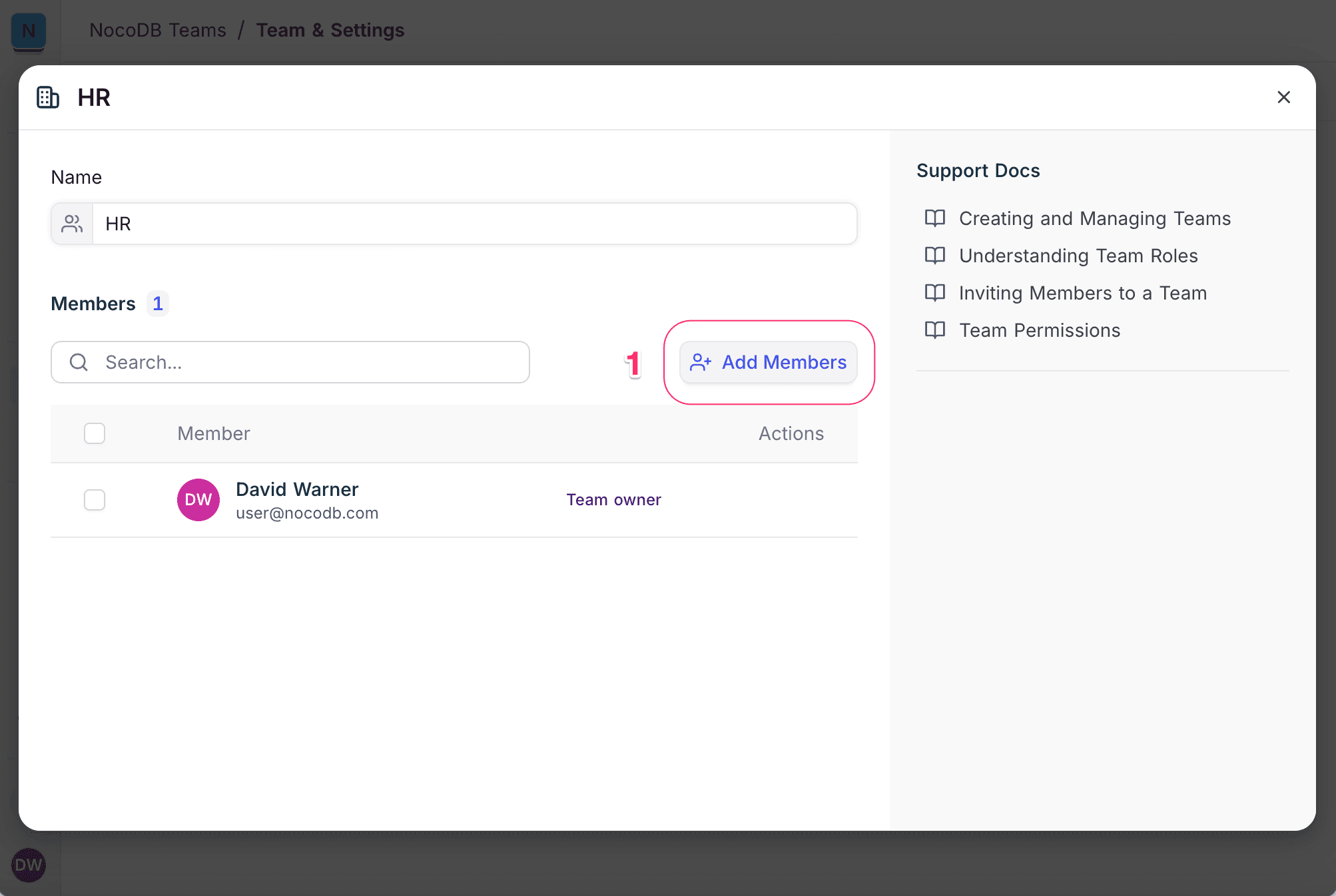
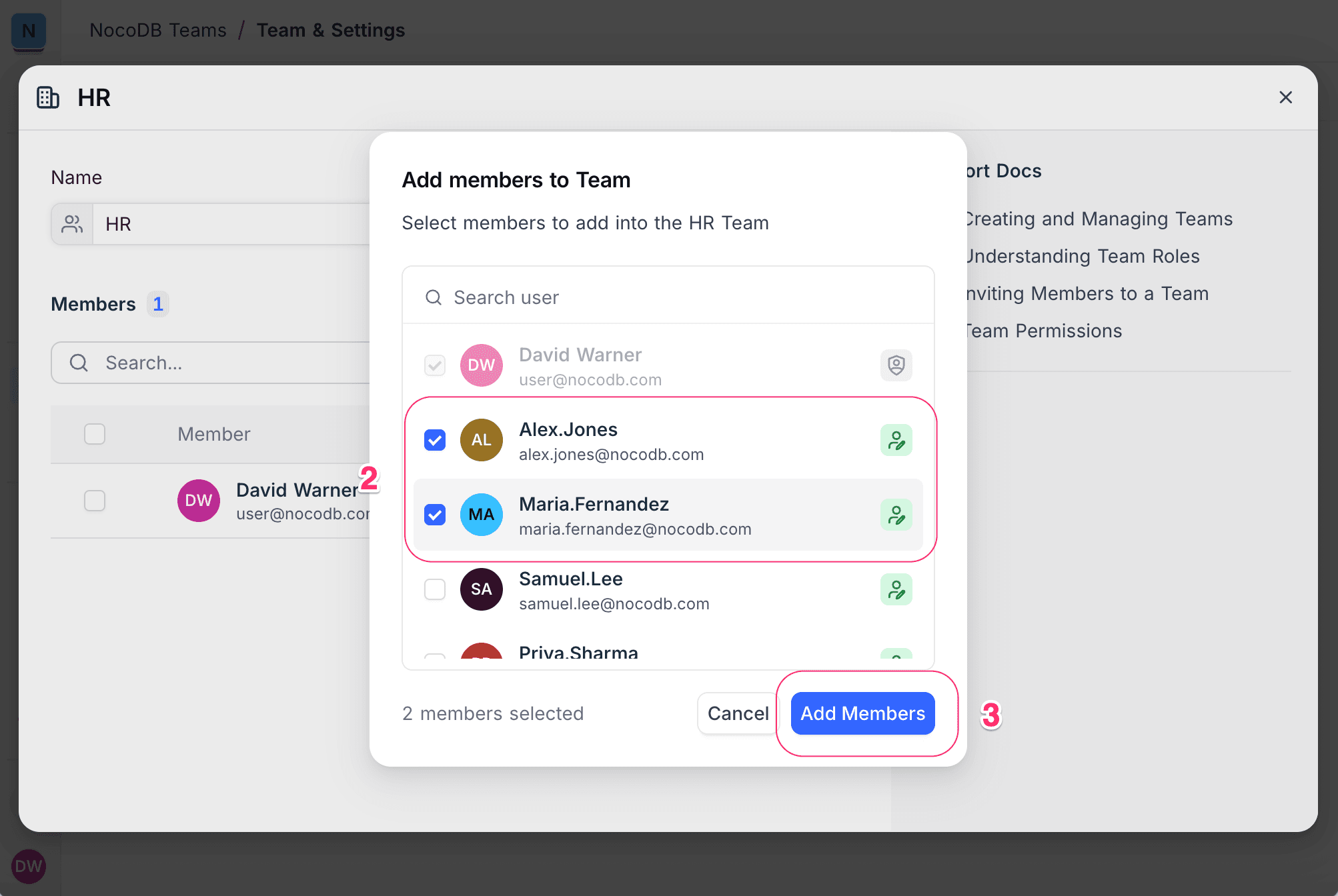
- Click Add Members.
- Use the toggle buttons to select existing workspace members to add. Members already part of the team are clearly indicated.
- Click Add Members again to confirm your selection.
You can search by name or email to quickly locate users. Existing team members have their toggles disabled to avoid duplicate additions. Each member's workspace role is displayed beside their name for better context.
Remove Members from a Team
On the Teams page, select the team you want to manage, then follow these steps:
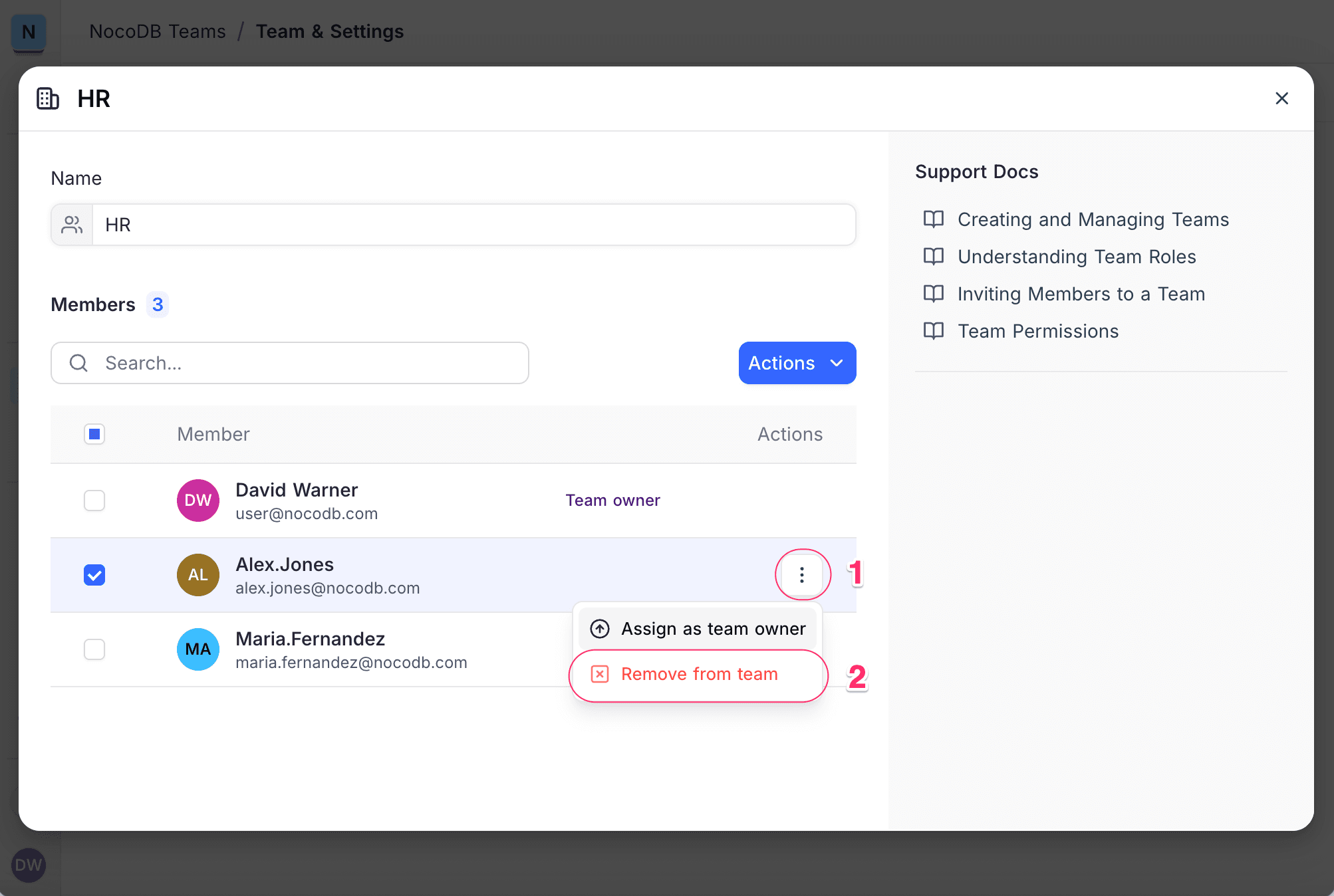
- Locate the member you want to remove. Use the search bar if needed and open the Actions (three dots) menu beside their name.
- Select Remove Member.
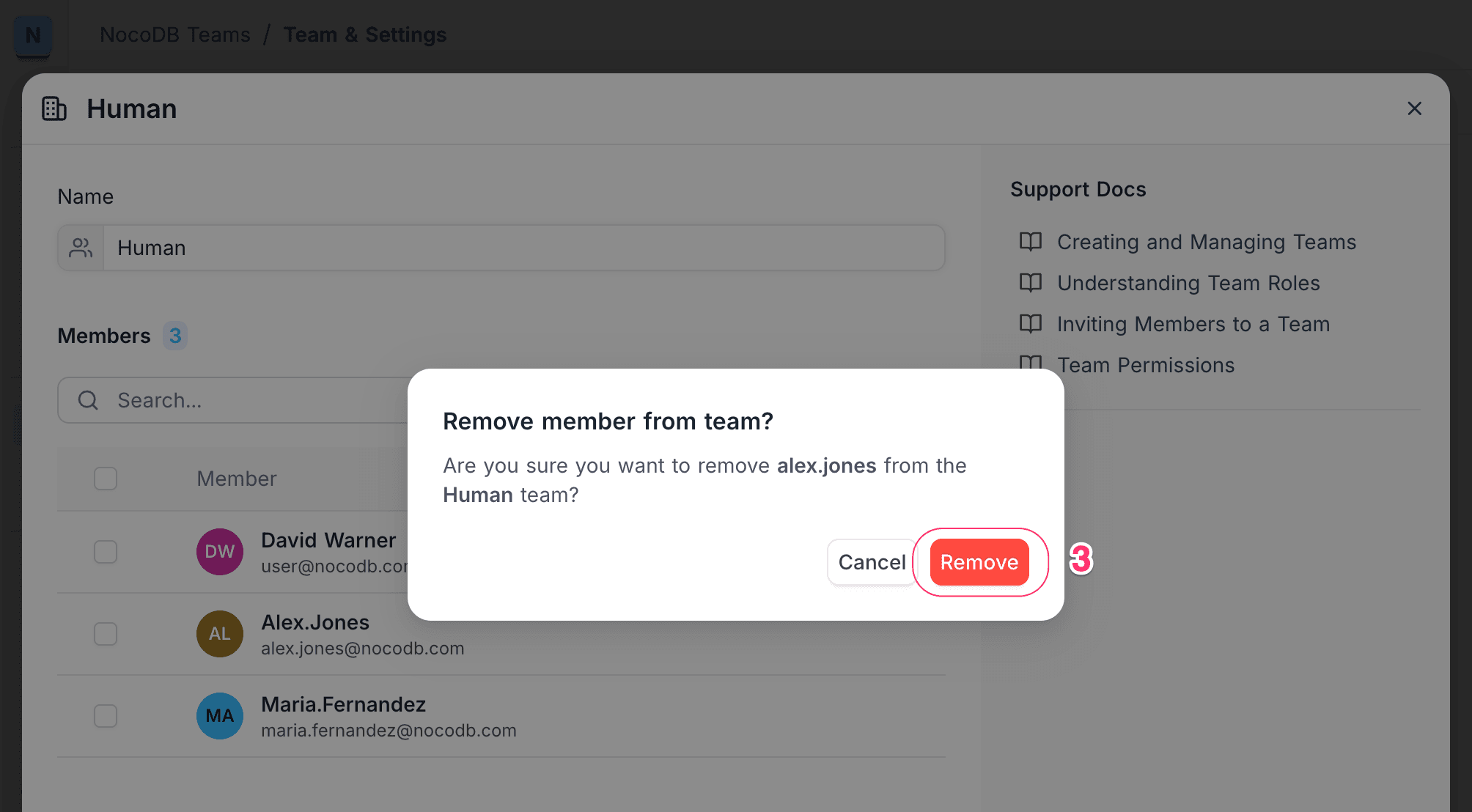
- Confirm the action when prompted.
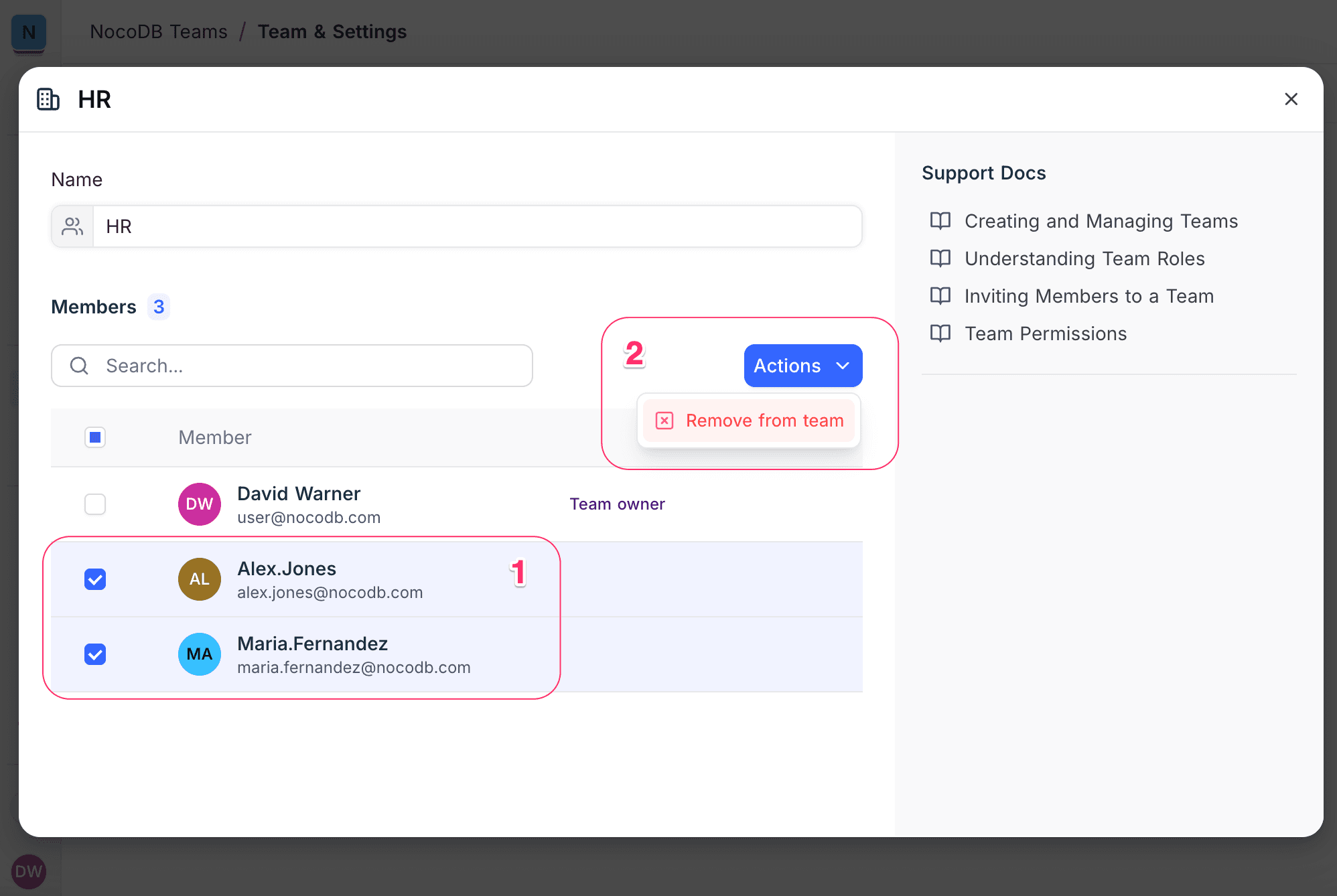
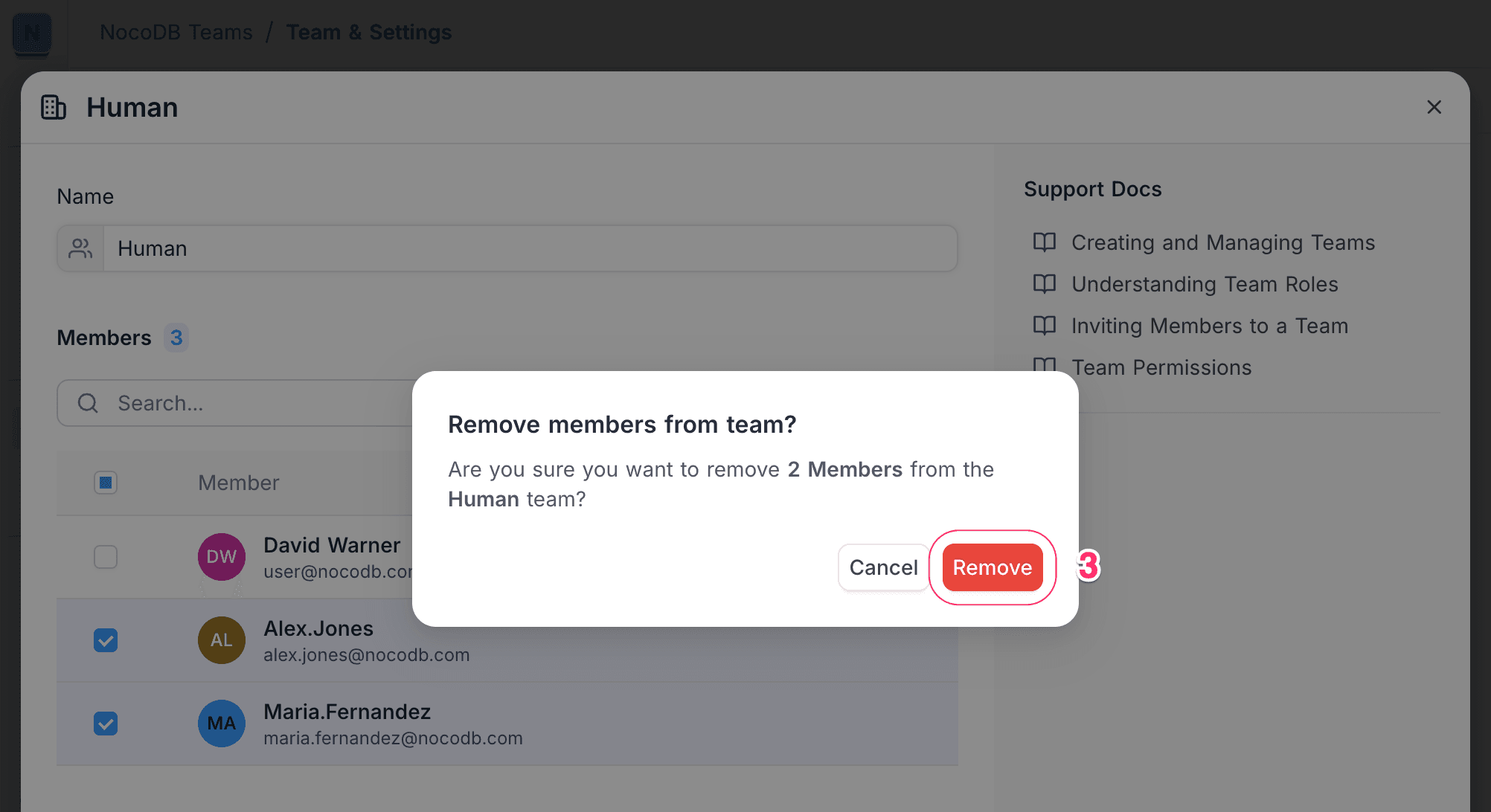
To remove multiple members at once:
- Use the checkboxes to select the members you want to remove.
- Click Actions > Remove from Team at the top of the member list.
- Confirm the action when prompted.
Manage Team Owners
A team can have multiple owners, but it must always have at least one.
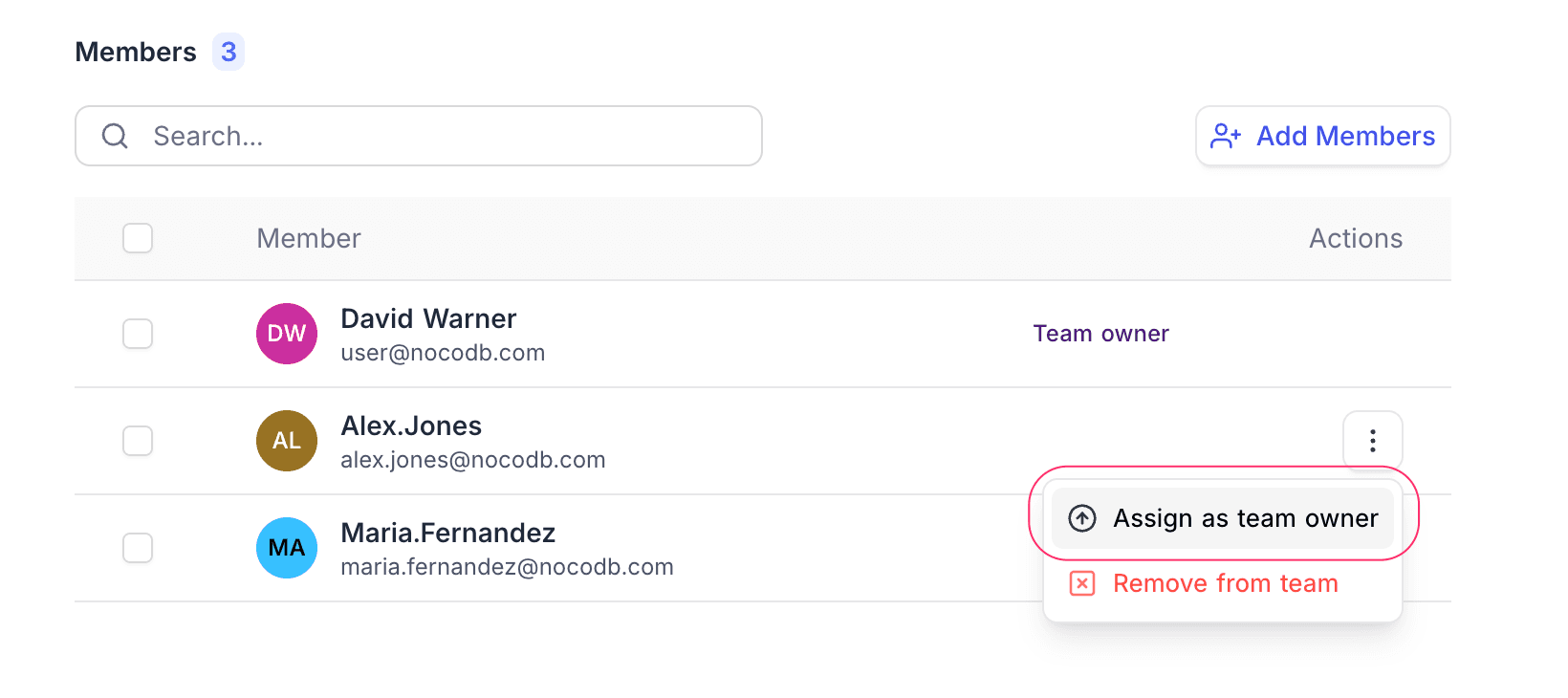
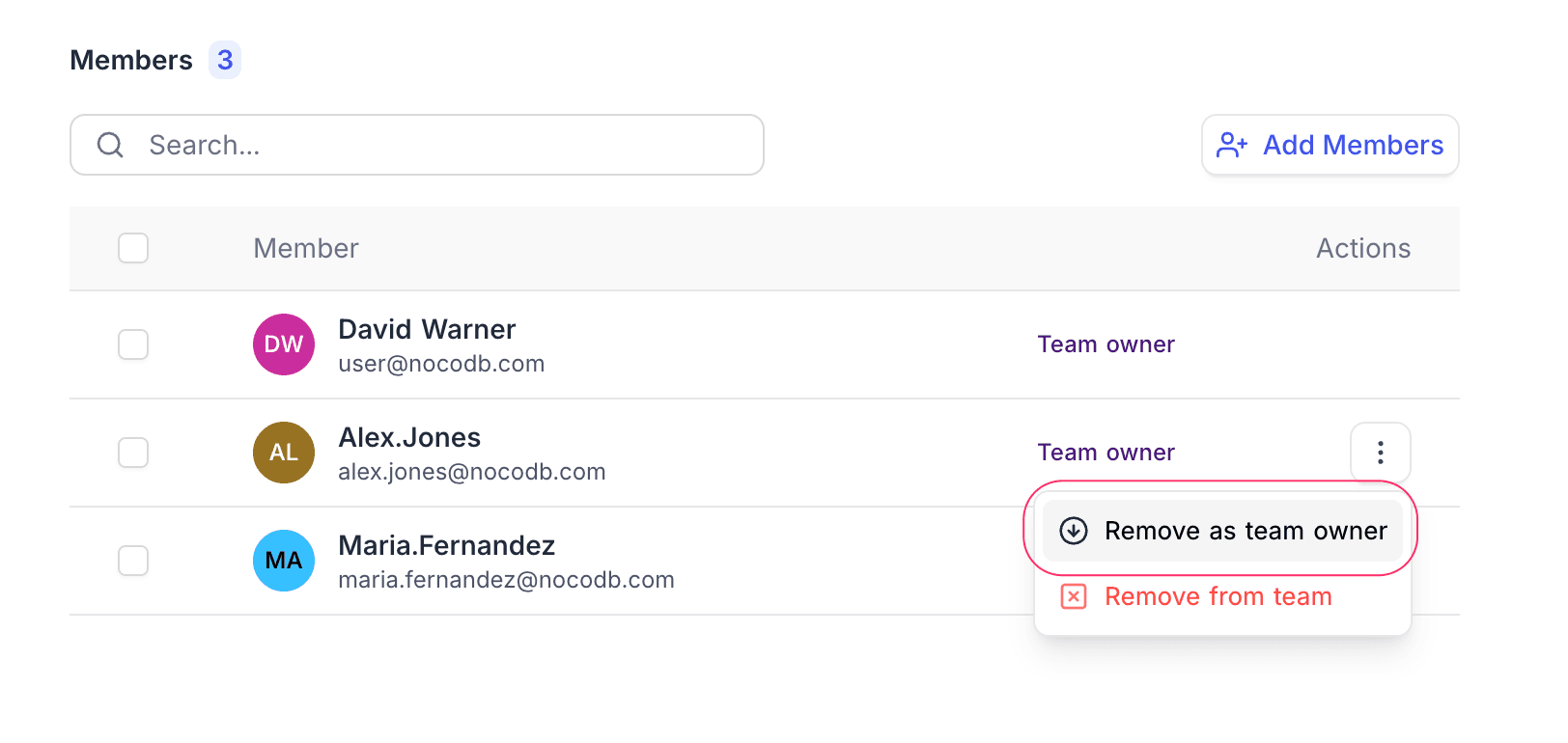
To add or remove team owners:
- On the Teams page, select the team you want to manage.
- Locate the member whose ownership status you want to change. Use the search bar if necessary and open the Actions (three dots) menu beside their name.
- To grant ownership, select Assign as Team Owner. To revoke ownership, select Remove as Team Owner.
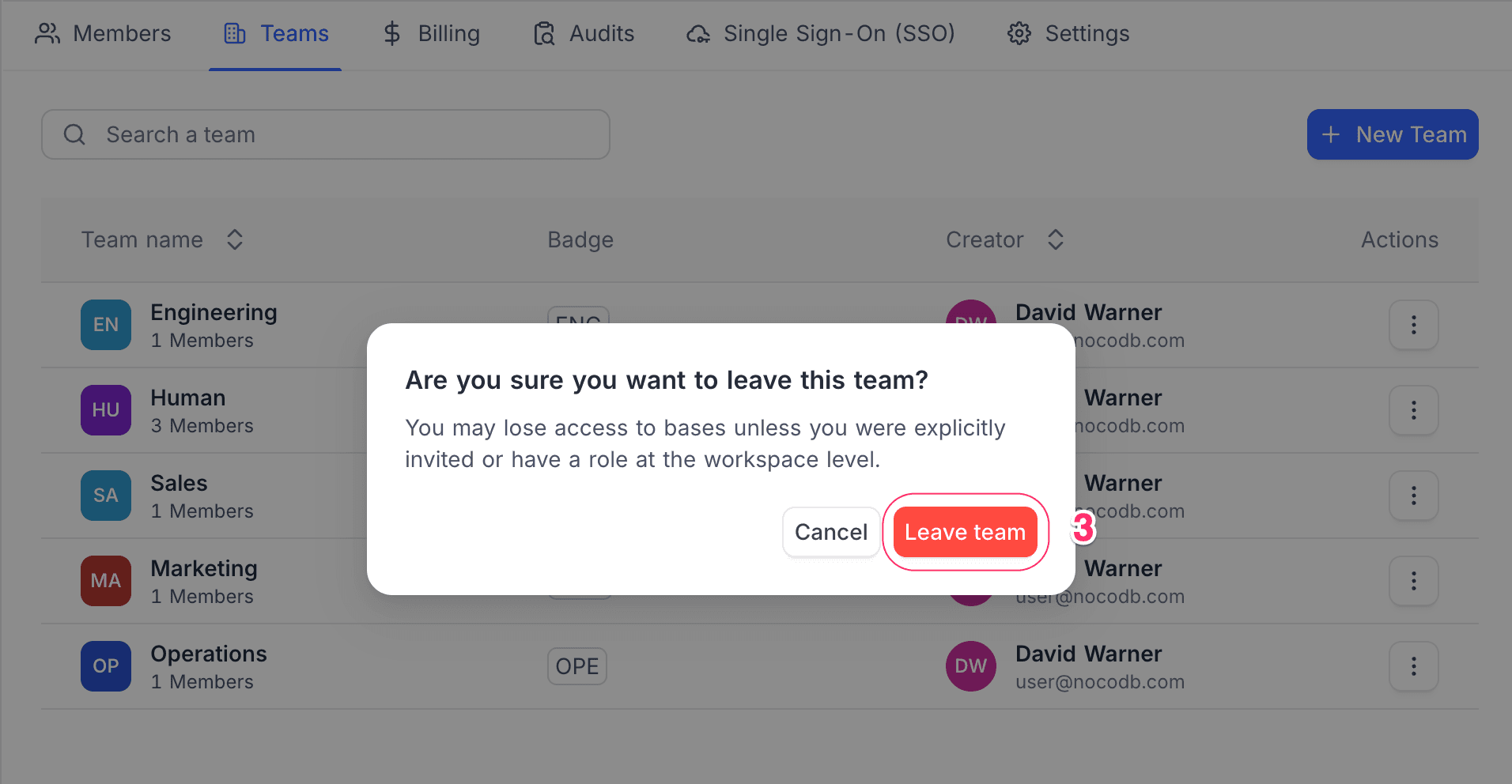
Leave Team
Members can leave a team on their own if they no longer wish to be part of it (any team member can leave, not just owners — as long as at least one owner remains).
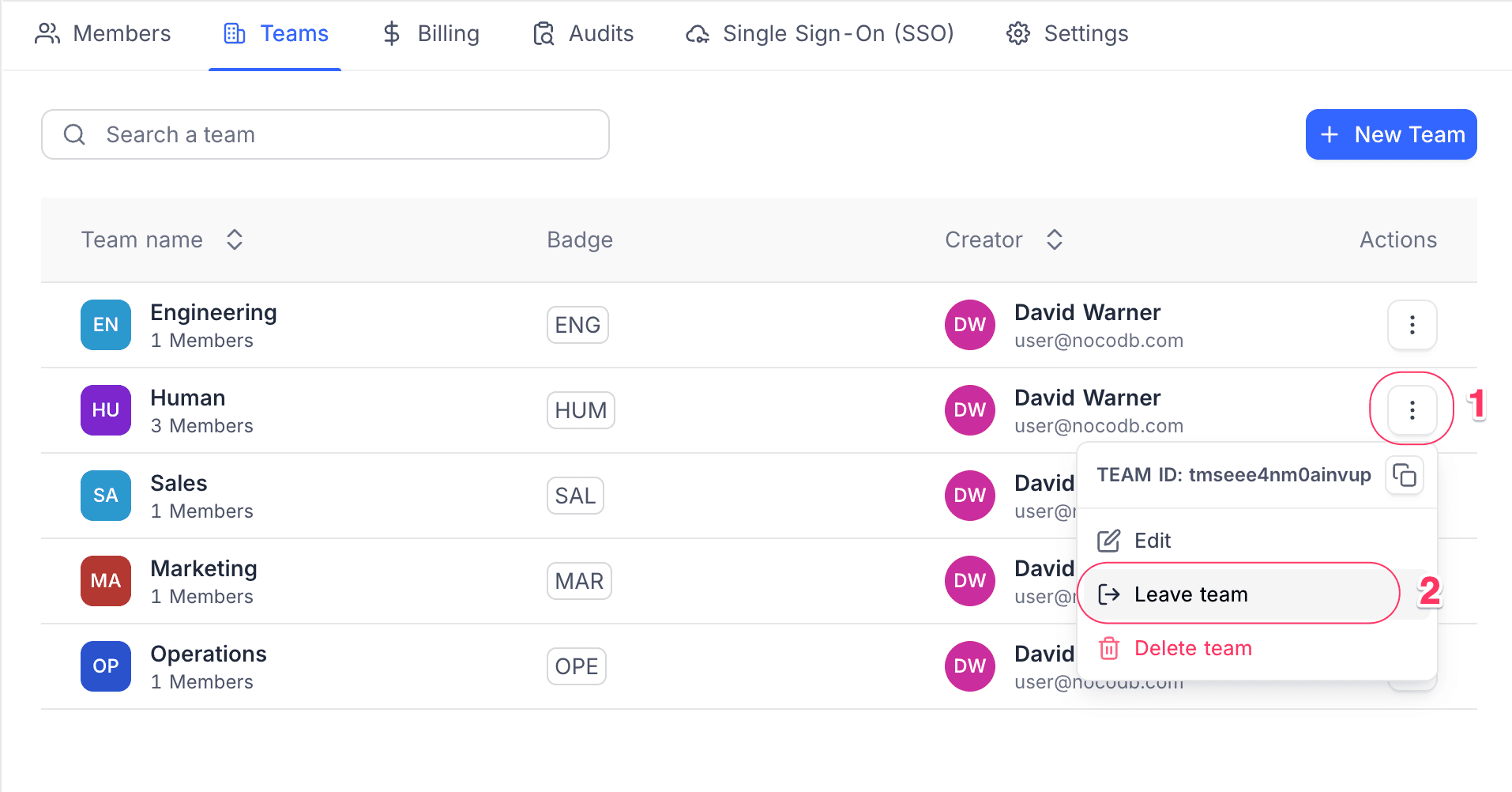
To leave a team you are a member of:
- On the Teams page, open team context menu by clicking the Actions (three dots) button beside the team name.
- Click the Leave Team button from the dropdown menu.
- Confirm the action when prompted.
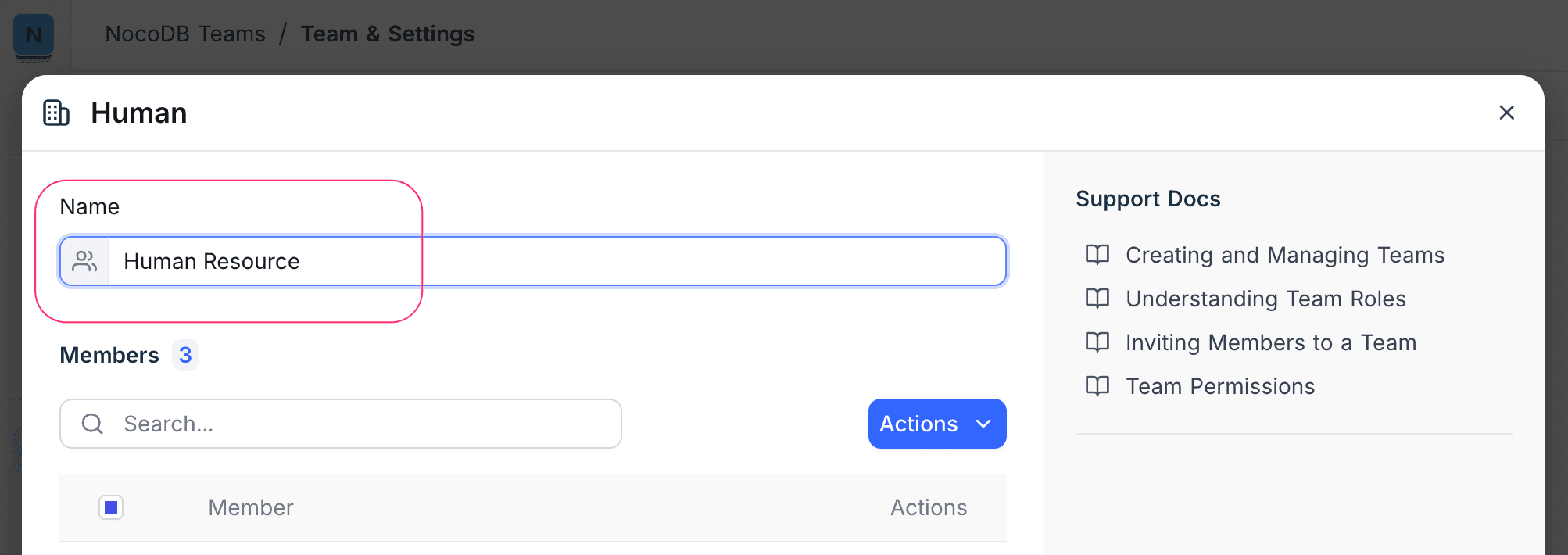
Rename Team
On the Teams page, select the team you want to rename. Edit team name as needed, and your changes will be saved automatically.
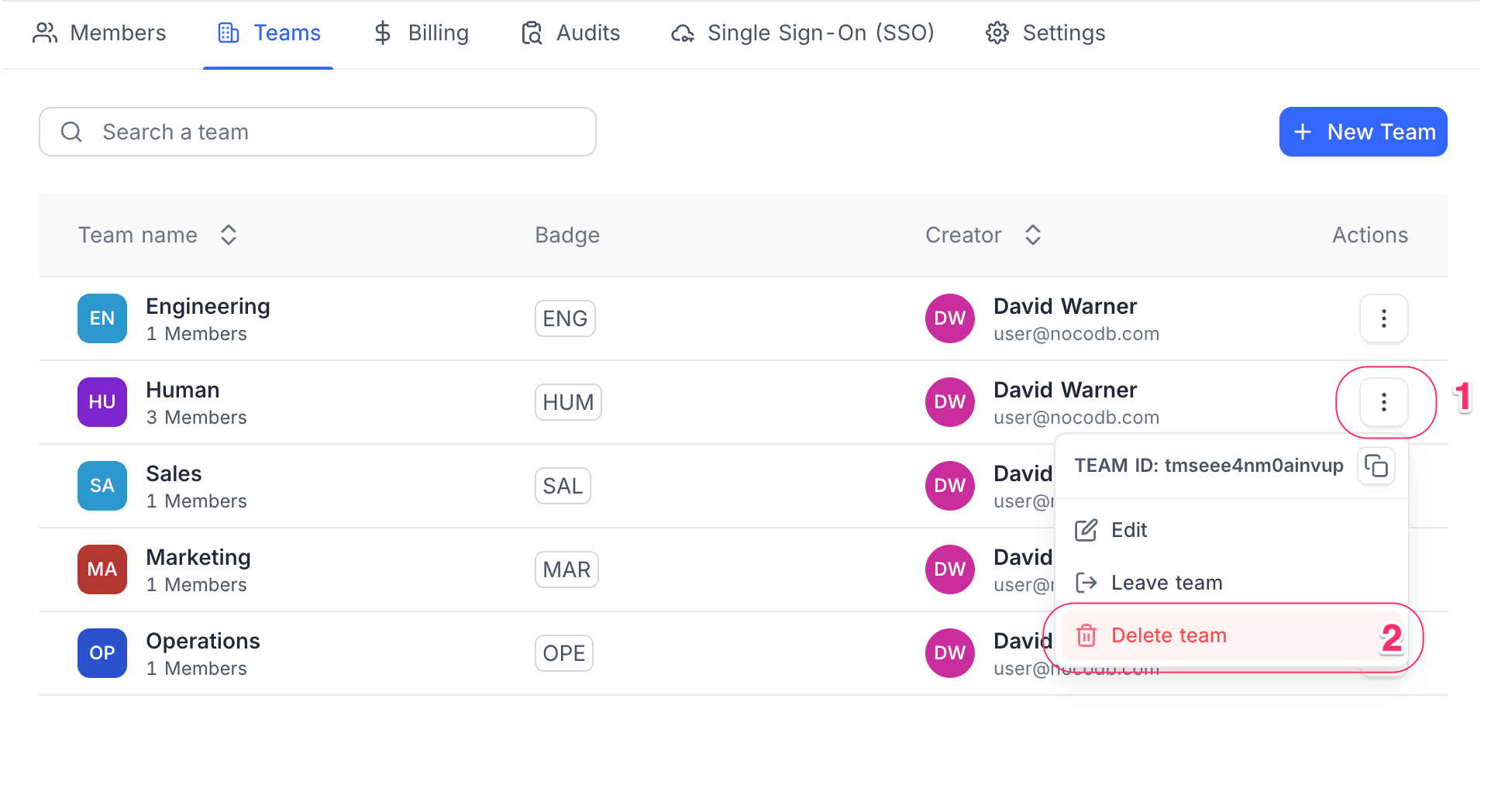
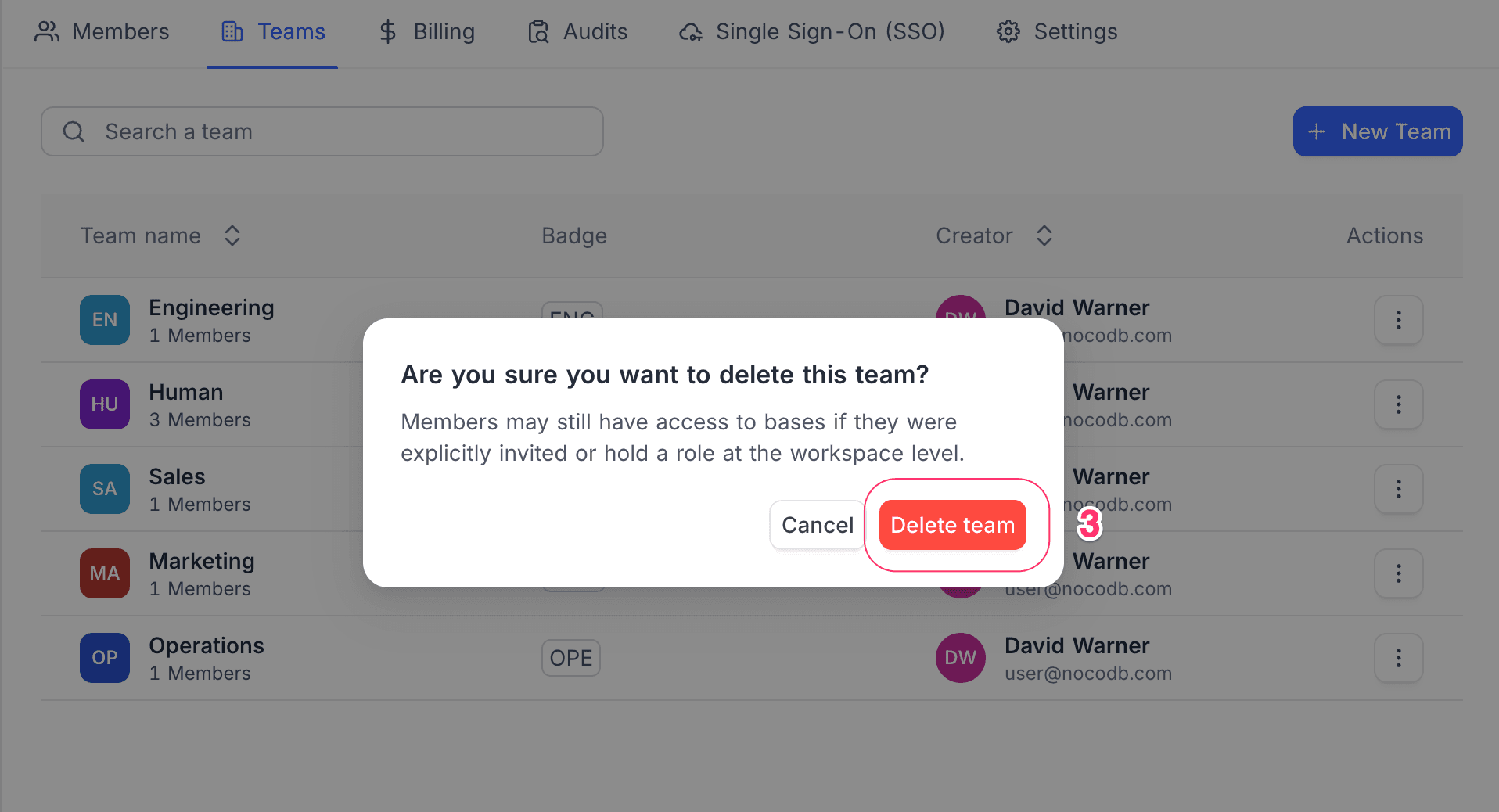
Delete Team
To delete a team:
- On the Teams page, open team context menu by clicking the Actions (three dots) button beside the team name.
- Click the Delete Team button from the dropdown menu.
- Confirm the action when prompted.
Sub-teams
Teams can be nested up to four levels deep, and nesting changes how roles and permissions apply. See Sub-Teams.
Organization Teams
Teams scoped to the whole organization, managed from the Admin Panel and assignable in any workspace. See Organization Teams.
Team roles
Every team member is either an Owner or a Member.
| Role | What they can do |
|---|---|
| Owner | Manage the team — rename, move, delete, add/remove people, create sub-teams |
| Member | Be part of the team and receive the workspace/base roles assigned to it |
- The person who creates a team is automatically its first Owner.
- A team can have multiple Owners but must always have at least one.
- Team roles (Owner/Member) are separate from workspace and base roles (Creator, Editor, Viewer, etc.).
Assign roles to teams
You can give a team a role at the workspace or base level, just like you do for individual users. When a team gets a role, all its members receive that access.
Available roles for teams:
- Creator — full control except deletion
- Editor — add, edit, and delete records
- Commenter — view and comment on records
- Viewer — read-only access
- No Access — block access entirely
For step-by-step instructions:
Effective role resolution
When someone belongs to one or more teams and has an individual role, NocoDB picks the one that applies using this order:
For a base
| Priority | Where the role comes from |
|---|---|
| 1 (highest) | Role assigned directly to the user on this base |
| 2 | Highest role from any team assigned to this base |
| 3 | Role assigned directly to the user on the workspace |
| 4 | Highest role from any team assigned to the workspace |
| 5 (lowest) | No access |
For a workspace
| Priority | Where the role comes from |
|---|---|
| 1 (highest) | Role assigned directly to the user on the workspace |
| 2 | Highest role from any team assigned to the workspace |
| 3 (lowest) | No access |
Rules to remember
- Individual roles always win over team roles at the same level.
- Base-level roles win over workspace-level roles — a role set on a specific base takes priority.
- Highest team role wins — if you're in two teams with different roles, you get the higher one. For example, Viewer + Editor = Editor.
- "Inherit" at workspace level means "use my team role." Any other workspace role overrides team roles.
- "No Access" at workspace level blocks everything — even team roles can't override it.
Examples
Team role only
Alice is in the "Marketing" team, which has Editor access on Workspace X. Alice has no individual role.
→ Alice gets Editor access on the workspace and all its bases.
Individual role overrides team
Bob is in "Marketing" (Editor on Workspace X), but Bob is also individually set as Viewer on Workspace X.
→ Bob gets Viewer — individual roles always take priority, even if less permissive.
Multiple teams
Carol is in "Marketing" (Viewer on Base A) and "Content" (Editor on Base A).
→ Carol gets Editor on Base A — the higher team role wins.
Base-level override
Dave is in "Engineering" (Editor on Workspace X). He's also individually set as Creator on Base B.
→ Dave gets Creator on Base B, Editor on all other bases.
Sub-team role flowing upward
"Frontend" is a sub-team of "Engineering." "Frontend" has Editor on Workspace X.
→ Frontend members get Editor. → Engineering members also get Editor — parent team members automatically receive sub-team roles.
Best practices
- Invite users with the "Inherit" role at workspace level. This lets their access be fully controlled through teams. (Note: "No Access" at workspace level blocks all team roles.)
- Match your org chart — create top-level teams for departments and sub-teams for groups within them.
- Put managers in parent teams — they'll automatically get access to everything their sub-teams can see.
- Use individual roles only for exceptions — teams should handle the norm, individual assignments handle the edge cases.
- Use clear team names (e.g.,
Eng - Backend,Ops - HR) so it's easy to find and manage teams. - Review membership regularly — remove people who've left or changed roles.
- Add multiple team owners — so things don't get stuck if one owner is unavailable.
Availability
- Workspace Teams are available on NocoDB Cloud (Business plan and above) and licensed self-hosted deployments (Scale plan and above). Organization Teams are available on NocoDB Cloud (Enterprise plan) and licensed self-hosted deployments (Scale plan and above).
Last updated on