Organization Teams
Organization teams are scoped to the entire organization and can be assigned roles across any workspace within the org. They are created and managed from the Admin Panel > Teams section by the Org Admin.
Unlike workspace teams, org teams do not have a separate Team Owner / Team Member distinction. The Org Admin has full management control over all org-level teams — including creating, editing, deleting teams and managing their members.
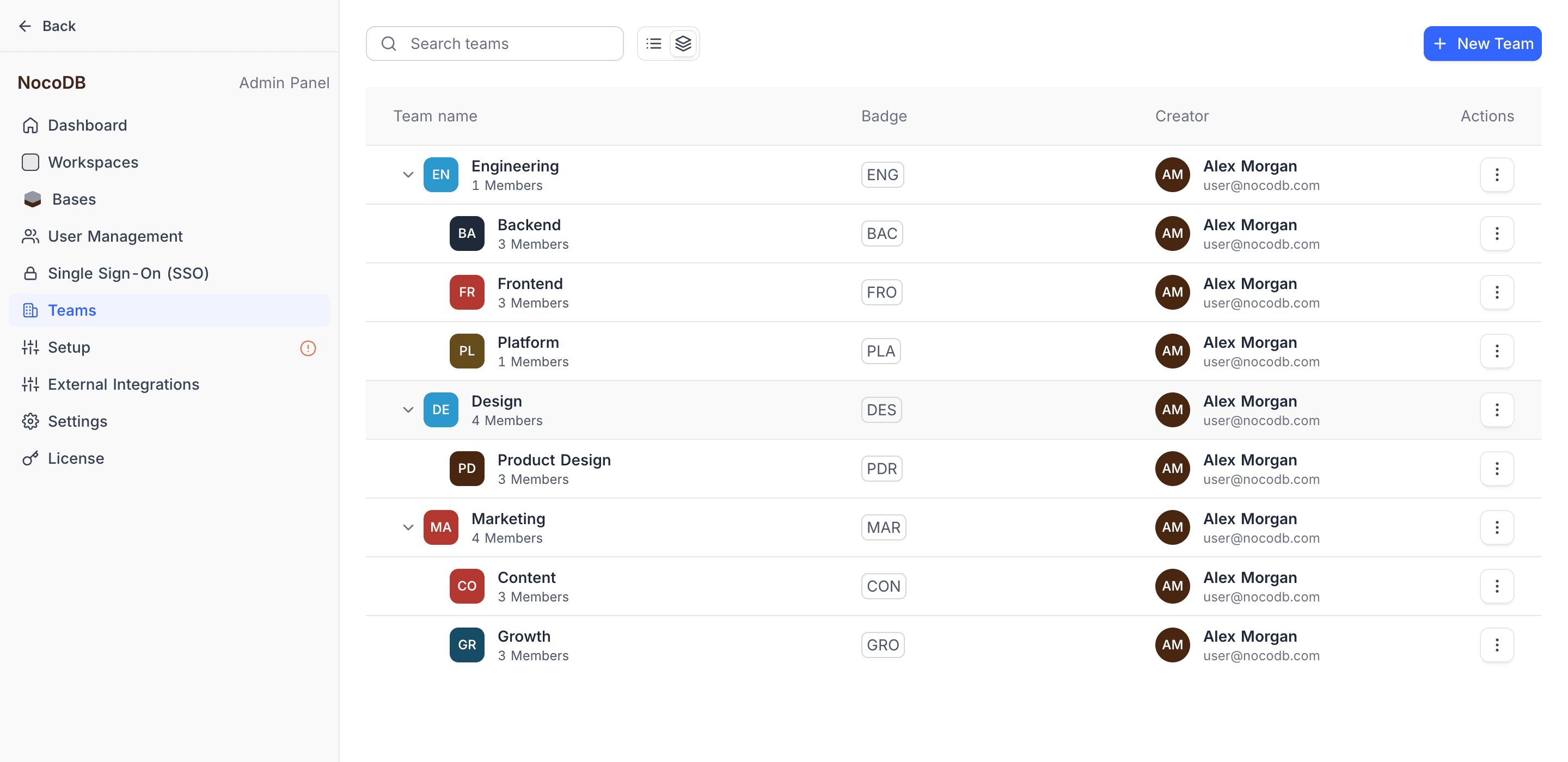
Org teams appear in workspace member and team lists with an ORG badge. They are read-only at the workspace level — you cannot edit their membership from workspace settings, but you can assign them workspace or base roles just like workspace teams.
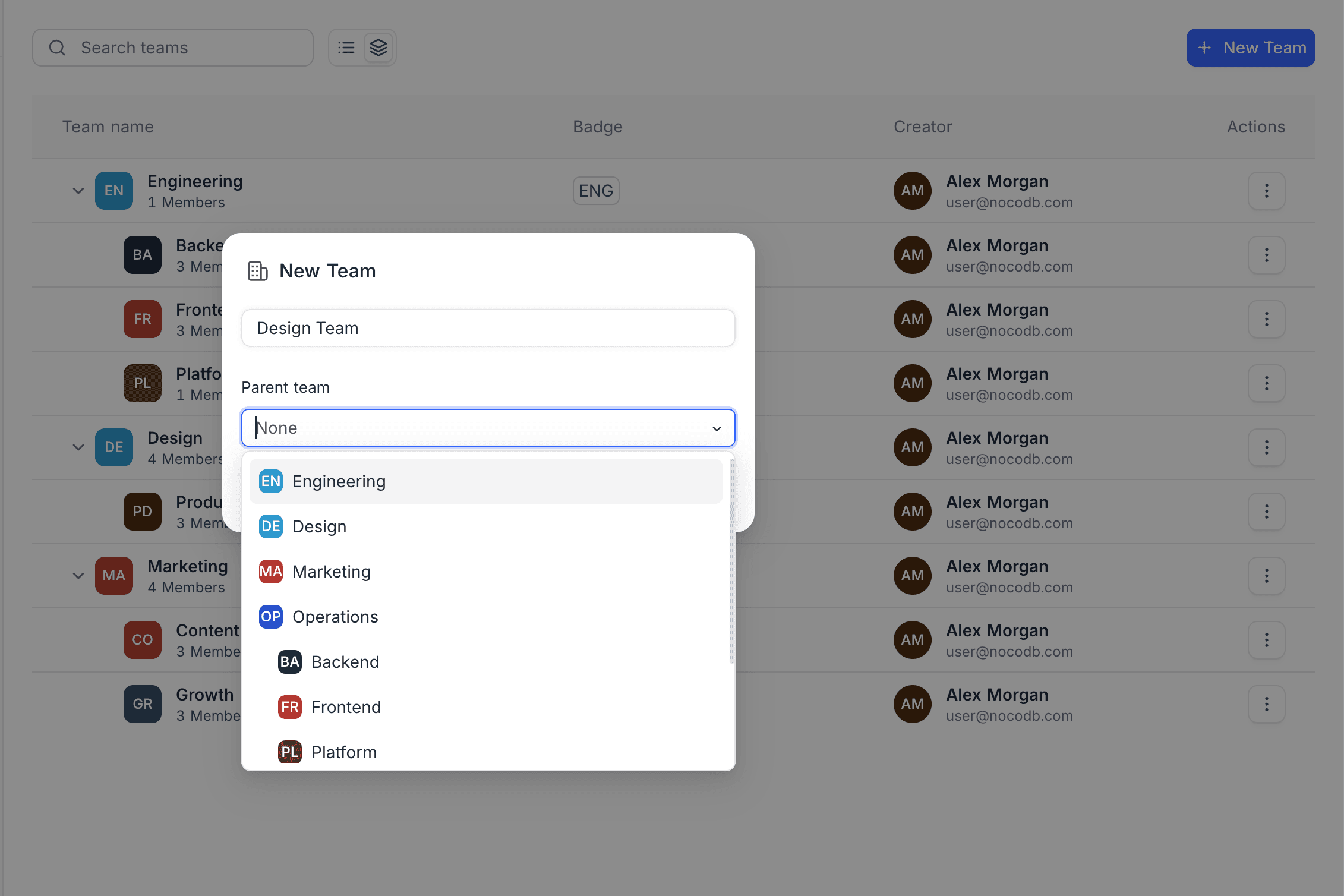
Create an Org Team
- Navigate to Admin Panel > Teams.
- Click + New Team.
- Enter a team name.
- Optionally, select a Parent team to create it as a sub-team.
- Click Create Team.
Manage an Org Team
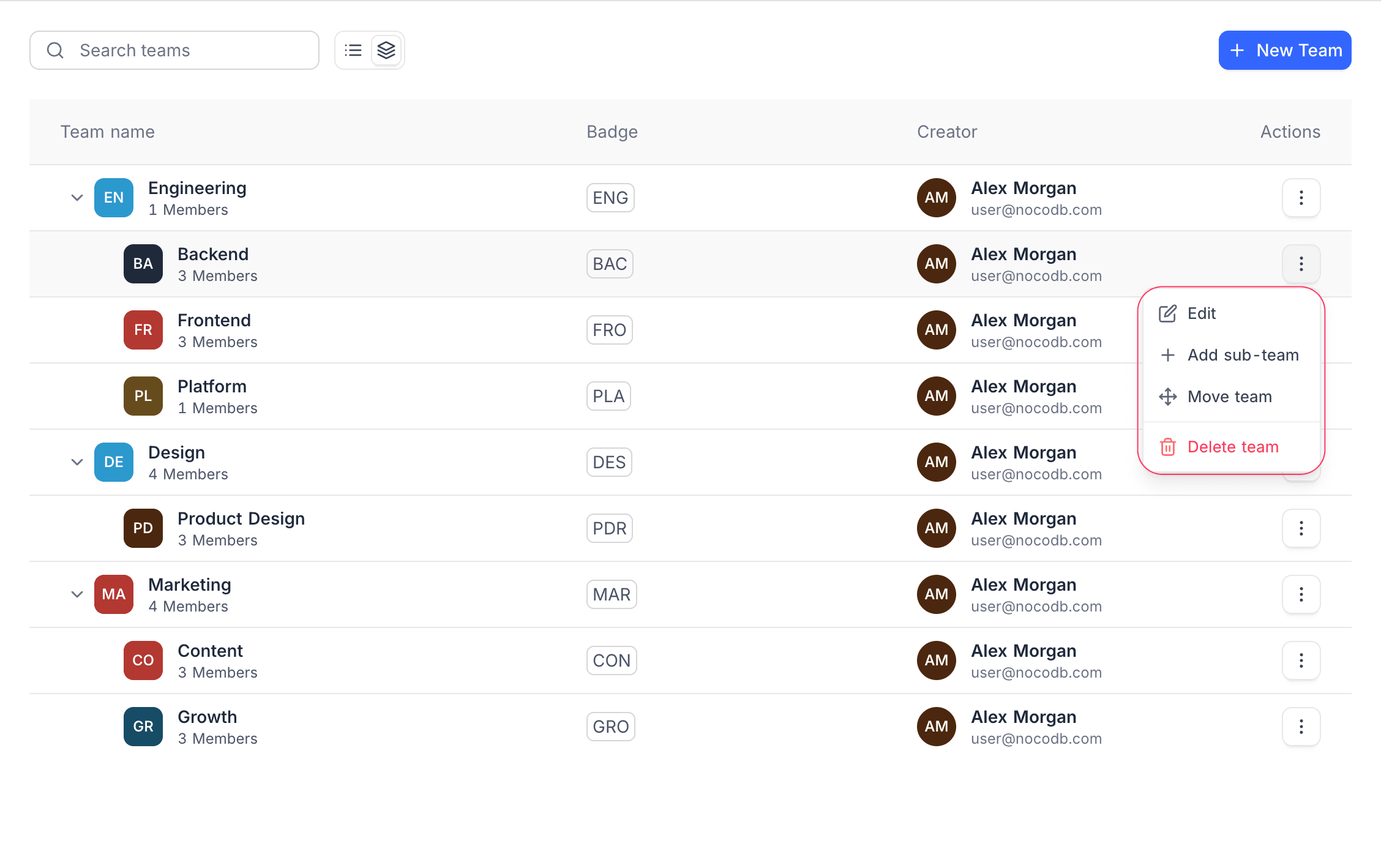
Click the Actions (three dots) menu beside a team to:
- Edit – Open the team to manage its members and settings.
- Add sub-team – Create a nested sub-team under this team.
- Move team – Move the team under a different parent.
- Delete team – Remove the team from the organization.
Add Members to an Org Team
- In Admin Panel > Teams, click Edit on the team you want to manage.
- Click Add Members.
- Select one or more members from the organization's member list.
- Click Add Members to confirm.
Members already part of the team are indicated and cannot be added again. You can search by name or email to quickly locate users.
Sub-teams
Org teams support the same hierarchical structure as workspace teams, with sub-teams nested up to 4 levels deep.
To create an org sub-team:
- In Admin Panel > Teams, click the Actions (three dots) menu next to the parent team.
- Select Add sub-team.
- Enter a name and click Create Team.
Alternatively, click + New Team and select a parent team from the Parent team dropdown.
Assign Org Teams to Workspaces and Bases
Org teams can be assigned workspace-level or base-level roles, just like workspace teams. When an org team is given a role, all its members receive that access.
On a workspace's Members page, org teams appear with an ORG badge. You can assign or change their role from this view, but you cannot edit the team's membership — that is managed from the Admin Panel.
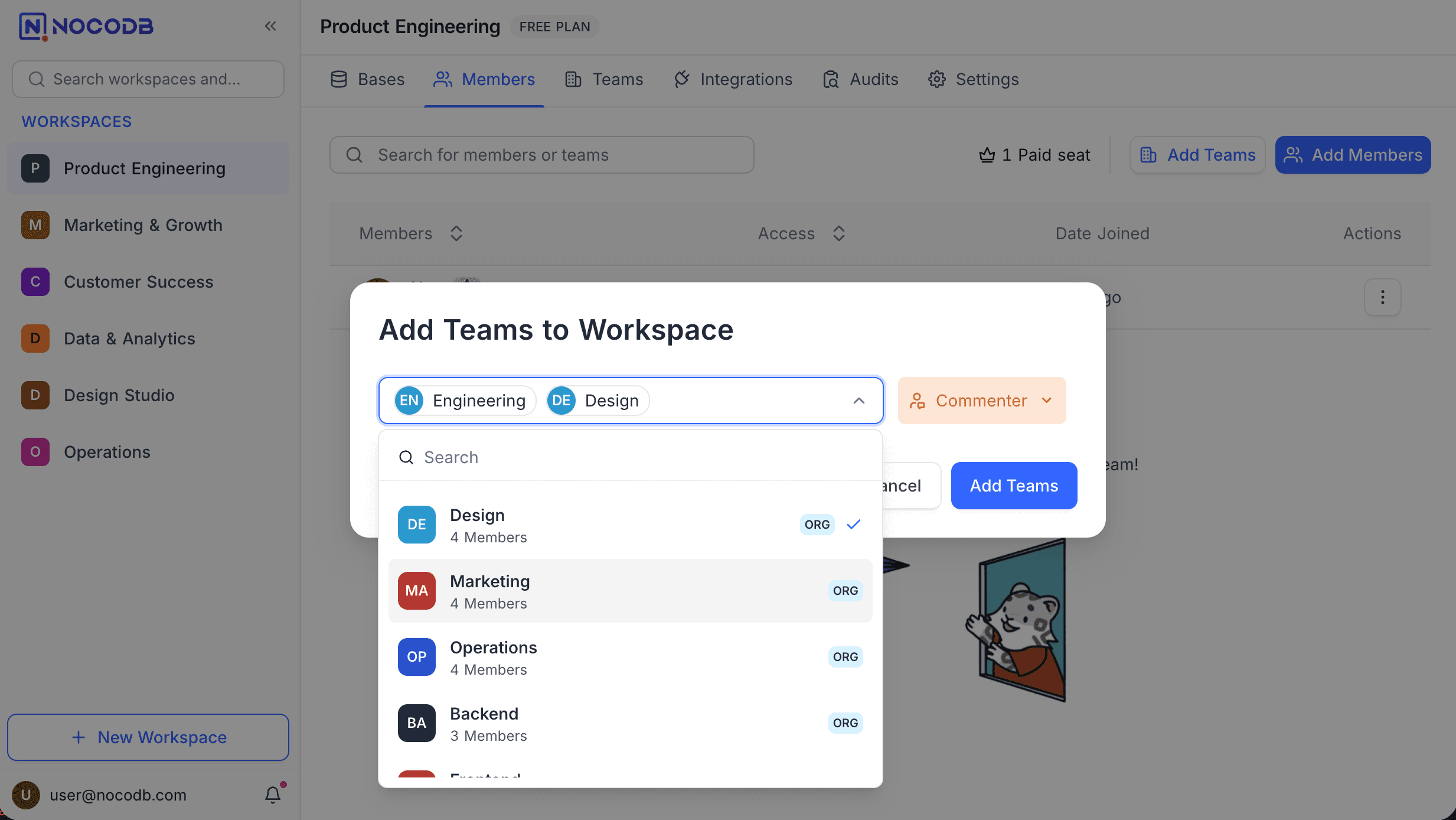
Roles assigned to org teams follow the same effective role resolution rules as workspace teams.
Org Teams vs Workspace Teams
| Aspect | Workspace Teams | Organization Teams |
|---|---|---|
| Plan required | Cloud Business+ / self-hosted Scale+ | Cloud Enterprise / self-hosted Scale+ |
| Scope | Single workspace | Entire organization |
| Managed from | Workspace sidebar > Teams | Admin Panel > Teams |
| Managed by | Team Owners | Org Admin |
| Visible in workspace | Yes (native) | Yes (with ORG badge, read-only) |
| Sub-team depth | 4 levels | 4 levels |
| Members source | Workspace members | Org members |
| Can parent the other type | No | No |
Best practices
- Use org teams for cross-workspace access — when teams need consistent roles across multiple workspaces, create an org team in the Admin Panel rather than duplicating workspace teams in each workspace.
- Reserve workspace teams for project-specific groups — if a team only needs access within a single workspace, a workspace team is simpler to manage.
Availability
- Organization Teams are available on NocoDB Cloud (Enterprise plan) and licensed self-hosted deployments (Scale plan and above).
Last updated on