Project Collaboration
Invite Members to Project
Use project members to control access to specific projects in your workspace. You can invite a member directly to a project and give the member a role.
- In your project, go to the Overview > Members tab.
- Click Add Members.
- Type one or more email addresses, separated by commas.
- From the dropdown menu, select a role for the invited members.
- Click Invite to Project.
name+team@example.com, unless a NocoDB account already uses that exact address. Invite the primary address of the person instead. Sign-up refuses an alias in the same way.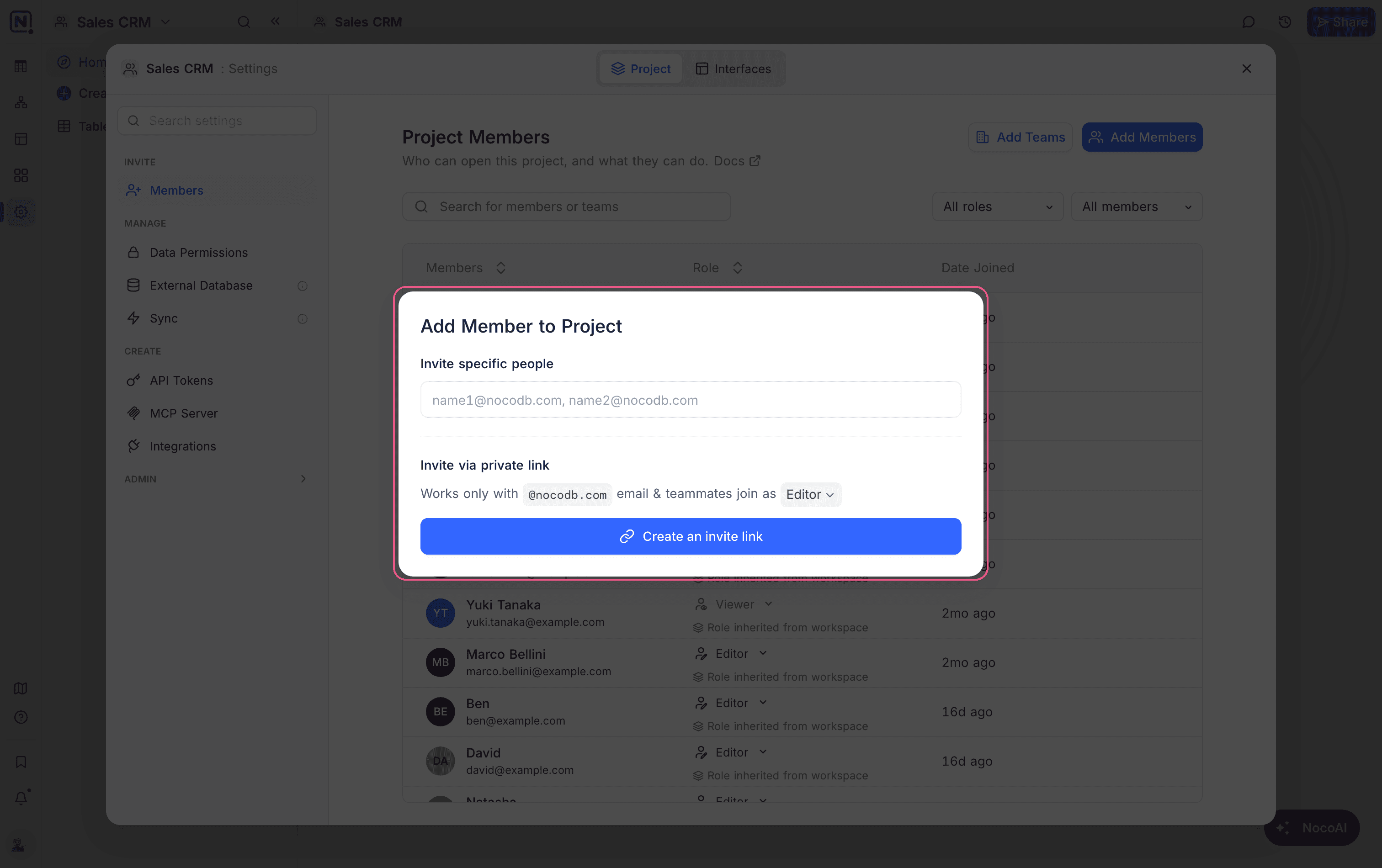
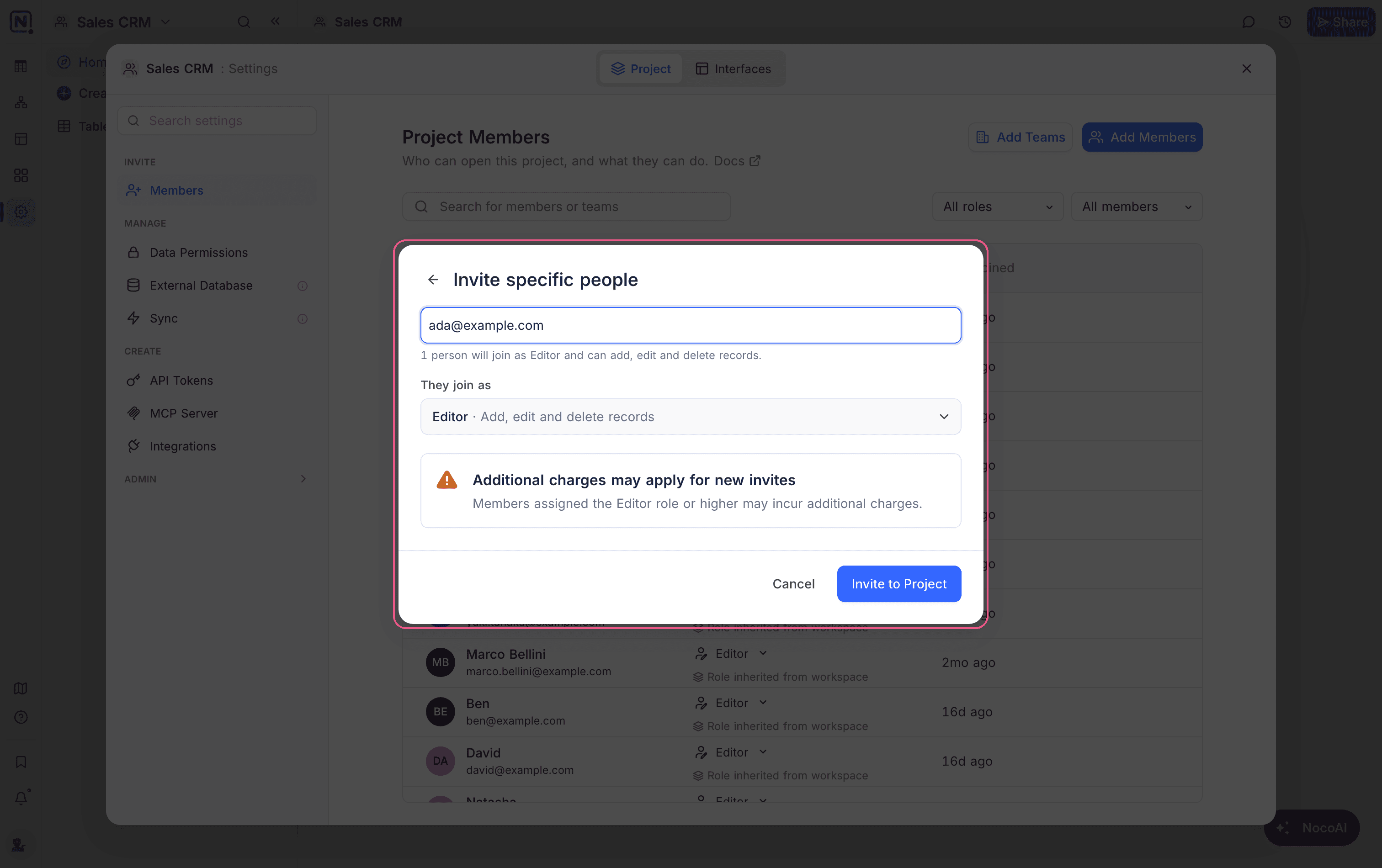
Members of a workspace get their workspace role in each project, unless they have a project role. You can also invite users directly to a project with restricted workspace access. This gives access to one project and does not show other workspace data. Use this to work with external partners, clients or temporary contributors in a controlled way.
Invite via Link
You can also create an invite link, so you do not have to invite one address at a time. Anyone who opens the link can use it to join the project with a role that you select. To create a link, you need the Editor role or higher.
For more information, refer to invite links.
Invite Teams to Project ☁
You can give a full team access to a project. The team gets the project role that you give it. This makes it easier to manage access for departments or work groups.
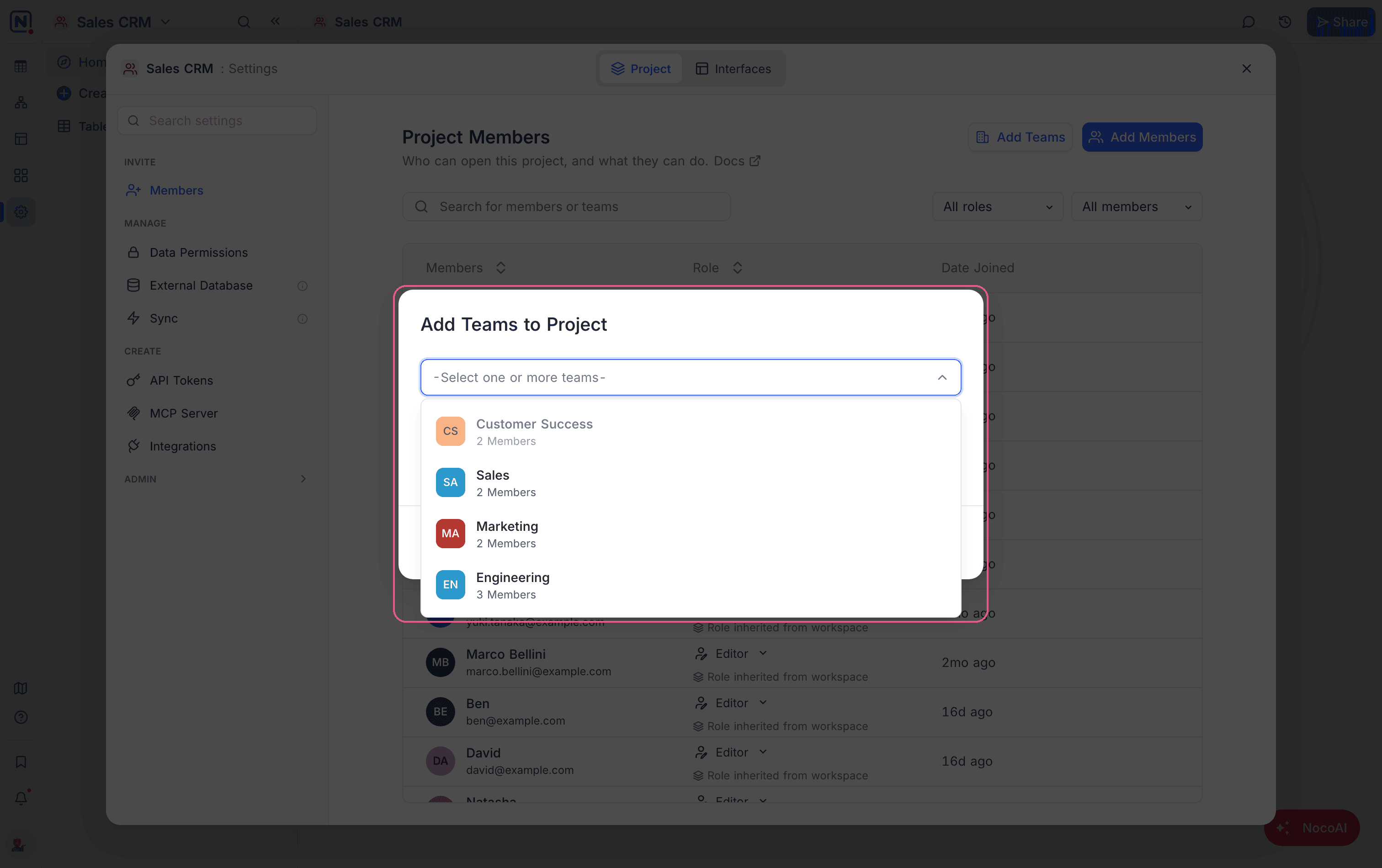
- In your project, go to the Overview > Members tab.
- Click Add Teams.
- From the dropdown, select one or more teams. Teams that are already in the project are disabled in the dropdown.
- From the dropdown menu, select the project role. Note:
- As for members, you can give only a role that is the same as your project role or lower.
- You cannot give a team the Owner role in a project.
- Click Add Teams.
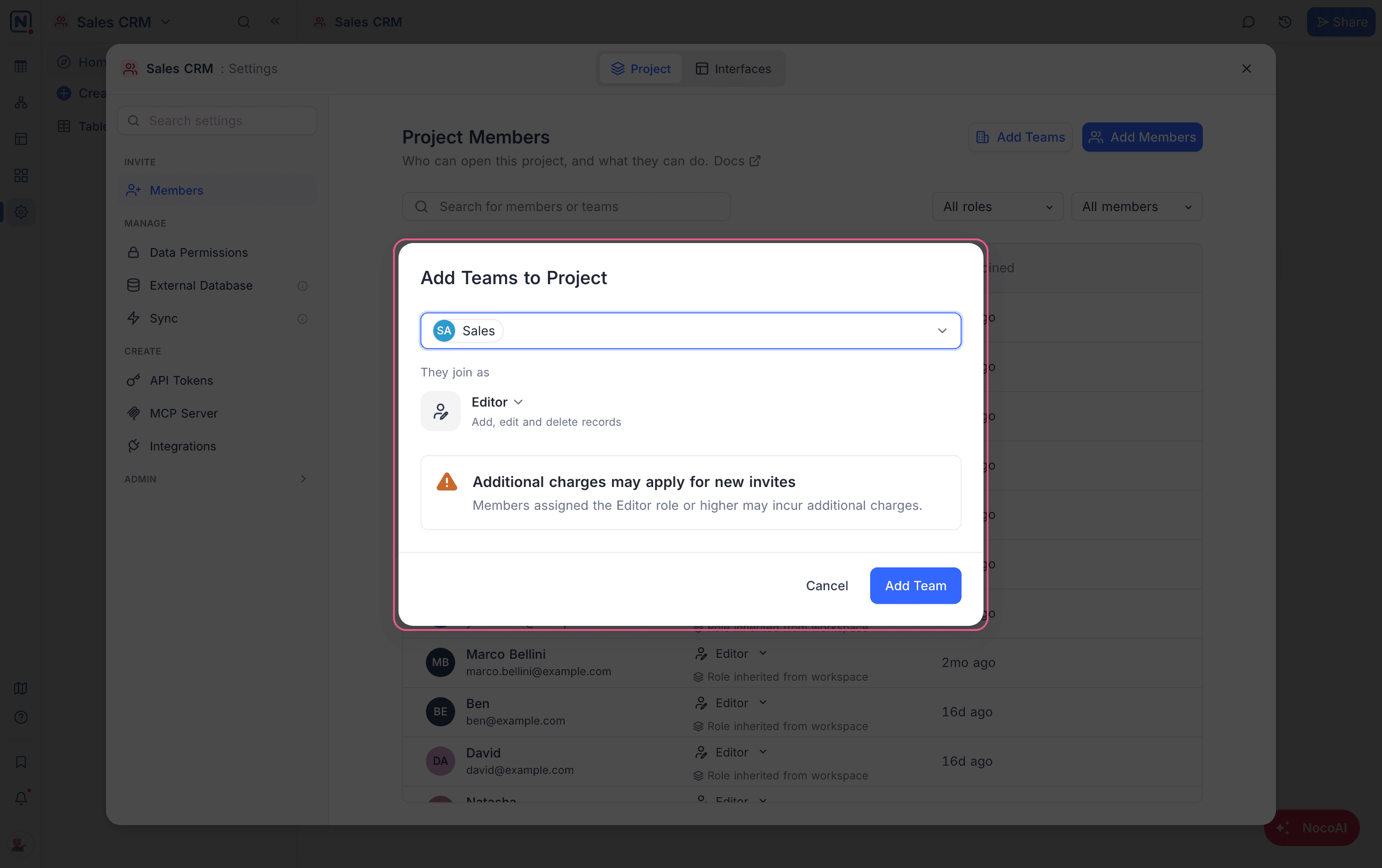
To create and manage teams, refer to the Teams documentation.
Teams in a workspace get their workspace role in each project, unless they have a different project role. You can also invite teams directly to a project with restricted workspace access. Team members can then work on one project without access to other workspace data. Use this to work safely with external teams, partner organizations or temporary project groups.
List Project Members and Teams
The Members tab shows all users and teams that have access to the project.
| Entry | What it shows |
|---|---|
| Member | The email address and the project role. |
| Team | The name, the number of members and the project role. |
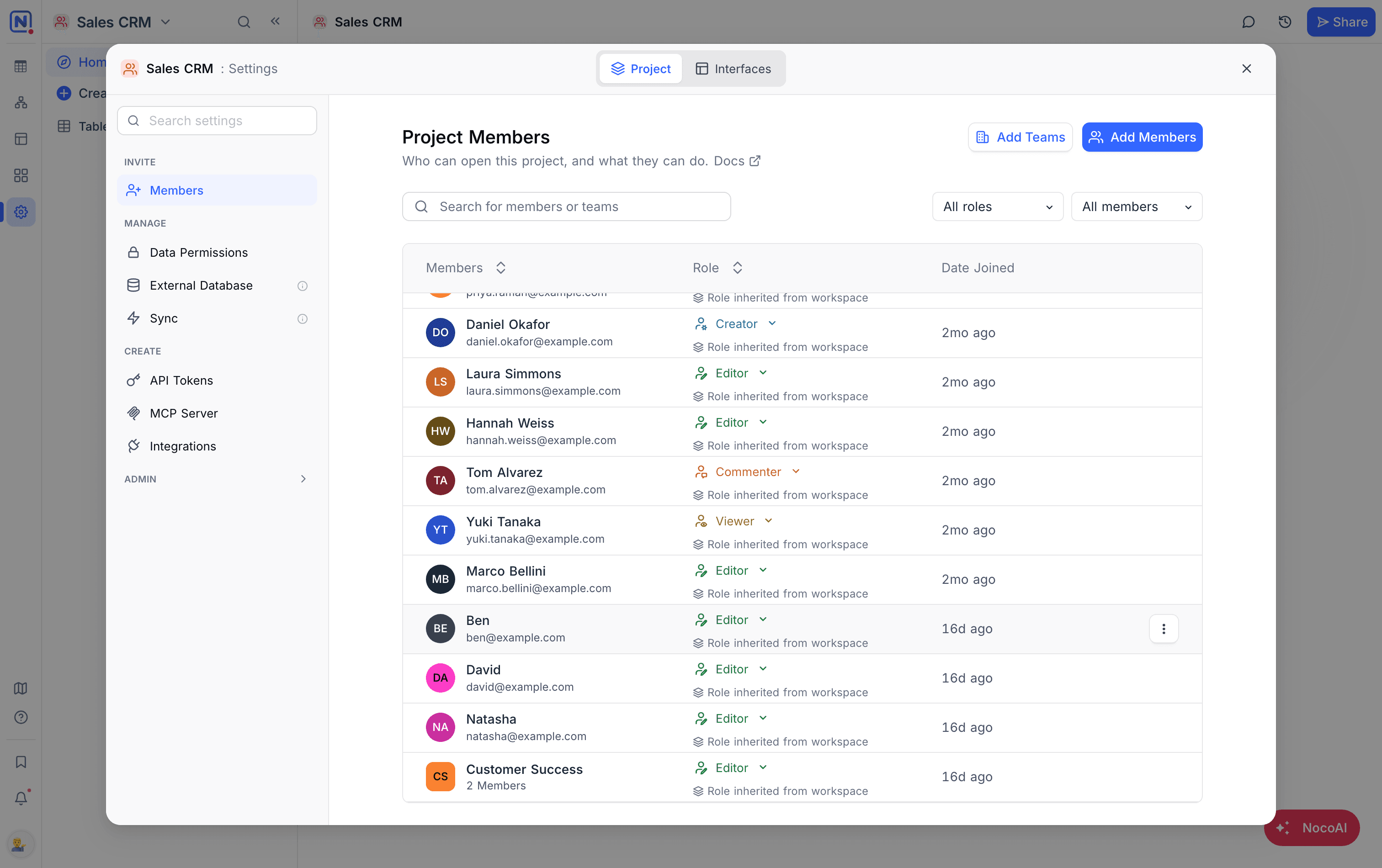
A role that comes from the workspace shows the suffix workspace.
Modify Roles for Members or Teams
You can change the roles of members and teams on the Members tab.
- Next to the member or team, click the role dropdown.
- Select a new role. The change is immediate.
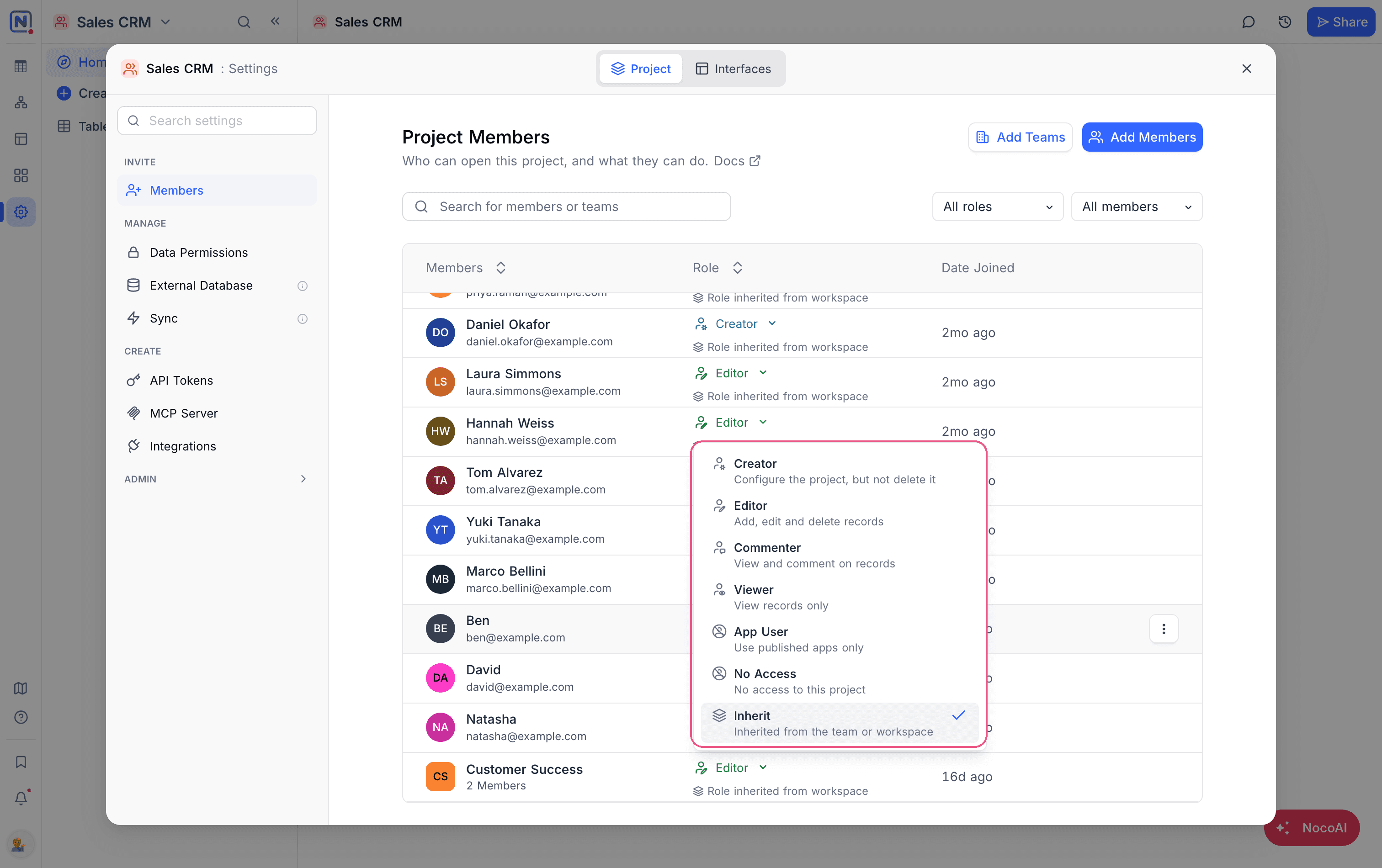
For more information, refer to roles and permissions.
Role Precedence
A user can get project roles from more than one source, as a member and through teams. NocoDB uses these rules to find the role that applies:
| The user has | The role that applies |
|---|---|
| An individual role and a team role | The individual role |
| A workspace role and a project role | The project role |
| Roles from two or more teams | The highest team role |
For more information, refer to roles and permissions.
Remove or Revoke Project Access
You can manage the project access of a member or team in two ways.
Deny Access
To block a user or team from the project:
- Next to the member or team, click the role dropdown.
- Select
No Access.
The member or team cannot access this project. Their workspace or team permissions do not change this.
Revoke Explicit Assignment
To remove a project role, so that the user gets their workspace or team role:
- Next to the member or team, click the role dropdown.
- Select
Inherit.
The member or team now gets access to the project from their workspace or team permissions, not from a project role.
Best Practice
- Use project permissions to restrict access to sensitive data, and keep wider workspace access.
- Give teams access to projects for departments or work groups. You then do not have to invite each person.
- When possible, invite teams to projects first. Then add individual members for exceptions.
- Examine the project member lists regularly. Make sure that access is still correct when teams change.
For more information, refer to Teams best practices.
Availability
- Teams are available on NocoDB Cloud (Business plan and above) and licensed self-hosted deployments (Scale plan and above).
Related
Last updated on