Invite Links
This article explains how to create, share, restrict and delete invite links that let people join a base or a workspace.
An invite link is a shareable URL that lets anyone who opens it join a base or a workspace at a role you choose. Unlike an email invite, which is issued for a single address, a link is a standing grant: it keeps working for everyone who holds it until you delete it.
Create an Invite Link
For a base, either:
- Click Share in the top right corner of the base and stay on the Invite team tab, or
- Open the base and go to Base Settings → Invite → Members, then click Add Members.
For a workspace, click Invite Members in the workspace sidebar to open the Members page, then click Add Members.
Under Invite via private link:
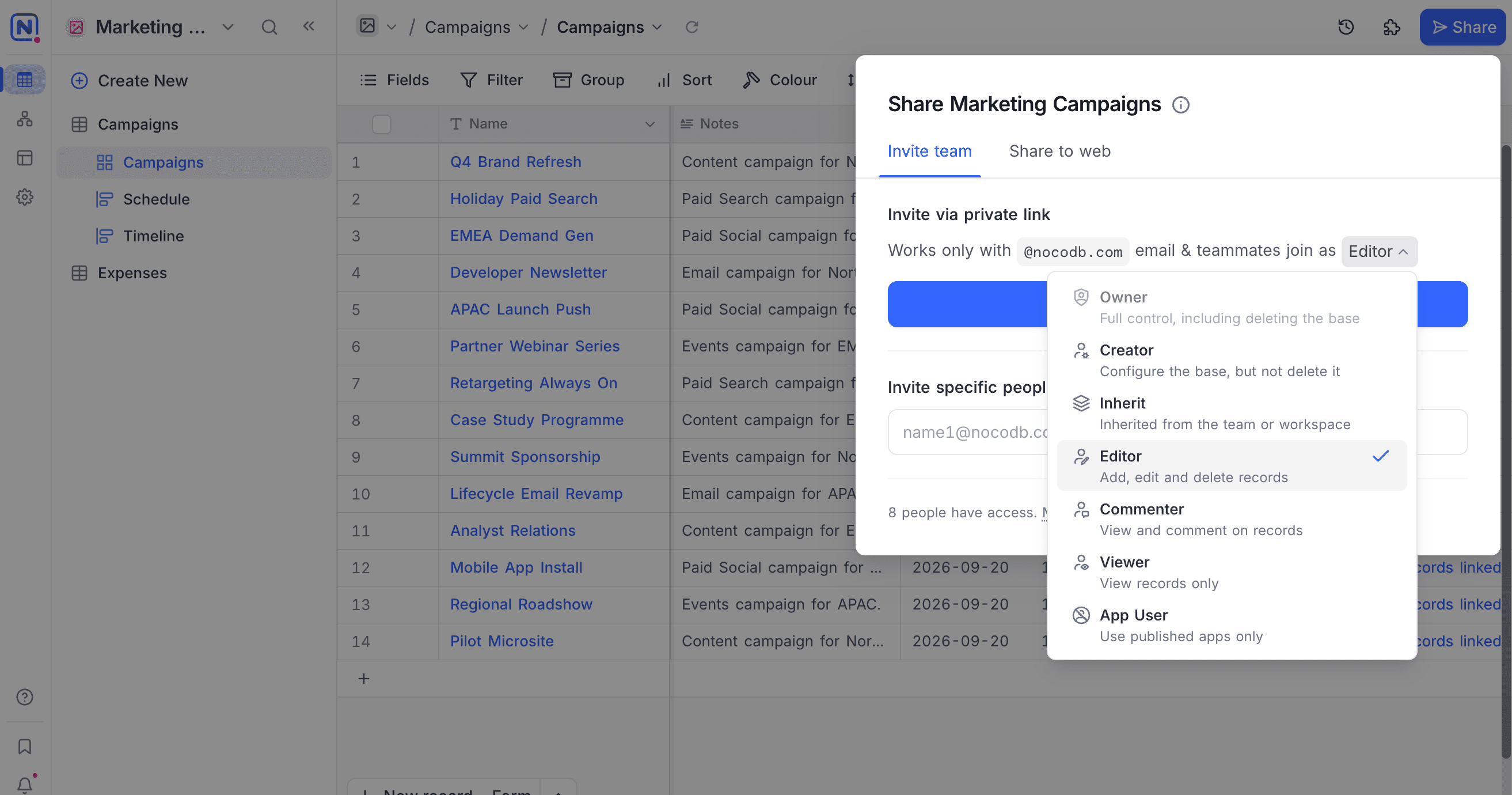
- Choose the role people will join with.
- Click Create an invite link.
The link is created and copied to your clipboard in one step. Once a link exists, the button reads Copy invite link.
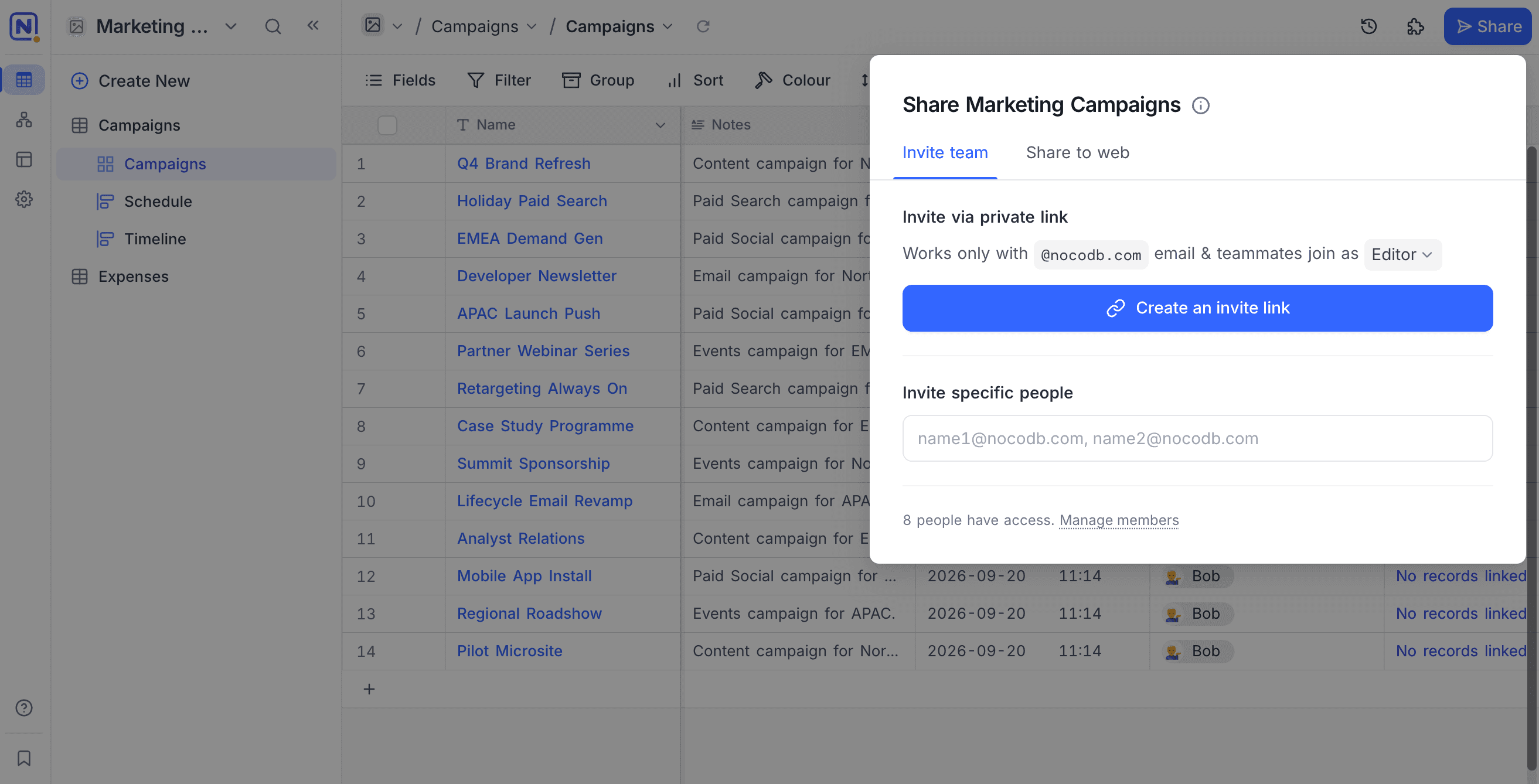
Roles a link can grant
| Scope | Roles on offer |
|---|---|
| Base | Creator, Editor, Commenter, Viewer, App User, Inherit |
| Workspace | Creator, Editor, Commenter, Viewer |
Owner is never on offer at either scope. Roles above your own are shown greyed out.
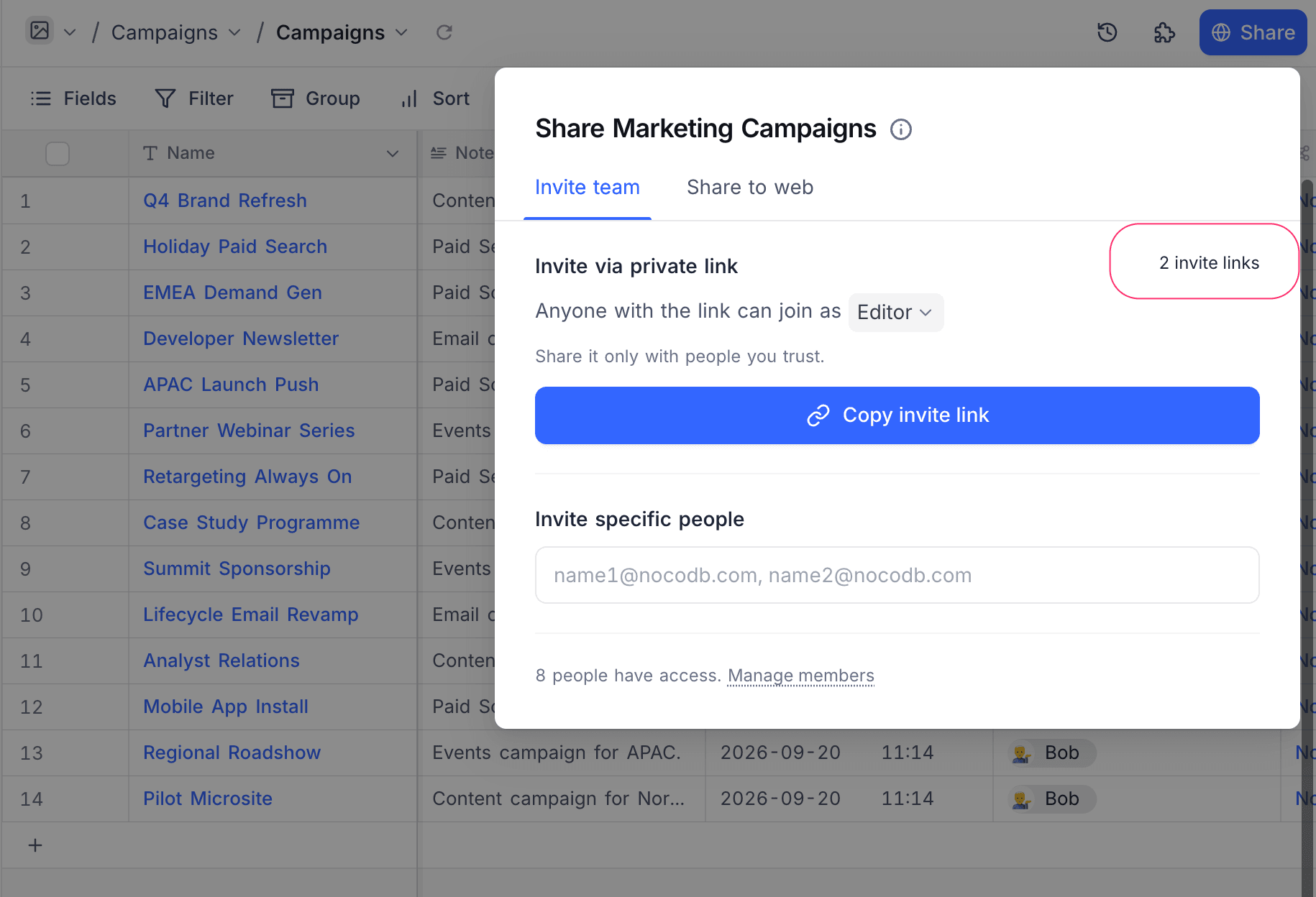
Manage Invite Links
A base or workspace can have several links, each with its own role and restriction. Click the invite links count beside the Invite via private link heading to open the Invite links screen.
Each row summarises the link's role and its restriction, and says who created it. From here you can:
- Click Copy link on any row.
- Click the settings icon on a row to open that link in the Edit invite link screen.
- Click Create new link to add another link.
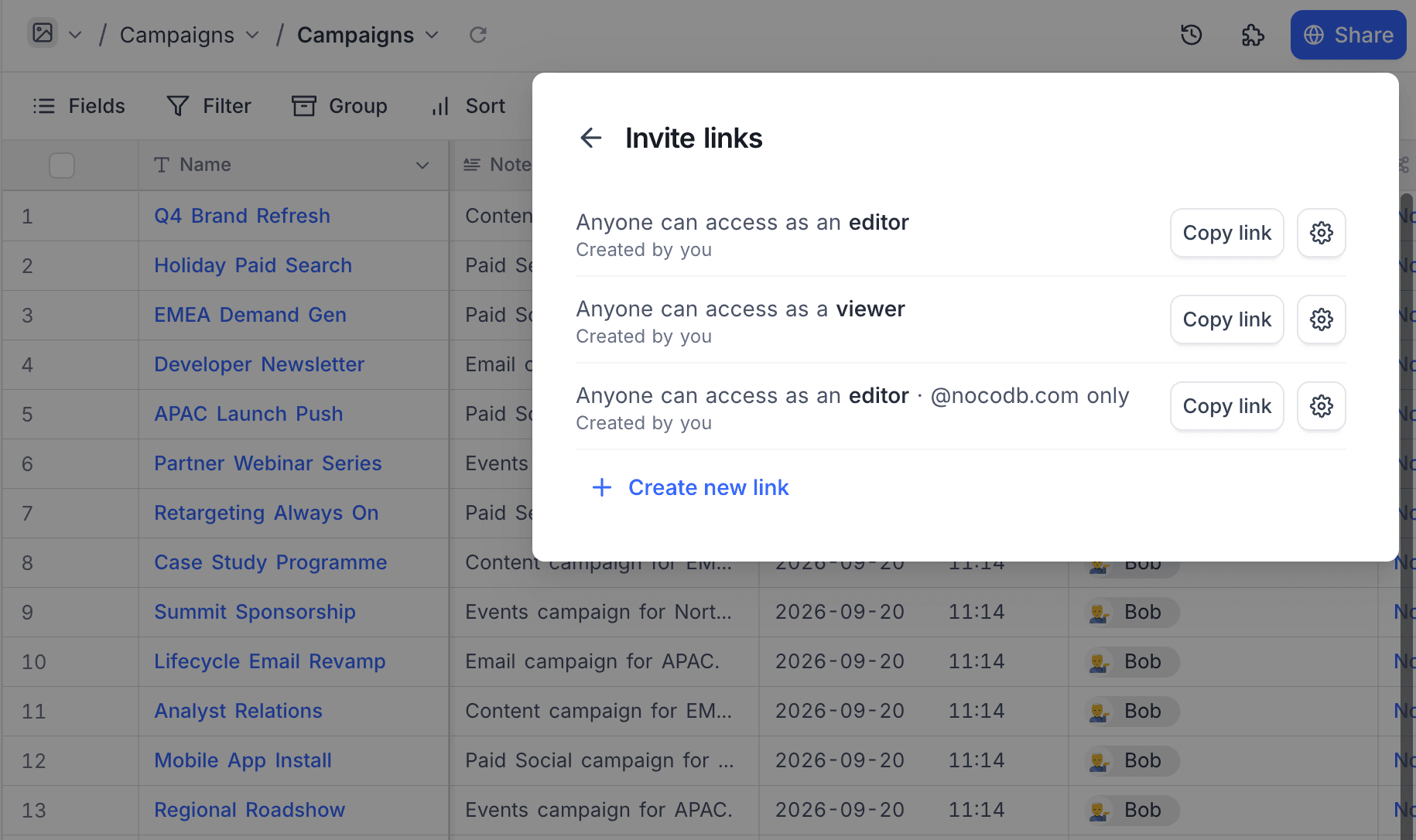
Below the Creator role you only see and manage the links you created yourself.
Link Settings
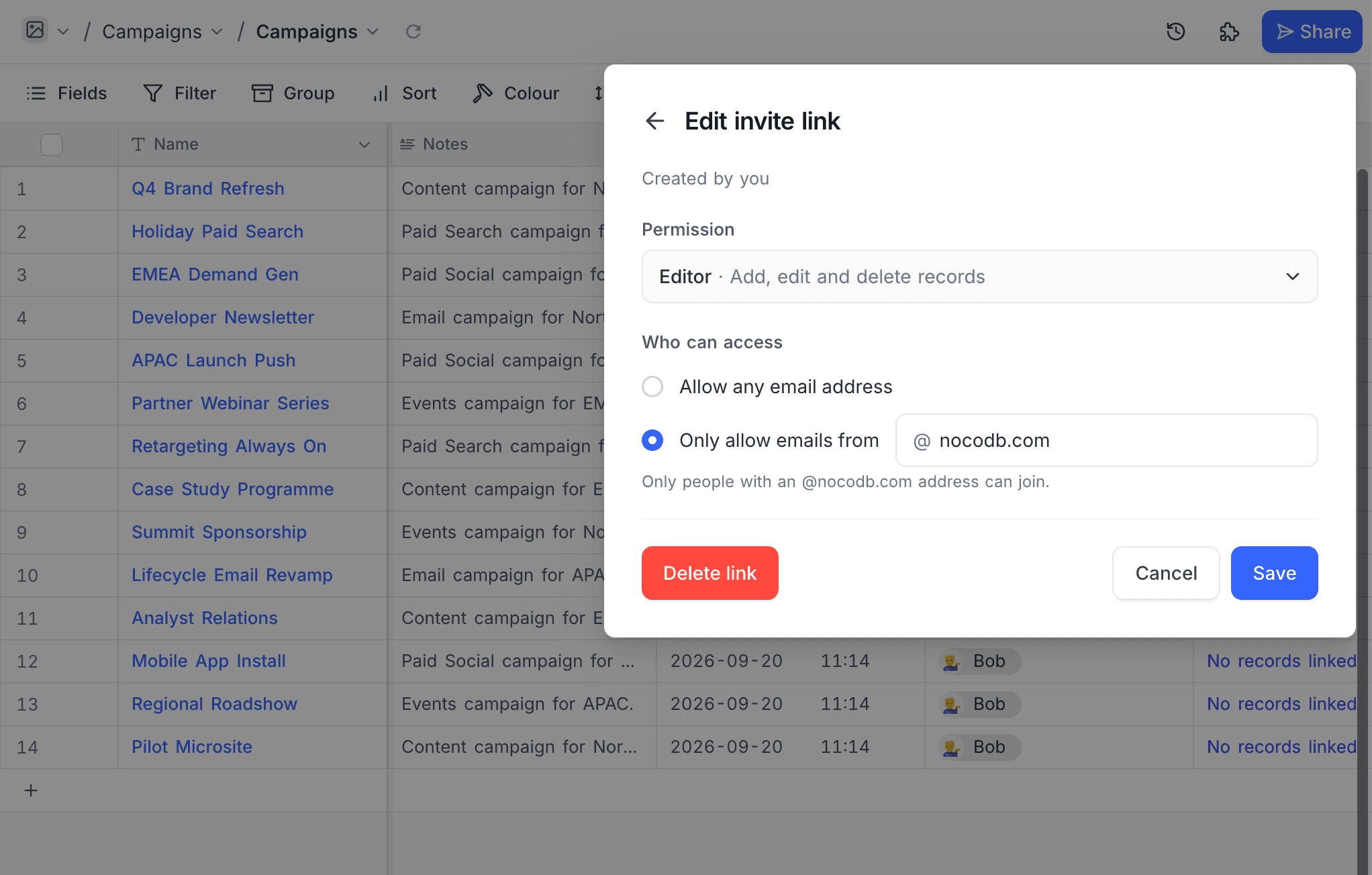
Open a link from the Invite links screen to change:
- Permission: the role people join with. Changing it applies to everyone who redeems the link from that point on.
- Who can access: either Allow any email address, or Only allow emails from a single domain, for example
acme.io.
A new link starts restricted to your own email domain, unless you signed up with a personal email address, in which case it starts open to any address.
acme.io does not accept an address at evil-acme.io. On NocoDB Cloud the address is verified at sign-up; on Community Edition and self-hosted self-signup nothing verifies it, so treat the restriction as a convenience rather than a security control.To stop a link working, open it and click Delete link. This takes effect immediately for everyone holding the URL, and does not affect people who already joined through it.
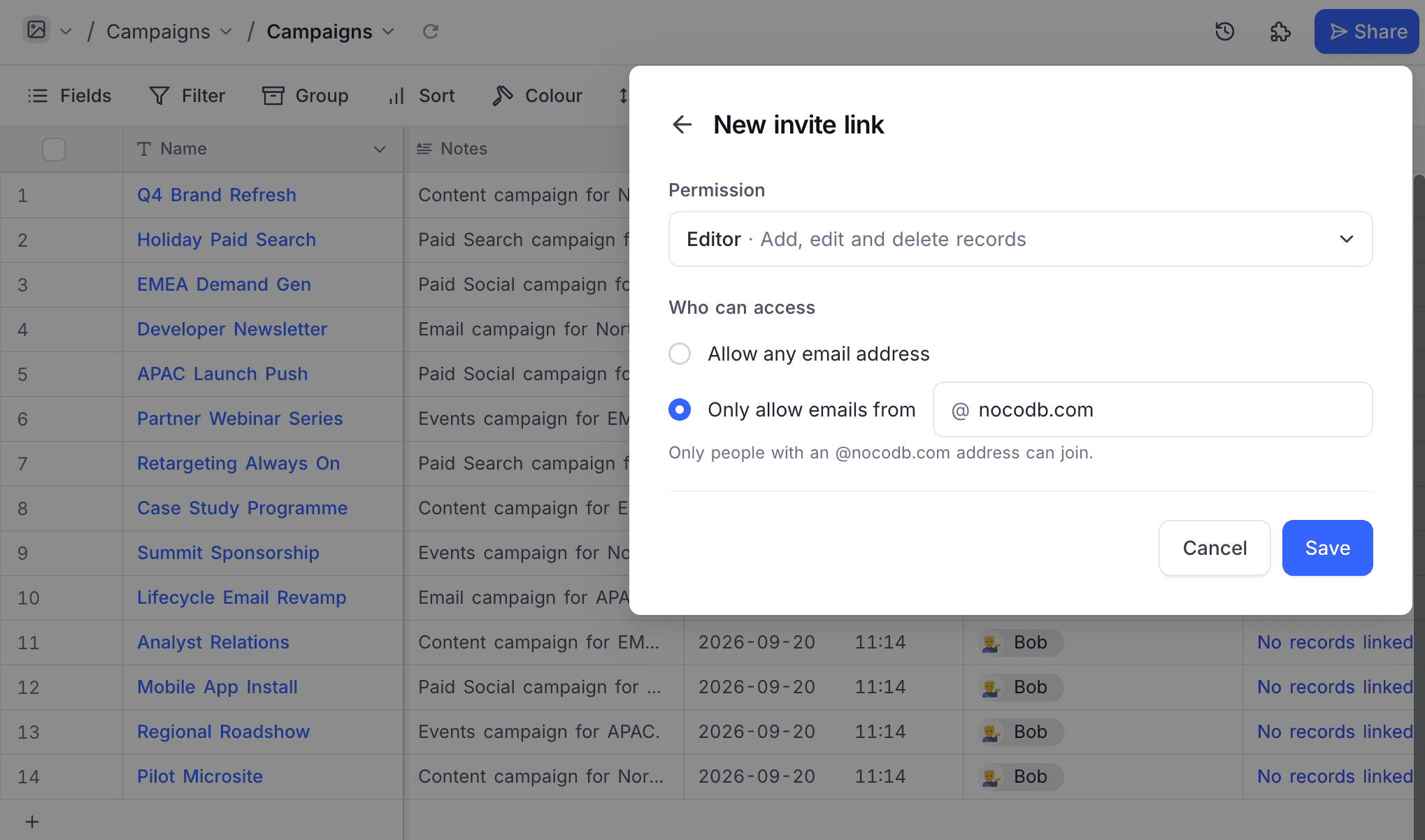
Create new link opens the same controls under the title New invite link, without the Delete link button.
Joining Through a Link
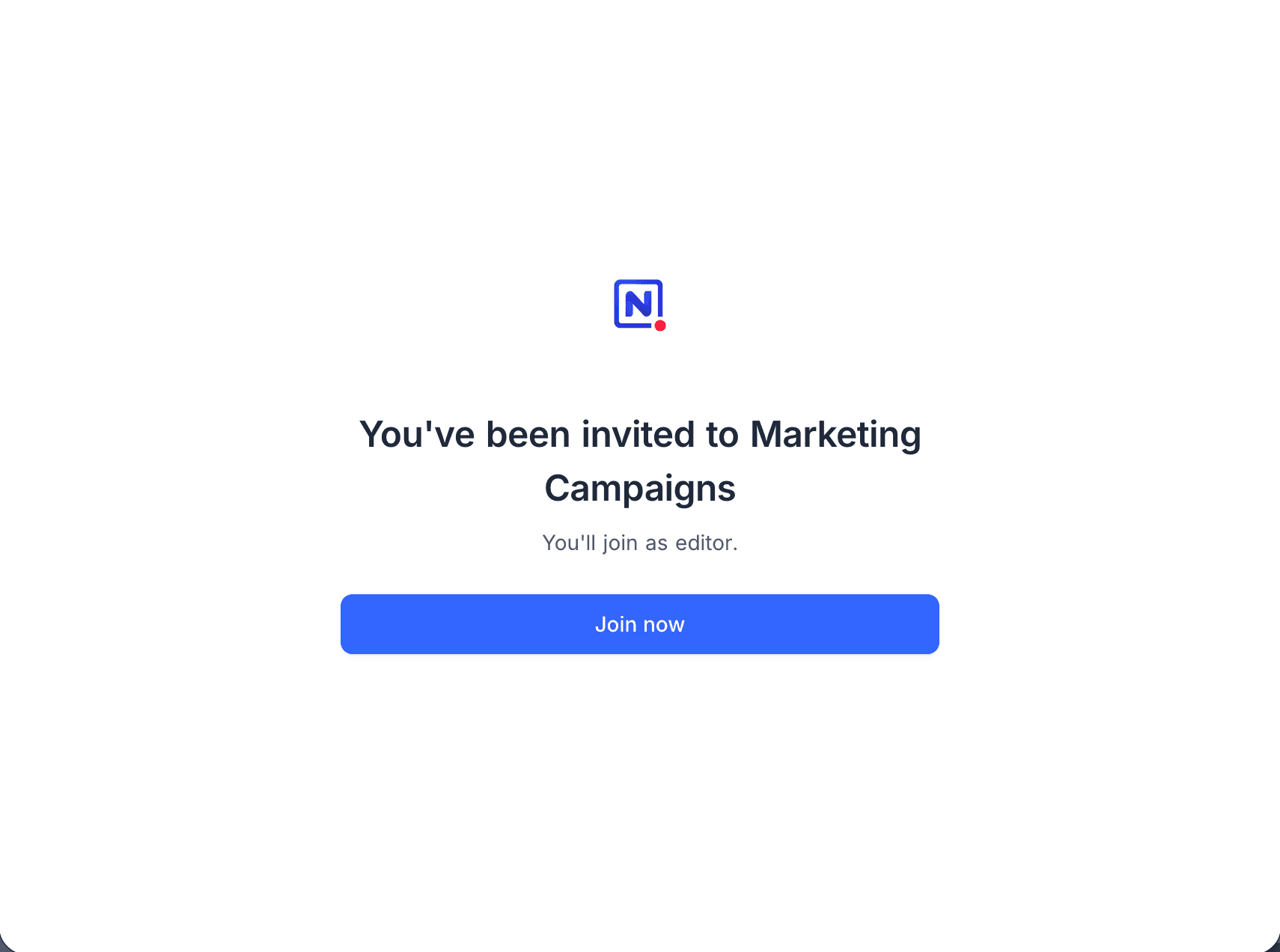
Opening an invite link shows the name of the base or workspace, the role on offer, and the domain restriction if there is one.
- Signed out, the page offers Create an account to join or Sign in to join.
- Signed in, the page offers Join now.
- If the link is restricted to a domain your address does not match, the page says so and offers Sign in with a different account.
- If you already hold the link's role or better, the page opens the base or workspace instead of asking you to join.
A link that has been deleted says so rather than naming what it pointed at.
What a base link grants
Joining a base through a link grants access to that base only. The person is added to the surrounding workspace with No Access, so they see the one base and nothing else in the workspace. Someone who already holds a workspace role keeps it.
On paid plans, a role that consumes a seat is granted only while the plan has a seat free. If it does not, the person is admitted as Viewer, which does not consume a seat.
Invite Links on a Private Base
On a private base, only the base Owner can create an invite link. Links created by anyone else stop working while the base is private, and start working again if the base is set back to default access.
Best Practice
- Restrict a link to your company domain when you are inviting colleagues, and leave it open only when you genuinely mean anyone with the URL.
- Create a separate link per role rather than changing the role on a link already in circulation.
- Delete links you no longer need. A link stays valid until it is deleted.
- Use an email invite instead of a link when you are adding one named person.