Triggers and Results
Copy a prompt, paste it into NocoAI in any base, and replace the words in [brackets] with your own.
- Create an agent that runs every [weekday at 9:00] and emails me [the deals closing this week]
- Create an agent that runs when a record is created in [Leads] and scores the fit
- Create an agent that posts a summary of [last week's support requests] to [#support] every [Monday]
Triggers turn a NocoDB agent into an automated AI agent workflow. A trigger starts the agent without a chat. It fires on a schedule, a record event, a comment, a form submission or a webhook call. For example, an agent can run every Monday at 9:00. It can also run when someone creates a record in a table, or when another system calls its webhook. After a triggered run, a general agent sends its result to the chat, to your email, or to a Slack channel.
Before you begin
- To add or change triggers, you need the Creator role or higher in the project.
- Triggers fire only while the agent is turned on. See Turn an agent on or off.
Start an AI agent workflow with a trigger
- Open the agent.
- In the top bar, click Settings.
- Go to Triggers.
- Click Add trigger. The list of trigger types opens.
- Optional: to find a trigger type, type its name in the search box.
- Select the trigger type on the left.
- Set its options on the right, for example the table or the schedule.
- Click Add trigger.
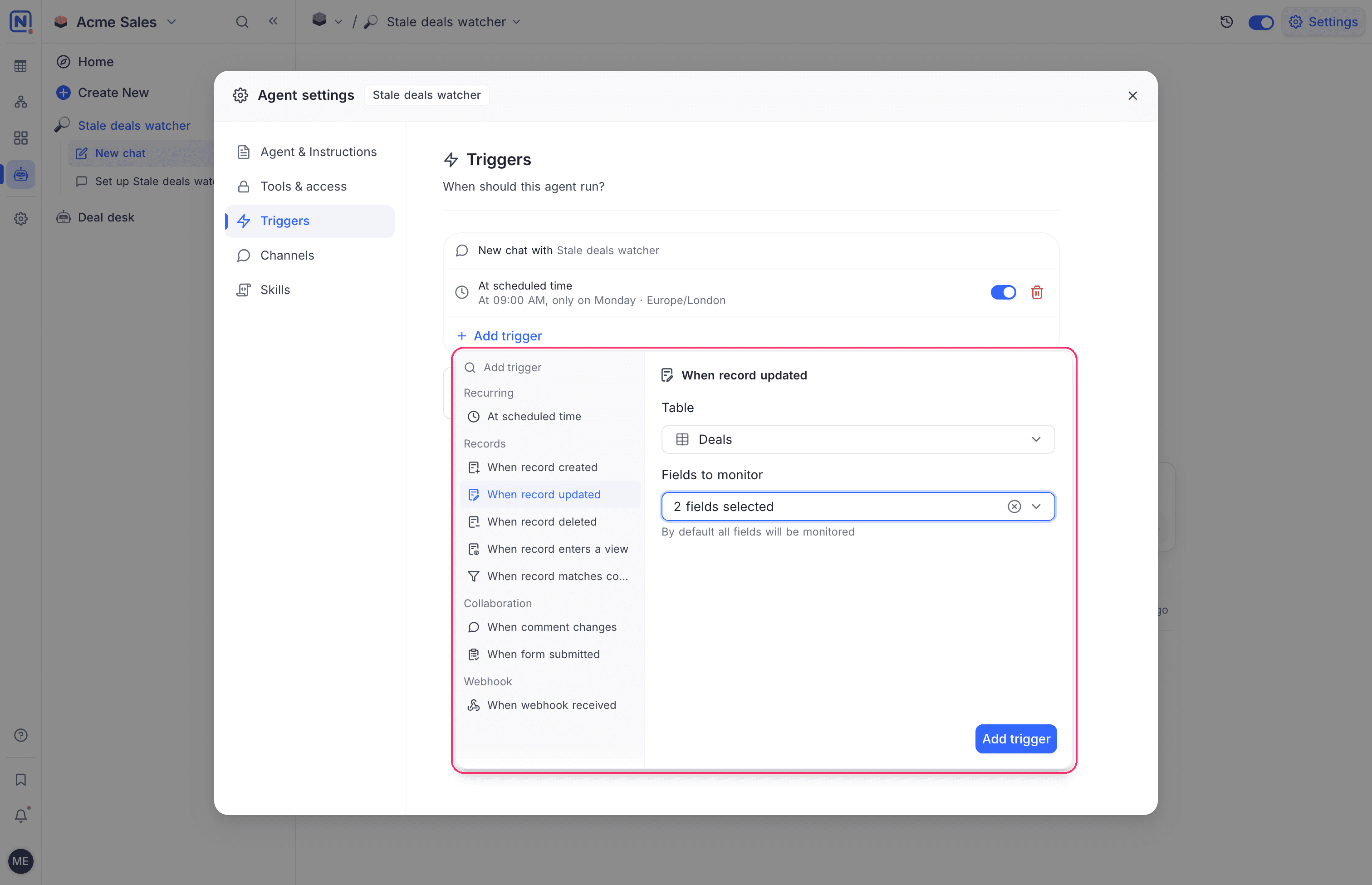
The first row of Triggers is always New chat with the agent name. People can always chat with the agent, so this row has no switch.
Each trigger that you add has a switch to turn it off and on, and a button to delete it.
Trigger types
| Group | Trigger | Runs the agent | Options |
|---|---|---|---|
| Recurring | At scheduled time | On a schedule, at most once a minute. | The schedule and its time zone. The default time zone is the time zone of your browser. |
| Records | When record created | When a record is created in a table. | Table |
| Records | When record updated | When a record is updated in a table. | Table and Fields to monitor |
| Records | When record deleted | When a record is deleted from a table. | Table |
| Records | When record enters a view | When a record starts to match a view. | Table and view |
| Records | When record matches conditions | When a record starts to match the conditions that you set. | Table and at least one filter |
| Collaboration | When comment changes | When a comment is added, edited, deleted, resolved or reopened. | Table, Comment events, Mention filter and People |
| Collaboration | When form submitted | When someone submits a form view. | Table and Form |
| Webhook | When webhook received | When a program calls the URL of the trigger. | None. See Run an agent from a webhook. |
With these trigger types, you can use AI agents for automation of repeated jobs. The trigger types work like the workflow triggers with the same names. A triggered run gets the event that started it, for example the record that was created.
The Mention filter of When comment changes has three options: Any comment, When anyone is mentioned, and When specific people are mentioned.
Choose where results go
Results go to sets where the agent sends what it finds when it runs on its own. The Results go to setting is in the Triggers section.
| Option | Result |
|---|---|
| Here in chat | The result stays in the session of the run. Members find it under Automatic in the session list. |
| Email to you | NocoDB emails the result to the person who set this option. The email has a See the run link. |
| Slack | NocoDB posts the result to a Slack channel. Type the channel, for example #sales. |
The result is the last reply of the agent in the run. Describe that reply in the instructions, for example "Reply with a list of the stale deals and their owners".
Results go to applies only to triggered runs. Replies in a chat and in a channel stay where the question was asked.
Coding agents do not have Results go to. The result of a coding run is its session and the work on its branch.
Send results to Slack
The Slack option needs a Slack connection in the workspace. When there is none, NocoDB shows Connect Slack in Integrations so it can post there. To add one, see Create a connection.
Send results by email
The email goes only to the person who selected Email to you. When someone else set it, the option shows Email to and the name of that person. NocoDB sends the email only while that person still has access to the project.
Run an agent from a webhook
The When webhook received trigger runs the agent when a program calls its URL. Use it to start an agent from another system, a script or a scheduled job.
- Add a When webhook received trigger. The trigger shows its URL.
- Click the copy button next to the URL.
- Call the URL with an API token in the
xc-tokenheader.
curl -X POST "<webhook URL>" \
  -H "xc-token: <your API token>" \
  -H "Content-Type: application/json" \
  -d '{"order": "SO-1042", "note": "Customer asked for a refund"}'
The URL accepts GET, POST, PUT, PATCH and DELETE. The agent gets the request method, the body and the query parameters. The response is {"success": true, "sessionId": "..."} when the run starts.
The API token needs Read & write access to Agents. The response is {"success": false} when the agent is turned off or the trigger is off.
Triggers for coding agents
A trigger on a coding agent starts a coding session, with rules of its own. See Automate the coding agent.
Good to know
- When you turn an agent off, NocoDB stops all its triggers. When you turn it on again, the triggers start again.
- A change that an agent makes does not start its own triggers. See Tools and access.
- Each triggered run uses credits. Check the schedule before you turn the agent on. A schedule that runs every minute uses many credits.
Related
Last updated on