Instructions and Files
Copy a prompt, paste it into NocoAI in any base, and replace the words in [brackets] with your own.
- Change the instructions of [Deal watcher] so it also flags deals with no next step
- Rename [Untitled agent] to [Support triage]
- Add a starter prompt to [Answer bot]: [Which plans include SSO?]
The instructions of a NocoDB agent tell it what its job is, which data to use, and how to answer. The agent reads the instructions at the start of every run. You can also attach files, for example a price list or a style guide. The agent reads the files on every run too.
Before you begin
- To change the instructions or the files, you need the Creator role or higher in the project.
- Other members can open the agent settings, but they can only read them.
Edit the instructions
- Open the agent.
- In the top bar, click Settings. The Agent settings open at Agent & Instructions.
- Change the Name, if necessary.
- Write the instructions in the editor.
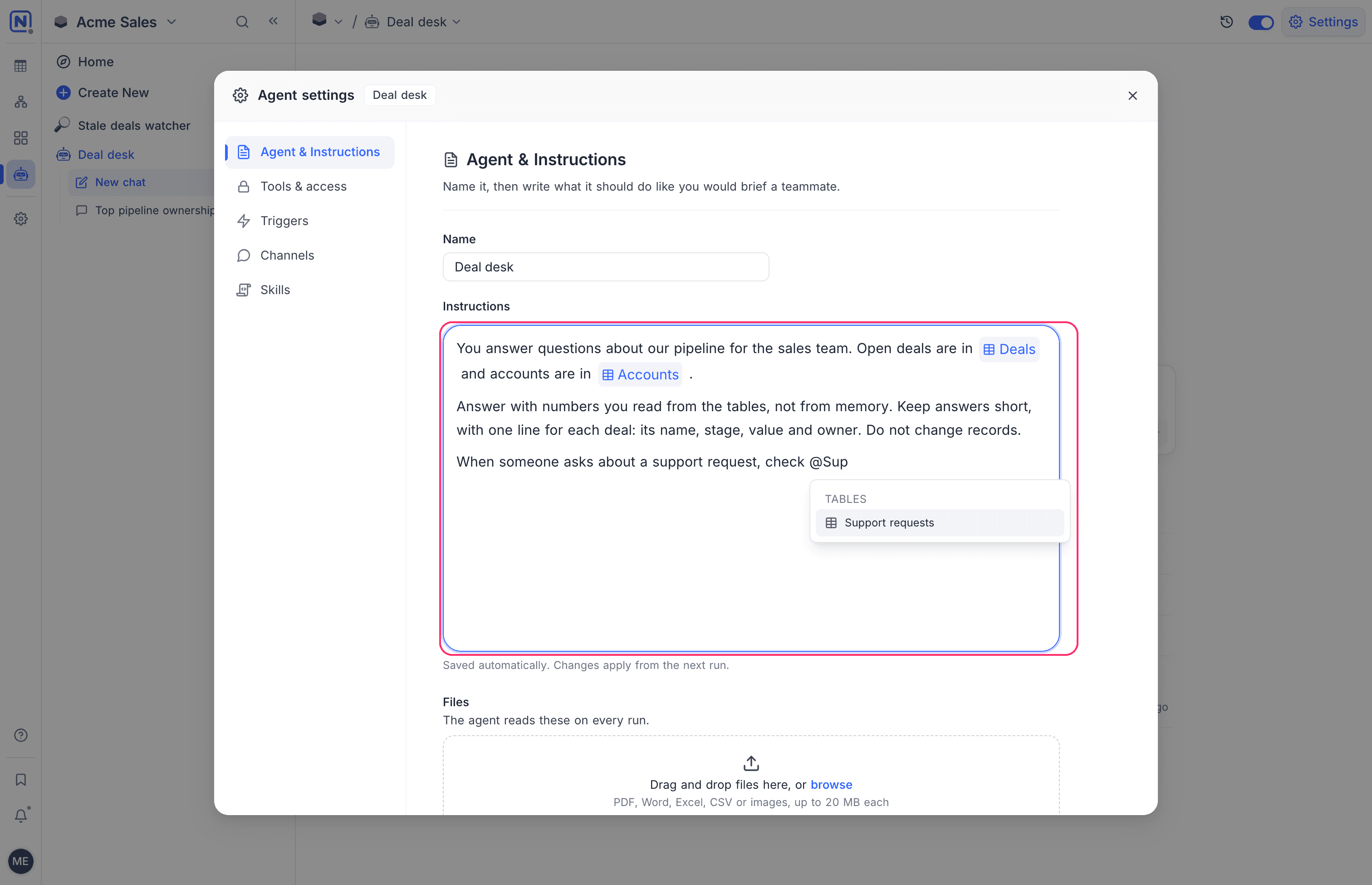
NocoDB saves the instructions automatically. The changes apply from the next run.
The first instructions of an agent depend on how you created it:
| Created with | First instructions |
|---|---|
| Create manually | None. Write them yourself. |
| Set up by describing | The job that you described in the setup chat. |
| Pick a template | The job of the template. |
| Set up a coding agent | Instructions to pick up an issue. The agent reproduces it with a test that fails, fixes it and runs the tests and lint. Then it opens a pull request that links the issue. |
Change the first instructions to match the job of your agent.
Mention items with @
In the instructions editor, type @ to mention an item of the project. The agent then knows exactly which item you mean. You can mention:
- Tables and views
- Documents and dashboards
- Workflows and scripts
- Classic apps and their pages
- Members
- Integrations
- The files of the agent
Write good instructions
Write the instructions as you would brief a new teammate. Short, concrete instructions give better results than long, general ones.
| Include | Example |
|---|---|
| The job | "You triage new support requests." |
| The data | "New requests arrive in @Requests. Customers are in @Customers." |
| What to do | "Set Priority to High when the customer is on the Enterprise plan. Assign the request to the owner of the account." |
| What to give back | "Reply with one line for each request: its ID, the priority and the owner." |
| What not to do | "Do not delete records. Do not change requests that already have an owner." |
When an agent runs on a trigger, its last reply is what NocoDB sends to the results destination. Describe that reply in the instructions, for example "Reply with a bulleted list of stale deals and their owners". You do not have to tell the agent how to send it.
Files
Files give the agent reference material that is not in your tables, for example a price list, a policy or a brand guide. The agent reads its files on every run.
Add files
- In the Agent & Instructions section, scroll to Files.
- Drag files to the box, or click browse.
- If you clicked browse, select the files.
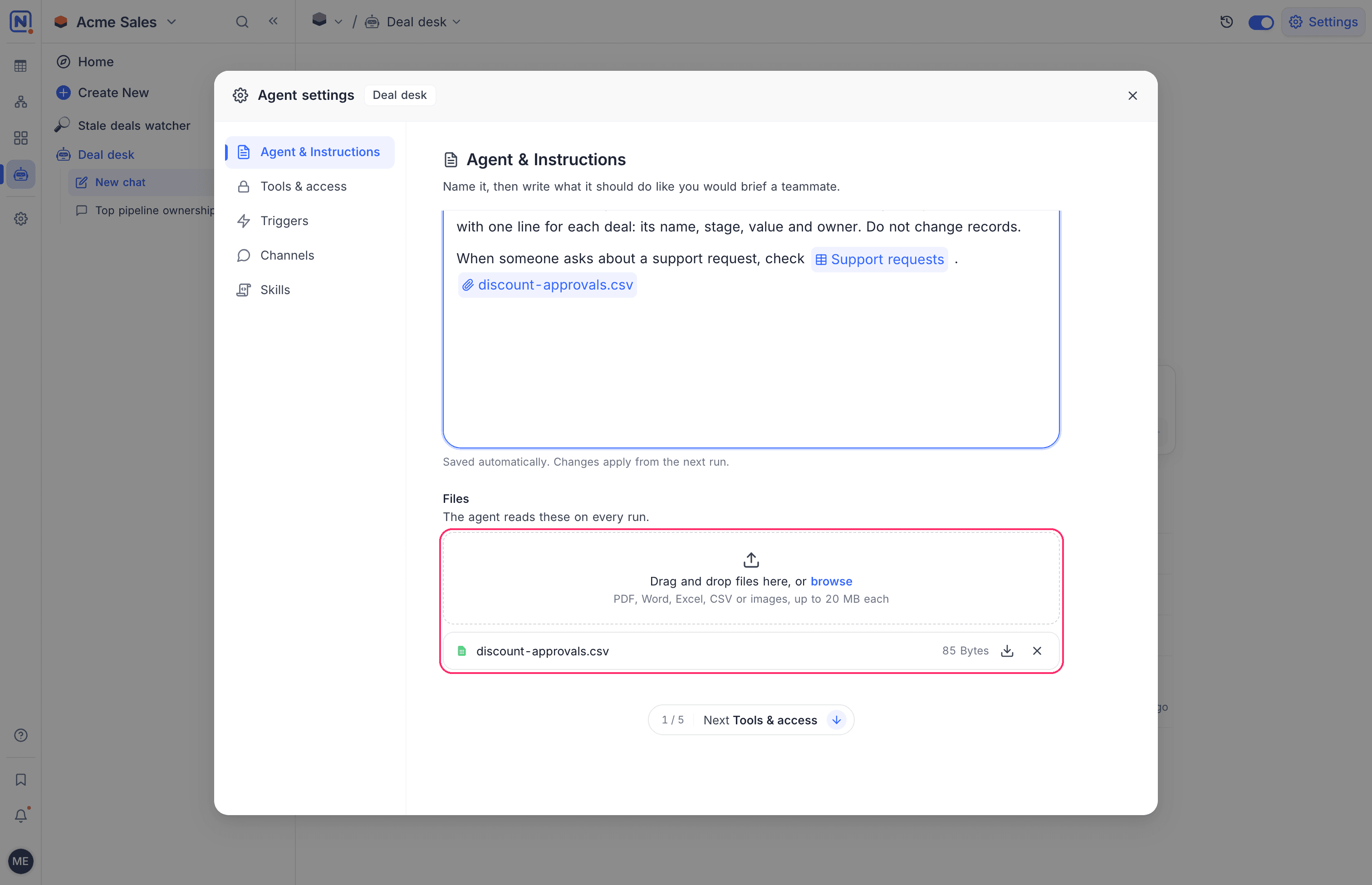
NocoDB also adds a chip for each new file to the instructions, at the cursor or at the end of the text. Move the chip to the sentence where the agent uses the file.
You can also drop a file into the instructions editor. NocoDB then adds it to Files and puts its chip where you dropped it.
NocoDB saves the files automatically. The changes apply from the next run.
To download or remove a file, use the buttons in its row. When you remove a file, NocoDB also removes its chips from the instructions.
Supported files
Agent files have these limits:
| Item | Limit |
|---|---|
| File types | PDF, Word (DOC, DOCX), Excel (XLS, XLSX), CSV, TSV, text (TXT, MD, JSON) and images (PNG, JPG, JPEG, GIF, WEBP) |
| File size | Up to 20 MB for each file |
| Number of files | Up to 20 files for each agent |
File names are unique in an agent. When you add a file with a name that exists, NocoDB adds a number to the new name, for example prices (2).pdf.
Good to know
- Do not put passwords or API keys in the instructions or the files. The AI model of the agent reads them. For a coding agent, keep secrets in the environment and secrets of its machine.
- To give the agent access to data, set Tools and access. Instructions alone do not give access.
- Skills are reusable instructions that several agents can share.
Related
Last updated on