Create an AI Agent
Copy a prompt, paste it into NocoAI in any base, and replace the words in [brackets] with your own.
- Create an agent that answers questions about our pricing from the [Docs] table
- Create an agent that lists [stale deals] every [Friday] and posts them to [#sales] in Slack
- Create an agent that tags new [support requests], sets their priority and assigns them
- Create an agent that emails me the [deals closing this week] each morning
To create an AI agent in NocoDB, you open the Agents page of a project and describe the job. No code is needed. To build an AI agent in NocoDB:
- Open the Agents page and click General agent.
- Describe the job in the setup chat, or pick a template.
- Review the agent settings and click Turn on agent.
The Agents page offers two kinds of agent: a General agent or a Coding agent. You can also fill in the settings of a custom agent yourself, or ask NocoAI to create an agent for you.
Before you begin
- You need the Owner or Creator role in the project.
- Agents are available on paid NocoDB Cloud plans. See Availability.
- Agents open on a larger screen. On a phone, NocoDB shows Agents open on a larger screen.
Open the Agents page
- Open the project.
- In the mini sidebar, click Agents. The Agents page opens and asks What kind of agent?
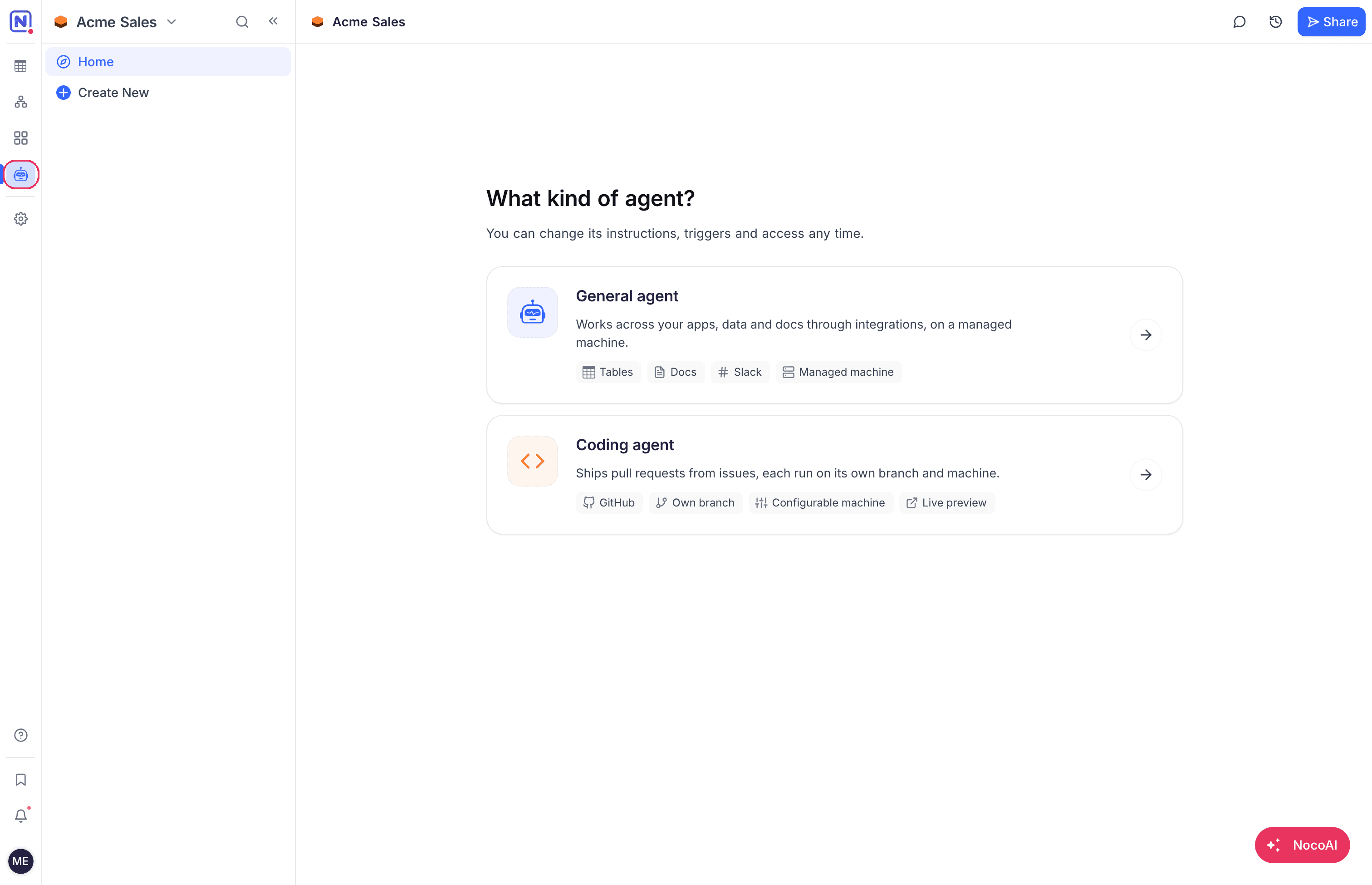
When the project already has agents, the sidebar lists them. To create another agent:
- Open an agent.
- In the top bar, click the agent name.
- Click Create Agent.
Choose the kind of agent
The What kind of agent? step offers two cards. You cannot change the kind of an agent after you create it. To change the kind, create a new agent.
| Card | Description | Next step |
|---|---|---|
| General agent | Works across your apps, data and docs through integrations, on a managed machine. | Create a general AI agent |
| Coding agent | Ships pull requests from issues, each run on its own branch and machine. | Set up a coding agent |
Create a general AI agent
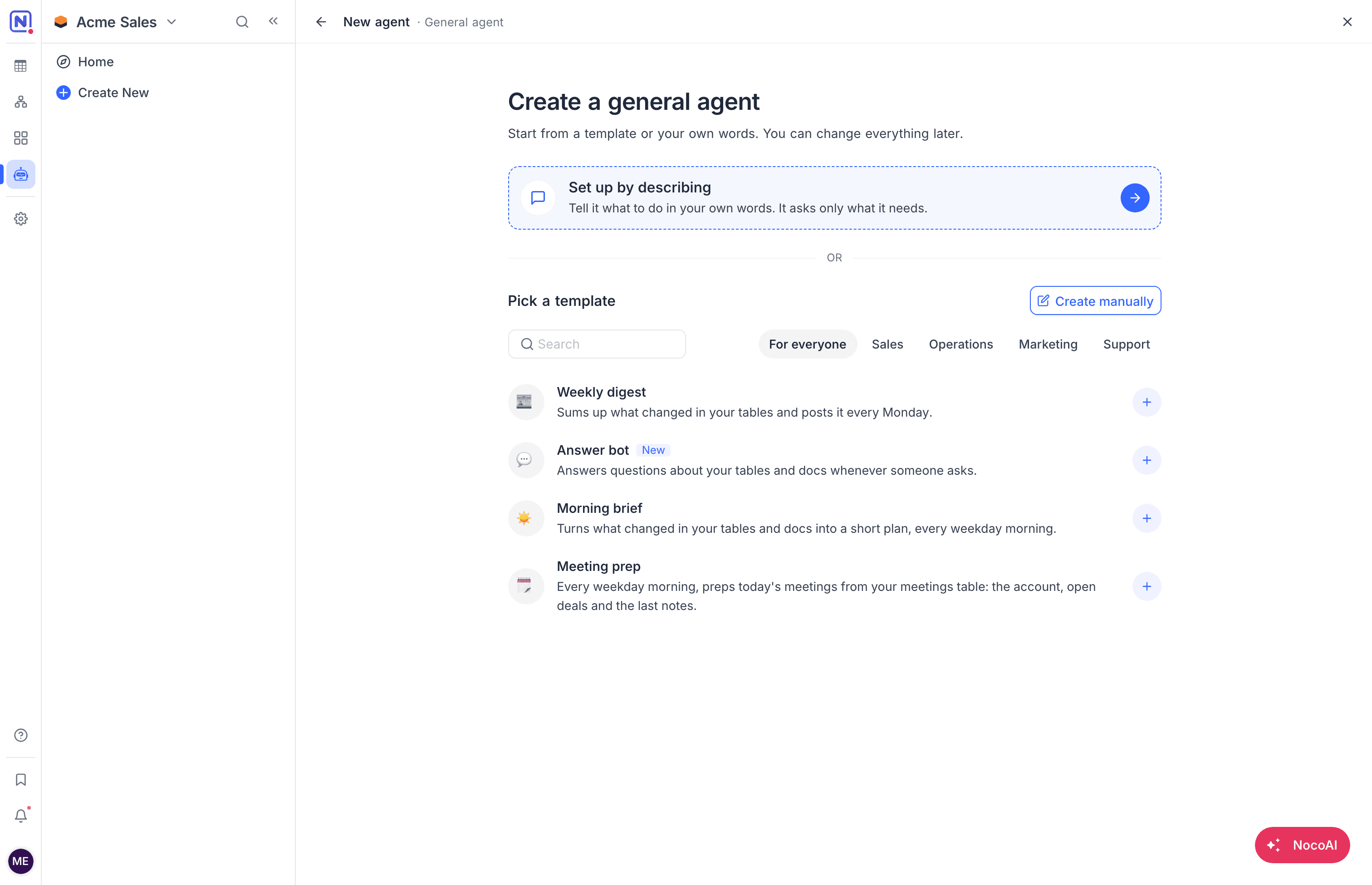
After you click General agent, the Create a general agent step opens. The step offers three ways to start:
| Option | What happens |
|---|---|
| Set up by describing | A setup chat opens. You describe the job in your own words, and the chat asks only for what it needs. |
| A template under Pick a template | A setup chat opens with a draft of the template job. You can change anything in the chat. |
| Create manually | The agent settings open. You write the name and the instructions yourself. |
Each option creates the agent as a Draft. A draft does not run and has no active triggers until you turn it on.
Set up an agent by describing it
- Click Set up by describing. The setup chat opens.
- Describe the job: what the agent must look at, what it must do, and when. For example: "Every Friday, list stale deals and post them to #sales".
- Answer the questions of the setup chat. Click an answer chip, or type your answer.
- When the chat says it has everything, click Finish setting up. The agent settings open.
- Review each section. See Review and turn on the agent.
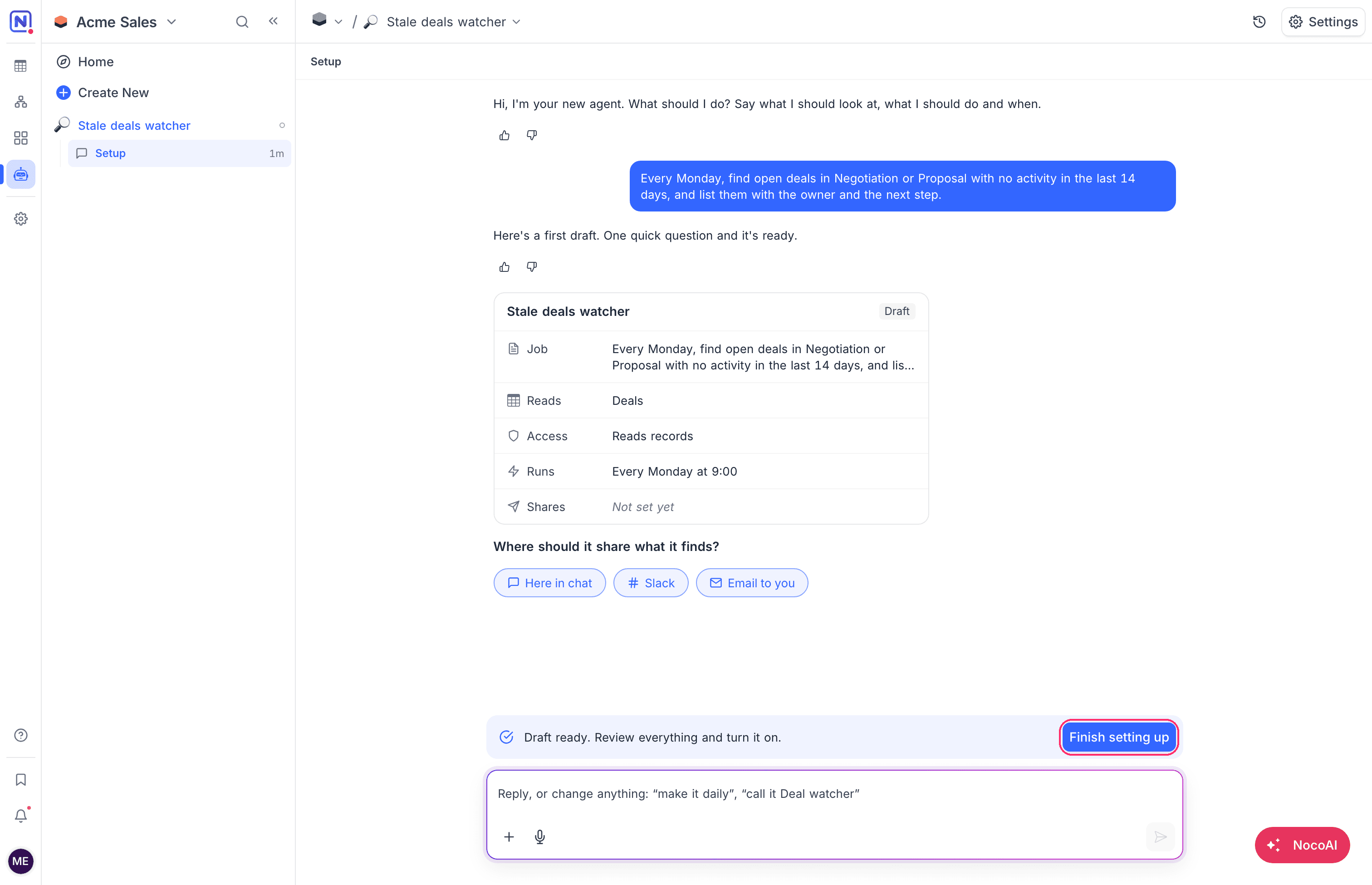
While you chat, a draft card shows what the setup chat has set up so far:
| Row | What it shows |
|---|---|
| Job | What the agent does. The job becomes the instructions of the agent. |
| Reads | The tables the agent works with. All tables means that you named no table. |
| Access | Reads records or Reads and changes records, and whether it uses the web. |
| Runs | When the agent runs, for example Every Monday at 9:00. |
| Shares | Where the agent sends what it finds, for example Slack #sales. |
The setup chat asks for each missing item, in this order:
| Question | Example answers |
|---|---|
| When should it run? | Every weekday at 9:00, Every Monday at 9:00, When a record changes in a table, Only when asked |
| Which table should it watch? | The setup chat asks this question when the agent runs when a record changes. |
| Where should it share what it finds? | Here in chat, Slack, Email to you |
| Which Slack channel should it post to? | The setup chat asks this question when you pick Slack. Type the channel name, for example #sales. |
To change something, tell the setup chat, for example "make it daily" or "call it Deal watcher".
Start from a template
- Under Pick a template, select a category, or search the templates. A search looks in all the categories.
- Click a template. The setup chat opens with a draft of the template job.
- Continue as in Set up an agent by describing it, from step 3.
| Category | Template | What it does |
|---|---|---|
| For everyone | Weekly digest | Sums up what changed in your tables and posts it every Monday. |
| For everyone | Answer bot | Answers questions about your tables and docs whenever someone asks. |
| For everyone | Morning brief | Turns what changed in your tables and docs into a short plan, every weekday morning. |
| For everyone | Meeting prep | Every weekday morning, preps today's meetings from your meetings table: the account, open deals and the last notes. |
| Sales | Follow-up drafter | Drafts follow-up emails when a record needs a nudge. |
| Sales | Record enricher | Fills in missing details on new records from the web. |
| Sales | Deal risk watcher | Flags deals that have stalled and tells the owner why. |
| Operations | Reorder alerts | Watches stock levels and drafts purchase orders before you run out. |
| Operations | Data cleaner | Finds duplicates and missing values and fixes them, with a log of every change. |
| Marketing | Campaign report | Every Friday, sums up campaign results and posts them to Slack. |
| Marketing | Content calendar keeper | Reminds owners of upcoming posts and flags anything past due. |
| Support | Ticket triage | Tags new requests, sets priority and routes them to the right person. |
| Support | Customer check-in | Drafts a check-in for customers who went quiet, ready for review. |
Create a custom agent manually
- Click Create manually. The agent settings open at Agent & Instructions.
- Type a name for the agent.
- Write the instructions.
- Set the access and the triggers.
- Click Create agent. The agent turns on.
An agent that you create manually gets the Viewer role in the project, so it can only read records. To let the agent change records:
- Give the agent the Editor role.
- Set Tables and records to Edit.
See The project role of an agent.
What the setup chat can change
The setup chat changes only the draft. It cannot read or change your records. It sets these items:
- The name of the agent and its job.
- The tables the agent works with.
- Whether the agent can change records, and whether it can use the web.
- When the agent runs: on a schedule, when a record changes in a table, or only when asked.
- Where the agent shares its results: in the chat, by email to you, or in a Slack channel.
Set everything else in the agent settings, for example files, channels and skills.
Only the person who started the draft can use its setup chat.
Review and turn on the agent
When you click Finish setting up, NocoDB applies the draft to the agent settings and opens them at Tools & access. The settings title is Set up your agent, and the footer shows a Draft tag.
NocoDB applies the draft like this:
| Draft item | Result in the settings |
|---|---|
| Job | The instructions. NocoDB adds the names of the tables that the agent works with. |
| Runs on a schedule | A schedule trigger, in your time zone. |
| Runs when a record changes | Two triggers on the table: When record created and When record updated. |
| Reads and changes records | The agent gets the Editor role in the project. Otherwise it gets the Viewer role. |
| Uses the web | Web access stays on only when the draft asked for it. |
| Shares | The results setting. An email goes to you. |
- Check each section of the settings.
- Click Turn on agent in the footer. The agent turns on, and its triggers start to fire.
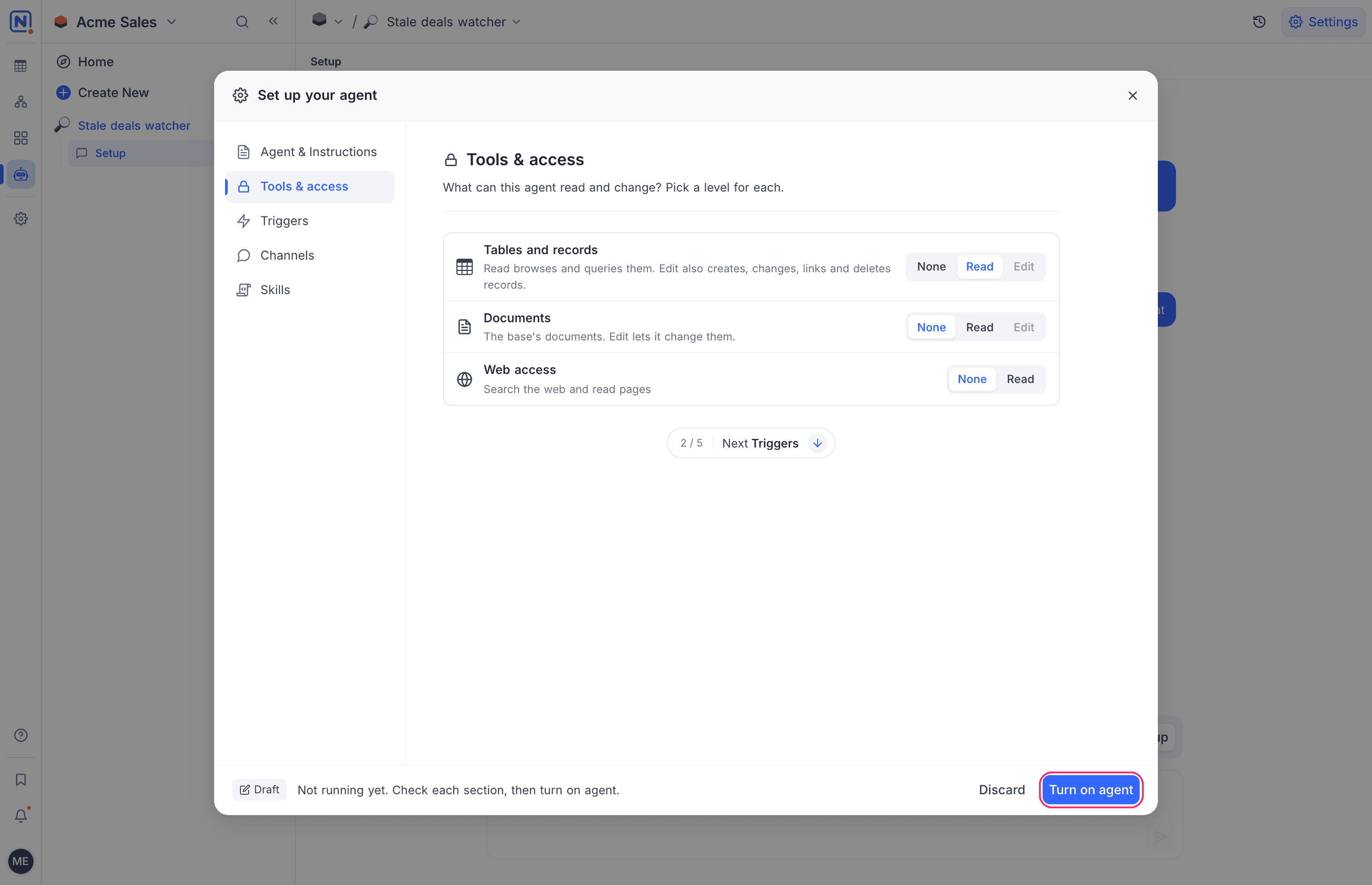
The Turn on agent button is not available until the agent has a name and instructions. The footer hint says what is missing.
If you close the settings before you turn the agent on, the agent stays a draft. The setup chat then shows Review everything in Settings, then turn it on. To continue, click Open setup.
Discard a draft
- In the footer of the settings, click Discard. NocoDB asks Discard this draft?
- Confirm. NocoDB moves the draft and its setup chat to the project trash.
Ask NocoAI to create an agent
NocoAI can create an agent for you from the chat.
- Open the project.
- Open the NocoAI chat.
- Describe the agent: its job, the tables it works with, when it runs and where it sends results.
- If NocoAI asks you to approve, review the card.
- Approve the card.
NocoAI creates the agent and turns it on. There is no draft step.
NocoAI asks you to approve first when the agent runs on its own, is a coding agent, or gets more than read access.
NocoAI sets these items:
| Item | Detail |
|---|---|
| Name and description | The description shows in the sidebar. |
| Instructions | NocoAI names the tables and fields that the agent works with. |
| Starter prompts | Up to 4 suggested questions on the agent home page. |
| Access | Record changes, documents and web access. An agent that changes records gets the Editor role. |
| Triggers | Up to 5 triggers: a schedule, or a record that is created, updated or deleted in a table. |
| Results | The chat, an email to you, or a Slack channel. |
| Kind | A general agent or a coding agent. Add the repositories of a coding agent after NocoAI creates it. |
NocoAI can also change an existing agent. Ask NocoAI to:
- Rename the agent.
- Change its instructions.
- Widen or narrow its access.
- Turn the agent on or off.
NocoAI asks you to approve before it changes instructions, widens access or turns an agent on.
Good to know
- The Free plan has no agents. To create agents, upgrade to a paid plan.
- A draft is not turned on. Its triggers do not fire, and people cannot chat with it. Only its setup chat works.
Related
Last updated on