Channels
A channel lets people message a NocoDB agent from a chat platform, outside NocoDB. The agent reads the message, does the work, and answers in the same conversation. NocoDB agents support Telegram channels: direct messages, groups and replies.
Before you begin
- To connect or change a channel, you need the Creator role or higher in the project.
- You need a Telegram bot. To create one, message @BotFather in Telegram. Copy the bot token that it gives you.
- One bot can serve one agent only. Create a separate bot for each agent.
Connect a Telegram channel
-
Open the agent.
-
In the top bar, click Settings.
-
Go to Channels.
-
Click Connect a channel.
-
Click Telegram. The integration form opens.
-
Type an Integration name.
-
In Telegram connection, select a connection. To create one, select New connection and fill in these fields:
- Connection name: a name for the connection.
- Bot token: the token from @BotFather.
- Bot username: the username of the bot, without the @. NocoDB uses it to find mentions in groups.
Click Test connection. Then click Create integration to save the connection.
-
Click Create integration. NocoDB adds the channel to the agent and registers it with Telegram.
-
Click Test connection on the channel.
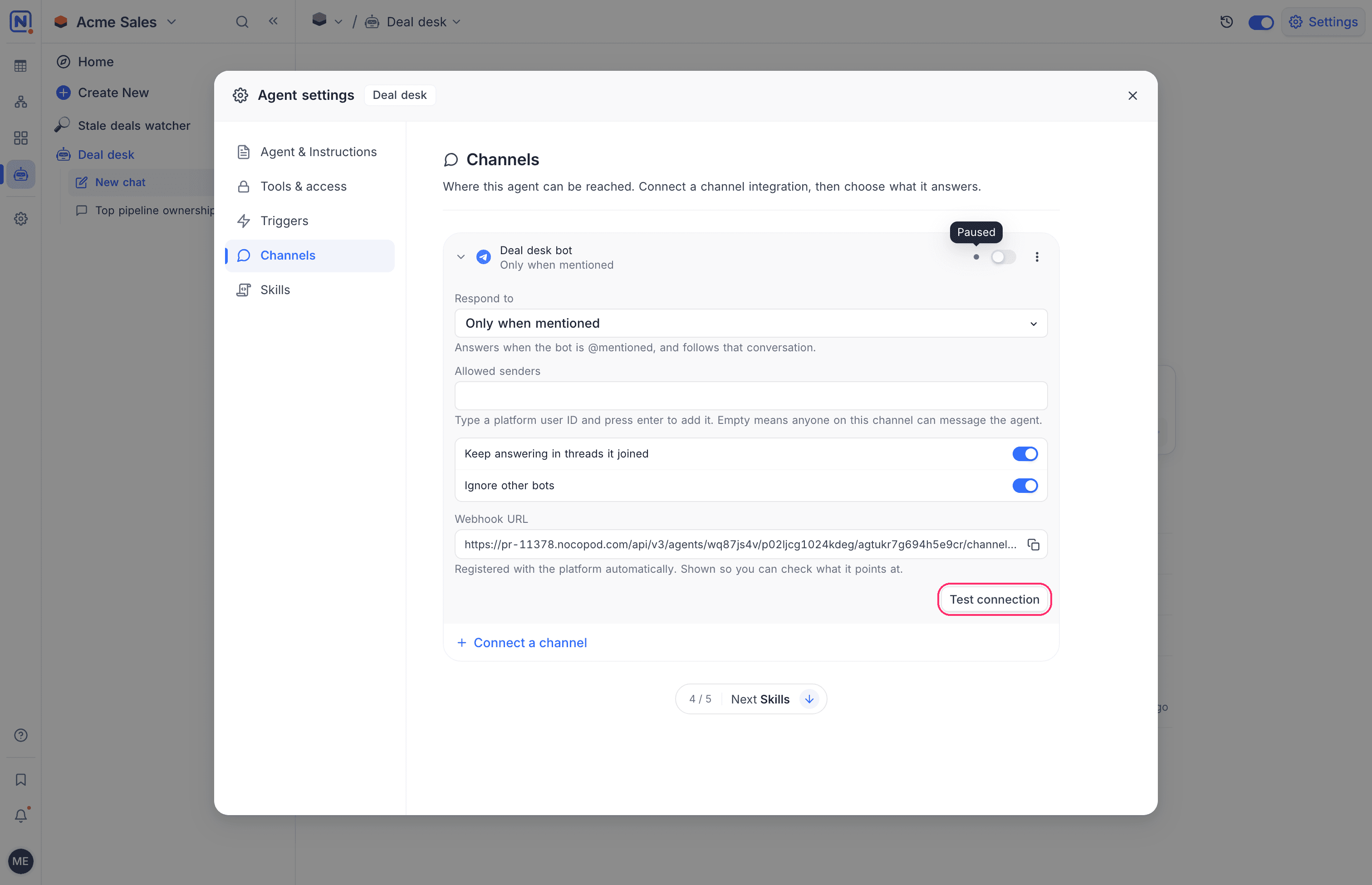
To reuse a channel integration that is already in the workspace, click Connect a channel. Then select the integration under Use existing credentials.
Choose which messages the agent answers
Each channel has a Respond to setting:
| Option | The agent answers |
|---|---|
| Only when mentioned | Messages that @mention the bot, and the conversation that follows. This is the default. |
| Every message | Every message on the channel. Use this for a direct message or a room for the agent only. |
| Only a command | Only messages that start with the Command. The default command is /ask. |
Channel settings
| Setting | Description |
|---|---|
| Allowed senders | The Telegram user IDs that can message the agent. To add an ID, type it. Then press Enter. When the list is empty, anyone on the channel can message the agent. |
| Keep answering in threads it joined | The agent continues to answer in a thread where it answered before. On by default. |
| Ignore other bots | The agent does not answer messages from other bots. On by default. |
| Webhook URL | The address where Telegram sends the messages. NocoDB registers it with Telegram automatically. It shows here so that you can check it. |
Anyone who can message the bot can use the agent, within the access of the agent. For a bot in a group or a public chat, set Allowed senders.
Channel status
A dot on each channel shows its status:
| Status | Meaning |
|---|---|
| Receiving messages | The channel works. |
| Not receiving messages yet | Telegram has not confirmed delivery yet. Messages do not arrive. Click Reconnect. |
| Registration failed | NocoDB could not register the channel with Telegram when you saved it. The error shows under the channel. Check the bot token. Then click Reconnect. |
| Paused | The switch of the channel is off. The channel does not receive messages. |
Turn a channel on or off
Each channel has its own switch, next to its status. Turn the switch off to stop the channel. The channel stays on the agent. The other channels of the agent continue to work. Turn it on again to register the channel with Telegram again.
When you turn the whole agent off, all its channels stop. See Turn an agent on or off.
To register the channel again, open the menu of the channel. Then click Reconnect. Reconnect also turns the channel on.
To remove the channel from the agent, click Disconnect.
Good to know
- Each conversation from a channel is a session of the agent. Members find it under Automatic in the session list.
- The agent answers in the channel. Results go to does not apply to channel messages.
- Each answer uses credits.
- A message to a coding agent on a channel does not start a coding session.
Related
Last updated on