Chat with an Agent
Every NocoDB agent has a chat. When you open the agent and type a message, the agent answers with what it finds in your project. The agent uses its tools, within its access and its role. Each chat, and each run that a trigger starts, is a session of the agent.
Before you begin
- You need the Viewer role or higher in the project.
- The agent must be turned on. When an agent is paused, its message box is not available.
Start a chat
- Open the project.
- In the mini sidebar, click Agents.
- In the sidebar, click the agent. The agent home page opens.
- Type a message in the box, or click one of the Suggested prompts.
- Press Enter. The agent answers in a new chat.
The agent home page shows the message box, up to 4 Suggested prompts, and the 5 most Recent sessions. A lightning icon marks the sessions that a trigger started.
To start another chat, click New in the chat header. You can also click New chat under the agent in the sidebar.
Coding agents have a different session screen, with the code, a live preview and a terminal. See Coding sessions.
Find a session
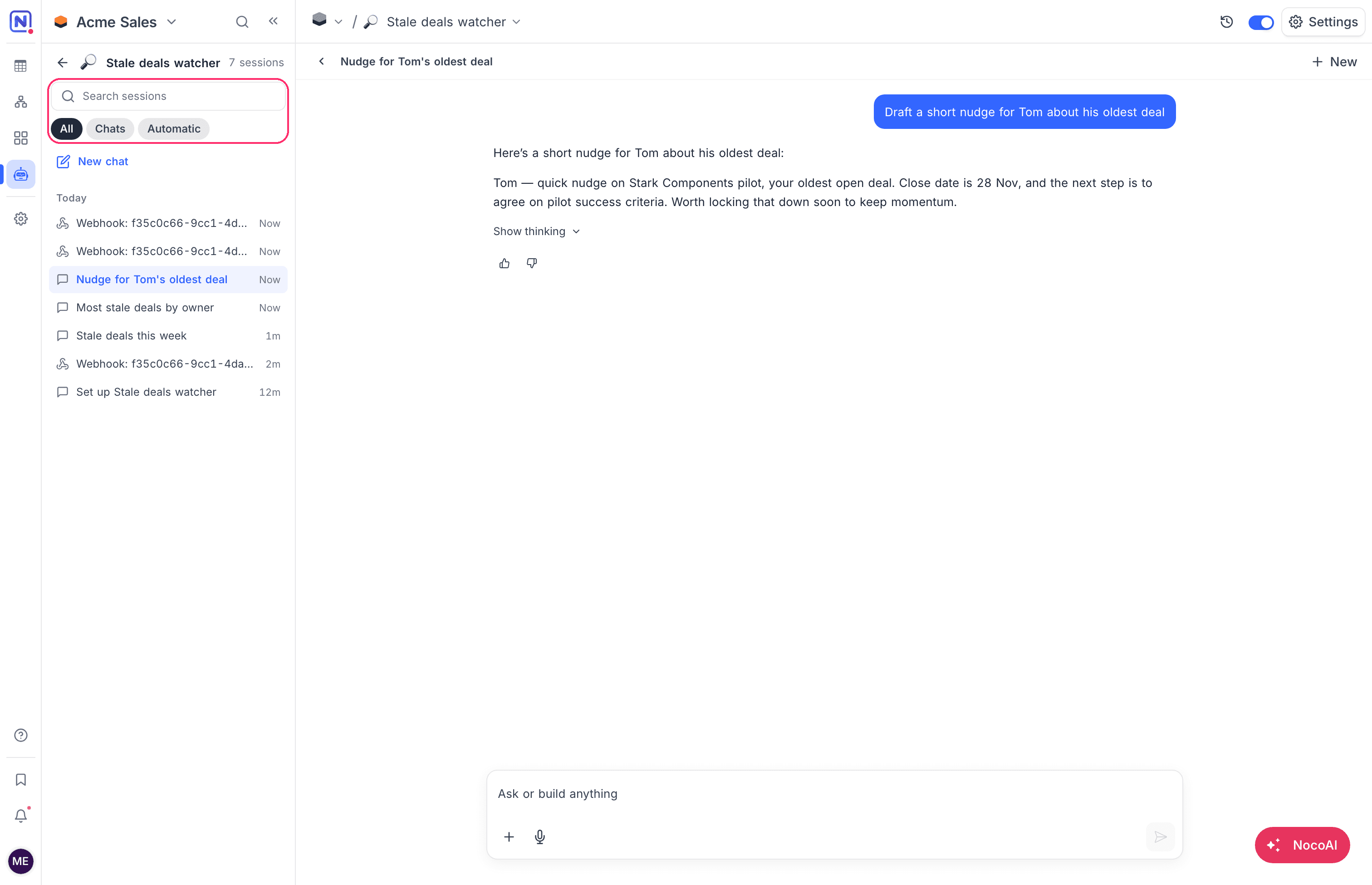
The sidebar shows the 5 newest sessions under the agent that is open. When the agent has more sessions, the sidebar also shows View all and the number of sessions. To see all the sessions:
- Under the agent in the sidebar, click View all. The session list opens.
- Search by name, or filter the list:
| Filter | Shows |
|---|---|
| All | Every session. |
| Chats | Sessions that a person started in the chat. |
| Automatic | Runs that started without a chat: a schedule, a trigger, a channel message or a webhook call. |
The list groups sessions by date: Today, Yesterday, Previous 7 days and Older. To go back, click the back arrow.
Who can see which sessions
The kind of session sets who can see it:
| Session | Who can see it |
|---|---|
| A chat | Only the person who started it. Only that person can rename or delete it. |
| An automatic run | Every project member who can see the agent. |
An automatic run is read-only. Its conversation shows This conversation was started by a trigger and can't be continued. To ask a follow-up question, start a new chat.
What an agent can do in a chat
In a chat, the agent acts with the lower of two roles: its own project role, or your role. For example, an agent with the Editor role cannot change records when a Viewer chats with it. See Roles and permissions.
The agent can only use the tools that are on in Tools and access. When something is outside its tools, the agent says so.
Good to know
- A message can have up to 10,000 characters.
- The agent uses credits for each reply. When the credits of the workspace are low or used up, the message box shows a warning.
- To test a new agent, ask it a few questions in the chat. The answers show how it reads its instructions.
Related
Last updated on