Coding Agent Sessions
A coding agent session is where agentic development happens in NocoDB. It holds one piece of work by a coding agent, from the first message to the pull request. Each session runs on its own copy of the agent's machine, in one repository and on one branch. In the session, you chat with the agent. You follow its work on a live screen, a live preview of the app, the diff review of the changes, the files and a terminal.
Before you begin
- To start, open or watch coding sessions, you need the Editor role or higher in the project. With a lower role, NocoDB shows Sessions need Editor access.
- The agent must be turned on and must have at least one repository.
Start a session
You start a NocoDB coding session from the page of the coding agent.
-
Open the coding agent. The page asks What should we build in and shows the default repository.
-
Describe the task in the box, for example "Add CSV export to the reports page".
-
Change the options of the box, if necessary:
Option What it sets Start in The repository. The default repository is selected. The source Where the work starts: New branch from the start branch, or an item that already exists in Branches, Pull requests or Issues. Start the session on The machine. The default machine is selected. This option shows only when the agent has more than one machine. Model The AI model. See Choose a model. -
Click the send button, or press Enter. The session opens, and its machine starts.
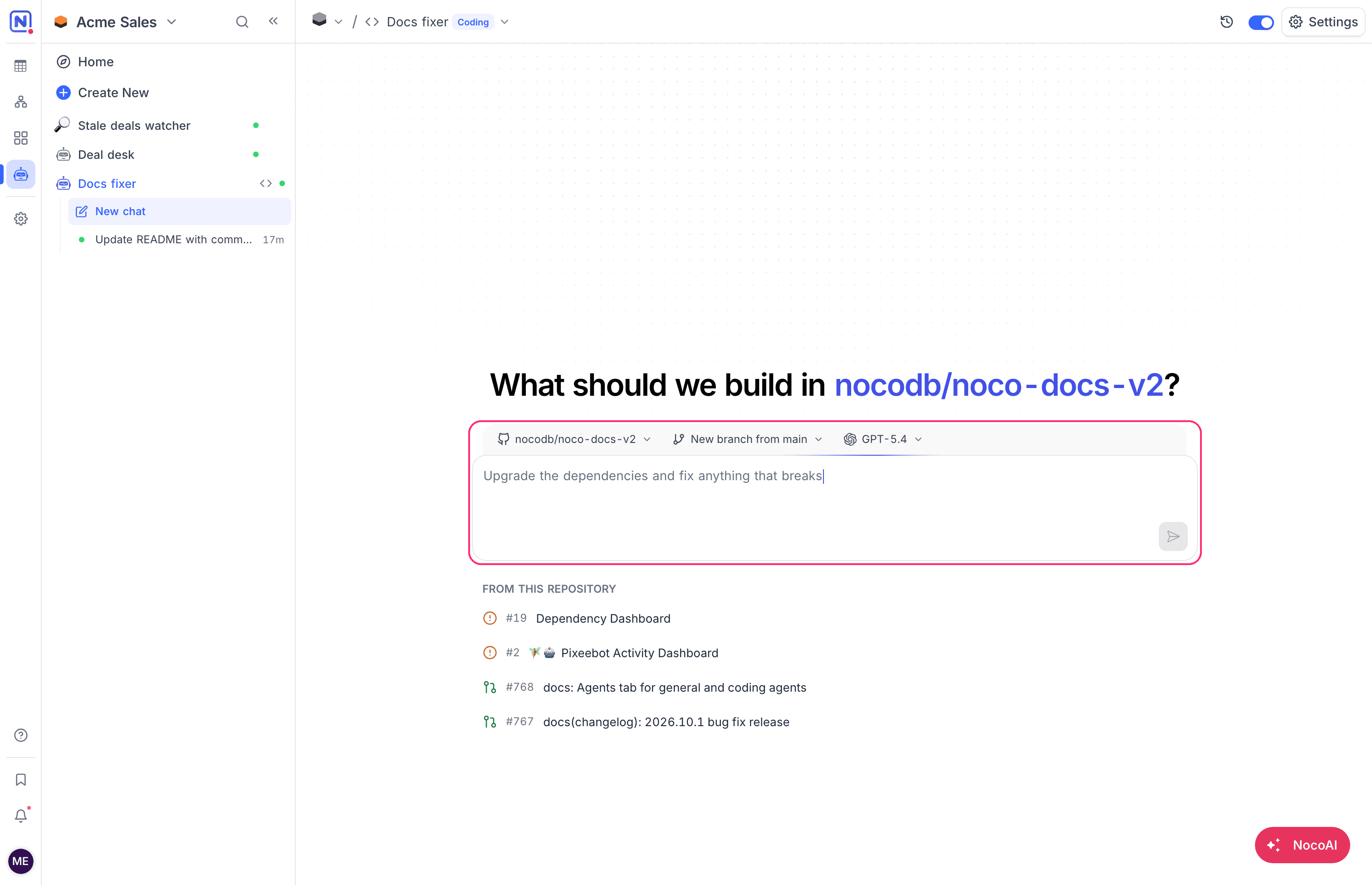
To start from an open issue or pull request:
- Under From this repository, below the box, click the issue or pull request. NocoDB selects it as the source and fills the box with a request. An issue gets Fix this issue. A pull request gets Review this pull request and suggest changes.
- Change the text, if necessary.
- Send the request.
While the machine starts, the session shows these steps:
- Building your machine
- Starting your machine
- Starting its services
- Cloning the repository
- Reading the project
The session then shows Your machine is ready and the time that it took.
The coding agent session screen
The screen of a coding agent session has the chat on one side and the work panes on the other.
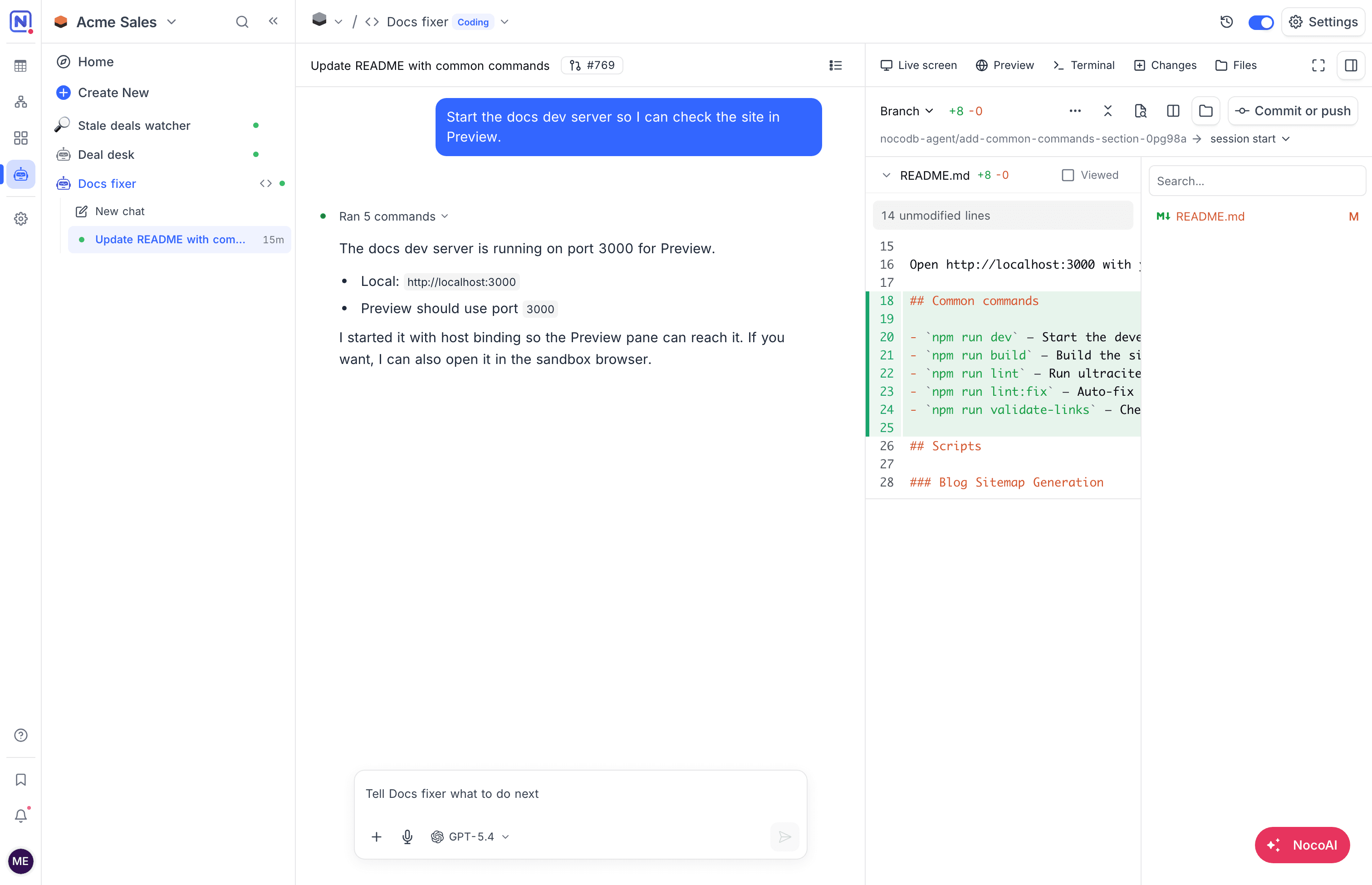
| Pane | What it shows |
|---|---|
| Live screen | The desktop of the machine, for example a browser that the agent uses to test the app. |
| Preview | The app that the agent runs, in a browser frame. |
| Terminal | A shell on the machine. Click New terminal to open another one. |
| Changes | The changes that the agent made, as diffs. See Review the changes. |
| Files | The files of the repository. You can read and edit them. |
To give the agent its next step, type in the chat box. The box shows Tell and the agent name, what to do next.
Live preview of the app
The live preview of a coding session shows the app that the agent runs. When the app on the machine starts to listen on a port, NocoDB shows a message. The message shows Port and the port number, is available, and the process that started it. The message has these buttons:
| Click | To |
|---|---|
| Open preview | Show the port in the Preview pane. |
| New tab | Open the port in a browser tab. |
| Copy link | Copy the URL of the port. |
To stop these messages for all ports, click Don't show again.
When nothing listens yet, the Preview pane shows Nothing is listening yet. Ask the agent to start the app.
To set the port that the preview opens on, see Preview port.
The Environment menu
The Environment menu in the session header shows the number of changed lines, the machine, the repository and the branch. After the agent opens a pull request, a chip shows its number and its state: open, merged or closed.
The Environment menu has these actions:
| Action | What it does |
|---|---|
| Commit or push | Asks the agent to commit the changes and push the branch. |
| Compare branch | Opens the GitHub page that compares the branch of the session with its start branch. |
Review the changes
The Changes pane shows what the agent changed. Select what to compare:
| Scope | Shows |
|---|---|
| Last turn | The changes of the last reply of the agent. |
| Uncommitted | All changes that are not committed. |
| Unstaged and Staged | The changes that are not staged, and the changes that are staged. |
| Committed | The changes of each commit. |
| Branch | All changes on the branch, compared with the start of the session or with another branch. |
The Changes pane has options for the diff view: split or unified diff, Word wrap, Word diffs and Hide white space.
After you review a file, mark it as Viewed.
Copy git apply command copies the changes as a patch that you can apply in your own copy of the repository.
Ask for changes on lines
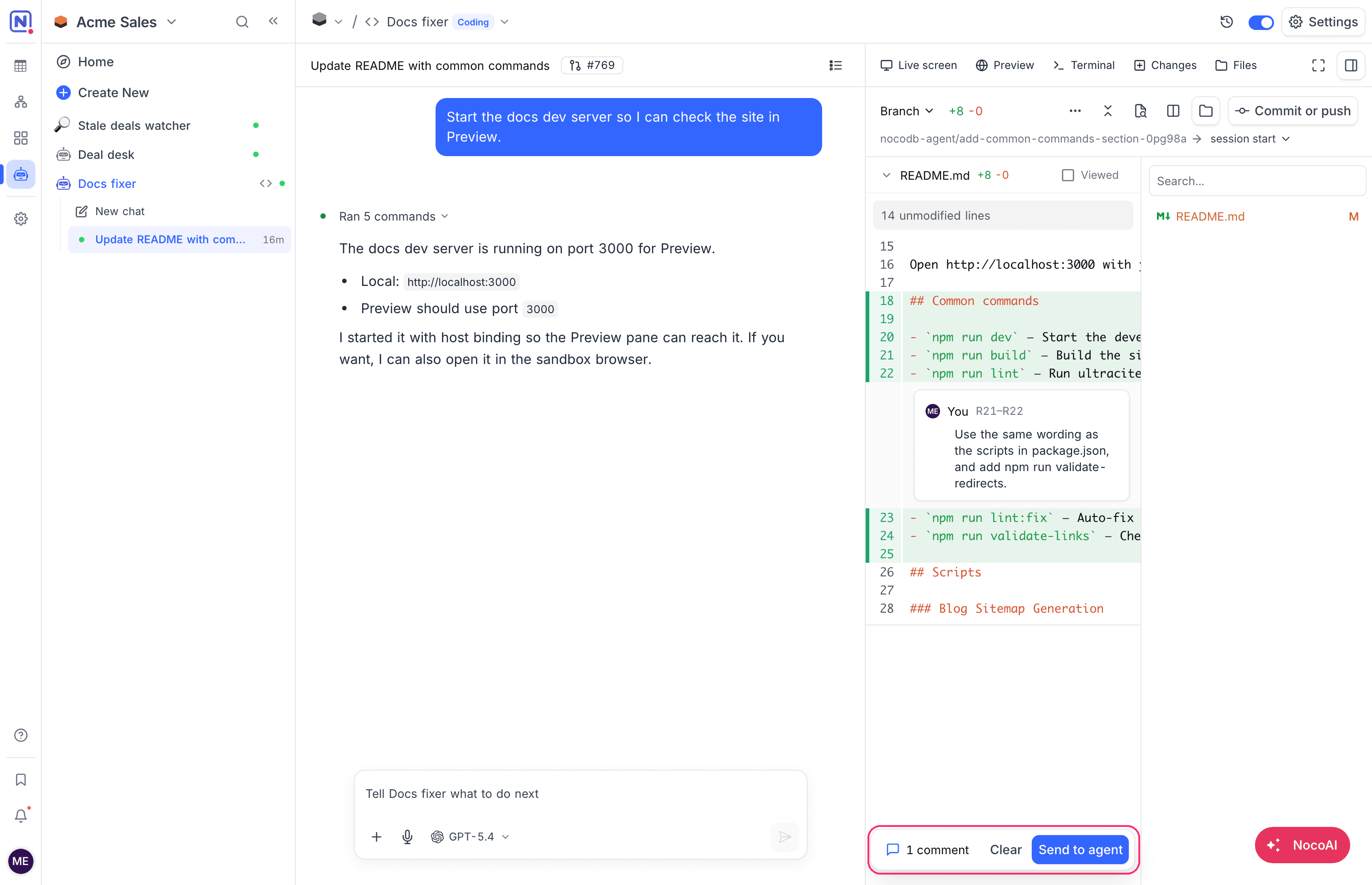
To ask the agent for changes on some lines, comment on those lines in the Changes pane.
- In the Changes pane, click a line number. To select more lines, shift-click another line number.
- Click the + button next to the selection. The Comment on box opens with the line range, for example R21–R22.
- Type the change that you want.
- Click Comment.
- Add more comments, if necessary. The review bar shows the number of comments. To remove all of them, click Clear.
- Click Send to agent. The agent gets all the comments in one message.
Choose a model
The Model menu sets the AI model of your next message. Each message can use a different model.
| Option | Credits |
|---|---|
| The default models of NocoDB | The session uses credits for the model. |
| Your AI integrations | The models of the AI integrations of the workspace, and of your own private AI integrations, listed by integration name. Your provider bills you directly. Available on the Business plan and above. On a lower plan, the menu shows Your own API keys as an upgrade option. |
To add an AI integration, see Create a connection.
Who can work in a session
What a person can do in a coding session depends on who started the session and on the role of the person:
| Person | Can |
|---|---|
| The person who started the session | Chat with the agent, control the live screen, use the terminal and edit files. |
| Other members with the Editor role or higher | Watch the session. The live screen shows View only. |
| Members with the Creator role or higher | Also archive or delete any session. |
A session that a trigger started has no owner. Members can watch it, but nobody can send it messages.
Stop, archive, resume and delete
Each session in the sidebar has a menu with these actions:
| Action | What happens |
|---|---|
| Archive | NocoDB stores the work of the session and releases the machine. It keeps the commits, the changes that are not committed, and new text files. It does not keep new binary files, symbolic links or files that git ignores. |
| Resume | Shows on an archived session that you started. NocoDB builds the machine again and restores the work, so the agent can continue. |
| Delete | NocoDB deletes the session and its whole transcript. You cannot undo this. |
Each part of an archive can be up to 256 MB. When the work is larger, NocoDB cannot archive the session.
After the last reply of the agent, the machine stops when the idle time of the machine ends. See Stop when idle. The session shows No machine running. When you send a message, the machine starts again.
A session that shows Stopped. Its last turn failed or was cut short did not finish its last reply. To continue, send a message.
Good to know
- NocoDB hides the values in the environment and secrets of a machine from the chat. The person who started the session can still read them in the terminal.
- A session uses credits while its machine runs. A shorter Stop when idle time stops idle machines sooner.
- Archive the sessions that you no longer need. When you archive a session, NocoDB releases the machine and keeps the work.
Related
Last updated on