Credits
Credits are the usage unit for the managed, usage-based features of NocoDB: NocoDB AI, script execution and AI web search. Each plan includes a monthly credit allowance. You can buy more credits with credit packs at any time.
Your credit balance belongs to your workspace. Workspaces in an organization share one balance at the organization level.
What uses credits
| Feature | How NocoDB measures usage |
|---|---|
| NocoDB AI (chat, schema generation, field & view suggestions, formula assistant, AI fields) | Per token. The cost changes with the size of the request and the complexity of the task. |
| Scripts and workflow Run Script steps | Sandbox runtime. A default sandbox uses about 2 credits for each minute of execution. |
| Apps: building with NocoAI, the app assistant and actions that run custom code | Per token for AI, and sandbox runtime for builds and custom code. |
| AI web search | 14 credits for each search, and 2 credits for each page that it fetches. |
These items do not use credits:
- AI integrations that you configure with your own API key. NocoDB measures only the NocoDB-managed AI integration. Your provider bills you directly for integrations that use your own key.
- Regular workflow steps. NocoDB measures only steps that use AI or run scripts. Triggers, record operations, HTTP requests and other nodes are free.
Monthly plan credits
Each plan includes a monthly credit allowance:
| Plan | Credits per month |
|---|---|
| Free | 500 per workspace |
| Plus | 1,000 per billed editor seat |
| Business | 2,500 per billed editor seat |
| Scale | 5,000 per billed editor seat |
| Enterprise | 7,500 per billed editor seat |
- NocoDB gives plan credits each month, at the start of your billing cycle.
- Unused plan credits do not carry over. They expire at the end of the billing period.
- If you change plans during a period, or your billed seat count changes, NocoDB recalculates the allowance for the current period. The allowance is proportional to the time on each plan.
- When a trial starts, its first period gets only the share of the allowance that is left in that period. The full allowance follows from the next period.
How credits are spent
NocoDB uses credits in this order:
- Plan credits are always used first. This way, NocoDB spends your monthly allowance before it expires.
- Promotional credits, if any.
- Top-up credits that you buy with credit packs.
In each category, NocoDB uses the credits that expire first. Top-up credits stay valid for 12 months from the date of purchase.
Checking your balance
To open the billing dashboard, click Settings in the workspace sidebar. Then open Billing, under Plan. The AI credits card shows:
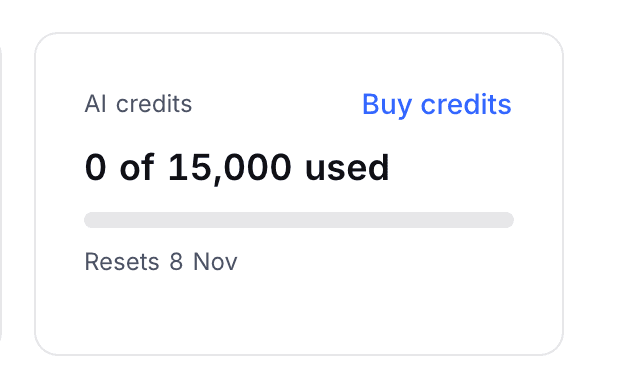
- Credits used against your total allowance, with a bar.
- The date that your plan credits reset.
- A warning badge when purchased credits expire within 30 days.
- Buy credits, on paid plans.
Credit usage lists the last 14 days of credit activity. Show activity opens the individual entries.
When your credits are low, a meter also shows above the AI chat input. The meter shows the credits that you have left and a shortcut to buy more.
Buying credits
You can buy credits on paid plans only. Only workspace owners can buy credits, or organization admins from the organization billing page.
Credit packs:
| Pack | Price |
|---|---|
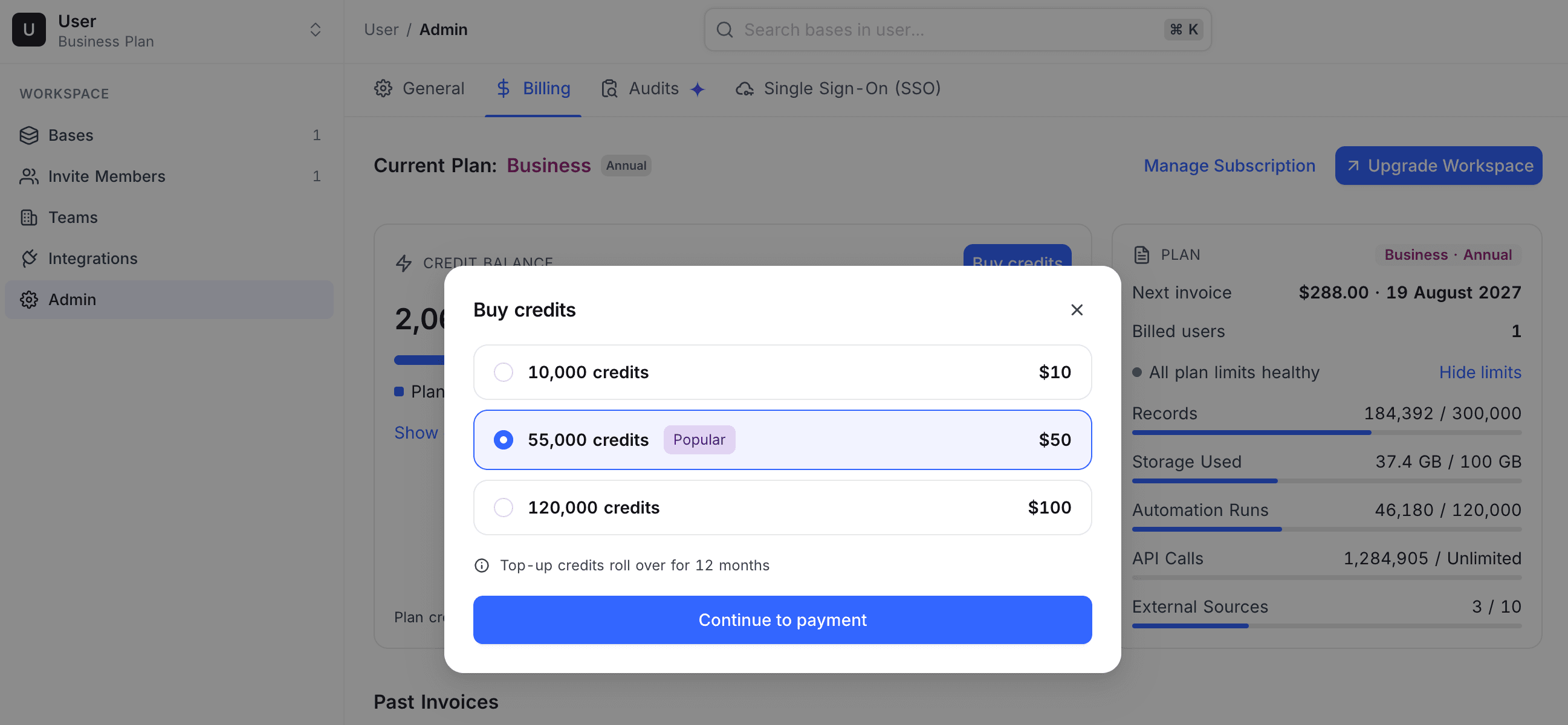
| 10,000 credits | $10 |
| 55,000 credits | $50 |
| 120,000 credits | $100 |
To buy a pack:
-
In the workspace sidebar, click Settings.
-
Open Billing, under Plan.
-
On the AI credits card, click Buy credits. The Buy credits dialog opens.
-
Select a pack.
-
Click Continue to payment.
-
Complete the payment in the Stripe checkout form. NocoDB returns you to the billing page and adds the credits to your balance. Stripe makes an invoice for the purchase available.
NocoDB adds purchased credits to the same balance as your plan credits. Purchased credits stay valid for 12 months.
Running out of credits
| When | What happens |
|---|---|
| Your balance is less than 10% of your monthly plan allowance | NocoDB shows a low balance warning in the billing dashboard and above the AI chat input. |
| Your balance is zero | NocoDB blocks actions that use credits and shows the message "You've run out of credits". To continue now, buy a credit pack. Or wait for your plan credits to reset at the start of the next billing period. |
AI integrations that you configure with your own API key are not affected. They continue to work.
For plan pricing and billing details, see Subscription & billing.
Availability
- Credits apply to NocoDB Cloud workspaces. On self-hosted deployments, AI features use an AI integration that you configure with your own provider API key. That provider bills you, and these features do not use credits.
Last updated on