Subscription & Billing
NocoDB offers flexible pricing and simple subscription management through the billing dashboard.
Billing dashboard
Access the billing dashboard by clicking Settings in the workspace sidebar and opening the Billing tab.
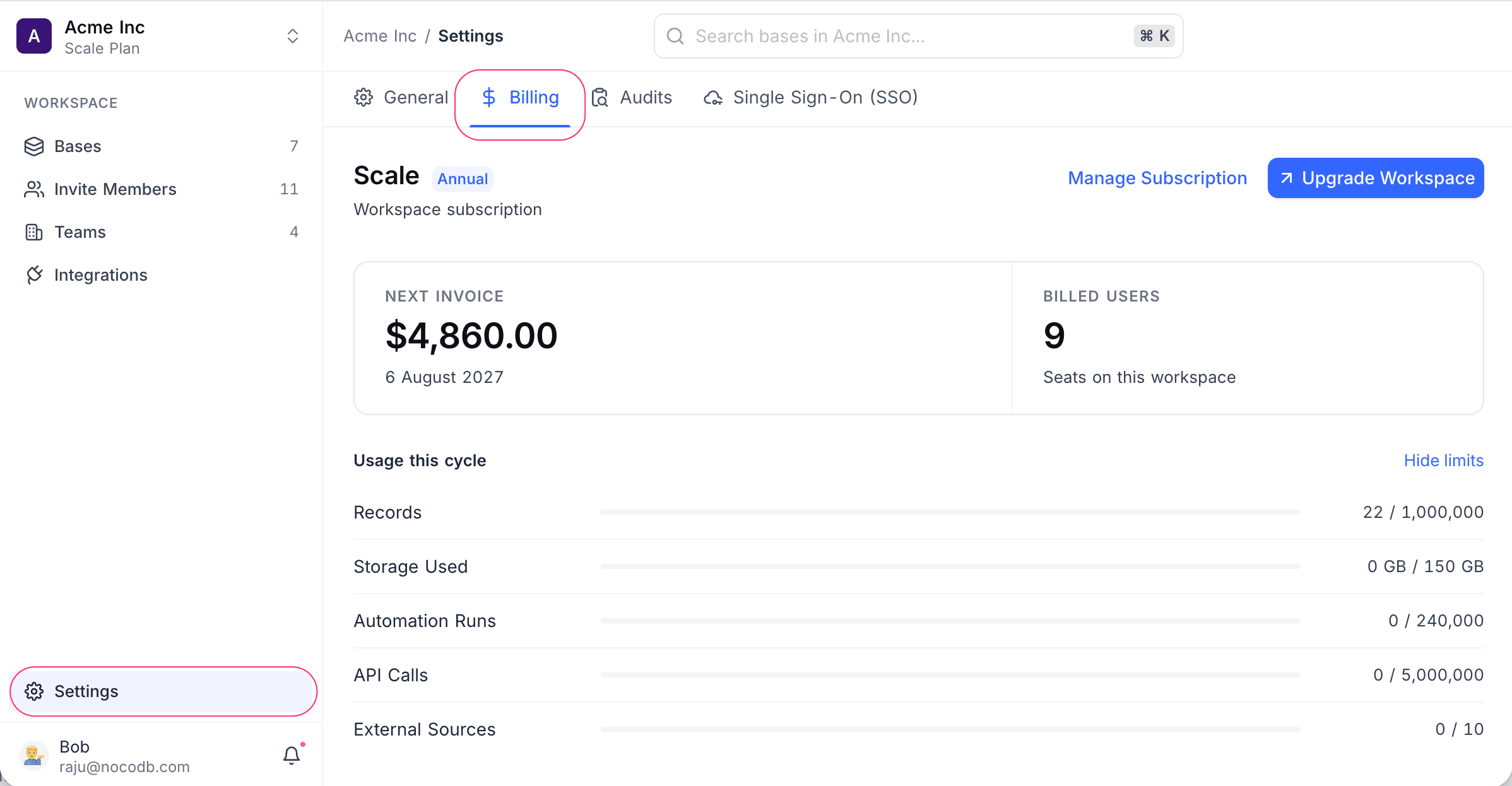
The dashboard shows:
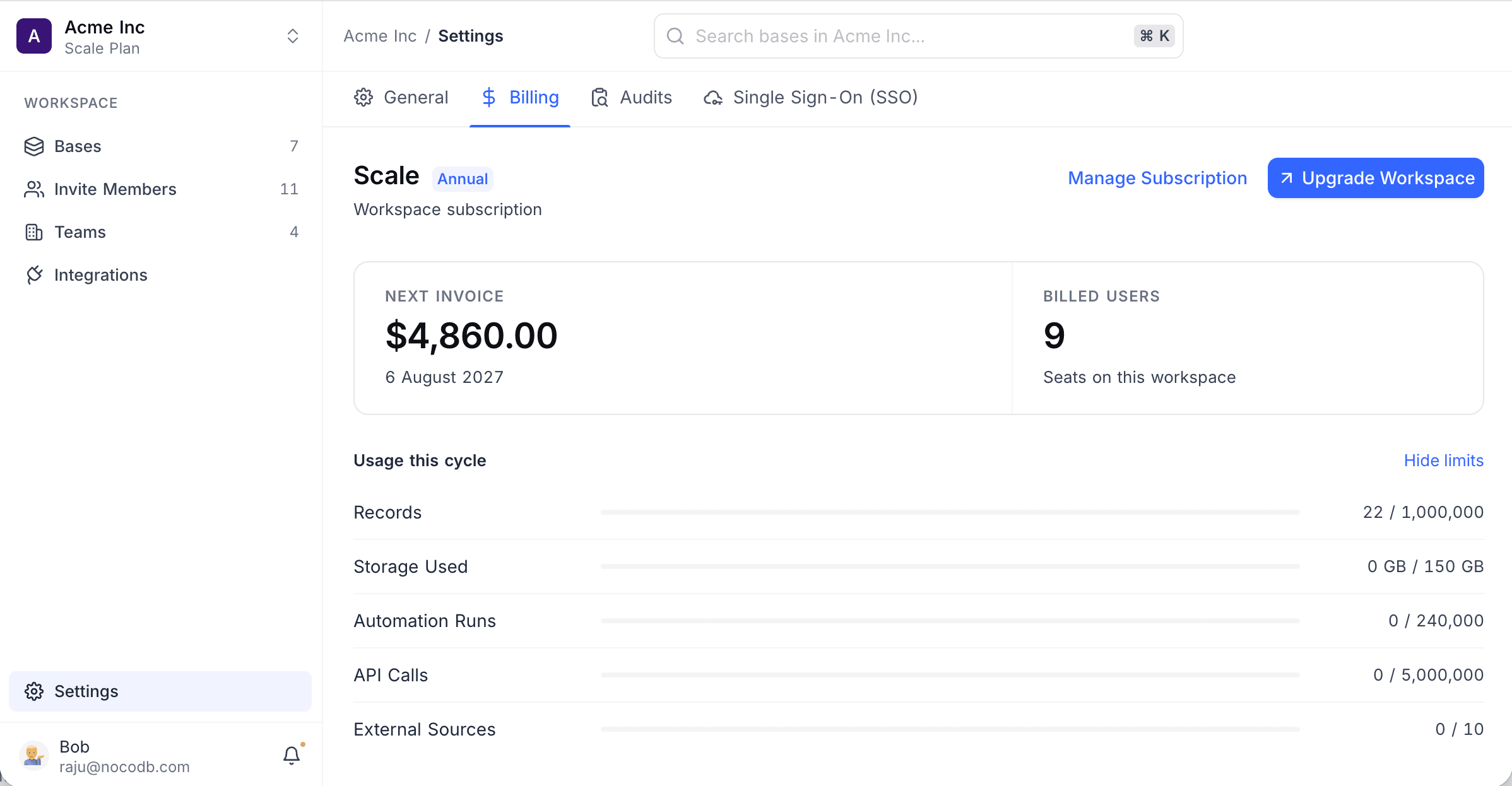
- Your plan name, its billing period, and the Manage Subscription and Upgrade Workspace buttons
- Next Invoice amount and date
- Billed Users count, the seats on this workspace
- Usage this cycle against your plan limits: Records, Storage Used, Automation Runs, API Calls and External Sources. Use Hide limits to collapse the bars.
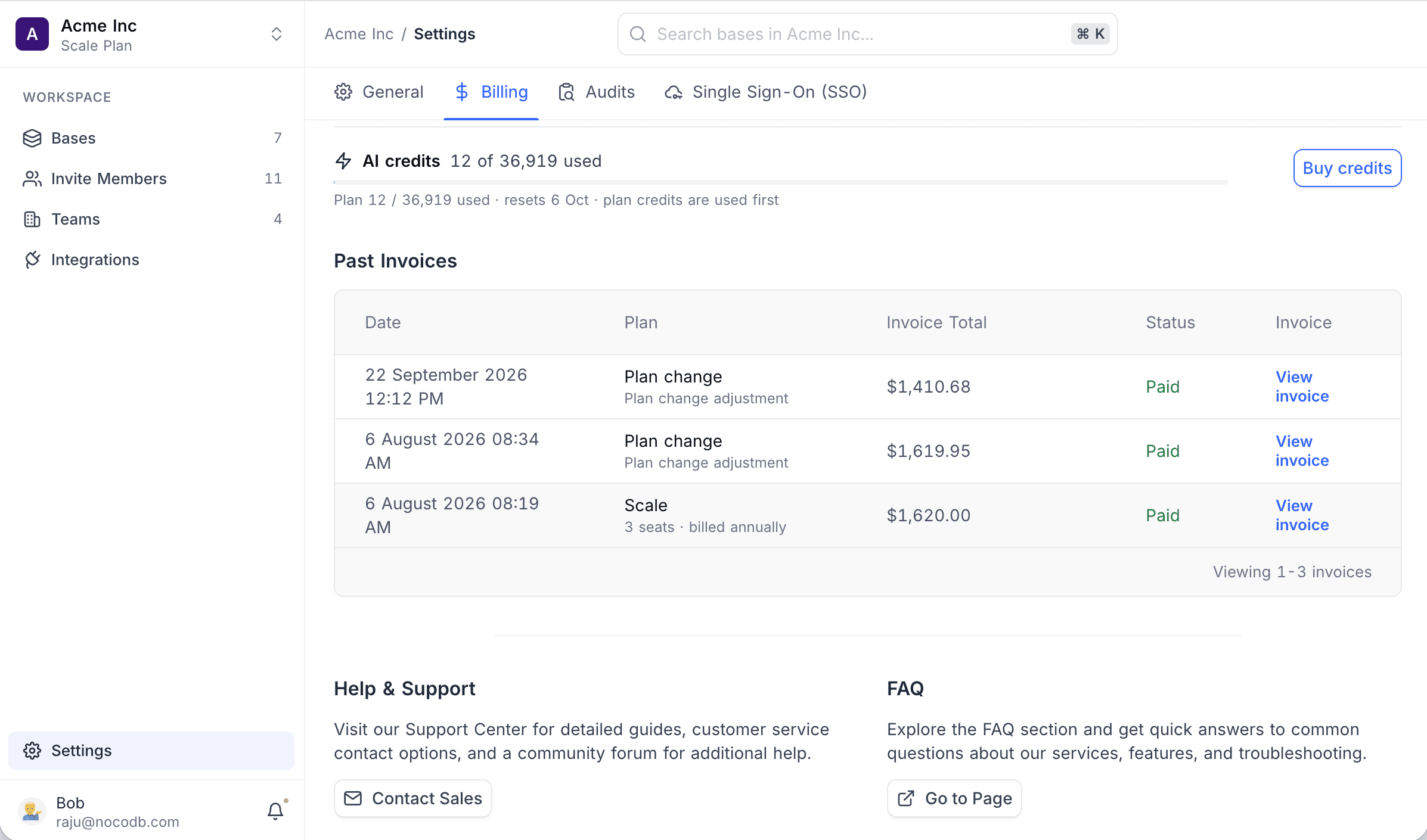
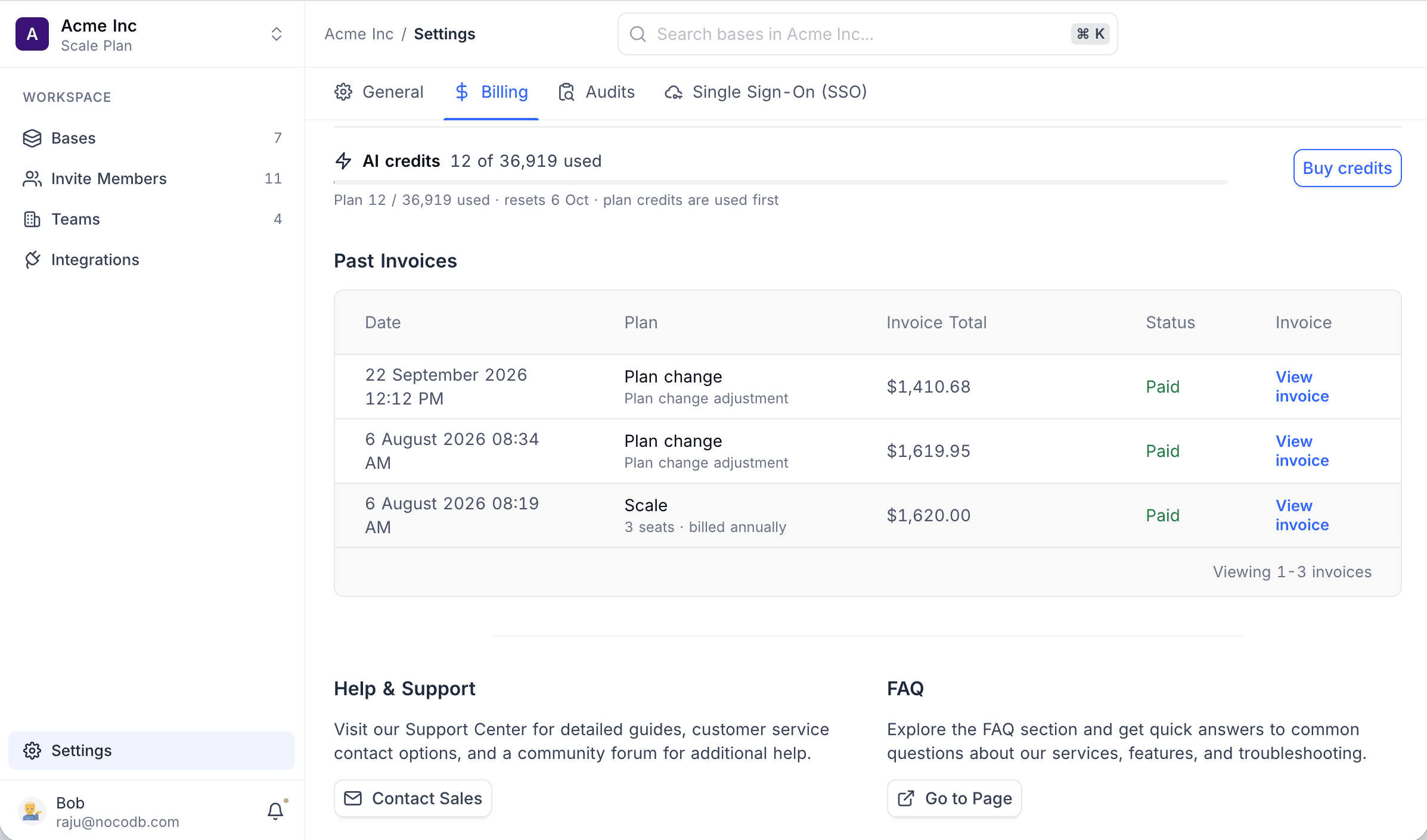
- AI credits used against your allowance, with the reset date and a Buy credits button
- Past Invoices with date, plan, invoice total, status, and a link to each invoice
- Help & Support and FAQ links at the foot of the page
Credits
The AI credits row on the billing dashboard tracks the credits available for usage-based features: NocoDB AI, script execution, and AI web search. It shows how many of your allowance you have used, when it resets, and that plan credits are spent before any you have bought. Every plan includes a monthly allowance, and workspace owners can buy credit packs with Buy credits at any time.
See Credits for allowances per plan, what consumes credits, and the purchase flow.
Change your plan
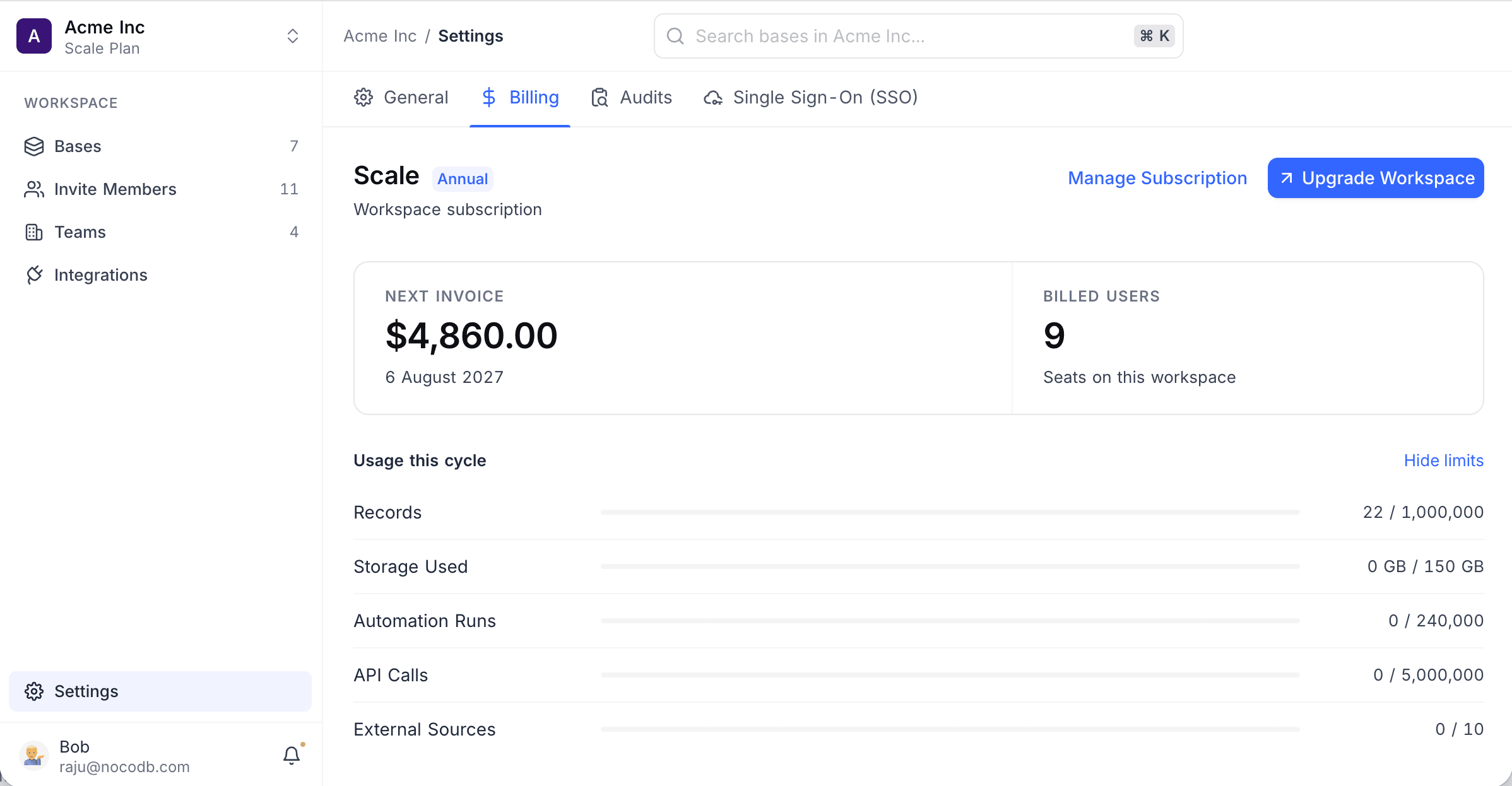
- Click Settings in the workspace sidebar and open the Billing tab.
- Click Upgrade Workspace.
- Select the desired plan and follow the prompts to confirm.
Manage subscription
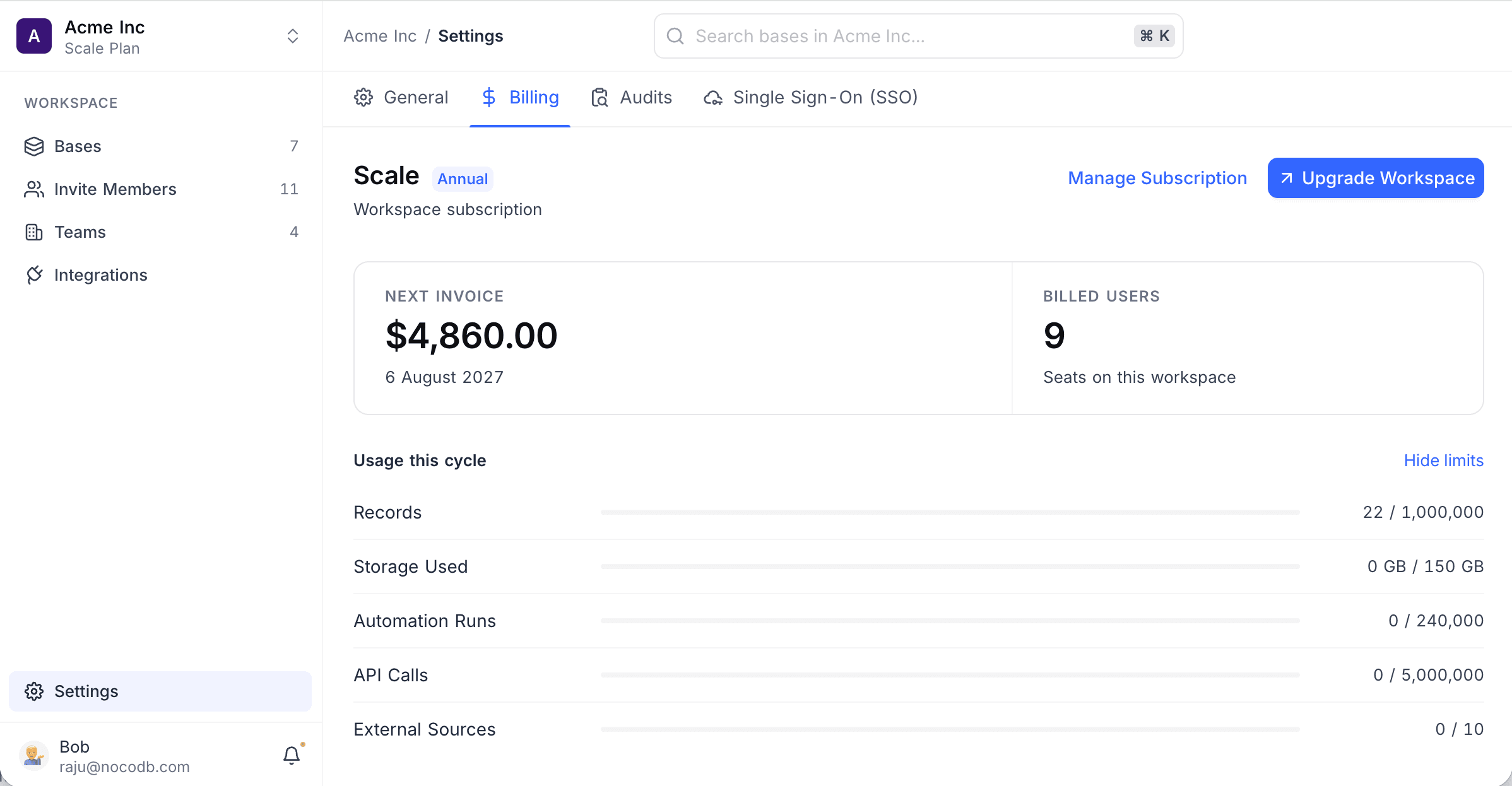
Click Manage Subscription on the billing dashboard to open the Stripe billing portal. From there you can:
- Update your card details
- View upcoming payments
- Add or change your payment method
- Cancel your subscription
Download invoices
- Scroll to the Past Invoices section on the billing dashboard.
- Click View invoice next to the invoice you want.
- A PDF copy will open in a new tab.
Cancel plan
- Click Settings in the workspace sidebar and open the Billing tab.
- Click Manage Subscription to open the Stripe billing portal.
- Click Cancel subscription and confirm when prompted.
Alternatively, you can downgrade directly:
- From the Billing tab, click Upgrade Workspace.
- Select Choose Free.
- Click Proceed and follow the prompts.
For assistance, contact the Support team.
Last updated on