Manage Agents
Copy a prompt, paste it into NocoAI in any base, and replace the words in [brackets] with your own.
- Turn off [Weekly digest]
- Turn on [Lead qualifier]
- Rename [Answer bot] to [Pricing helper]
You manage NocoDB agents from the project sidebar and from the top bar of an agent. To stop the triggers and channels of an agent, turn the agent off. To rename, duplicate, move or delete an agent, use its menu in the sidebar.
Before you begin
- To manage agents, you need the Creator role or higher in the project.
Agent status
Each agent has a status. To see it, hover over the agent in the sidebar. The tooltip shows the Agent name, the Status and who created the agent.
| Status | Meaning |
|---|---|
| Live | The agent is turned on. People can chat with it, and its triggers and channels work. |
| Paused | The agent is turned off. Its triggers and channels do not work, and its chat is not available. |
| Draft | The agent is still in setup. It runs only in its setup chat. See Create an agent. |
Turn an agent on or off
- Open the agent.
- In the top bar, turn the switch next to Settings on or off. The tooltip of the switch says Enabled.
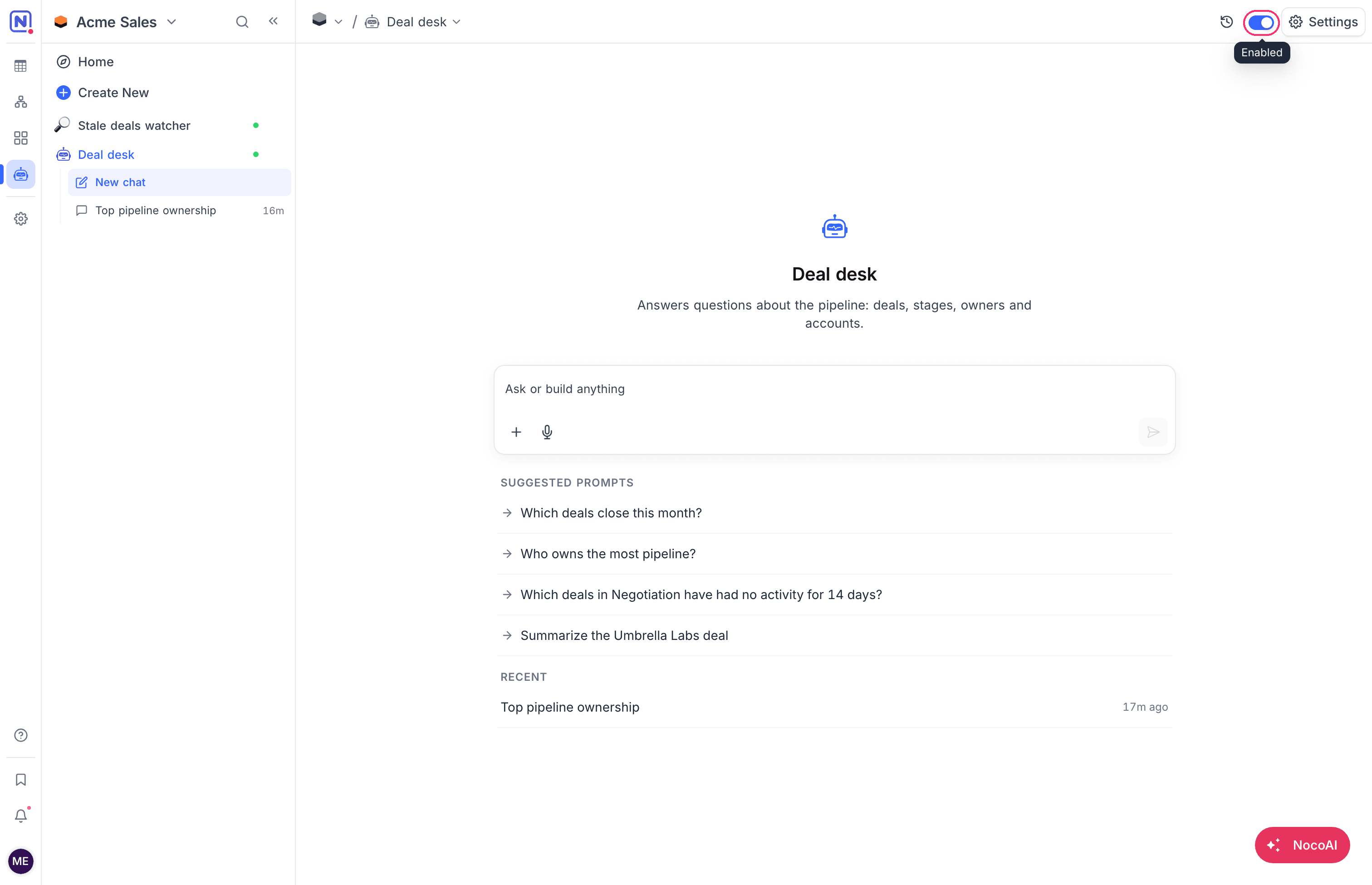
When you turn an agent off, NocoDB stops all its triggers and channels. When you turn it on again, they start again. Its settings and sessions stay as they are.
A draft has no switch. To turn on a draft, finish its setup. Then click Turn on agent.
Agent actions
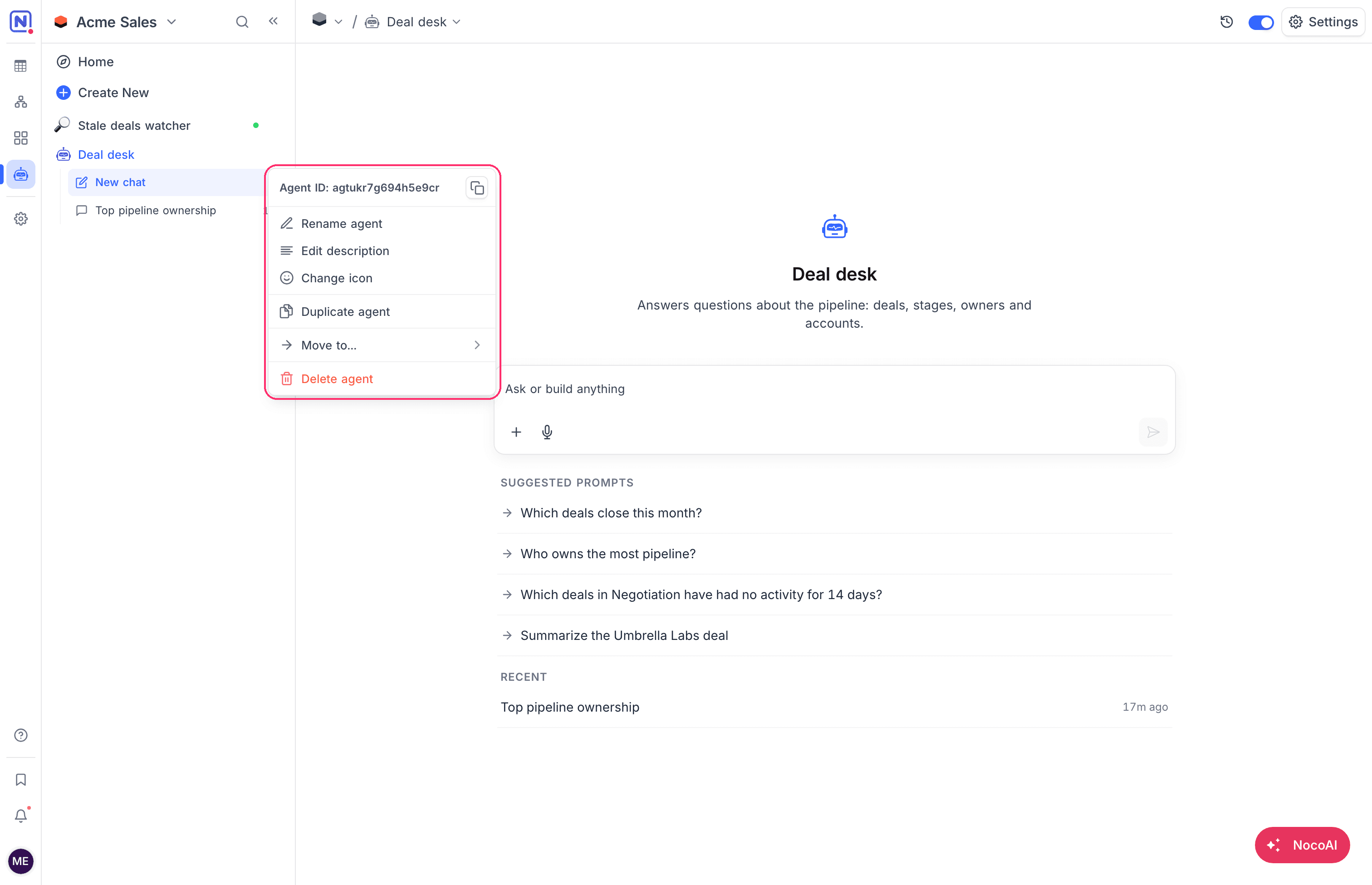
The menu of an agent in the sidebar has these actions:
| Action | What it does |
|---|---|
| Rename agent | Changes the name. Give each agent a name that is easy to tell apart from the others. |
| Edit description | Changes the description that shows under the name. |
| Change icon | Changes the icon of the agent. |
| Duplicate agent | Creates a copy of the agent. See Duplicate an agent. |
| Move to... | Moves the agent into a folder in the sidebar, or out of it. |
| Delete agent | Moves the agent to the project trash. |
The top of the menu shows the Agent ID. To copy it, for example for the API, click the copy button next to it.
Duplicate an agent
Duplicate agent creates a copy with the name of the agent and "copy", for example "Deal watcher copy".
The copy has the same instructions, files, access, role, triggers and skills. It has the same status as the original. A copy of a Live agent is also live, and its triggers start at once. Turn the copy off first if it must not run yet.
Some items are different in the copy:
| Item | In the copy |
|---|---|
| Channels | Not copied. Connect the channels of the copy again. |
| Results by email | Go to you, the person who made the copy. |
| Results to Slack | Go through a Slack connection that you can use. Without one, the results stay in the chat. |
| A draft | The copy is a turned-off agent, not a draft. |
| Repositories of a coding agent | Copied. Triggers point to the copied repositories. |
| Machines of a coding agent | Not copied. The copy starts on the base machine. |
Delete and restore an agent
- In the sidebar, open the menu of the agent.
- Click Delete agent.
- Confirm. NocoDB moves the agent to the project trash.
To restore an agent:
- Open the project trash.
- Restore the agent.
Related
Last updated on