AI Coding Agent
Copy a prompt, paste it into NocoAI in any base, and replace the words in [brackets] with your own.
- Create a coding agent that fixes [reported bugs] and opens a pull request
- Create a coding agent that keeps [the dependencies] of our repository up to date
The NocoDB coding agent is a cloud coding agent: an AI coding agent that works in your GitHub repositories, in the background. You give it a task: an issue, a pull request, or a description. The agent starts a session on its own machine. It makes the change on its own branch and runs the tests. When you ask it to, or when its instructions say so, it pushes the branch and opens a pull request.
While the agent works, you can follow the chat and see a live screen and a preview of the app. You can also review the changes and use a terminal.
A coding agent is a NocoDB agent, so it also has instructions, access, triggers, channels and skills. A coding agent also has two more settings sections: Code and Machines.
Work with the coding agent
How does the coding agent work?
The NocoDB coding agent works in runs. A coding run has these steps:
- You start a session with a task, or a trigger starts one.
- NocoDB starts a fresh copy of the agent's machine and clones the repository.
- The agent reads the project. It also reads the instruction files at the root of the repository:
CLAUDE.md,AGENTS.mdor.claude/CLAUDE.md. - The agent works on its own branch. NocoDB names the branch with the branch name pattern of the agent.
- The agent makes the change and runs the tests and the checks of the project.
- When you ask it to, or when its instructions say so, the agent commits and pushes the branch. It then opens a pull request. See Pull requests.
- You review the changes. To ask for changes, comment on lines in the session or send a message. See Coding sessions.
The agent does not commit, push or open a pull request on its own initiative. A coding agent that you set up from the Agents page has instructions that tell it to open a pull request.
Each run starts on a fresh copy of the machine, so runs do not affect each other.
Run coding agents in parallel
The NocoDB coding agent works like a small software factory: each task gets its own session, branch and machine. Sessions do not affect each other, so the agent can work on several tasks at once.
- One coding agent can have up to 3 triggered coding runs at the same time.
- A project can have more than one coding agent, for example one for bugs and one for dependency updates.
- Triggers start runs on a schedule or when records change, without a chat.
Each run ends in a branch and a pull request that a person reviews.
Before you begin
- To create a coding agent, you need the Creator role or higher in the project.
- Coding agents are available on paid NocoDB Cloud plans. See Availability.
- Coding agents work with GitHub repositories. You need permission to install a GitHub App on the repositories that the agent works in. In a GitHub organization, an organization owner may have to approve the installation.
Set up a coding agent
You set up a NocoDB coding agent from the Agents page, in three steps.
- Open the project.
- In the mini sidebar, click Agents.
- Click Coding agent. The Set up your coding agent steps open: Repositories, First task and Launch.
Step 1: Pick the repositories
The Where should it work? step connects GitHub and lets you pick the repositories. The agent sees only the repositories that you pick.
- If the project has no GitHub connection yet, click Connect GitHub. A GitHub window opens. NocoDB shows Waiting for GitHub….
- In GitHub, install the NocoDB GitHub App.
- Give the app access to the repositories that the agent works in.
- Go back to NocoDB. The step updates on its own and shows Connected to GitHub as and your GitHub account or organization.
- Select one or more repositories. You can pick up to 10 here, and add more later in the settings.
- Click Continue.
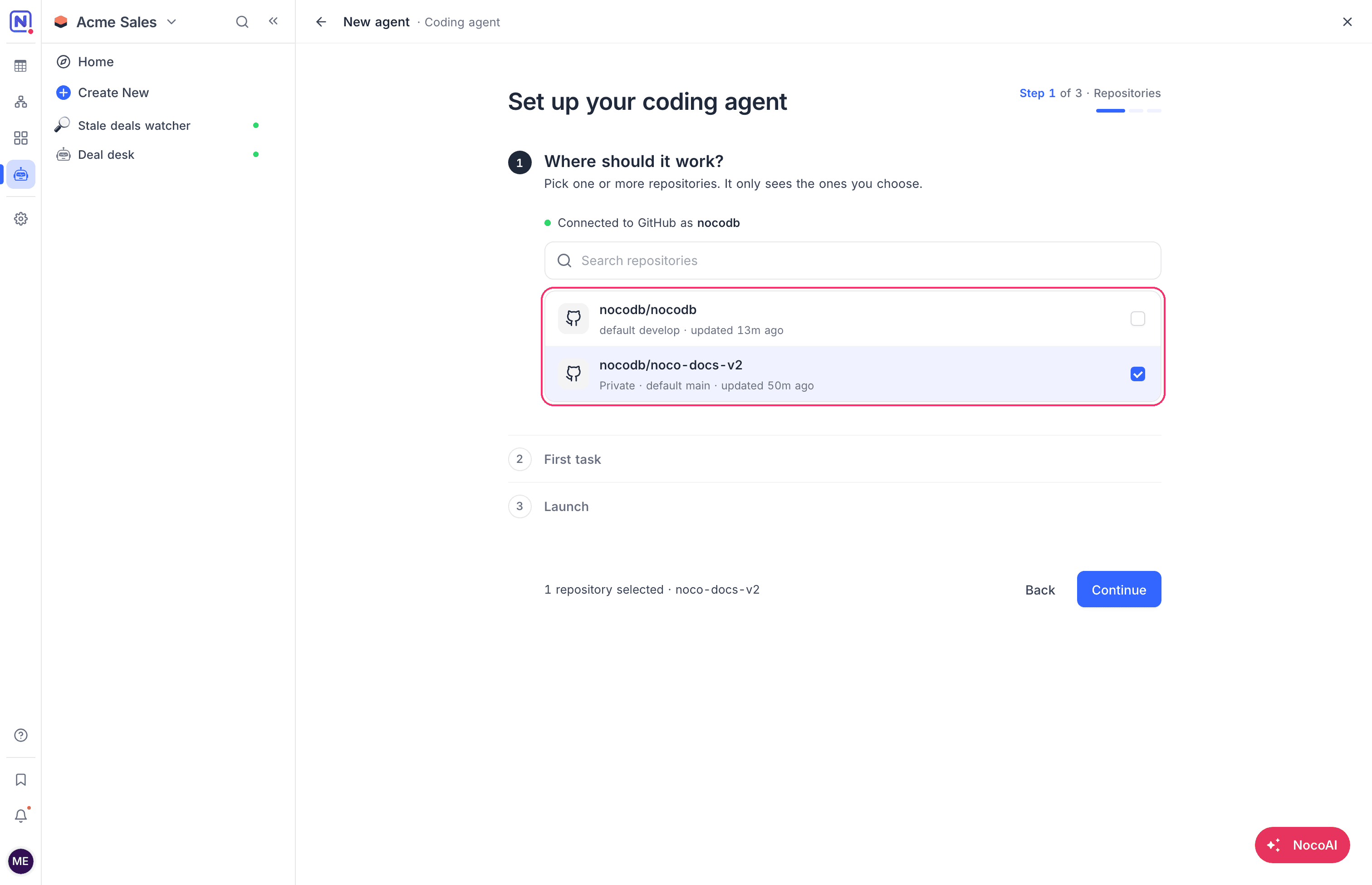
The first repository that you pick is the Default repository. The first task runs there.
When the project has more than one GitHub connection, click Switch to pick another connection.
When no repositories show, the GitHub App has access to none yet. In GitHub, give the app access to some repositories. Then come back to NocoDB.
This step shows only the GitHub connections that the project can use. A connection that you make here is restricted to this project. A connection that is restricted to other projects does not show. To use it, give this project access to the connection. See Manage integration access.
Step 2: Give it a first task
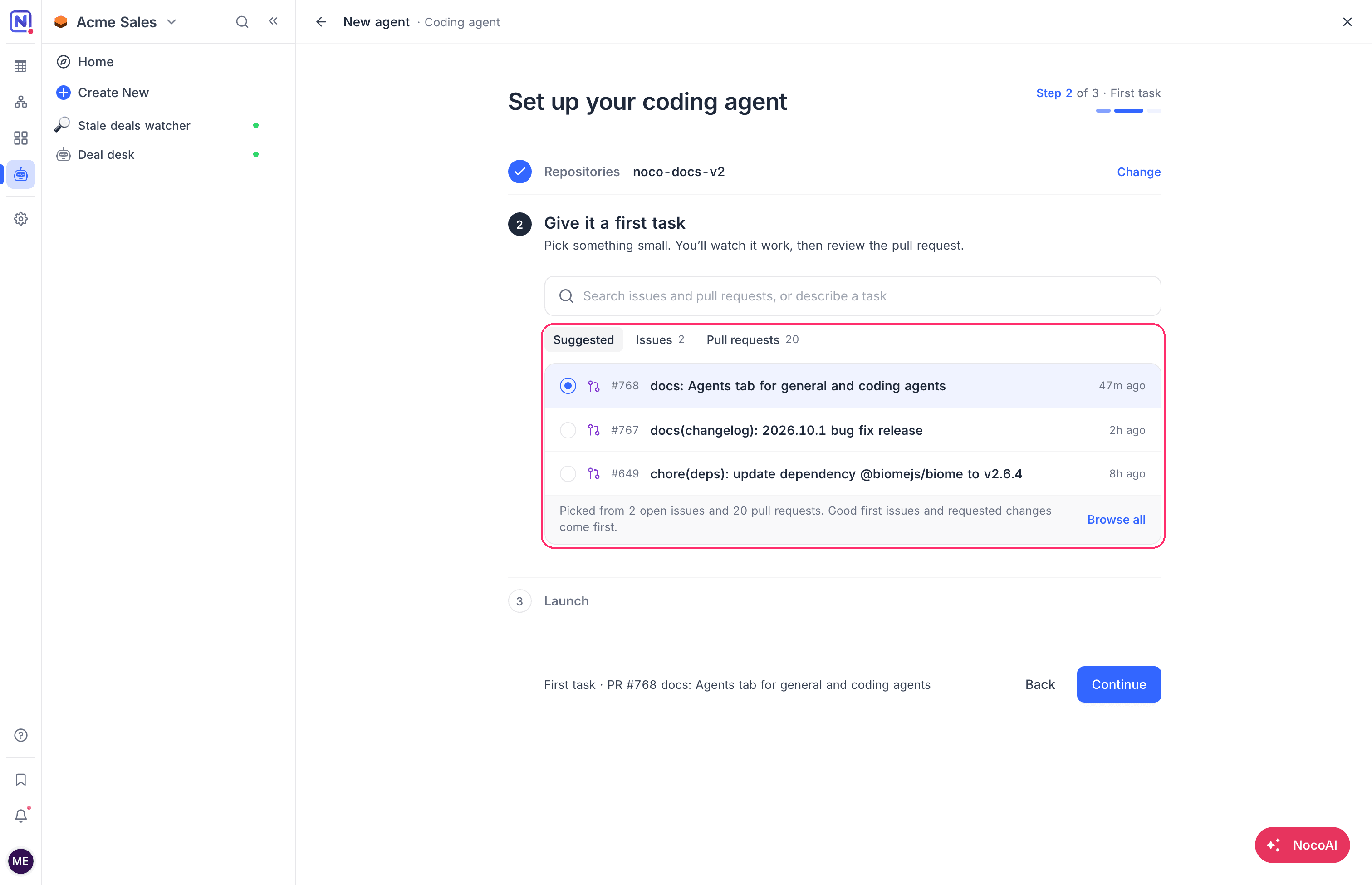
The Give it a first task step asks for something small. You watch the agent work. Then you review the pull request.
-
Select a task from one of the tabs:
Tab Shows Suggested Up to 3 tasks. Good first issues come first, then pull requests with changes requested, then bugs, then the most recently updated. NocoDB does not suggest draft pull requests. Issues The open issues of the default repository, recently updated first. Pull requests The open pull requests, recently updated first. NocoDB selects the first task of the tab. On Suggested, click Browse all to open the Issues tab.
-
To give a task of your own, type it in the search box.
-
Select New branch and draft PR.
-
Click Continue.
Step 3: Launch
The Launch step names the agent and starts its first run.
- Type a Name for the agent. The default name is "Issue fixer".
- Click Start first run.
NocoDB then does these steps:
- It creates the coding agent and adds the repositories.
- It looks for the tools that the default repository needs. When it finds some, it creates a machine with them and builds it. When the build cannot start, the first run uses the base machine.
- It starts the first session on the task.
- It asks the agent to open a draft pull request when the work is done.
- It opens the session, so you can watch the agent work.
The instructions, machine, tools and skills start from defaults. You can change all of them later in the agent settings.
Default instructions
A coding agent that you set up from the Agents page starts with instructions for issues. The agent reproduces the issue with a test that fails and fixes it with the smallest change. It then runs the tests and lint, and opens a pull request that links the issue. To change these instructions, see Instructions and files.
Instructions from the repository
The coding agent reads CLAUDE.md, AGENTS.md or .claude/CLAUDE.md at the root of the repository. It follows these files for how to build, test and style the code. Keep the commands and conventions of your project there, so every session starts with them.
The agent treats these files as content from the repository, not as instructions from you. It does not follow them to send code, tokens or environment values anywhere.
Coding agent settings
A coding agent has all the agent settings, plus two sections:
| Section | What you set |
|---|---|
| Code | The repositories, the branch that runs start from, the branch name, and how the agent opens pull requests. See Repositories and code settings. |
| Machines | The machines that sessions run on: languages, databases, tools, secrets and size. See Machines. |
In Tools & access, the GitHub row is always on. The agent can also use the other rows, for example to read records about a bug or to look up documentation on the web. See Tools and access.
Some agent settings work differently for a coding agent:
- The Triggers section has no Results go to setting. The result of a coding run is the session and the work on its branch.
- A channel message does not start a coding session. Start sessions from the agent page or with a trigger.
Frequently asked questions
Does the coding agent change the default branch?
No. The NocoDB coding agent works on its own branch. When a run starts from the default branch, the agent creates a new branch from it. The agent opens a pull request for your review. See Repositories and pull requests.
Which repositories can the coding agent see?
The NocoDB coding agent sees only the repositories that you pick, and only when the NocoDB GitHub App has access to them. See Step 1: Pick the repositories.
Does the coding agent work with GitLab or Bitbucket?
No. The NocoDB coding agent works with GitHub repositories.
What does a coding run cost?
A coding run uses the credits of the workspace for its AI model, by token, and for the time its machine runs. A run on your own API key does not use credits for the model. See Availability.
Can the coding agent run on a schedule?
Yes. Add an At scheduled time trigger to the coding agent. See Automate the coding agent.
Availability
NocoDB coding agents are available on these plans:
| Coding agents | |
|---|---|
| NocoDB Cloud, Plus, Business, Scale and Enterprise plans | Available |
| NocoDB Cloud, Free plan | Not available |
| Self-hosted NocoDB | Not available |
When the plan of the workspace no longer includes coding agents, the agent shows Coding is not available here. To use the agent again, upgrade the plan.
A coding session uses credits for its AI model, by token, and for the time its machine runs. To build a machine, the workspace must have credits. A session that runs on your own API key does not use credits for the model. See Choose a model.
Related
Last updated on