Repositories, Pull Requests and AI Code Review
A NocoDB coding agent works in your GitHub repositories. It fixes issues, opens pull requests, and does AI code review on the pull requests that you give it. The Code section of a NocoDB coding agent sets where the agent works and how it hands work back to you. It lists the GitHub repositories of the agent. It also sets the start branch of runs, the name of each new branch, and how the agent opens pull requests.
Before you begin
- To add or remove repositories and to change the code settings, you need the Creator role or higher in the project.
- Members with the Editor role can see the repositories. For members with a lower role, the Code section shows Repositories and machines need Editor access.
Open the Code section
The Code section is in the settings of the coding agent.
- Open the coding agent.
- In the top bar, click Settings.
- Go to Code.
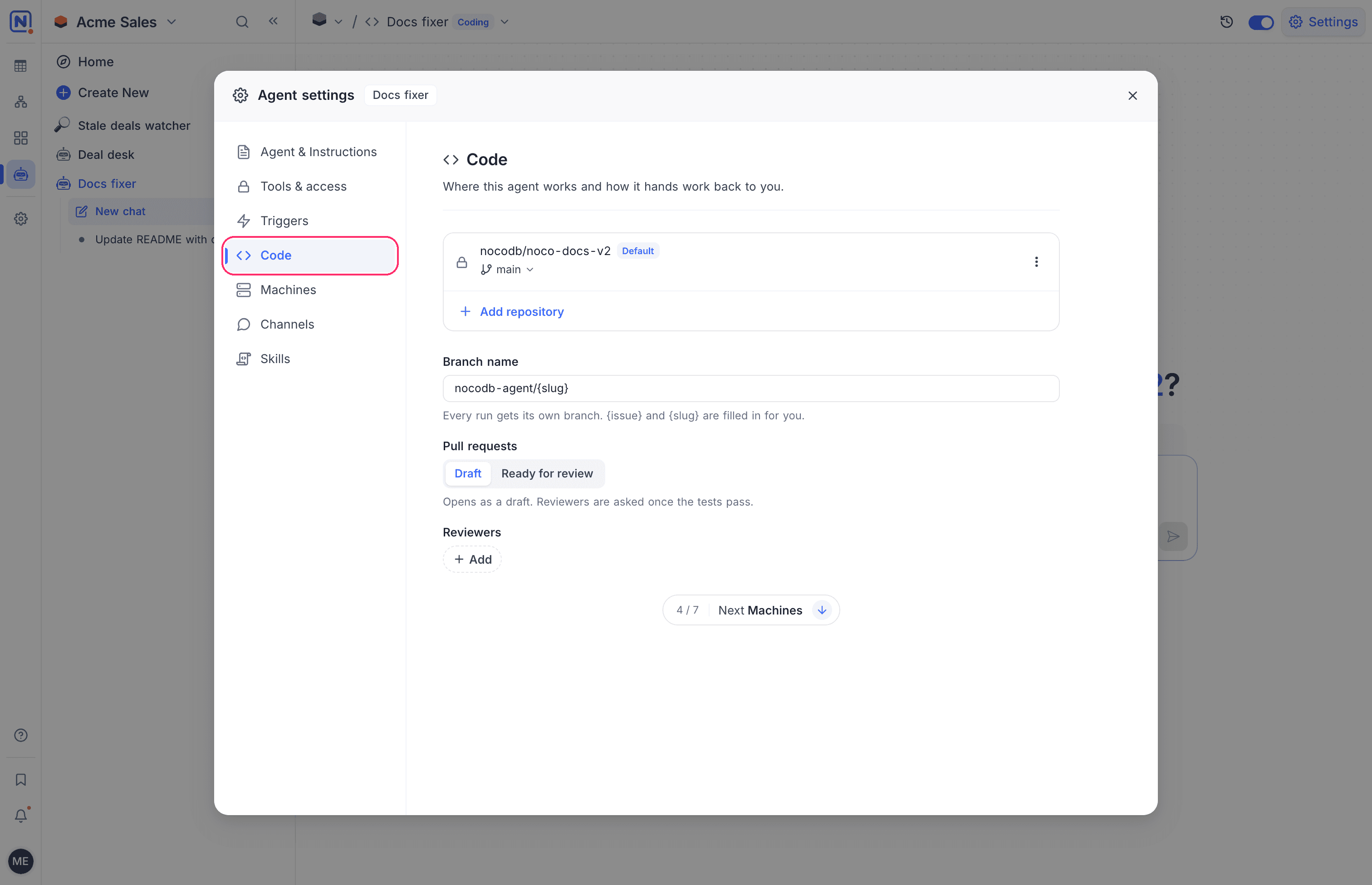
Repositories
A coding agent works only in its repositories. One repository is the Default repository: new sessions and triggers start there unless you pick another one.
Each repository row has these actions:
| Action | What it does |
|---|---|
| Open repository | Opens the repository in GitHub. |
| Make default | Makes the repository the default. NocoDB shows that it is now the default. |
| Remove | Removes the repository from the agent. |
Add a repository
The repositories of a coding agent come from a GitHub connection that the project can use. A coding agent can only use a GitHub connection that is a GitHub App installation. A coding agent cannot use personal access tokens or OAuth connections.
- In the Code section, click Add repository.
- Select one or more repositories.
- Click Add. The button shows the number of repositories that you selected.
When you add the first repository of an agent from the settings and the agent is turned on, NocoDB starts a setup session in it. NocoDB names the session "Set up" and the full repository name, for example "Set up acme/web".
In the setup session, the agent installs what the repository needs and makes it run. It then suggests a machine for the next sessions. It does not change tracked files, and it does not commit or push.
Remove a repository
You remove a repository from its row in the Code section.
- In the row of the repository, click Remove. NocoDB asks Remove repository?
- Confirm.
After you remove a repository:
- New sessions cannot start in it.
- Triggers that used it run on the default repository.
- Sessions that already work in it keep their work.
- When it was the default repository, the next repository becomes the default.
A repository that is no longer connected
When the GitHub App is uninstalled or suspended, or loses access to a repository, NocoDB turns the repository off. Its row shows a warning icon. The tooltip says The connection no longer covers this repository. Reconnect it to start sessions here. Sessions cannot start in it.
To use the repository again:
- In GitHub, give the GitHub App access to the repository again.
- In NocoDB, remove the repository from the agent.
- Add the repository again.
A repository that lost its access cannot be the default repository.
Start from branch
Start from branch sets the branch that runs start from, for each repository. The default is the default branch of the repository. Pick another branch to start runs from it, for example a develop branch.
The branch of a session is fixed when the session starts. Later changes to this setting apply to new sessions.
Branch name
Every run works on its own branch. Branch name is the pattern for the names of these branches. The pattern can use two placeholders:
| Placeholder | Filled with |
|---|---|
{issue} | The number of the issue or pull request that the run works on. When the run has none, NocoDB leaves it out, with the separator in front of it. |
{slug} | A short name for the work, plus a random 6-character tag that keeps each branch unique. For an issue or a pull request, the name has its number and the repository name. For a task that you describe, it has a few words of the task. |
The default pattern is nocodb-agent/{slug}. The pattern must contain {slug} and must be shorter than 100 characters.
For example, with the pattern agent/{slug}, a run on issue 42 of the acme/web repository works on a branch like agent/issue-42-web-k3x9qa.
The branch that a run works on depends on how the run starts:
| The session starts from | The agent works on |
|---|---|
| An issue, or a task that you describe | A new branch from the start branch, named with the pattern. |
| A pull request | A new branch with the code of the pull request, named with the pattern. |
| An existing branch | That branch. When you pick the default branch or the start branch, the agent works on a new branch from it. |
Pull requests
Pull requests sets how the agent opens pull requests:
| Option | What happens |
|---|---|
| Draft | The pull request opens as a draft. When the checks of the repository pass, the agent marks it ready for review and asks the reviewers. When the repository has no checks, the agent marks it ready at once. Draft is the default. |
| Ready for review | The pull request opens ready for review, and the agent asks the reviewers at once. |
The Pull requests setting applies when the agent opens a pull request: when you ask it to, or when its instructions say so. The first run of a new coding agent asks for a draft pull request, whatever this setting is.
Reviewers
Reviewers are the GitHub users that the agent asks to review its pull requests.
- In Reviewers, click Add.
- Search for a person.
- Select the person.
You can pick people who can be assigned to issues in the repositories of the agent, that is, people with push access. You can add up to 10 reviewers. When nobody else has access to the repositories, NocoDB shows No one else can review in these repositories.
AI code review on pull requests
The NocoDB coding agent can review an open pull request of its repository in a coding session.
- Open the coding agent.
- Under From this repository, click the pull request. NocoDB fills the box with Review this pull request and suggest changes.
- Change the text, if necessary.
- Send the request.
The agent works on a new branch with the code of the pull request, named with the branch name pattern. When the agent opens an AI pull request with its changes, it follows the Pull requests setting. See Start a session.
Related
Last updated on