Fields
Fields set the structure and the data type of each record in a table. Fields control how you enter data and how NocoDB shows and reads it. Use fields to store names, numbers, dates, selections, or calculated values.
This section describes the field types, their settings, and how to select the correct field type for your use case. When you know how fields work, you can design better tables and keep your data consistent across your workspace.
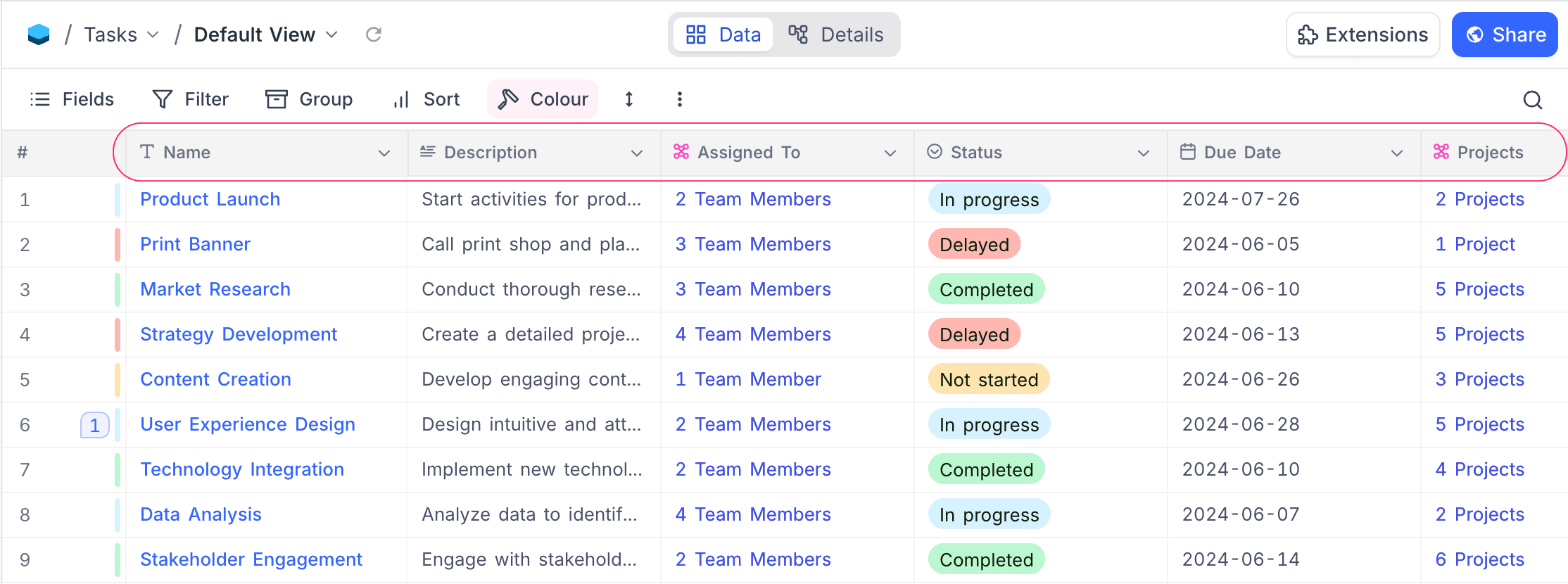
Two fields in a table are special: the primary key and the display value.
| Field | What it is | Unique |
|---|---|---|
| primary key | A technical identifier for each record. NocoDB uses it for backend operations such as updates and deletions, and to keep data integrity. It is usually hidden from end users. | Always |
| display value | A label that people can read, such as a name or a title. The interface uses it to help users find and link records. | Recommended, but not enforced |
The primary key keeps record management consistent. The display value makes records easier to identify.
Copy a prompt, paste it into NocoAI in any base, and replace the words in [brackets] with your own.
- Add a [Priority] field with the options [High, Medium and Low]
- Suggest fields that are missing from this table
- Add [an Owner user field and a Due Date field] to this table
- Change [Notes] to a long text field
Create a Field
To add a field to your table:
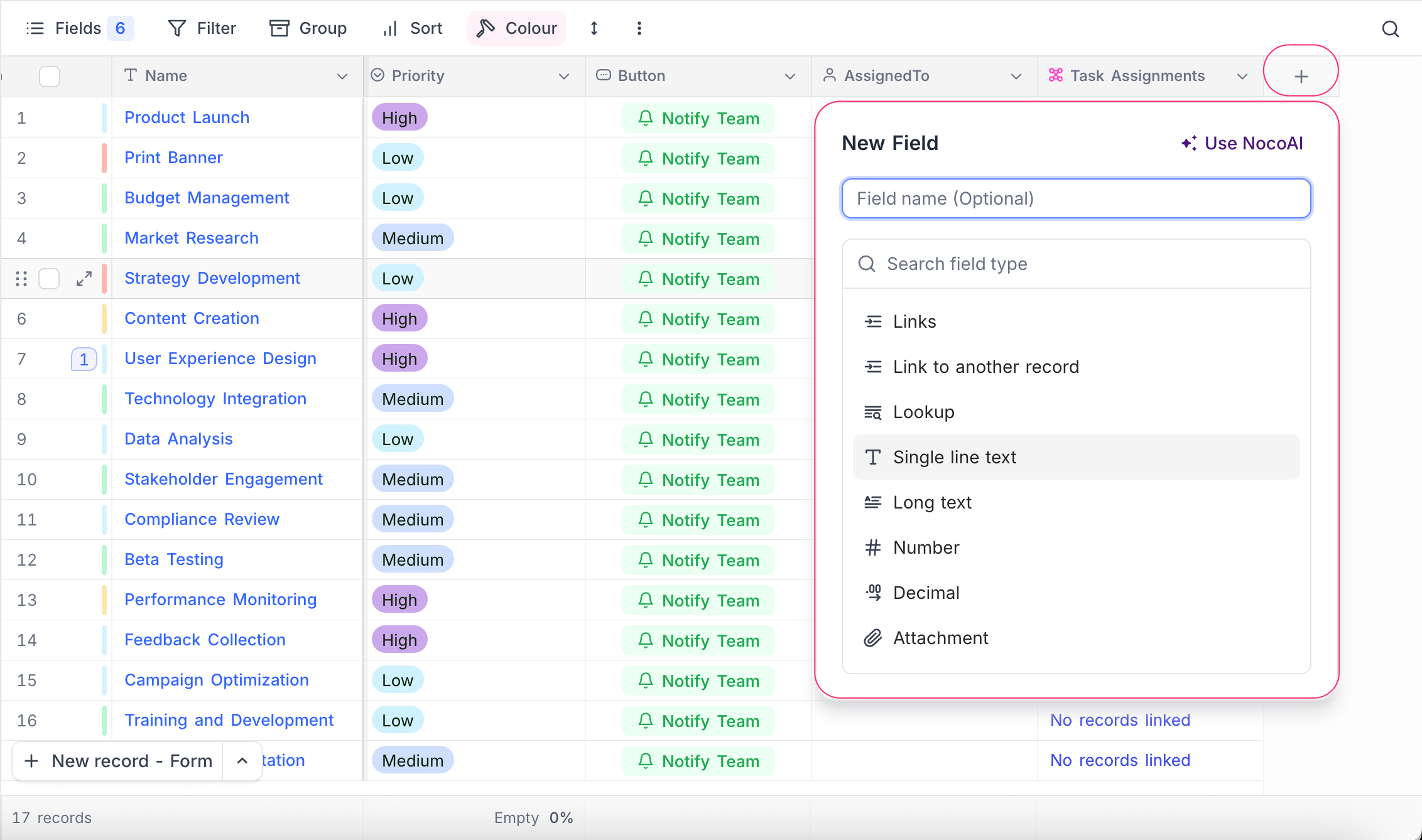
- In the table header, click the ➕ icon where you want the new field.
- In the New Field panel:
- Enter the field name (optional at first).
- Select the field type from the list (for example, Single line text, Number, or Lookup).
- Set other settings, such as the default value and the description, if necessary.
- To make the values unique, select Unique values only. Only some field types support this. For more details, refer to Unique Fields.
- Click Save Field.
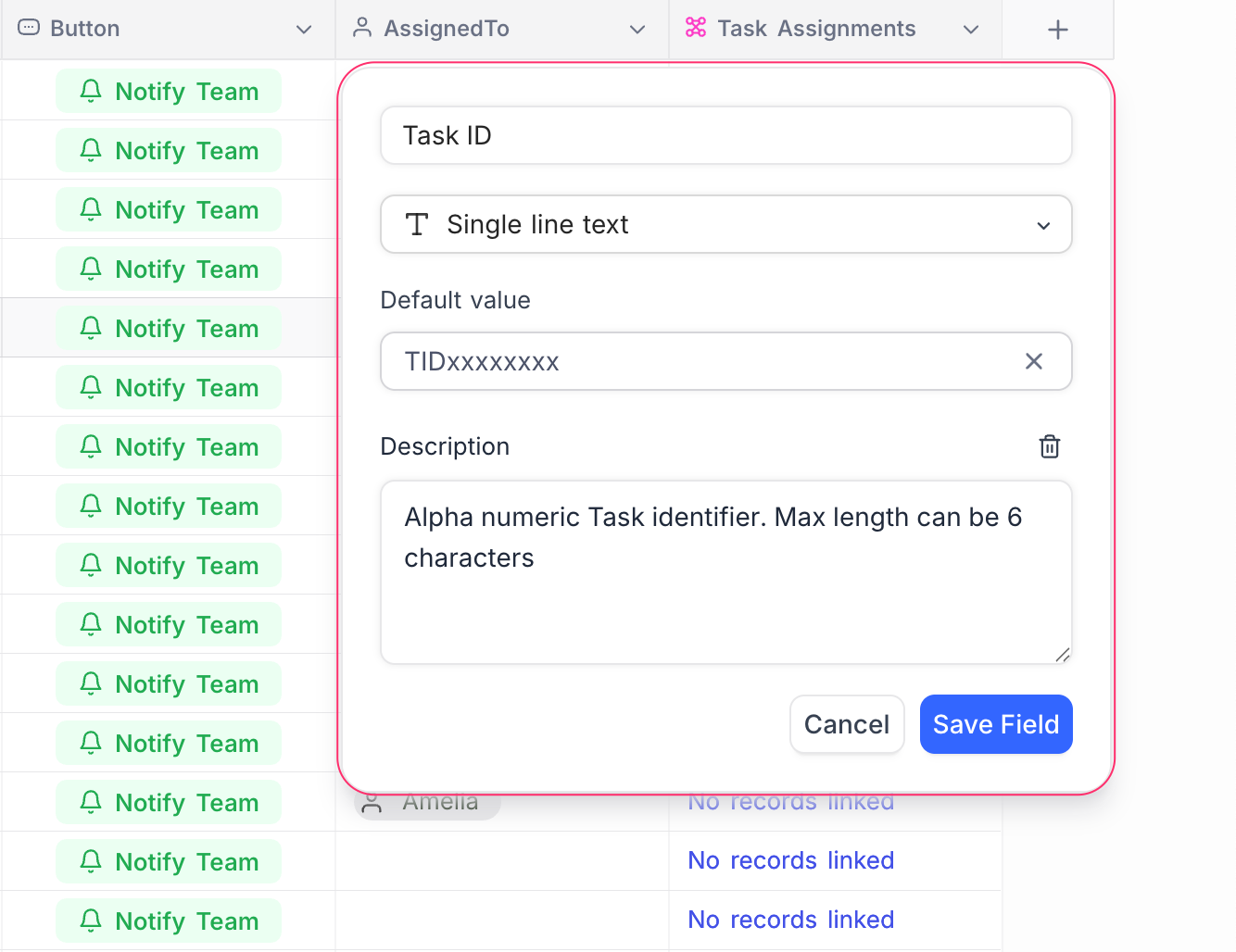
Some field types need more settings, such as allowed values, precision, formulas, or linked table settings. For details, refer to the page for each field type.
Field Default Value
You can set a default value when you create a field. NocoDB adds this value to new records that you create after you set it. It does not change existing records.
| Default type | Examples |
|---|---|
| Fixed value | "N/A", "Unknown" |
| Dynamic value (some field types only) | The current date, time, or user ID |
To set a default value, refer to Set default value.
Field Description
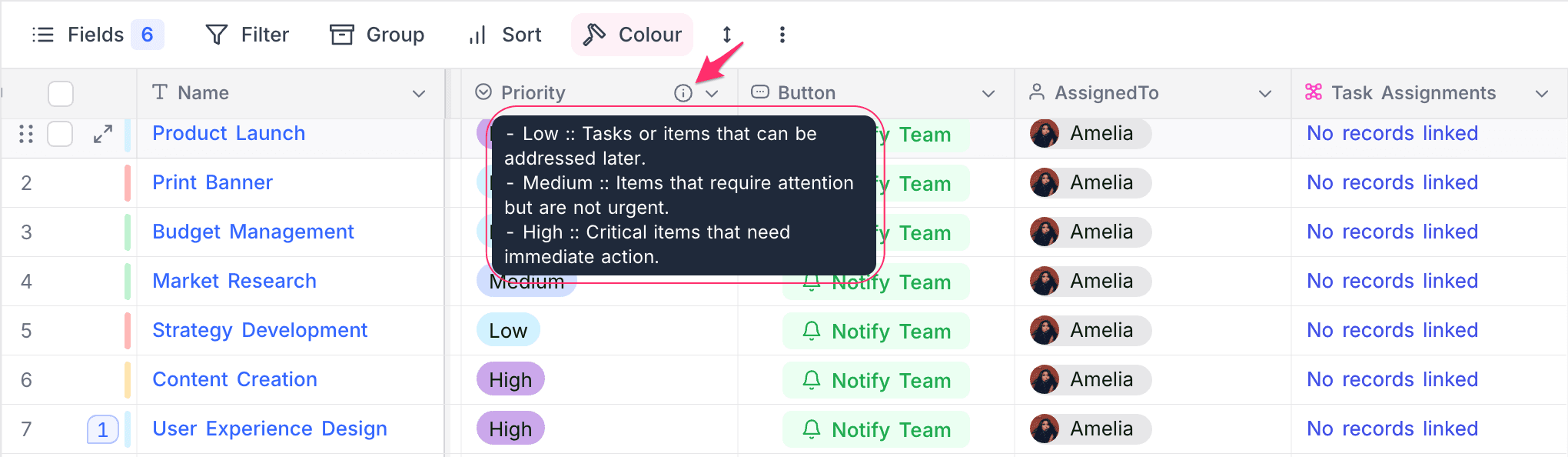
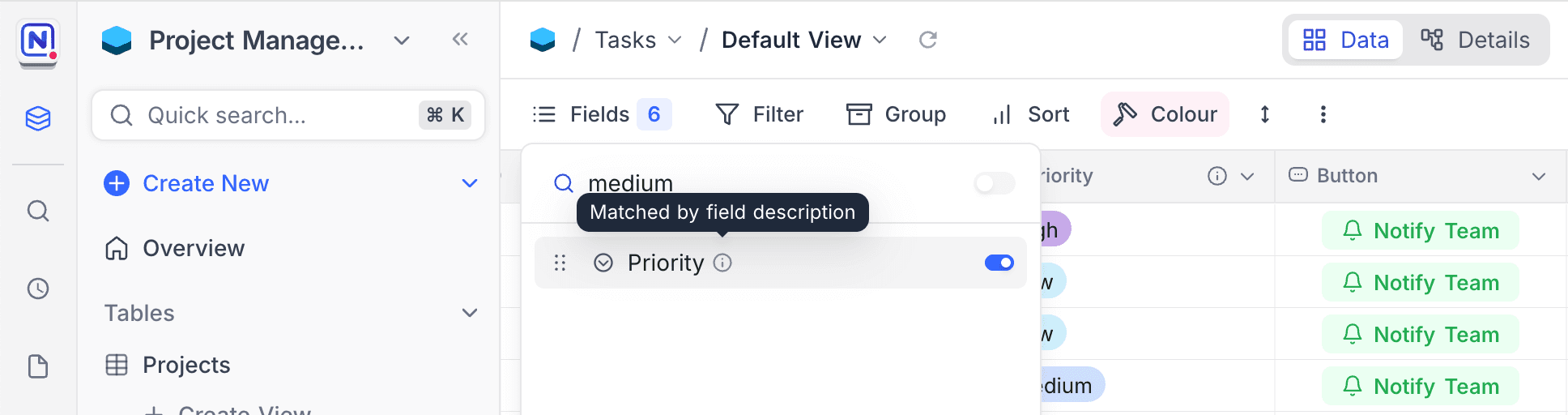
A field description gives context and guidance to the users of the table. This helps when many users work on the same data. A description can tell the purpose of the field, the expected values, or instructions for data entry.
The description shows as a tooltip when you hover over the i icon next to the field name in the table header. For more details, refer to Add/Edit Field Description.
Field Types
NocoDB has many field types, from basic text and number fields to linked records, formulas, and custom types. Each field type has a specific purpose. The table below lists all field types with a short description, to help you select the correct one.
| Field Type | Name | Description |
|---|---|---|
| Text based | Single line text | For short text entries like names or titles. |
| Long text | Suitable for paragraphs or detailed notes. | |
| Rich text | Long text with inline formatting and markdown shortcuts. | |
| Smart text | Document-style cell editor with blocks, tables, and embeds. | |
| Stores and validates email addresses. | ||
| Phone | For storing phone numbers. | |
| URL | Stores website or web resource links. | |
| Numerical | Number | Whole numbers, positive or negative. |
| Decimal | Numbers with decimal precision. | |
| Percentage | Represents numeric values as percentages. | |
| Currency | Stores monetary values with currency symbol. | |
| Date & Time | Date | Captures calendar dates. |
| Time | Stores time of day. | |
| Date and time | Stores both date and time in one field. | |
| Duration | Measures length of time (for example, hours or days). | |
| Select based | Single select | Allows choosing one option from a list. |
| Multi select | Allows selecting multiple options from a list. | |
| Link based | Links | Creates relationships between tables. |
| Lookup | Pulls data from linked records. | |
| Rollup | Aggregates values from related records. | |
| Custom types | Attachment | Upload and store files or images. |
| Barcode | Stores and displays barcodes. | |
| QR-code | Stores and displays QR codes. | |
| Geometry | For geographic or spatial data. | |
| GeoData | Stores latitude and longitude coordinates. | |
| JSON | Stores structured data in JSON format. | |
| Checkbox | Boolean toggle for true/false values. | |
| Rating | Displays star-based or numeric rating. | |
| Colour | Displays colour swatch & corresponding Hex code. | |
| Identifier | UUID | Auto-generates globally unique identifiers (UUID v4). |
| Auto Number | Auto-generates sequential numbers for each record. | |
| Formula | Formula | Computes values using expressions based on other fields. |
Unique Fields ☁
You can make some field types in NocoDB unique. Then no two records can have the same non-empty value in that field. Use this for email addresses, usernames, or other identifiers that must be different in each record.
In a unique field, empty cells are allowed, but duplicate non-empty values are not. To make a field unique, select Unique values only in the field settings when you create or edit the field. NocoDB then checks all new entries and updates against the uniqueness constraint.
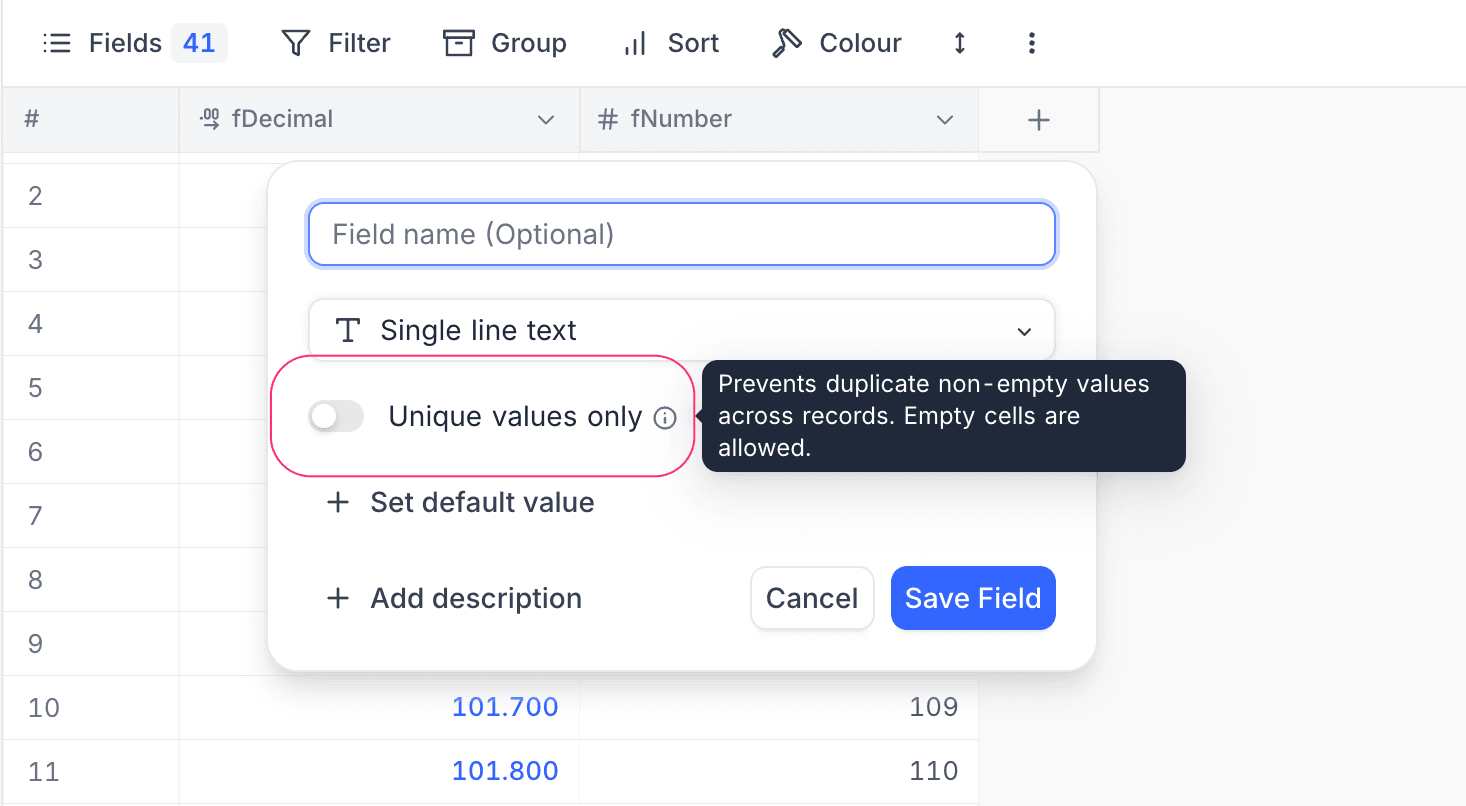
If a user enters a duplicate value in a unique field, NocoDB shows an error message. NocoDB does not save the record until the user enters a unique value.
These field types support uniqueness:
- Single line text
- Phone number
- URL
- Number
- Decimal
- Currency
- Percent
- DateTime
- Date
- Time
- Uniqueness can make large datasets slower. Turn on this option only when your application needs it.
- Uniqueness constraints work only for tables created in NocoDB (NC-DB). NocoDB cannot add uniqueness constraints to fields from external database tables.
- To change an existing field to a unique field, all its existing values must already be unique. If they are not, the change fails.
- A field cannot have both a default value and a uniqueness constraint. A unique field cannot have a default value.
- Unique fields allow empty values. Empty values do not break the uniqueness constraint.
Field Actions
You can also do actions on a field to change how it works and how it looks in your table. These actions are in the field’s context menu and the toolbar menu:
- Rename a field
- Change field type
- Set default value
- Adjust field width
- Hide or unhide fields
- Set as display value
- Sort by field (ascending/descending)
- Duplicate a field
- Insert new field before or after
- Delete a field
- Add or edit field description
For step-by-step instructions and images, refer to Actions on Field.
Last updated on