Multi-Field Editor
NocoDB offers a handy tool for easily managing the fields within a table. With this tool, you can add, modify, rename, arrange, or hide fields efficiently. It's particularly useful when creating a new table structure or making changes to an existing one.
Accessing the Multi-Field Editor
- Navigate to the table you wish to edit
- Click on
Toolsin the toolbar - Select
Manage fields
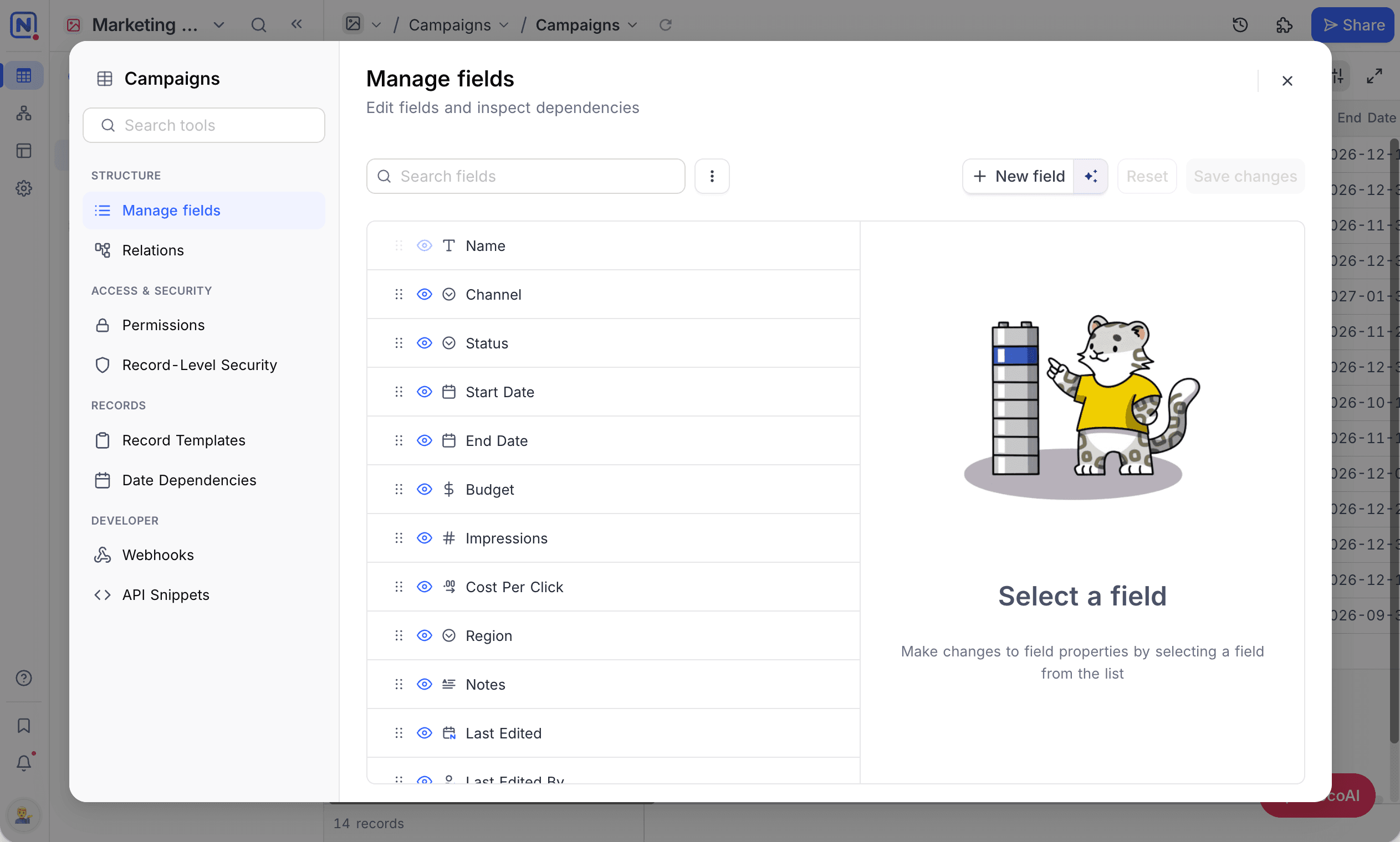
Adding fields
On the Multi-field editor page,
- Click
New field, or pressAltC, to add a field. - Enter the field name and select the field type; configure default value (optional).
- The field is added to the end of the list, marked
New field, and you can reorder it from there. You can add and update several fields before saving. - Click
Save changes, or pressCmdS, to apply them.
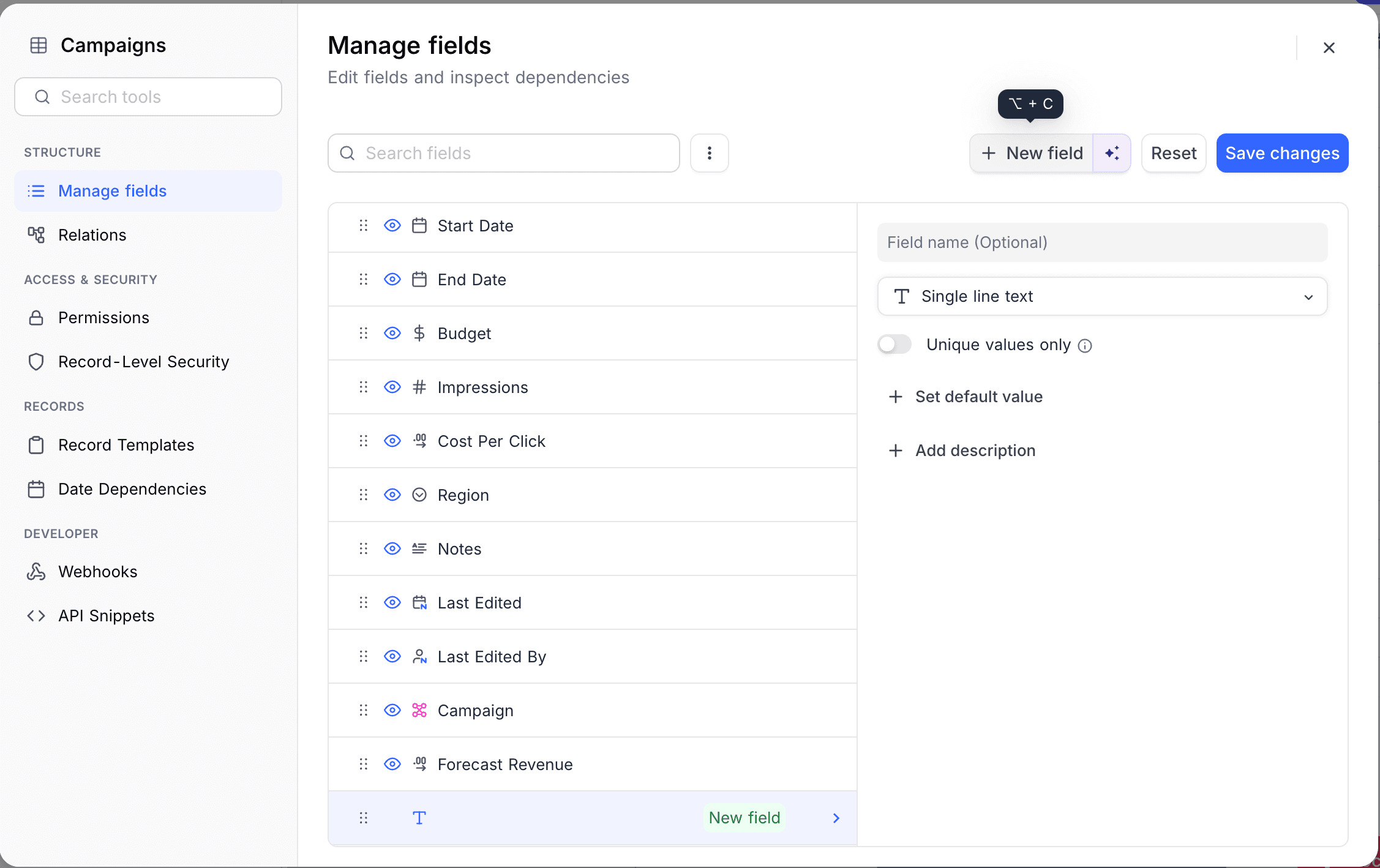
- You can add / update/ delete multiple fields & save changes in one go.
- Use
Restoreto discard edits to a particular field. UseResetto discard all active changes on multi-field editor.
Editing fields
On the Multi-field editor page,
- Click on the field you wish to edit.
- Make the changes in the properties panel on the right. You can update the field name, type, default value, and other attributes.
- The field is marked
Updated fieldin the list, with aRestorebutton to discard just that field's edits. You can update several fields before saving. - Click
Save changesto apply them.
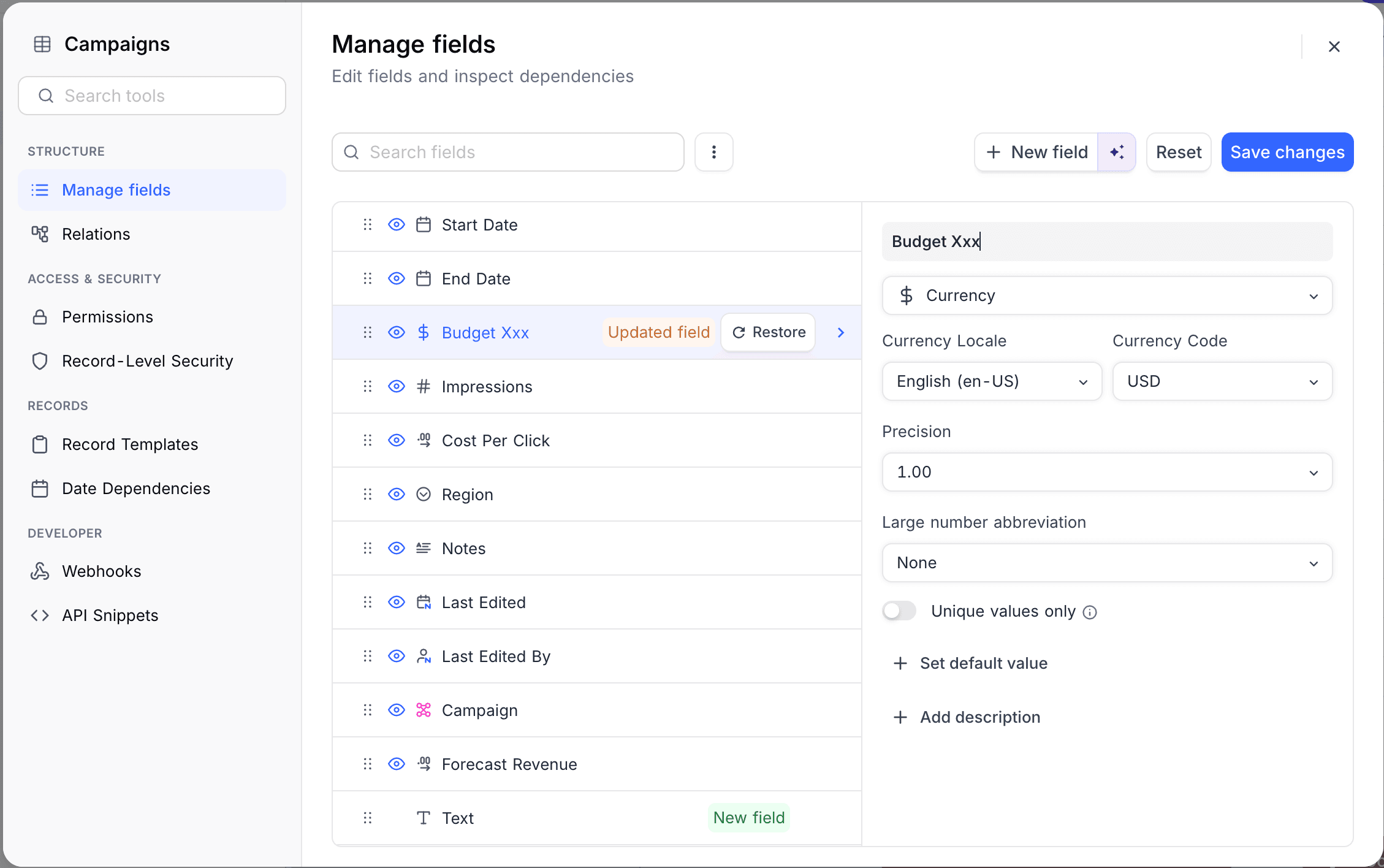
- You can add / update/ delete multiple fields & save changes in one go.
- Use
Restoreto discard edits to a particular field. UseResetto discard all active changes on multi-field editor.
Deleting fields
On the Multi-field editor page,
- Hover over the field you wish to delete and click the
...icon to open its menu. The menu also shows the field's ID, with a button to copy it. - Click
Delete field. - The field is marked
Deleted fieldin the list, with aRestorebutton. You can delete several fields before saving. - Click
Save changesto apply them.
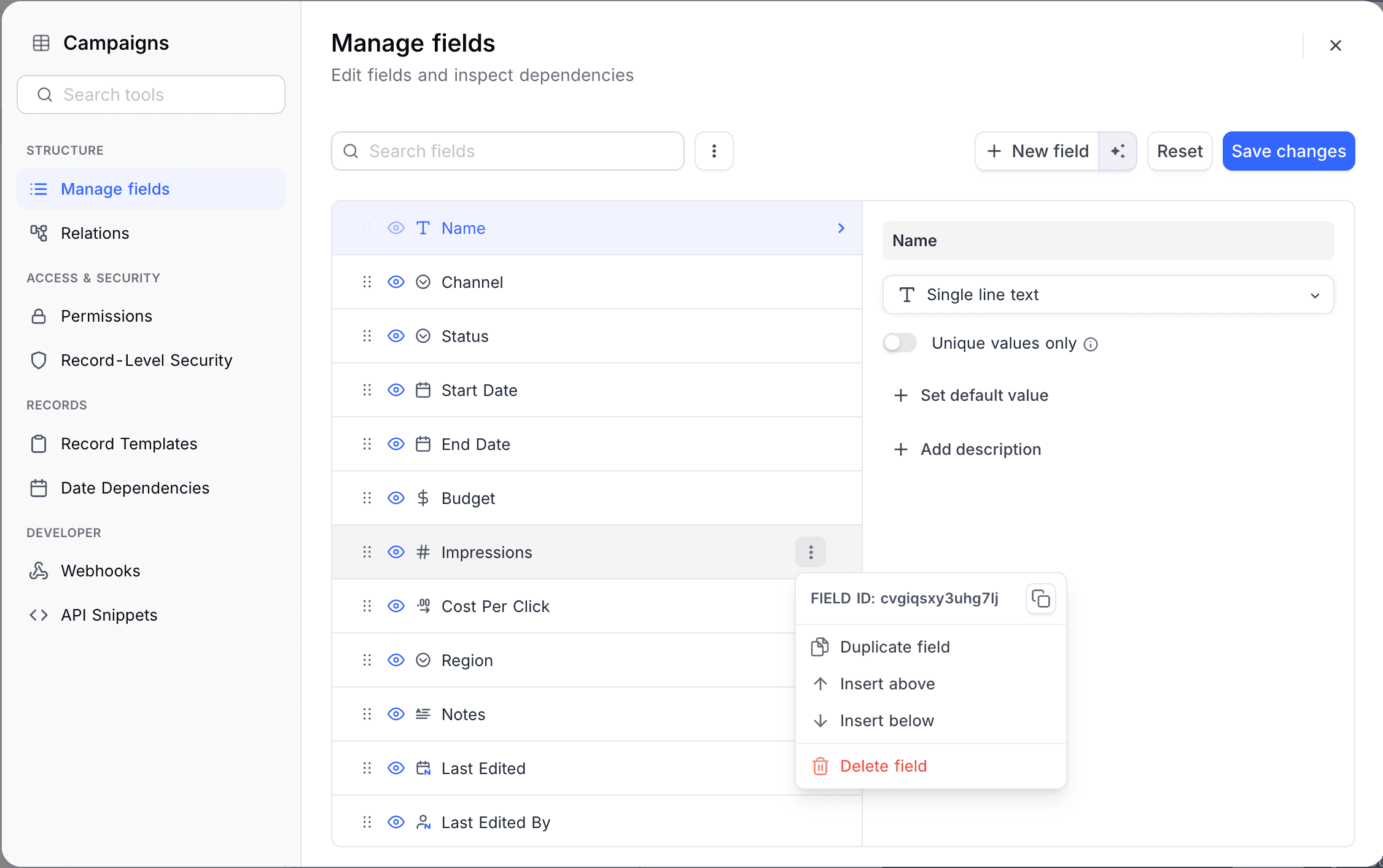
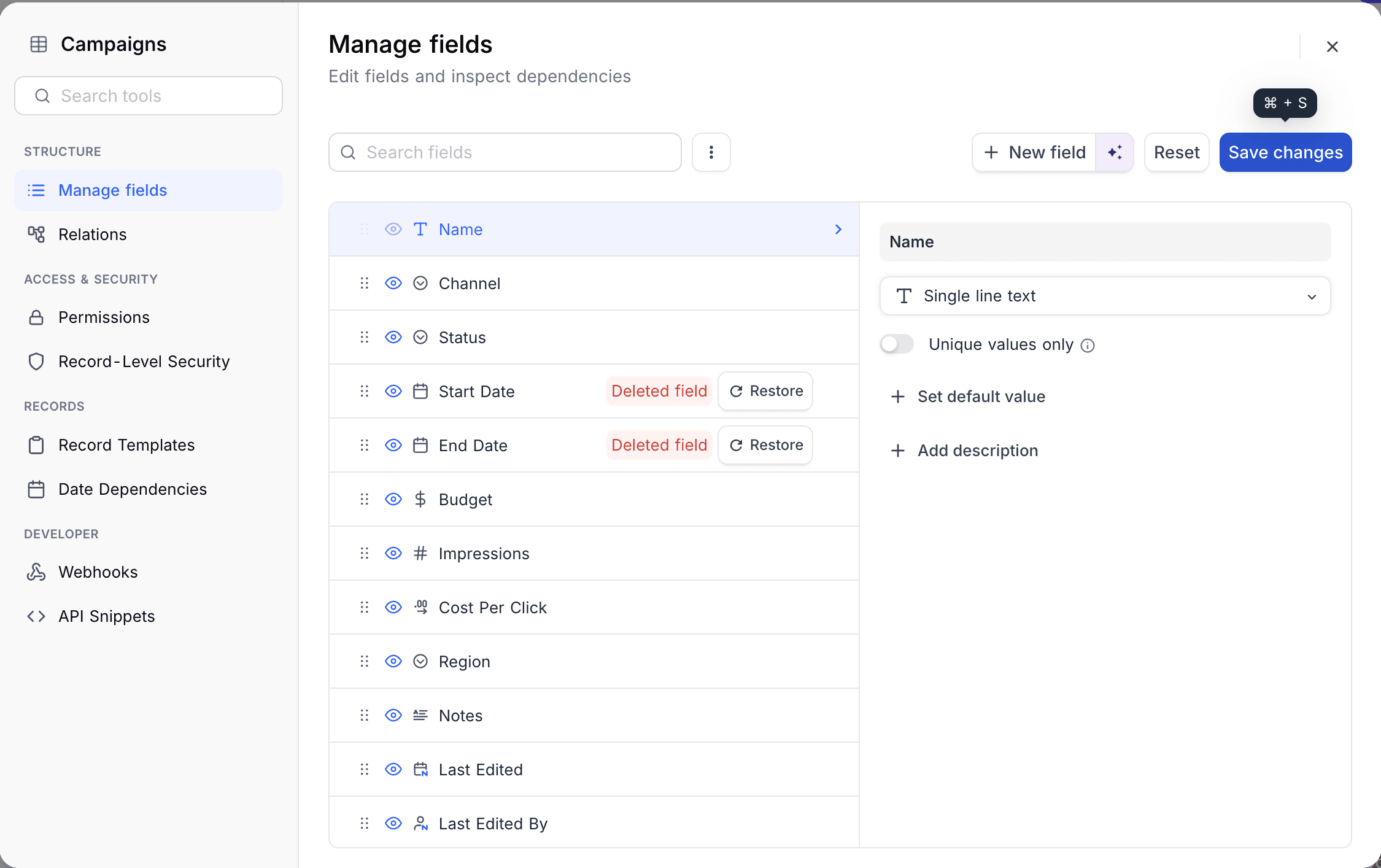
- You can add / update/ delete multiple fields & save changes in one go.
- Use
Restoreto discard edits to a particular field. UseResetto discard all active changes on multi-field editor.
Reordering fields
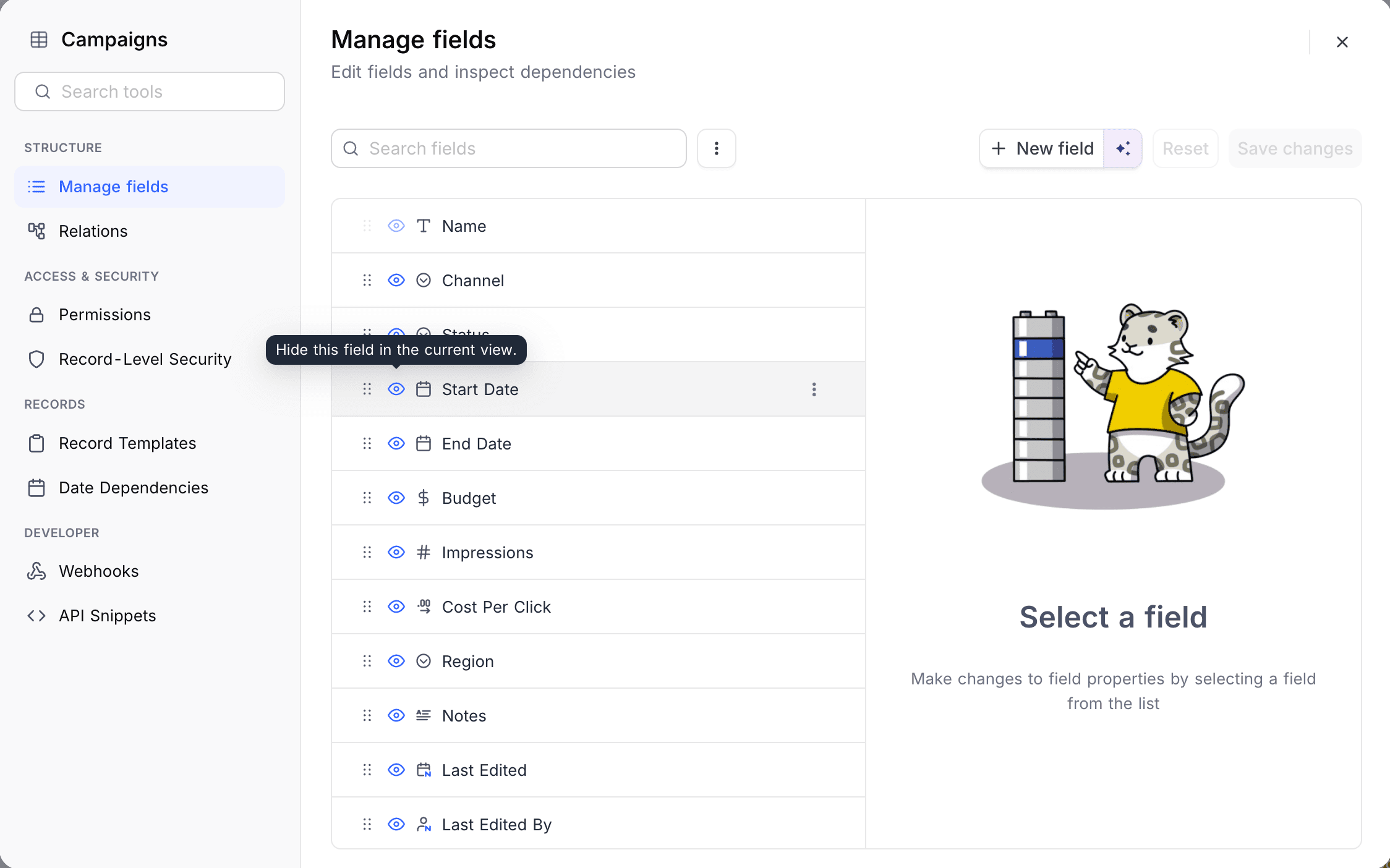
On the Multi-field editor page, use drag-drop handle to drag and drop the fields to reorder them.
The changes will only be saved when you click Save changes button.
Show / Hide fields
On the Multi-field editor page, click the eye icon next to a field to hide it in the current view, or to show it again.
The changes will only be saved when you click Save changes button.
Last updated on
Latest product updates?See Changelog