Use a Vault Reference
A NocoDB vault reference points a credential field at a secret in a connected vault. Once a vault is connected, a credential field can be backed by a secret in that vault instead of holding the value: Username and Password on a database connection (and, through the API, its TLS key, certificate and CA fields), the API key of an AI provider, and the token, password or API-key field of an authentication integration. The form shows Use a vault under each field that qualifies.
Vault references are available on database connections, AI providers and authentication integrations that take a static credential. OAuth sign-ins, and the sync, channel and action integrations built on them, take their credentials from the provider and cannot use a vault. Who may add a reference is set per vault. By default it is Workspace Owners for a workspace vault and the organization's owners and admins for an organization vault. An Editor cannot use an integration that holds a reference unless the vault's setting includes them. See Who can use a vault. Project roles grant nothing here.
Add a reference to a connection
-
Create or edit an integration from the workspace Integrations page: a database connection, an AI provider or an authentication integration.
-
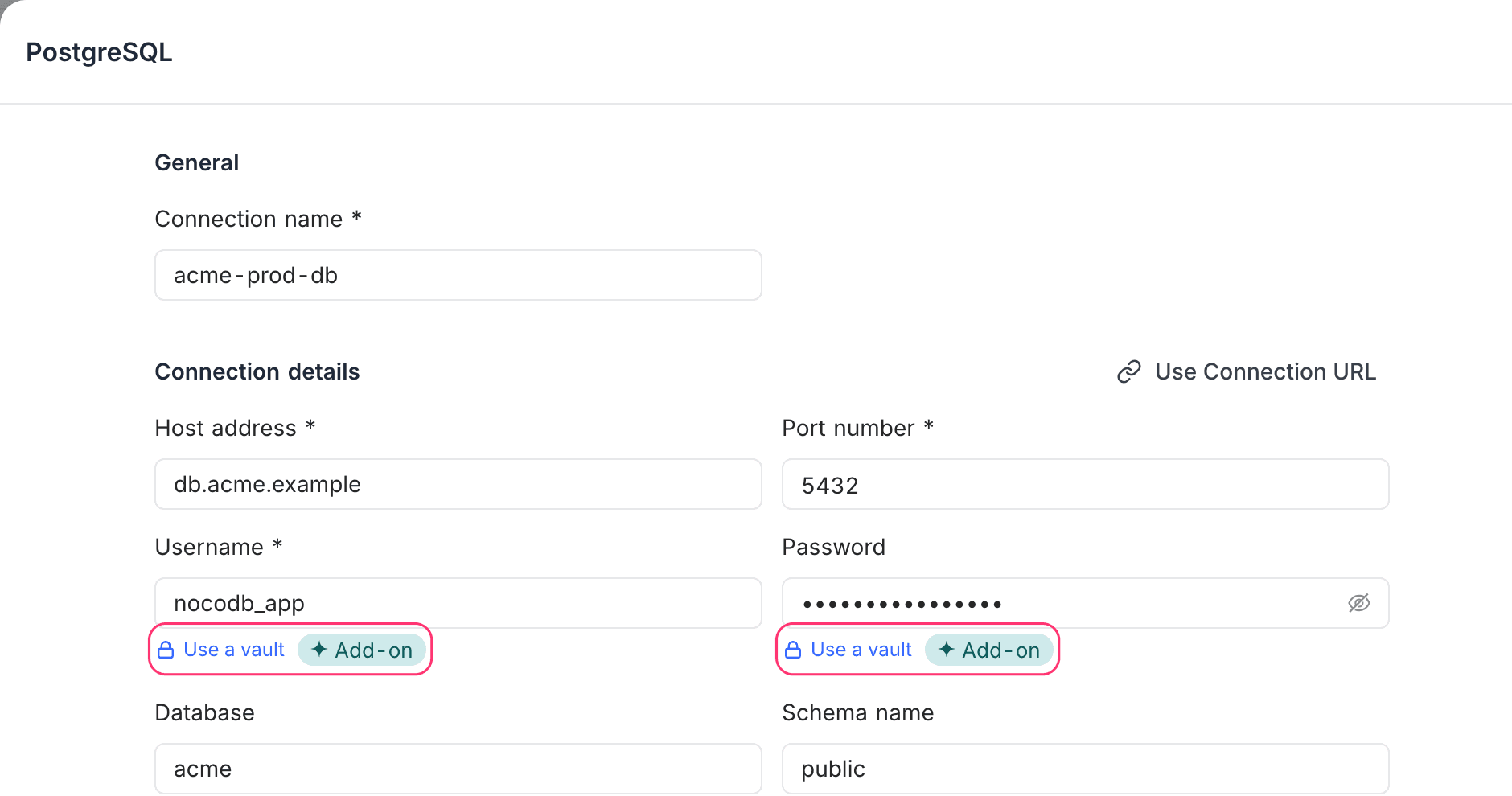
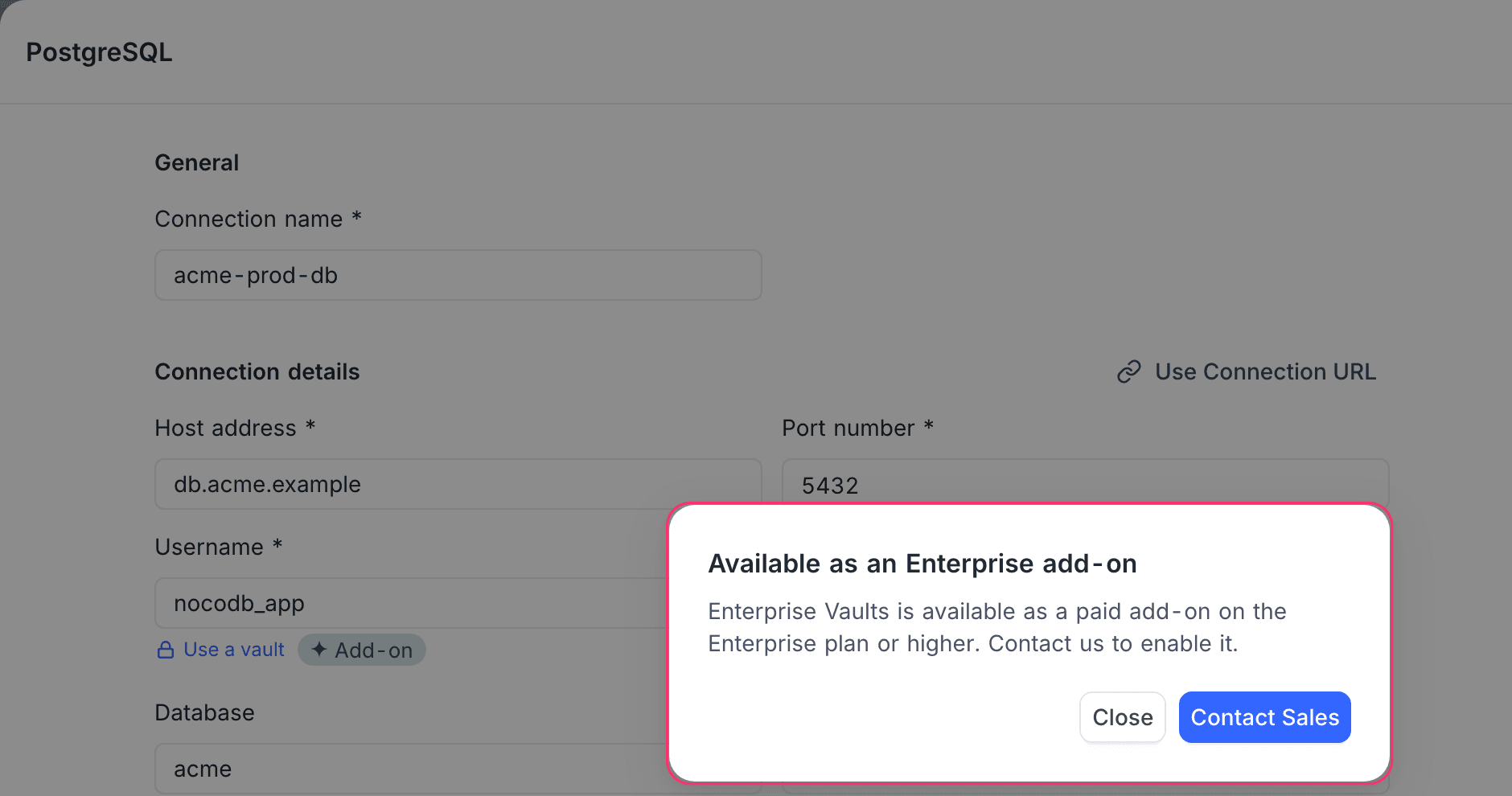
Under the credential field, click Use a vault. That is Username or Password on a connection, API key on an AI provider, or the token or password on an authentication integration. The option appears only under fields that may hold a reference, and only when at least one vault you are allowed to use is visible in this workspace. On a paid plan without the Enterprise Vaults add-on, the option shows anyway, with an Add-on badge, to people who can manage integrations, and opens Available as an Enterprise add-on instead. See Turning on Enterprise Vaults.
-
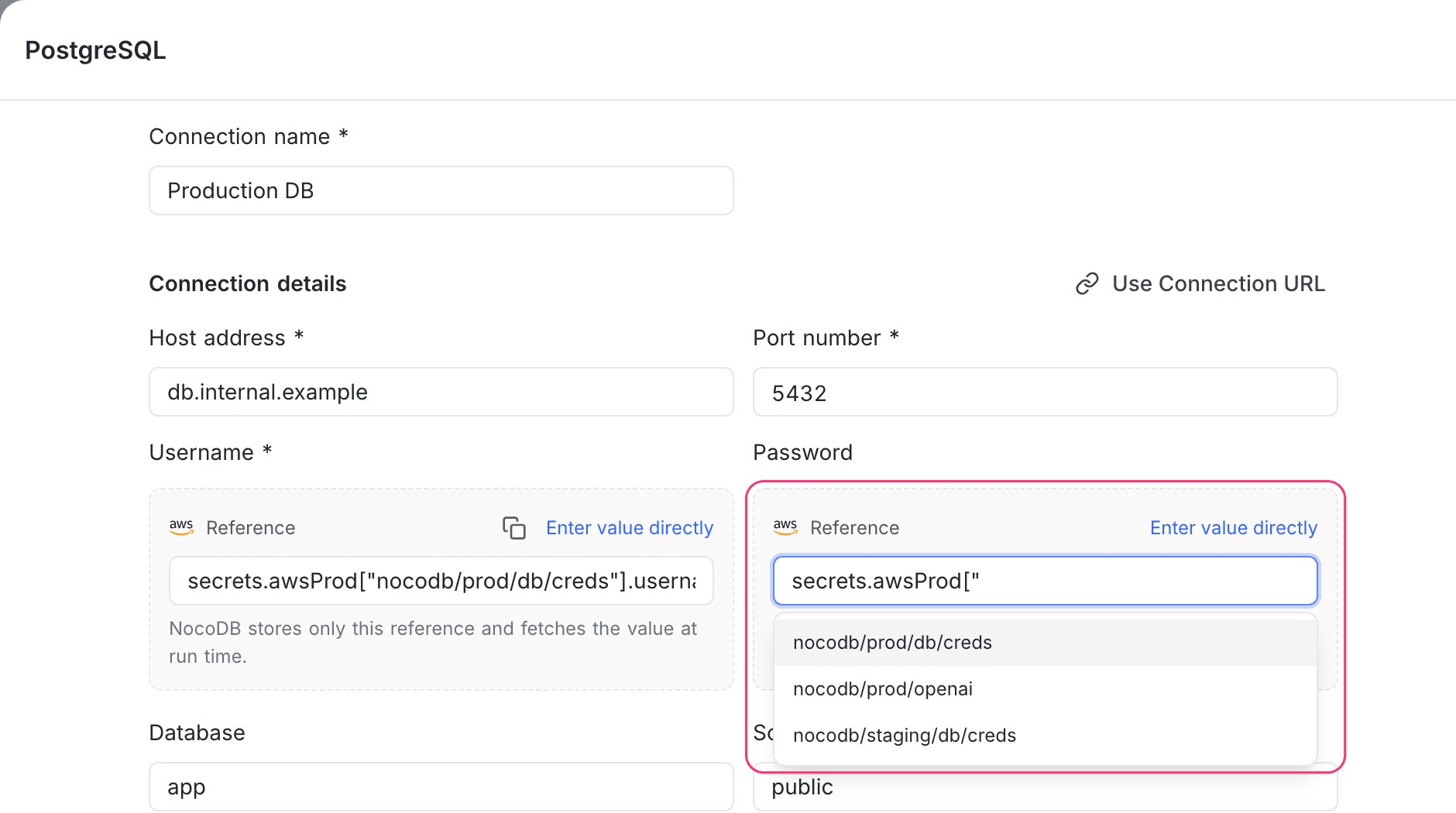
Type the reference in the Reference box. It starts with
secrets.and names the vault, then the secret, then the field inside the secret:secrets.awsProd["nocodb/prod/db/creds"].passwordSuggestions appear as you type: the vaults you may use after
secrets., and with an AWS Secrets Manager vault, that vault's secret names and then the field names inside the chosen secret. The other providers offer no listing, so you type the secret's id as the provider names it. You can always type a value that is not suggested.If you pick an AWS secret that holds several fields and stop there, the box warns: "This secret holds several fields. Pick the one to use, or the connection will fail when it runs."
-
Repeat for the other credential field.
-
Click Test connection where the form has one (database connections and authentication integrations): NocoDB resolves the references against the vault and tests with the values it gets back. An AI provider resolves them the first time it is used.
-
Save.
The copy button next to Reference copies what you typed, and Enter value directly switches the field back to a typed credential.
Without the add-on, Use a vault carries the Add-on badge and opens the add-on dialog instead:
How a reference is written
Each part is written either after a dot or inside brackets and quotes:
- A part made only of letters, digits,
_and$, not starting with a digit, can follow a dot:secrets.awsProd,.password. - Anything else goes in brackets and quotes:
["nocodb/prod/db/creds"]. AWS secret names usually contain/, so they are almost always bracketed.
The vault part is the vault's reference name, which is always letters and digits, so it never needs brackets. It must match the name exactly, including case: two vaults cannot differ only in case, but awsprod does not find awsProd. A field nested deeper inside a JSON secret adds another part, for example secrets.awsProd["nocodb/app"].db.password.
What goes in the secret part depends on the provider:
| Provider | The secret part is | A field after it |
|---|---|---|
| AWS Secrets Manager | the secret's name, or its full ARN for a secret in another account | required for a key/value secret, absent for a plain-text one |
| HashiCorp Vault | the secret's path under the KV v2 mount, for example prod/db | required: a KV v2 secret is always a JSON document |
| Azure Key Vault | the secret's name | none |
| Google Secret Manager | the secret's name, or projects/<project>/secrets/<name> for another project. Add /versions/<n> to pin a version | none |
| CyberArk Conjur | the variable's identifier, for example data/db/password | none |
If the vault part names a vault that is not available to you, the box says so straight away: "No vault named 'x' is available to you." If it names a vault you can see but are not allowed to use, it says "You are not allowed to use the vault 'x'. Ask a workspace owner for access, or enter the credential directly."
What is stored is a structured value, not the text you typed. There is no {{ }} template syntax, and a reference always replaces the whole field, so you cannot combine a literal prefix with a secret. Anything typed into a plain credential field, including secrets.awsProd[…] or {{ secrets.… }} text, is stored as the literal value. Always use Use a vault.
Per-environment overrides
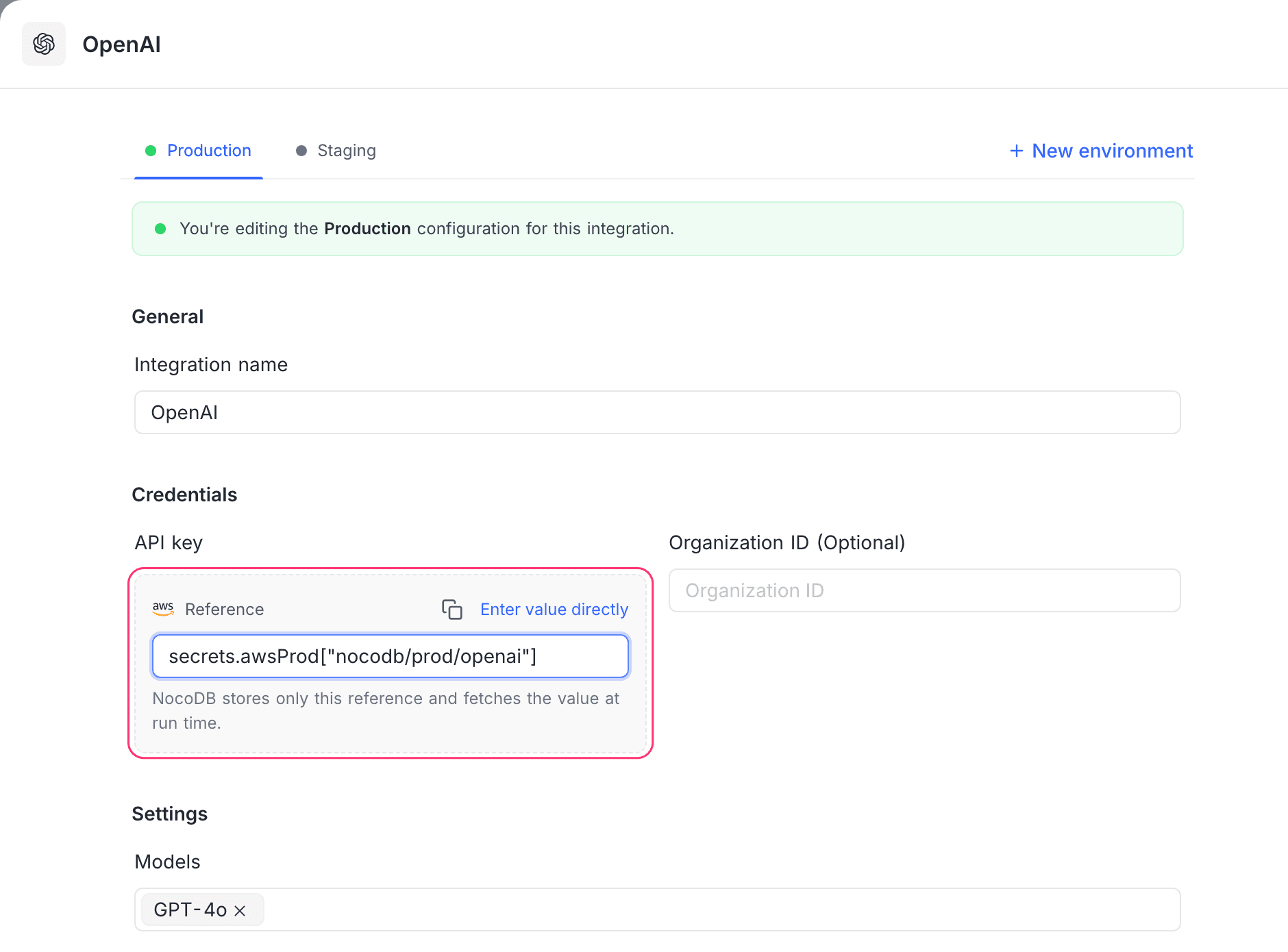
A NocoDB AI provider or authentication integration can hold a different credential per environment. An override's credential field can be a reference too, to the same vault or another one, and the same rules apply: only the credential fields, and only vaults you are allowed to use. Database connections have no per-environment overrides.
In a script
A NocoDB script can put an integration's field into a request it sends, with a {{<integrationId>.<field>}} placeholder. If that integration holds a vault reference in any field, even one the script does not use, the person running the script must be allowed to use the vault, exactly as if they were saving the reference. Otherwise the request fails with the message a save would give (see A reference is rejected when I save the connection) and the secret is never read.
An Editor the vault's setting does not include gets a clearer message instead: "This integration uses a vault secret, which editors can't use. Ask a workspace creator or owner." Have a Workspace Creator or Owner who may use the vault run the script.
Naming a field inside the secret
Vault providers store two kinds of secret, and the kind decides whether a reference names a field.
- AWS Secrets Manager key/value secrets and every HashiCorp Vault KV v2 secret hold a JSON document with several fields, so a reference has to say which field it means. Naming the secret is not enough on its own.
- Azure Key Vault, Google Secret Manager and CyberArk Conjur secrets hold one value, so a reference names the secret and must not add a field.
For an AWS secret named nocodb/prod/db/creds holding username and password, the connection's Username field references its username field and the Password field references its password field. For Azure, Google or Conjur, store the username and the password as two secrets and reference each on its own.
If a reference names such a secret without naming a field inside it, for example secrets.awsProd["nocodb/prod/db/creds"] on its own, resolving it fails with:
The referenced secret holds a JSON document. The reference must name a field inside it. (vault 'awsProd')
For Azure, Google and Conjur, the form ignores a field written after the secret and says so: "This provider stores one value per secret, so the key path is ignored." For a plain-text AWS secret, a field after it is an error, and so is one sent through the API to a single-value secret that is not JSON text. Resolving it fails with:
The referenced secret holds a plain string, so the reference must not name a field inside it. (vault 'awsProd')
Field names are suggested only for AWS Secrets Manager vaults, only to people allowed to use the vault, and only for a secret the provider itself listed. Typing a guessed secret id gets no suggestions, so the box cannot be used to find out whether a secret exists or what it holds. Values are never suggested or shown.
What gets stored
Saving stores the reference only: the vault's reference name, the secret's id, and the path to the field. NocoDB never writes the credential itself to its metadata database. That holds when you save, and when an integration later saves its own state (sync cursors, refreshed tokens): the stored reference is kept and only the value is replaced in memory.
When a connection opens, NocoDB resolves the reference against the vault and uses the value to build that one connection. The resolved value is kept only in the server's memory, for at most five minutes, so a busy connection does not call the secrets manager on every open; it never appears in an API response, in a log, or anywhere in the UI, at any role.
A credential rotated in your secrets manager is therefore picked up within about five minutes, with nothing to change in NocoDB. Updating the vault's own credentials, changing its scope or disconnecting it clears the cache immediately.
What a non-owner sees
Below Workspace Owner, a NocoDB vault reference is shown with its secret id masked: secrets.awsProd["********"].password. The vault name and the field are visible, the secret id is not, because an AWS ARN carries the account id. This applies to every integration type, to per-environment overrides, and to the project-scoped view of an integration. Saving the integration without retyping the reference keeps the stored secret id, and Test connection on a database connection being edited tests against the stored id too.
Anyone using the project
A project member never sees the resolved credential, whatever their project role. Project roles carry no vault permission, and there is no vault surface inside a project.
Related
Last updated on