Connect AWS Secrets Manager
NocoDB reads secrets from AWS Secrets Manager with an IAM user access key pair (an access key ID and a secret access key) plus a region. This page takes you from an empty AWS account to a working vault: three screens in AWS, then one in NocoDB.
There is no role assumption and no identity provider involved, so nothing on the AWS side depends on where NocoDB runs. The same steps work on NocoDB Cloud and on a self-hosted deployment that AWS cannot reach.
Before you begin
- The Enterprise Vaults add-on, on the NocoDB Enterprise plan or a Self-hosted Enterprise license. No plan includes it. See Turning on Enterprise Vaults.
- Workspace Owner for a workspace vault, or Org Admin for an organization vault. See Permissions.
- In AWS, permission to create IAM policies, IAM users and Secrets Manager secrets.
1. Create the permissions policy
In the AWS console, go to IAM → Policies → Create policy and switch to the JSON tab. Paste the following, replacing <REGION> and <ACCOUNT_ID> with your own values.
{
  "Version": "2012-10-17",
  "Statement": [
    {
      "Sid": "ReadVaultSecrets",
      "Effect": "Allow",
      "Action": "secretsmanager:GetSecretValue",
      "Resource": "arn:aws:secretsmanager:<REGION>:<ACCOUNT_ID>:secret:nocodb/*"
    },
    {
      "Sid": "ConnectionTestOnly",
      "Effect": "Allow",
      "Action": "secretsmanager:ListSecrets",
      "Resource": "*"
    }
  ]
}
Continue through the wizard and name the policy NocoDBVaultRead. NocoDB calls only these two actions.
Why there are two statements
The second statement cannot be narrowed to a prefix. secretsmanager:ListSecrets is one of the AWS actions that does not support resource-level permissions, so IAM requires Resource: "*" on it. If you scope it to secret:nocodb/*, AWS silently denies the action and the vault's connection test fails.
NocoDB calls ListSecrets in two places:
- The connection test. No secret has been named yet, so there is nothing to scope the call to. Listing confirms that the credentials work and that the region name exists. A valid region that is the wrong one still passes. It shows only when a reference is read: "No such secret in this region…".
- Secret-name suggestions. When someone allowed to use the vault types a reference, the secret names the call returns are offered as suggestions, up to 500.
ListSecrets returns secret names and metadata only, never a secret's value. It exposes your inventory of secret names, not any credential. Because it cannot be scoped, the suggestions can include names outside the nocodb/ prefix. Reading values stays restricted to the nocodb/* prefix by the first statement, so a suggested name outside it cannot be read. Field names inside a secret are suggested by reading that secret, so they too come only from secrets the first statement allows.
Scope the read statement deliberately
The Resource on the first statement decides which secrets NocoDB can read. Using secret:* there would let NocoDB read every secret in the account. Keep it at a prefix such as nocodb/*, which is why step 3 names the secret that way.
If the secret is encrypted with a customer-managed KMS key, add a third statement allowing kms:Decrypt on that key's ARN. With the default aws/secretsmanager key, nothing extra is needed.
2. Create the IAM user and its access key
Go to IAM → Users → Create user.
- User name:
nocodb-vault-reader. - Leave Provide user access to the AWS Management Console cleared. This identity never signs in.
- Click Next, choose Attach policies directly, select
NocoDBVaultRead, and create the user.
Then open the user, go to the Security credentials tab and click Create access key.
- Use case: Third-party service.
- Select the confirmation, click Next, then Create access key.
- Copy both values now. AWS shows the secret access key exactly once. If you lose it, create a new key; there is no way to recover it.
You end up with two values:
| Access key ID | begins with AKIA. Not secret, it identifies the key |
| Secret access key | the actual credential |
3. Store a secret
Go to Secrets Manager → Store a new secret, in the same region as the policy.
- Secret type: Other type of secret.
- On the Key/value tab, add the fields the connection needs, for example
usernamewith your database user andpasswordwith your database password. - Leave the encryption key as
aws/secretsmanager. - Click Next and name the secret
nocodb/prod/db/creds. Thenocodb/prefix is what the policy in step 1 allows. - Click through the remaining steps and Store.
A key/value secret holds several fields, so a reference to it must name one of them. A plain-text secret holds a single value and needs no field.
4. Connect the vault in NocoDB
Click Connect a vault on the banner at the top of the workspace Integrations page. To connect an organization-scoped vault instead, open Vaults in the Admin Panel and start from there.
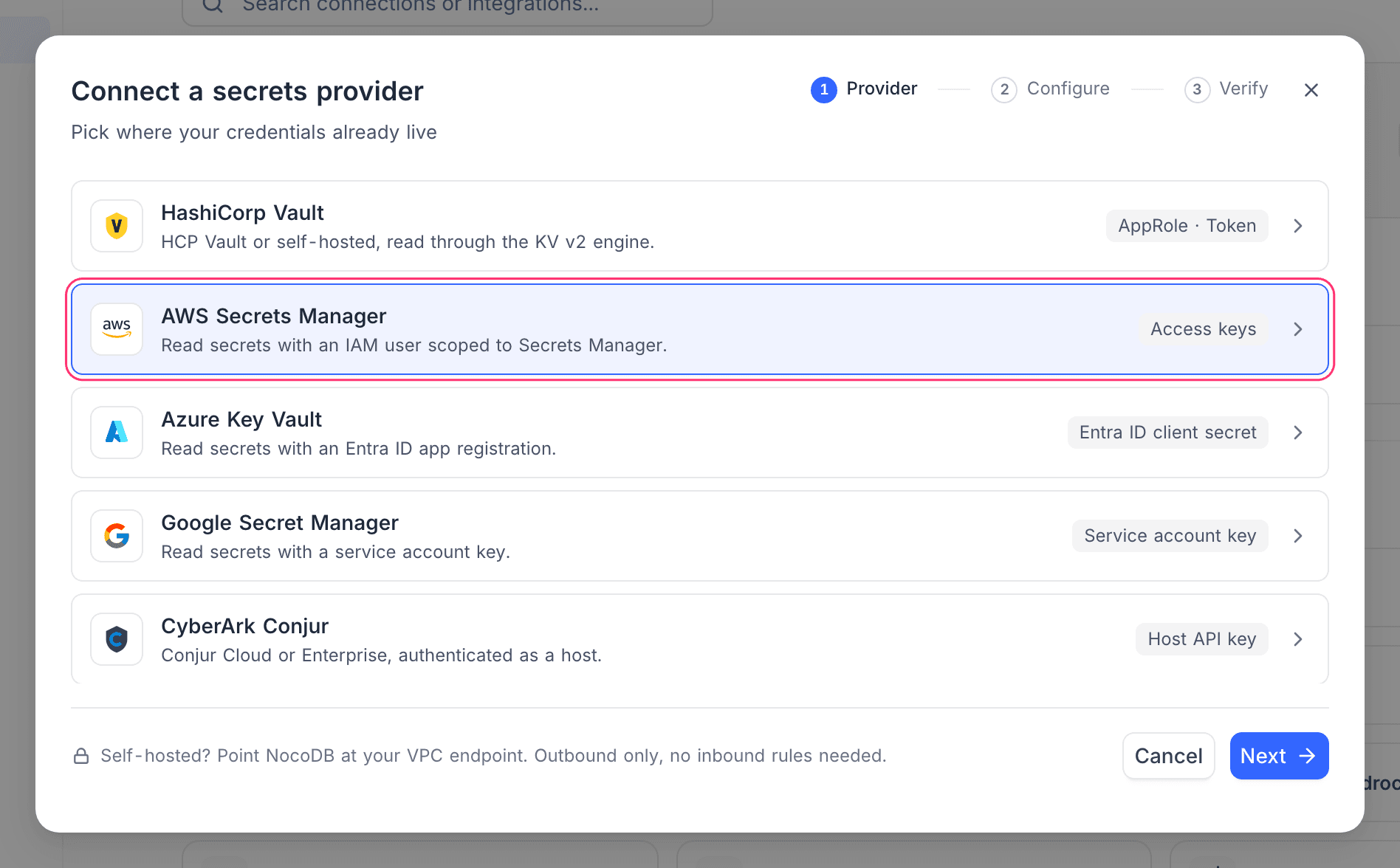
The Connect a secrets provider wizard has three steps.
Provider. Choose AWS Secrets Manager.
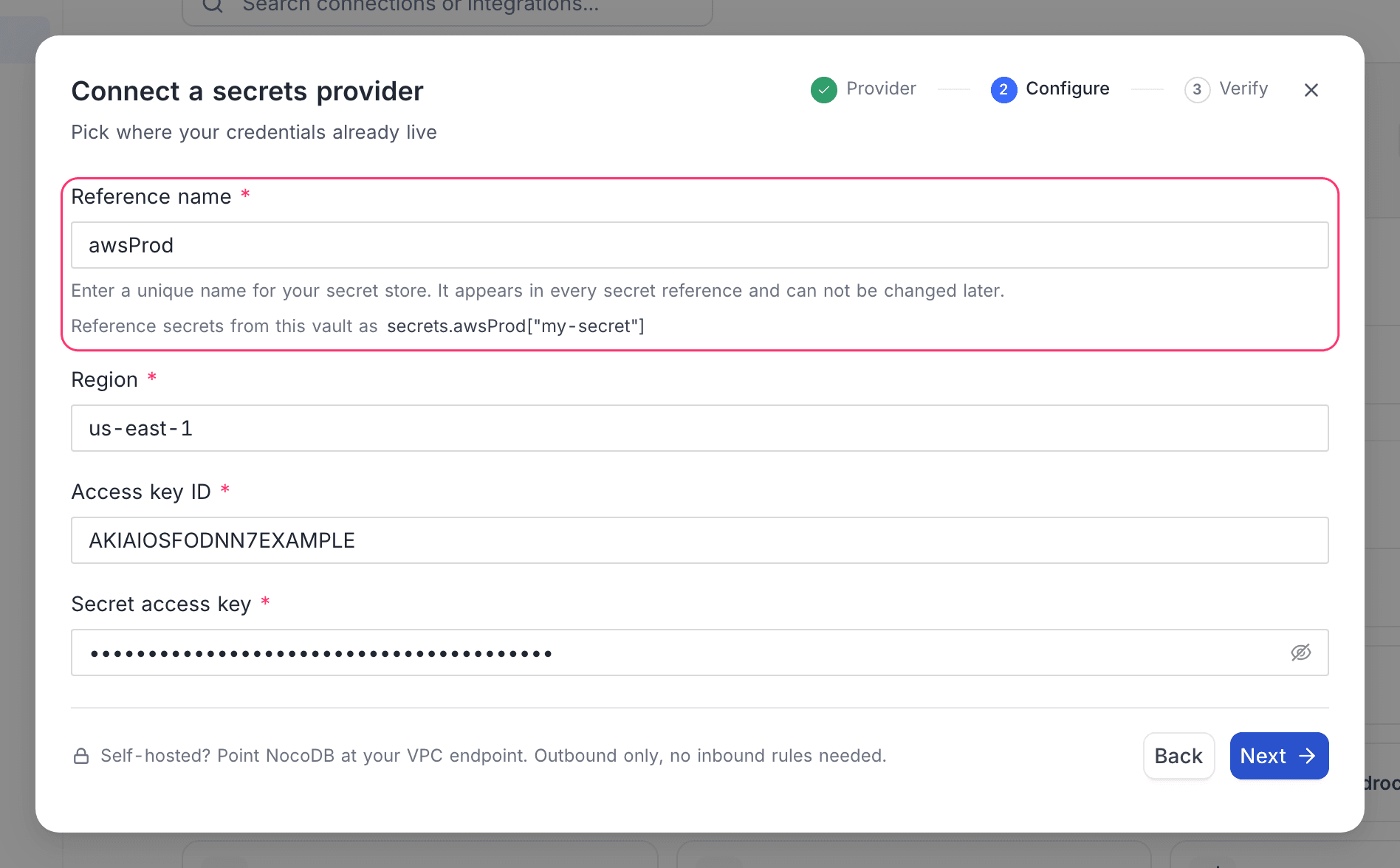
Configure. Fill in:
| Field | Value |
|---|---|
| Reference name | a short alias such as awsProd. See Choosing the reference name |
| Region | the region the secret lives in, for example us-east-1 |
| Access key ID | from step 2, beginning AKIA |
| Secret access key | from step 2 |
| Who can use this vault | Workspace owners for a workspace vault, Org owners and admins for an organization vault. See Who can use a vault |
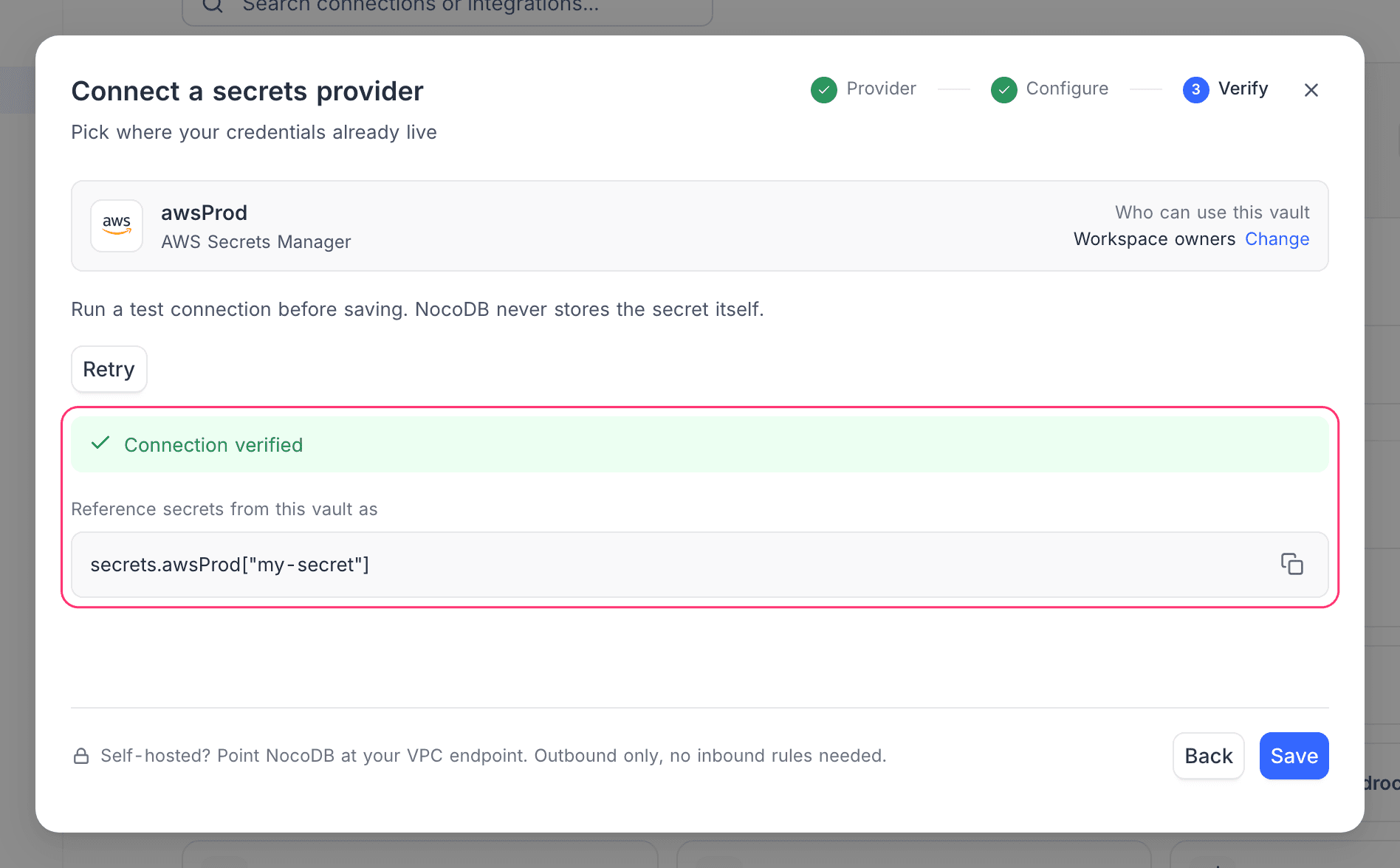
Verify. Run the test. It makes a real ListSecrets call against AWS with the credentials you entered, so a green result means the credentials and the listing permission are correct. Read access to a secret is checked the first time a reference to it is resolved, for example by Test connection on a database connection. This step also repeats who can use the vault, with Change to go back and adjust it. The vault cannot be saved until the test passes. Then save.
Reference a secret
Reference a field of the AWS secret from a credential field as:
secrets.awsProd["nocodb/prod/db/creds"].passwordThe part in brackets is the secret's name, and the last part is the field inside it. Leave out the field for a plain-text secret. A secret in another AWS account is referenced by its full ARN. As you type, NocoDB suggests the vault's secret names and then the fields inside the chosen secret. See Use a vault reference.
Rotate the access key
Rotate the AWS key first, then update the vault:
- In AWS, create a second access key for
nocodb-vault-reader. - In NocoDB, open Edit vault and re-enter Region, Access key ID and Secret access key with the new key. Click Verify, then Save.
- Once the test passes, deactivate and then delete the old key in AWS.
See Rotating a vault's credentials for what NocoDB does with the vault's status and cache.
Good to know
- One key, many connections. The number of standing credentials drops from one per integration to one per vault, and rotation of the database password itself lives in AWS rather than in NocoDB.
- Least privilege matters here. The access key is long-lived, so keep the read statement's
Resourcenarrow and give this IAM user nothing else. - Prefix your secrets consistently. The policy's prefix keeps NocoDB out of the rest of the account's secrets, and it only works if new secrets are named to match.
- Self-hosted NocoDB reaches AWS outbound only. There are no inbound rules to open.
Common errors
The connection test only lists secrets, so it can return the signature, credentials, listing and missing-field messages. The other messages appear when a reference is read.
| Message | Cause | Fix |
|---|---|---|
| AWS rejected the request signature. This usually means the secret access key is wrong or the server clock has drifted. | The secret access key was mistyped, or the NocoDB server's clock is off by more than a few minutes | Re-enter the secret access key in full; on self-hosted NocoDB, sync the server clock |
| AWS rejected the credentials. Check the access key ID and secret access key, and that the key is still active. | The access key ID or the secret access key is wrong, or the key has been deactivated or deleted in AWS | Re-enter both values in full, or create a fresh access key for the IAM user |
| The access key is not allowed to list secrets. Grant it secretsmanager:ListSecrets on Resource "*" — that action cannot be scoped to a secret prefix in IAM. | The ListSecrets statement is missing, or it was scoped to a secret prefix | Add the second statement from step 1 exactly as shown |
| AWS Secrets Manager vault requires a region, an access key ID and a secret access key. | One of the three fields is empty. Also returned when saving a vault, and nothing is saved | Fill in all three |
| Could not test the vault connection in AWS Secrets Manager. Check the region and the access key's permissions. | Any other failure during the test, including a region name that does not exist | Check the region code, for example us-east-1 |
The access key is not allowed to read this secret. Check its secretsmanager:GetSecretValue permission and the secret resource policy. | The read statement is missing, or its Resource does not cover the secret's ARN | Check that the secret's name matches the prefix in the policy, and that the policy's region and account id are correct. Also check the secret's own resource policy |
| No such secret in this region. A secret in another AWS account must be referenced by its full ARN. | The vault's region is not the region the secret lives in, or the secret is in another AWS account | Correct the region, or reference the cross-account secret by its full ARN |
The access key could not decrypt the secret. Grant it kms:Decrypt on the customer-managed key that encrypts this secret. | The secret is encrypted with a customer-managed KMS key the IAM user cannot use | Add a statement allowing kms:Decrypt on that key's ARN |
| The secret reference was rejected by AWS. Check the secret id and version stage. | AWS refused the secret id as malformed | Check the name or ARN in the reference |
| This secret is stored as binary. Only text and JSON secrets can be referenced. | The secret was stored as a binary blob | Store the credential as a plain-text or key/value secret instead |
| The secret has no value stored. | The secret exists but has no version with a value | Store a value in the secret |
| Could not read the secret in AWS Secrets Manager. Check the region and the access key's permissions. | Any other failure while reading | Check the region and the policy, then the server log for the raw error |
For errors shared by every provider, see Vaults troubleshooting.
Related
Last updated on