Connect Azure Key Vault
NocoDB reads secrets from one Azure Key Vault. It signs in to Microsoft Entra ID as an application (an app registration with a client secret) and reads the secrets that application is allowed to read.
Before you begin
- The Enterprise Vaults add-on, on the NocoDB Enterprise plan or a Self-hosted Enterprise license. No plan includes it. See Turning on Enterprise Vaults.
- Workspace Owner for a workspace vault, or Org Admin for an organization vault. See Permissions.
- In Azure, permission to create app registrations in Entra ID and to assign roles on the Key Vault.
1. Register an application
In the Azure portal, open Microsoft Entra ID → App registrations → New registration. Name it nocodb-vault-reader, leave the redirect URI empty and register it.
From the app's Overview page copy:
| Application (client) ID | identifies the app |
| Directory (tenant) ID | identifies your Entra tenant |
Then open Certificates & secrets → Client secrets → New client secret, pick an expiry, and copy the secret's Value right away. Azure shows it once.
Copy the secret Value, not its Secret ID. The two columns sit next to each other and the ID is what people paste by mistake. NocoDB reports it as "Entra ID rejected the client secret".
2. Let the application read the vault
Open the Key Vault, then Access control (IAM) → Add → Add role assignment. Choose the role Key Vault Secrets User, and assign it to the nocodb-vault-reader application.
The Key Vault Secrets User role allows reading secret values and nothing else. If the vault still uses the older Access policies model, add a policy for the application with the Get secret permission instead.
If the vault has a firewall, NocoDB must be allowed through it. NocoDB connects to the vault's public DNS name only, so a vault reachable only through a private endpoint cannot be used.
3. Store a secret
Open Objects → Secrets → Generate/Import, name the secret db-password and set its value.
A Key Vault secret holds one value, so a reference names the secret and nothing more. To back both a username and a password, store two secrets.
4. Connect the vault in NocoDB
Click Connect a vault on the banner at the top of the workspace Integrations page, or open Vaults in the Admin Panel for an organization-scoped vault. Choose Azure Key Vault, click Next, and fill in:
| Field | Value |
|---|---|
| Reference name | a short alias such as azProd. See Choosing the reference name |
| Vault URL | the Vault URI from the vault's Overview page, for example https://my-vault.vault.azure.net |
| Directory (tenant) ID, Application (client) ID | from step 1 |
| Client secret | the secret Value from step 1 |
| Who can use this vault | Workspace owners for a workspace vault, Org owners and admins for an organization vault. See Who can use a vault |
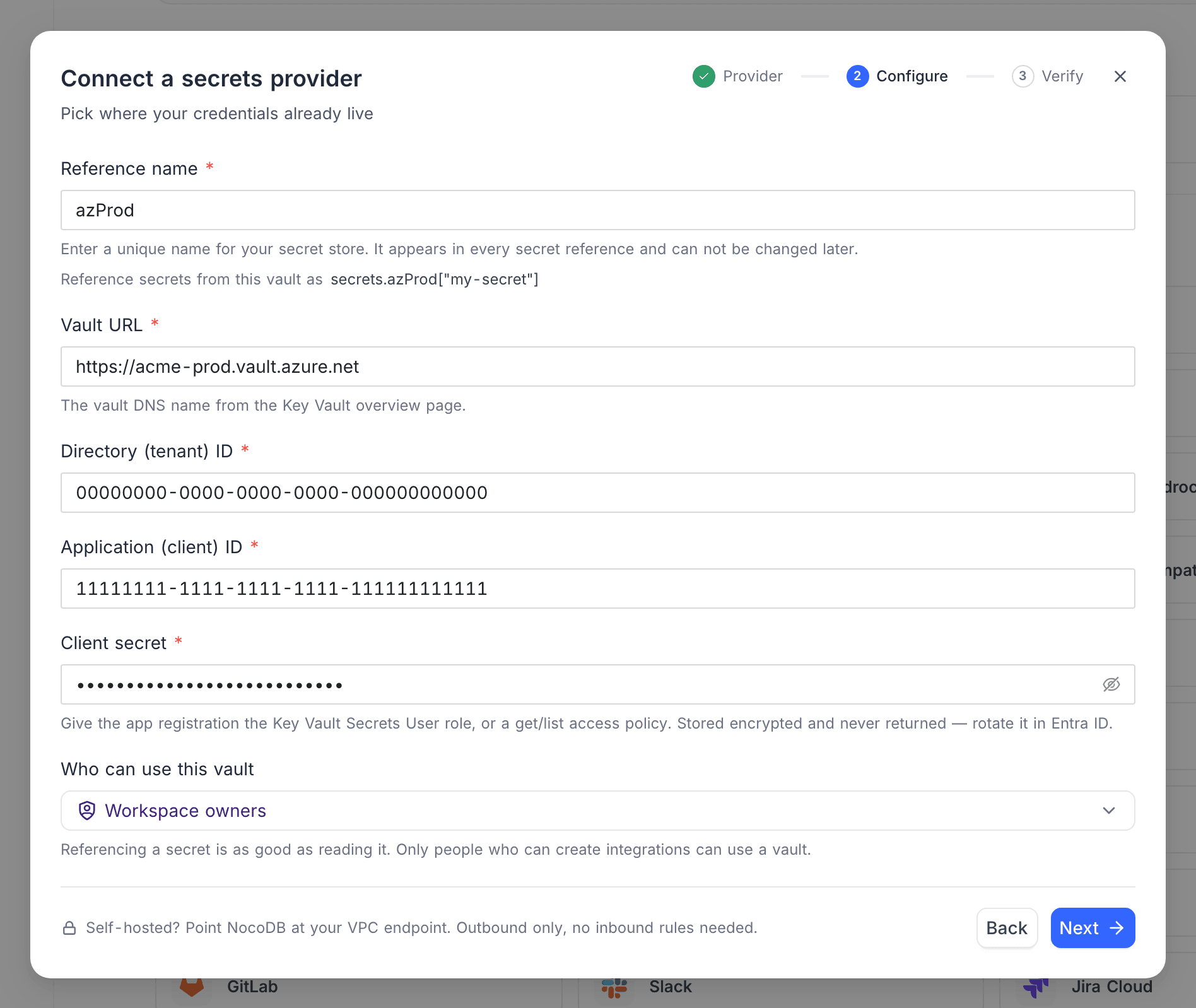
The vault URL must be https:// and end in .vault.azure.net. Azure China (.vault.azure.cn) and Azure Government (.vault.usgovcloudapi.net) vaults are accepted too; NocoDB signs in at the matching Entra authority. A private-link host name (privatelink.vaultcore.azure.net) and Managed HSM are not supported, and any path after the host name is dropped.
Click Next and run the test on the Verify step. NocoDB signs in to Entra ID with the client secret and contacts the vault. The test passes when the application is authenticated, even if a role assignment is still propagating. It fails on a wrong credential, a wrong URL or a firewall block. Then save.
Reference a secret
Reference an Azure Key Vault secret from a credential field as:
secrets.azProd["db-password"]No field follows the secret name. NocoDB reads the secret's latest version. If that version is disabled, the read fails with "This secret version is disabled in Key Vault" until it is enabled or a new version is added. See Use a vault reference.
Rotate the client secret
- In Entra ID, add a second client secret to the application.
- In NocoDB, open Edit vault and re-enter every field: the vault URL, the tenant ID, the client ID and the new secret value. Click Verify, then Save.
- Delete the old client secret in Entra ID.
Client secrets expire. Put the expiry date in your calendar, because an expired secret fails every connection that uses the vault. See Rotating a vault's credentials.
Common errors
| Message | What to do |
|---|---|
| Azure Key Vault requires a vault URL, a tenant ID, a client ID and a client secret. | Fill in all four. Also returned when saving the vault, and nothing is saved |
| The vault URL must be a full URL, for example https://my-vault.vault.azure.net. | Enter the scheme and host |
| The vault URL must be an https:// URL. | Use https:// |
| That is not an Azure Key Vault URL. It must end in .vault.azure.net (or the equivalent suffix for your Azure cloud). | Copy the Vault URI from the vault's Overview page |
| The vault URL could not be resolved. Check the vault DNS name. | The vault name in the URL is misspelled, or the vault was deleted |
| No such vault at this URL. Check the vault DNS name on the Key Vault overview page. | Copy the URL from the vault's Overview page |
| Entra ID does not know this tenant. Check the directory (tenant) ID. | Copy the Directory (tenant) ID from the app registration's Overview page |
| Entra ID does not know this application in this tenant. Check the client ID and the tenant ID. | One of the two IDs is wrong, or the app lives in a different tenant |
| Entra ID rejected the client secret. Check it has not expired and was copied in full — the secret VALUE, not its ID. | Paste the Value column, or create a new secret if the old one expired |
| Key Vault rejected the token. Check the tenant ID and that the app registration has a Key Vault role or access policy. | The token was issued for another tenant, or the app has no access to this vault. Check step 2 |
| Key Vault refused the request. Check the app registration has a Key Vault role or access policy on this vault. | Check step 2 |
| The vault firewall does not allow NocoDB. Add NocoDB to the allowed networks on the vault. | Allow NocoDB's address through the vault's networking rules. Shown only by the test |
| Could not reach Key Vault at this URL. If the vault has a firewall or private endpoint, NocoDB must be allowed through it. | A network block, or a vault reachable only through a private endpoint |
| Key Vault did not answer in time. … | A slow or blocked network path. Retry, then check the vault's networking rules |
| The app registration is not allowed to read this secret. Give it the Key Vault Secrets User role, or a get access policy on this vault. | Step 2 is missing, or the role was assigned at a scope that does not include this vault. On a read, a firewall block also returns this message |
| No such secret in this vault. Check the secret name — Key Vault names are case-sensitive and contain no slashes. | Fix the name in the reference |
| This secret version is disabled in Key Vault. Enable it, or reference a version that is enabled. | Enable the current version in the portal |
| This Key Vault secret has no value. A disabled or expired version reads as empty. | Set a value, or enable the version |
| The secret name is empty. | Add the secret name to the reference |
| Could not test the vault connection in Azure Key Vault. Check the vault URL and the app registration's credentials and permissions. | Any other failure. The raw error is in the NocoDB server log |
For errors shared by every provider, see Vaults troubleshooting.
Related
Last updated on