Enterprise Vaults
A NocoDB vault is a connection to a secrets manager that your organization already runs. Once a vault is connected, the credential fields on a database connection, an AI provider or an authentication integration can point at a secret in that secrets manager instead of holding the credential itself.
NocoDB stores only the reference: which vault, which secret, and which field inside it. NocoDB fetches the value from your secrets manager when a connection opens and uses it to build that connection. The value stays only in the server's memory, for at most five minutes, so that busy connections do not call the secrets manager on every open. It is never written to the NocoDB metadata database, never returned by an API, and never shown in the UI.
Why use a vault
- One standing credential instead of many. Without a vault, every connection holds its own copy of a database password. With a vault, the only long-lived credential NocoDB holds is the one that reads the vault, and each connection just names a secret.
- Rotation happens where it belongs. Rotate the database password in your secrets manager and every NocoDB connection that references it picks up the new value within five minutes, with nothing to edit in NocoDB. Updating or disconnecting the vault itself clears the cache at once.
- Credentials never leave your account. The secret itself stays in your secrets manager. NocoDB reads it at connection time under an identity you control, and you can revoke that identity at any moment.
- Auditable on both sides. Each read of the secret is a call against your own secrets manager under an identity you created for NocoDB, so it lands in your own audit trail. On the NocoDB side, every change to a vault is written to the workspace Audit log. See Audit log.
Supported providers
NocoDB Enterprise Vaults can connect five secrets managers. Each has its own setup page with the identity to create on the provider's side, the permission it needs, the fields NocoDB asks for, and the provider's error messages.
| Provider | NocoDB authenticates with | A secret holds | Example reference |
|---|---|---|---|
| HashiCorp Vault | AppRole (role ID + secret ID), or a token | a JSON document on a KV v2 mount, so the reference names a field | secrets.hcProd["prod/db"].password |
| AWS Secrets Manager | an IAM user access key pair, plus the region | a key/value document (reference names a field) or a plain string | secrets.awsProd["nocodb/prod/db/creds"].password |
| Azure Key Vault | an Entra ID app registration with a client secret | one value | secrets.azProd["db-password"] |
| Google Secret Manager | a service account key file | one value per version; the latest is read | secrets.gcpProd["db-password"] |
| CyberArk Conjur | a host identity with its API key | one value per variable | secrets.cjProd["data/db/password"] |
NocoDB reads every provider through the same checks:
- The connection test makes a real call with the credentials you entered.
- The stored credentials are write-only.
- The provider's raw error is never shown. A failed test shows a NocoDB message that names the likely cause, and the raw error goes only to the server log.
Secret-name suggestions while typing a reference are offered for AWS Secrets Manager only. For the other providers, type the secret's id as the provider names it.
Self-hosted NocoDB and private networks. NocoDB Cloud reaches your provider over the public internet, so HashiCorp Vault and Conjur addresses must be https:// and public. A self-hosted NocoDB may use http:// and a private address, but a private address is refused until NC_ALLOW_LOCAL_VAULTS=true is set on the server. A provider behind a private CA needs that CA in NODE_EXTRA_CA_CERTS.
Where a vault can be used
| Integrations that can use a vault | Database connections (PostgreSQL, MySQL, SQL Server…), AI providers (OpenAI, Claude, Google, Groq, Bedrock…) and authentication integrations that take a static credential (an API key, token or password: GitHub, GitLab, Slack, SMTP, Twilio, Telegram, Jira, Zendesk, HTTP API…) |
| Integrations that cannot | OAuth sign-ins (the provider issues and refreshes the tokens, you do not enter them), and sync, channel and action integrations, which point at an authentication integration instead of holding a credential |
| Fields that can be backed by a vault | Username and Password on a database connection; the API key of an AI provider (on Amazon Bedrock, the AWS secret access key); the token, password or API-key field of an authentication integration. Each form shows Use a vault under exactly the fields that qualify |
To put a secret into one of these fields, see Use a vault reference.
Turning on Enterprise Vaults
Enterprise Vaults are a paid add-on. No plan includes them, Enterprise included. The add-on can be added to the Enterprise plan on NocoDB Cloud, or to a Self-hosted Enterprise license. To have it enabled, contact the sales team.
- On NocoDB Cloud, NocoDB adds the add-on to the workspace's subscription, or to the organization's when the workspace belongs to one.
- On self-hosted, the add-on is part of your license key. After NocoDB adds it, activate the updated license.
What people see depends on the plan:
| Plan | What appears |
|---|---|
| Free, or self-hosted without a license | Nothing. There is no banner on the Integrations page, no Vaults entry in the Admin Panel, and no Use a vault option on a connection |
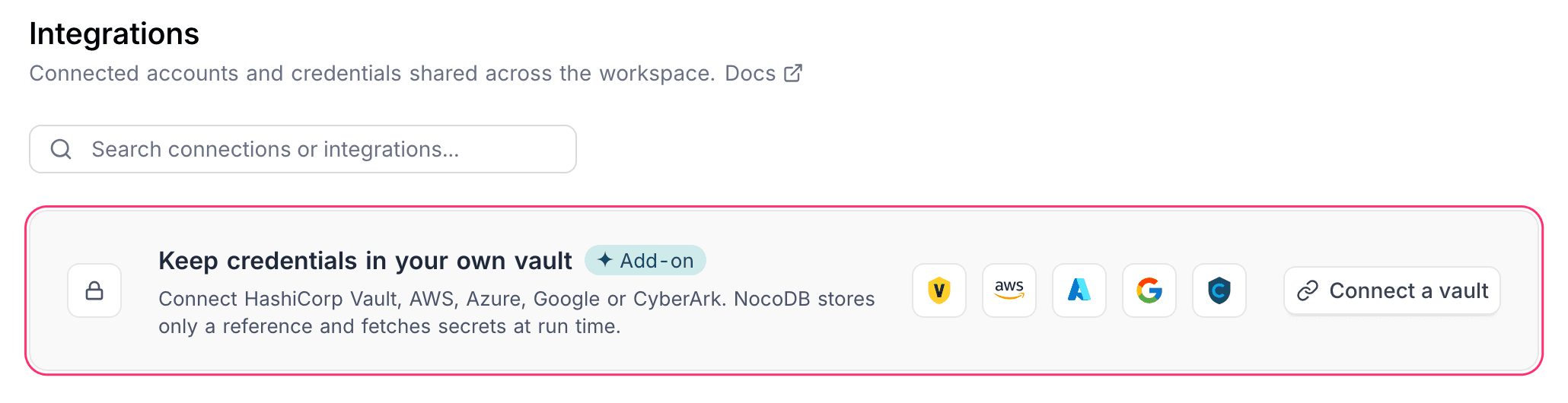
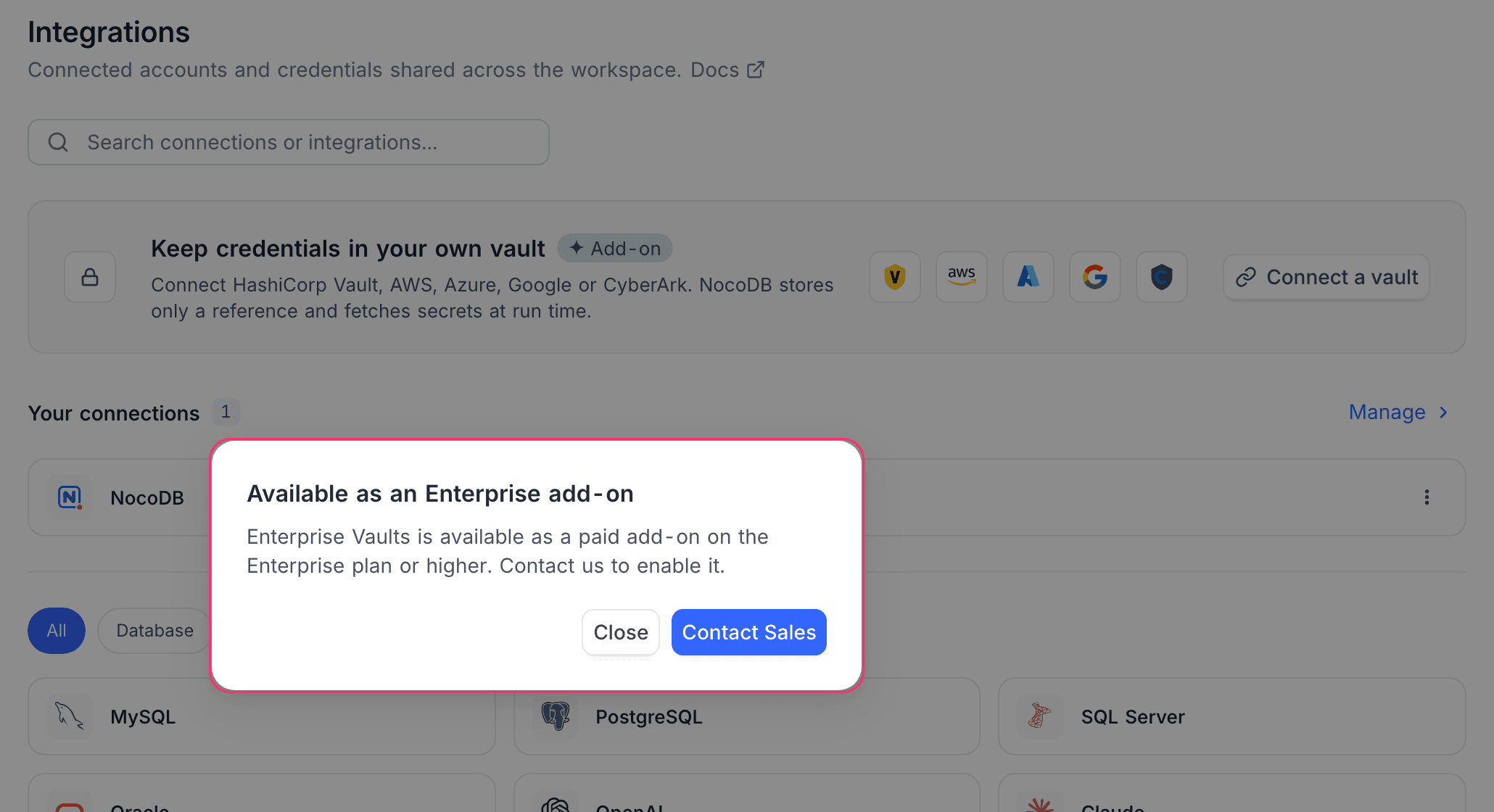
| Any paid plan, or a self-hosted license, without the add-on | The banner on the Integrations page and the Vaults page in the Admin Panel, each with an Add-on badge. Connect a vault, and Use a vault under a credential field (shown with an Add-on badge to people who can manage integrations), open Available as an Enterprise add-on with a Contact Sales button. No vault can be connected or referenced |
| Enterprise with the add-on | Everything on this page, subject to permissions |
Vault scope
A NocoDB vault belongs to exactly one of two scopes.
- Workspace scope. The vault is usable by connections in that one workspace. This is the default when you connect a vault from the workspace Integrations page.
- Organization scope. The vault is usable by every workspace in the organization. Use this when one secrets manager backs the whole company and you do not want to connect it again in each workspace.
Choosing the reference name
The reference name is the alias that identifies a vault in every reference, for example awsProd in secrets.awsProd["nocodb/prod/db/creds"].password. The rules for a reference name are:
- It must start with a letter and contain only letters and digits. No spaces, dashes or underscores.
- It can be at most 64 characters.
- It must be unique within its scope, compared without regard to case. A workspace cannot have two vaults called
awsProd, and cannot use a name the organization's own vaults use. The organization cannot take a name any of its workspaces uses. - These names are reserved and rejected, in any case:
secrets,secret,vault,vaults,aws,azure,gcp,google,hcv,hashicorp,conjur,cyberark,env.
Two sibling workspaces may each have an awsProd. Neither can then be made organization-wide until one is disconnected.
The reference name cannot be changed later. Every reference stored against a connection embeds the name, and nothing rewrites those references if the name changes. To use a different name, connect a second vault under it, repoint the connections that use the old one, and then disconnect the old vault.
Where vaults are managed
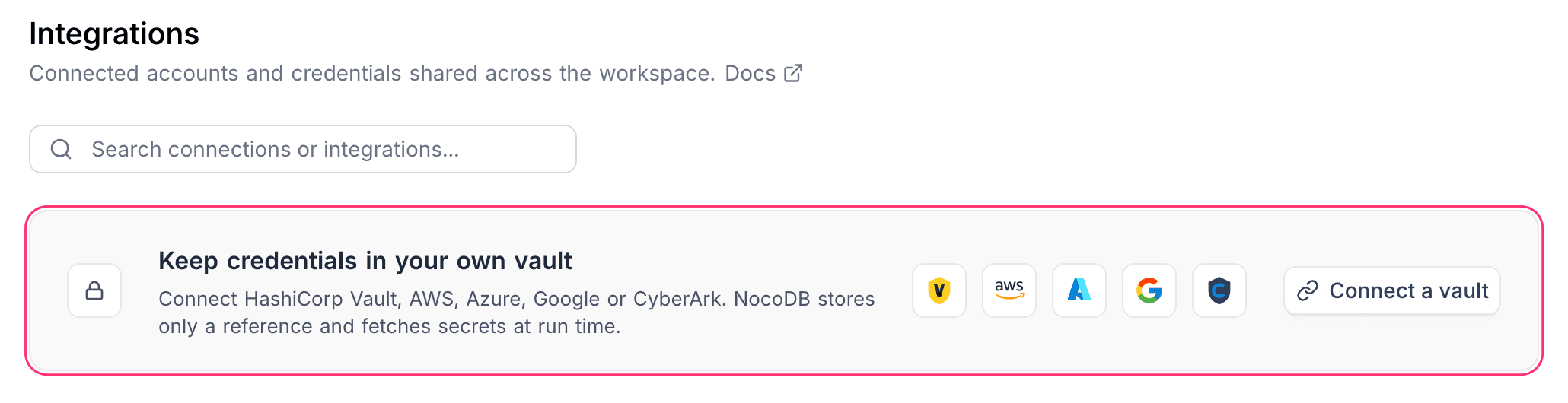
- The workspace Integrations page. A Workspace Owner connects a vault from the banner at the top of the page. Once one is connected, the banner offers Connect a vault to add another, and Edit for the vaults this workspace owns. Organization vaults show up in the workspace's summary but are edited from the Admin Panel. Once a vault is connected, the banner also shows the Org Admin a Manage vaults link that opens it.
- Vaults in the Admin Panel, at
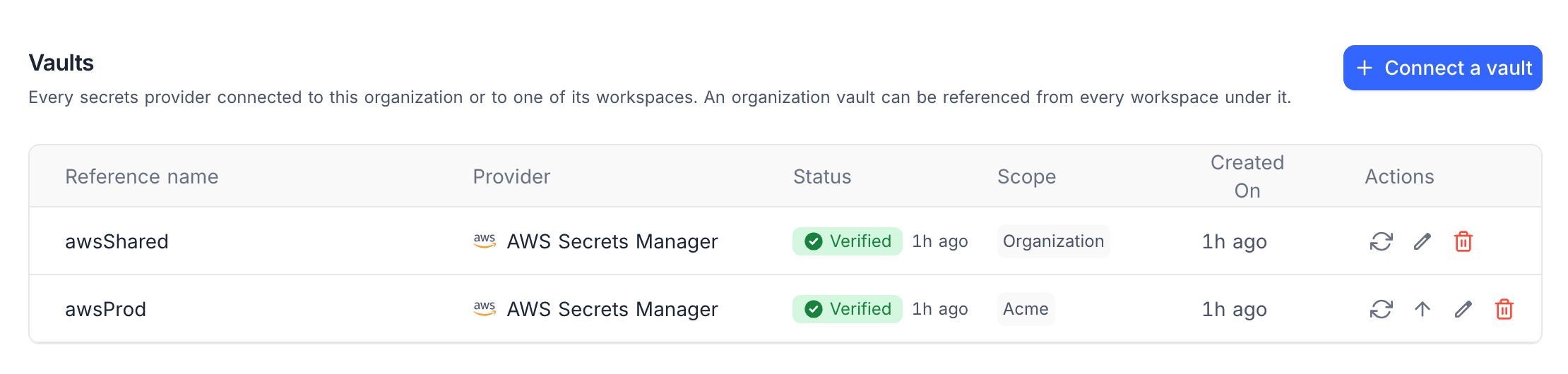
/admin/{orgId}/vaults, under Security. That page lists the organization's own vaults and the vaults owned by any workspace in the organization. The Org Admin can connect, test, edit or disconnect any of them. An organization needs at least one workspace before a vault can be connected to it; until then the page says "Add a workspace to this organization before connecting a vault."
Changing a vault's scope
The Org Admin changes a vault's scope from the Scope field in the Edit vault dialog.
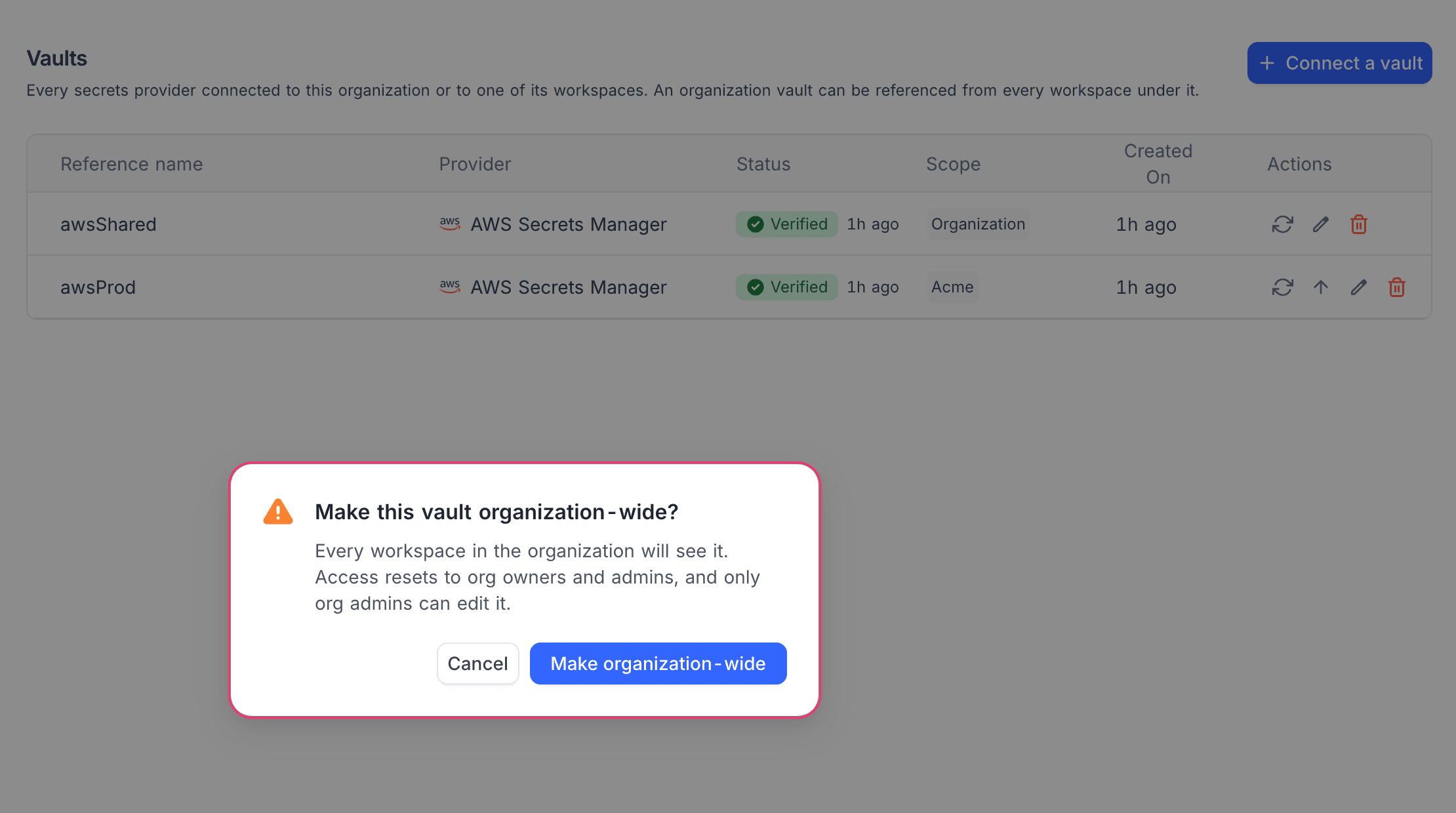
- From the Admin Panel, the field lists Every workspace in the organization and each workspace in the organization. You can make a workspace vault organization-wide, limit an organization vault to one workspace, or move a vault from one workspace to another. A workspace vault's row also has a one-click Make available to the whole organization action that asks the same confirmation.
- From a workspace's Integrations page, the field offers This workspace and Every workspace in the organization, so the Org Admin can make that workspace's vault organization-wide without leaving the workspace. Anyone else sees the scope read-only.
Every change asks for confirmation first. Making a vault organization-wide asks Make this vault organization-wide?: "Every workspace in the organization will see it. Access resets to org owners and admins, and only org admins can edit it." Limiting one to a workspace asks Limit this vault to …? with the workspace named, and warns that access limited to org owners and admins resets to workspace owners.
| Change | What happens to who can use the vault | Refused when |
|---|---|---|
| Workspace to organization | Resets to Org owners and admins. A grant made for one workspace would otherwise reach every workspace in the organization | the organization, or another workspace in it, already has a vault with the same reference name |
| Organization to one workspace, or workspace to workspace | Kept as set, except Org owners and admins, which resets to Workspace owners. Only that workspace can reference the vault from then on | integrations in other workspaces still reference the vault, or the target workspace already has a vault with the same name |
The refusal names how many integrations still reference the vault. Repoint them before moving it, since a reference in a workspace that can no longer see the vault would stop resolving.
A vault that belongs to a different organization is not visible here, and is not reachable by id. Requests for it fail exactly as a request for a vault that does not exist would.
Manage a connected vault
Vault status
Each NocoDB vault shows the outcome of its last recorded test:
- Verified. The last test succeeded, with the time it ran.
- Unreachable. The last test failed. Run the test again from the Admin Panel, or update the credentials with Edit vault.
- Not verified. The vault has never been tested, or its credentials were just changed and the background test has not finished.
A vault is tested when it is first connected, and again after its credentials are saved from Edit vault. The Org Admin can also run Test connection on the vault's row under Vaults in the Admin Panel at any time. The Verify button in Edit vault tests the values typed into the dialog before you save and does not change the status.
Rotating a vault's credentials
Every provider rotates the same way in NocoDB. Each provider page lists the provider-side steps.
- Create the new credential in your secrets manager, next to the old one where the provider allows two.
- Open Edit vault: from Edit on the Integrations banner for a workspace vault, or from the vault's row under Vaults in the Admin Panel.
- Re-enter every field. The dialog never shows the stored values, so nothing is kept from before.
- Click Verify. Save stays disabled until the test passes.
- Click Save, then revoke the old credential in your secrets manager.
Updating a vault clears its recorded test result, and NocoDB then tests the saved credentials in the background, so the status turns Verified or Unreachable shortly after the dialog closes. The status never vouches for credentials that have just been replaced. Updating a vault also clears its cached secret values at once.
Disconnecting a vault
To disconnect a vault, type its reference name to confirm. Disconnecting cannot be undone.
NocoDB refuses to disconnect a vault while integrations still reference it: "This vault is still used by 3 integrations. Replace the secret references before disconnecting it." No copy of the credential is kept anywhere in NocoDB to fall back on, so repoint or delete those integrations first.
The count covers every place a reference can be stored: database connections, AI and authentication integrations, a data source's own settings, and any per-environment credential override. A vault used only by one environment override still blocks the disconnect.
Permissions
NocoDB checks vault permissions against workspace and organization roles. Project roles carry no vault permission, and a role in one scope grants nothing in the other.
Two separate things are controlled:
- Managing a vault: connecting, testing, editing, disconnecting, and choosing who can use it. This is fixed by role.
- Using a vault: pointing a connection's credential at one of its secrets. This is set per vault, see Who can use a vault.
Workspace-scoped vaults
Managing a workspace vault is Workspace Owner only.
| Operation | Viewer | Commenter | Editor | Creator | Owner |
|---|---|---|---|---|---|
| See which vaults are connected | – | – | – | Only the vaults they may use | Yes, every vault |
| Connect a vault | – | – | – | – | Yes |
| Update a vault's credentials | – | – | – | – | Yes |
| Test a vault's connection | – | – | – | – | Yes |
| Choose who can use a vault | – | – | – | – | Yes |
| Disconnect a vault | – | – | – | – | Yes |
An Editor whom a vault's setting does not include cannot use, in a script, an integration whose credentials come from that vault. A script request that uses any field of such an integration is refused with "This integration uses a vault secret, which editors can't use. Ask a workspace creator or owner." See In a script.
A Workspace Creator sees only the vaults they have been allowed to use, and only while building a reference on a connection. A vault they may not use behaves as if it did not exist for them. It is not listed, and a reference to it is rejected as "No vault named 'x' is available to you". The same message is shown for a name that does not exist.
Organization-scoped vaults
Managing organization vaults is Org Admin only. On self-hosted NocoDB, the instance's Super Admin can do it too. These are the "owners and admins" that the Org owners and admins option refers to. The Org Admin can:
- see every vault in the organization, including the vaults owned by each workspace in it
- connect, test, update and disconnect an organization vault
- choose who can use an organization vault
- change a vault's scope
Org Viewers and Org Creators cannot see or manage organization vaults.
Who can use a vault
Each NocoDB vault has a Who can use this vault setting that decides who may point a connection's credential at one of its secrets. You choose it on the Configure step when you connect the vault. The Verify step repeats it with a link back to change it. It can be changed later from Edit vault, where a change is saved straight away: by a Workspace Owner for a workspace vault, or by the Org Admin for an organization vault.
The default depends on the vault's scope:
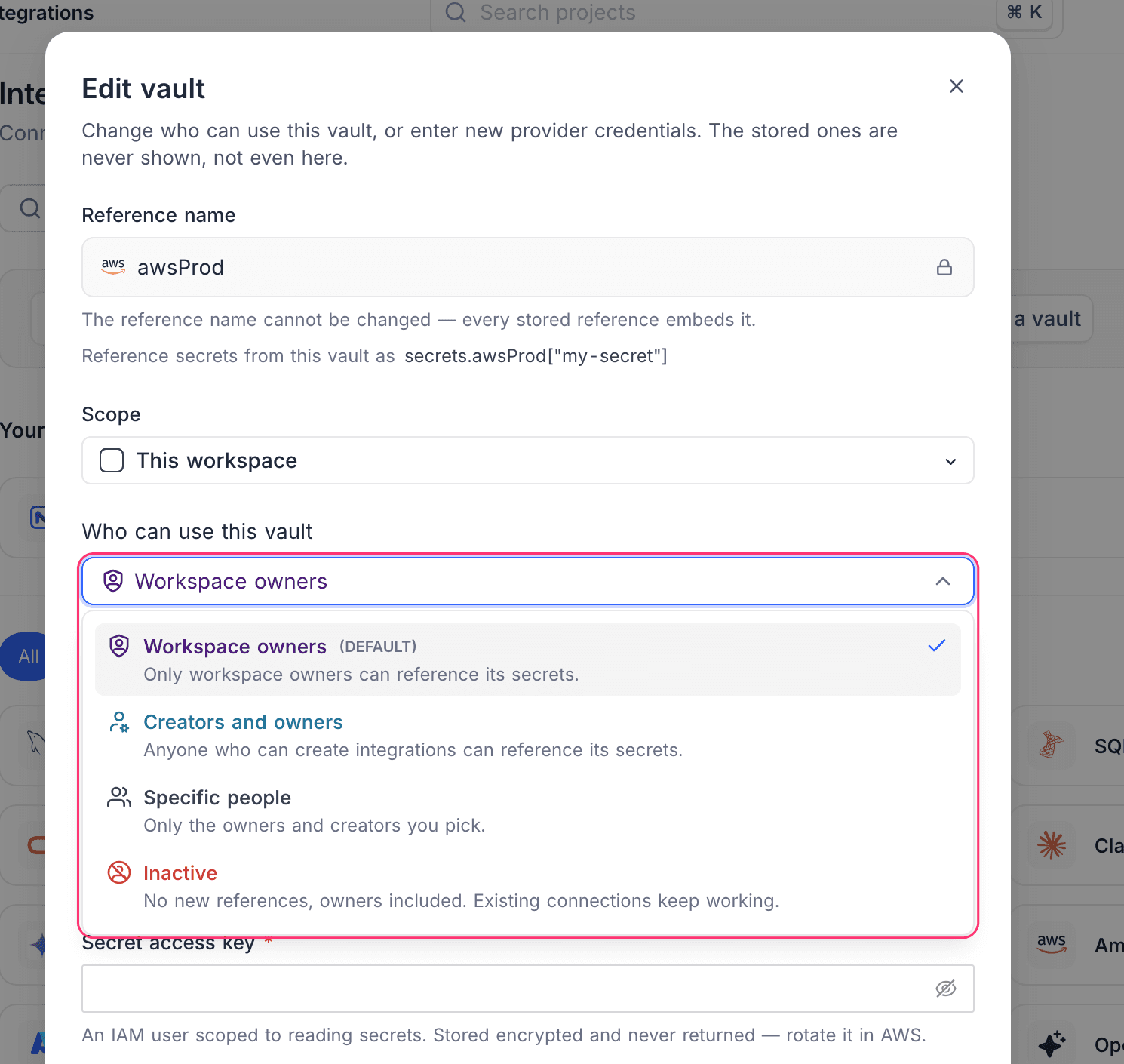
- A workspace vault defaults to Workspace owners.
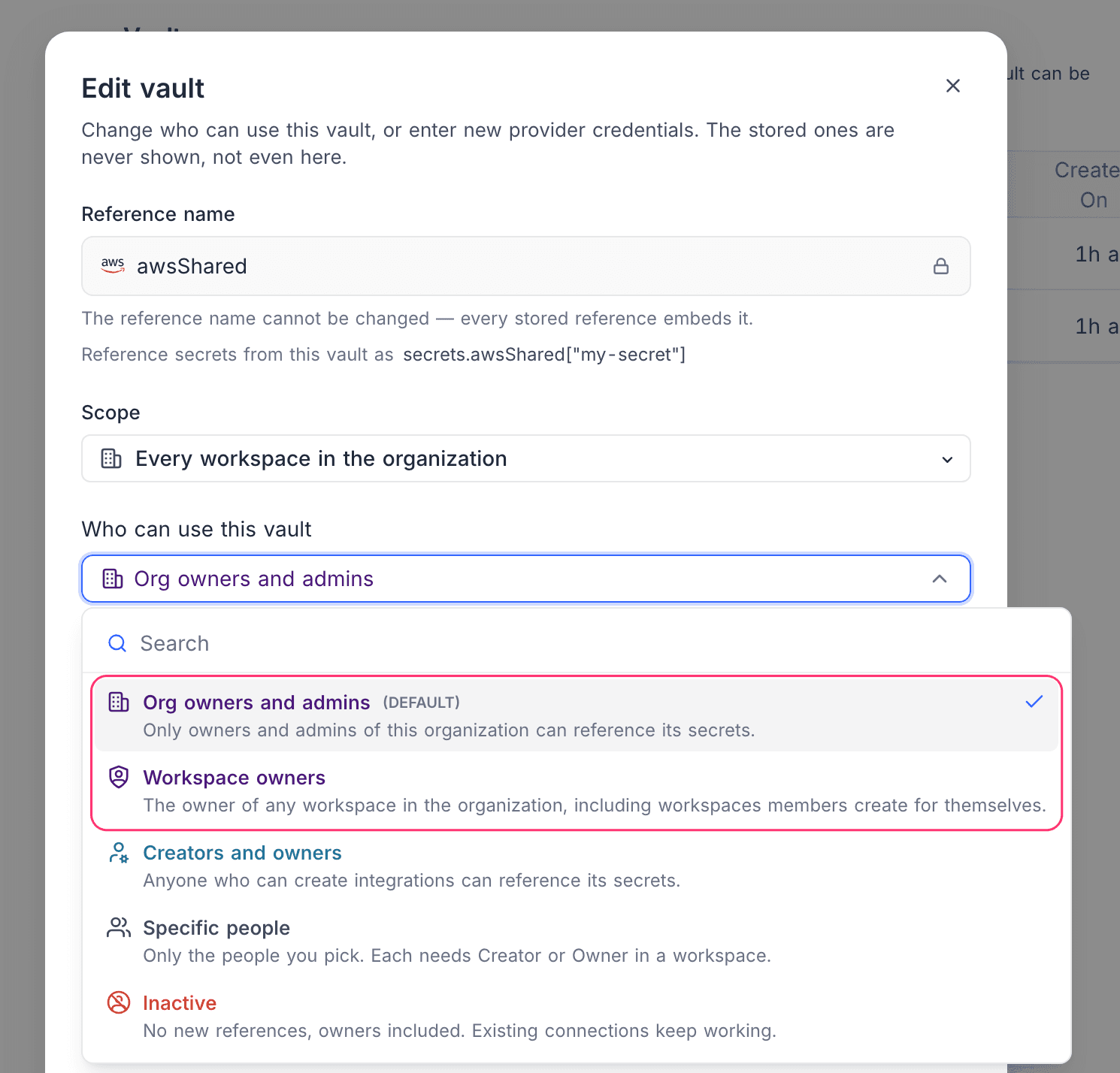
- An organization vault, whether connected from the Admin Panel or made organization-wide later, defaults to Org owners and admins. The option list marks the default with (DEFAULT).
| Option | Who can reference the vault's secrets |
|---|---|
| Org owners and admins (default for an organization vault) | "Only owners and admins of this organization can reference its secrets." The Org Admin, and on self-hosted NocoDB the Super Admin. Offered for organization vaults only |
| Workspace owners (default for a workspace vault) | Workspace Owners only. On an organization vault the option reads "The owner of any workspace in the organization, including workspaces members create for themselves." Pick it only when that is what you mean |
| Creators and owners | Everyone who can create integrations: Workspace Creators and Owners |
| Specific people | Only the people you pick. For a workspace vault you pick from the workspace's Owners and Creators (from the Admin Panel, the list shows the organization's members). For an organization vault you pick from the organization's members, and each still needs Creator or Owner in the workspace where they use it |
| Inactive | Nobody, owners included. No new references can be made. Connections that already reference the vault keep working |
NocoDB checks the setting whenever a reference is written or read on someone's behalf:
- when a connection is created or updated, including per-environment overrides
- when an unsaved connection form runs Test connection
- when a script sends a request that uses any field of an integration holding a reference (see In a script)
- when a form loads its options for a credential that is a reference
- when the vault's secret names are offered while typing a reference
Saving any edit to a connection that holds a reference re-checks it. So after the setting is tightened, only allowed users can save changes to those connections, even changes that leave the reference alone.
The setting is not checked when an existing connection opens. Tightening it, or setting a vault to Inactive, never breaks a connection that is already saved. To stop a vault being used altogether, repoint the connections that use it and then disconnect it.
Some details worth knowing:
- Deleting a user account removes it from the Specific people list of every vault.
- Removing a member from a workspace removes them from the Specific people list of that workspace's vaults. Removing a member from the organization removes them from the lists of every vault in the organization and its workspaces.
- A picked person who is no longer a Creator or Owner stays on the list, labeled as such. The grant itself still stands, but it is inert: only Creators and Owners can create or edit a connection, which is where a reference is written.
- Teams can be granted access through the API. The dialog keeps them and shows how many there are, but does not edit them.
- If setting access fails right after a vault is connected, the vault is still connected and stays at its default until the setting is changed from Edit vault.
Giving workspace owners an organization vault
An organization vault does not reach workspace owners by default. To let them reference it, the Org Admin either:
- picks Workspace owners, which covers the Owner of every workspace in the organization, including the ones members create for themselves, or
- picks Specific people and adds the workspace owners who need it.
Specific people is the narrower choice when only some teams should use the vault.
What nobody can see
NocoDB Enterprise Vaults exist to keep credentials out of NocoDB, so this table lists what stays hidden and from whom.
| What | Who can see it |
|---|---|
| The secret's value, for example the database password | Nobody, at any role, on any plan. It is fetched server-side into a transient connection config, held only in the server's memory for at most five minutes, and never enters a response, a log, or the metadata database |
| The vault's own credentials, for example the AWS access key pair | Nobody, not even the Workspace Owner who entered them. They are encrypted at rest and write-only. Updating a vault requires re-entering them, because there is no way to read them back |
| Which vaults are connected, and whether each last tested successfully | Workspace Owner for every vault in the workspace; a Creator only for the vaults they may use; Org Admin for the organization list |
| Who can use a vault | Workspace Owner, or Org Admin for an organization vault |
| The names of a vault's secrets, and the field names inside one | Only people allowed to use that vault, as suggestions while they type a reference, and only for AWS Secrets Manager. The other providers offer no listing. Field names are suggested only for a secret the provider itself listed, so a guessed secret id reveals nothing |
| The provider's raw error, which can contain ARNs and account ids | Nobody. A test shows a NocoDB message naming the likely cause; the raw error is written only to the server log. The stored test result records whether it passed and when, and no message |
| The secret id inside a stored reference | Workspace Owners. Below Owner it is shown as ********, on every integration type, its per-environment overrides and the project-scoped view |
| The secret's own identifier, for example a full AWS ARN | Nobody, through an error. If a reference names a field that does not exist, the message names the vault and the field, never the provider-side secret id. An ARN carries the AWS account id, and the person who hits that error at connection time is often not the person who wrote the reference |
There is also no per-user ownership. A vault is owned by a workspace or by an organization, never by a person. The user who connected it is recorded on the vault and in the audit log, and is never consulted when checking permissions, so any Workspace Owner can update or disconnect a vault that another Owner connected.
Audit log
The NocoDB workspace Audit log records every change to a vault under the Vaults category:
| Event | Records |
|---|---|
| Vault Create | the new vault |
| Vault Update | whether the credentials changed |
| Vault Permission Update | the new who-can-use setting |
| Vault Scope Update | the previous scope and the new one |
| Vault Delete | the disconnected vault |
Each entry names the vault, its provider and its scope, and the person who made the change. It never holds a credential.
- A workspace vault's entries go to the owning workspace's log. They also go to the organization's log when the change was made from the Admin Panel.
- An organization vault's entries go to the organization's log only, where the Vaults category can be filtered like any other.
Vault connection tests and the reads made when a connection opens are not recorded here. Those appear in your secrets manager's own log.
Availability
| Plan | The Enterprise Vaults add-on, on the Enterprise plan (NocoDB Cloud) or a Self-hosted Enterprise license. No plan includes it |
| Roles | Workspace Owner to manage a workspace vault; Org Admin to manage an organization vault |
Without the add-on, NocoDB rejects every vault operation, whatever the user's role, with "Enterprise Vaults require the Enterprise Vaults add-on." To have the add-on enabled, contact the sales team.
If the add-on is removed, existing references stop resolving as well. Moving a workspace below Enterprise removes the add-on, and the downgrade confirmation names the add-ons it removes and when; a monthly subscription loses them immediately. Connections that were backed by a vault fail until the credential is entered directly, and a credential field that holds a reference warns "The Enterprise Vaults add-on is not active, so this reference will not resolve. Enter the value directly instead." Connections that never used a vault are unaffected.
While the add-on is missing, the vaults themselves cannot be listed, edited or disconnected either, Owners included. They come back unchanged when the add-on is restored.
Deleting a workspace permanently also deletes its vaults and their access settings.
Related
Last updated on