Connect Google Secret Manager
NocoDB reads secrets from Google Secret Manager as a service account, using the JSON key file you create for it. A vault points at one Google Cloud project.
Before you begin
- The Enterprise Vaults add-on, on the NocoDB Enterprise plan or a Self-hosted Enterprise license. No plan includes it. See Turning on Enterprise Vaults.
- Workspace Owner for a workspace vault, or Org Admin for an organization vault. See Permissions.
- The
gcloudCLI, signed in with permission to enable APIs, create service accounts and keys, and manage secrets in the project. - Your organization policy must allow service account keys. If
iam.disableServiceAccountKeyCreationis enforced, step 4 fails.
The examples use the project ID my-project-123456. Replace it with your own.
1. Enable the API and create a service account
gcloud services enable secretmanager.googleapis.com --project my-project-123456

gcloud iam service-accounts create nocodb-vault-reader \
    --project my-project-123456 \
    --display-name "NocoDB vault reader"
2. Store a secret
printf 's3cret' | gcloud secrets create db-password \
    --project my-project-123456 \
    --data-file=-
A Secret Manager secret holds one value per version, so a reference names the secret and nothing more. To back both a username and a password, store two secrets.
3. Grant access to the secrets
Grant Secret Manager Secret Accessor on each secret NocoDB should read:
gcloud secrets add-iam-policy-binding db-password \
    --project my-project-123456 \
    --member "serviceAccount:nocodb-vault-reader@my-project-123456.iam.gserviceaccount.com" \
    --role roles/secretmanager.secretAccessor
To let NocoDB read every secret in the project instead, grant the same role on the project with gcloud projects add-iam-policy-binding. A per-secret grant keeps NocoDB to the secrets you name.
roles/secretmanager.secretAccessor allows reading secret values and nothing else. NocoDB does not need permission to list secrets.
4. Create a key
gcloud iam service-accounts keys create nocodb-vault-reader.json \
    --iam-account nocodb-vault-reader@my-project-123456.iam.gserviceaccount.com
The file is the whole credential. You paste its entire contents into NocoDB in the next step, then delete the local copy.
5. Connect the vault in NocoDB
Click Connect a vault on the banner at the top of the workspace Integrations page, or open Vaults in the Admin Panel for an organization-scoped vault. Choose Google Secret Manager, click Next, and fill in:
| Field | Value |
|---|---|
| Reference name | a short alias such as gcpProd. See Choosing the reference name |
| Project ID | the project the secrets live in, for example my-project-123456. Use the ID, not the display name or the project number |
| Service account key (JSON) | the entire contents of the key file from step 4 |
| Who can use this vault | Workspace owners for a workspace vault, Org owners and admins for an organization vault. See Who can use a vault |
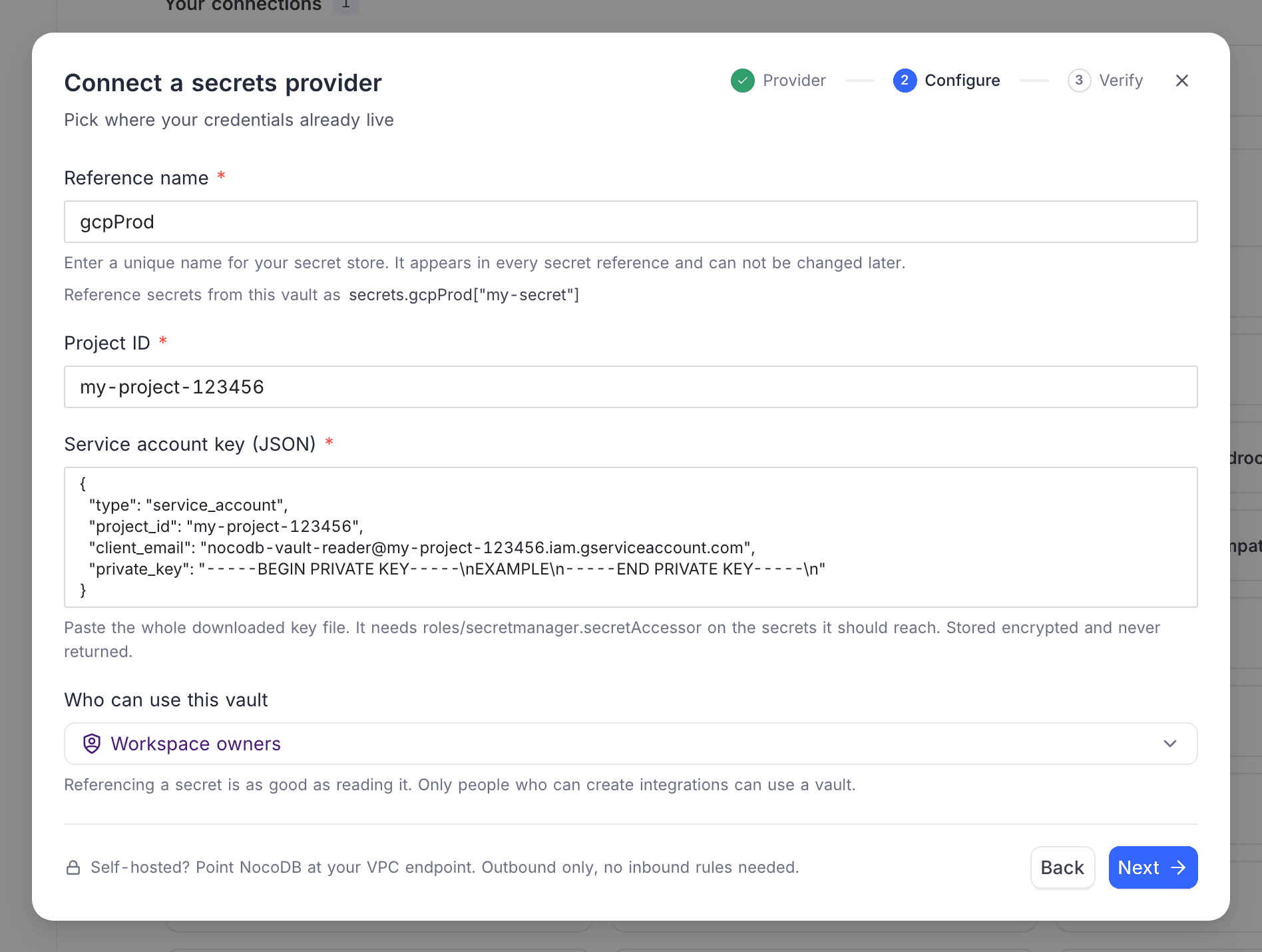
NocoDB checks the pasted key before it contacts Google. The key must be the JSON object from the downloaded file, with its client_email and private_key. A partial paste is refused with a message naming the problem.
Click Next and run the test on the Verify step. NocoDB authenticates with the key against your project. The test fails when the key is disabled or deleted, or the Secret Manager API is not enabled. It passes when Google accepts the key, even if the service account may not list secrets.
The test cannot always tell a wrong project ID from a missing list permission, because Google answers both with "permission denied". After you save, check the project ID by running Test connection on a connection that references one of the vault's secrets.
Reference a secret
Reference a Google Secret Manager secret from a credential field as:
secrets.gcpProd["db-password"]No field follows the secret name. NocoDB reads the latest version. To pin a version, add it to the name: secrets.gcpProd["db-password/versions/3"]. A secret in another project can be referenced by its full resource name, projects/<project>/secrets/<name>, if the service account can read it there. See Use a vault reference.
Rotate the key
- Create a second key for the service account with
gcloud iam service-accounts keys create. - In NocoDB, open Edit vault, re-enter the project ID and paste the new key file in full. Click Verify, then Save.
- Delete the old key:
gcloud iam service-accounts keys delete <KEY_ID> --iam-account nocodb-vault-reader@my-project-123456.iam.gserviceaccount.com.
See Rotating a vault's credentials.
Common errors
| Message | What to do |
|---|---|
| Google Secret Manager requires a project ID and a service account key. | Fill in both. Also returned when saving the vault, and nothing is saved |
| The service account key is not valid JSON. Paste the whole downloaded key file. | The paste was cut or edited |
| The service account key must be the JSON object from the downloaded key file. | Something other than the key file's JSON object was pasted, for example a list or a quoted string |
| The service account key is missing client_email or private_key. Paste the whole downloaded key file, not just part of it. | Paste the complete file, from { to } |
| Google rejected the service account key. Check it has not been disabled or deleted, and that the key file was pasted in full. | Create a fresh key, or re-enable the service account |
| The Secret Manager API is not enabled on this project. Enable it in the Google Cloud console. | Step 1 |
| No such project, or the Secret Manager API is not enabled on it. Check the project ID. | Use the project ID, not its name or number |
| The service account is not allowed to read this secret. Grant it roles/secretmanager.secretAccessor on the secret or the project. | Step 3, on this secret |
| No such secret or version in this project. A secret in another project must be referenced by its full projects/…/secrets/… name. | Fix the name, or use the full resource name |
| This secret version is disabled or destroyed. Reference a version that is enabled. | Enable the latest version, or add a new one |
| This secret version has no payload. | Add a version with a value |
| Google rejected the secret reference. Check the project ID and the secret name. | The name is malformed. Check it in the reference |
| The secret name is empty. | Add the secret name to the reference |
| Could not test the vault connection in Google Secret Manager. Check the project ID and the service account's permissions. | Any other failure. The raw error is in the NocoDB server log |
For errors shared by every provider, see Vaults troubleshooting.
Related
Last updated on