Connect CyberArk Conjur
NocoDB reads variables from CyberArk Conjur as a host (a machine identity with an API key). Your Conjur policy decides which variables that host can fetch. Conjur Open Source, Conjur Enterprise and Conjur Cloud all work.
Before you begin
- The Enterprise Vaults add-on, on the NocoDB Enterprise plan or a Self-hosted Enterprise license. No plan includes it. See Turning on Enterprise Vaults.
- Workspace Owner for a workspace vault, or Org Admin for an organization vault. See Permissions.
- The Conjur CLI, signed in as a user who can load policy into the
databranch and set variable values. - An appliance URL NocoDB can reach. NocoDB Cloud needs a public
https://URL. See Network.
1. Load a policy
The policy below creates a host for NocoDB, the variables it may read, and the permission between them. Save it as nocodb.yml:
- !host nocodb

- &vars
  - !variable db/username
  - !variable db/password

- !permit
  role: !host nocodb
  privileges: [ read, execute ]
  resources: *vars
execute lets a role fetch a variable's value; read lets it see that the variable exists. Grant nothing else.
Load the policy into the data branch:
conjur policy load -b data -f nocodb.ymlConjur Cloud has the data branch already. On Conjur Open Source or Enterprise, create it once first if it does not exist:
printf -- '- !policy\n  id: data\n' > data.yml
conjur policy load -b root -f data.yml
The response to the nocodb.yml load lists the API key of the new host under created_roles. Copy it; Conjur shows it once. The host's ID is host/data/nocodb: the host/ prefix plus its path in the policy.
2. Set the variable values
conjur variable set -i data/db/username -v app
conjur variable set -i data/db/password -v s3cret
A Conjur variable holds one value, so a reference names the variable and nothing more. To back both a username and a password, use two variables, as above.
3. Connect the vault in NocoDB
Click Connect a vault on the banner at the top of the workspace Integrations page, or open Vaults in the Admin Panel for an organization-scoped vault. Choose CyberArk Conjur, click Next, and fill in:
| Field | Value |
|---|---|
| Reference name | a short alias such as cjProd. See Choosing the reference name |
| Appliance URL | the Conjur API address, for example https://conjur.example.com/api. For Conjur Cloud it is https://<subdomain>.secretsmgr.cyberark.cloud/api. Include /api if your Conjur serves its API there |
| Account | your Conjur account name. Conjur Cloud always uses conjur |
| Host ID | host/data/nocodb, including the host/ prefix |
| API key | the host's API key from step 1 |
| Who can use this vault | Workspace owners for a workspace vault, Org owners and admins for an organization vault. See Who can use a vault |
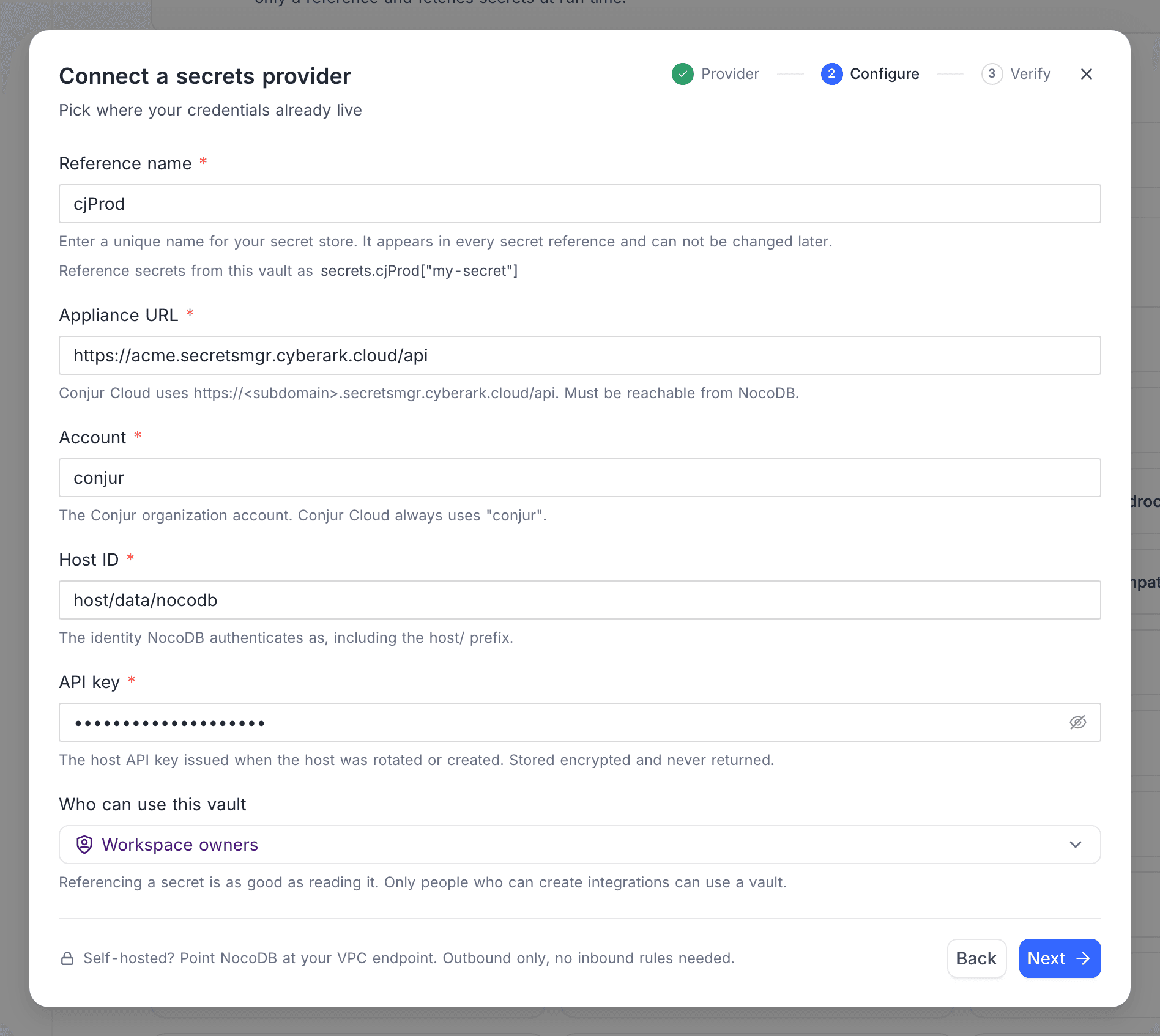
Click Next and run the test on the Verify step. NocoDB authenticates as the host and confirms the identity, so a green result means the URL, the account, the host ID and the API key are all right. The test does not fetch a variable, so a missing execute privilege shows only when a reference is first read. Then save.
Reference a variable
Reference a Conjur variable from a credential field as:
secrets.cjProd["data/db/password"]The part in brackets is the variable's identifier: its path in the policy, without the account or the variable: kind. No field follows it. See Use a vault reference.
NocoDB logs in with the API key and keeps the resulting access token for 5 minutes (Conjur tokens last 8), shared across the connections that use the vault. It logs in again when the token expires.
Network
- NocoDB Cloud reaches Conjur over the public internet, so the appliance URL must be
https://and must resolve to a public address. A private or link-local address is refused with a message saying so. Allow NocoDB Cloud through your firewall. - Self-hosted NocoDB may use
http://and private addresses. A private address is still refused until you setNC_ALLOW_LOCAL_VAULTS=trueon the NocoDB server. - A Conjur behind a private CA needs that CA added with
NODE_EXTRA_CA_CERTSon the NocoDB server. On Cloud, use a certificate from a public CA. - Point the URL at the Conjur API directly. NocoDB refuses a proxy that redirects, rather than following it. On Conjur Cloud a redirect usually means the
/apisuffix is missing.
Rotate the API key
- In Conjur, rotate the host's key:
conjur host rotate-api-key -i data/nocodb. The old key stops working immediately. - In NocoDB, open Edit vault and re-enter every field: the appliance URL, the account, the host ID and the new API key. Click Verify, then Save.
Do step 2 right after step 1. Connections keep working for up to 5 minutes on the cached access token and secret values. After that, they fail with "Conjur rejected the access token" until the vault is updated. See Rotating a vault's credentials.
Common errors
| Message | What to do |
|---|---|
| CyberArk Conjur requires an appliance URL, an account, a host ID and an API key. | Fill in all four. Also returned when saving the vault, and nothing is saved |
| The appliance URL must be a full URL, for example https://conjur.example.com/api. | Enter the scheme and host |
| The appliance URL must be an http:// or https:// URL. | Use https:// (or http:// on self-hosted NocoDB) |
| The appliance URL must be an https:// URL. | On NocoDB Cloud the URL must use TLS. See Network |
| The appliance URL could not be resolved. Check the host name. | The host name in the URL is misspelled or not in public DNS |
| The appliance URL resolves to a private or link-local network… | See Network |
| Could not reach Conjur at this appliance URL. Check the URL and that NocoDB is allowed through the network. | A wrong port, or a firewall that does not let NocoDB through |
| The Conjur server's TLS certificate is not trusted. … | A private CA. See Network |
| The appliance URL redirected the request. Point it at the Conjur API directly — Conjur Cloud URLs end in /api. | Add /api, or remove the proxy |
| Conjur answered 404. Check the appliance URL and the account — Conjur Cloud URLs end in /api. | Add /api on Conjur Cloud, or fix the account |
| Conjur rejected the host credentials. Check the host ID (including its host/ prefix), the API key and the account. | One of the three is wrong. The same message covers a wrong account, so check all three. Shown by the test |
| Conjur accepted the login but returned no access token. | Retry; if it persists, check the Conjur server log |
| Conjur rejected the access token. Rotate the host API key and reconnect the vault. | Shown when a variable is read: the API key was rotated and the vault not yet updated, or the host was removed. Update the vault with the current API key |
| The host is not permitted to read this variable. Grant it execute privilege on the variable in your Conjur policy. | Add the variable to the !permit in step 1 |
| No such variable in this account, or it has no value set yet. Check the identifier, for example data/vault/prod/db/password. | Fix the identifier, or set a value with conjur variable set |
| This Conjur variable has no value set. | Set a value with conjur variable set |
| Conjur rejected the request. Check the account and the variable identifier. | The identifier is malformed. Check it in the reference |
The variable identifier is empty. / A Conjur identifier cannot be . or ... | Fix the identifier in the reference |
| Could not test the vault connection in CyberArk Conjur. Check the appliance URL, the account and the host credentials. | Any other failure. The raw error is in the NocoDB server log |
For errors shared by every provider, see Vaults troubleshooting.
Related
Last updated on