GeoData
This article explains how to create and work with a GeoData field.
The GeoData field stores geographic coordinates (latitude and longitude) for a record. It provides an interactive map interface for viewing and selecting locations, supports place search, and can be used as the data source for Map View.
Create a GeoData field
- Click on the
+icon to the right of theFields header. - On the dropdown modal, enter the field name (Optional).
- Select the field type as
GeoDatafrom the dropdown. - Click on
Save Fieldbutton.
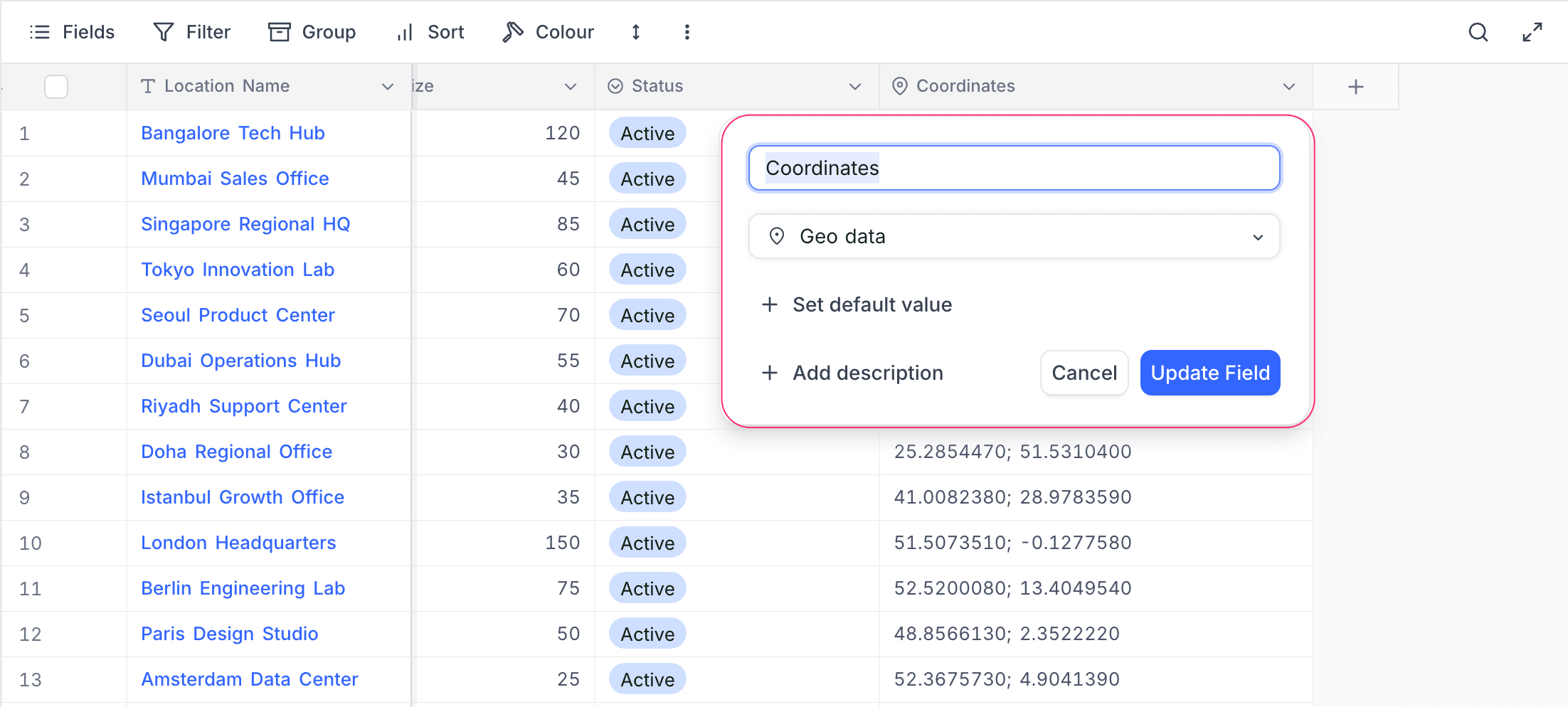
Cell display
In the grid view, a GeoData cell displays the stored latitude and longitude values as a coordinate pair. Clicking on the cell opens the expanded cell editor.
Cell editor
The expanded cell editor provides an interactive interface for viewing and setting a location.
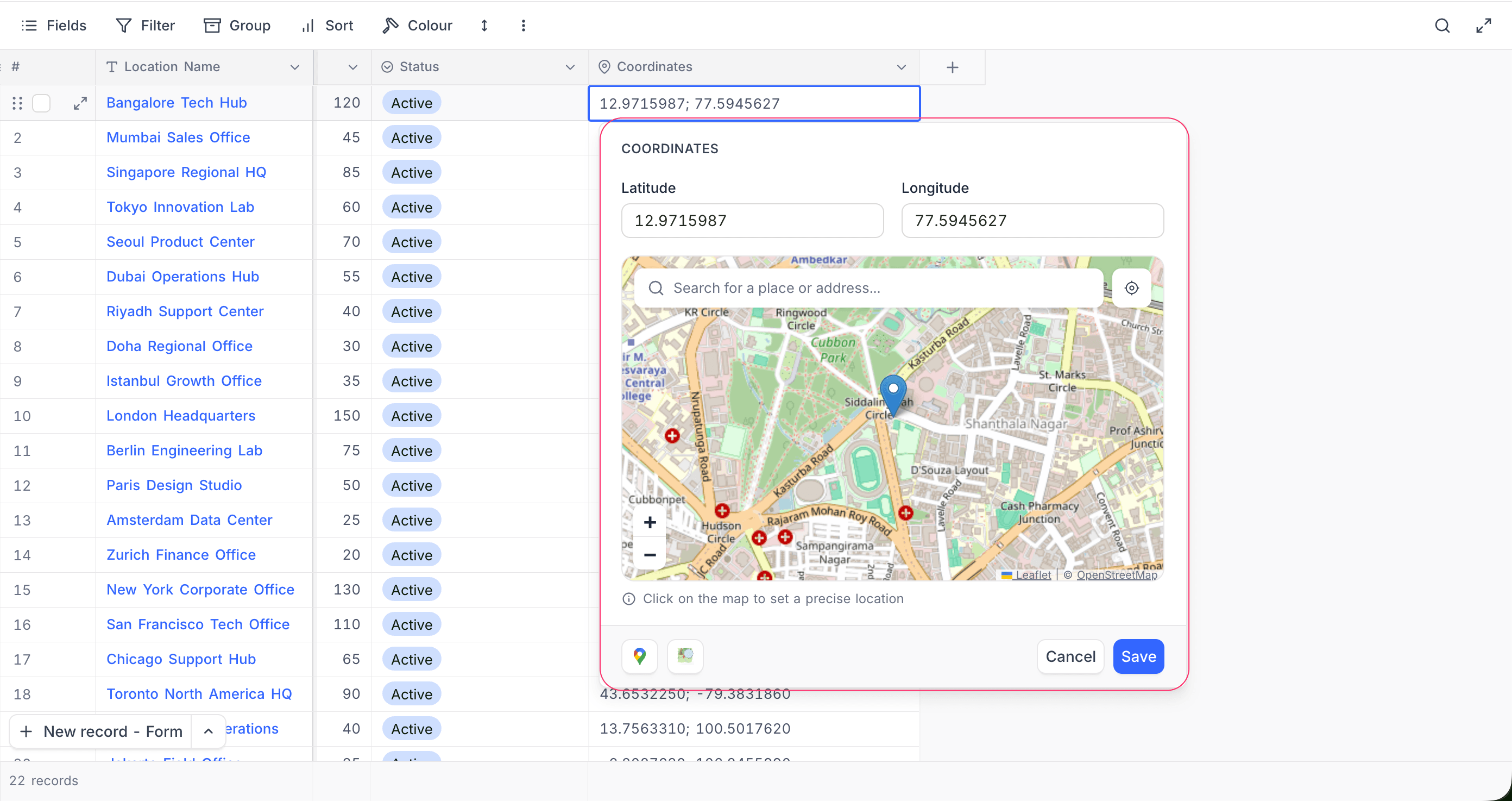
The cell editor includes:
- Latitude and Longitude inputs — manually enter or adjust coordinates directly.
- Interactive map — displays the selected location with a marker on an OpenStreetMap-powered map. You can click on the map to move the marker to a new position.
- Place search — search for a location by name using the search bar at the top of the map. Select a result from the dropdown to set the coordinates automatically.
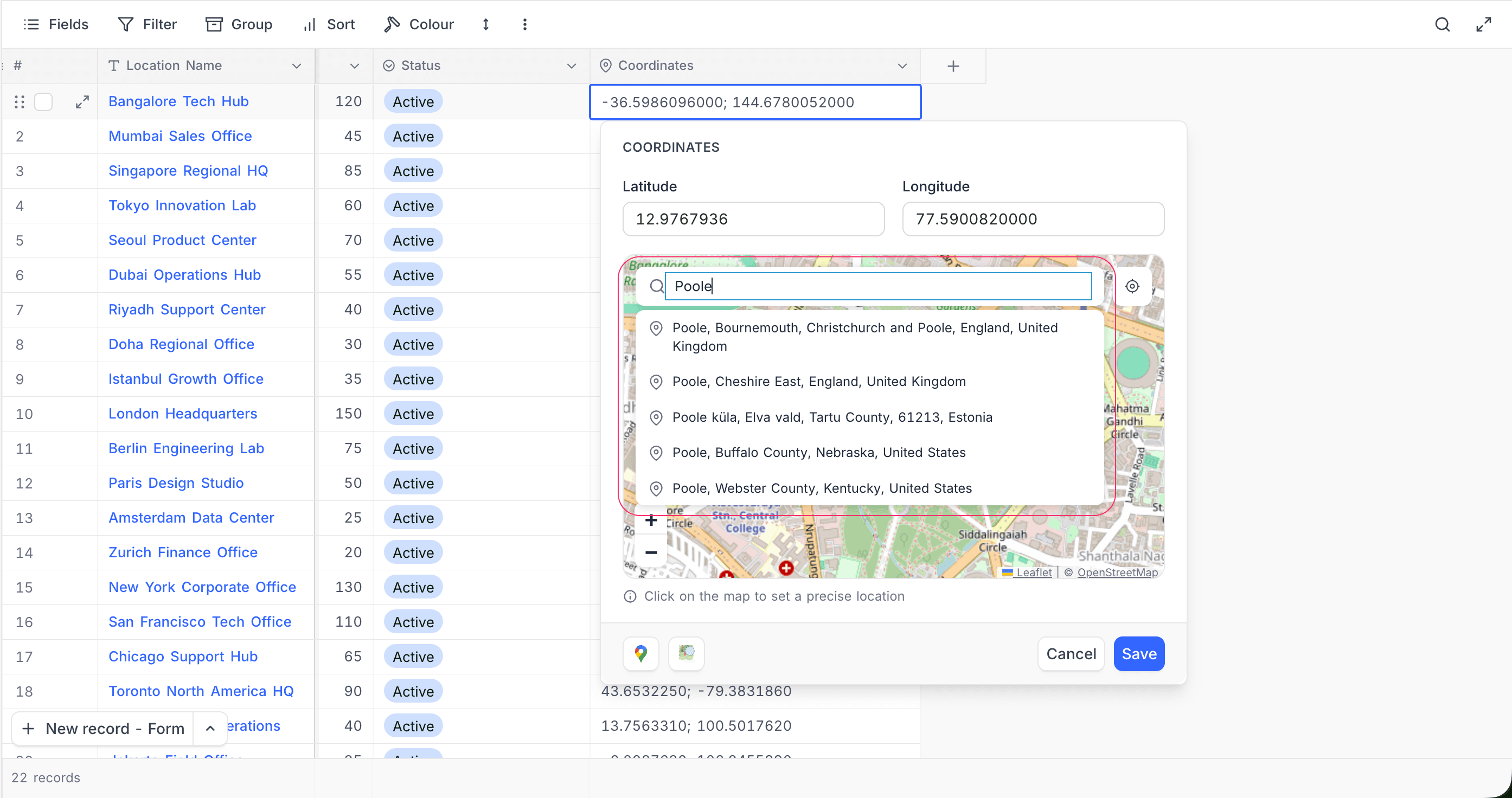
- Use Current Location — click this button to populate the field with your device's current geographic coordinates (requires browser location permission).
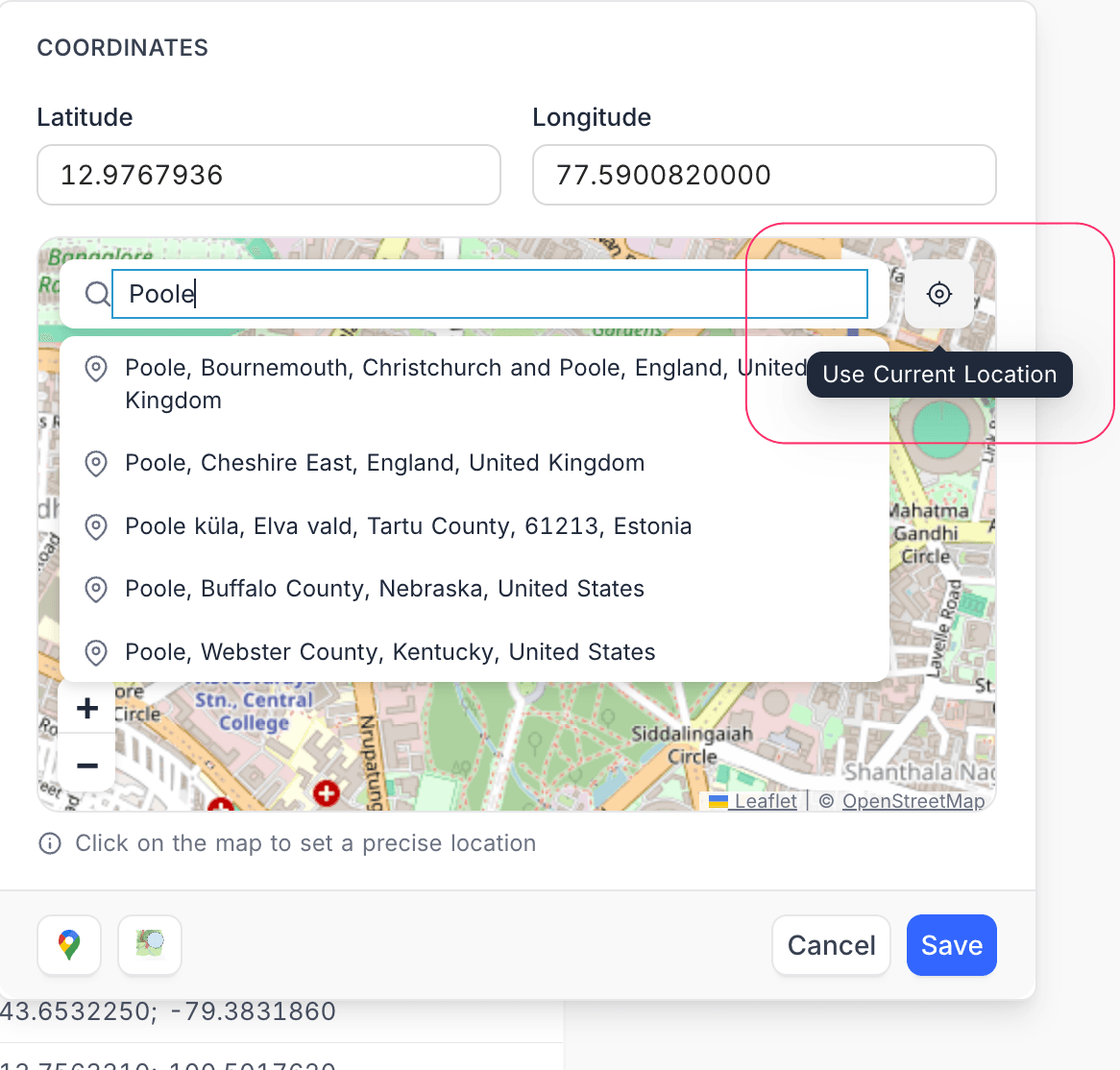
External map links
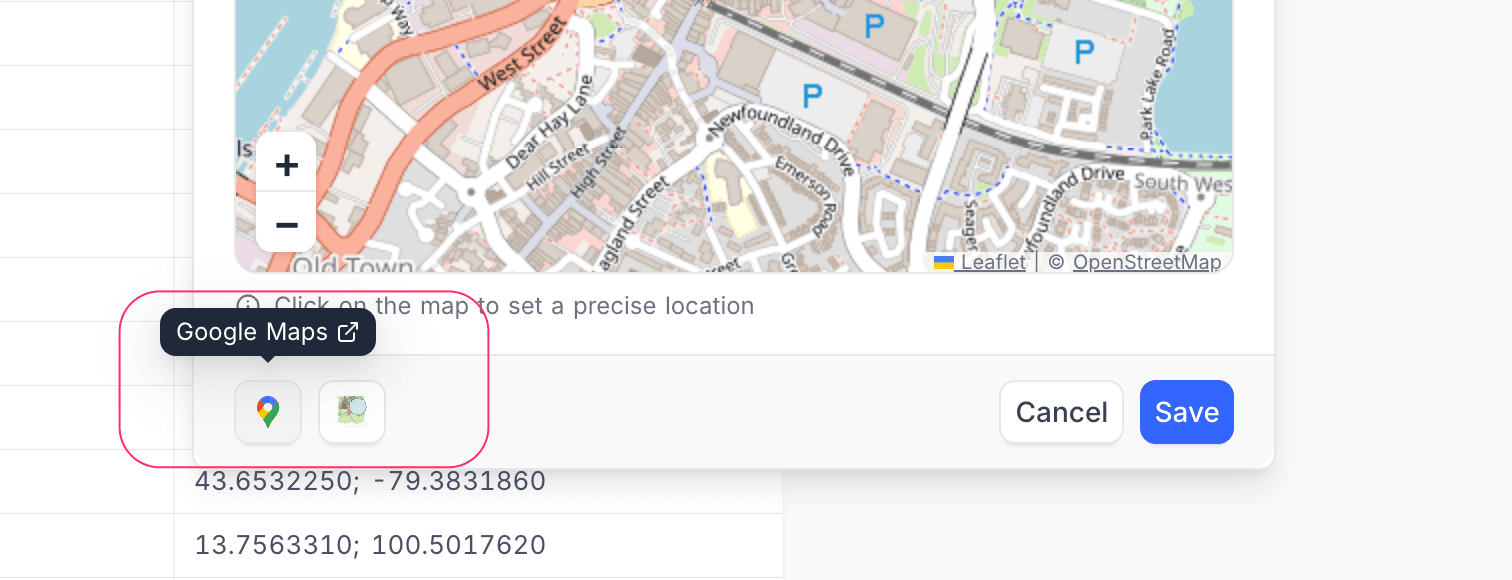
At the bottom of the cell editor, quick links to Google Maps and OpenStreetMap are provided so you can view the selected location in a full mapping application.
Filtering GeoData fields
GeoData fields support the following filter operations:
| Filter operation | Description |
|---|---|
| is like | Matches records containing the specified text |
| is not like | Excludes records containing the specified text |
| is blank | Matches records with no coordinates set |
| is not blank | Matches records that have coordinates |
Sorting GeoData fields
GeoData fields can be sorted in ascending or descending order based on the text representation of the stored coordinates.