Attachment
Use Attachment fields to upload files to your records. You can upload any file type, and NocoDB links the file to the record. You can also upload many files to one Attachment field in a record.
Copy a prompt, paste it into NocoAI in any base, and replace the words in [brackets] with your own.
- Add an [Attachments] field to this table
- Import the file attached to this record into a new table
- Show me the records that have no files in [Attachments]
Create an Attachment field
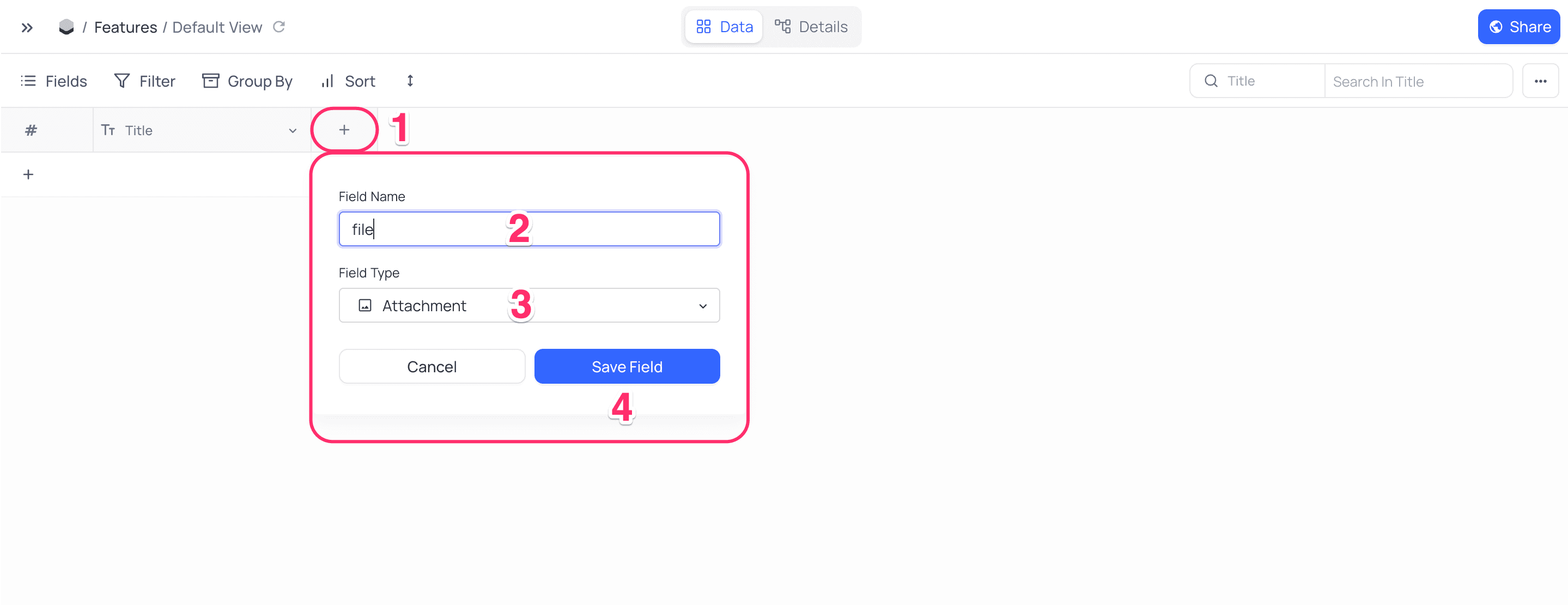
- Click the
+icon to the right ofFields header. - In the dropdown modal, enter the field name (Optional).
- In the dropdown, select the field type
Attachment. - Click
Save Field.
Cell display
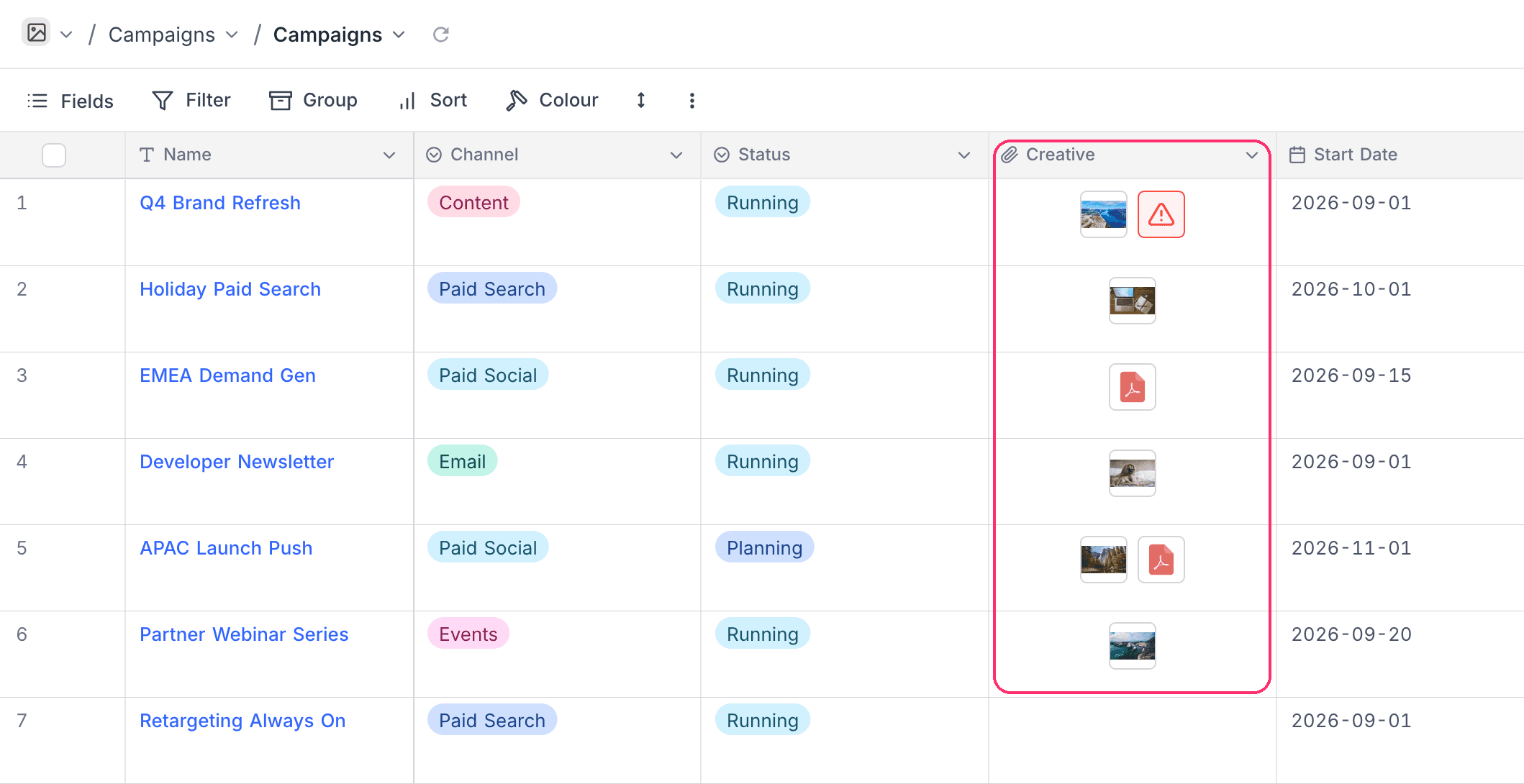
An Attachment cell shows one of these:
- A preview that you can click, if the file is an image in a known format.
- A file-type icon, for all other files.
- A warning tile, if the file was added by URL through the API and NocoDB could not download it. To see the reason, expand the cell and hover the tile. Delete the file and add it again to replace it.
Upload files
To upload files to an Attachment field, use one of these methods:
- Click the
+icon in the cell. Choose the file to upload, then clickUpload. - Drag the file and drop it on the cell.
- Click the expand icon
<>. Choose the file to upload, or drag and drop the file. Then clickUpload.
Max Number of Attachments option of the field cannot raise that number.Expand modal
The expand modal of an Attachment field shows the list of files in the field. You can also upload files from the expand modal. To open the expand modal, click the expand icon <> in the cell.
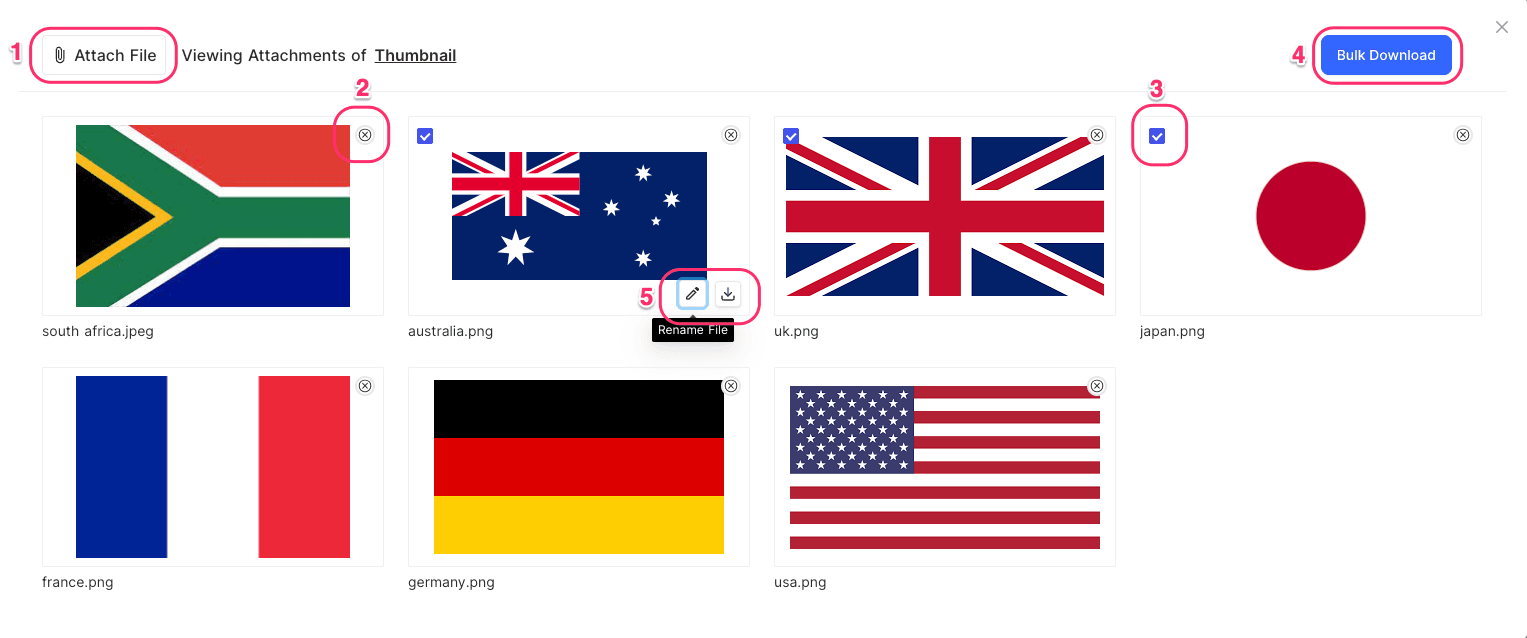
The expand modal has these actions:
Attach file(s)
- Click
Attach file(s)<1>. - Choose the file(s) to upload.
Delete file
- To delete the file, click the
xicon <2> at the top left of the image card.
Download file
- To download the file, click
Download<5>.
Bulk Download file(s)
- To select the files, click the checkbox <3> at the top left of each image card.
- To download the selected files, click
Bulk Download<4>.
Rename file
- Click
Rename<5>. - In the input field, enter the new name.
- To save the new name, click
Rename.
Rename file only renames the file in NocoDB display (expand record & tool tip on hover). It does not rename the file in the storage.
Environment variables
In the self-hosted version, you can set these environment variables to change the behavior of the Attachment field:
| Variable | What it sets | Default |
|---|---|---|
NC_ATTACHMENT_FIELD_SIZE | The maximum size of attachment files, in bytes. | 20971520 (20 MiB) |
NC_MAX_ATTACHMENTS_ALLOWED | The maximum number of attachments in one cell. | 10 |
NC_SECURE_ATTACHMENTS | Lets users access attachments only through pre-signed URLs. | false |
NC_ATTACHMENT_EXPIRE_SECONDS | The expiry time of pre-signed URLs. | 7200 (2 hours) |
For all supported environment variables, refer to Environment variables.
Related
Last updated on