Colour
This article explains how to create & work with a Colour field.
The Colour field allows you to store and display colour values as hex codes (e.g. #FF5733). Each cell shows a colour swatch alongside an editable hex input, making it easy to visually identify and modify colours. A built-in colour picker with default and custom colour palettes is available for quick selection.
Create a colour field
- Click on
+icon to the right ofFields header - On the dropdown modal, enter the field name (Optional).
- Select the field type as
Colourfrom the dropdown. - Set default value for the field using the colour picker (Optional).
- Click on
Save Fieldbutton.
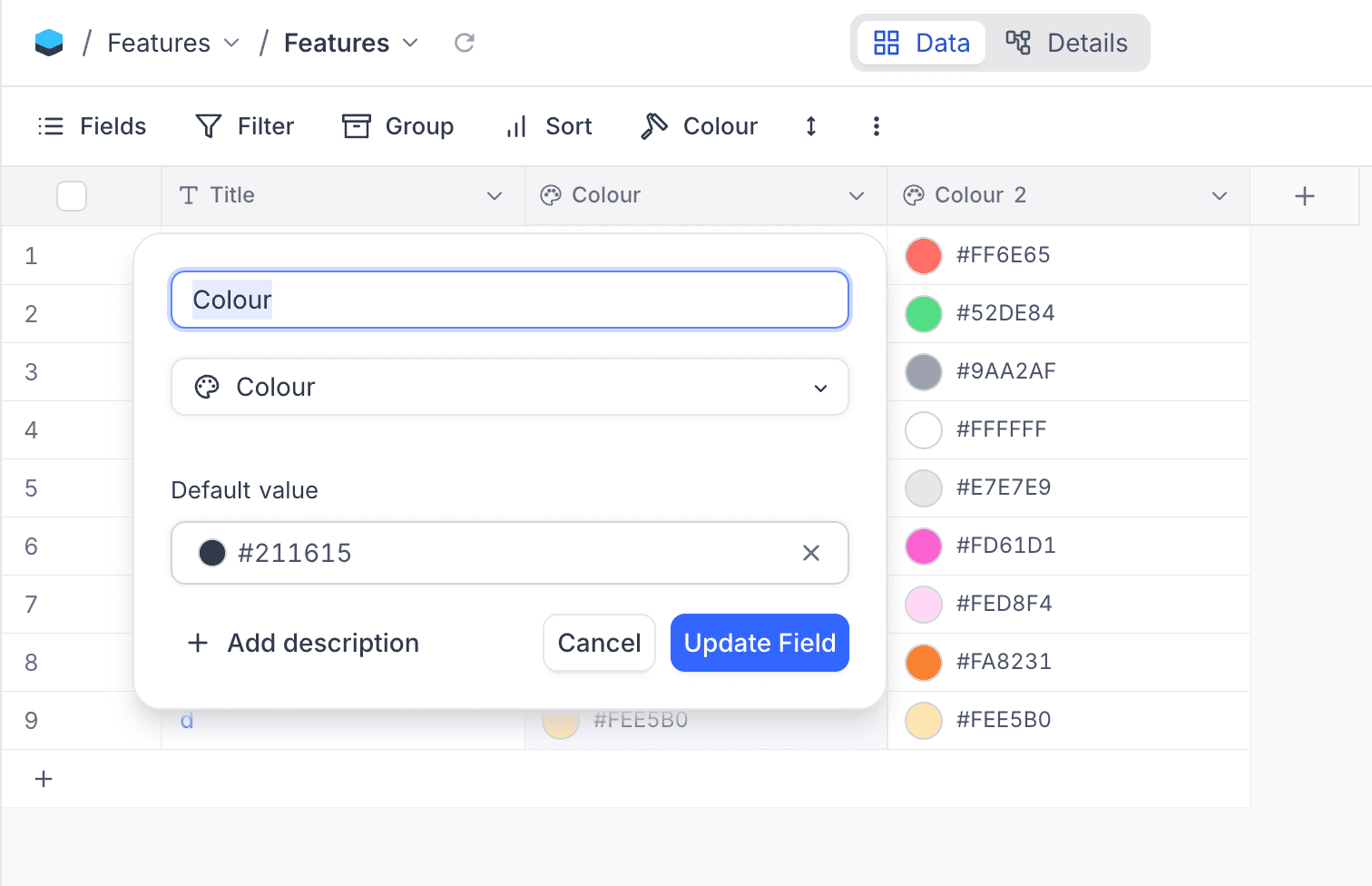
Cell display
Each cell displays a colour swatch on the left and the hex value on the right. Clicking the swatch opens the colour picker, and the hex value can be edited directly in the text input.
Setting value for the field
- Click on the colour swatch to open the colour picker and select a colour.
- Type a hex value directly into the text input (e.g.
#FF5733orFF5733). - Paste a hex value into the text input.
Unsetting value for the field
- Clear the text input to remove the colour value.
- Key in
Deleteto clear the colour value for the field.
Colour picker
The colour picker provides two tabs:
- Default colours - A palette of commonly used colours for quick selection.
- Custom - A full colour wheel with hue, saturation, and brightness controls, plus a hex input for precise colour entry.
Press Enter to save the selected colour, or Escape to cancel.
Filtering
Colour fields support text-based filtering on the hex value. The filter input includes a colour swatch preview alongside the text input for visual reference.