Folders
Folders put tables, documents and dashboards into collapsible groups in the base sidebar. Use folders to keep the sidebar easy to use as a base grows. For example:
- Keep delivery work separate from finance.
- Keep a dashboard next to the tables that it uses.
- Make the sidebar match how your teams divide the work.
Create a folder
Use one of these methods to create a folder:
-
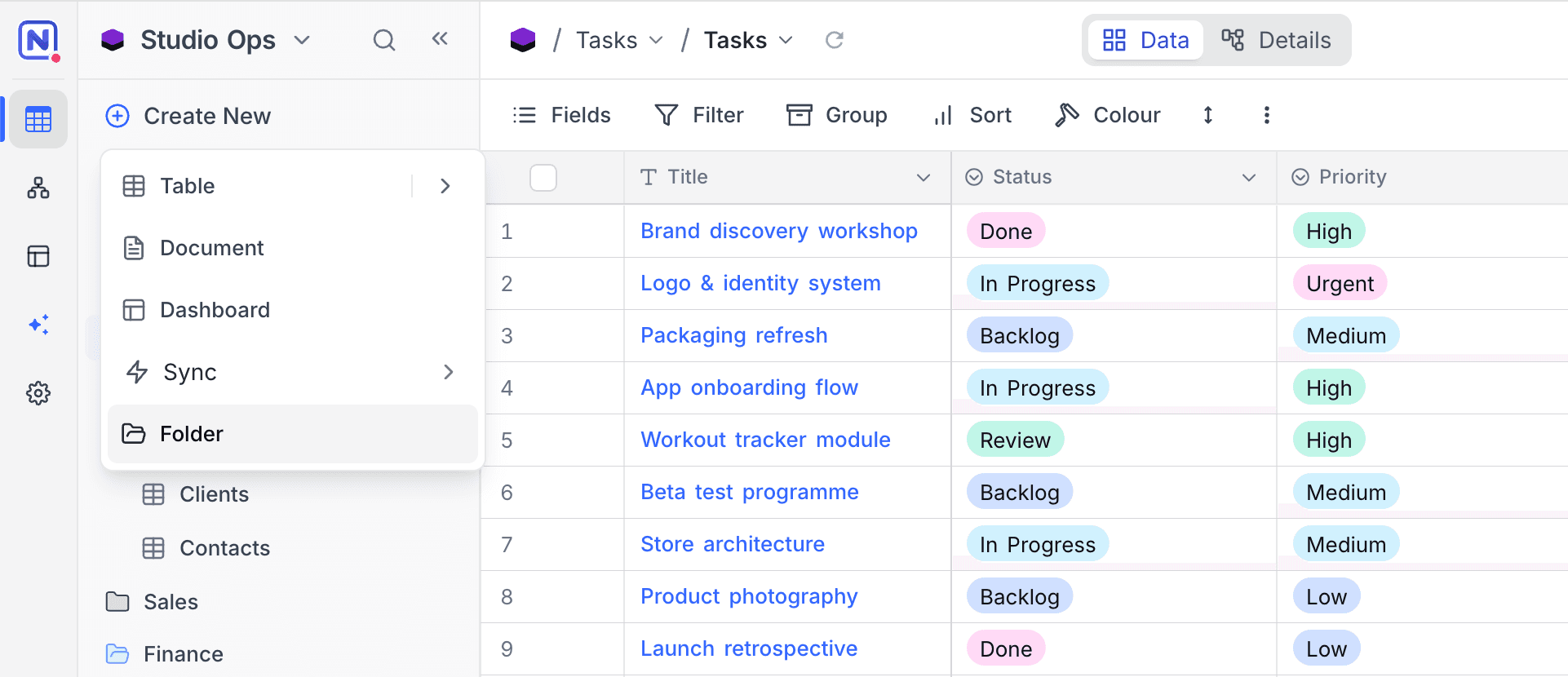
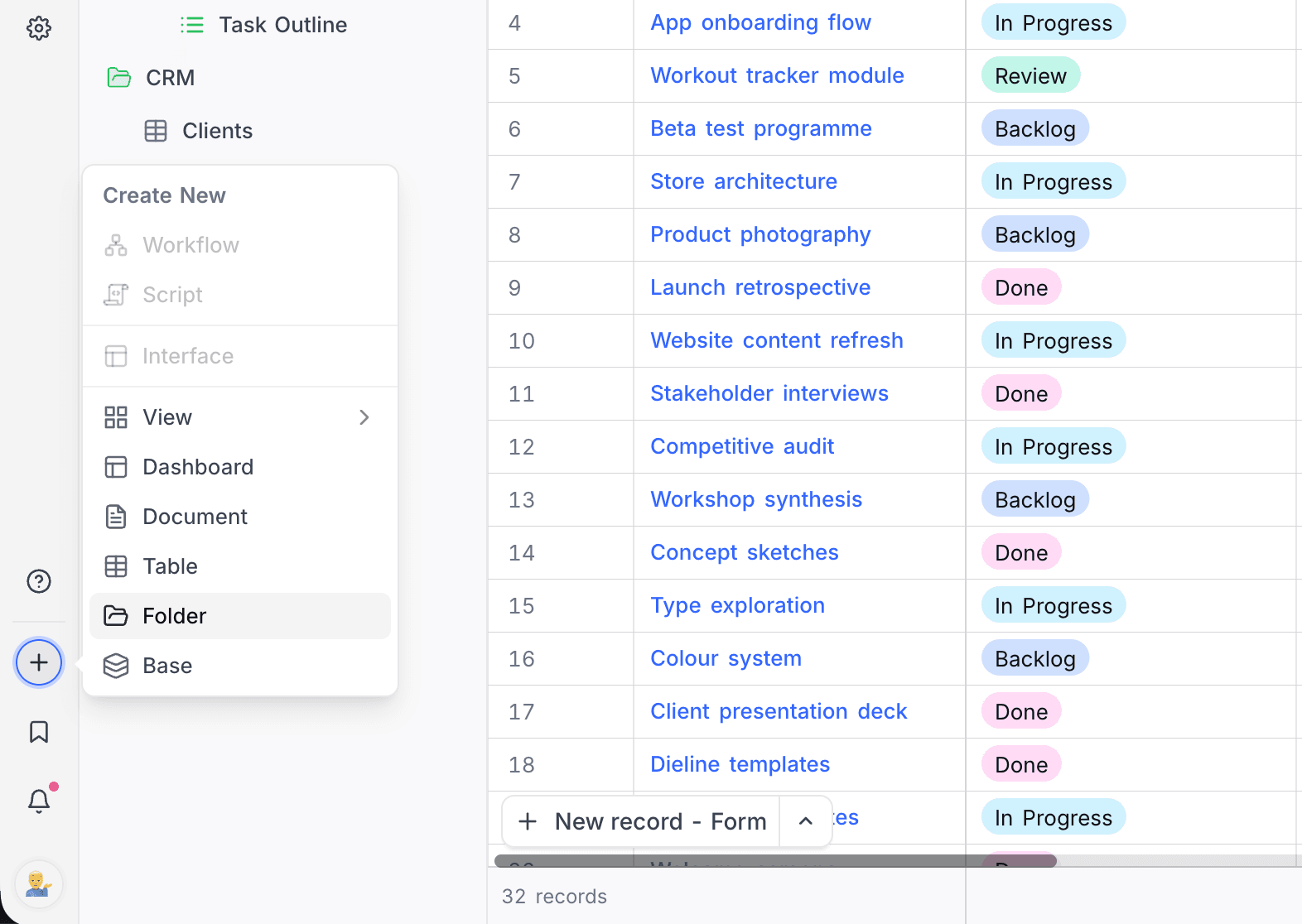
At the top of the sidebar, open the Create New menu and select Folder. The + button in the mini sidebar has the same option.
-
Open the context menu (
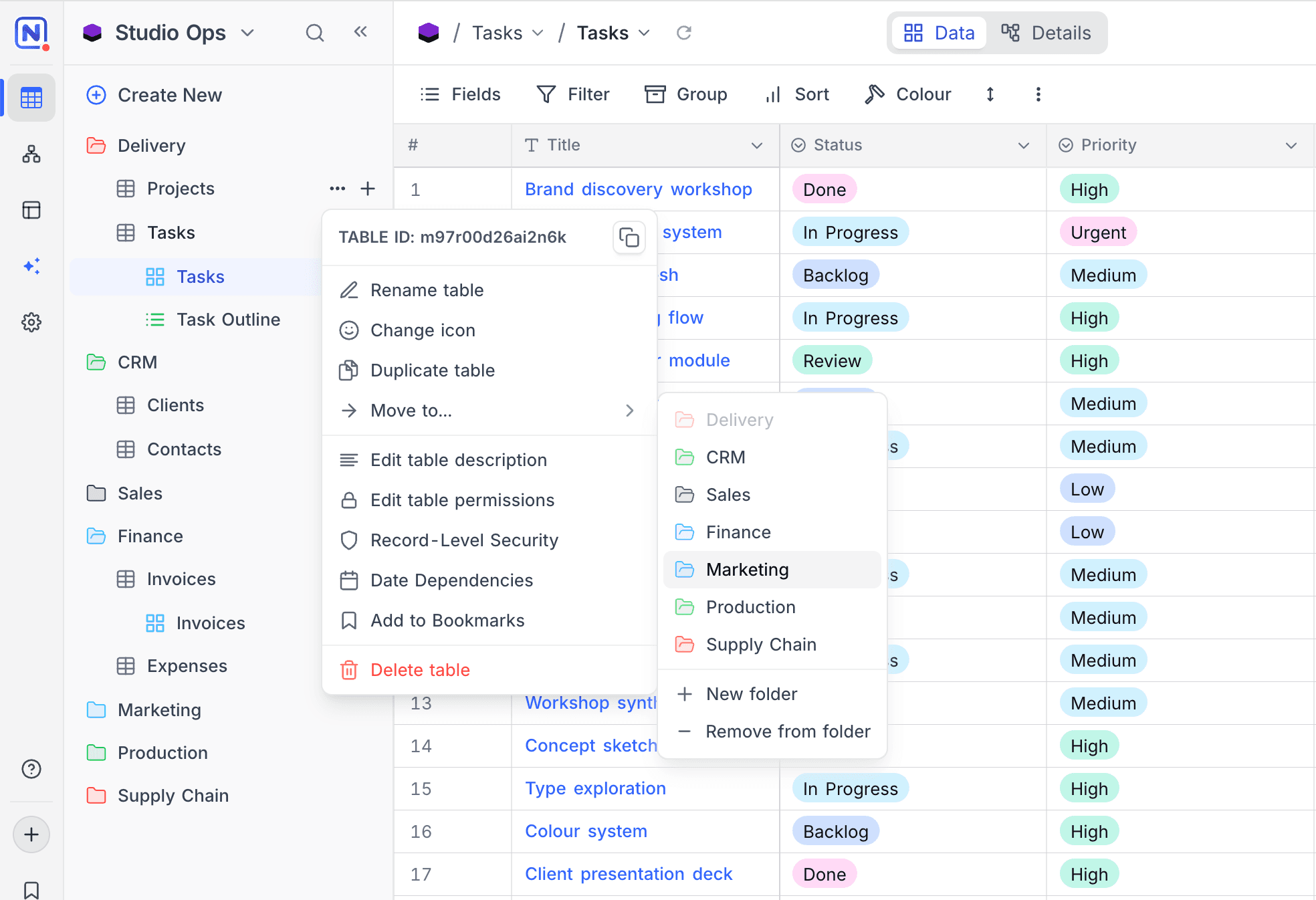
...) of an item, move the pointer over Move to..., and click New folder. NocoDB moves the item into the new folder in the same step. The folder takes the position of the item in the sidebar. -
For an external data source, click the + next to the source name and select Folder. The folder is scoped to that source.
A new folder gets a default name ("Folder", "Folder 2" and so on). To rename the folder, double-click its name.
Move items in and out
- Drag a table, document or dashboard into a folder. To move it back to the top level, drag it out of the folder.
- Or use the context menu of the item. Move the pointer over Move to... and select the folder. To move the item back to the top level, select Remove from folder.
Manage folders
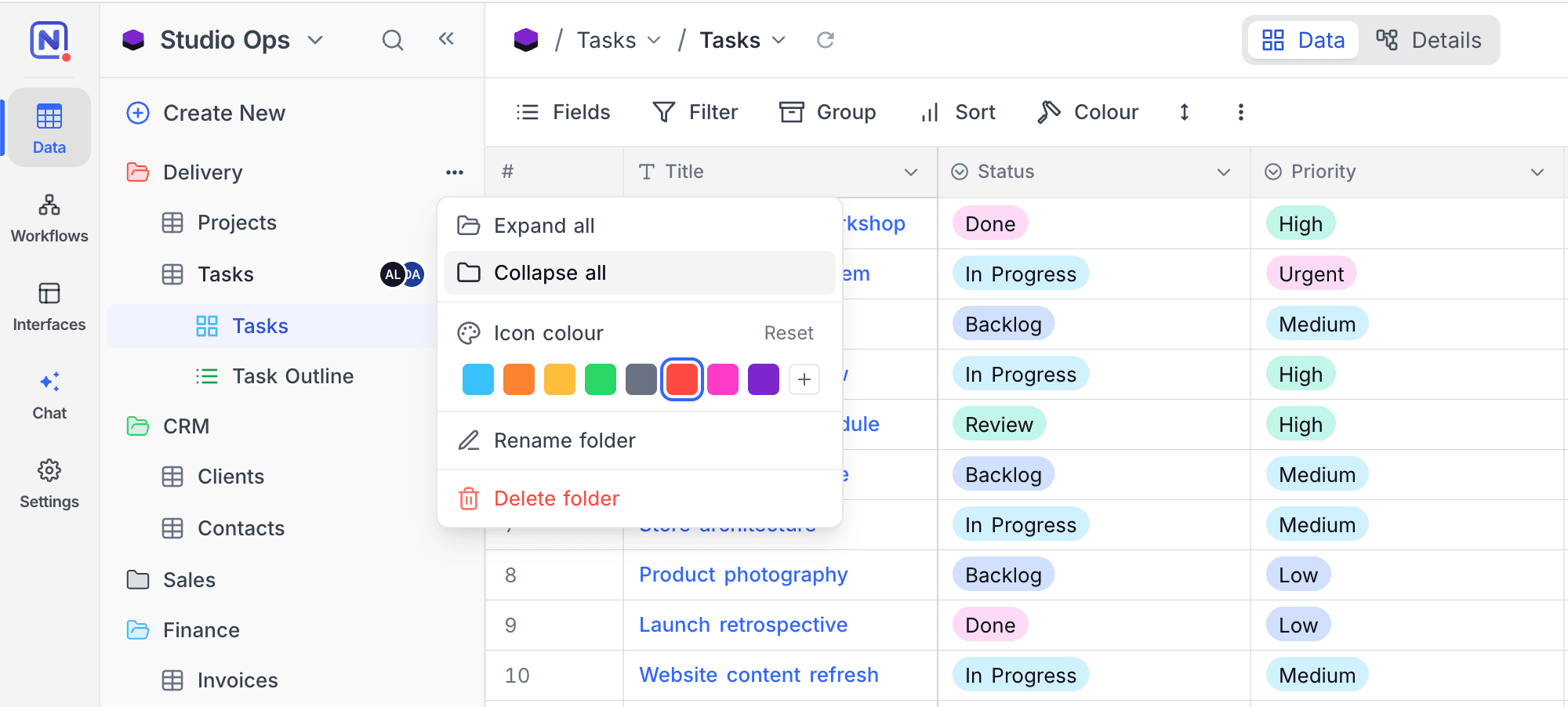
On a folder header, click ... to see the folder actions:
| Action | What it does |
|---|---|
| Expand all / Collapse all | Expands or collapses all folders at the same time. |
| Icon colour | Sets a color for the folder icon. Reset sets the default color again. |
| Rename folder | Renames the folder. |
| Delete folder | Deletes the folder. |
When you delete a folder, NocoDB does not delete the items in it. All items move back to the top level of the sidebar.
Notes
- Folders are scoped to a data source. A base with an external data source has a separate set of folders for each source. A folder name must be unique only in its source.
- Folders change only the sidebar. They do not change permissions or how items work.
- To organize the views in a table the same way, refer to View Folders.
Availability
- Folders are available on all plans, on NocoDB Cloud and self-hosted deployments, including the Community Edition.
- Only base Creators and Owners can create, rename, recolor or delete folders. Other members can see folders but cannot manage them.
Last updated on