Base Snapshots
Snapshots allow you to create a point-in-time backup of your base. Use them before major changes or to safeguard against accidental data loss.
Key Notes
- Restoring a snapshot creates a new base — the existing base is not modified.
- You can choose which workspace to restore the snapshot into.
- Audit log data (global audits and record revision history) is not included in snapshots.
- Base-level permissions, shared base, and shared view settings are not restored — these must be reconfigured manually.
- A minimum gap of three hours is required between creating two snapshots.
- Only Base Owners can access the snapshot feature.
Access Snapshots
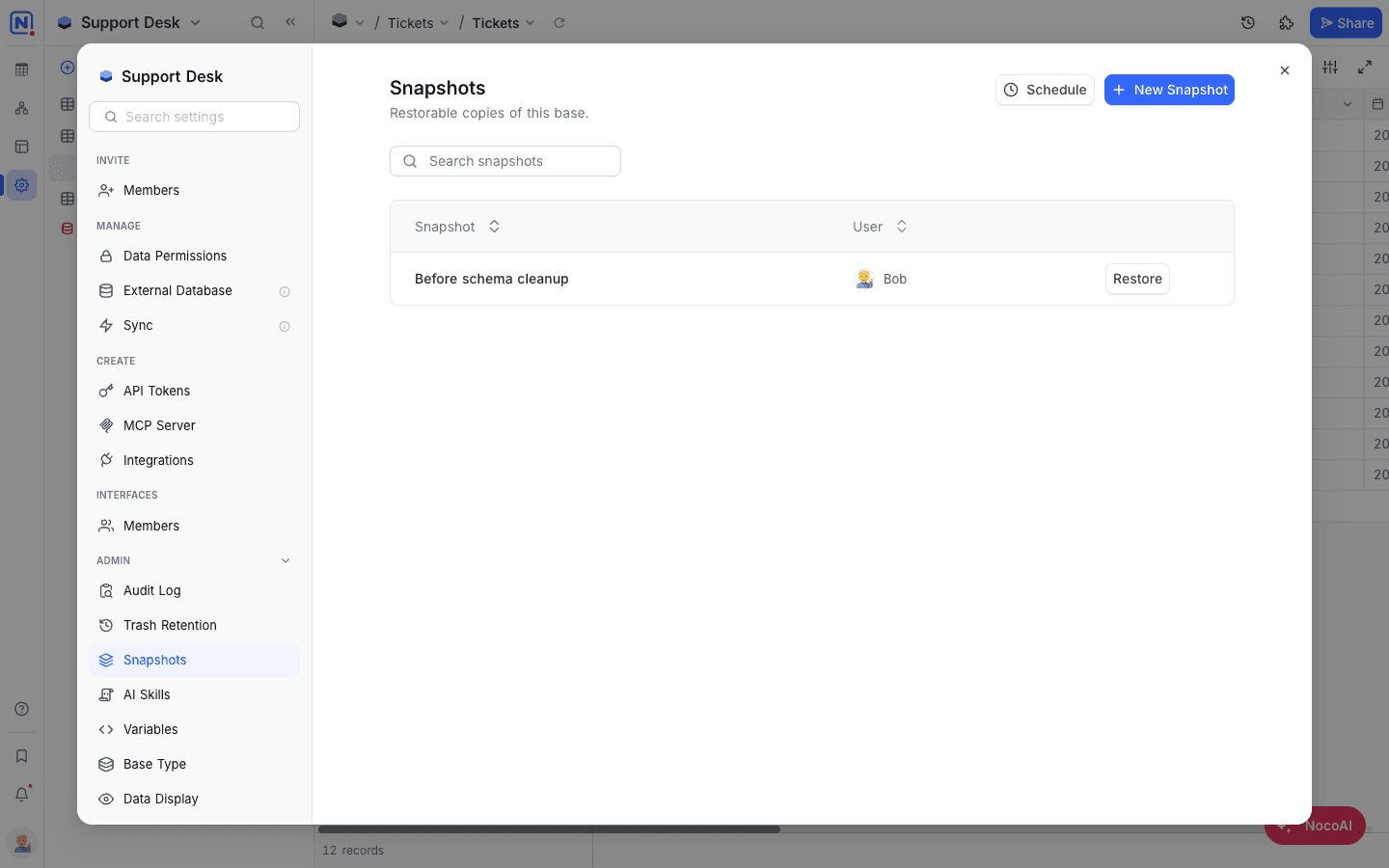
- Open the base and go to Base Settings → Admin → Snapshots.
Create a Snapshot
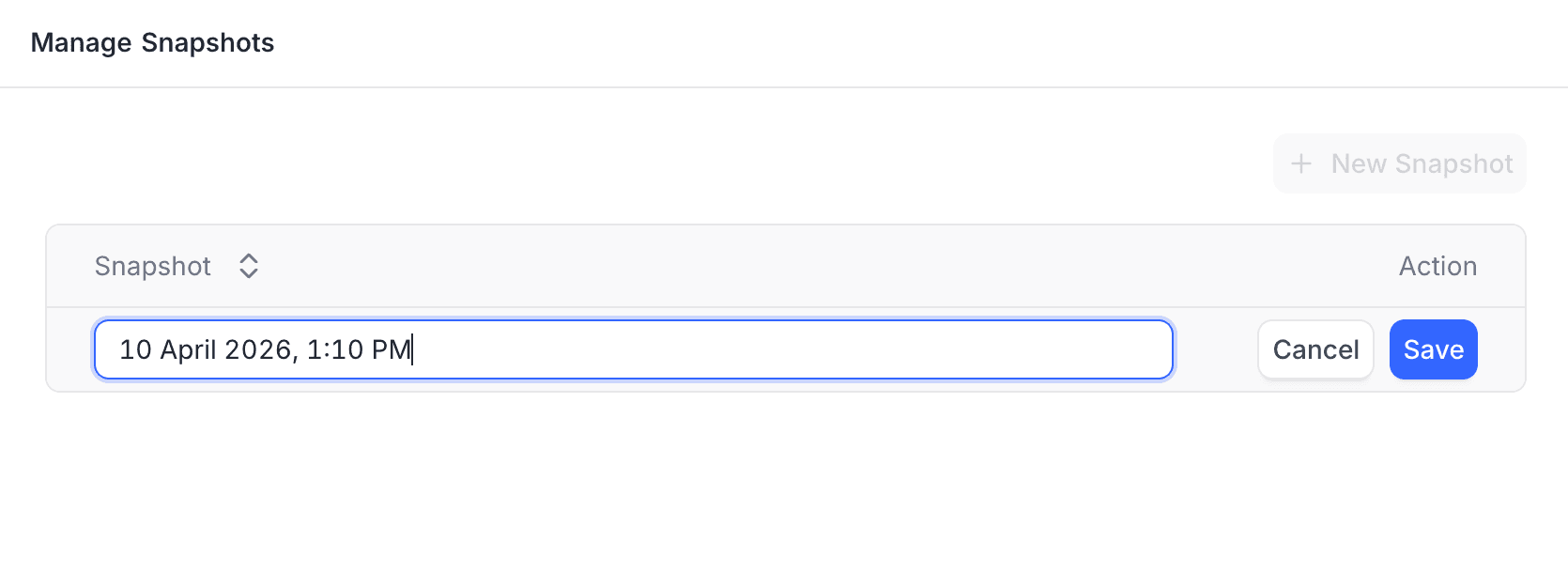
- Click + New Snapshot.
- Enter a name for the snapshot (defaults to the current date and time).
- Click Save.
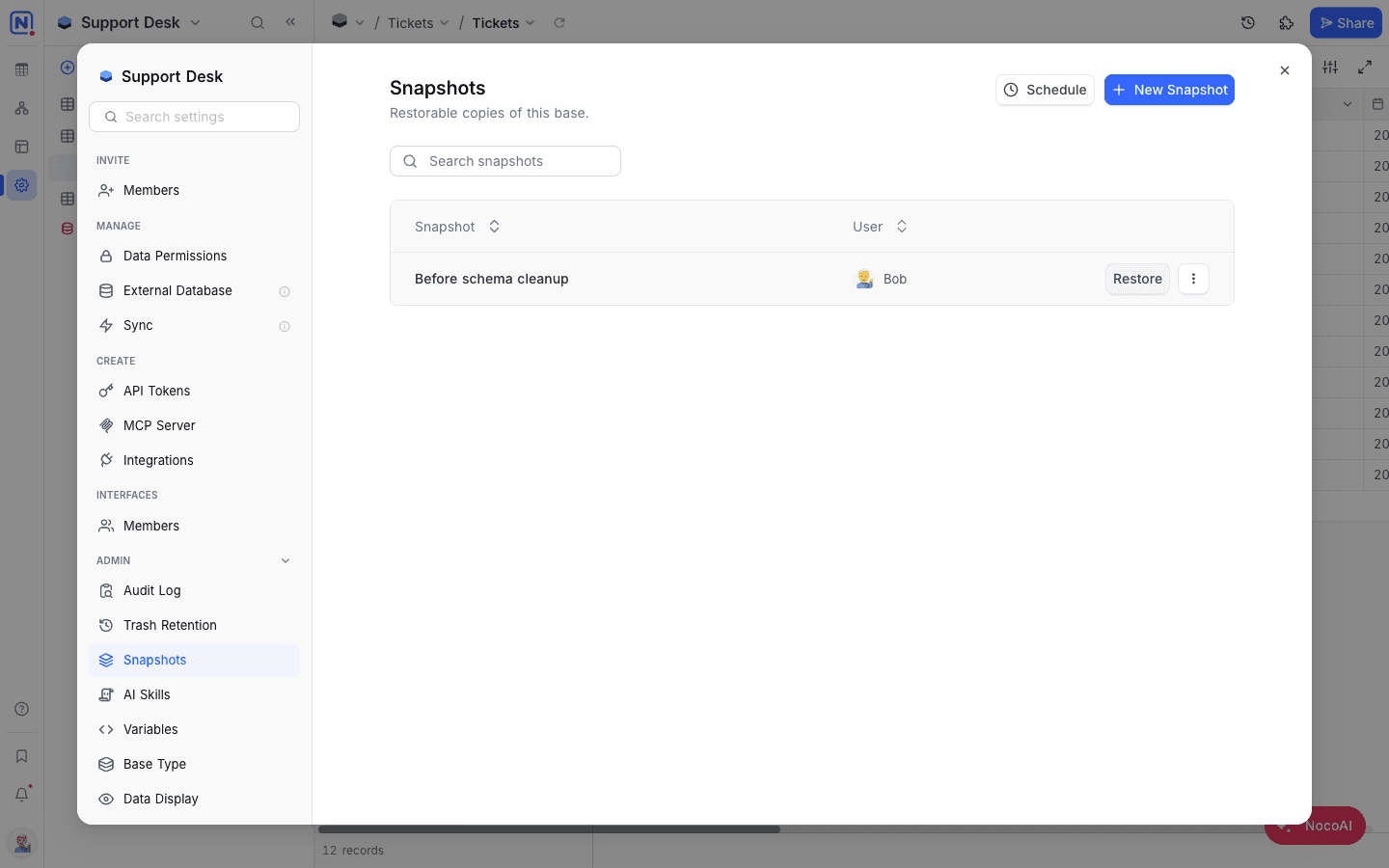
The snapshot appears in the list with a Restore button and a ⋮ menu carrying Delete.
Restore a Snapshot
- Click Restore next to the snapshot you want to restore.
- Select the target workspace (defaults to current workspace).
- Click Confirm Restore.
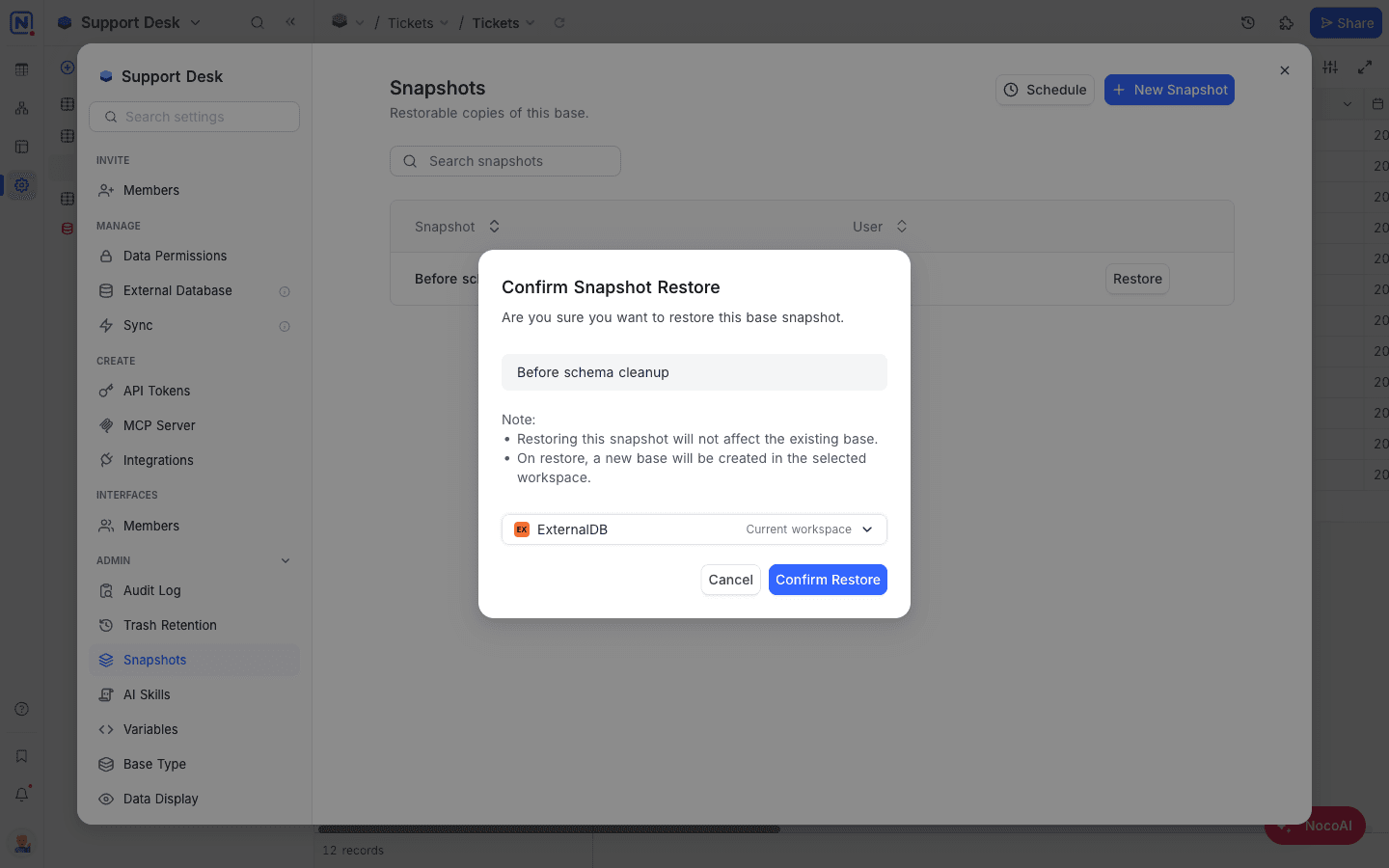
Restoring a snapshot creates a new base in the selected workspace. The existing base is not affected.
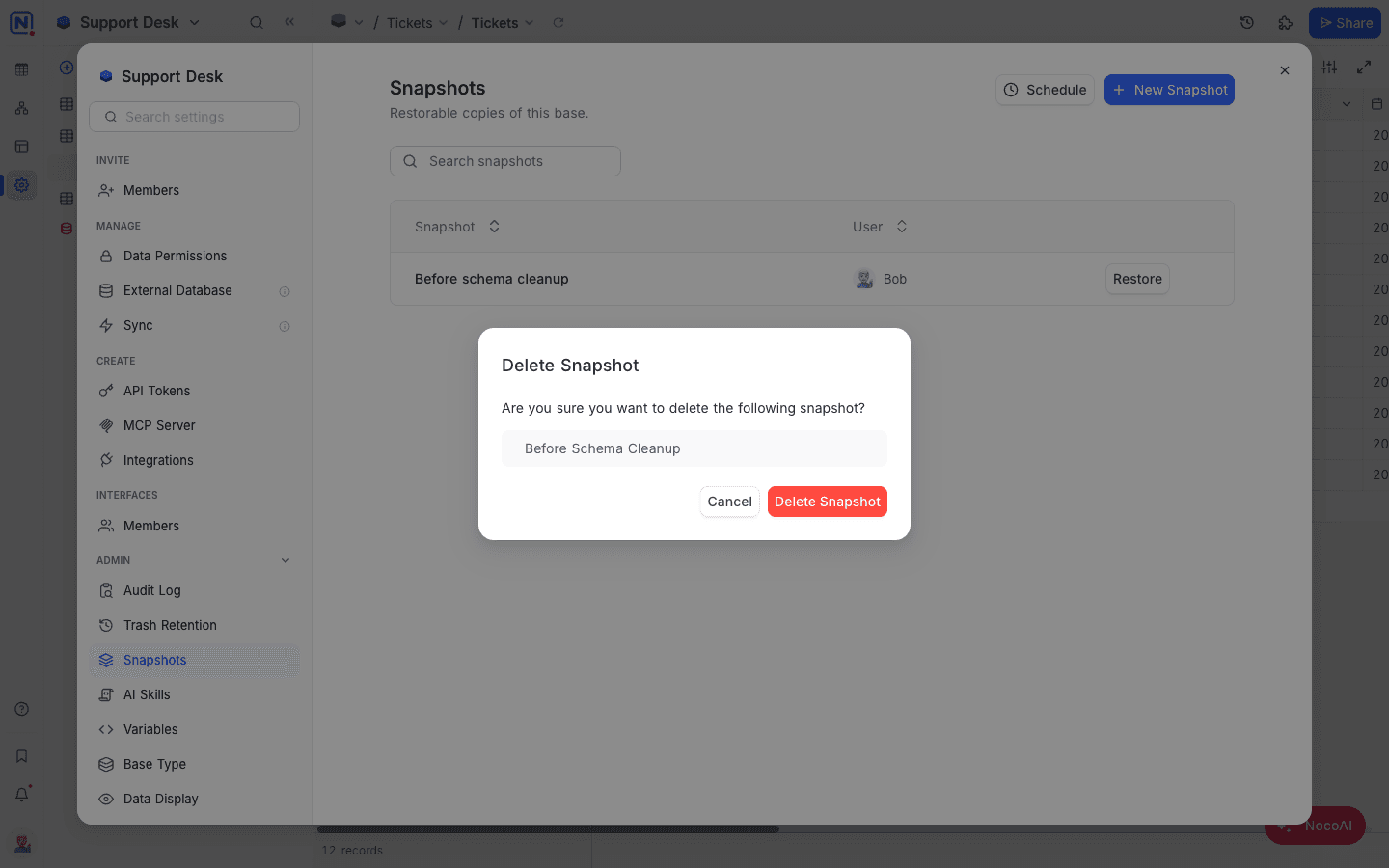
Delete a Snapshot
- Click the vertical ellipsis
⋮next to the snapshot and select Delete. - Click Delete Snapshot to confirm.
Availability
- Snapshots are available on NocoDB Cloud (Plus plan and above) and licensed self-hosted deployments (Business plan and above). The number of snapshots allowed per base depends on your plan.
Last updated on
Latest product updates?See Changelog