Bookmarks
Bookmarks are personal shortcuts to the things you open most. Pin a workspace, base, table, view, document, dashboard, workflow, or script and it appears in your bookmark flyout for one-click access, whichever workspace you are in. Bookmarks are private to you, so teammates never see your list.
Open the flyout
Click the Bookmark icon in the workspace dock, the vertical bar on the far left of the screen. The flyout opens beside the dock and lists your bookmarks grouped into folders.
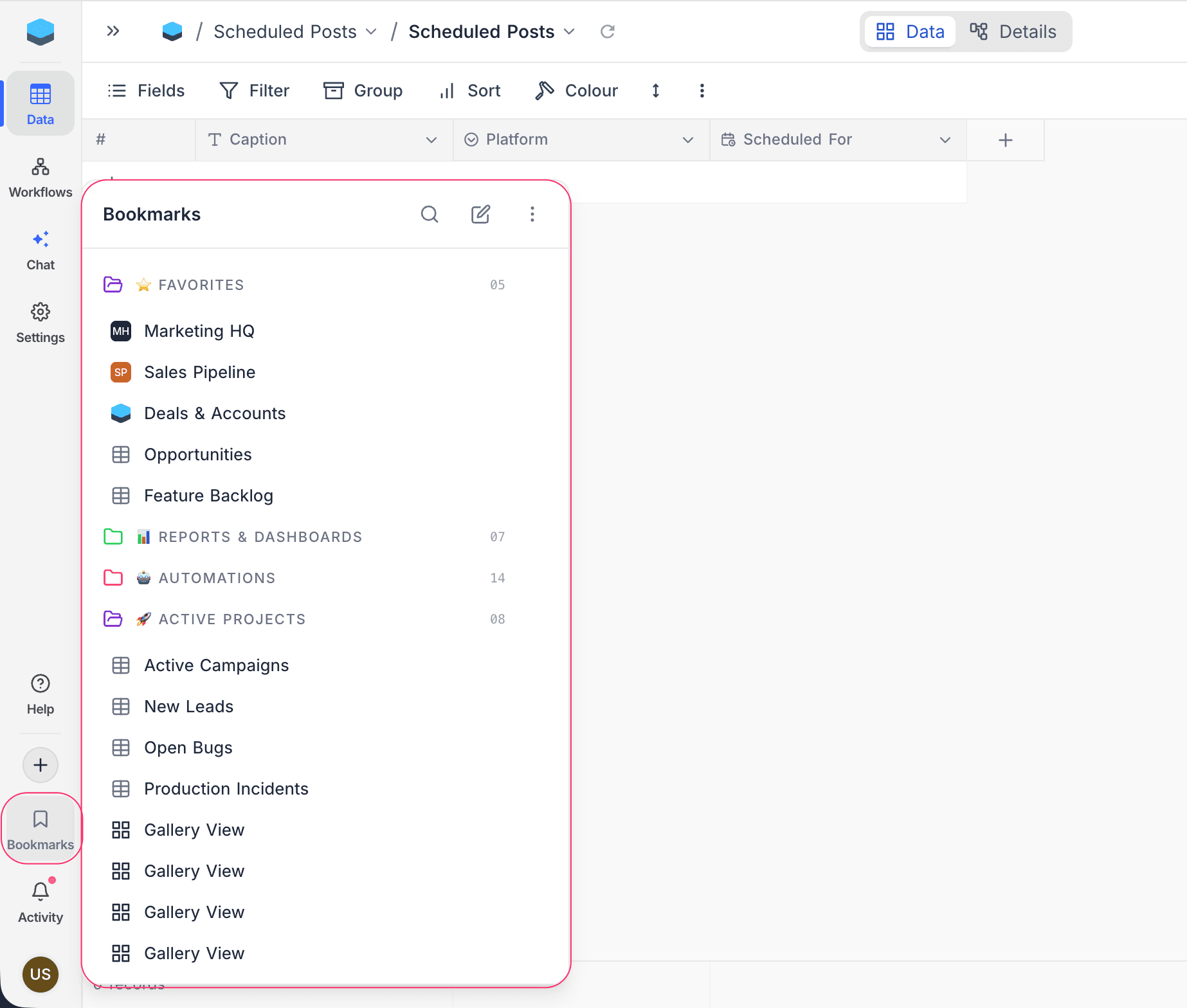
Add a bookmark
You can pin the page you are on, or pin an entity from its own menu without leaving where you are.
Bookmark the current page
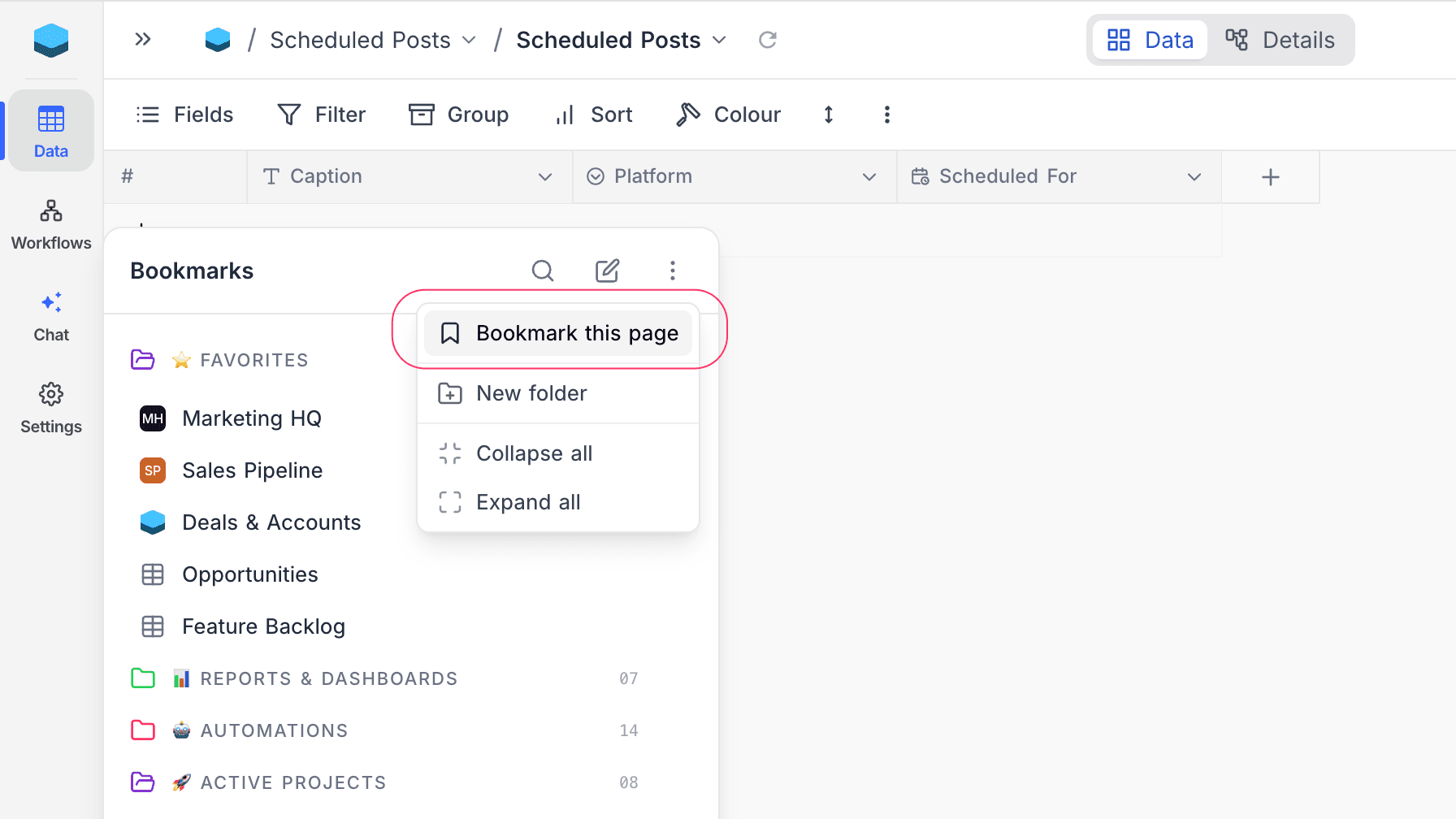
Open the flyout, click the ⋮ in its header, and choose Bookmark this page. The new bookmark lands in Ungrouped.
Bookmark from a menu
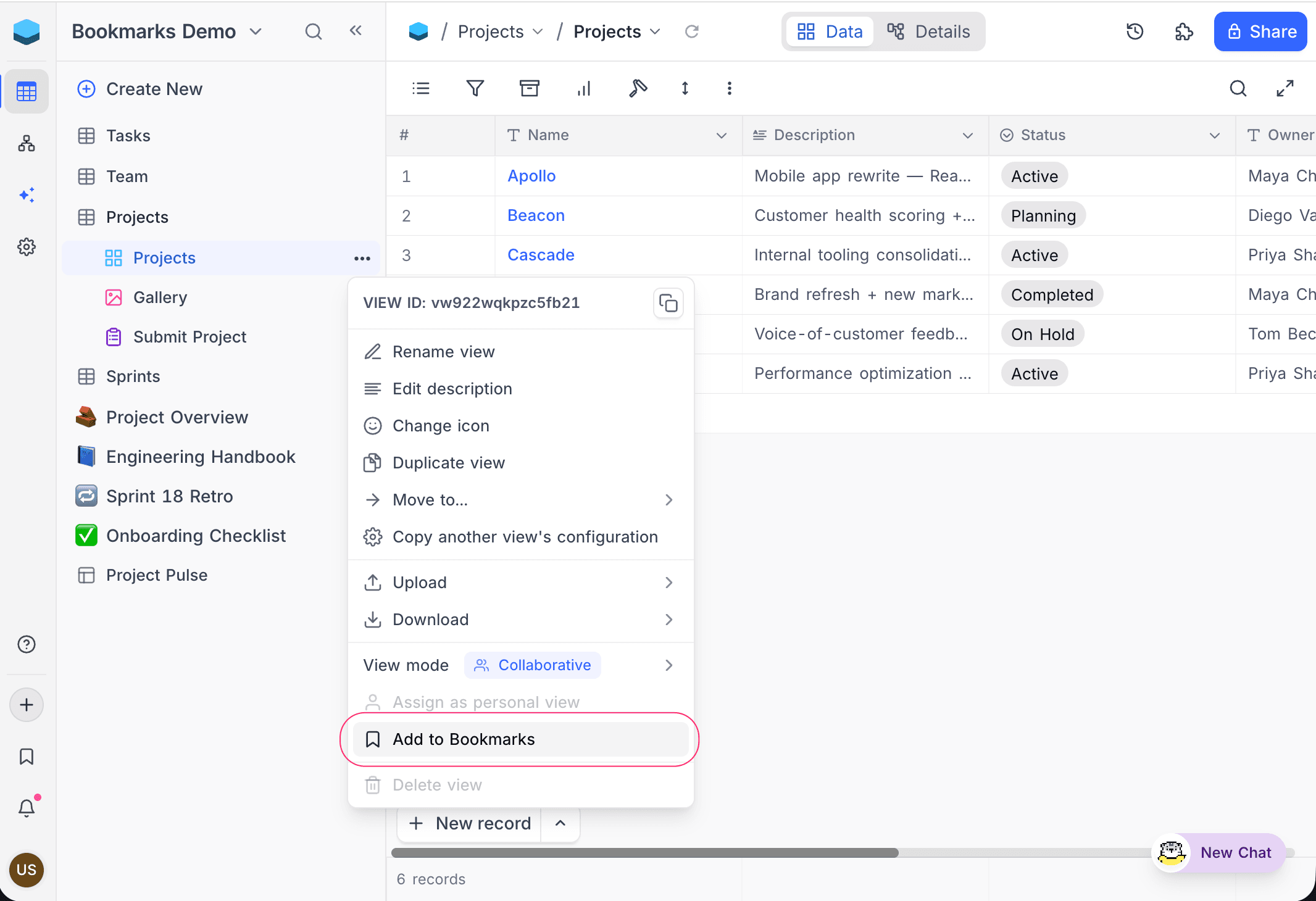
Open the entity's options menu and choose Add to Bookmarks.
| Where | What you can bookmark |
|---|---|
The ⋮ next to an item in the project sidebar | Bases, tables, views, documents, dashboards, workflows, scripts |
| The view options menu in the toolbar | Views |
| The home sidebar or base list modal | Workspaces |
Remove a bookmark
Use whichever is closest to hand:
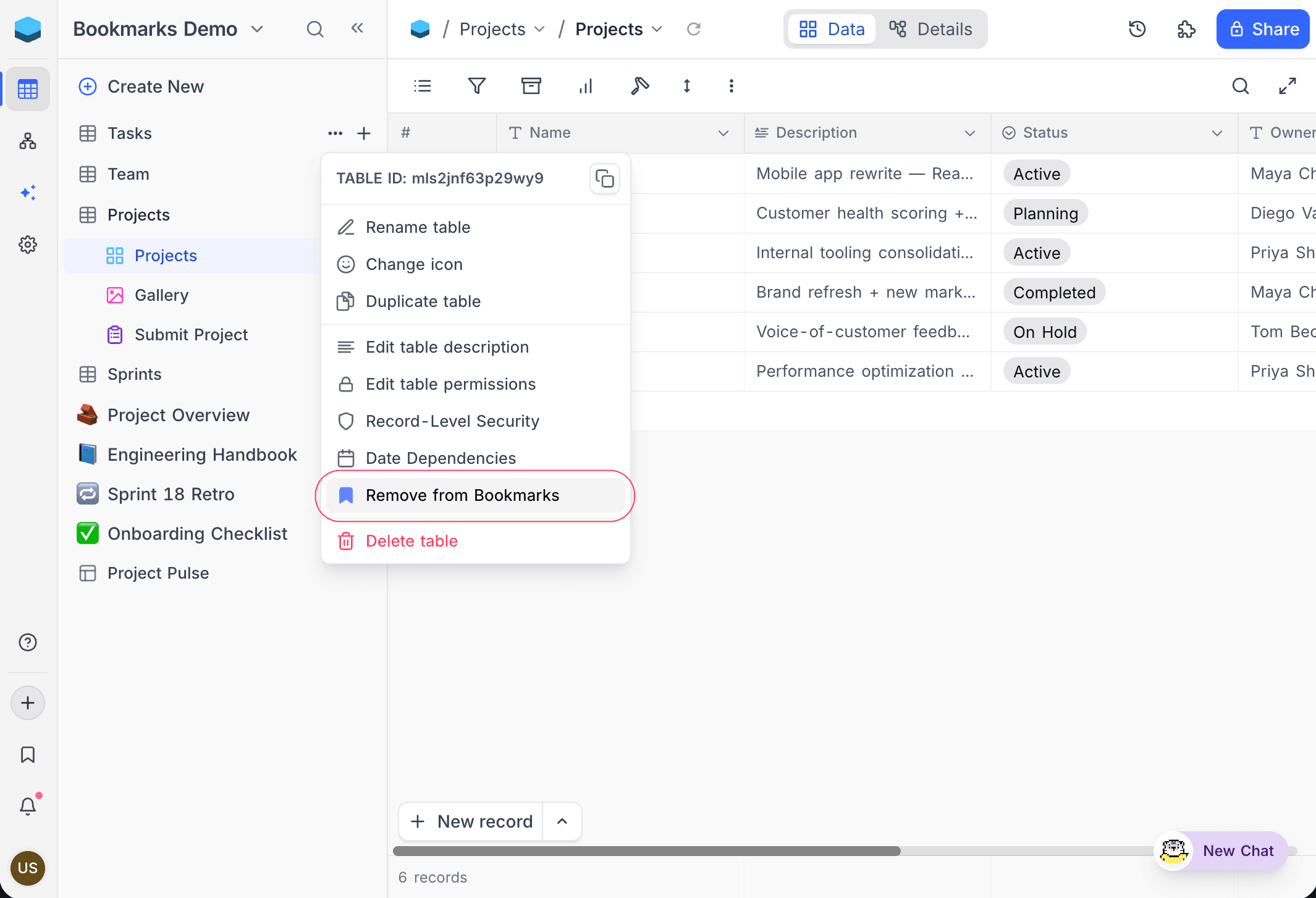
- In the flyout, click the bookmark's
⋮and choose Remove from Bookmarks. - In the entity's sidebar or toolbar menu, choose Remove from Bookmarks.
- On the bookmarked page, open the flyout's ⋮ and choose Remove page bookmark.
Bookmarks clean themselves up: if the target is deleted, or you lose access to it, the bookmark disappears from your list automatically.
Find and open a bookmark
Click the search icon in the flyout header and start typing. Bookmarks are filtered by title across every folder, and folders with no matches are hidden until you clear the search. Press Esc to return to the full list.
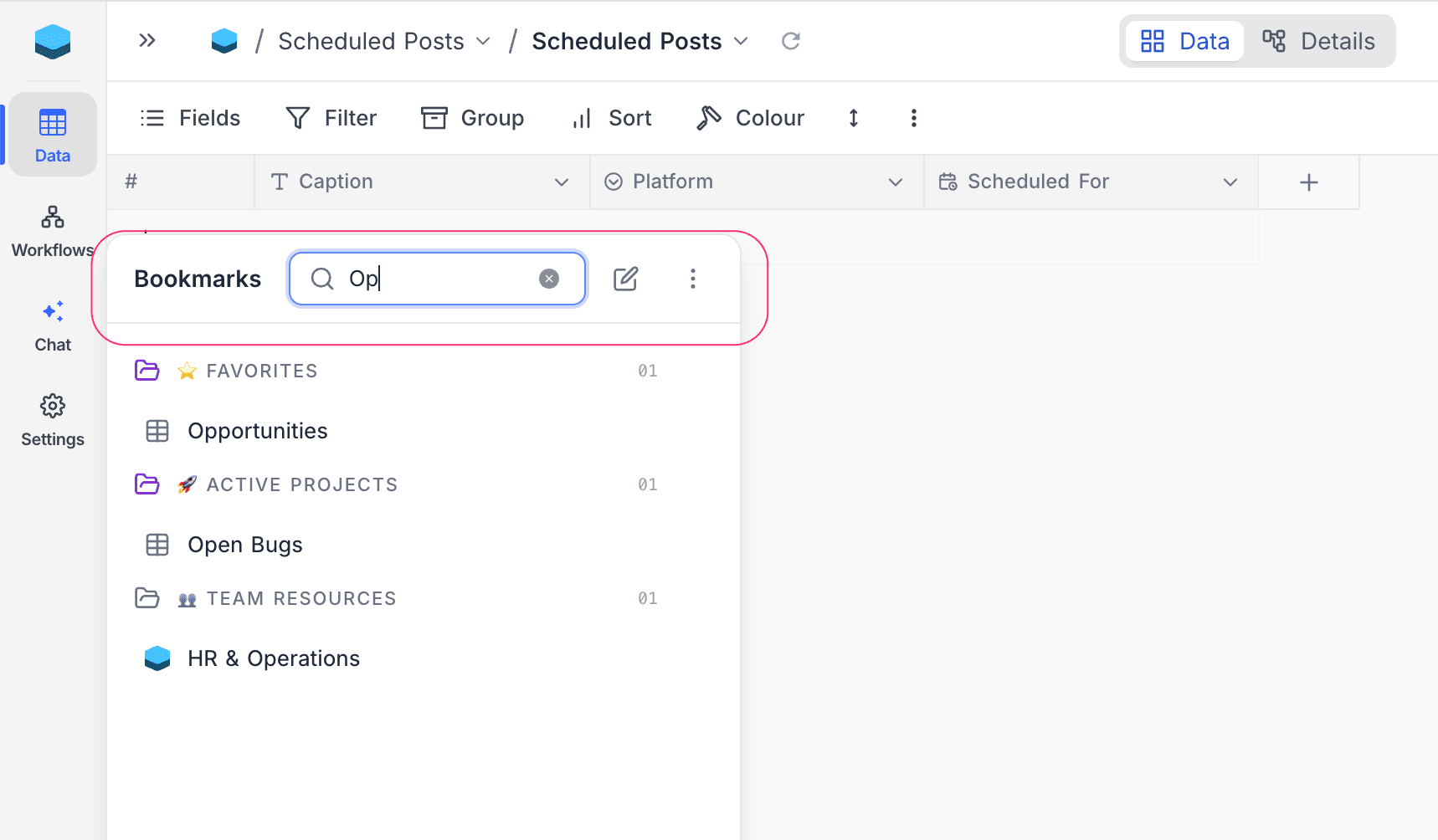
Click a bookmark to navigate to it. To open it in a new tab, Cmd/Ctrl-click it or choose Open in new tab from its ⋮. Titles and icons refresh in the background, so renamed or recolored entities stay up to date.
Organize with folders
Folders group bookmarks and each carries its own color, so you can scan a long list at a glance.
Create a folder
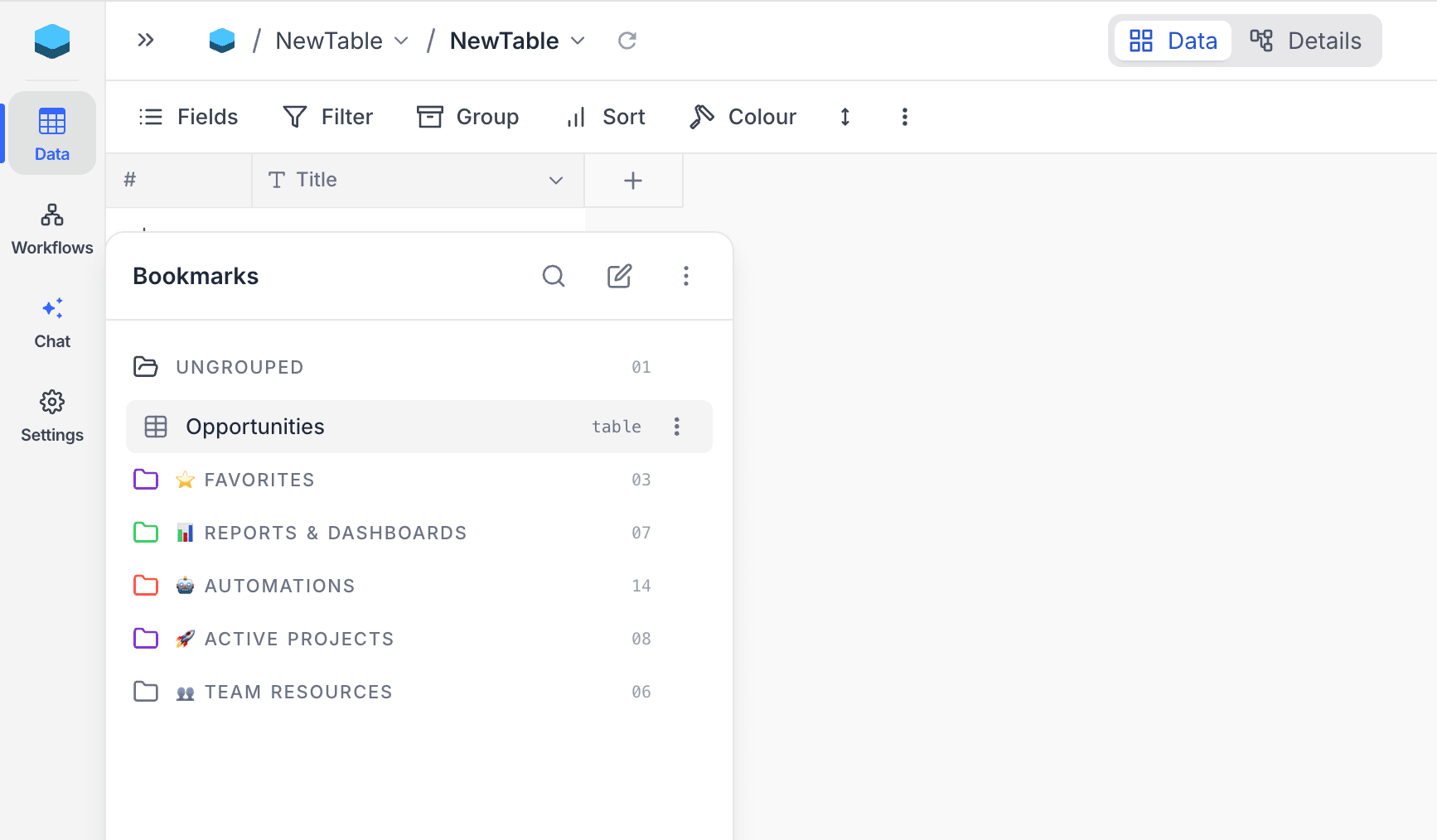
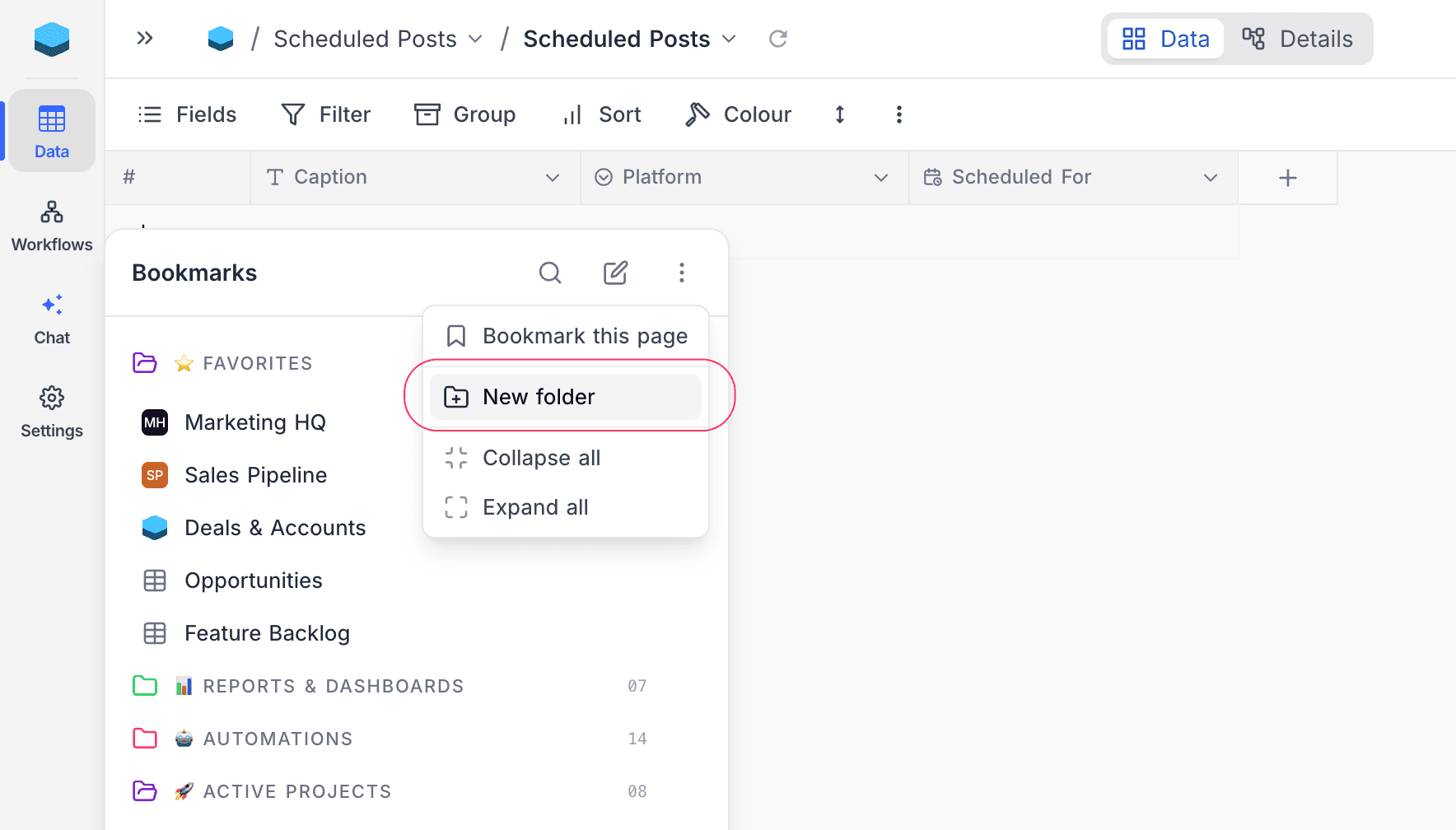
Click the ⋮ in the flyout header and choose New folder, then type a name and press Enter. Press Esc to cancel. The folder appears directly below Ungrouped with a color assigned at random.
Move bookmarks into a folder
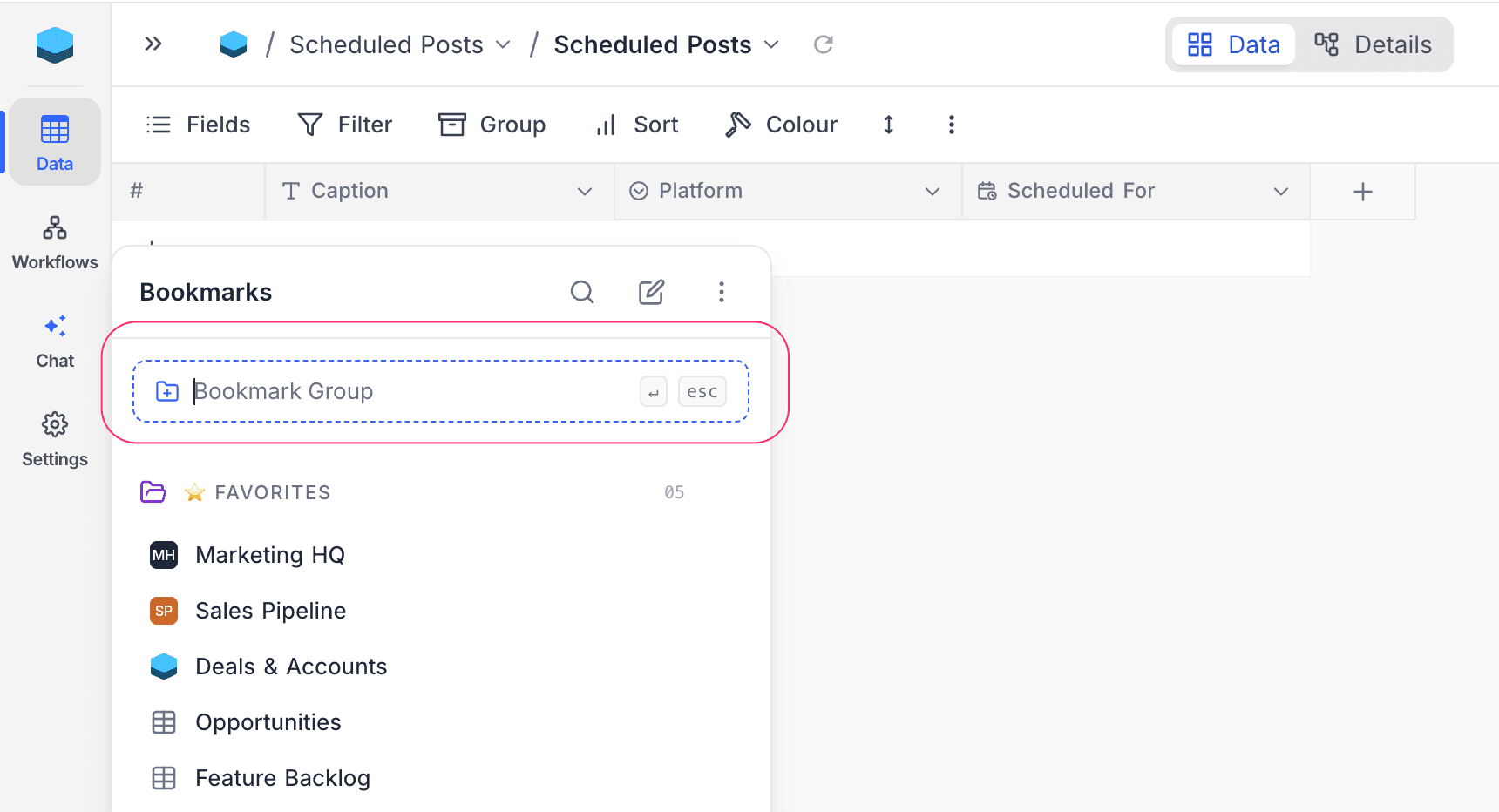
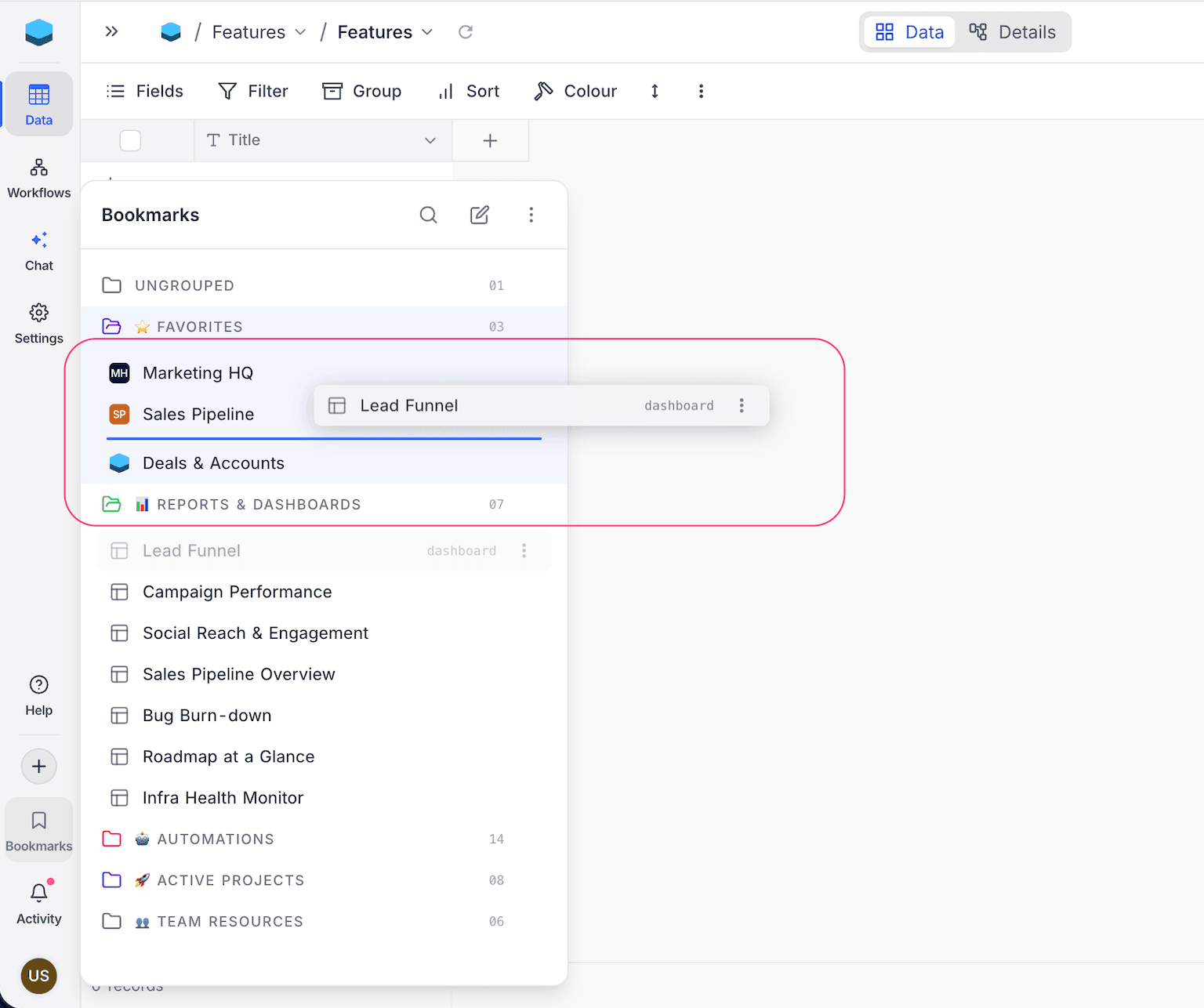
- Drag and drop a bookmark onto a folder, or onto a position inside one. A blue line shows where it will land.
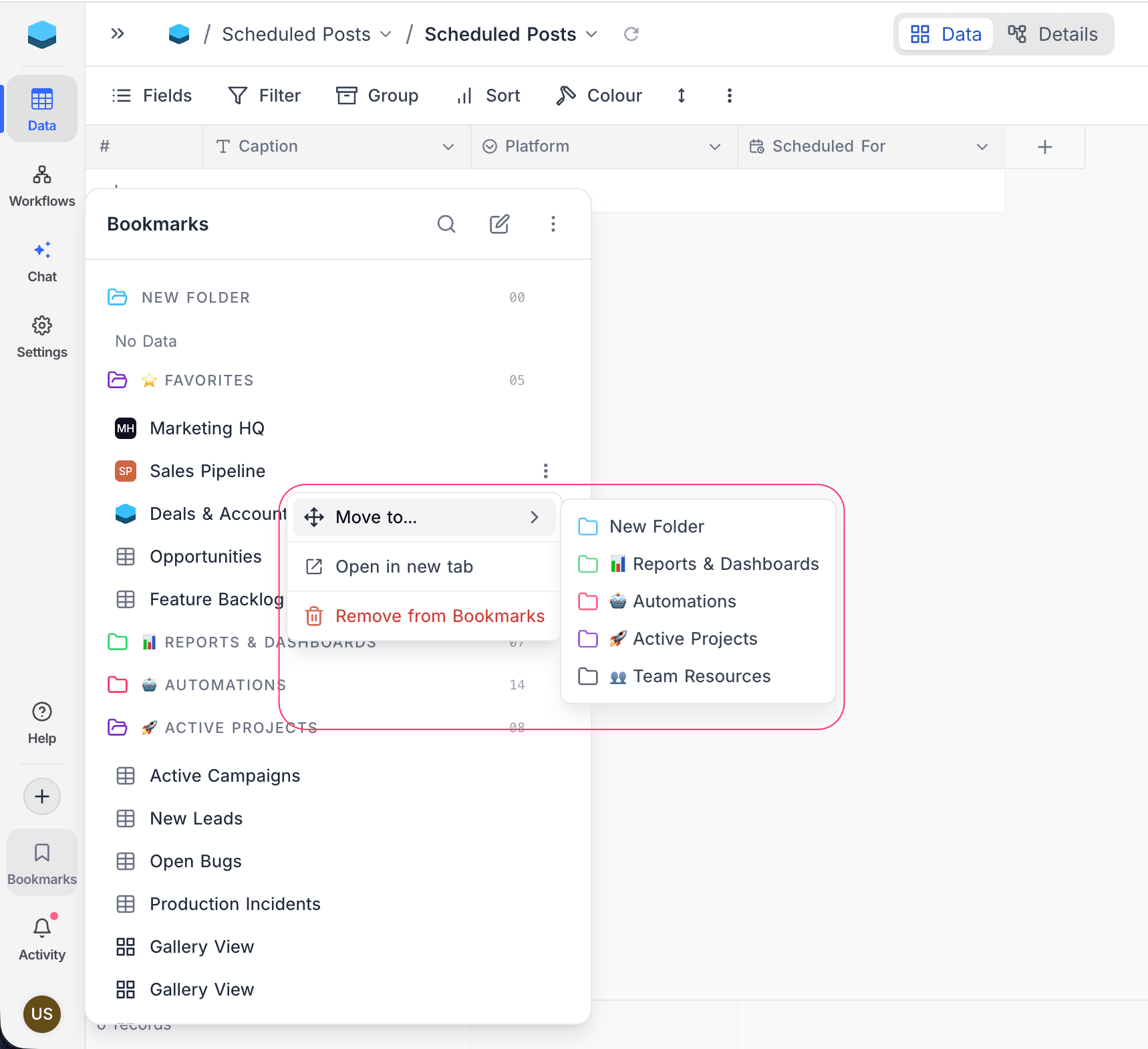
- Move to — right-click a bookmark, or click its
⋮, choose Move to, then pick the destination folder.
Customize a folder
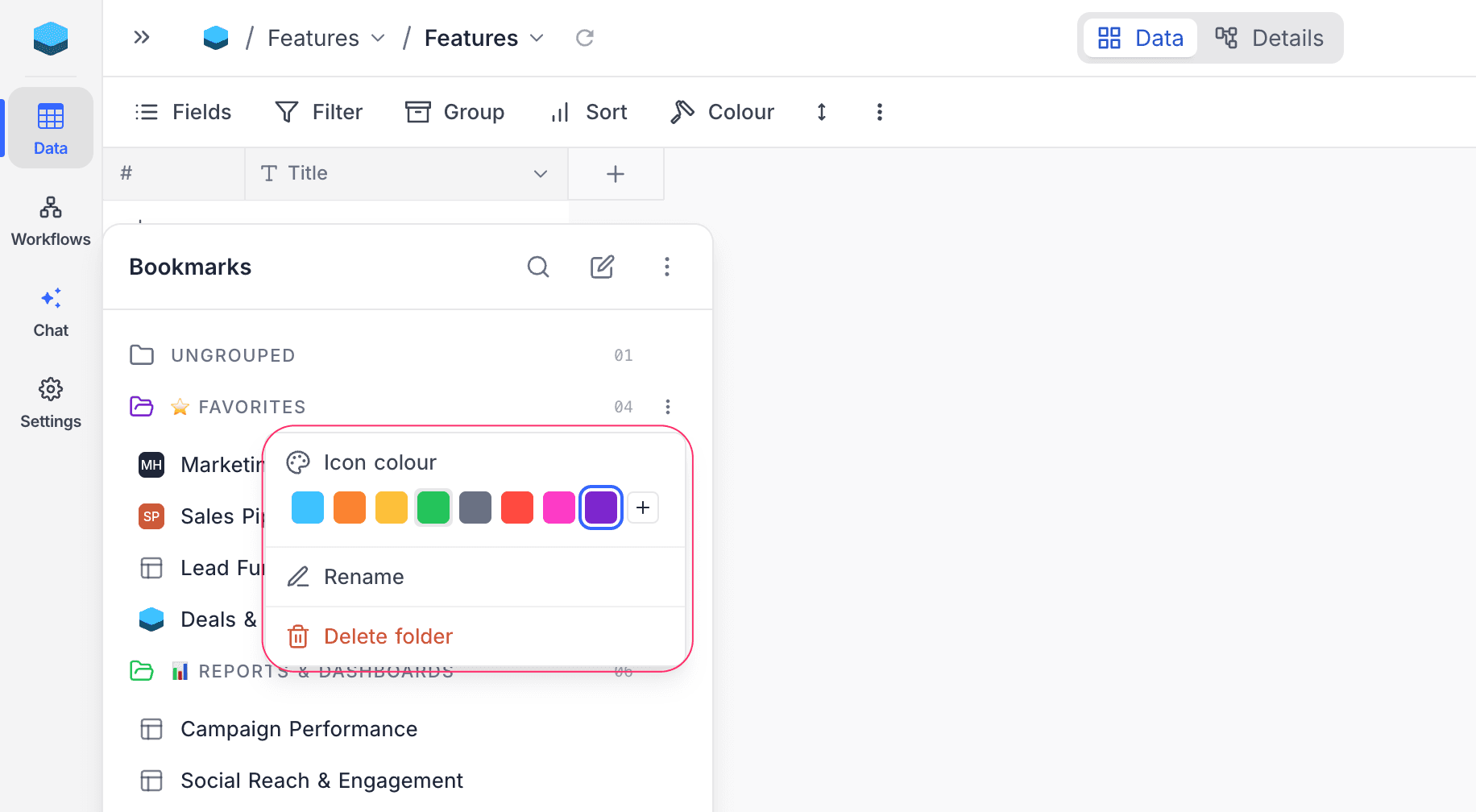
Right-click a folder header, or click its ⋮, to open the folder menu.
| Option | What it does |
|---|---|
| Icon colour | Recolors the folder icon from the palette |
| Rename | Edits the name inline; Enter saves, Esc cancels |
| Delete folder | Removes the folder and moves its bookmarks to Ungrouped |
Arrange folders
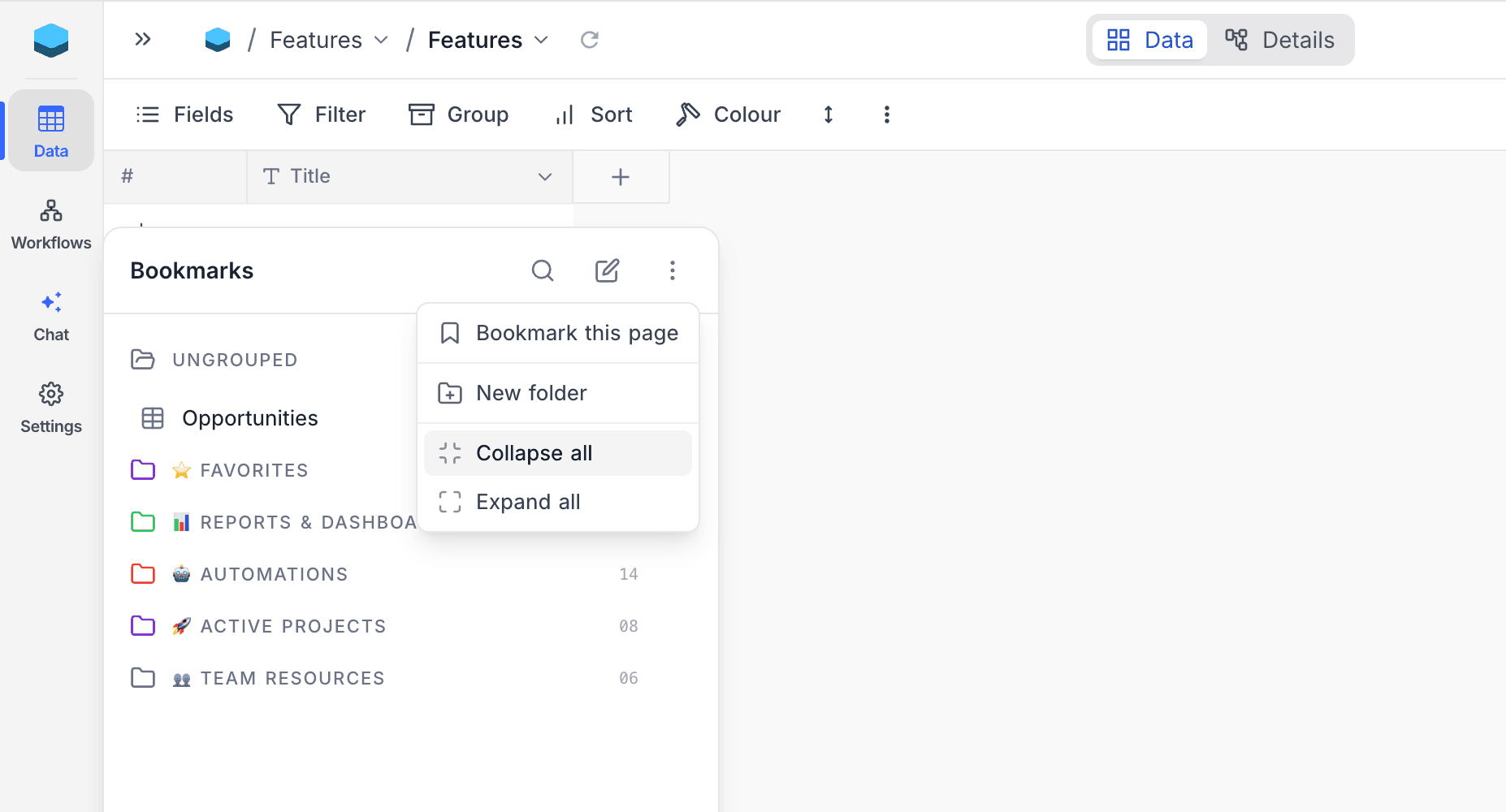
Drag a folder header up or down to reorder it, with Ungrouped always staying on top. Click a header to collapse or expand that folder, or use Collapse all and Expand all from the flyout header's ⋮ menu.
Edit several bookmarks at once
Click the edit icon in the flyout header to enter edit mode. Checkboxes appear beside every bookmark and folder.
- Click a row to select or deselect a bookmark. A folder checkbox selects every bookmark inside it.
- Act on the selection from the action bar at the bottom of the flyout. Its ⋮ menu offers Move to, Open, Open in new tab, and Delete. The two open actions need a single selection, and Delete asks for confirmation first.
- Click × in the action bar, or the edit icon again, to leave edit mode.
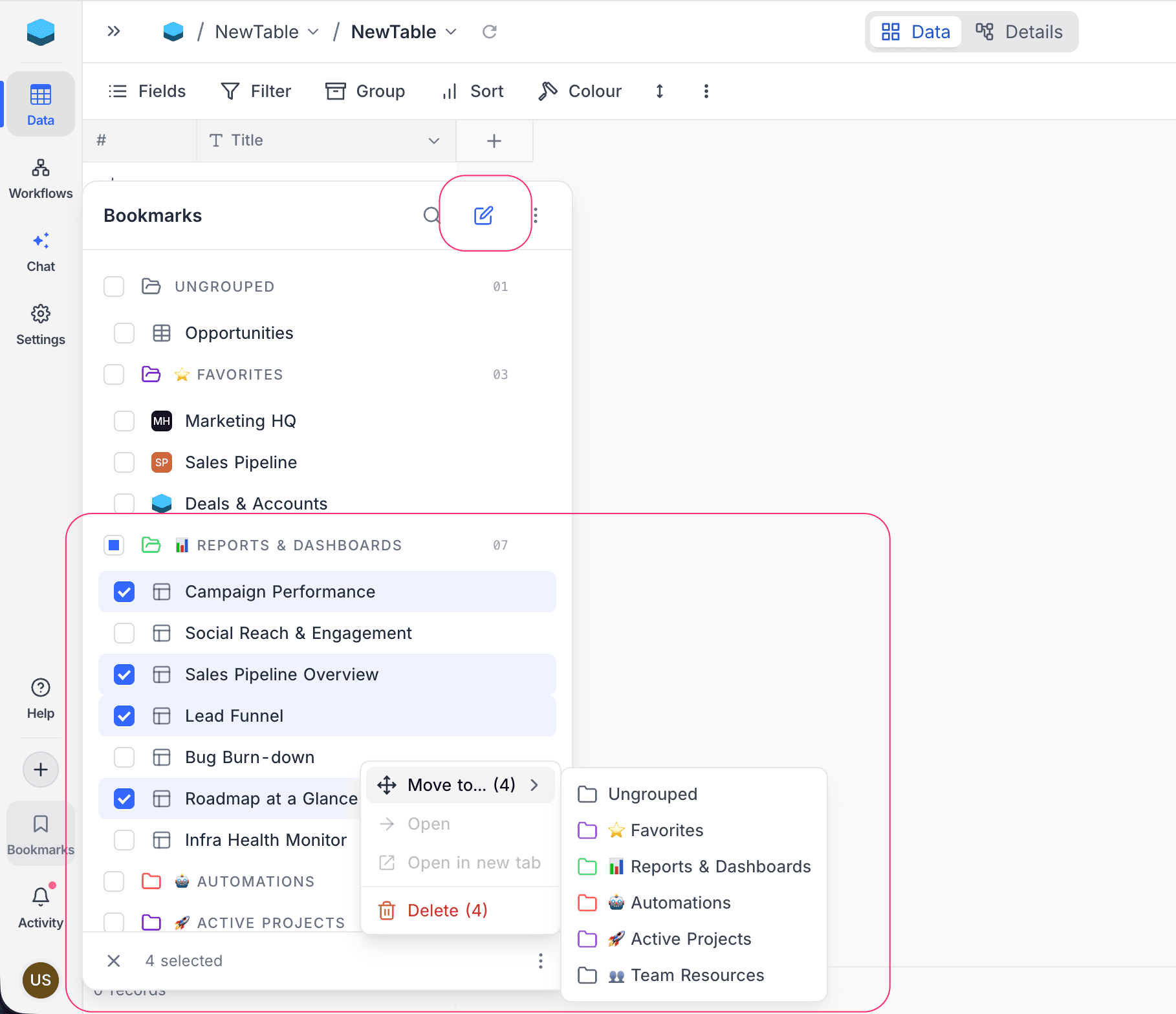
Folders themselves are never deleted by bulk actions.
Availability
- Bookmarks are available on NocoDB Cloud (Plus plan and above) and licensed self-hosted deployments (Business plan and above).
Last updated on