Timeline
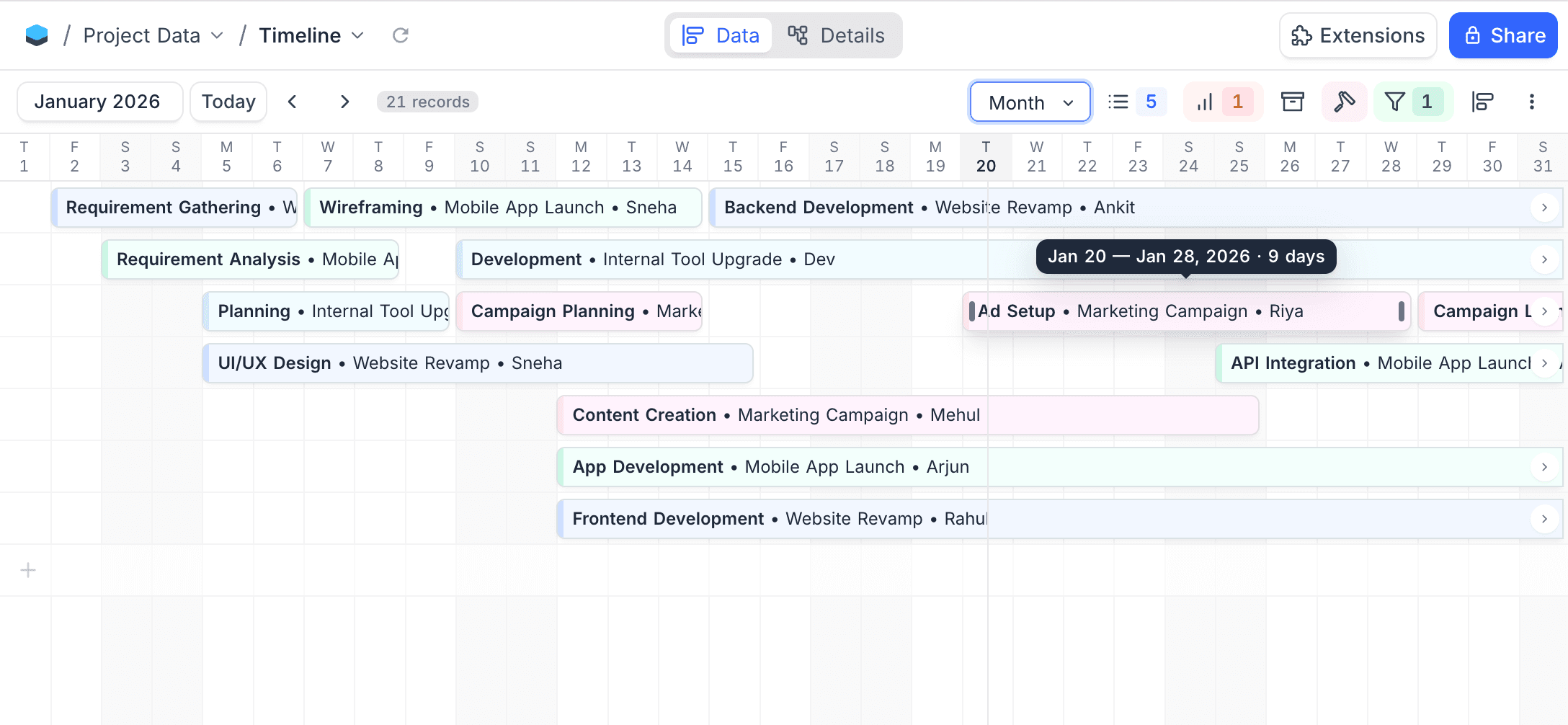
The Timeline view shows your data as horizontal bars on a time axis. Each record is a bar from its start date to its end date. This gives a clear overview of schedules, project plans and time-based data. Drag records to change dates, resize bars to change durations, and group records by any field. This section gives all the operations for the Timeline view.
Copy a prompt, paste it into NocoAI in any base, and replace the words in [brackets] with your own.
- Create a timeline view of this table from [Start Date] to [End Date]
- Create a timeline view of [Projects] grouped by [Owner]
- Add [Start Date] and [End Date] fields and create a timeline view
Timeline View Actions
- Create a New Timeline View
- Rename an Existing Timeline View
- Duplicate a Timeline View
- Remove a Timeline View
- Share a Timeline View
- Lock Timeline View for Edits
Date Field Configuration
When you create a Timeline view, select a Start Date field. You can use these field types as date fields:
- Date
- DateTime
- CreatedTime
- LastModifiedTime
Adding an End Date
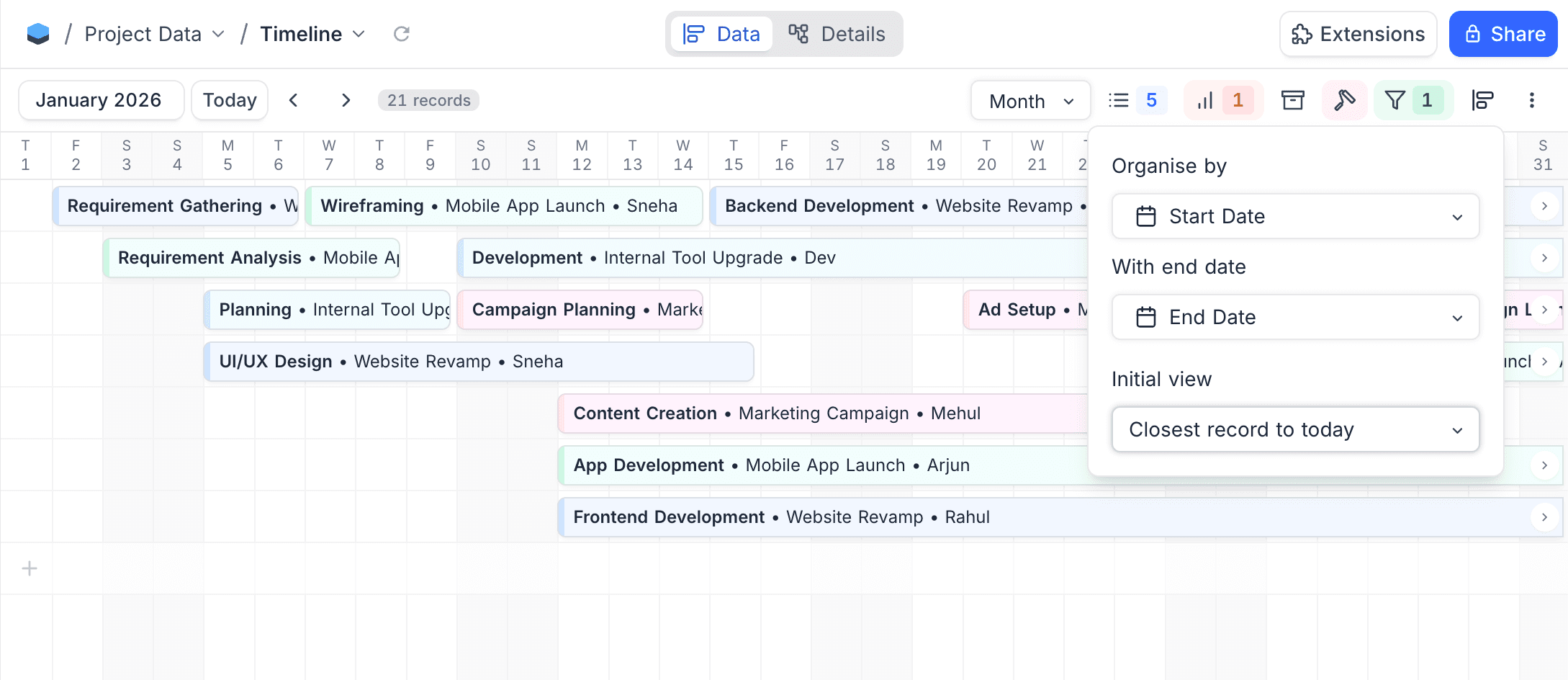
By default, each record shows as a one-day bar from the start date only. To show records as ranges of multiple days, set an End Date field. This is optional.
To add an end date:
- In the toolbar, click the
Timeline Rangesettings. - Click
+ Add End Date. - In the dropdown, select the date field.
Records Without Dates
The timeline does not show records that have no start date value. A badge in the toolbar shows the total number of records and the number of records without dates.
Zoom Levels
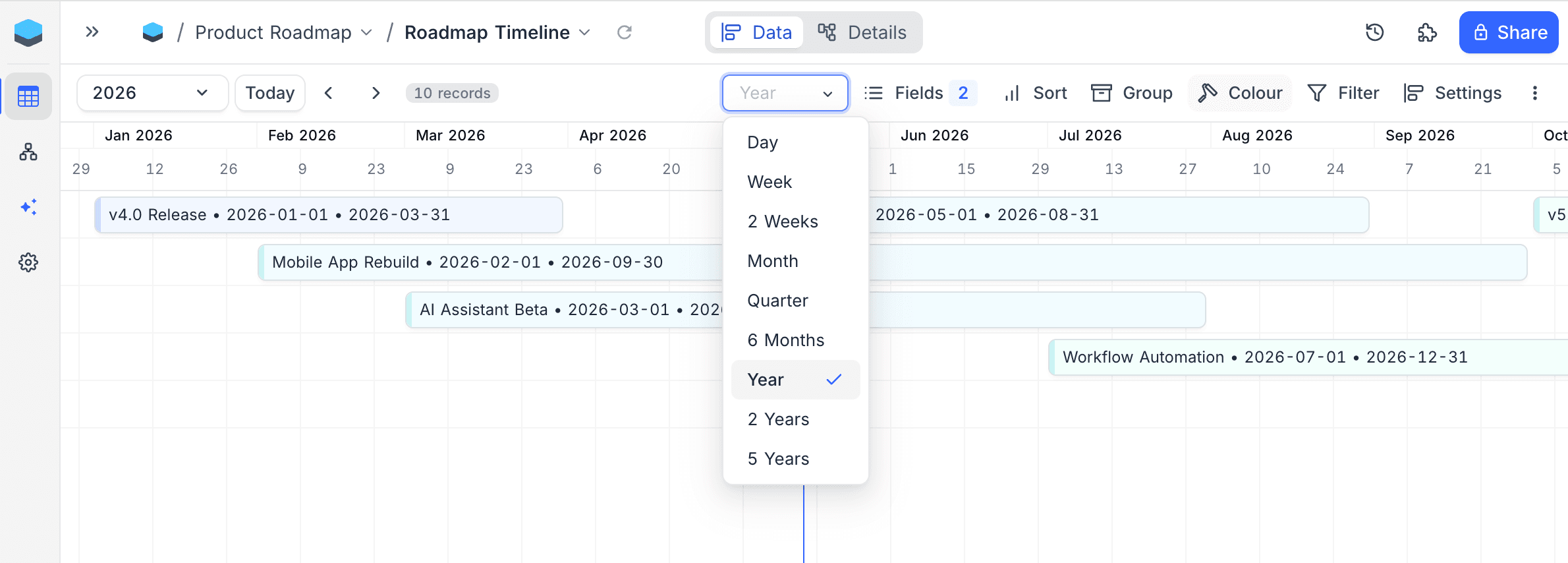
The Timeline view has nine zoom levels, from one day with full date detail to a five-year overview. To change the zoom level, use the zoom selector in the toolbar.
| Zoom | Span shown | Best for |
|---|---|---|
| Day | One day | Granular day-by-day planning |
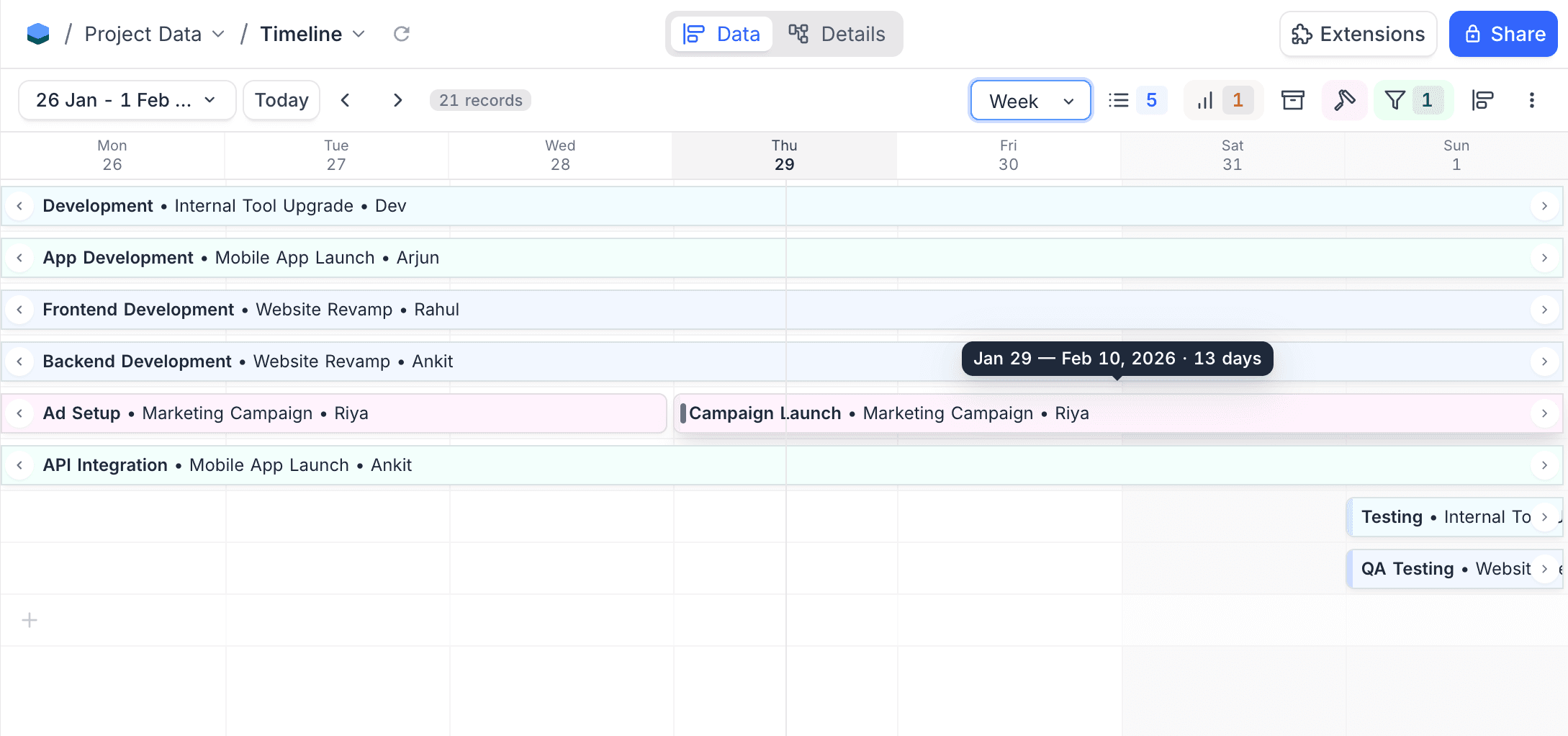
| Week | Seven days (Monday through Sunday) | Weekly planning, sprint views |
| 2 Weeks | Two weeks | Fortnightly sprints, short-cycle scheduling |
| Month | One calendar month | Monthly overview |
| Quarter | Three months | Quarter planning |
| 6 Months | Six months | Half-year roadmaps |
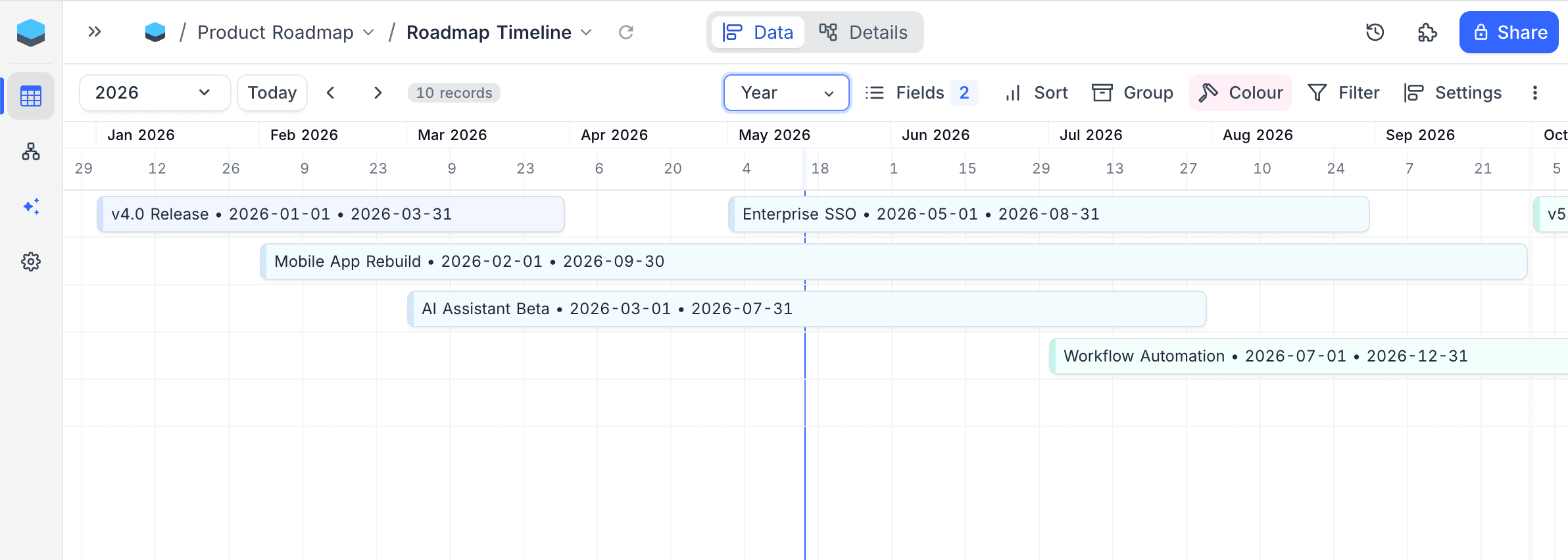
| Year | Twelve months | Annual planning |
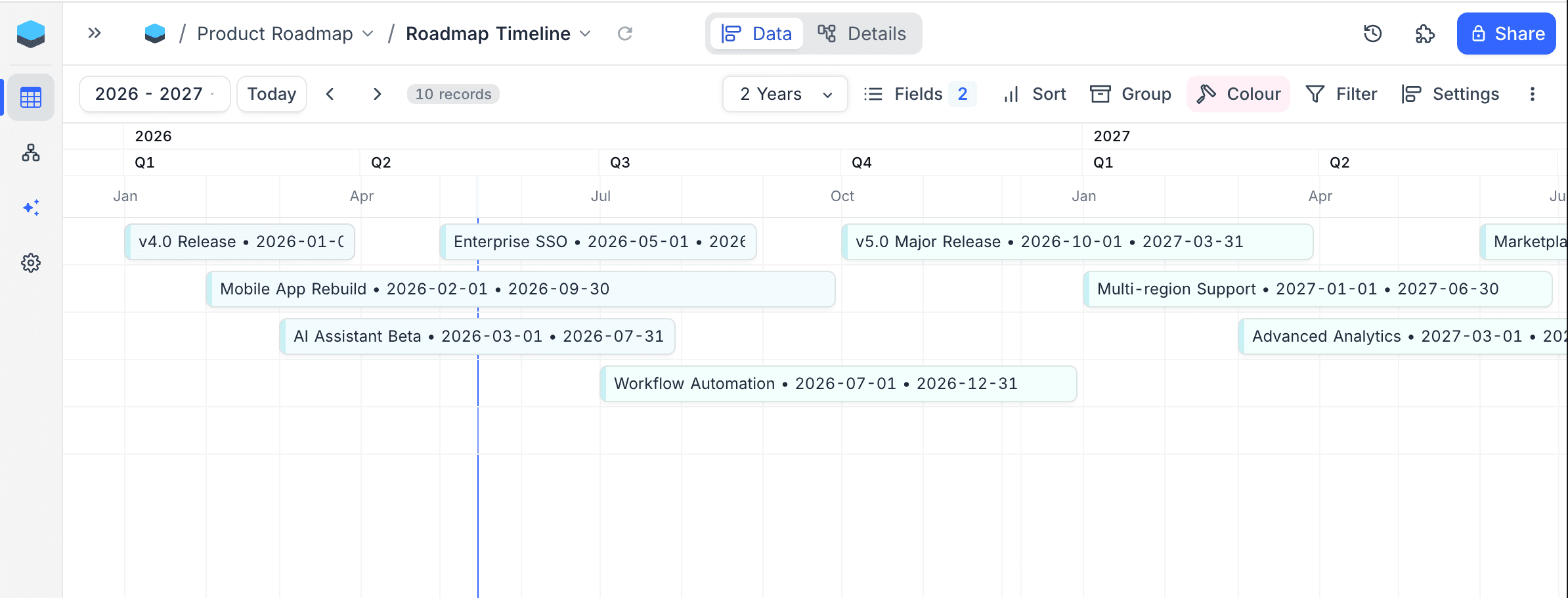
| 2 Years | Two years | Multi-year projects |
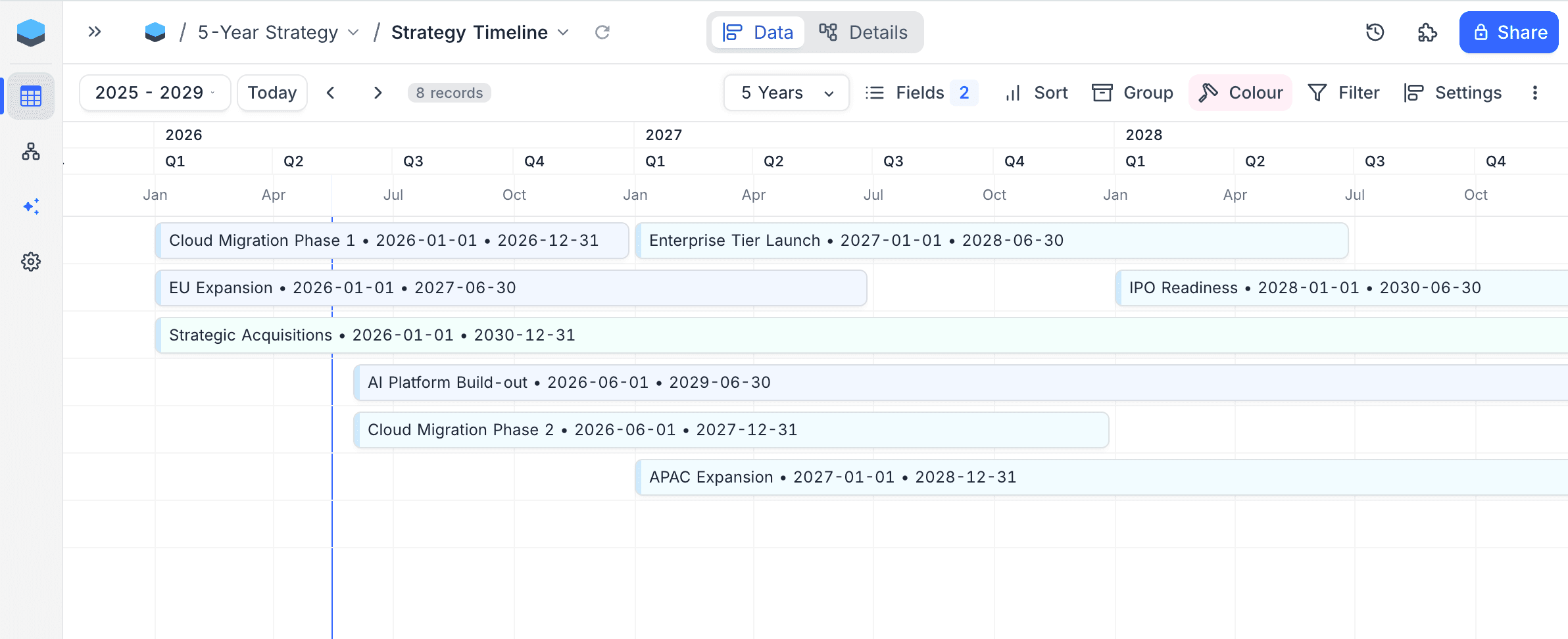
| 5 Years | Five years | Long-range portfolio views |
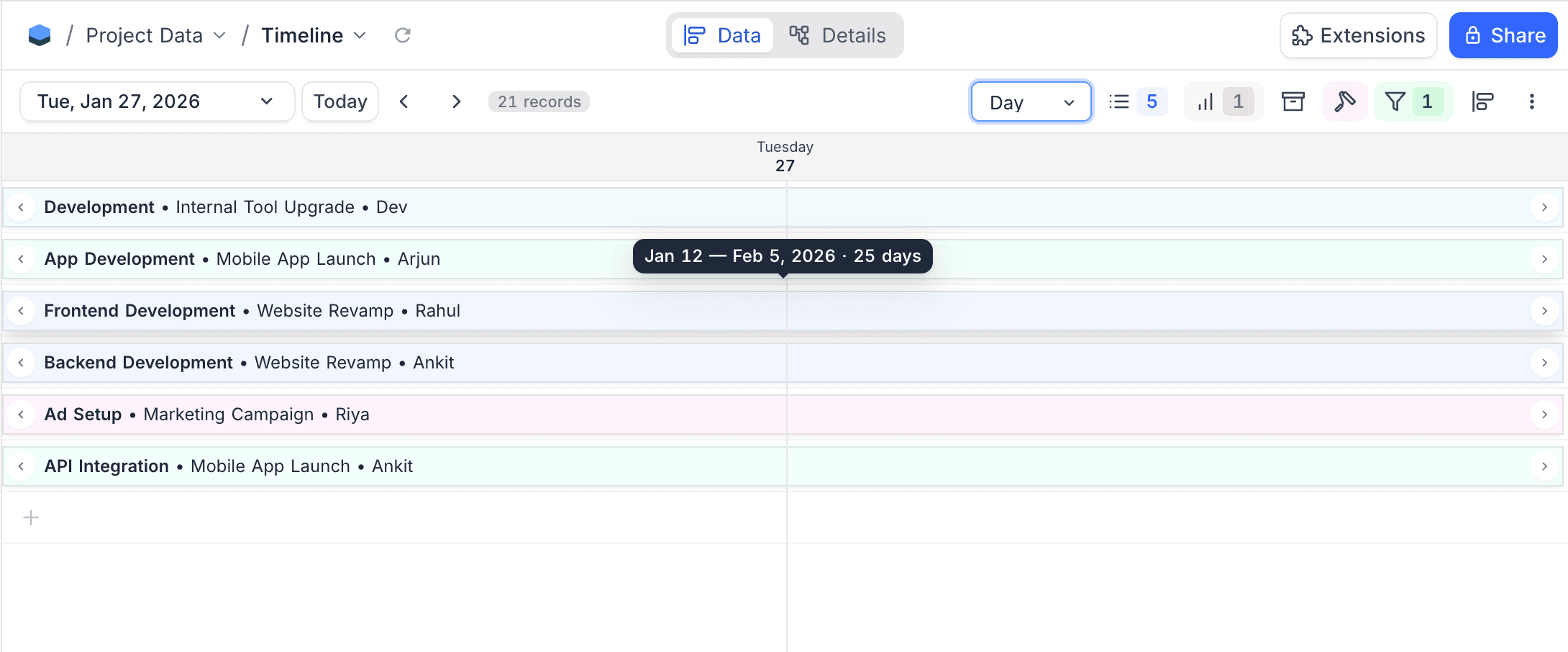
At wider zoom levels, the date header shows multiple tiers, for example year over quarter over month. This helps you find your position when you see a longer span.
Day, Week, Month
Year, 2 Years, 5 Years
At the Year zoom and above, the header shows year, quarter and month tiers. This keeps long-range plans easy to read.
Navigation
Time Navigation
- To move backward or forward by one step of the active zoom level, use the Previous and Next buttons in the toolbar. One step is one day at Day zoom, three months at Quarter zoom, five years at 5 Years zoom, and so on.
- To go to the current date, click the Today button.
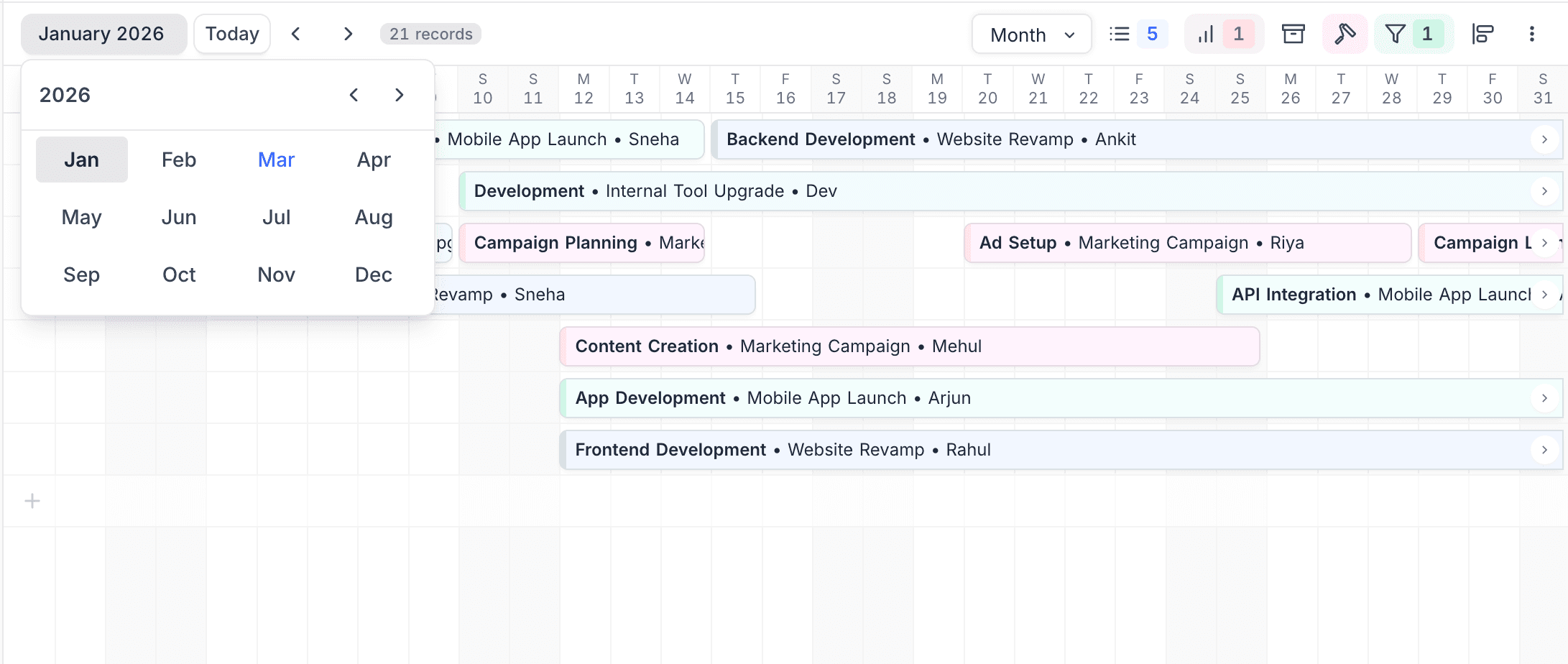
- To go directly to a specific date, use the Date Picker dropdown.
Scrolling
- Horizontal scrolling moves across time. Records load as you scroll. You can look through months or years and do not have to go to a specific date.
- Vertical scrolling is available when there are more record lanes than the visible height. In grouped layout, each group scrolls in the groups list. The date header stays fixed at the top.
Initial View Setting
You can set what the timeline shows when it opens:
| Setting | Result |
|---|---|
| Closest Record to Today (default) | Goes automatically to the record nearest to today's date. |
| Today | Always opens on the current date. |
This setting is in the Timeline Range configuration in the toolbar.
Record Navigation
When a record bar goes past the visible area, navigation arrows show on the bar:
| Arrow | Shows when |
|---|---|
| left arrow | The start date of the record is clipped (off-screen to the left). |
| right arrow | The end date of the record is clipped (off-screen to the right). |
Click an arrow to go to the related date.
Timeline View Operations
Customize Record Label
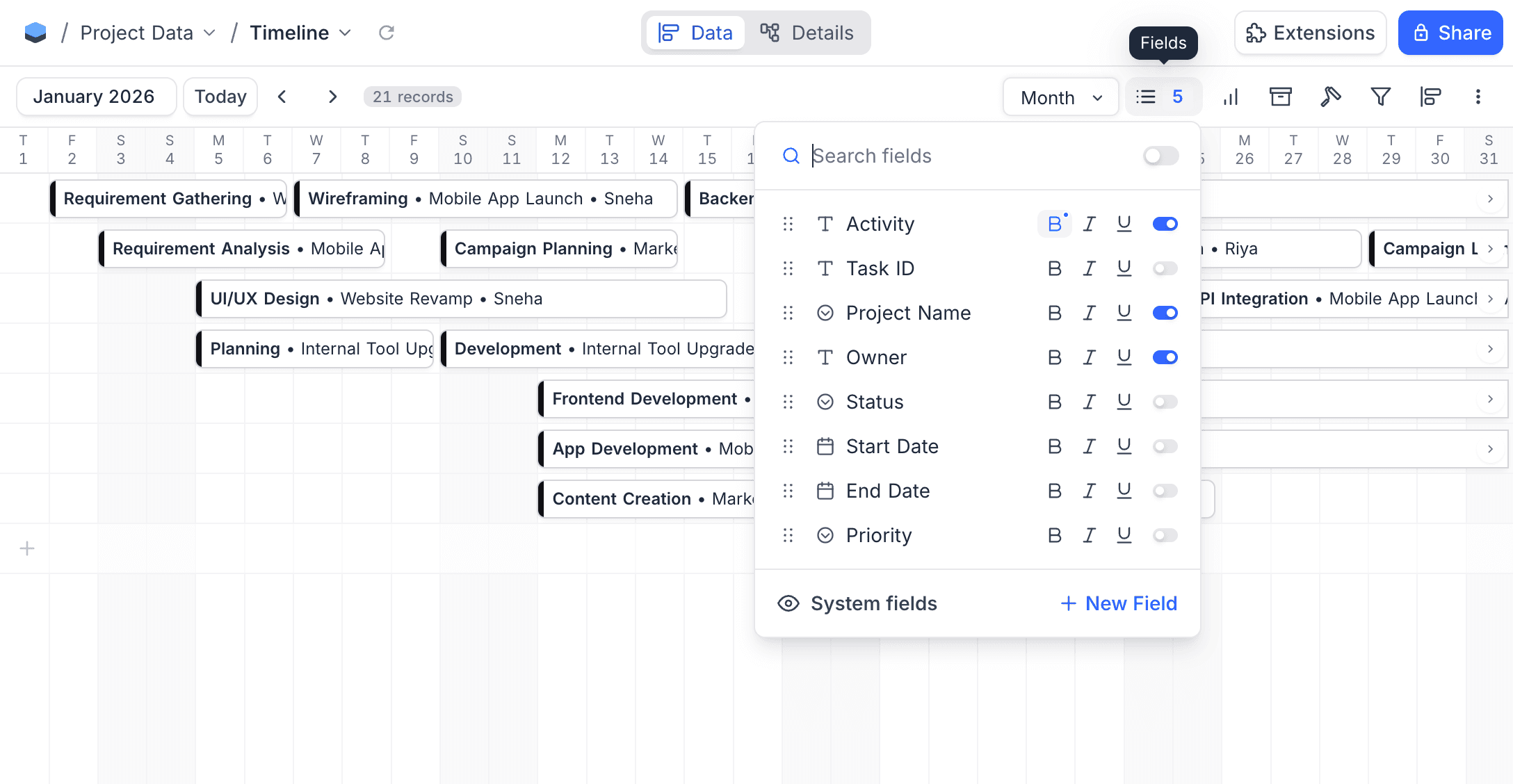
You can change the fields on the record bars. In the toolbar, click the Fields menu. Then:
- Turn fields on or off to set the fields on the bars.
- Drag fields to change their order.
- Apply text formatting (Bold, Italic, Underline) to individual fields.
Add New Records
There are two ways to add records in the Timeline view:
Using the Add Button
Click the + button at the bottom left of the timeline. NocoDB creates a new record with the start date in the visible date range. The expanded record form opens. Fill in the details.
Drag to Create To create a new record, drag on an empty area of the timeline grid:
- Click the start date and drag to the end date. A dotted rectangle shows the date range that you select.
- Release the mouse button. NocoDB creates the record. The expanded form opens with the start and end dates filled in.
Expand Record Details
Click a record bar. The expanded record form opens. In this form, you can see and edit all field values.
Edit Record Dates
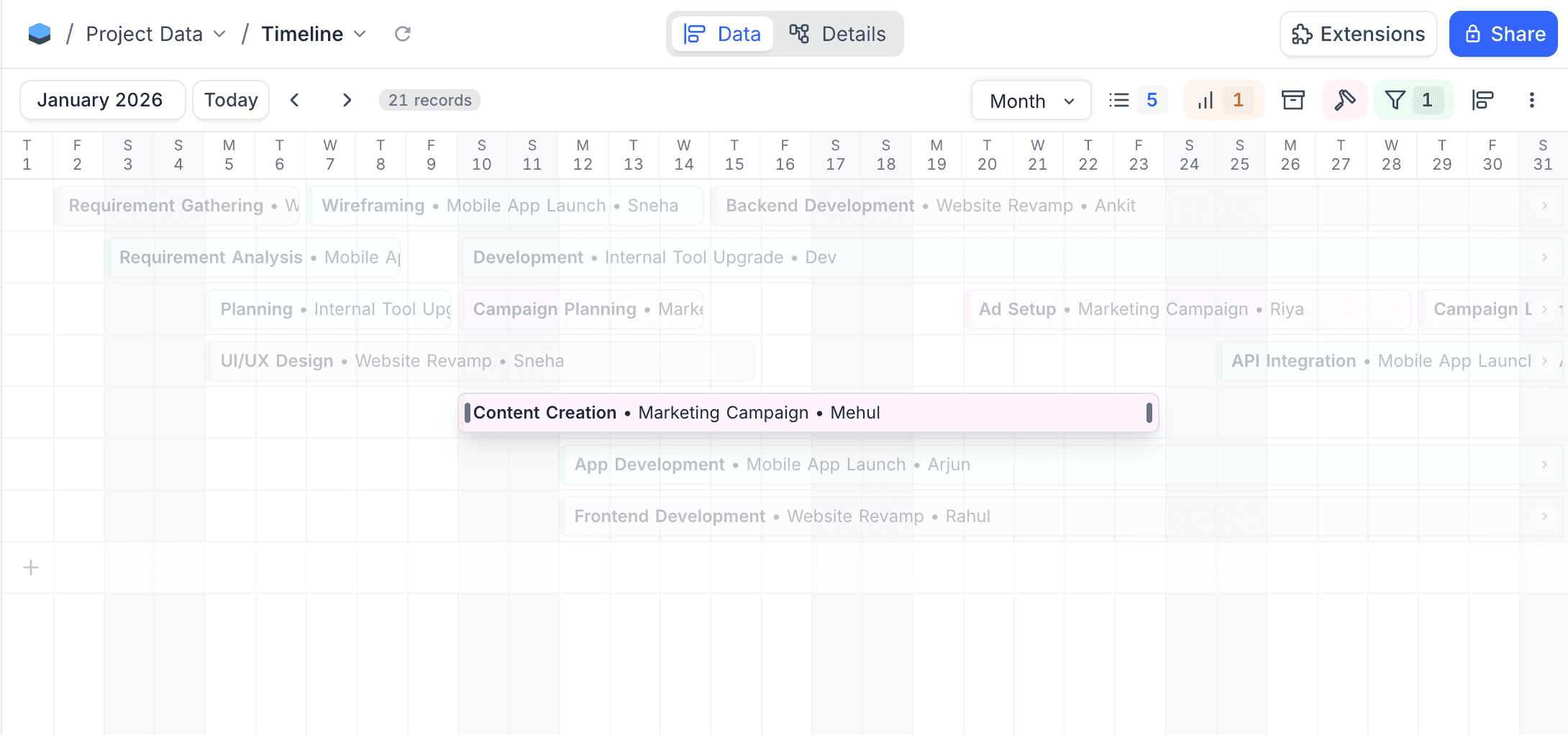
Drag to Move Click and hold a record bar for a moment. Then drag it to a new date. The start and end dates move by the same number of days, so the duration stays the same.
Drag to Resize Hover over the left or right edge of a record bar. A resize handle shows.
- To change the start date, drag the left edge.
- To change the end date, drag the right edge. This is available only when you set an end date field.
Delete Record
- Click a record bar. The expanded record form opens.
- In the record context menu, click
Delete.
Grouping Records
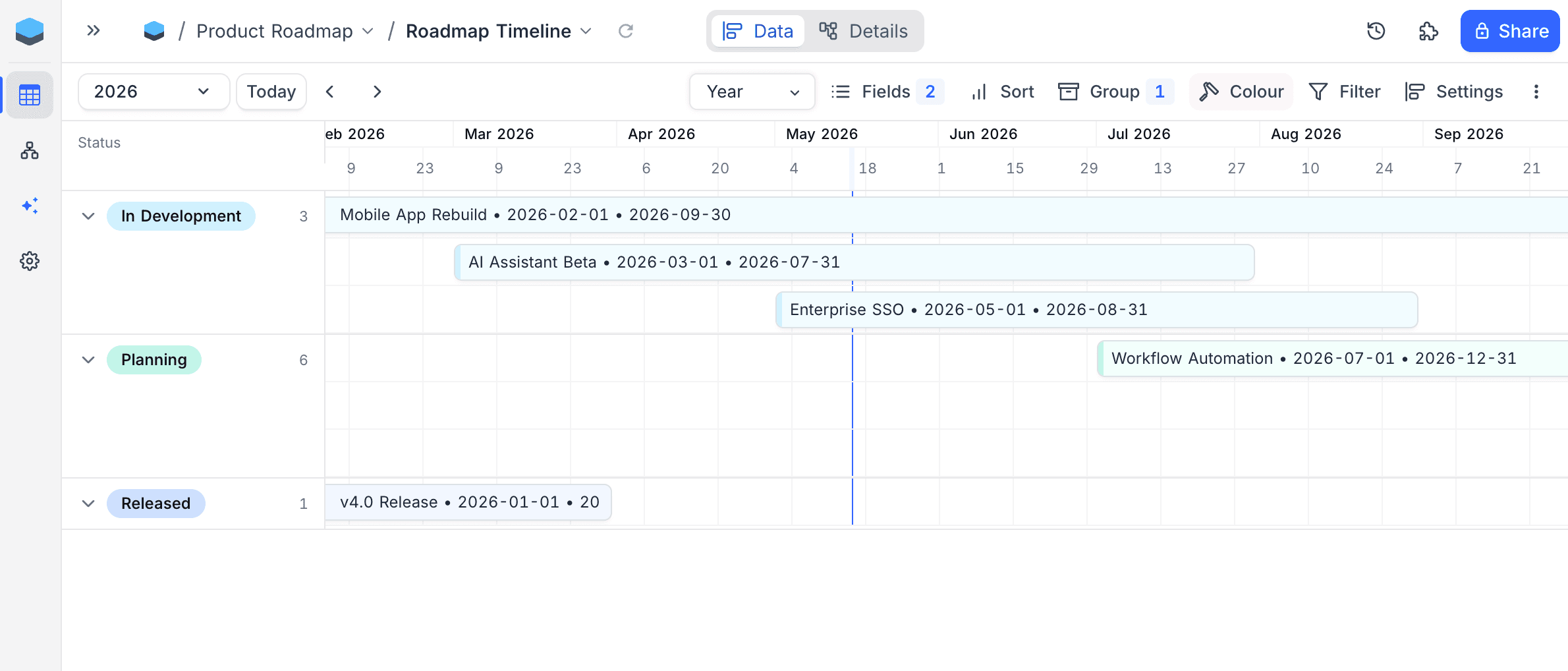
To group records by one or more fields, use the Group By option in the toolbar. When grouping is on:
- The records are in collapsible groups in the left sidebar.
- Each group shows its own timeline grid and its number of records.
- You can expand or collapse each group separately.
- You can use nested grouping (multiple levels).
- The date header stays fixed at the top while the groups list scrolls vertically.
Summarize
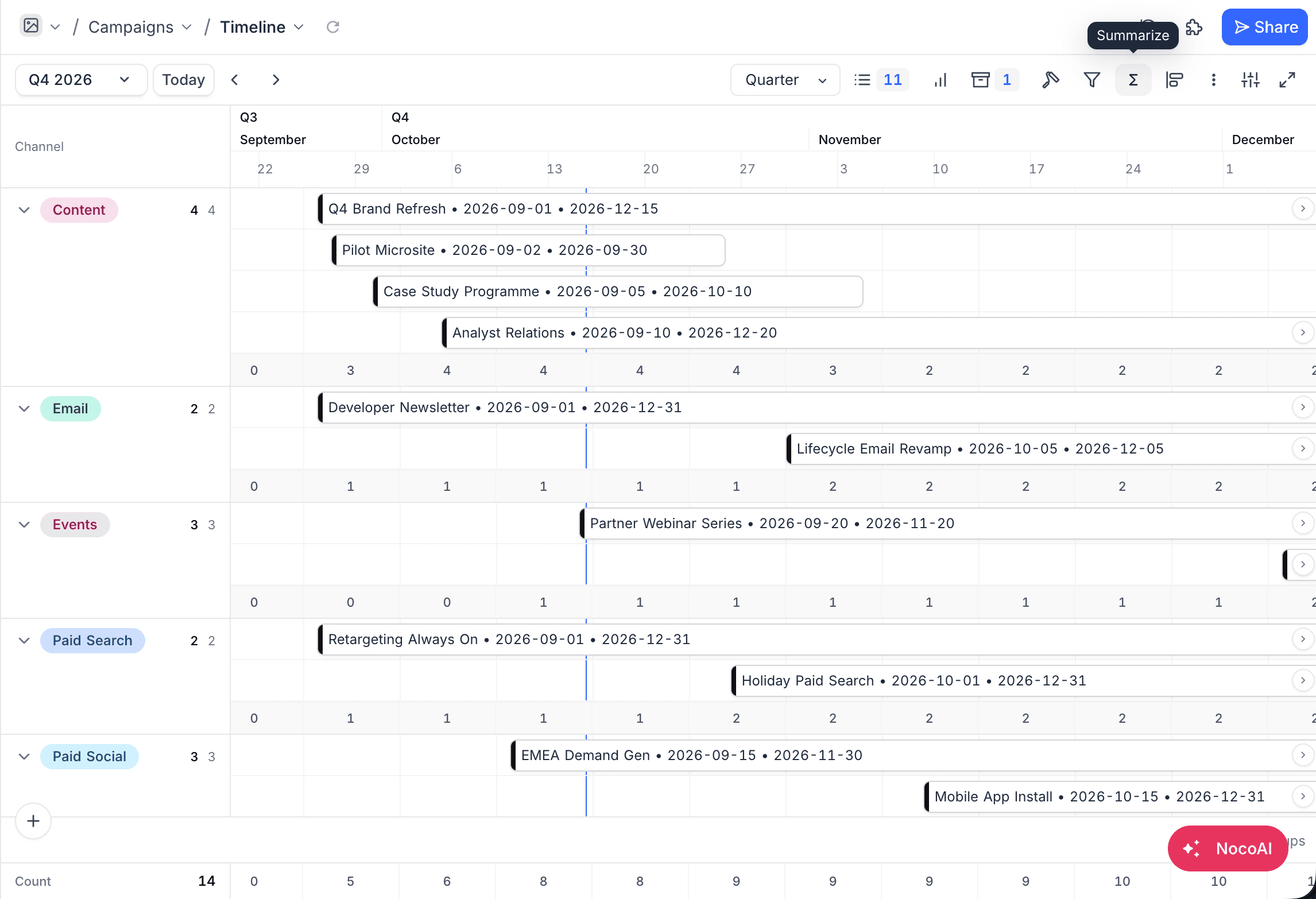
Summarize calculates a value along the time axis. It shows one value below each visible time column. You can then read totals across time, not record by record.
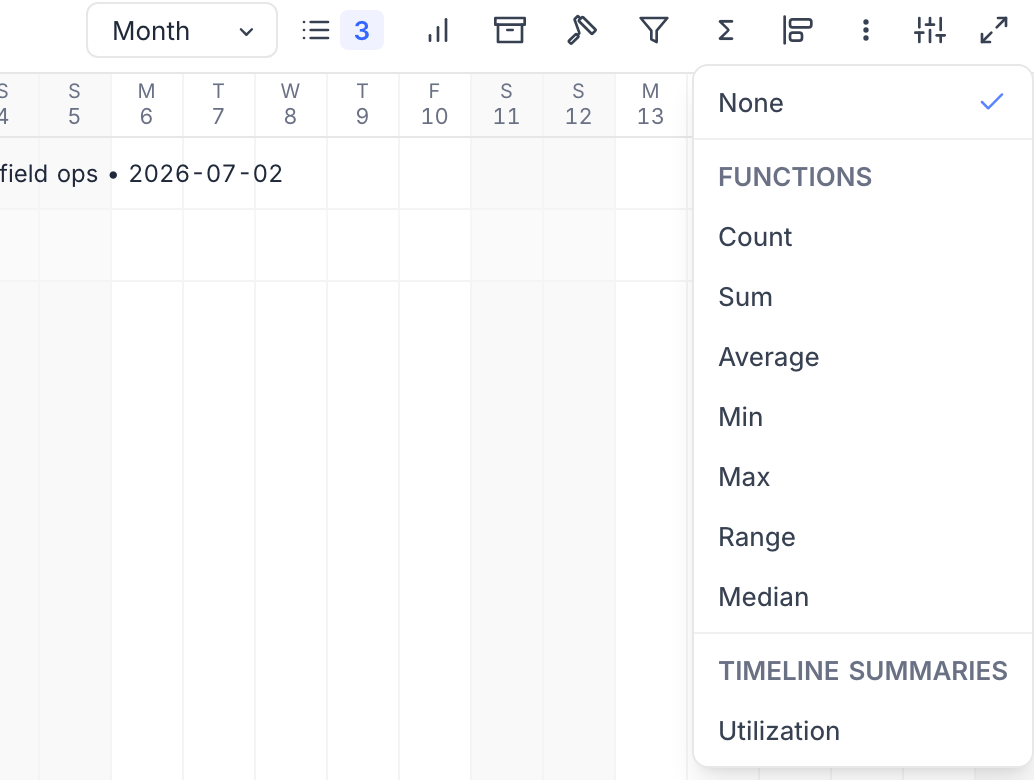
In the toolbar, click Summarize. Then select a function:
| Function | Calculates |
|---|---|
| Count | Number of records active in the column |
| Sum | Total of the calculation field |
| Average | Average of the calculation field |
| Min | Lowest value |
| Max | Highest value |
| Range | Difference between the highest and lowest values |
| Median | Middle value |
All functions other than Count also need a Calculation field. The list shows only fields with a type that supports the selected function.
Where the Summary Appears
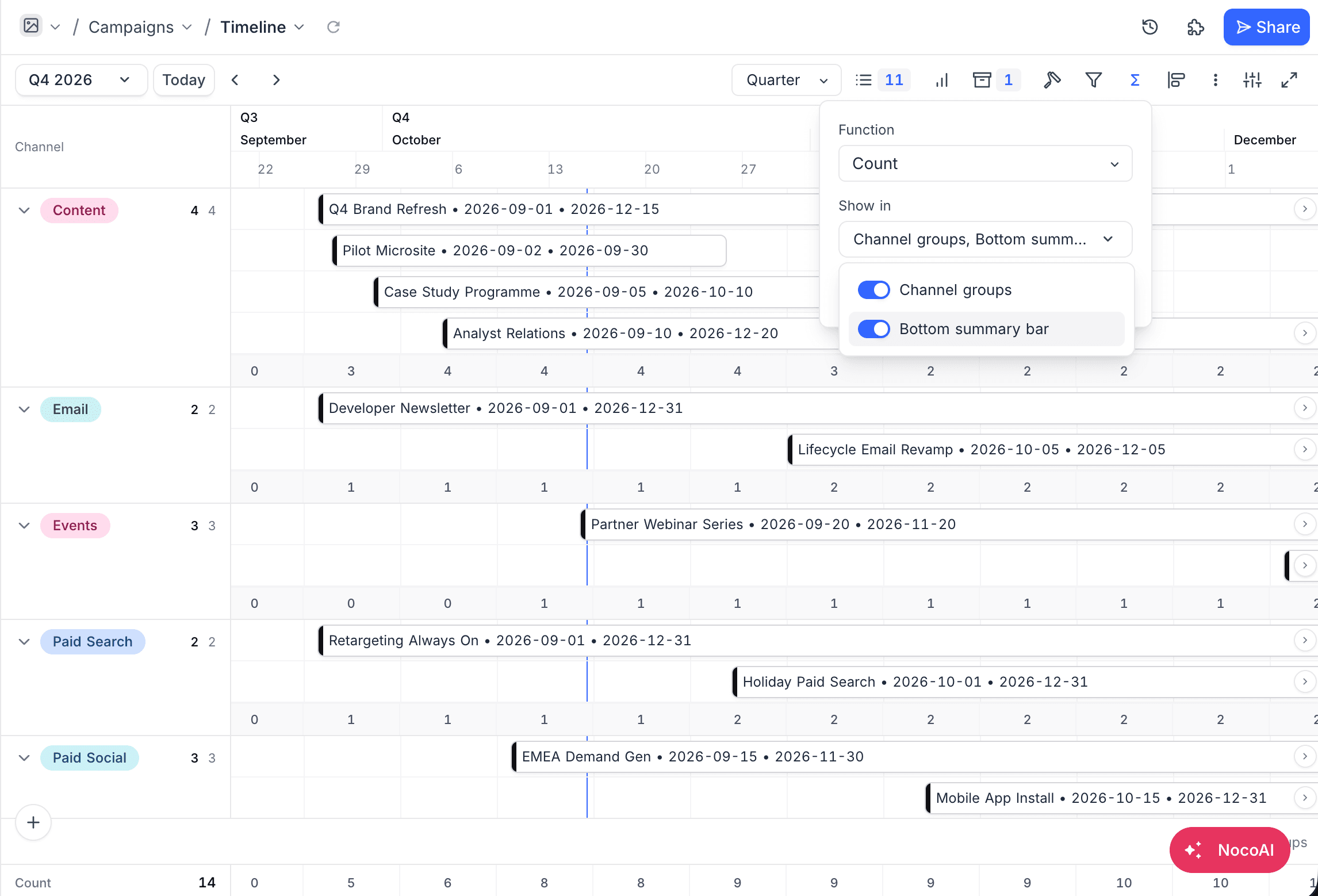
The Show in dropdown sets where the values show:
<Field>groups: a summary row at the bottom of each group, with a total for each group. The option has the name of the field that groups the view. It is available only when grouping is on. With nested grouping, the summary follows the top level.- Bottom summary bar: one value below each time column. The overall total is at the left of the bar.
At least one of the two must stay on. To remove the summary fully, select None at the top of the function list, or use Remove summary.
How Values Are Counted
A record counts in each time column that its span overlaps, at its full value in each column. For example, a task has a budget of 90 and runs across three days. It adds 90 to each of those three days.
Thus, the column values do not add up to the overall total. The overall total and the group totals count each record once, so they are exact. Summarize does not count records without a start date, the same as the timeline.
Utilization
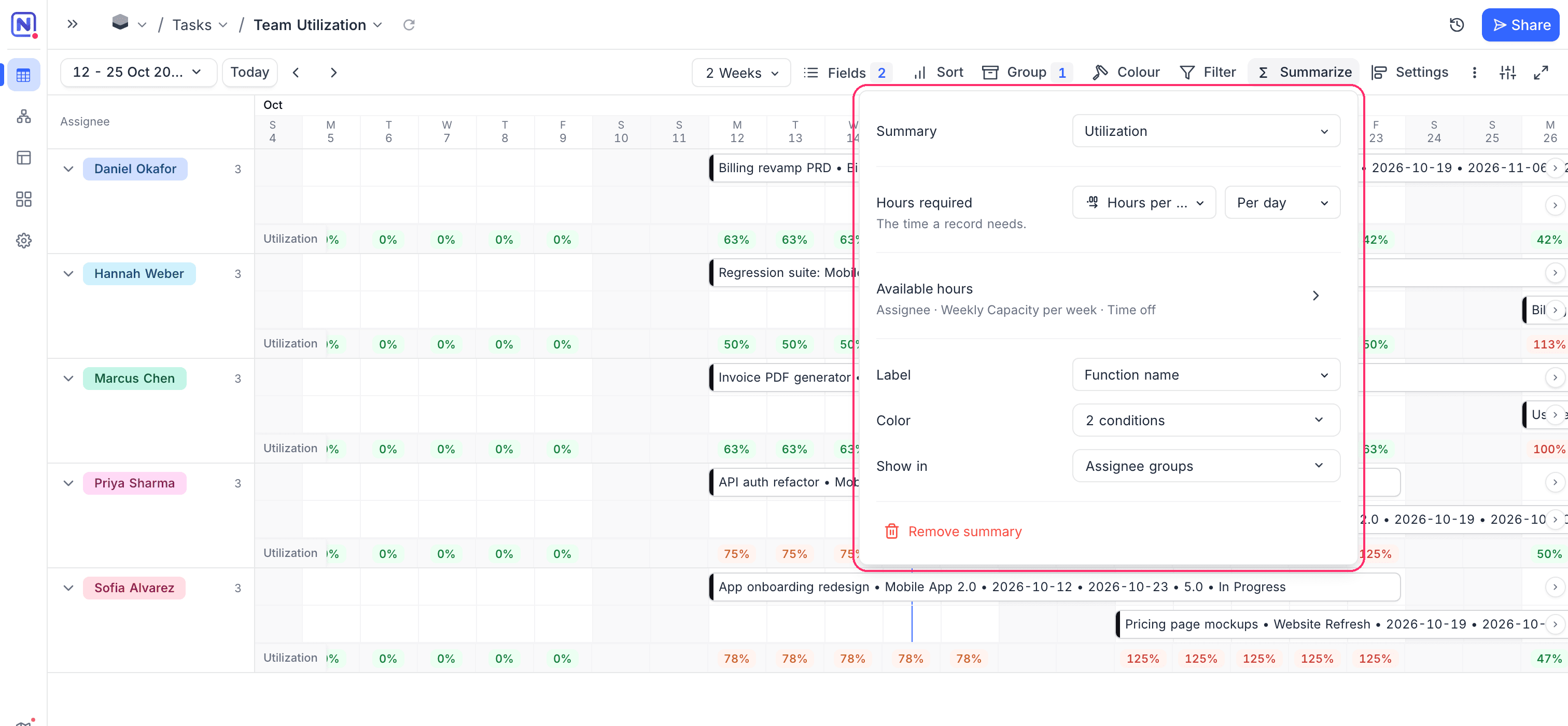
Utilization shows how busy each person or team is. For each time column, it compares the hours of work assigned to a resource with the hours that resource has available, and shows the result as a colored percentage. Use it to find who has too much work and who has free time, before you move tasks around.
Before You Start
Your data needs:
- A resource field on the timeline table: a User field, or a Link field that points to one record (for example, an
Assigneelink to aTeamtable). - A number field for the hours each record needs. Number, Decimal, Currency, Percent, Rating, Rollup, Lookup and numeric Formula fields are supported.
- Working hours for each resource. With a Link resource, put the hours in the linked table (for example,
Weekly CapacityinTeam), then add a Lookup of that field to the timeline table. With a User resource, you type one number that applies to all users. - Optional: a time off table that links to the resource table, with a start date and an end date. NocoDB can create this table for you.
Set Up Utilization
-
In the toolbar, click
Summarize. -
In the function list, under Timeline summaries, select
Utilization.
-
In Hours required, select the hours field. Then select what the number means:
- Total: the hours for the full record. NocoDB divides them equally across the working days of the record.
- Per day, Per week or Per month: a rate that applies on each day, week or month that the record covers.
-
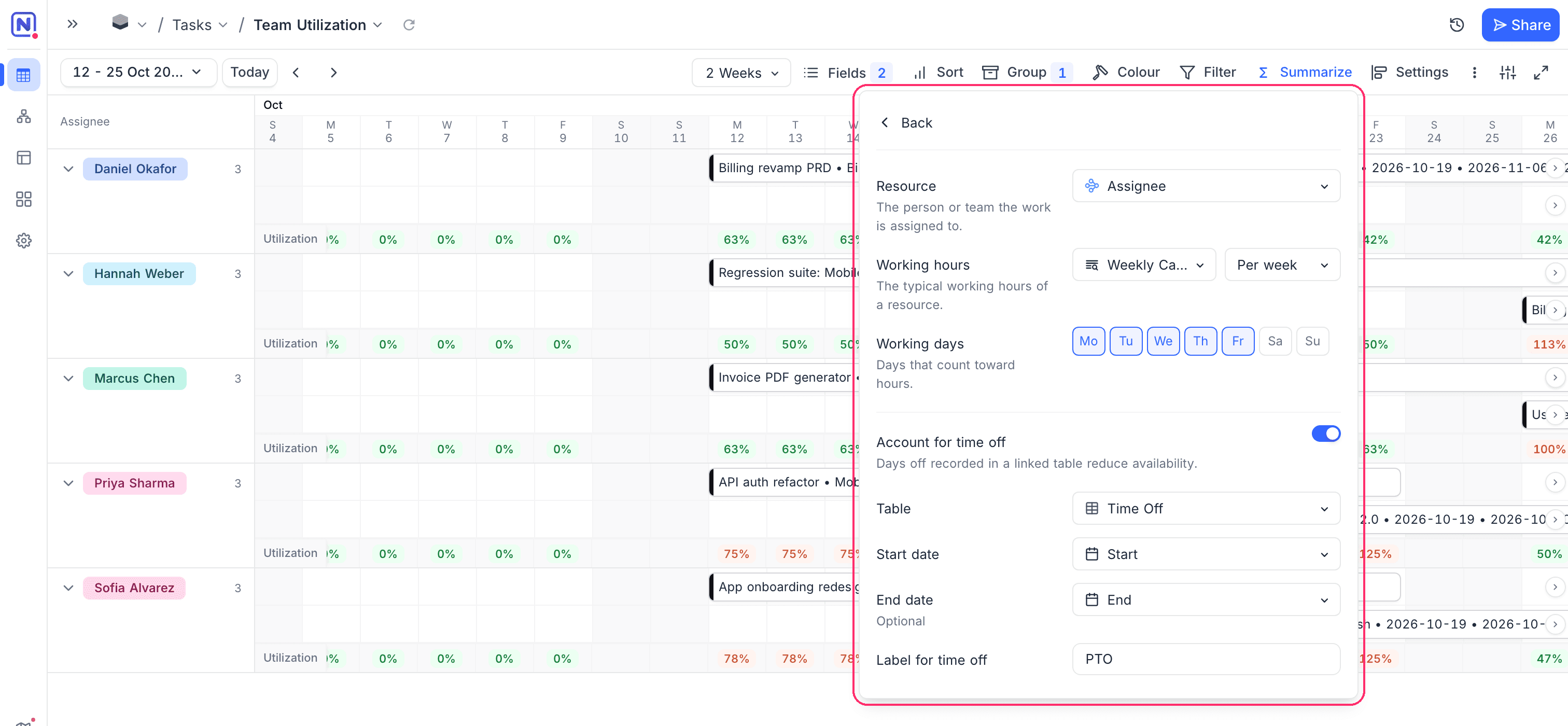
Click Available hours. A second page opens. Set the fields in the next section, then click
Back. -
If the view is not grouped by the resource field, click Group by
<Field>. Utilization shows only in the resource groups.
Available Hours
| Setting | What it does |
|---|---|
| Resource | The field that names who does the work. |
| Working hours | The hours each resource can work, with a Per day, Per week or Per month rate. For a Link resource, select the Lookup field. For a User resource, type a number. If a Lookup returns more than one value, NocoDB uses the largest value. |
| Working days | The weekdays that count toward hours. Monday to Friday is a typical setting. Other days have no available hours and no assigned hours, so their columns stay empty. |
| Records with several people | Shows only for a User field that allows more than one user. Full amount to each gives all the hours to each user. Split evenly divides the hours between the users. |
| Account for time off | Shows only for a Link resource. Turn it on to remove days off from the available hours. |
| Table | The table that records time off. It must link to the resource table. If no table links to it and you can create tables, click Create table. NocoDB creates a Time Off table with Title, Start Date, End Date and a link to the resource table. |
| Start date / End date | The date fields of the time off table. The end date is optional. Without it, each time off record is one day. |
| Label for time off | The text of the badge that marks time off. The default is PTO. |
Rates are changed to hours per working day before NocoDB adds them up. For example, 40 hours Per week with five working days gives 8 hours on each working day. A Per month rate is spread over the working days of an average month.
Read the Results
Each group gets a Utilization row below its records, with one value for each time column. When you zoom out, a column covers a week or a month, and the value covers all the working days in it.
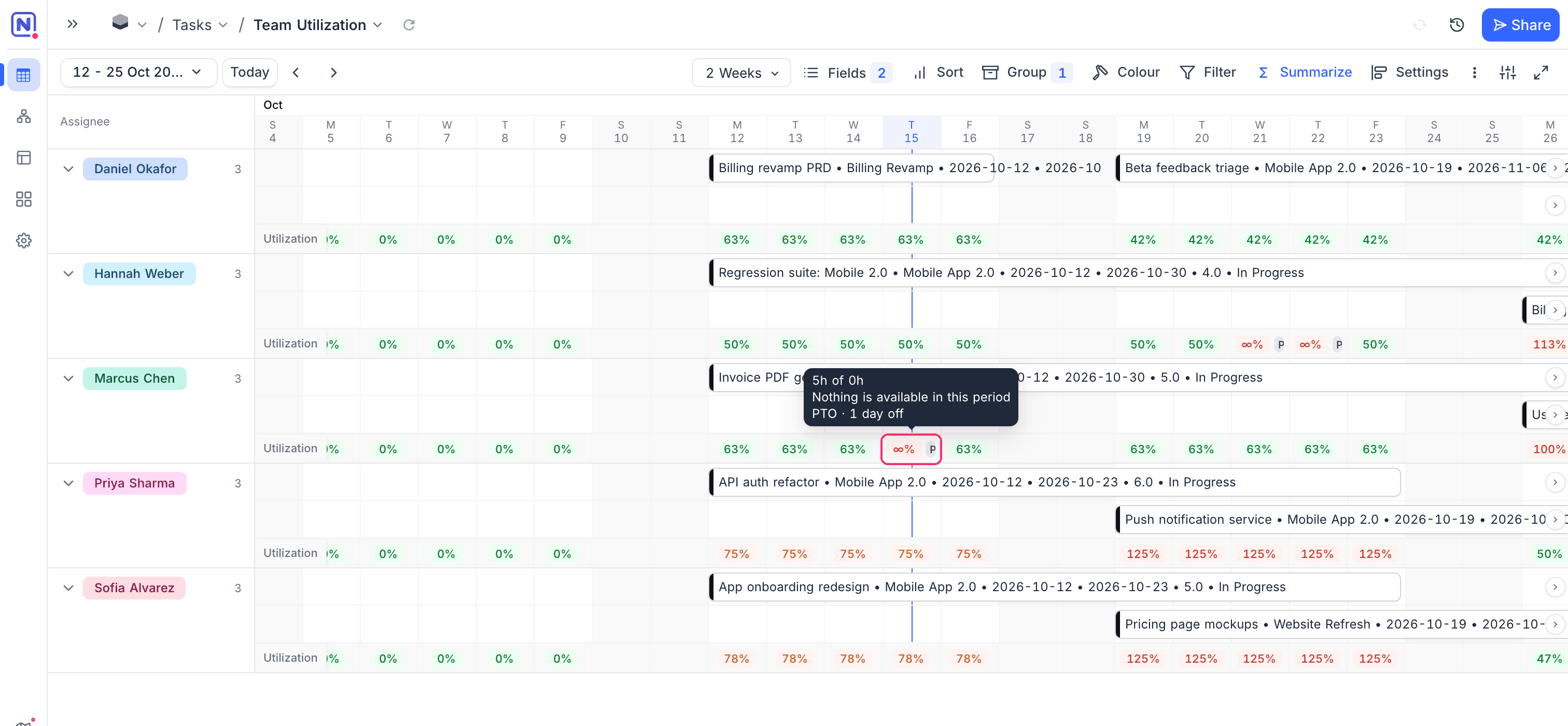
For example, Marcus has a task that needs 5 hours Per day. His working hours are 40 Per week, Monday to Friday, which is 8 hours a day. On a normal working day his utilization is 5 ÷ 8 = 63%. On Thursday he has one day off, so he has 0 hours available but still has 5 hours of work.
| You see | It means |
|---|---|
| A percentage | Assigned hours divided by available hours. More than 100% means more work than time. |
0% | The resource has available hours but no work in the column. |
∞% | Work is assigned, but the resource has no available hours in the column. This occurs on a day off, or when the resource has no working hours. |
A badge, such as PTO | The resource has time off in the column while work is assigned. Time off with no work in that period shows no badge. |
| An empty cell | The column has no assigned hours and no available hours, for example a weekend. |
Hover over a value to see the hours behind it: 5h of 0h, the message Nothing is available in this period when nothing is available, and the number of days off.
Colors and Label
Color sets the colors of the percentages. Each condition has an At or above percentage and a color. Otherwise sets the color when no condition applies. A value gets the color of the highest threshold that it reaches. By default:
| Utilization | Color |
|---|---|
| 100% or more | Red |
| 75% to 99% | Orange |
| Less than 75% | Green |
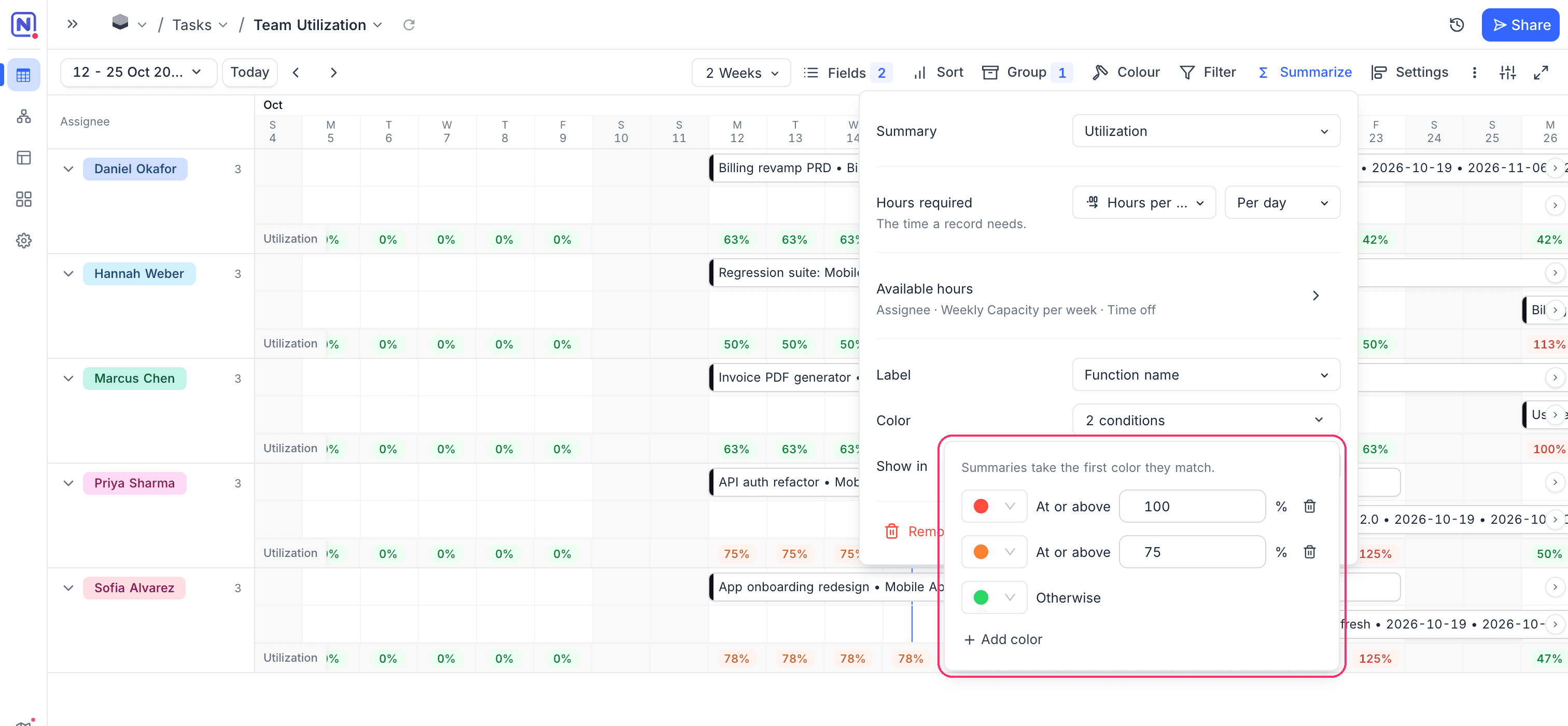
Label sets the text before the percentage: none, the function name (Utilization), or your own text.
Limits
- Utilization shows only in the resource groups. The bottom summary bar is not available for it.
- A resource with no value in the working hours field has no available hours, so its work shows as
∞%. - On a shared view, time off is not counted. Utilization shows only when the hours, resource and working hours fields are visible in the view.
- Utilization counts the first 50,000 records in the visible date range. With more records, NocoDB shows a warning and some values are too low. Select a shorter date range.
Visual Indicators
| Indicator | What it shows |
|---|---|
| Today's date | A different background color and blue text. |
| Weekends | A light gray background. |
| Record colors | When you set Row Coloring, the record bars show the assigned color. |
| Hover | When you hover over a record bar, a tooltip shows the date range and duration. |
Other Toolbar Operations
- Apply Filters to Display Specific Records on the Timeline
- Sort Records on the Timeline by One or More Criteria
- Perform Quick Searches for Specific Data Within Fields
- Export Data to CSV or Excel Format
- Apply Row Coloring Based on Field Values
Availability
- The Timeline view is available on NocoDB Cloud (Business plan and above) and licensed self-hosted deployments (Business plan and above).
Related
Last updated on