List
Learn how to work with List view in NocoDB.
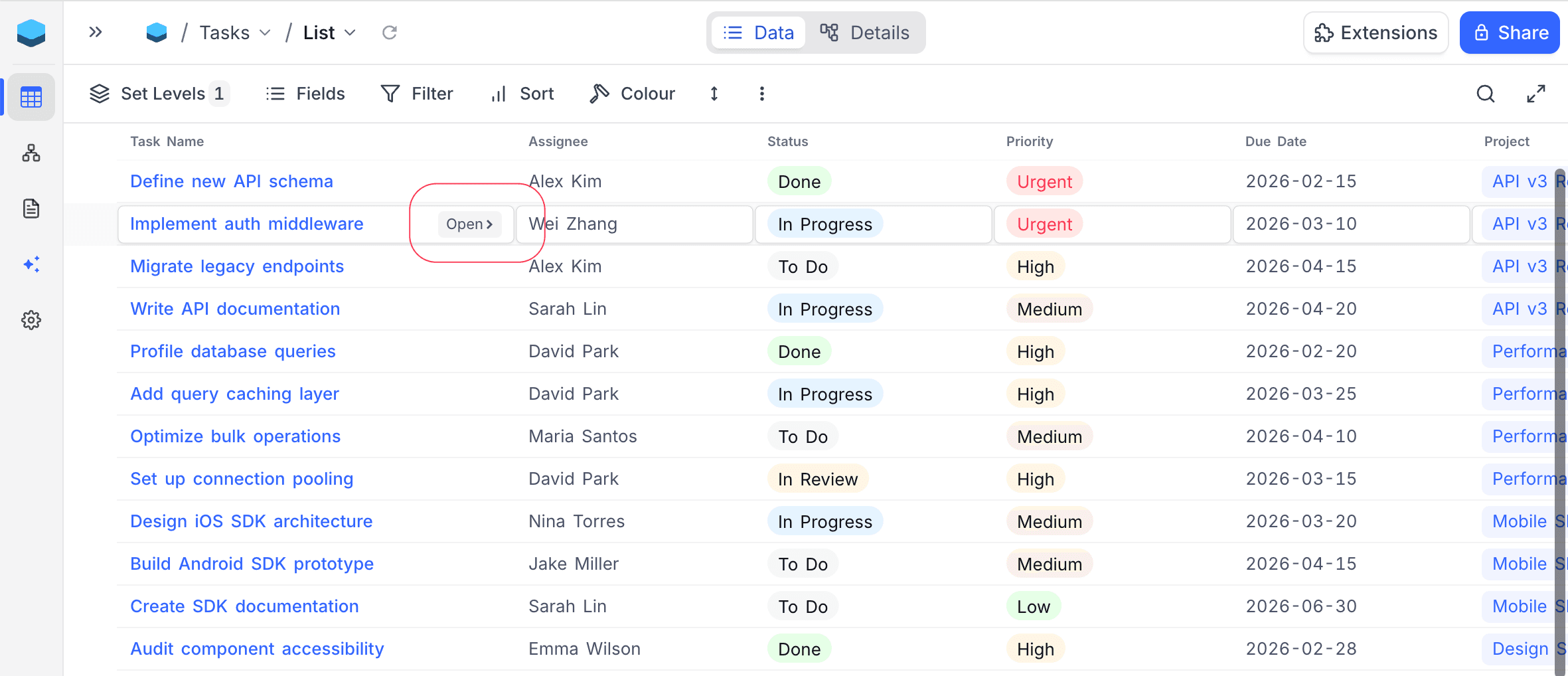
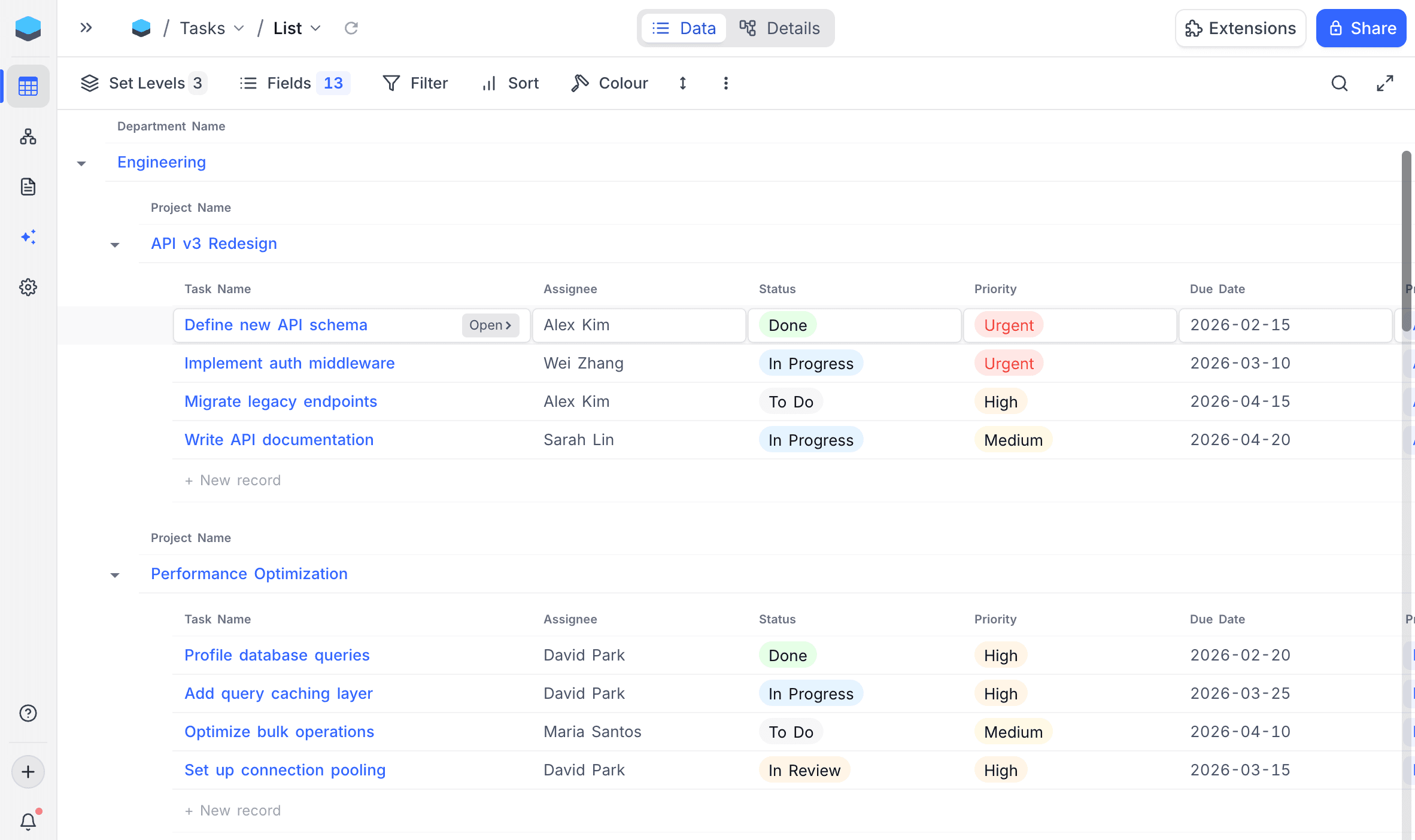
List View allows you to visualise your data as a hierarchical, multi-level list grouped by linked records. You can define up to three levels of grouping using Has-Many link fields, with each level showing records from a different linked table. Parent records appear as collapsible headers, and child records are displayed underneath them. This section will cover all the operations that can be performed on the List view.
List View Actions
- Create a New List View
- Rename an Existing List View
- Duplicate a List View
- Remove a List View
- Share a List View
- Lock List View for Edits
Understanding Levels
List View introduces the concept of levels — a hierarchy of linked tables that determines how records are grouped and displayed.
- Level 1 (Root): The base table of the view. Its records are the leaf-level items displayed at the bottom of the hierarchy.
- Level 2 and above: Parent tables linked to the level below via a Has-Many (HM) relationship. These appear as collapsible group headers above their child records.
For example, if you have three tables — Organizations, Teams, and Members — linked as:
- Organizations → Has Many → Teams
- Teams → Has Many → Members
You can create a List View on the Members table with three levels:
- Organizations (top-level group headers)
- Teams (sub-group headers)
- Members (leaf records)
When only one level is configured, the List View displays records as a flat list without any grouping — similar to a Grid View but with the List View's layout and styling.
Configuring Levels
To set up or modify the hierarchy levels for a List View:
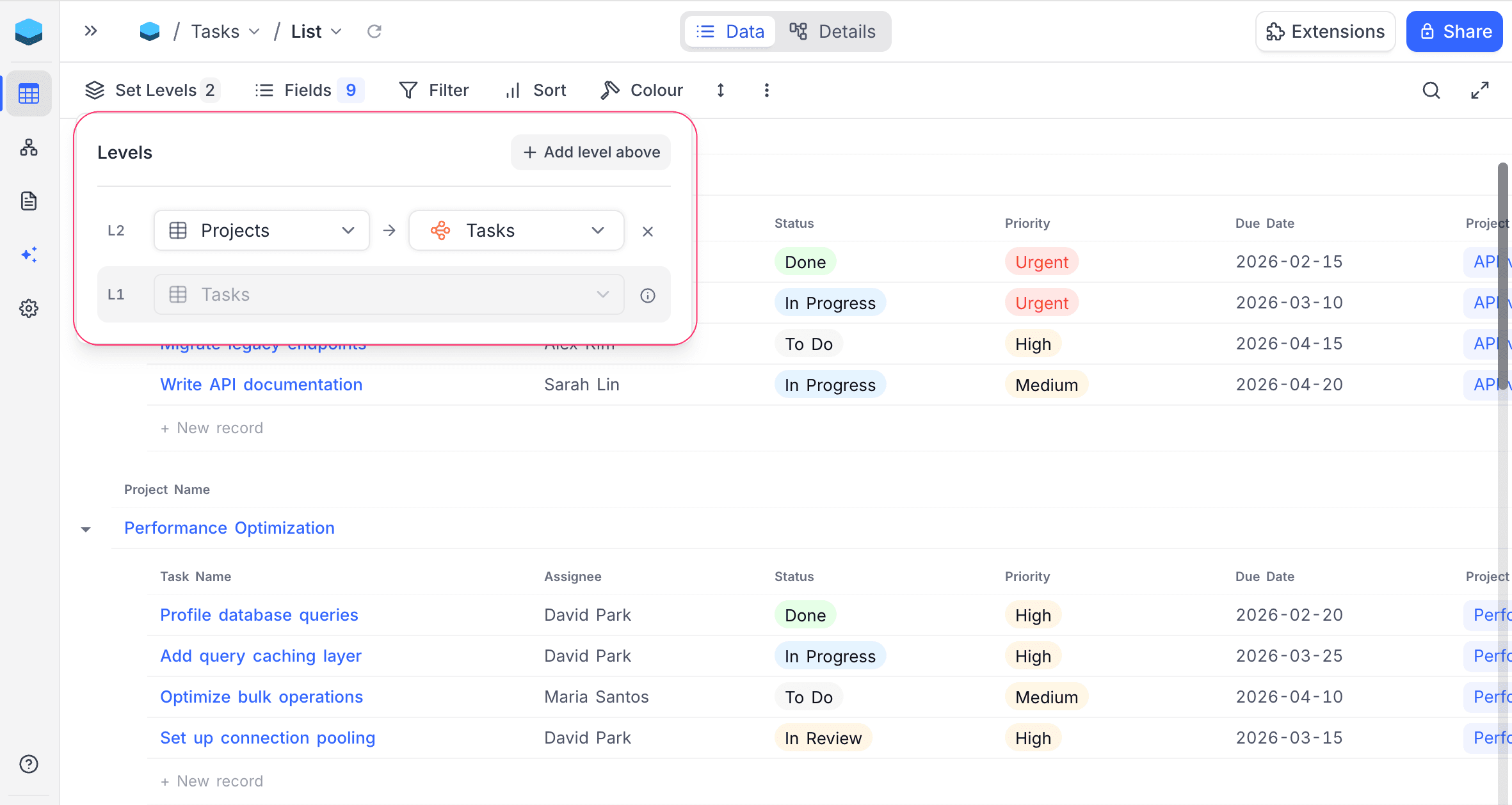
- Click on the Levels button in the toolbar.
- The configuration panel shows all current levels, with the root table at the bottom and parent levels above.
- To add a new level:
- Click + Add Level at the top.
- Select the link field that connects the new parent table to the level below.
- To remove a level, click the delete icon next to it.
Changes are saved automatically.
List View Operations
Fields per Level
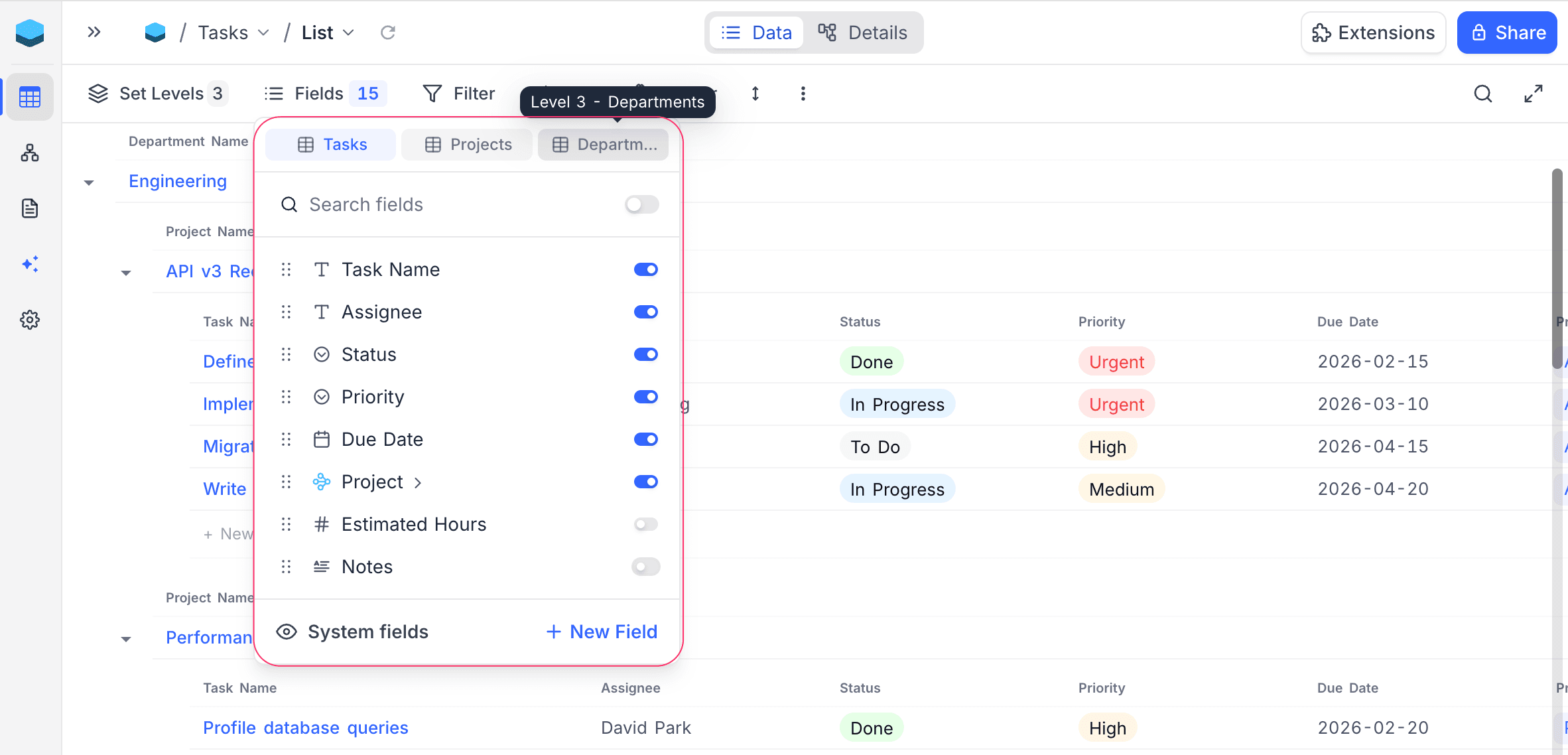
Each level has its own set of visible fields. You can independently control which fields are shown for each level:
- Click on the Fields menu in the toolbar.
- Use the Level Selector tabs to switch between levels.
- Toggle field visibility and reorder fields for the selected level.
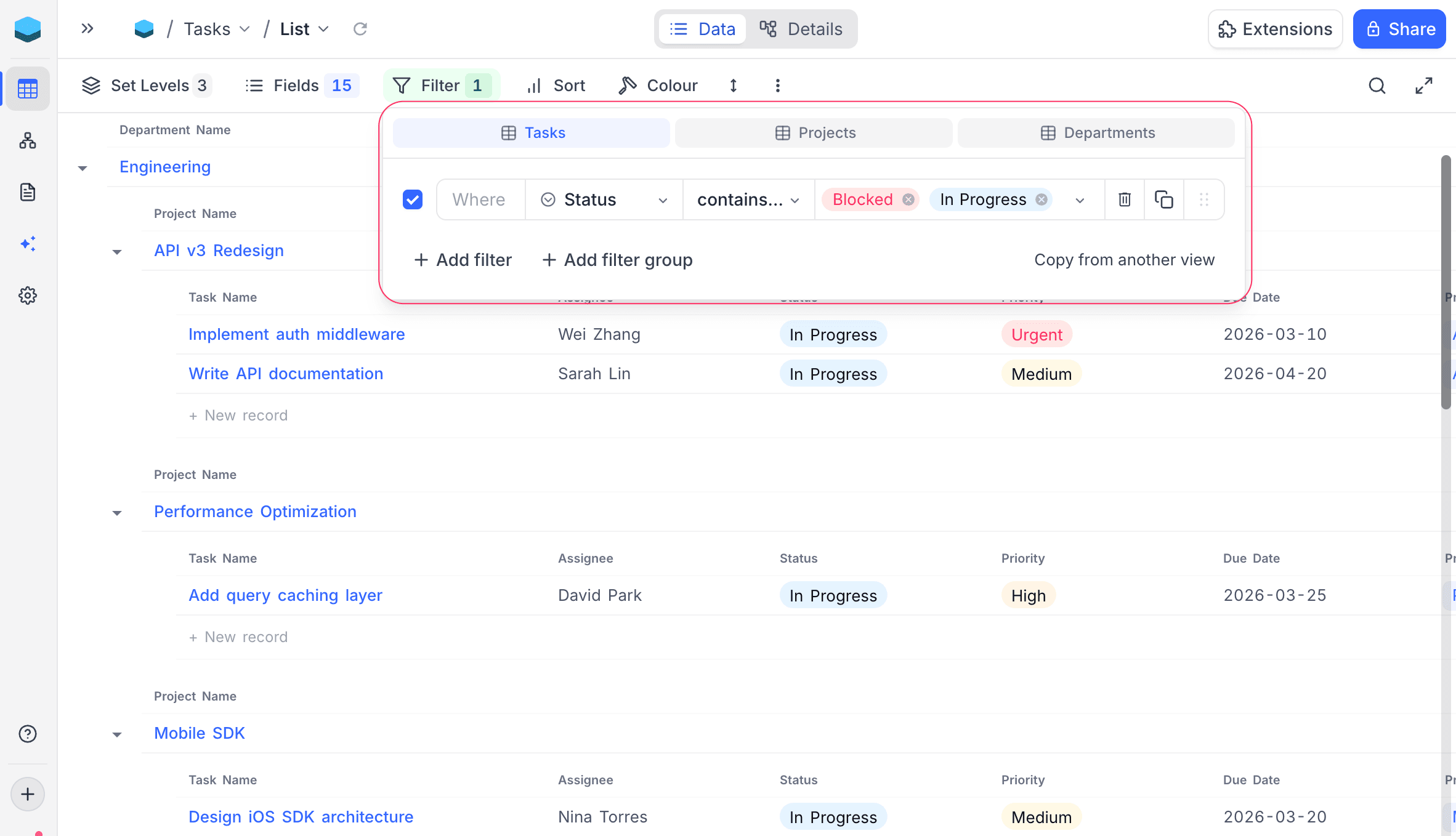
Filters per Level
Filters can be applied independently to each level, allowing you to filter records at any depth of the hierarchy:
- Click on the Filter menu in the toolbar.
- Use the Level Selector tabs to choose which level to filter.
- Add filter conditions — these apply only to records at the selected level.
Sorts per Level
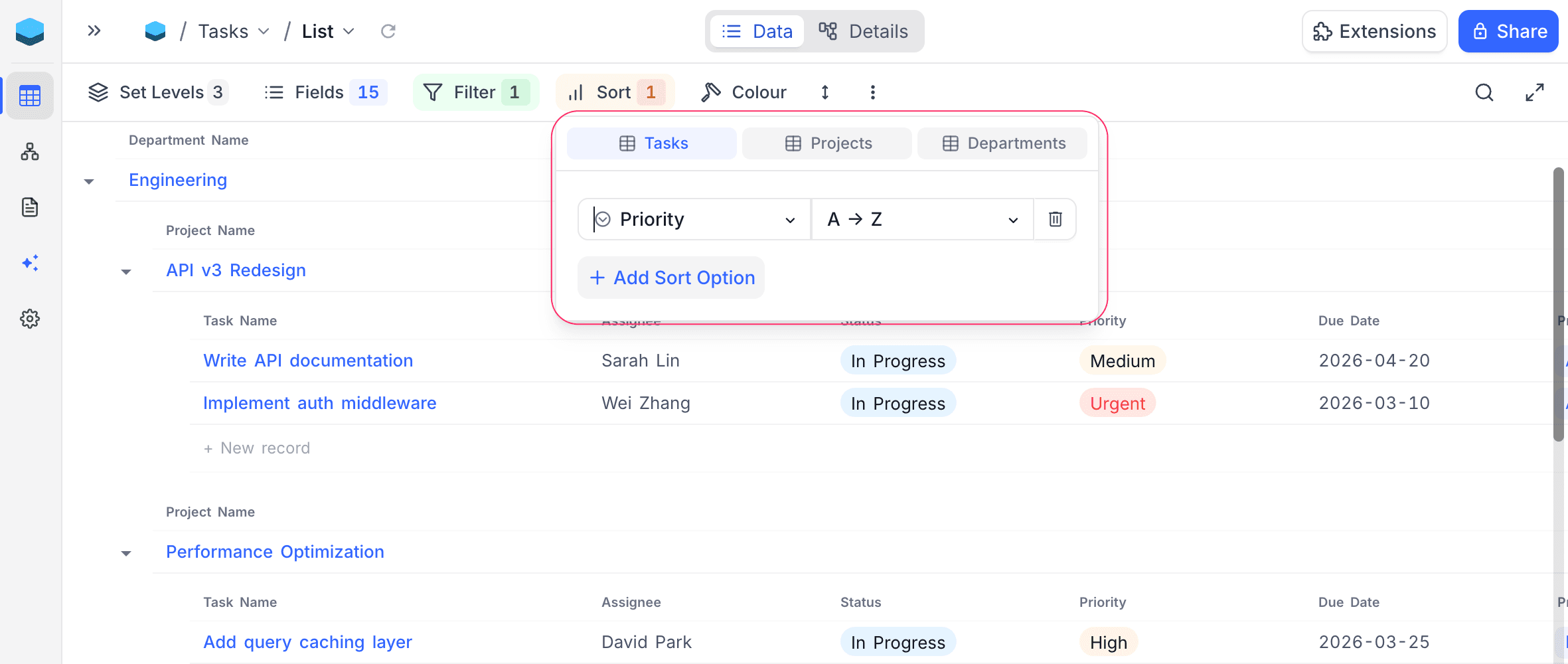
Sorts can be applied independently to each level:
- Click on the Sort menu in the toolbar.
- Use the Level Selector tabs to choose which level to sort.
- Add sort criteria — these apply only to records at the selected level.
Colour
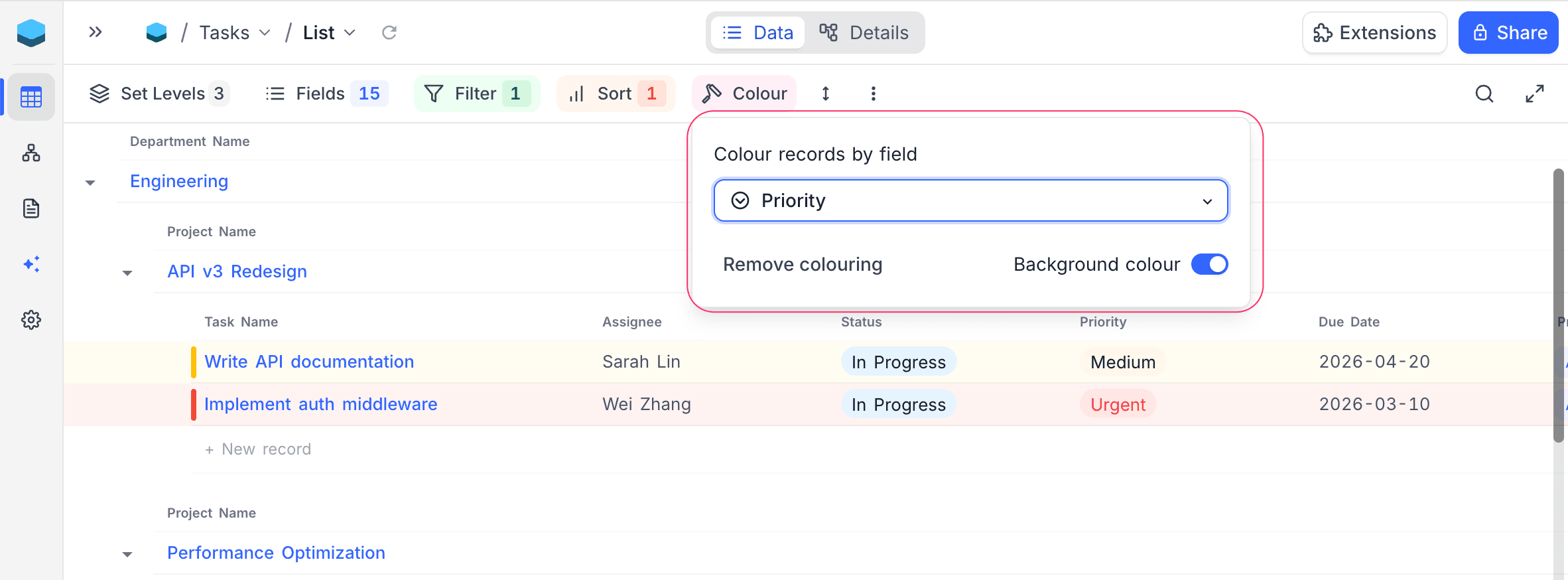
You can colour Level 1 (root) records based on a field value to visually distinguish them in the list:
- Click on the Colour button in the toolbar.
- Select the field to colour records by.
- Toggle Background colour on or off to control whether the full row background is coloured.
- To remove colouring, click Remove colouring.
Collapse and Expand Groups
Parent records are displayed as collapsible headers. Click the chevron icon on a parent record to collapse or expand its children.
- Collapsed parents hide all nested child records beneath them.
- Expanded parents show their child records indented below.
- Collapse state is preserved in the current session and passed to the server for efficient data loading.
Search
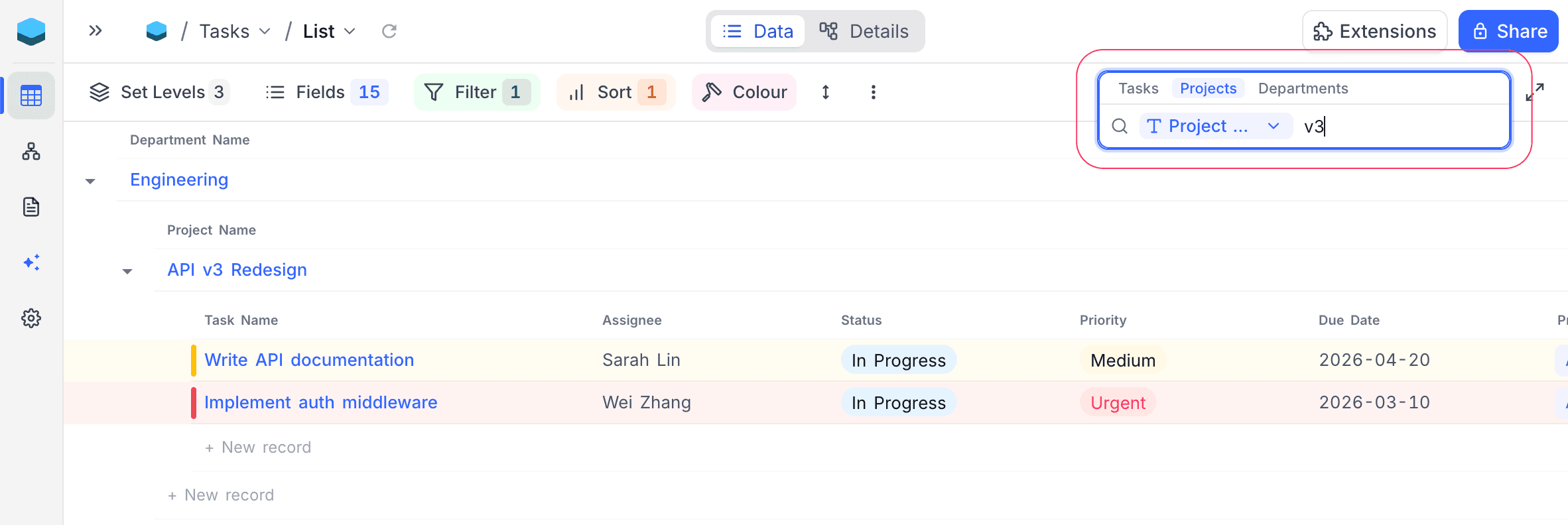
Use the search bar in the toolbar to quickly find specific data within the List View:
- Click the Search icon in the toolbar.
- Use the Level Selector tabs to choose which level to search.
- Select the field to search by from the dropdown.
- Enter your search term — results are filtered in real time to show only matching records.
List View Record Operations
Add a New Record
Click the + Add Record button that appears below a parent group to add a new record at that level. The record will be pre-linked to the parent record. This opens the expanded record form where you can fill in the details.
Edit an Existing Record
Click on any cell in a record row to edit it inline. You can modify cell values directly within the list without opening the full record form.
Expand Record Details
Hover over a record and click the Open > button that appears, or click the expand icon, to open the full expanded record view showing all fields and linked records.